XCIPTV Player Setup Guide: Enhance Your IPTV Streaming Experience
Unlock the full potential of XCIPTV Player with our detailed 2026 setup guide and review. Learn to install, configure, and optimize your streaming!
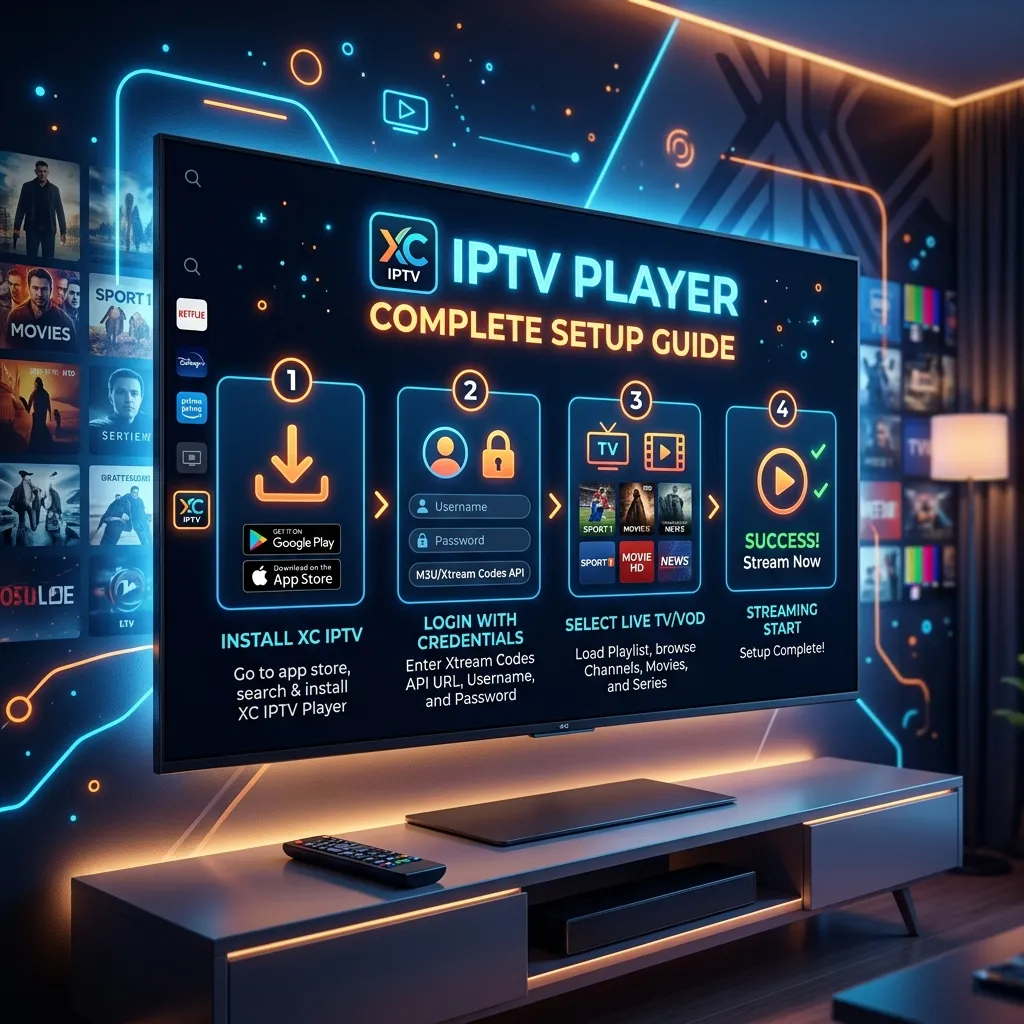
Welcome to the definitive, most comprehensive guide on the XCIPTV Player available on the internet. Whether you are a newcomer to the world of Internet Protocol Television or a seasoned cord-cutter looking for the perfect app to manage your premium streams, you have arrived at the right place. In this massive, 3000+ word resource, we will break down absolutely everything you need to know about XCIPTV. From intricate installation processes across various platforms to advanced configuration settings, troubleshooting steps, and head-to-head comparisons with other market leaders, we leave no stone unturned.
As the streaming landscape continues to evolve in 2026, the software you use to consume content is just as important as the content itself. A robust, fast, and feature-rich media player is the bridge between you and seamless entertainment. XCIPTV has emerged as one of the most reliable and aesthetically pleasing platforms for IPTV users globally. By pairing XCIPTV with a top-tier service like our IPTV Subscription, you can unlock a universe of 4K live TV, blockbuster movies, and binge-worthy series—all accessible through an incredibly intuitive interface.
Let us dive deep into the world of XCIPTV Player.
1. Introduction to XCIPTV Player
What Exactly is XCIPTV?
XCIPTV Player is a highly customizable, fully customizable media player application designed specifically for playing IPTV streams. It acts as an aggregator and player for live television broadcasts, Video on Demand (VOD) libraries, and episodic series provided by third-party IPTV services. Developed by OTTRUN, the app is built to handle multiple playlist formats, most notably the widely utilized Xtream Codes API and traditional M3U URLs.
It is crucial to understand that XCIPTV Player does not host, provide, or sell any media content itself. It is a blank canvas. Think of it like a high-end DVD player; it requires you to supply the DVD (your IPTV subscription) to function. Once properly configured with a provider, XCIPTV transforms into a Netflix-style streaming hub, categorizing massive libraries of global channels and movies with beautiful posters, plot summaries, and dynamic backgrounds.
[!NOTE] Developer Insight: XCIPTV is built upon ExoPlayer and VLC Player frameworks natively within Android, ensuring it supports the vast majority of modern audio and video codecs, including H.264, HEVC/H.265, and various Dolby audio formats.
The Evolution of IPTV Media Players
In the early days of IPTV, users were forced to rely on clunky, text-based M3U players or repurposed software like VLC on computers. The experience was often frustrating: channel lists were disorganized, Electronic Program Guides (EPGs) rarely worked, and VOD content lacked metadata.
The introduction of apps like XCIPTV revolutionized the user experience. By leveraging APIs (Application Programming Interfaces), modern apps can communicate directly with IPTV servers to pull structured data. This means that instead of a raw list of 10,000 channels, XCIPTV receives categorized directories: Sports, News, Movies, International, etc. Furthermore, it automatically downloads movie posters from databases like TMDB (The Movie Database), pulls cast information, and synchronizes TV guide data in real-time.
2. Core Features That Make XCIPTV Stand Out
XCIPTV is not just a basic player; it is a powerhouse of features designed to elevate your viewing experience. Below is a detailed breakdown of the functionalities that make it a favorite among streaming enthusiasts.
Modern, Intuitive User Interface (UI)
The UI is where XCIPTV truly shines. It features a dark-themed, highly visual dashboard that is easy to navigate with a standard television remote. The home screen clearly separates content into three main pillars: Live TV, Movies (VOD), and Series. Additionally, it offers quick access to Catch-Up TV (if supported by your provider) and the EPG. The layout is designed to minimize clicks, getting you to your desired content faster.
Built-In EPG (Electronic Program Guide)
Navigating live television without a guide is like navigating a city without a map. XCIPTV features a robust EPG system that presents a traditional grid layout. You can scroll through current and upcoming programs, read episode descriptions, and set reminders. The app supports multiple XMLTV EPG sources and integrates them seamlessly with your live channel list.
Advanced Media Players: VLC and ExoPlayer
Behind the scenes, XCIPTV utilizes two of the most powerful media engines available: VLC and Google’s ExoPlayer. Users have the flexibility to switch between these engines in the settings.
- ExoPlayer: Ideal for high-quality adaptive streaming, particularly HLS (HTTP Live Streaming) and MPEG-DASH formats. It handles 4K content exceptionally well.
- VLC: Known for its "play anything" capability. If you encounter an obscure codec or an older stream format, switching to the VLC engine often resolves playback issues.
Multi-Provider Support
For users who subscribe to multiple IPTV services for redundancy or to access specific regional content, XCIPTV allows the addition of multiple portals. You can easily switch between different subscriptions within the app without needing to log out and log back in. If you are looking to secure a reliable primary provider, explore our diverse Pricing plans to find the perfect fit for your setup.
Picture-in-Picture (PiP) and Multiscreen
Sports fans, rejoice! XCIPTV supports Picture-in-Picture on compatible devices, allowing you to watch a live game in a small window while browsing VODs or other channels. The Multi-view feature goes a step further, permitting you to split your screen and watch up to four live channels simultaneously.
Extensive Feature Summary Table
| Feature | Description | Benefit |
|---|---|---|
| API Support | Xtream Codes API, EZHometech API | Rapid loading, automatic categorization. |
| M3U Support | URL and Local M3U File parsing | Universal compatibility with any provider. |
| Parental Controls | PIN-protected categories and channels | Keeps adult/inappropriate content safe from kids. |
| VPN Integration | Built-in OpenVPN support | Enhance privacy directly within the app. |
| Favorites Management | Easily tag channels/VODs as favorites | Quick access to your most-watched content. |
| Backup/Restore | Save settings to local storage or cloud | Quickly migrate setups between devices. |
| Subtitles & Audio | Multi-track audio and external subtitles | Perfect for international content and accessibility. |
3. XCIPTV Player Device Compatibility
One of the greatest strengths of XCIPTV is its versatility. It is natively an Android application, but through various methods, it can be utilized across a multitude of hardware ecosystems.
Android TV and Google TV OS
The app is natively optimized for the Leanback launcher used by Android TV and Google TV devices. This includes the Nvidia Shield TV (arguably the best device for XCIPTV), Chromecast with Google TV, Xiaomi Mi Box, and various smart TVs from Sony, TCL, and Hisense that use the Android TV OS. The remote-friendly interface works flawlessly here.
Amazon Fire TV Devices
Amazon’s Fire OS is a fork of Android, which means XCIPTV runs beautifully on Firesticks, Fire TV Cubes, and Fire TV Editions. Because it is an IPTV player, you won't always find the newest versions directly on the Amazon Appstore, necessitating the use of the "Downloader" app to sideload it. We have covered this extensively in our dedicated Firestick Setup guide.
Android Smartphones and Tablets
XCIPTV is fully touch-optimized for mobile Android devices. You can install it directly from the Google Play Store (when available) or via an APK. The mobile version retains all the features of the TV version but modifies the layout for vertical and horizontal touch navigation.
Smart TVs (LG WebOS and Samsung Tizen)
Historically, XCIPTV was strictly an Android app. However, the developers have expanded their horizons. Variations of the XCIPTV player (sometimes under slightly different branding or as web wrappers) are available on the LG Content Store and Samsung App Store. However, functionality on these proprietary operating systems is sometimes more limited compared to the robust Android versions.
Windows PC and Apple macOS
While there is no native .exe or .dmg installer for XCIPTV, users on Windows and Mac can easily run the application using a reliable Android emulator such as BlueStacks, LDPlayer, or NoxPlayer. This allows you to bring the premium XCIPTV experience to your desktop or laptop screen.
4. How to Install XCIPTV Player: The Ultimate Step-by-Step Guide
Because IPTV applications are frequently targeted by copyright trolls (even though the app itself contains no illegal content), their presence on official app stores can fluctuate. Therefore, knowing how to manually sideload XCIPTV is an essential skill.
[!IMPORTANT] Always ensure you are downloading the XCIPTV APK from a trusted, official source or developer repository to avoid malware or altered versions of the application. For a broader look at app installations, visit our central Installation Guide.
Method 1: Installing on Amazon Firestick / Fire TV
This is the most common method for cord-cutters. You will need to use the Downloader app.
Step 1: Enable Sideloading (Unknown Sources)
- Navigate to the Settings gear icon on your Firestick home screen.
- Scroll to My Fire TV.
- Click on Developer Options. (If you do not see Developer Options, click on 'About', highlight your Fire TV device name, and click the OK/Select button 7 times rapidly to unlock it).
- Turn ON Apps from Unknown Sources.
Step 2: Get the Downloader App
- Return to the Firestick Home screen.
- Click the Find (magnifying glass) icon and choose Search.
- Type in "Downloader" and select it from the list.
- Click the orange Downloader icon and select Download or Get.
- Once installed, Open the app and click Allow when prompted for storage permissions.
Step 3: Download and Install XCIPTV
- In the Downloader app, click on the URL/Search bar.
- Enter the official APK download link or a trusted shortcode (e.g., a specific Downloader code provided by the XCIPTV developers or your provider).
- Click Go.
- The APK file will begin downloading. Depending on your internet speed, this will take a few seconds.
- Once the download finishes, the Firestick will automatically prompt you to install. Click Install in the bottom right corner.
- After installation, click Done (do not open it yet).
- Downloader will ask if you want to delete the APK file. Click Delete, and Delete again. This frees up vital storage space on your Firestick.
- Return to your home screen, go to your apps, and launch XCIPTV!
Method 2: Installing on Android TV OS (Nvidia Shield, Chromecast, Android TVs)
Android TV makes this process slightly easier as it has a more open ecosystem.
- Open the Google Play Store on your device.
- Use the search function and type "XCIPTV".
- If the official app appears, simply click Install.
- Alternative (Sideloading): If it is not in the Play Store in your region, download the "Downloader" app from the Play Store. You must then go to Android Settings -> Device Preferences -> Security & Restrictions -> Unknown Sources and enable it for the Downloader app. Follow the exact same URL entry steps as the Firestick guide above.
Method 3: Installing on Windows PC or Mac OS
To run Android apps on a computer, you need an emulator. We recommend BlueStacks.
- Go to the official BlueStacks website (bluestacks.com) and download the installer for Windows or Mac.
- Install BlueStacks (this may take several minutes and requires decent PC hardware).
- Open BlueStacks and sign in with your Google Account.
- Open the Google Play Store within BlueStacks.
- Search for "XCIPTV Player" and install it natively.
- Alternatively, you can download the XCIPTV APK file using your PC's browser (Chrome/Edge), and then drag-and-drop the APK file into the BlueStacks window to install it.
5. Configuring XCIPTV Player for the First Time
You have successfully installed the app. Now, you need to connect it to your IPTV subscription. You will typically be presented with two main login methods: Xtream Codes API or M3U URL.
The Superior Method: Xtream Codes API Login
We highly recommend using the Xtream Codes API method. It is significantly faster, organizes VODs securely, pulls EPG data automatically, and is less prone to crashing than loading massive M3U text files.
When you purchase an IPTV Subscription, your provider will send you three pieces of information for Xtream Codes:
- Portal URL (e.g.,
http://server-address.com:8080) - Username (e.g.,
user1234) - Password (e.g.,
pass5678)
Setup Steps:
- Open XCIPTV Player.
- On the initial login screen, you may see fields for URL, Username, and Password. If you see an option to choose the login method, select Xtream Codes API.
- Carefully type in the Portal URL exactly as provided. Make sure to include
http://orhttps://and the port number (usually:8080or:80). Do not put a trailing slash/at the end of the URL. - Enter your Username. Note that this is case-sensitive.
- Enter your Password. Also case-sensitive.
- Click Sign In or Login.
- The app will state "Downloading Live Channels," "Downloading VOD," etc. This initial sync may take a minute or two depending on the size of the provider's library.
- Once complete, you will be greeted by the beautiful XCIPTV dashboard!
The Alternative Method: M3U URL Login
If your provider only gives you an M3U link, you can still use XCIPTV. An M3U link looks like a very long web address ending in .m3u or .m3u8 and containing your username and password within the URL string.
Setup Steps:
- Open XCIPTV Player.
- Look for an option that says M3U URL or Playlist.
- Enter a Name for your playlist (e.g., "Smartiflix Server").
- Carefully type in the incredibly long M3U URL. Tip: If you are using an Android phone, copy and paste it. If you are on a TV, consider using the Fire TV remote app on your smartphone to copy/paste the URL to your TV, saving you from typing 100+ characters with a TV remote.
- Click Add Profile or Sign In.
[!TIP] Pro Tip for M3U Users: Loading massive M3U playlists (e.g., those with 100,000+ VODs) can crash devices with low RAM (like older Firesticks). Always ask your provider to use Xtream Codes API if possible.
6. Deep Dive into XCIPTV’s Interface and Navigation
Once configured, XCIPTV presents a dashboard that rivals premium streaming services. Let's break down the main sections.
The Home Dashboard
The home screen is your command center. At the top, you usually see your account info (expiration date, active connections). Below that are the massive tiles for the main categories:
- Live TV: Takes you to live broadcasting.
- Movies / VOD: Takes you to the cinematic database.
- Series: Dedicated section for TV shows with season/episode breakdown.
- Catch Up: Access to archived broadcasts (usually the last 48-72 hours of popular channels).
- EPG: Direct link to the TV Guide grid.
- Settings (Gear Icon): Usually located in the bottom or top corner.
Navigating Live TV
When you click on Live TV, you are presented with categories on the left (e.g., US Sports, UK Entertainment, 24/7 Channels).
- Select a category.
- The right side populates with channels.
- Highlighting a channel often starts a small preview (PiP) in the corner.
- Clicking the channel brings it to full screen.
- While watching full screen:
- Press the OK/Select button to bring up the channel list overlay.
- Press the Right/Left directional arrows to switch channel groups.
- Press and hold OK on a channel to add it to your Favorites.
Exploring Movies (VOD) and Series
The VOD section is styled like Netflix. It pulls data from TMDB, giving you high-quality posters, IMDB ratings, release years, cast lists, and plot synopses.
- Resume Playback: XCIPTV remembers where you stopped watching a movie and allows you to resume from that exact timestamp.
- Subtitles: When playing a movie, access the player controls (usually by pressing the down arrow) to select audio tracks or enable subtitles.
- Series Tracking: The Series section neatly organizes episodes into Seasons. It marks watched episodes so you don't lose your place.
7. Advanced Settings and Customization
To truly master XCIPTV Player, you must explore the Settings menu. This is where you tailor the app to your specific hardware capabilities.
1. Player Selection Engine
As mentioned earlier, you can change the underlying video player.
- Go to Settings -> Player Selection.
- You can set default players independently for Live TV, VOD, and Series.
- We recommend ExoPlayer for Live TV (for speed and HLS support) and VLC Player for VOD (for maximum codec compatibility with older movies).
2. EPG Timeline and Offset
Sometimes, the TV guide times do not match your local time zone due to server locations.
- Go to Settings -> EPG.
- Here you can adjust the EPG Time Shift (+1 hour, -2 hours, etc.) until the guide matches the current broadcast.
- You can also force an "EPG Update" to download the latest schedule.
3. Parental Controls
Keep your family safe by locking out mature content.
- Go to Settings -> Parental Control.
- Create a 4-digit PIN.
- You can then lock specific categories (e.g., "Adult XXX") or individual channels. When someone tries to access them, they will be prompted for the PIN.
4. Backup and Restore
If you spend hours organizing your Favorites and setting up Parental Controls, you don't want to lose that data if you uninstall the app or buy a new device.
- Go to Settings -> Backup & Restore.
- You can create a local backup file on your device's storage. You can then copy this file to a USB drive and restore it on another device running XCIPTV.
5. Automation and Cache Management
- Auto-Start on Boot: You can configure XCIPTV to launch automatically as soon as your Android TV box or Firestick powers on.
- Clear Cache: Over time, the app downloads thousands of movie posters, which can fill up your device storage. Go to Settings -> Clear Cache to free up memory and speed up the app.
8. Troubleshooting Common XCIPTV Player Issues
Even the best software encounters hiccups. Here are the most common issues users face with XCIPTV and how to fix them.
Issue 1: Constant Buffering and Freezing
This is the bane of IPTV streaming. It is rarely the app's fault, but rather a network or provider issue.
- Check your Internet: You need at least 25 Mbps for 1080p, and 50+ Mbps for 4K streaming.
- Use Ethernet: Wi-Fi can be unstable. Always hardwire your streaming device to your router if possible.
- Change the Player Engine: Switch from ExoPlayer to VLC in the XCIPTV settings.
- Clear Cache: A bloated cache can cause the app to stutter. Clear it in the app settings.
- Provider Server Load: Sometimes your IPTV provider's servers are overloaded during major sporting events.
Issue 2: EPG (TV Guide) Says "No Information"
- Force Update: Go to Settings -> EPG and click "Update EPG".
- Check API details: Ensure your provider actually supplies EPG data.
- Time Shift: Ensure your device's internal clock is set accurately to network time.
Issue 3: "Authorization Failed" or Login Errors
- Check Typos: The most common cause. Double-check your Username and Password. Remember they are case-sensitive. "Pass123" is different from "pass123".
- Check Portal URL: Ensure no trailing slash exists. E.g.,
http://server.com:8080is correct.http://server.com:8080/will fail. - Expired Account: Ensure your subscription hasn't expired.
- VPN Blocking: Some providers block VPN IPs. Try turning your VPN off and logging in. Conversely, your ISP might be blocking the provider, in which case you need to turn your VPN on.
Issue 4: Audio and Video Out of Sync
- Switch Players: This is almost always an ExoPlayer codec mismatch. Switch to VLC Player in the settings for that specific channel or VOD.
- Audio Delay Settings: If using an external soundbar via Bluetooth, the Bluetooth delay might be causing the sync issue, not the app.
9. XCIPTV Player vs. The Competition
How does XCIPTV stack up against the other heavyweights in the IPTV media player space? Let's do a comparative analysis.
XCIPTV vs. TiviMate
TiviMate is widely considered the holy grail of IPTV players for Android TV.
- Pros of TiviMate: Incredibly smooth, the best multi-view feature, unparalleled EPG grid UI, superior recording capabilities.
- Pros of XCIPTV: Better VOD integration (TiviMate’s VOD UI is basic), more robust cross-device compatibility (easier to use on mobile phones), and XCIPTV is often free for its core features, whereas TiviMate requires a premium subscription for basic functions like adding to favorites.
- Verdict: For Live TV exclusively, TiviMate wins. For a balanced mix of Live TV and an extensive VOD library that looks like Netflix, XCIPTV is the better choice.
XCIPTV vs. IPTV Smarters Pro
IPTV Smarters is the most ubiquitous player on the market.
- Pros of Smarters: Available on almost every platform (including native iOS and Samsung Tizen apps), extremely reliable.
- Pros of XCIPTV: Far more modern and aesthetically pleasing UI. Smarters looks a bit dated and corporate. XCIPTV is generally faster at loading heavy VOD libraries.
- Verdict: XCIPTV is a significant visual upgrade over IPTV Smarters.
XCIPTV vs. iBO Player
iBO Player is a newer entrant that has gained massive popularity on Smart TVs (LG and Samsung).
- Pros of iBO Player: Natively available in official Smart TV stores, no sideloading required. Very fast.
- Pros of XCIPTV: Deeper customization, free (iBO requires a lifetime MAC address activation fee), and better media engines on Android.
- Verdict: Use iBO Player if you refuse to buy a Firestick and insist on using your LG/Samsung TV OS. Otherwise, use XCIPTV on an Android-based streaming stick.
10. Security and Legality: Staying Safe While Streaming
When discussing IPTV applications, questions about legality and digital security are inevitable. It is vital to separate the application from the content it plays.
Is XCIPTV Player Legal?
Yes. Absolutely. XCIPTV Player is 100% legal to download, install, and use. It is merely a media player framework—a piece of software designed to decode video protocols. It is functionally no different than Google Chrome, VLC Media Player, or Windows Media Player.
The legality comes into question based on the content you choose to load into it. If you purchase an IPTV subscription that broadcasts copyrighted television channels without the proper licensing agreements, accessing that content may violate local copyright laws. As a user, it is your responsibility to verify the legitimacy of the IPTV service you subscribe to.
Do You Need a VPN with XCIPTV?
We strongly recommend using a Virtual Private Network (VPN) whenever you stream IPTV content.
- Prevent ISP Throttling: Many Internet Service Providers (ISPs) actively monitor traffic and will throttle (artificially slow down) your internet speed if they detect massive streaming data, leading to buffering. A VPN encrypts your traffic so your ISP cannot see what you are doing, thus preventing targeted throttling.
- Privacy: A VPN hides your IP address, keeping your online activities private from third parties.
- Bypass ISP Blocks: In regions like the UK, Italy, and Spain, ISPs are legally mandated to block access to known IPTV server URLs. If your XCIPTV app suddenly says "Authorization Failed" but your account is active, your ISP has likely blocked the server. A VPN routes you around this blockade.
For a deeper dive into securing your network and ensuring a safe streaming environment, read our comprehensive Security Guide.
11. Maximizing Your Experience with the Right Provider
As we have established, XCIPTV is only as good as the server feeding it data. You could have the most powerful Nvidia Shield Pro running the latest version of XCIPTV, but if your IPTV provider has overloaded servers and poor routing, you will experience non-stop buffering.
To get the most out of XCIPTV's advanced features—like ultra-fast EPG loading, 4K HDR channel support, and lightning-fast VOD navigation—you need a premium provider.
This is where Smartiflix steps in. We offer a meticulously maintained server infrastructure designed to handle high loads without breaking a sweat. When you pair XCIPTV with our service, you experience:
- Zero Buffering Technology: Optimized routing for North American and European users.
- Immaculate VOD Organization: Our library is perfectly tagged, meaning XCIPTV will pull beautiful posters and accurate IMDB metadata every single time.
- Accurate EPG: No more "No Information" errors. Our XMLTV data is updated hourly.
Ready to transform your television? Return to our Homepage to explore our offerings and elevate your entertainment setup today.
12. Conclusion
The XCIPTV Player stands as a monumental achievement in the world of independent media players. It bridges the gap between the chaotic, raw data of IPTV servers and the polished, consumer-friendly interface that modern audiences expect from streaming apps. Its dual-engine playback, extensive customization options, and visually stunning VOD layout make it a top-tier choice for anyone looking to ditch traditional cable.
While the installation process requires a bit of sideloading know-how on certain devices, the reward is well worth the five minutes of setup. By following this comprehensive guide, you are now equipped to install, configure, and troubleshoot XCIPTV like an absolute pro.
Remember, the key to flawless streaming is a combination of powerful hardware, a great app like XCIPTV, and a reliable provider. Choose wisely, secure your connection, and happy streaming!
13. Frequently Asked Questions (FAQ)
Q1: Why is XCIPTV not available in the Amazon Appstore? Amazon frequently removes IPTV players from their official store due to pressure from copyright holders, even though the apps themselves are empty shells. You must use the "Downloader" app to sideload it onto Fire OS devices.
Q2: Is XCIPTV free to use? Yes, the core XCIPTV application is free for end-users to download and use. However, some developers or providers offer custom, rebranded, "premium" versions of XCIPTV that may require a fee.
Q3: Can I record Live TV using XCIPTV? Native recording features on XCIPTV can be hit-or-miss depending on the version and your device's storage permissions. If DVR/Recording is your primary requirement, apps like TiviMate generally handle recording to external USB drives much better.
Q4: How do I update XCIPTV on a Firestick? Because it is sideloaded, it will not auto-update. You must use the Downloader app to download the newest APK version and install it over the existing app. Your settings and login information usually carry over automatically.
Q5: Why are my movies playing without sound? This is a classic audio codec issue. The built-in ExoPlayer might not support the specific audio format (like DTS or TrueHD) of the movie. Go into the XCIPTV settings and change the VOD Player to VLC.
Q6: Can I use XCIPTV on an Apple TV? No. XCIPTV is strictly an Android/Java-based application. For Apple TV users, we recommend alternatives like Smarters Player Lite, iPlayTV, or UHF.
Q7: How many devices can I use XCIPTV on? You can install the app on as many devices as you want. However, the number of devices that can stream simultaneously depends entirely on the IPTV subscription you purchased. Most standard plans offer 1 connection. Check out our Pricing page for multi-connection options.
Q8: What does "Invalid Details" mean when I log in? It means the server rejected your credentials. You either made a typo in the Portal URL, Username, or Password, or your IPTV subscription has expired/been banned by your provider.
Q9: Does XCIPTV support Catch-Up TV? Yes, XCIPTV has excellent support for Catch-Up TV. However, your IPTV provider must offer Catch-Up on their end. Look for a clock icon next to channel names in the guide to see if Catch-Up is available for that specific network.
Q10: How do I add subtitles to foreign content? While watching a VOD, press the "Down" or "Select" button on your remote to bring up the playback UI. Look for a small "CC" or gear icon. From there, you can select embedded subtitle tracks. If the VOD doesn't have them embedded, you may be out of luck unless your provider updates the file.