TiviMate Premium Configuration Guide for Android TV Streaming
Unlock the full potential of TiviMate Premium with our expert configuration guide. Set up IPTV, optimize settings, and enhance your streaming experience!
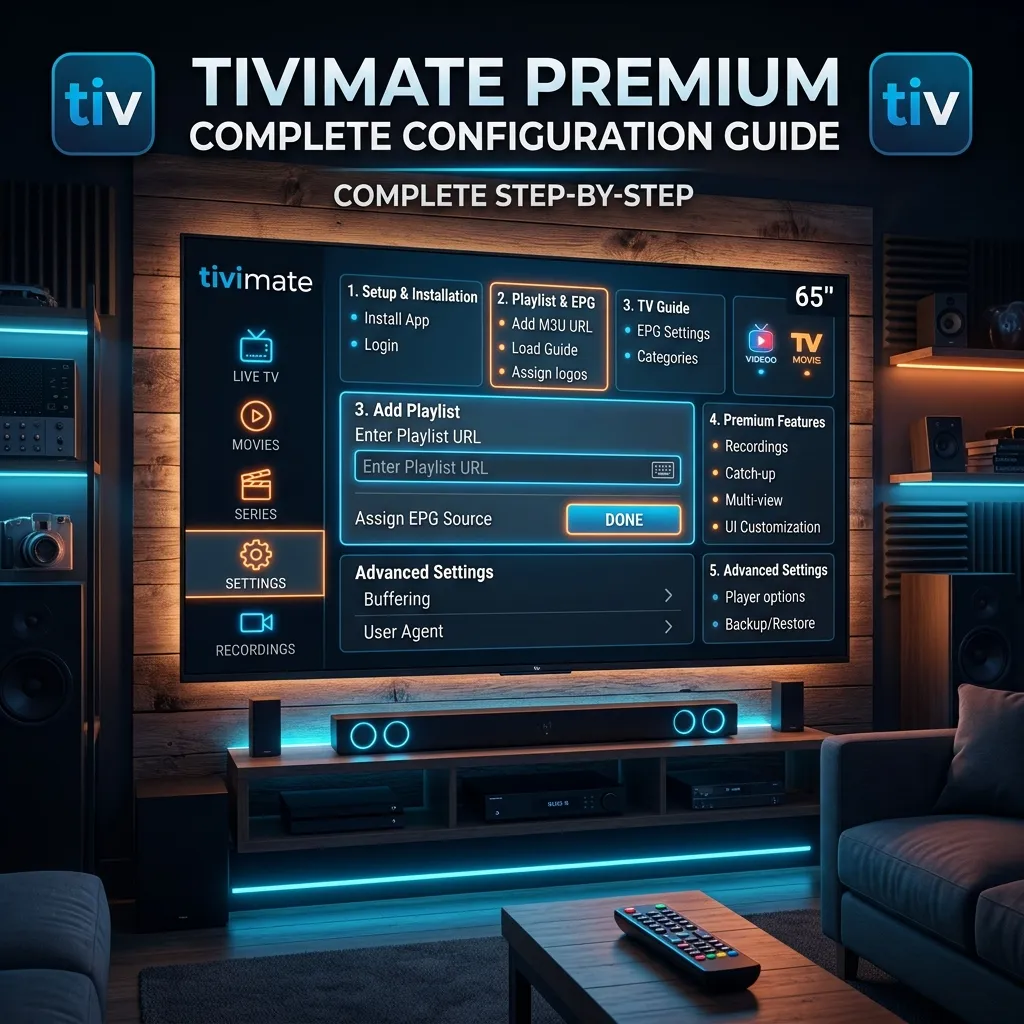
If you have recently entered the expansive world of cord-cutting and IPTV, you have likely encountered a myriad of streaming applications. However, anyone who has spent a significant amount of time streaming live television on Android TV or Amazon Firestick will unequivocally tell you that there is one undisputed king of IPTV players: TiviMate. In this comprehensive, masterclass guide, we are diving deep into absolutely everything you need to know about TiviMate Premium. From the initial installation and sideloading to the most advanced hidden settings, this guide will transform your standard streaming stick into the ultimate entertainment powerhouse.
At Smartiflix, we believe that providing you with the best streaming service is only half the battle. The other half is ensuring you have the perfect software to enjoy it. That is precisely why pairing a top-tier service like the Smartiflix IPTV subscription with TiviMate Premium creates an unparalleled, seamless viewing experience that rivals and often surpasses traditional cable or satellite providers.
Let's dive into the ultimate configuration guide for TiviMate Premium.
1. What is TiviMate and Why Do You Need It?
TiviMate is an IPTV player developed specifically for Android TV boxes, Android smart TVs, and Amazon Fire TV devices. It is important to understand that TiviMate acts strictly as an empty shell or a media player—meaning it does not provide any video content, channels, or subscriptions on its own. You must provide your own IPTV subscription or M3U playlist.
What truly sets TiviMate apart from hundreds of other IPTV players on the market (such as Smarters Pro, XCIPTV, or Flix IPTV) is its incredible user interface. It looks, feels, and operates exactly like a traditional, high-end cable or satellite TV box, but with a highly modern, sleek aesthetic. It is incredibly fast, highly customizable, and remarkably stable even when processing playlists with tens of thousands of channels.
TiviMate Free vs. TiviMate Premium
TiviMate offers a free version on the Google Play Store, but it is highly restricted and serves mostly as a trial for the interface. To truly unlock the potential of your Android TV device and your IPTV service, purchasing the Premium version is an absolute must.
Here is a detailed breakdown of what you get with each tier:
| Feature | Free Version | Premium Version |
|---|---|---|
| Basic Live TV Playback | ✅ | ✅ |
| Standard TV Guide (EPG) | ✅ | ✅ |
| Multiple Playlists Support | ❌ | ✅ |
| Favorites Management | ❌ | ✅ |
| Catch-up TV (Rewind Live TV) | ❌ | ✅ |
| Recording Features (DVR) | ❌ | ✅ |
| Custom EPG Sources | ❌ | ✅ |
| Picture-in-Picture (PiP) | ❌ | ✅ |
| Multiview (Up to 4 screens) | ❌ | ✅ |
| Advanced Customization & UI Tweaks | ❌ | ✅ |
| Parental Controls | ❌ | ✅ |
For the vast majority of users, the ability to manage favorites, use multiple playlists, and access Catch-up TV are the primary reasons for upgrading. If you have subscribed to one of the premium packages on our Smartiflix Pricing page, you are simply doing yourself a disservice by not utilizing TiviMate Premium to explore the full catalog.
2. How to Install TiviMate on Android TV and Amazon Firestick
Before we can begin configuring TiviMate, you need to install it. The process differs slightly depending on whether you are using an official Google Android TV device (like an NVIDIA Shield, Chromecast with Google TV, ONN Box, or a Sony Smart TV) or an Amazon Firestick.
Installing TiviMate on Official Android TV
Installing TiviMate on an official Android TV device is incredibly straightforward because the application is fully approved and available on the Google Play Store.
- Turn on your Android TV device and navigate to the Google Play Store.
- Click on the Search icon (the magnifying glass at the top).
- Type "TiviMate IPTV Player".
- Select the official app developed by AR Mobile Dev. It features a dark grey icon with a stylized 'TV' logo.
- Click Install.
- Once the download and installation are complete, click Open to launch the application.
Sideloading TiviMate on Amazon Firestick
Amazon removed TiviMate from the Amazon Appstore several years ago due to generalized copyright concerns regarding third-party IPTV applications, even though TiviMate itself hosts strictly zero content. Therefore, you must sideload the app using the Downloader tool.
[!NOTE] If you are entirely new to sideloading or want a visual breakdown, you can read our complete Smartiflix Firestick Setup guide for a deeper dive into preparing your device for third-party applications.
- From the main Firestick home screen, navigate to Find > Search and type in Downloader. Install the orange Downloader app.
- Go back to the Firestick home screen, navigate to Settings (gear icon) > My Fire TV > Developer Options.
- Turn on Install Unknown Apps for the Downloader app. (If you do not see Developer Options, go to About, click on your device name 7 times rapidly to unlock the developer menu).
- Open the Downloader app. Accept any storage permissions.
- In the URL search bar, type the official TiviMate APK shortcode or download URL. You can use the AFTVnews shortcode
250931which redirects to the official TiviMate APK, or typetivimate.com/apk. - Click Go and wait for the file to download.
- Click Install when the Android prompt appears.
- Click Delete to remove the APK file after installation to save precious storage space on your Firestick.
For more generalized setup instructions for various devices like Apple TV or Windows, check out our comprehensive Smartiflix Installation Guide.
3. Unlocking TiviMate Premium via the Companion App
This step notoriously confuses many users, particularly those operating on an Amazon Firestick. You cannot purchase TiviMate Premium directly within the TiviMate app on a Firestick because Fire OS does not support Google Play Billing. You must use an Android phone or tablet, or an Android emulator on your PC (like BlueStacks), to handle the financial transaction.
Step-by-Step Premium Purchase Guide
- On your Android smartphone or tablet, open the Google Play Store.
- Search for and install the TiviMate Companion app.
- Open the Companion app and create a brand new account using your email address and a secure password. Make sure you remember this email, as it ties your license to your account.
- Once logged in, you will be presented with two purchasing options:
- Yearly Subscription (Approx. $7.99/year)
- Lifetime Subscription (Approx. $29.99 one-time payment)
- We highly, without hesitation, recommend the Lifetime subscription. Not only does it pay for itself in a few years, but one lifetime license covers up to 5 devices simultaneously. Complete the purchase via Google Play using your standard payment methods.
Activating Premium on Your TV Device
- Open the TiviMate app on your Android TV or Firestick.
- Navigate to the left menu and select Settings (the gear icon).
- Select Unlock Premium.
- Log in using the exact email and password you just created in the TiviMate Companion app on your phone.
- Select your device name from the prompt and click confirm.
- Congratulations! Your device is now fully unlocked and all premium features are available.
4. Adding Your First IPTV Playlist
With Premium unlocked, it is time to add your content. TiviMate supports three primary methods for adding playlists: M3U links, Xtream Codes APIs, and Stalker Portals.
Xtream Codes is vastly superior to standard M3U links. It is significantly faster to load, more secure, organizes VODs beautifully, and automatically integrates your Electronic Program Guide (EPG) without needing to paste a separate XMLTV link.
How to Add an Xtream Codes Playlist
- Open TiviMate and select Add Playlist from the main screen.
- Select Xtream Codes Login.
- You will be prompted to enter three specific pieces of information provided by your IPTV service provider:
- Server Address (URL) (e.g., http://live.smartiflix.net:8080)
- Username
- Password
- Check the box that says Include VOD (Video on Demand) if you want to import movies and TV shows alongside your live TV channels.
- Click Next.
- TiviMate will process the playlist. Depending on the massive size of the playlist (Smartiflix offers tens of thousands of assets), this processing could take anywhere from a few seconds to three minutes. Let it run uninterrupted.
- Once finished, you will be prompted to name the playlist. You can call it "Smartiflix Live" or anything you prefer.
- Click Done.
Your live TV channels, movies, and TV shows will now populate the interface in a highly organized, Netflix-style layout.
Manually Adding an EPG (If using standard M3U)
If you chose to use an M3U link instead of Xtream Codes, your TV guide might not load automatically. Here is how to fix the dreaded missing TV guide:
- Go to Settings > EPG > EPG Sources.
- Click Add source.
- Enter the EPG URL (XMLTV format) provided by your IPTV service.
- Go to Settings > Playlists > [Your Playlist Name] > Main EPG source.
- Select the EPG source you just added.
- Go back to the main Settings menu, select EPG, and click Update EPG. The guide will populate.
5. Organizing Channels and Categories
A premium, elite IPTV service like Smartiflix often provides upwards of 20,000 live channels worldwide and 100,000+ VOD options. Navigating this massive library without organization can be overwhelming. Fortunately, TiviMate offers the absolute best playlist management tools in the streaming industry.
Hiding Unwanted Categories
You likely do not need channels from every single country on earth. For instance, if you only speak English and Spanish, you don't need the German, French, or Asian channel groups. Hiding unwanted categories makes the app boot faster and navigation significantly smoother.
- Open the TV Guide.
- Press the Left directional button on your remote to open the main Category/Group menu.
- Long-press the Select/OK button on any category to open the right-side contextual menu.
- Select Group options.
- Select Manage groups.
- Here, you can toggle the switch OFF for any category you do not wish to see.
- This will completely hide them from your main interface, streamlining your entire experience.
Creating a Custom Favorites List
Your "Favorites" group will be where you spend 90% of your time.
- Navigate to a specific channel you want to favorite (e.g., ESPN, HBO).
- Long-press the Select/OK button while the channel is highlighted in the TV guide.
- Select Add to Favorites (a yellow star icon will appear next to the channel).
- Repeat this process for all your preferred daily viewing channels.
- You can now access your customized "Favorites" group at the very top of the category list.
Reordering Categories and Channels
By default, categories and channels are listed in the exact order provided by the IPTV server. You can change this to suit your viewing habits:
- Go to Settings > Appearance > TV guide.
- Scroll down to Sorting.
- You can choose to sort channels by default, alphabetically by name, or dynamically by watch time (so your most-watched channels float to the top).
- To manually reorder categories, go to the Category menu, long-press a group, select Group options, then select Reorder groups. Use your directional pad to move the group physically up or down the list.
6. Advanced Video and Audio Settings
To extract the absolute best picture and sound quality for your 4K OLED TV or Dolby Atmos home theater setup, you need to dive into TiviMate's playback engine settings.
Auto Frame Rate (AFR) - A Game Changer
Most modern televisions operate at a fixed 60Hz. However, many Hollywood movies, UK broadcasts, and international TV channels broadcast natively at 24fps, 25fps, or 50fps. Playing a 50fps European sports broadcast on a 60Hz screen without AFR causes "judder"—a noticeable, annoying stuttering motion during fast camera pans.
TiviMate can automatically switch your TV's physical refresh rate to match the broadcast's native frame rate.
- Go to Settings > Playback.
- Scroll down to find Auto frame rate (AFR).
- Turn this ON.
- Note: When you change channels with AFR enabled, your TV screen may go black for 1-2 seconds as the hardware adjusts the refresh rate. This black flash is completely normal and preferred by videophiles for smooth playback.
Hardware (HW) vs. Software (SW) Decoding
By default, TiviMate utilizes Hardware (HW) decoding. This means it uses your Android device's physical CPU/GPU chips to decode the incoming video stream, which is highly efficient, runs cooler, and is very fast. However, if you experience audio-sync issues or glitchy, pixelated video on certain channels, switching to Software (SW) decoding might resolve the problem.
- Go to Settings > Playback.
- Find Video decoder and Audio decoder.
- Leave them on Hardware for optimal performance unless you experience specific issues on older devices, in which case, test the Software option.
Audio Passthrough for Surround Sound
If you use a premium Soundbar or an AV Receiver capable of Dolby Digital, DTS, or Dolby Atmos, you want TiviMate to pass the raw, uncompressed audio signal directly to your audio equipment rather than decoding it down to stereo on the TV.
- Go to Settings > Playback.
- Enable Audio passthrough. Now your AV receiver will light up with the correct audio format.
7. Maximizing Buffer Size for Smooth Streaming
Buffering is the sworn enemy of cord-cutters. While buffering is primarily caused by your internet connection speed, Wi-Fi interference, or ISP throttling, TiviMate has a built-in cache tool to help mitigate minor connection hiccups.
- Go to Settings > Playback.
- Scroll to Buffer size.
- The default is set to "Normal."
- If you experience micro-stutters or brief buffering pauses during peak hours, change this to Large or Very Large.
- Caveat: Increasing the buffer size means changing channels will take slightly longer (perhaps 2.5 seconds instead of 1 second), as the app needs to download and store more video frames into memory before playback begins.
[!TIP] If you are consistently experiencing buffering despite changing TiviMate settings, and you have fast internet (above 50Mbps), your Internet Service Provider (ISP) might be actively throttling your IPTV traffic. ISPs often throttle unauthorized third-party streaming. We highly recommend reading our detailed guide on network security: Is Smartiflix Safe? to learn how an encrypted VPN can bypass ISP throttling completely.
8. Catch-Up TV and DVR Recording Configurations
One of the most powerful reasons to upgrade to TiviMate Premium is its native support for Catch-up TV and local DVR recording.
Configuring Catch-up TV
Catch-up allows you to rewind live TV or watch programs that aired days ago without needing to remember to record them beforehand. Your IPTV provider must support this feature on their server. (Smartiflix offers an extensive 7-day Catch-up on thousands of premium channels).
Channels that support Catch-up will display a small "clock" icon next to their name in the TV Guide.
- Go to Settings > Playlists > [Your Playlist] > Catch-up.
- Ensure Type is set to Auto or Xtream Codes (depending on your provider).
- Set Duration to match what your provider offers (usually 1, 3, or 7 days).
- To watch a past show, simply scroll to the left in your TV Guide (navigating backwards into the past), highlight the show, and press Play.
Setting Up Recording (SMB / Network Storage)
Most Android TV devices and Firesticks have very little internal storage (usually 8GB, with only 4GB usable). Recording a single 2-hour HD movie can take up 3GB+ of space. Therefore, you must set up external storage. The most reliable way to do this is via an SMB share (a hard drive plugged into your router or a folder shared from your Windows PC/Mac).
- Go to Settings > Other > Recording.
- Select Recordings folder.
- Select Setup LAN/SMB.
- Select Add new server.
- Enter your PC's IP address or your Router's IP address.
- Enter the username and password for your network share.
- Select the shared folder where you want recordings saved.
- Once successfully configured, you can long-press on any future show in the EPG and select Custom recording or Record to schedule a DVR task. TiviMate will wake up your device in the background and record the stream directly to your hard drive.
9. VOD (Video on Demand) Integration and External Players
While TiviMate is globally recognized as the best live TV player, its VOD interface for Movies and TV Series is also remarkably robust.
Cinema-Style Layout
When you add your Xtream Codes login, ensure you toggle "Include VOD". TiviMate will organize your movies with poster art, plot summaries, IMDB ratings, and cast information.
External Video Players for VOD
TiviMate’s internal ExoPlayer is fantastic for live TV, but sometimes, large 4K VOD files with intricate subtitle formats perform better on dedicated media players like VLC or MX Player.
- Install VLC for Android or MX Player from the Google Play Store.
- In TiviMate, go to Settings > Playback.
- Scroll down and toggle Use external player to Yes.
- You can specify whether to use the external player for Live TV, VOD, or both. We recommend keeping Live TV on the internal player, and setting VOD to use the external player for better subtitle rendering.
10. Parental Controls and Security
If you have a family, you may want to restrict access to certain content, such as Adult VODs, violent channels, or specific international groups. TiviMate Premium includes a robust Parental Control system.
- Go to Settings > Parental controls.
- Turn it ON. You will be prompted to create a 4-digit PIN.
- Once the PIN is set, you can choose exactly what to lock. You can lock entire playlists, specific hidden groups, or the settings menu itself to prevent kids from messing with your configuration.
- If you wish to lock a specific channel group: Go to the TV Guide, open the left category menu, long-press a group, select Group options, and toggle Lock group. A padlock icon will appear, and the PIN will be required to view those channels.
11. Customizing the User Interface and Remote Shortcuts
TiviMate allows for an unprecedented level of UI customization, allowing you to tailor the aesthetic exactly to your liking.
Transparency and Appearance
- Go to Settings > Appearance.
- Explore deep menus like TV guide, Player, and Groups.
- You can radically change the Font size (excellent for smaller TVs in the kitchen or visually impaired users).
- You can adjust the Panel transparency. If you lower the transparency to 0%, the TV Guide will look entirely opaque black, making text vastly easier to read against bright video backgrounds.
- In the Player menu, you can adjust the Info panel time out. If the channel banner (showing the show name and timeline) stays on the screen too long when you change channels, lower this from the default 5 seconds to a snappier 2 seconds.
Remote Control Mapping
You can literally map almost every button on your remote to perform specific, custom functions in TiviMate.
- Go to Settings > Remote control.
- Select the interface you want to customize (e.g., TV guide, Player, Live TV).
- For example, under the Player configuration, you can set the Left directional button to "Skip back 30 seconds" and the Right directional button to "Skip forward 1 minute" for easily skipping commercial breaks in Catch-up or VOD content.
- You can map a colored button (if your remote has them) to instantly bring up the Multi-view menu.
12. Multi-View: Watching Multiple Channels at Once
Sports fans absolutely love the Multi-View feature. It allows you to split your massive 4K screen into two, three, or four distinct panels, streaming different live games simultaneously.
[!WARNING]
To legally and technically use Multi-View without buffering, your IPTV subscription must support "Multiple Connections." If you have a standard single-connection subscription, opening a second channel will result in instant buffering, looping, or a temporary account ban. Check the Smartiflix Pricing page to upgrade to a multi-connection tier if needed.
How to activate Multi-View:
- While watching a live channel, press the Select/OK button to bring up the bottom player menu.
- Scroll down and select the Multi-view icon (it looks like a rectangle divided into smaller squares).
- Select Add screen.
- Choose another live channel from your playlist.
- TiviMate will now display both channels side-by-side.
- You can move the audio focus between the different screens by pressing left or right on your directional pad. The screen outlined with the colored border is the one currently outputting audio.
13. TiviMate Backup and Restore System
Once you spend a dedicated hour perfectly configuring your hidden groups, organizing favorites lists, tweaking UI transparency, and mapping remote shortcuts, the last thing you want is to lose those settings during a device reset, or have to manually recreate them on a second TV in your bedroom.
TiviMate’s built-in Backup and Restore feature is an absolute lifesaver.
How to Create a Configuration Backup
- Go to Settings > General.
- Select Backup data.
- Choose a destination folder. We highly recommend saving this to an external USB flash drive or your configured SMB network folder, NOT the device’s internal storage, so it is safe if the device dies.
- TiviMate will create a tiny file with a
.tmbextension (e.g.,TiviMate_Backup_2026.tmb).
How to Restore a Backup
- On your second Android device, install TiviMate from the App Store and unlock Premium.
- Go to Settings > General.
- Select Restore data.
- Locate the
.tmbfile you previously saved on your network or USB drive. - In literal seconds, your second TV will restart and have the exact same playlists, favorites, custom logos, and remote settings as your main living room TV.
14. Troubleshooting Common TiviMate Issues
Even the best software in the world encounters hiccups. Here are the most common issues users face with TiviMate and exactly how to fix them.
1. The EPG (TV Guide) says "No Information"
If your entire TV guide is blank and says "No Information," the application failed to download the XMLTV guide data from the provider's server.
- Fix: Go to Settings > EPG > Update EPG. If it still fails, go to Settings > EPG > Clear EPG, and then click update again. Also, critically ensure you have not completely run out of storage space on your device. The EPG data file can be up to 50MB, and if your Firestick is 100% full, the guide cannot download.
2. Error 401 / Authorization Failed
This strict error means the credentials you entered for your Xtream Codes playlist are incorrect, or your subscription has expired.
- Fix: Double-check your Username, Password, and Server URL for typos. Pay extreme attention to uppercase/lowercase letters and do not confuse a zero (
0) with the letterO. If the details are 100% correct, contact your provider via our Smartiflix Homepage, as your account may have expired or been locked due to an IP block or using too many simultaneous connections.
3. Audio is Out of Sync with Video
Sometimes the lips of the people speaking do not match the audio track coming through your speakers.
- Fix: While watching the specific channel, bring up the bottom player menu and select Audio track. If there are multiple tracks (e.g., English, English AC3), try switching them. Alternatively, go to Settings > Playback > Audio offset and manually adjust the audio delay forward or backward by milliseconds until it matches perfectly.
4. Excessive Buffering on Only Specific Channels
If 99% of your channels work perfectly smoothly, but one or two are constantly buffering or dropping out, it is highly likely an issue with the IPTV provider's specific source feed for that channel, not your internet speed or TiviMate app.
- Fix: Report the channel to your provider. If you are a Smartiflix customer, you can submit a support ticket, and our backend engineers will quickly reset the stream or swap the source on our servers.
Conclusion: The Ultimate Cord-Cutting Experience
Configuring TiviMate Premium might take a little bit of time and patience upfront, but the investment is entirely, indisputably worth it. By following this comprehensive guide, you have successfully transformed a basic $40 streaming stick into a premium, high-end set-top box that directly rivals and beats any traditional cable provider's hardware—but at a mere fraction of the monthly cost.
From managing massive 20,000+ channel playlists effortlessly to setting up Auto Frame Rate for cinematic playback, utilizing Catch-up TV to never miss a game, and recording straight to a network drive, TiviMate truly is the absolute pinnacle of IPTV software.
However, remember this vital truth: incredibly powerful software requires a powerful and reliable IPTV feed to function perfectly. TiviMate cannot fix a bad, cheap IPTV provider. If you are exhausted by constant lag, missing PPV events, offline channels, and poor customer support, it is time to upgrade your actual video service.
Visit the Smartiflix IPTV page today to experience crystal-clear 4K streams, an impossibly massive library of VODs, and reliable anti-freeze servers that actually let your newly configured TiviMate Premium flex its muscles to the fullest.
Happy streaming, enjoy your newfound entertainment freedom, and welcome to the brilliant future of television!