SS IPTV Installation Guide: Set Up on Smart TVs Easily
Discover how to install SS IPTV on your Smart TV effortlessly. Follow our step-by-step guide for seamless streaming on LG, Samsung, and Android devices.
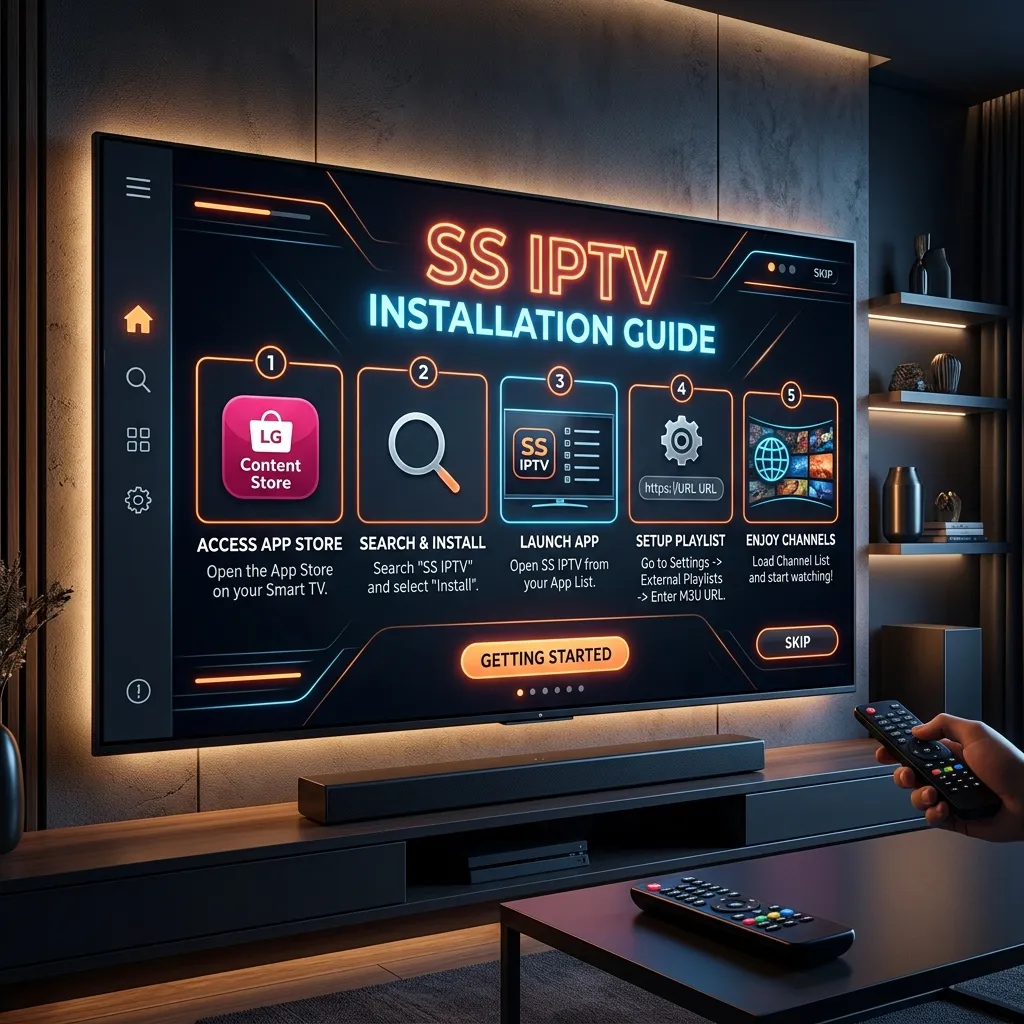
Welcome to the most comprehensive, in-depth SS IPTV Smart TV Installation Guide available on the internet. Whether you are a cord-cutter looking to escape expensive cable bills, or an entertainment enthusiast demanding access to global channels, IPTV (Internet Protocol Television) has revolutionized how we consume media. If you are starting your journey into the world of internet streaming, you've likely stumbled across the name SS IPTV.
At Smartiflix, we understand that navigating the technical landscape of smart TV applications, M3U playlists, and streaming configurations can be daunting. That is precisely why we have created this extensive, 3000+ word masterclass. By the end of this article, you will have successfully installed, configured, and optimized SS IPTV on your Smart TV, regardless of the brand or operating system you use.
From bypassing geographical restrictions and resolving buffering issues to uploading your first premium IPTV subscription playlist, this guide covers absolutely everything. Let's dive in!
1. What is SS IPTV? A Deep Dive into the Application
SS IPTV (Simple Smart IPTV) is one of the most popular, versatile, and longest-standing free IPTV player applications available for Smart TVs. Originally developed specifically for LG Smart TVs, its immense popularity prompted the developers to expand its compatibility to Samsung, Android TV, Sony, and various other platforms.
It's crucial to understand a fundamental distinction right away: SS IPTV is merely a media player; it does not provide any content, channels, movies, or TV shows on its own. Think of it as an empty DVD player—you need to insert a DVD (in this case, an M3U playlist) to watch anything.
Key Features of SS IPTV
To understand why millions of users worldwide prefer SS IPTV over other alternatives like Smart IPTV (SIPTV) or TiviMate, let's look at its core features:
- 100% Free to Use: Unlike many other IPTV players that require a one-time activation fee or a recurring subscription, SS IPTV is entirely free.
- Broad Device Compatibility: It supports LG (WebOS and Netcast), Samsung (Tizen and Orsay), Android TVs, and even set-top boxes.
- User-Friendly Web Interface: Uploading playlists via a TV remote can be a nightmare. SS IPTV offers a seamless web portal where you can pair your TV and upload playlists using your computer or smartphone.
- Extensive Format Support: The app seamlessly supports M3U, XSPF, ASX, and PLS playlist formats.
- Advanced EPG Support: It handles XMLTV Electronic Program Guides, ensuring you always know what's playing on your favorite channels.
- Parental Controls: Robust PIN protection to keep adult or inappropriate content away from children.
- Customizable Interface: Users can change themes, adjust time shifts, and customize channel groups.
2. Preparing for Installation: Essential Prerequisites
Before we jump into the specific installation steps for your TV brand, you need to ensure you have the following prerequisites ready. Failing to prepare these will halt your setup process.
A. A Stable High-Speed Internet Connection
IPTV relies entirely on internet data. For standard definition (SD) streaming, you need at least 5 Mbps. For High Definition (HD), 10-15 Mbps is recommended. If you plan to stream in 4K/UHD, you will need a consistent 25-50 Mbps connection.
B. A Compatible Smart TV
Check your TV's operating system. This guide covers LG (WebOS/Netcast), Samsung (Tizen/Orsay), and Android-based TVs (Sony, Philips, TCL).
C. A High-Quality IPTV Playlist (M3U Link)
Because SS IPTV provides no content, you need a reliable provider. We highly recommend checking out our Smartiflix pricing plans to get access to over 20,000 live channels, 100,000+ VODs (Video on Demand), anti-freeze technology, and 99.9% uptime. You will receive an M3U link in your email upon subscription, which you will need for Step 5.
D. Security and Privacy Measures
ISPs (Internet Service Providers) are known to throttle IPTV traffic, leading to buffering. Furthermore, depending on your region, you may want to encrypt your connection. We highly recommend reading our guide on Is Smartiflix Safe? to understand why using a VPN with your IPTV setup is a game-changer for privacy and performance.
3. Step-by-Step Guide: Installing SS IPTV on LG Smart TVs
LG Smart TVs operate on either WebOS (newer models) or Netcast (older models, pre-2014). SS IPTV was born on LG, so the installation process is generally the smoothest here.
Method 1: Official LG Content Store (Recommended)
- Turn on your LG Smart TV and ensure it is connected to the internet.
- Press the Home button on your LG Magic Remote to bring up the main menu ribbon.
- Navigate to and open the LG Content Store (sometimes just called "Apps").
- Use the Search icon (magnifying glass) at the top right of the screen.
- Type "SS IPTV" using the on-screen keyboard.
- The SS IPTV app should appear in the results. Select it.
- Click the Install button.
- Once installed, click Launch to open the application.
Note for Users in Certain Regions: Sometimes, due to regional restrictions, SS IPTV might not appear in your LG Content Store. If this happens, you can temporarily change your LG Smart TV region in the settings to a country where it is available (e.g., Russia or Germany), download the app, and then change your region back.
Method 2: USB Flash Drive Installation (For WebOS)
If the app store method fails, you can sideload the app using a USB drive.
- Format a USB flash drive to FAT32 on your computer.
- Download the official SS IPTV WebOS archive from the SS IPTV website.
- Create a folder on the root of your USB drive named
developer. - Extract the downloaded archive into the
developerfolder. - Plug the USB drive into your LG Smart TV.
- The TV should recognize the drive and the SS IPTV app will appear in your "My Apps" or "Smart Apps" section with a USB icon next to it.
- Crucial: The USB drive must remain plugged into the TV to use the app.
4. Step-by-Step Guide: Installing SS IPTV on Samsung Smart TVs
Samsung uses its proprietary Tizen OS (2015 and newer) and Orsay OS (2014 and older). Samsung's relationship with IPTV apps has been turbulent, frequently removing and reinstating them from their store.
Method 1: Official Samsung Smart Hub
- Turn on your Samsung Smart TV.
- Press the Smart Hub or Home button on your remote.
- Navigate to Apps.
- Select the Search icon (magnifying glass).
- Type "SS IPTV".
- If it appears, select it and click Install.
- Once the installation is complete, launch the app.
Method 2: Tizen Studio / Developer Mode (If not in the App Store)
If Samsung has removed SS IPTV from your regional store, you will need to install it via developer mode. This is slightly more complex but entirely achievable.
- Go to the Apps panel on your Samsung TV.
- Press the number sequence 1 - 2 - 3 - 4 - 5 on your remote. (If you have a smart remote without numbers, use the on-screen number pad).
- A hidden Developer Mode window will pop up.
- Toggle Developer Mode to ON.
- You will be asked to enter a Host PC IP. You can enter the IP address of your computer, or safely enter
91.122.100.196(the SS IPTV developer IP, though this changes frequently, so using a local PC with Tizen Studio is safer). - Click OK and restart the TV.
- Now, download the SS IPTV widget file from their official site onto a USB stick (extracted into the root directory).
- Plug the USB into the TV. The app should install automatically in Developer Mode.
For a broader look at general installation practices, you can also consult our comprehensive installation guides.
5. Installing SS IPTV on Android TVs (Sony, TCL, Hisense)
Android TV is highly flexible. Devices like Sony Bravia, modern TCL TVs, Philips, and various set-top boxes utilize this OS.
Method 1: Google Play Store
- From the Android TV Home screen, navigate to Apps.
- Open the Google Play Store.
- Go to the search bar and type "SS IPTV".
- Select the app published by SS IPTV developers.
- Click Install.
- Click Open once the download finishes.
Method 2: Sideloading via Downloader App (APK Method)
Sometimes, the Google Play Store on your specific TV model might hide certain apps. In this case, we use the Downloader method. This method is identical to the one used for Amazon devices, which you can read more about in our Firestick setup guide.
- Go to the Google Play Store and install the app called Downloader (by AFTVnews).
- Go to your TV's Settings > Device Preferences > Security & Restrictions.
- Enable Unknown Sources for the Downloader app.
- Open the Downloader app.
- In the URL bar, type the direct link to the SS IPTV APK (ensure you get this from a reputable APK mirror site or the official website).
- Click Go. The APK will download.
- Click Install when prompted.
6. Configuring SS IPTV: Adding Your Playlist
Congratulations! You have successfully installed SS IPTV. Now comes the most important part: adding your channel list so you can actually start watching.
SS IPTV uses a pairing system. You will generate a code on your TV, enter it on the SS IPTV website using your computer/phone, and push the playlist to your TV.
Step 1: Generate the Connection Code on Your TV
- Launch SS IPTV on your Smart TV.
- On the main screen, click on the Settings icon (it looks like a gear or cogwheel, usually in the top right corner).
- In the Settings menu, navigate to the General tab in the left sidebar.
- Click on the button that says "Get Code".
- A temporary Connection Code (e.g.,
abc12x) will appear on the screen. Note this code down. Warning: This code is only valid for 24 hours.
Step 2: Uploading the Playlist via the Web Portal
- Open a web browser on your computer, tablet, or smartphone.
- Go to the official SS IPTV playlist editor:
http://ss-iptv.com/en/users/playlist. - In the center of the page, you will see an "Enter Connection Code" box.
- Type the code you generated on your TV into this box.
- Click the Add Device button.
- Your TV is now paired with the web portal!
Step 3: External vs. Internal Playlists
You will now see two tabs on the website: External Playlists and Internal Playlists. Understanding the difference is vital.
| Playlist Type | Description | Pros | Cons |
|---|---|---|---|
| External Playlists | You paste the M3U URL provided by your IPTV provider (like Smartiflix). The app fetches the list directly from the provider's server every time you open it. | Highly Recommended. Auto-updates when the provider adds new channels or VODs. | Requires an internet ping to the provider before loading. |
| Internal Playlists | You upload a static .m3u file from your computer to the app. |
Loads instantly. | Not Recommended. Does not auto-update. If channels change, you lose them until you re-upload manually. |
Step 4: Adding the M3U Link (External Method)
- Click on the External Playlists tab.
- Click the Add Item button.
- A popup window will appear asking for "Item's Title" and "Source".
- Item's Title: Enter a name for your playlist (e.g., "Smartiflix Premium").
- Source: Paste the M3U Link URL you received from your Smartiflix IPTV subscription. (Ensure there are no blank spaces at the beginning or end of the URL).
- Click OK.
- Click the Save button (usually a floppy disk icon at the top right of the web portal).
Step 5: Refreshing the App
- Go back to your Smart TV.
- Return to the main screen of the SS IPTV app.
- Click the Refresh icon (two arrows in a circle) located at the top right.
- A new folder with the name you chose (e.g., "Smartiflix Premium") will appear on the screen.
- Click on the folder to load your channel categories. You are now ready to stream!
7. Setting Up Electronic Program Guide (EPG) in SS IPTV
An IPTV service without a TV Guide is like navigating a city without a map. The Electronic Program Guide (EPG) tells you what show is currently airing, what’s coming next, and detailed program descriptions.
Most high-quality M3U links from premium providers like Smartiflix come with an EPG embedded. However, sometimes you need to add it manually in SS IPTV.
How to Add an XMLTV EPG Link manually:
- Open the SS IPTV app on your TV.
- Go to Settings (gear icon).
- Select the EPG tab from the left sidebar.
- Here, you will see options for EPG sources. Click the Add button.
- You will need your EPG URL (usually ending in
.xmlor.xml.gz). This is provided by your IPTV service. - Paste the URL using the on-screen keyboard.
- Save the settings and restart the app.
- The app will now download the EPG data. Note that large EPG files can take a few minutes to download, so be patient.
Pro Tip: In the EPG settings, you can adjust the Time Shift. If your IPTV provider's server is in a different time zone than you (e.g., the guide is 2 hours behind actual TV), you can set the Time Shift to
+2or-2to sync the guide perfectly with your local time.
8. Advanced SS IPTV Settings for Optimal Streaming
To get the absolute best experience, diving into the advanced settings of SS IPTV is highly recommended.
A. Parental Controls
If your playlist includes Adult/XXX channels, you'll want to lock them.
- Go to Settings > Parental Control.
- Set a 4-digit PIN.
- You can now lock specific channel groups or entire playlists, requiring the PIN for access.
B. Adjusting Video Decoding and Aspect Ratio
Sometimes, channels may appear stretched, squished, or the video might stutter.
- While watching a channel, press the OK/Enter button on your remote to bring up the player controls.
- Look for the Gear Icon on the playback bar.
- Here you can change the Aspect Ratio (16:9, 4:3, Auto, Zoom).
- You can also change the Audio Track if a channel broadcasts in multiple languages (e.g., switching a sports broadcast from Spanish to English).
C. Customizing the Interface Aesthetics
SS IPTV isn't just functional; it's customizable.
- Go to Settings > Appearance.
- Here you can change the theme color (Dark Theme is highly recommended for late-night viewing to reduce eye strain).
- You can adjust the size of the channel tiles. If you have thousands of channels, making the tiles smaller allows you to see more options on a single page.
9. Optimizing Your Home Network for Flawless Streaming
Even if you have the best IPTV provider in the world, a poor home network will result in a terrible experience. IPTV requires a continuous, unbroken stream of data.
Wi-Fi vs. Ethernet (The Golden Rule)
Never use Wi-Fi for IPTV if you can avoid it. Wi-Fi is subject to interference from walls, microwaves, Bluetooth devices, and your neighbors' routers. This interference causes packet loss, which translates to buffering and screen freezing on your TV.
Solution: Hardwire your Smart TV directly to your internet router using a Cat6 Ethernet Cable. This provides a full-duplex, interference-free connection, drastically reducing buffering.
Changing DNS Settings for Faster Routing
Sometimes, your Internet Service Provider's DNS servers are slow, causing delays when your TV tries to connect to the IPTV server. Changing your Smart TV's DNS to Google or Cloudflare can provide a massive speed boost.
How to change DNS on an LG/Samsung TV:
- Go to your TV's main Network Settings.
- Select your active connection (Wired or Wireless) and choose Advanced or Edit.
- Look for DNS Settings. Change it from "Obtain Automatically" to "Enter Manually".
- Enter Google's DNS:
8.8.8.8(Secondary:8.8.4.4) OR Cloudflare's DNS:1.1.1.1(Secondary:1.0.0.1). - Save and restart the TV.
10. Troubleshooting Common SS IPTV Issues
Technology isn't perfect, and occasionally things go wrong. Here is a massive troubleshooting matrix to solve the most common SS IPTV problems.
Problem 1: Constant Buffering, Freezing, or Stuttering
- Cause: Insufficient internet speed, Wi-Fi interference, or ISP throttling.
- Solution 1: Switch to an Ethernet connection as detailed above.
- Solution 2: Restart your router and your TV (unplug both from the wall for 60 seconds). This clears the cache.
- Solution 3: Your ISP might be actively slowing down IPTV traffic. You will need to use a VPN to encrypt your traffic. Check out our security guide: Is Smartiflix Safe?.
Problem 2: "Failed to Load Playlist" Error
- Cause: The M3U link is typed incorrectly, the provider's server is down, or your subscription has expired.
- Solution 1: Double-check the M3U link in the SS IPTV web portal. A single missing character will break the link.
- Solution 2: Test the M3U link on your computer or phone using VLC Media Player. If it works on VLC but not on the TV, the issue is the TV's connection. If it fails on VLC, contact your IPTV provider.
Problem 3: Audio and Video are Out of Sync
- Cause: The TV's internal processor is struggling to decode the specific codec of the stream.
- Solution 1: Simply change the channel and change it back. This forces the stream to resync.
- Solution 2: In the TV's main audio settings, look for "Audio Delay" or "Lip Sync" options and adjust the slider.
Problem 4: EPG (TV Guide) says "No Information"
- Cause: The EPG link is dead, or the channel names in the playlist don't exactly match the channel IDs in the EPG XML file.
- Solution: Ensure you are using an "M3U with Options" or "M3U Plus" link, which usually forces the EPG to bind correctly. If the issue persists, clear the app data/cache in your TV settings and reload the app.
11. Why Smartiflix is the Perfect Companion for SS IPTV
You have the player, you have the setup, but without a premium engine, your car isn't going anywhere. Free M3U lists found on Google are notorious for buffering, lasting only 24 hours, and lacking customer support.
By choosing Smartiflix, you are guaranteeing an elite viewing experience. Here is why combining SS IPTV with Smartiflix is the ultimate setup:
- Massive Channel Library: Over 20,000+ live channels spanning the US, UK, Canada, Europe, LatAm, and Asia. Sports, news, documentaries, and kids' channels are all categorized neatly within SS IPTV.
- VOD Masterpiece: Over 100,000 continuously updated Movies and TV Series. Say goodbye to Netflix, Hulu, and Disney+.
- Anti-Freeze Technology: Our servers use load-balancing protocols to ensure that during massive live events (like the Super Bowl or Champions League final), your stream remains rock solid.
- 24/7 Support: If you ever struggle with your SS IPTV setup, our support team is available around the clock to assist you.
- Flexible Pricing: We offer plans tailored to everyone, from 1-month trials to heavily discounted 12-month packages. View our Smartiflix pricing plans to get started today.
12. Frequently Asked Questions (FAQs) About SS IPTV
We have compiled the most frequently asked questions from our users over the years regarding SS IPTV.
Q1: Do I have to pay to use SS IPTV? No. SS IPTV is absolutely 100% free software. If any website asks you to pay to download or activate SS IPTV, it is a scam. However, you do have to pay for a premium IPTV subscription (like Smartiflix) to get the actual channels.
Q2: Can I record Live TV using SS IPTV? Currently, SS IPTV does not have a robust built-in PVR (Personal Video Recorder) function for live recording to a USB drive on most Smart TVs due to OS limitations. If recording is crucial to you, we recommend using Android TV with an app like TiviMate.
Q3: Does SS IPTV support Catch-up TV? Yes! If your IPTV provider supports Catch-up (the ability to watch programs that aired 2-7 days ago), SS IPTV supports it. Channels with Catch-up available will usually have a small clock icon next to them in the channel list.
Q4: How many playlists can I add to SS IPTV? You can add multiple playlists to your SS IPTV account via the web portal. They will appear as separate folders on your TV's home screen. This is useful if you use one provider for Live TV and a separate provider just for VODs.
Q5: How do I update SS IPTV? If you installed the app from the LG Content Store, Samsung Smart Hub, or Google Play Store, the app will update automatically if your TV is set to allow auto-updates. If you installed via a USB drive, you will need to manually download the newest version and replace the files on the USB.
Q6: SS IPTV disappeared from my Samsung TV, what happened? Samsung occasionally purges IPTV apps from their store due to copyright pressure (even though the app itself is legal). If this happens, you must use the Developer Mode / Tizen Studio method detailed in Section 4, or switch to an external device like a Firestick (see our Firestick setup guide).
Q7: Can I use SS IPTV on my smartphone or PC? While SS IPTV is designed primarily for Smart TVs, you can technically run the Android APK on an Android smartphone. However, the UI is optimized for TV remotes, making touch navigation clunky. For smartphones, apps like Smarters Pro are recommended. For PCs, VLC or Windows IPTV Player is better.
13. Conclusion: The Gateway to Unlimited Entertainment
Setting up SS IPTV on your Smart TV might seem like a daunting task initially, especially with terms like M3U, EPG, and DNS floating around. However, by carefully following this comprehensive guide, you have successfully unlocked the true potential of your Smart TV.
You have moved away from restrictive, overpriced cable packages and entered the modern era of global, on-demand streaming. SS IPTV provides a sleek, fast, and free foundation for your viewing pleasure.
To ensure that your newly configured setup delivers the flawless HD and 4K experience you deserve, don't forget to pair it with a premium provider. Head over to our homepage at Smartiflix to explore our features, or jump straight into our Smartiflix pricing plans to grab your M3U playlist right now.
Welcome to the future of television. Happy streaming!
Disclaimer: Smartiflix provides this guide for educational and informational purposes. Ensure you are aware of your local laws regarding streaming and IPTV usage. For more details on safe streaming practices, review our Security Guide.