Fix Smartiflix Buffering Issues: Expert Troubleshooting Guide
Struggling with Smartiflix buffering? Discover expert tips and tricks to eliminate lag and enhance your streaming experience now!
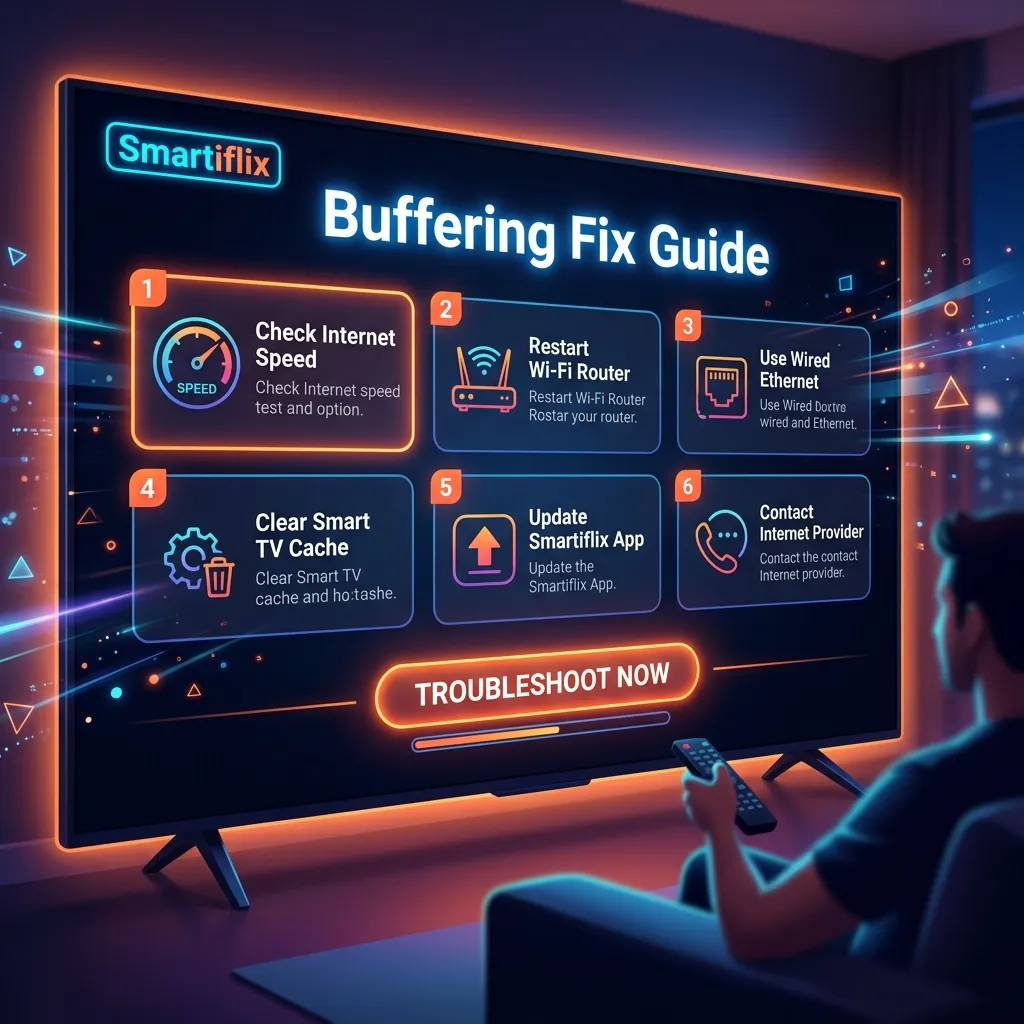
Introduction
Nothing disrupts a premium viewing experience faster than the dreaded loading circle. If you have spent time reading various smartiflix reviews, you know that while the service offers high-quality streams, technical performance is often dictated by the user’s local environment. Whether you are experiencing mid-movie freezes or long initial load times, these issues are rarely random; they are usually the result of network congestion, hardware bottlenecks, or ISP interference.
As a Senior Technical Support Engineer, I see users struggling with playback issues that are easily preventable with the right configuration. In this How to Fix Smartiflix Buffering: Professional Optimization Guide, we will dive deep into the technical architecture of streaming and provide you with a blueprint to ensure smartiflix runs flawlessly on any device.
To immediately stop buffering, switch from a 2.4GHz Wi-Fi band to a 5GHz band or a wired Ethernet connection. Then, clear the app cache in your device settings and change your DNS to Cloudflare (1.1.1.1). This bypasses local congestion and ISP-level routing delays that frequently cause playback lag.
The Field Engineer's Secret
When we troubleshoot enterprise-level streaming delivery, we look at "DNS Latency." Most home users use the default DNS provided by their Internet Service Provider (ISP). These are often slow and prone to "throttling" during peak hours.
The Secret: Manually configure your streaming device to use Cloudflare DNS (1.1.1.1 and 1.0.0.1) or Google DNS (8.8.8.8 and 8.8.4.4). This does more than just speed up web browsing; it optimizes the "handshake" between your device and the smartiflix iptv content delivery servers. By reducing the time it takes to resolve the server's IP address, you significantly decrease the time it takes for a video segment to start downloading, effectively eliminating "micro-stutter."
Why is Buffering Happening?
To fix the problem, you must understand the "Pipeline." Streaming isn't a single file download; it is a continuous stream of data packets that must arrive in the correct order and at a specific speed. If you followed our smartiflix installation guide but still face issues, one of the following factors is likely at play.
1. ISP Throttling (The Artificial Speed Limit)
Many ISPs monitor high-bandwidth traffic. If they detect a sustained stream from a high-definition source, they may artificially slow down your connection to save bandwidth on their network. This is a common culprit mentioned in technical feedback where users have high "speed test" results but poor actual streaming quality.
2. Bufferbloat and Network Congestion
If multiple people in your house are gaming, downloading files, or on video calls, your router’s "queue" becomes full. This is known as Bufferbloat. When the queue is full, the video packets for your stream get stuck in line, causing a pause in playback.
3. Hardware Limitations
Older Firesticks, smart TVs, or budget Android boxes often have limited RAM. When the app tries to buffer a 4K stream, the device hardware may struggle to decode the video and manage the network buffer simultaneously, leading to a crash or a freeze.
4. Frequency Interference
The 2.4GHz Wi-Fi frequency is crowded. Everything from your microwave to your neighbor’s router uses it. This creates "noise" that drops data packets. For high-bitrate streaming to work at 1080p or 4K, a clean signal is non-negotiable.
Technical Comparison: Wi-Fi vs. Ethernet
For serious streamers, the choice of connection type is the most critical factor.
| Feature | 2.4GHz Wi-Fi | 5GHz Wi-Fi | Wired Ethernet (Cat6) |
|---|---|---|---|
| Max Speed | Lower (~150 Mbps) | High (~1 Gbps+) | Highest (Consistent) |
| Range | Excellent | Limited | Physical Cable Limit |
| Interference | High (Microwaves/BT) | Low | Zero |
| Latency (Ping) | Variable | Stable | Lowest |
| Best For | Browsing/Music | HD Streaming | 4K UHD Streaming |
How to Fix Buffering (Step-by-Step)
Follow these steps in order to isolate and resolve your connectivity issues.
Step 1: Perform a Cold Boot
Do not just turn the TV off and on. Unplug the power cable from your streaming device and your router. Wait 60 seconds. This flushes the system RAM and clears the NAT (Network Address Translation) table on your router, which can often get "clogged" with old connections.
Step 2: Optimize the App Cache
Apps store temporary data to help images load faster. Over time, this cache can become corrupted.
- Navigate to your device Settings.
- Go to Applications or Manage Installed Applications.
- Select the app and click Clear Cache. Note: Do not click "Clear Data" unless you want to log in again.
Step 3: Switch to a Static IP and Custom DNS
This prevents your router from assigning a new IP address to your device, which can sometimes drop a connection.
- In your Network Settings, change IP settings from DHCP to Static.
- Enter your IP details.
- Set DNS 1 to 1.1.1.1 and DNS 2 to 1.0.0.1.
Step 4: Adjust Playback Settings
If your internet speed is below 25 Mbps, 4K streaming will always buffer. Inside the smartiflix app settings, check if there is an option to set the default resolution to "Auto" or "1080p." This ensures the stream matches your actual bandwidth availability.
Advanced Troubleshooting Tips
For users who want the absolute best performance, these "Pro" level tips will squeeze every bit of power out of your setup:
- Check for "Micro-Drops": Use a tool like PingPlotter to see if your connection is dropping for fractions of a second. Even if your "Speed Test" looks good, micro-drops will kill a live stream.
- Disable "CEC" Settings: On some Android devices, HDMI-CEC can cause strange processing lags. Try disabling it in the display settings to free up CPU cycles.
- External Storage: If you are using a Firestick, avoid filling up the internal storage. Leave at least 1GB of space free so the device can use it as a "swap file" for video buffering.
- VPN Protocol: If you use a VPN to avoid ISP throttling, ensure you are using the WireGuard protocol rather than OpenVPN. WireGuard is significantly faster and more efficient for smartiflix iptv high-bitrate streaming.
- Router Placement: Ensure your router is at least 3 feet off the ground and not tucked inside a cabinet. Physical obstructions are the #1 cause of packet loss in home environments.
Common Mistakes to Avoid
- Using USB Power from the TV: Many users plug their streaming sticks into the USB port on the back of the TV for power. These ports often provide insufficient voltage (0.5A), causing the device to throttle its processor during heavy streaming. Always use the provided wall outlet adapter.
- Running Background Apps: Apps like YouTube or Netflix often stay "suspended" in the background, consuming RAM. Use a "Background Apps and Process List" tool to force-close unused applications before launching your stream.
Frequently Asked Questions
Why does the service work on my phone but not my TV?
This is usually due to the Wi-Fi chip quality. Smartphones often have much more advanced Wi-Fi antennas (MIMO technology) than budget Smart TVs or older streaming sticks. If your phone works fine on the same network, your TV’s network hardware is likely the bottleneck.
What is the minimum speed for 4K streaming?
For a stable 4K UHD experience, you need a consistent 25 Mbps dedicated to the stream. However, because of household overhead, we recommend a 50 Mbps plan to ensure that other devices don't interfere with your playback.
Can a cheap HDMI cable cause buffering?
No, HDMI cables do not cause "buffering" (the loading circle), but a low-quality cable can cause "stuttering," "black screens," or "digital snow." If you see a loading circle, it is almost certainly a network or software issue, not the cable.
Does the location of the server matter?
Yes. The physical distance between you and the content server affects "latency." While you cannot change the server location, using a high-quality DNS helps find the most efficient path for your data to travel. For more on the technical backend, visit our smartiflix iptv product page.
Conclusion
Technical issues with smartiflix are almost always solvable by looking at the three pillars of streaming: Hardware, Network, and Software configuration. By moving to a 5GHz band, optimizing your DNS settings, and ensuring your hardware isn't being starved of power or memory, you can enjoy a seamless viewing experience.
Remember, a "fast" internet connection is only half the battle; a "stable" connection is what actually keeps the loading circle away. Implement the steps above, and you will transform your device into a high-performance streaming powerhouse. If you are still exploring the platform, feel free to read more smartiflix reviews to see how other users have optimized their home setups. Happy streaming!