IPTV Integration with SmartTubeNext: Your Complete Guide
Unlock the full potential of your IPTV setup with SmartTubeNext. Follow our comprehensive guide for seamless integration, installation, and optimization.
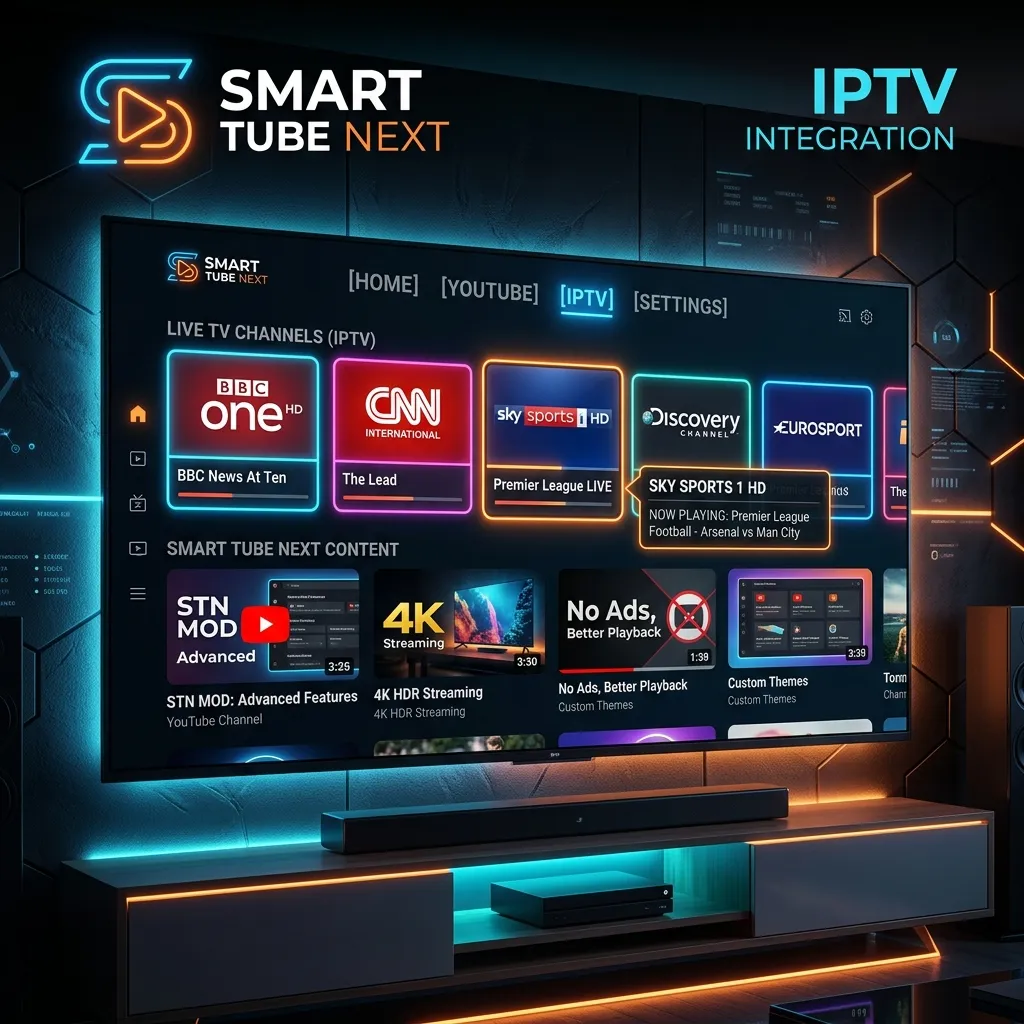
Introduction to the Modern Streaming Era
In recent years, the way we consume media has undergone a profound transformation. Gone are the days when viewers were tethered to expensive, rigid cable subscriptions that offered little in the way of flexibility or choice. Today, the power is firmly in the hands of the consumer, thanks to the proliferation of smart devices, high-speed internet, and innovative streaming technologies. Among these groundbreaking advancements, Internet Protocol Television (IPTV) has emerged as a dominant force, offering thousands of live channels, movies, and series on demand. But live TV is only one piece of the entertainment puzzle. For millions of users, YouTube remains the go-to platform for user-generated content, tutorials, documentaries, and independent media.
However, the official YouTube application on many smart TV platforms, particularly Android TV and Amazon Fire TV, leaves much to be desired. It is often plagued by intrusive advertisements, a clunky interface, and aggressive tracking mechanisms that can detract from the viewing experience. This is where SmartTubeNext (often abbreviated as STN or SmartTube) comes into play. As a wildly popular, open-source alternative to the official YouTube app, SmartTubeNext offers an ad-free, highly customizable, and fluid experience designed specifically for large screens.
But what happens when you combine the limitless on-demand and live television capabilities of IPTV with the unparalleled YouTube viewing experience of SmartTubeNext? You get the ultimate, uncompromised home theater setup. This comprehensive guide will walk you through everything you need to know about SmartTubeNext, the nuances of IPTV Subscription services, and how to seamlessly integrate both into your home entertainment ecosystem. Whether you are using an Nvidia Shield, an Android TV box, or following a Firestick Setup guide, this article will serve as your definitive resource.
Part 1: Deep Dive into SmartTubeNext
What is SmartTubeNext?
SmartTubeNext is an advanced, open-source YouTube client designed specifically for Android-based set-top boxes, smart TVs, and streaming dongles like the Amazon Fire TV Stick. Unlike the official YouTube application, which is developed and tightly controlled by Google to maximize ad revenue and user data collection, SmartTubeNext is built by the community, for the community. Its primary goal is to provide a seamless, ad-free, and highly customizable viewing experience on the big screen.
It is important to note that SmartTubeNext is not just a simple web wrapper; it is a fully native application written in C++ and Java, optimized for the unique hardware constraints and remote-control navigation paradigms of smart TV environments. This results in faster load times, smoother playback, and a much more responsive user interface compared to its official counterpart.
Key Features of SmartTubeNext
To understand why SmartTubeNext is considered an essential app for any serious cord-cutter, let's explore its standout features in detail:
- Complete Ad-Blocking: This is perhaps the most celebrated feature of SmartTubeNext. It completely removes all pre-roll, mid-roll, and post-roll video advertisements. It also blocks UI ads, banner ads, and sponsored search results, ensuring an entirely uninterrupted viewing experience. No longer do you have to scramble for the remote to click "Skip Ad" after 5 seconds.
- SponsorBlock Integration: Going a step further than traditional ad-blocking, SmartTubeNext integrates natively with the SponsorBlock API. SponsorBlock is a crowdsourced system that automatically skips in-video sponsor reads, intro sequences, outro sequences, and requests to "like and subscribe." This saves you countless hours of watching embedded promotional content created directly by the YouTuber.
- High-Resolution Playback Support: SmartTubeNext supports video playback at up to 8K resolution at 60 frames per second (fps), provided your hardware and internet connection can handle it. It also supports HDR (High Dynamic Range), ensuring that colors are vibrant and contrasts are deep.
- Customizable User Interface: The app allows users to heavily customize the interface. You can tweak the video player overlay, change the color scheme, adjust the size of thumbnails, and modify the sidebar menu to show only the categories you care about.
- Background Playback: Want to listen to a podcast, a music mix, or a documentary while navigating other menus or simply turning off the screen to save power? SmartTubeNext supports true background audio playback, a feature Google currently locks behind its paid Premium subscription.
- Framerate Matching (AFR): For videophiles, SmartTubeNext includes Auto Frame Rate switching. This feature matches the refresh rate of your TV to the frame rate of the video (e.g., 24fps for movies, 60fps for gaming content), eliminating judder and ensuring smooth motion.
- Picture-in-Picture (PiP) Mode: You can minimize a video to a small floating window while browsing other apps or navigating the Android TV interface.
- Casting Support: Although it works differently than the official Google Cast protocol, you can still link your phone to SmartTubeNext and cast videos directly from your mobile device to your television.
SmartTubeNext vs. Official YouTube App
To clearly illustrate the differences, let's look at a comparative breakdown:
| Feature/Attribute | SmartTubeNext | Official YouTube App |
|---|---|---|
| Video Ads | Completely Blocked | Present (unless Premium) |
| SponsorBlock | Built-in & Customizable | Not Available |
| User Interface | Highly Customizable | Fixed & Rigid |
| Open Source | Yes (GitHub) | No (Proprietary) |
| Background Audio | Free | Requires Premium |
| Hardware Resources | Lightweight & Fast | Heavy & Resource-Intensive |
| Privacy/Tracking | Minimal to None | High (Google Analytics) |
| Voice Search | Supported | Supported |
| Updates | Frequent (Community-driven) | Sparse (Corporate schedule) |
"SmartTubeNext doesn't just block ads; it fundamentally respects the user's time and device resources, making it an indispensable tool for Android TV and Firestick users." — Streaming Tech Review
Part 2: Understanding the Power of IPTV
While SmartTubeNext handles your YouTube needs, an IPTV Subscription is the engine that drives your live television, sports, and premium movie consumption.
What is IPTV and How Does it Work?
IPTV stands for Internet Protocol Television. Instead of receiving television programs as broadcast signals that enter your home via a rooftop antenna, a satellite dish, or a fiber-optic cable, IPTV delivers television content over your standard internet connection. It utilizes a packet-switched network to stream data, much like how websites load on your computer or how Netflix delivers movies.
When you subscribe to a service like Smartiflix, you aren't just getting a local selection of channels. You are tapping into a global network of content delivery servers that stream live broadcasts, on-demand movies, and complete television series directly to your device. The connection is typically established using an M3U playlist file or an Xtream Codes API login, which your IPTV player uses to authenticate your subscription and download the massive directory of available content.
Why Choose IPTV Over Traditional Cable?
- Massive Content Libraries: A standard cable package might offer 200 to 500 channels. A high-quality IPTV service can provide upward of 10,000 to 20,000 live channels spanning the globe, including premium sports networks, international news, and specialized entertainment channels.
- Video on Demand (VOD): In addition to live TV, most top-tier IPTV services include a massive library of VOD content. This means you have access to thousands of movies and TV show episodes that you can watch whenever you want, functioning similarly to Netflix or Hulu but contained within the same app as your live TV.
- Cost-Effectiveness: This is perhaps the biggest draw. Traditional cable packages can easily cost over $100 per month, especially when adding premium movie channels and sports packages. IPTV offers a vastly superior selection of content at a fraction of the cost. Check out our Pricing page to see how affordable premium entertainment can be.
- Device Flexibility: Cable requires a proprietary set-top box rented from the provider. IPTV can be accessed on almost any smart device: Android TVs, Firesticks, Apple TVs, smartphones, tablets, and even web browsers.
- No Contracts: Most IPTV services operate on a month-to-month, quarterly, or yearly prepaid basis without requiring long-term, binding contracts or early termination fees.
Comparing IPTV Protocols: M3U vs Xtream Codes vs Stalker
When setting up your IPTV player, you will encounter different login methods. Understanding them is key to a smooth setup:
- M3U URL: This is the oldest and most universal method. It is a simple text file format that contains the URLs for all the media streams. While universally supported, loading massive M3U lists can be slow on older devices.
- Xtream Codes API: This is the modern standard. Instead of a long URL, you input a Server URL, Username, and Password. It is significantly faster, more secure, and handles massive channel lists and VOD libraries much more efficiently than raw M3U links. This is the recommended method.
- Stalker Portal / MAG: Primarily used for dedicated MAG set-top boxes, this method uses a MAC address to authenticate the device. It provides a very cable-like interface but is less flexible if you want to switch between multiple devices.
Part 3: Preparing Your Environment
Before we dive into the installation and integration, we need to ensure your hardware is ready. The beauty of this setup is that it can run on relatively inexpensive hardware, but optimizing your environment is crucial for a smooth experience.
Choosing the Right Device
While both SmartTubeNext and most IPTV apps are designed for Android-based systems, not all devices are created equal. The heavy lifting comes from processing the EPG (Electronic Program Guide) of your IPTV service and rendering high-bitrate 4K streams.
- Amazon Fire TV Stick 4K Max: Excellent value for money. It has a faster processor and more RAM than the standard sticks, making it capable of handling heavy IPTV playlists and 4K playback on SmartTubeNext.
- Nvidia Shield TV Pro: The gold standard for Android streaming. Its powerful Tegra X1+ processor effortlessly handles 4K AI upscaling, massive IPTV EPGs, and high-bitrate streaming. It also features gigabit Ethernet and USB ports for external storage.
- Chromecast with Google TV (4K): A solid, affordable option that natively runs Android TV apps. It has a clean interface but somewhat limited internal storage.
- Generic Android TV Boxes: Devices like the Xiaomi Mi Box S, Mecool, or various unbranded boxes can work well, provided they have at least 2GB of RAM (preferably 4GB) and run a legitimate, certified version of Android TV.
- Smart TVs: Many modern Sony, Philips, and TCL televisions run Android TV or Google TV natively, meaning you don't even need an external box to install SmartTubeNext and IPTV applications.
Enabling Apps from Unknown Sources
Since SmartTubeNext is not available on the official Google Play Store or Amazon Appstore (due to its ad-blocking nature violating their terms of service), you must "sideload" the application. This requires granting your device permission to install apps from outside the official stores.
For Amazon Fire TV Devices:
- Navigate to the gear icon (Settings) on the far right of the home screen.
- Scroll down and select My Fire TV.
- Choose Developer Options. (If Developer Options is hidden, go to About, highlight your Fire TV device name, and click the 'Select' button on your remote 7 times rapidly. A message will say "You are now a developer".)
- Select Install unknown apps. You may need to grant this permission specifically to the 'Downloader' app once installed.
For Android TV Devices (Nvidia Shield, Chromecast, Sony TVs):
- Go to Settings (gear icon).
- Select Apps -> Security & Restrictions.
- Toggle on Unknown Sources for the browser or downloader app you intend to use.
Part 4: Step-by-Step Installation Guide
Now that your device is prepped, let's proceed with the installations. We will start with getting SmartTubeNext up and running, followed by your IPTV application.
Step 1: Installing the 'Downloader' App
To sideload apps easily without needing a computer or USB drive, the 'Downloader' app by AFTVnews is the industry standard.
- Open the search function on your device (magnifying glass or voice search).
- Type in "Downloader".
- Select the app (it has an orange background with a white download arrow).
- Click Download or Get to install it.
- Open the Downloader app and click Allow when it asks for permission to access photos, media, and files (this is necessary so it can save the APK files it downloads).
Step 2: Downloading and Installing SmartTubeNext
- Open the Downloader app.
- In the URL/Search bar on the home screen, type the official shortcode for SmartTubeNext:
79015(This redirects securely to the official GitHub release page) or type the URL:smarttube.app. - Click Go.
- The page will load. Scroll down to the download section. You will typically see options for a "Stable" release and a "Beta" release. We heavily recommend the Stable version for most users to ensure reliability.
- Click the download link for the Stable APK.
- Downloader will automatically download the file. Once finished, a standard Android installation prompt will appear asking if you want to install it. Click Install.
- Once installed, click Done (do not open it just yet). Downloader will ask if you want to delete the installation file. Click Delete to free up precious internal storage space.
Step 3: Installing Your IPTV Player
To access your IPTV Subscription, you need a dedicated IPTV player. While there are many options (Smarters Pro, XCIPTV, iMPlayer), we highly recommend TiviMate for Android TV devices and Smarters Pro for its universal compatibility and user-friendly interface.
For this guide, we'll outline the general process. For highly detailed, device-specific steps (such as configuring Downloader codes for specific IPTV apps), please refer to our complete Installation Guide.
- Open the Downloader app again.
- Enter the URL provided by your IPTV provider or the known shortcode for your preferred player.
- Download the APK file.
- Click Install when prompted.
- Click Done and delete the installation file.
Step 4: Configuring Your IPTV Service
- Open your newly installed IPTV player.
- You will typically be asked to log in. Select the Xtream Codes API method.
- Enter the credentials provided in your subscription email:
- Name: (Any name, e.g., Smartiflix Home)
- Username: (Your assigned username)
- Password: (Your assigned password)
- Portal URL: (The specific server URL provided to you)
- Click Add User or Login. The app will now download the channel lists, VOD metadata, and the EPG. Depending on the massive size of the Smartiflix library, this initial sync may take a few minutes. Let it complete uninterrupted.
Part 5: The Ultimate Integration - Creating a Seamless Media Center
Now that you have both SmartTubeNext for an impeccable ad-free YouTube experience and a powerful IPTV app for live TV and VOD, the goal is to make the transition between these two massive content hubs as seamless as possible. You want to build a true media center.
Understanding the Boundaries
It is important to clarify a technical reality: SmartTubeNext and IPTV applications are completely separate software entities built on different frameworks. You cannot currently play an IPTV M3U playlist inside SmartTubeNext, nor can you integrate the SmartTubeNext video player natively inside apps like TiviMate or Smarters.
However, "integration" in the context of a smart home theater means creating a unified workflow. You want jumping from live TV to YouTube to feel like simply changing a channel, rather than awkwardly navigating through clunky, ad-filled operating system menus.
Method 1: Using Custom Launchers for Unified Access
The default home screens on Fire TV and modern Google TV are increasingly cluttered. They are filled with sponsored content, full-screen video ads for streaming services you don't use, and "recommendations" that push you toward paid content. To integrate your experience perfectly, we recommend replacing the default launcher with a custom, minimalist launcher like Projectivy Launcher or FLauncher.
Benefits of a Custom Launcher:
- Zero Ads: Remove all Amazon and Google banner ads from your home screen instantly.
- Direct Access: Place your IPTV app and SmartTubeNext side-by-side in a large, prominent central dock.
- Auto-Boot Capabilities: You can configure the device to automatically launch your IPTV app or the custom launcher immediately upon turning on the TV, bypassing the OS completely.
- Custom Wallpapers: Set your own backgrounds to match your living room aesthetic.
Note: Setting up a custom launcher on Fire OS requires specific ADB commands and an application like 'Launcher Manager' to override Amazon's aggressive default settings. Android TV devices generally allow changing the default launcher much more easily via the standard settings menu.
Method 2: Remapping Remote Control Buttons
The ultimate physical integration technique is hardware button remapping. Look at your streaming remote. It likely has dedicated, unchangeable buttons for Netflix, Prime Video, Disney+, or Hulu. If you rely on your IPTV service for VOD and SmartTubeNext for videos, these buttons represent wasted, highly valuable real estate.
By using an app like Button Mapper (available on the standard Google Play Store or via sideloading on Fire OS), you can reprogram your remote at the system level.
- Setup Example: Remap the "Netflix" button so that a single press instantly launches your IPTV app. Remap the "Prime Video" button to instantly launch SmartTubeNext. You can even set long-presses or double-taps for extra functions.
- The Result: You can now switch instantly between live sports on your IPTV and a 4K tech review on SmartTubeNext with a single physical button press, without ever needing to look at a home screen menu.
Method 3: Deep Voice Assistant Integration
While deep integration varies by the specific device and OS version, you can often use voice commands to jump seamlessly between apps.
- "Open SmartTubeNext"
- "Launch TiviMate" (or your specific IPTV app name).
SmartTubeNext specifically has incredible built-in voice search support. It can be configured to intercept and replace the default global YouTube voice search on Android TV devices. This means when you press the microphone button on your remote and ask your TV to "search YouTube for 4K nature documentaries," it will automatically route the search query through the ad-free SmartTubeNext interface instead of launching the official, ad-heavy app.
Part 6: Advanced Configuration and Fine-Tuning
To truly master this setup and squeeze every ounce of performance out of your hardware, you need to dig deep into the advanced settings of both applications.
Optimizing SmartTubeNext for Peak Performance
-
Tweaking SponsorBlock to Your Liking:
- Go to Settings > SponsorBlock.
- You can choose exactly what categories to skip automatically. Categories include: Sponsor, Intro, Outro, Interaction Reminder (the classic "smash that like button"), Non-Music Section, and Preview/Recap.
- You can set individual rules for each category: Auto-skip, show a skip button on-screen, or simply ignore the segment entirely.
-
Video Player and Buffer Settings:
- Go to Settings > Video player.
- Video buffer: If you have plenty of RAM on your device (e.g., Nvidia Shield) but experience occasional internet latency, increase the video buffer to 'High' or 'Maximum'. This forces the app to load more of the video into memory ahead of time.
- Autoframerate (AFR): Turn this on. It ensures that 24fps movies play at a true 24Hz refresh rate on your TV, eliminating the "soap opera effect" and motion judder.
- Default Resolution: Force the app to always select the highest possible resolution (e.g., 2160p/4K) instead of relying on the app's auto-detect feature, which sometimes defaults to 1080p to save bandwidth.
-
User Interface Adjustments:
- Go to Settings > User interface.
- Change the theme to 'Pitch Black'. This is highly recommended for OLED TVs as it turns off the pixels entirely, providing infinite contrast and preventing screen burn-in.
- Rearrange the left sidebar. Hide sections you don't use (like Gaming, News, or Music) to keep the navigation lightning fast and tailored only to what you watch.
Optimizing Your IPTV Player
-
EPG Synchronization and Maintenance:
- The TV Guide (EPG) is the backbone of live TV. Ensure it updates reliably. In advanced apps like TiviMate, go to Settings > EPG and set it to 'Update on app start' and schedule a background update every 12 to 24 hours. Keep the 'Past days to keep EPG' setting low (1-2 days) to save storage space.
-
Buffer Size and Playback Adjustments:
- To prevent buffering on live, high-bitrate channels (especially 4K sports), look for the 'Playback' or 'ExoPlayer' settings in your IPTV app. Increase the buffer size to 'Large' or 'Very Large'. Note that a larger buffer means channel switching will take an extra second or two, but the stream will be vastly more stable.
-
Curating Favorites and Hiding Groups:
- Premium IPTV lists contain thousands of channels globally. You do not need to scroll through Indian, Arabic, or European bouquets if you only watch US/UK content.
- Spend 30 minutes in the group management settings to hide entire categories you don't watch.
- Add your most-watched channels to a dedicated "Favorites" list for immediate access. This vastly improves the WAF (Wife Acceptance Factor) of the setup.
Part 7: Troubleshooting Common Issues
Even the most highly optimized setups can occasionally run into technical hiccups. The streaming landscape is dynamic, with servers, APIs, and networks constantly shifting. Here is a comprehensive troubleshooting guide for your SmartTubeNext and IPTV ecosystem.
1. SmartTubeNext is Buffering or Videos Show "Not Available"
- The Cause: YouTube frequently and aggressively changes its backend API and video delivery mechanisms to thwart third-party applications and ad-blockers. When this happens, videos in SmartTubeNext might buffer endlessly, fail to load, or show a HTTP 403 error.
- The Solution: You simply need to update the app. The developers of SmartTubeNext are incredibly fast at pushing fixes, often within hours of Google changing the API.
- Open SmartTubeNext.
- Go to Settings > About > Check for updates.
- Install the latest update. This resolves the issue 99.9% of the time.
2. Login and Authentication Issues with SmartTubeNext
- The Problem: When trying to log into your Google/YouTube account to retrieve your subscriptions, history, and playlists, the app does not present a standard email/password field. Instead, it asks you to go to a web address on your phone and enter a code.
- The Solution: This is not a bug; this is the correct, secure OAuth 2.0 method mandated by Google for TV devices.
- Go to
youtube.com/activateon your smartphone or computer browser. - Ensure you are logged into the specific Google account you want to use.
- Enter the code displayed on your TV screen.
- Grant permission. Your account will instantly sync on the TV.
- Go to
3. IPTV Channels are Buffering, Skipping, or Freezing
- The Cause: Unlike SmartTubeNext errors, this is rarely an issue with the IPTV app itself. It is almost always related to your local network connection, ISP routing, or the IPTV provider's server load during peak events.
- The Solution:
- Check Speed and Latency: Run a speed test directly on your streaming device (not your phone). You need a stable, sustained connection of at least 25 Mbps for standard HD and 50+ Mbps for 4K. Pay attention to "Ping" or latency; anything over 60ms can cause issues with live streams.
- Ditch the Wi-Fi: If at all possible, hardwire your streaming device to your router using a Cat5e or Cat6 Ethernet cable. Wi-Fi fluctuations, interference from other devices, and physical walls are the #1 cause of live TV buffering.
- Clear Cache: Go to your device's application settings, find your IPTV app, and select "Clear Cache" (do NOT clear data, or you will lose your login). This forces the app to dump temporary files that might be corrupted.
4. Audio and Video are Out of Sync (Lip Sync Issues)
- In SmartTubeNext: This can occasionally happen if Auto Framerate (AFR) is struggling with a specific, obscure video codec. Try turning AFR off temporarily, or select a different audio track format in the video player settings (e.g., switch from an AC3 track to standard stereo).
- In IPTV: Live streams sometimes experience encoding drifts. Go to your IPTV player's playback menu (usually by pressing 'down' while watching a channel) and look for an "Audio Offset," "Audio Delay," or "Audio Sync" option. Manually advance or delay the audio by 50-100 millisecond increments until the voices match the lip movements.
Part 8: Security, Privacy, and Safe Streaming Practices
When venturing outside the highly controlled, walled gardens of official app stores and mainstream cable providers, it is absolutely crucial to understand the security landscape. Protecting your data and your network should be a top priority.
Is SmartTubeNext Safe to Install and Use?
Yes. SmartTubeNext is entirely open-source software. This means the underlying code is publicly available on GitHub for anyone—including hundreds of independent security researchers—to review. There is no hidden malware, spyware, cryptocurrency miners, or malicious data-harvesting code. The app is maintained by a dedicated, transparent community of developers whose sole interest is providing a superior YouTube experience.
However, always download it from the official GitHub source (using the 79015 Downloader shortcode or smarttube.app). Never download the APK from random, third-party Android download sites, as bad actors will often take the open-source code, inject it with malware, and re-upload it to trick unsuspecting users.
Securing Your IPTV Connection and Anonymity
IPTV operates differently than standard web browsing. You are establishing a continuous, high-bandwidth connection directly to private media servers to stream content. To maintain absolute privacy and prevent your Internet Service Provider (ISP) from monitoring your streaming habits, blocking your access, or throttling your bandwidth, using a Virtual Private Network (VPN) is not just recommended; it is highly essential.
Why a VPN is Crucial for IPTV Users:
- Bypassing ISP Throttling: ISPs (like Comcast, AT&T, BT, etc.) deploy Deep Packet Inspection (DPI) to see what type of data you are downloading. When they detect massive, continuous video streaming from unknown IPTV servers, they often intentionally slow down (throttle) that specific traffic to save network bandwidth. This causes relentless buffering. A VPN encrypts your entire connection. Your ISP only sees a stream of encrypted gibberish. Because they cannot identify what the data is, they cannot selectively throttle it.
- Evading Geo-Restrictions and ISP Blocks: During major sporting events (like the Premier League or PPV fights), ISPs are often court-ordered to block the IP addresses of known IPTV servers. A VPN routes your connection through a different server in a different city or country, completely bypassing these local ISP-level blocks.
- Absolute Privacy: It shields your real, home IP address from the streaming servers and any potential third parties monitoring the network.
For a deeper, highly detailed dive into maintaining security while streaming, setting up VPNs, and protecting your home network, we highly recommend reading our dedicated guide: Is Smartiflix Safe? A Complete Security Overview.
Part 9: Why Choose Smartiflix for Your IPTV Needs?
You've done the hard work. You've researched the hardware, installed custom launchers, remapped your remote, and set up the ultimate, ad-free YouTube experience with SmartTubeNext. But the absolute heart of your home entertainment system relies on a robust, reliable IPTV provider.
A spectacular TV setup is utterly useless if the live streams constantly buffer or the VOD library is outdated. This is where Smartiflix stands apart from the crowded, chaotic, and often unreliable market of generic streaming providers.
At Smartiflix, we understand that modern cord-cutters demand flawless quality, unwavering reliability, and dedicated support.
- Unmatched Channel Selection: We provide seamless access to thousands of premium live channels from around the globe. Whether you are looking for local news broadcasts, international sports packages, PPV events, or highly niche entertainment networks, our servers deliver it flawlessly.
- Massive, Updated VOD Library: Why continue paying $15-$20 a month for multiple, fragmented streaming services like Netflix, Max, and Disney+? Our Video On Demand library acts as an aggregator, constantly updated with the latest theatrical blockbusters, critically acclaimed series, and classic cinema, all available in up to 4K resolution.
- Rock-Solid Infrastructure: We do not rely on cheap, oversold servers. We invest heavily in enterprise-grade server infrastructure equipped with advanced anti-freeze technology and massive bandwidth pipelines to ensure 99.9% uptime. Say goodbye to the frustrating buffering loops associated with subpar, budget providers.
- Exceptional Customer Support: We don't just sell you a subscription and disappear into the ether. Our dedicated support team is available to help you with everything from initial application setup to troubleshooting complex network routing issues.
- Flexibility and Trust: We believe in the quality of our service so much that we do not lock you into massive contracts.
Ready to completely transform your television experience and cut the cord for good? Head over to our Homepage to explore our features in depth, or visit our Pricing page to choose a flexible plan that perfectly fits your entertainment needs.
Conclusion: The Future of Your Living Room is Here
The traditional television model is dead. The days of paying exorbitant, ever-increasing monthly fees for rigid cable packages, renting proprietary hardware, and suffering through endless, unskippable advertisements on YouTube are officially over.
By taking the time to combine the powerful, highly optimized, ad-free environment of SmartTubeNext with a premium, high-bandwidth IPTV Subscription from Smartiflix, you are taking absolute, uncompromising control of your home entertainment ecosystem.
This modern setup provides an unparalleled breadth of content—from the deepest, most highly specific niche YouTube documentaries to live, high-stakes international sporting events—all delivered in brilliant high definition and customized exactly to your personal preferences. While the initial setup requires a bit of technical navigation and fine-tuning, the reward is a seamless, cost-effective, and infinitely superior viewing experience.
Welcome to the future of television. The power is back in your hands. Welcome to Smartiflix.