SET IPTV Review: Complete Guide & Setup Instructions
Explore SET IPTV with our in-depth review and easy configuration guide. Discover features, installation tips, and troubleshooting for optimal streaming.
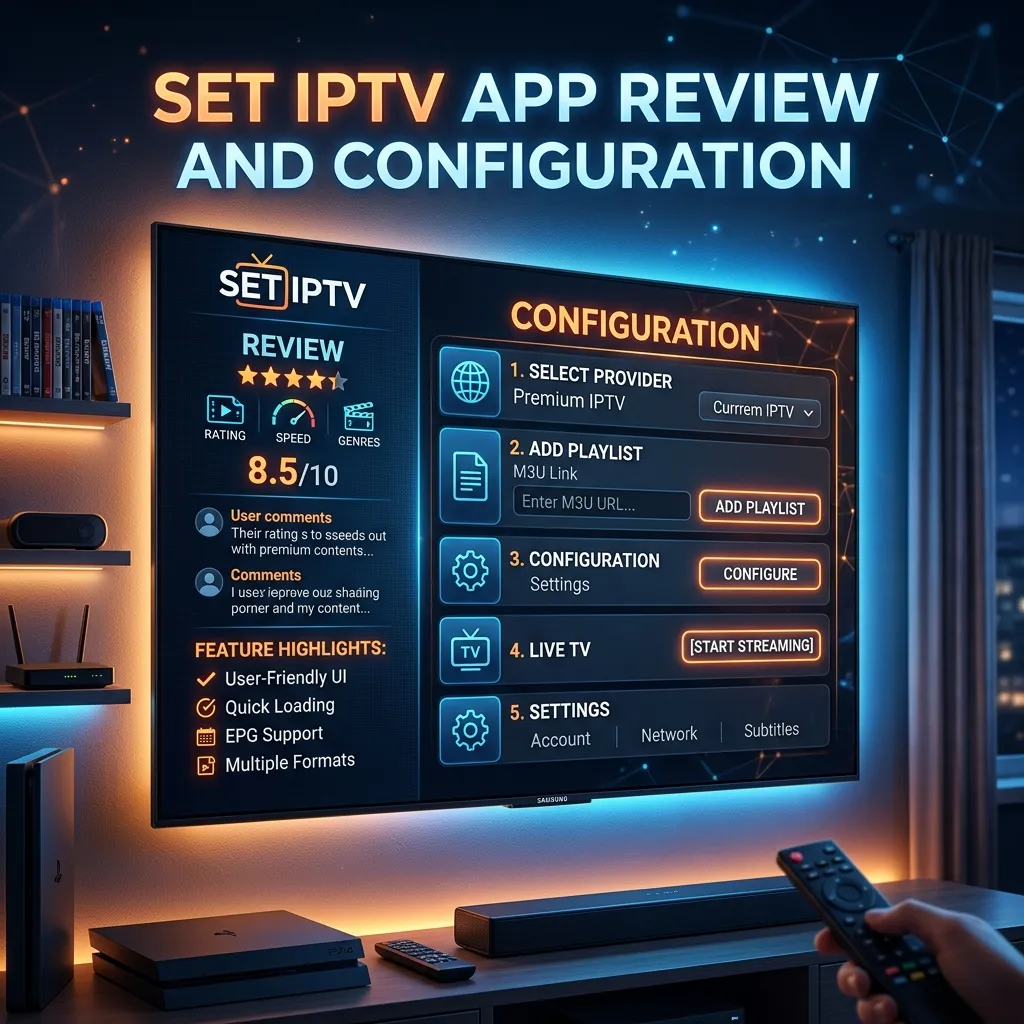
Welcome to the ultimate guide to the SET IPTV application, brought to you by Smartiflix. In recent years, the shift from traditional cable television to Internet Protocol Television (IPTV) has accelerated at an unprecedented rate. Consumers are actively looking for solutions that give them the freedom to watch what they want, when they want, without being locked into expensive, rigid contracts. However, possessing a top-tier IPTV subscription is only half the battle; the other crucial half is having a reliable, feature-rich, and user-friendly IPTV player to deliver that content to your screen. This is where SET IPTV comes into play.
In this massive, comprehensive review and configuration guide, we are going to dive deep into everything you need to know about the SET IPTV application. We will explore its key features, compare it with other heavyweights in the market, guide you through a step-by-step installation process across multiple devices, and provide advanced troubleshooting and optimization tips. Whether you are a novice cord-cutter setting up your very first smart TV or a seasoned streaming veteran looking to optimize your home entertainment setup, this guide is designed to be your definitive resource.
What is SET IPTV?
SET IPTV is a highly popular, premium media player application specifically designed to decode and play IPTV streams on various smart devices. Developed with a focus on simplicity and speed, it has quickly become one of the go-to applications for users of Smart TVs—particularly those running Samsung’s Tizen OS and LG’s webOS.
Important Note: It is crucial to understand that SET IPTV is strictly a media player. It does not provide any content, channels, movies, or video-on-demand (VOD) out of the box. To utilize the application, you must already have an active subscription with a third-party IPTV provider, such as our premium IPTV Subscription service.
The app acts as the bridge between your IPTV provider's servers and your television screen. It takes the raw data (usually provided via an M3U playlist link or Xtream Codes API) and organizes it into a beautiful, navigable interface complete with categories, electronic program guides (EPG), and VOD posters.
Initially, SET IPTV gained immense popularity because many older IPTV apps were being removed from the official Samsung and LG app stores due to copyright disputes involving embedded content. Because SET IPTV is completely devoid of any media, it has maintained a strong, legitimate presence in these app ecosystems, providing a reliable safe haven for smart TV owners.
Key Strengths of SET IPTV
- No hardware needed: If you have a modern Smart TV, you don't need to buy an additional set-top box.
- Speed: The application is incredibly lightweight and boots up in seconds.
- Updates: The developers actively maintain the app, frequently pushing out updates to fix bugs and improve performance.
An In-Depth Look at the Key Features of SET IPTV
When choosing an IPTV player, the feature set is what separates an average viewing experience from a stellar one. SET IPTV has carefully curated its feature list to prioritize stability, ease of use, and visual appeal. Below, we break down the most prominent features that make SET IPTV a top-tier choice.
1. Exceptional User Interface (UI) and Navigation
The interface of SET IPTV is arguably its strongest selling point. It utilizes a clean, dark-mode aesthetic that is easy on the eyes, especially when watching TV in a dimly lit room. The home screen is logically divided into three main sections: Live TV, Movies (VOD), and Series.
- Live TV: Channels are categorized by country or genre, depending on how your IPTV provider organizes them.
- Movies & Series: VOD content is displayed with high-quality movie posters, plot synopses, cast information, and IMDb ratings (if your provider supports this metadata).
2. Robust Electronic Program Guide (EPG) Support
Navigating thousands of live channels without a TV guide is a nightmare. SET IPTV excels in its EPG integration. It automatically pulls the XMLTV data provided by your service and syncs it with the channels. You can view what is currently playing, what is coming up next, and access an extended schedule for the days ahead. The timeline view is intuitive, resembling the classic cable TV guide interface that most users are already comfortable with.
3. Xtream Codes API and M3U Playlist Compatibility
SET IPTV gives you two primary methods for loading your playlist. While it supports the traditional M3U URL link, its true power shines when using the Xtream Codes API (logging in with a server URL, username, and password). Xtream Codes provides a much faster initial load time, better VOD metadata organization, and more reliable EPG syncing compared to flat M3U files.
4. Catch-Up TV (Time-Shift)
If your IPTV Subscription includes a Catch-Up feature (the ability to rewind and watch live TV broadcasts from the past 24 to 72 hours), SET IPTV fully supports it. Channels with Catch-Up available are clearly marked with a specific icon in the channel list. Accessing past programs is as simple as opening the EPG and scrolling backwards in time.
5. Advanced Video Player and Audio Tracks
Under the hood, SET IPTV utilizes a powerful media engine capable of handling high-bitrate 4K UHD streams, HEVC (H.265) decoding, and 60 frames-per-second (fps) sports broadcasts. Additionally, if a movie or live channel broadcasts with multiple audio tracks (e.g., English, Spanish, French) or subtitles, the app allows you to seamlessly switch between them using the on-screen player controls.
6. Parental Controls
For families, SET IPTV includes a robust PIN-protected parental control system. You can lock entire categories (such as Adult channels) or specific individual channels, ensuring that your children only have access to age-appropriate content.
SET IPTV vs. Other Popular IPTV Players
How does SET IPTV stack up against the fierce competition? Let's take a look at a comparative analysis between SET IPTV and other leading apps.
| Feature / App | SET IPTV | TiviMate | IPTV Smarters Pro | Smart IPTV (SIPTV) |
|---|---|---|---|---|
| Best Platform | Smart TVs (Tizen/webOS) | Android TV / Firestick | Cross-Platform | Older Smart TVs |
| Price | ~€15.30 (One-time fee) | ~$30 (Lifetime) or $8/yr | Free (Premium available) | ~€5.49 (One-time fee) |
| User Interface | Modern, sleek | Highly customizable | Boxy, functional | Outdated, basic |
| VOD Presentation | Excellent (Posters/Info) | Excellent | Good | Poor (List format) |
| Catch-Up Support | Yes | Yes (Excellent) | Yes | Limited |
| Multi-Screen | No | Yes (Up to 4 screens) | Yes | No |
The Verdict: If you are using an Android TV box or a Firestick, TiviMate remains the undisputed king due to its extreme customizability and multi-screen features. However, if you are using a Samsung or LG Smart TV natively (without an external device), SET IPTV is arguably the best application available on those specific app stores today, far outshining older apps like Smart IPTV.
Is SET IPTV Safe and Legal?
A common question among new users is whether downloading and using SET IPTV is legal and safe. The short answer is: Yes, the SET IPTV application itself is 100% legal and safe.
The Legality
As mentioned earlier, SET IPTV is an empty shell. It is a media player, much like VLC Media Player or Windows Media Player. Developing, downloading, and selling a media player does not violate any copyright laws. The legality of your viewing experience depends entirely on the third-party IPTV service you choose to integrate with the app.
The Safety
Because SET IPTV is available on the official Google Play Store, Samsung Smart Hub, and LG Content Store, it has passed rigorous security checks by these tech giants. It does not contain malware, spyware, or viruses.
However, when you are streaming IPTV content, you are transmitting data across the internet. Depending on your region, Internet Service Providers (ISPs) may throttle your connection or monitor your traffic if they detect high-bandwidth streaming. To ensure your privacy, avoid ISP throttling, and secure your connection, we highly recommend reading our comprehensive Security Guide and utilizing a trusted Virtual Private Network (VPN) while streaming.
Pre-Requisites Before Installation
Before we dive into the installation guides for various devices, ensure you have the following ready:
- A compatible device: A Smart TV, Android box, or Firestick.
- An active internet connection: We recommend a minimum speed of 30 Mbps for HD streaming and 50 Mbps for 4K streaming.
- Your IPTV Credentials: You will need either your M3U link or your Xtream Codes API details (Server URL, Username, Password). If you don't have a provider yet, check out our Pricing page to secure a premium, buffer-free connection.
How to Download and Install SET IPTV
The installation process varies significantly depending on the operating system of your device. We have broken down the exact steps for the four most popular platforms.
1. Installing SET IPTV on Samsung Smart TV (Tizen OS)
Samsung uses its proprietary Tizen operating system. While it is fast and efficient, its app store is heavily regulated. Fortunately, SET IPTV is officially available.
Step-by-Step Guide:
- Turn on your Samsung Smart TV and ensure it is connected to the internet.
- Press the Home button on your Samsung remote to bring up the Smart Hub menu.
- Scroll left to the Apps icon and press Enter.
- In the Apps screen, navigate to the Search icon (the magnifying glass) usually located in the top-right corner.
- Type
SET IPTVusing the on-screen keyboard. - The SET IPTV app should appear in the search results. Select it.
- Click the Install button. The app is lightweight and should download within seconds.
- Once installed, select Open to launch the app or add it to your home screen for easy access.
2. Installing SET IPTV on LG Smart TV (webOS)
Similar to Samsung, LG uses its own webOS platform. SET IPTV is fully compatible and available in the official LG Content Store.
Step-by-Step Guide:
- Turn on your LG Smart TV.
- Press the Home button on your LG Magic Remote.
- Scroll through the ribbon menu at the bottom and select the LG Content Store (or simply "Apps" on newer webOS versions).
- Click the Search icon in the top right corner.
- Search for
SET IPTV. - Select the application from the list of results.
- Click Install.
- Once the installation is complete, click Launch to open the app.
3. Installing SET IPTV on Amazon Firestick / Fire TV
Amazon's Fire OS is based on Android, but Amazon restricts its Appstore. Since SET IPTV might not always be available directly in the Amazon Appstore in all regions, we will use the popular "Downloader" method to sideload the application.
Tip: If you are new to the Firestick ecosystem, you might also want to read our dedicated guide on Firestick Setup for more advanced tips on maximizing the device's potential.
Step-by-Step Guide:
- From the Firestick Home screen, navigate to Find > Search.
- Type
Downloaderand select the Downloader app (orange icon with a downward arrow). - Click Download and then Open the app. Allow any permissions it requests.
- Next, you need to enable unknown sources. Press the Home button to return to the main screen.
- Go to Settings (the gear icon on the far right).
- Select My Fire TV > Developer Options. (If you don't see Developer Options, go to 'About', click your Fire TV Stick name 7 times rapidly to unlock it).
- Turn ON Install Unknown Apps for the Downloader application.
- Open the Downloader app again.
- In the URL bar, you will need to enter the direct APK download link for SET IPTV. You can use a shortcode or the official website URL (e.g.,
https://cms.setiptv.com/setiptv.apk- Note: URLs can change, always verify the latest APK source). - Click Go. The APK file will begin downloading.
- Once downloaded, the installation prompt will automatically appear. Click Install.
- After installation, click Done, and then you can delete the APK file from Downloader to free up storage space on your Firestick.
4. Installing SET IPTV on Android TV & TV Boxes
For devices like the Nvidia Shield, Chromecast with Google TV, or generic Android TV boxes, the process is incredibly straightforward as you have access to the Google Play Store.
Step-by-Step Guide:
- Open the Google Play Store from your home screen.
- Navigate to the Search bar and type
SET IPTV. - Locate the official app (make sure the developer matches) and click Install.
- Once installed, click Open.
Step-by-Step Configuration Guide: How to Setup SET IPTV
Now that you have successfully installed the application on your device of choice, it is time to link your IPTV Subscription to the app.
SET IPTV uses a web-based portal system. Instead of painstakingly typing out long, complicated URLs using your TV remote, you will use your computer or smartphone to push the playlist to your TV over the internet.
Step 1: Locating Your TV's MAC Address
Every device using SET IPTV generates a unique identifier known as a MAC Address. This is required to pair your TV with the SET IPTV web portal.
- Launch the SET IPTV app on your TV or device.
- Upon opening the app for the first time, you will be greeted by a welcome screen.
- On this screen, you will clearly see a MAC Address displayed. It consists of six pairs of alphanumeric characters separated by colons (e.g.,
A1:B2:C3:D4:E5:F6). - Write this MAC address down or take a picture of it with your smartphone. You will need it in the next step.
Note: The app provides a free 7-day trial for new users. After 7 days, you will need to pay a one-time activation fee to keep using the app. We will cover this later in the guide.
Step 2: Accessing the SET IPTV Web Portal
- Grab your computer, tablet, or smartphone.
- Open your preferred web browser (Chrome, Safari, Edge, etc.).
- Navigate to the official SET IPTV upload portal:
https://cms.setiptv.com/set.app - You will see a web page with fields to enter your MAC address and playlist information.
Step 3: Uploading Your Playlist
You have two main options here depending on what your IPTV provider gave you. If you purchased a plan from our Pricing page, you likely received both.
Option A: Using the M3U Link Method
- On the web portal, locate the section that says Upload M3U link.
- In the TV MAC field, enter the MAC address you wrote down from Step 1.
- In the M3U URL field, copy and paste the long M3U link provided by your IPTV service.
- Check the "I am not a robot" reCAPTCHA box.
- Click the Send or Submit button.
- A success message should appear on the screen.
Option B: Using Xtream Codes API (Recommended for better performance)
- On the web portal, switch to the tab or section labeled Xtream-Codes Setup.
- Enter your TV MAC address.
- You will need to fill in three fields:
- Host URL / Portal: (e.g.,
http://server-address.com:8080) - Username: Your account username.
- Password: Your account password.
- Host URL / Portal: (e.g.,
- Check the reCAPTCHA box.
- Click Send or Submit.
Step 4: Reloading the App on Your TV
- Go back to your TV where the SET IPTV app is open.
- Most of the time, the app will auto-detect the new playlist and begin downloading the channels and EPG.
- If it does not, simply press the Restart or Reload button on the app's interface, or exit the app completely and reopen it.
- The app will take a few moments to parse the data. Once finished, you will see your Live TV, VOD, and Series categories populated!
Activating the SET IPTV App
As mentioned, SET IPTV is a premium application. It comes with a 7-day free trial, allowing you to test its features, check its compatibility with your TV, and ensure you like the interface before committing financially.
Once the 7 days are up, the app will lock your access and prompt you to activate it. The activation fee is a one-time payment of approximately €15.30 (Euros) per TV MAC address. This is not a recurring subscription; you pay it once and own the app license for the lifetime of that specific TV.
How to Activate:
- Visit the official activation page:
https://cms.setiptv.com/act.app - Enter the MAC address of your TV.
- Fill in your personal details (Email, Name).
- Choose your payment method (Credit Card, PayPal, or Crypto are usually accepted).
- Complete the checkout process.
- Once the payment is confirmed, the license is instantly applied to your MAC address. You simply need to restart the app on your TV, and the activation prompt will disappear forever.
Advanced SET IPTV Settings and Optimization
To get the absolute best out of your streaming experience, you shouldn't just stick to the default settings. Dive into the settings menu (usually accessible via a gear icon on the home screen or by pressing a specific color button on your remote).
1. Adjusting the Video Buffer
If you occasionally experience micro-stutters but your internet speed is fast, adjusting the buffer size can help. The buffer pre-loads a few seconds of video before playing it.
- Go to Settings > Player Settings > Buffer Size.
- Increase the buffer from 'Normal' or 'Small' to Large or Max. This will add a 1-2 second delay when switching channels, but it provides a massive boost to stream stability, especially during live sports events.
2. Decoder Settings (Hardware vs. Software)
By default, SET IPTV uses Hardware Decoding, relying on your TV's built-in chip to process the video.
- If you notice that certain VOD movies have video but no audio, or vice versa, the hardware might lack the specific codec support (like DTS or Dolby Digital).
- In the settings, switch the decoder from Hardware (HW) to Software (SW). Software decoding forces the app to process the file, which can often resolve compatibility issues with older or unique video formats.
3. EPG Auto-Update Frequency
To ensure your TV guide is always accurate, find the EPG settings. Set the "EPG Update Interval" to Every time the app starts or every 24 hours. This ensures you always pull the latest scheduling data from your provider without having to do it manually.
For an in-depth look at optimizing your home network for IPTV, including router setup and Wi-Fi band selection, check out our extensive Installation Guide.
Troubleshooting Common SET IPTV Issues
Even with a flawless setup, the nature of IPTV means you might occasionally run into a hiccup. Here is a massive troubleshooting guide for the most common issues you might encounter with SET IPTV.
Problem 1: Playlist Will Not Load / "Check URL" Error
You've uploaded your playlist on the portal, restarted the app, but no channels appear, or you get a networking error.
Solutions:
- Double-check for typos: The most common cause is a typo in the MAC address, M3U link, or Xtream Codes credentials. Even a single missing character or an accidental empty space at the end of a URL will cause a failure.
- Clear Playlist and Re-upload: Go to the SET IPTV web portal, enter your MAC address, and click the "Delete Playlist" or "Reset" button. Then, carefully re-enter your credentials and submit again.
- Provider Block: Ensure your IPTV Subscription is active and hasn't expired. Also, some providers lock your account to an IP address. If you are using a VPN on the TV but not on the device you used to buy the subscription, the provider's server might block the connection.
Problem 2: Constant Buffering, Freezing, or Skipping
You are watching a channel, but it constantly pauses, the audio loops, or the screen freezes entirely.
Solutions:
- Internet Speed Test: Run a speed test directly on your TV. While your phone might get 200 Mbps, your TV might be in a Wi-Fi dead zone getting only 10 Mbps. You need a stable 30-50 Mbps.
- Use an Ethernet Cable: Wi-Fi is susceptible to interference from microwaves, walls, and other devices. Hardwiring your Smart TV directly to your router with an Ethernet (RJ45) cable is the single best way to eliminate buffering.
- ISP Throttling: If buffering only happens during peak hours (e.g., 7 PM - 11 PM) or during major sporting events, your Internet Service Provider is likely throttling IPTV traffic. The solution is to use a high-quality VPN to encrypt your traffic so your ISP cannot see what you are streaming. Read our Security Guide for more details.
- Change Channels: Sometimes the issue is not on your end, but on the provider's server. Try switching to a backup channel or an SD/HD version of the same channel.
Problem 3: The EPG (TV Guide) is Blank or "No Information"
Your channels are playing perfectly, but you cannot see what is currently on or what is coming up next.
Solutions:
- Force EPG Reload: Open the SET IPTV app menu and look for a button that says "Refresh EPG" or "Reload Portal".
- Time/Date Settings on TV: If your Smart TV's internal clock or timezone is incorrect, the EPG data will not align with the channels. Go into your TV's main hardware settings and ensure the date, time, and timezone are set to 'Automatic' or are perfectly accurate.
- M3U vs. Xtream Codes: If you used an M3U link without a specific EPG URL tag, the guide won't load. This is why we highly recommend using the Xtream Codes API login method, as it natively binds the EPG to the channel list.
Problem 4: Audio is Out of Sync with Video
You are watching a movie, but the lips are moving before or after the sound is heard.
Solutions:
- Change Audio Track: Sometimes a stream has a corrupted primary audio track. Use the app's player controls to select "Audio Track 2" if available.
- Toggle Decoder: As mentioned in the advanced settings, switch from Hardware Decoder to Software Decoder (or vice versa).
- Restart the App: A simple memory leak in the TV's OS can cause sync issues. Fully close the SET IPTV app and reopen it.
Problem 5: My TV Broke and I Bought a New One. Do I Have to Pay for SET IPTV Again?
Solution: Unfortunately, the SET IPTV developer ties the €15.30 lifetime license strictly to the hardware MAC address of the television. If your TV breaks, is stolen, or you upgrade to a new one, the new TV will generate a completely different MAC address. You will need to download the app on the new TV, complete the 7-day trial, and purchase a new license for that specific MAC address.
5 Tips to Maximize Your SET IPTV Experience
- Invest in a Premium Provider: A high-end sports car is useless if you fill it with cheap, dirty fuel. The same applies to SET IPTV. The app's performance is heavily reliant on the quality of the IPTV servers feeding it. Avoid cheap, oversold servers. Check our Pricing options for enterprise-grade, load-balanced streams.
- Curate Your Favorites: If your provider offers 15,000 channels, scrolling through them every time is exhausting. Spend 20 minutes going through the list and utilizing the SET IPTV "Add to Favorites" function (usually done by holding the OK button on the channel). This creates a dedicated category of just the channels you actually watch.
- Use a VPN on Your Router: Since installing a VPN directly on Tizen or webOS is incredibly difficult (they don't support native VPN apps like Android does), the best solution is to install a VPN at the router level. This encrypts all traffic for every device in your home, ensuring your TV is always protected.
- Regularly Reboot Your TV: Modern Smart TVs are essentially giant computers. They keep apps suspended in the background, which consumes RAM. Once a week, unplug your TV from the wall for 60 seconds to clear the cache and RAM. This simple trick resolves 90% of app sluggishness and crashing issues.
- Hide Unwanted Categories: Many providers include international channels you may never watch (e.g., categories for countries whose languages you don't speak). Check if your IPTV provider offers a dashboard to hide these categories before they even reach the SET IPTV app, keeping your UI clean and fast.
Frequently Asked Questions (FAQ)
To wrap up this extensive guide, let's address some of the most frequently asked questions we receive regarding the SET IPTV application.
Q1: Can I install SET IPTV on an Apple TV or iOS device? A: No. Currently, SET IPTV is developed strictly for Android, Fire OS, Tizen (Samsung), and webOS (LG). If you are using an Apple TV, we recommend looking into alternatives like IPTV Smarters Pro or iPlayTV.
Q2: Does SET IPTV support recording (PVR)? A: No, SET IPTV does not currently have a native recording feature that allows you to save live TV directly to a USB drive or local storage. You must rely on the Catch-Up feature provided by your IPTV service if you miss a show.
Q3: Can I use one SET IPTV license on multiple TVs? A: No. The license is tied directly to the MAC address of a single device. If you have three Smart TVs in your house, you must pay the activation fee three times (one for each TV) after the 7-day trials expire.
Q4: Why does the app say "Mac Not Activated" after I paid? A: Payments can sometimes take a few minutes to process, especially if paying via cryptocurrency or e-checks. Wait 10-15 minutes, completely close the app, unplug the TV to clear the cache, and turn it back on. If the issue persists for more than 24 hours, you will need to contact the SET IPTV developers via their official website's support form with your proof of payment.
Q5: Is SET IPTV better than Smart IPTV (SIPTV)? A: In our professional opinion, yes. Smart IPTV is one of the oldest apps on the market, and while it deserves respect for pioneering the space, its user interface is incredibly outdated, and it struggles to handle massive modern playlists (e.g., playlists with 50,000+ VOD items). SET IPTV handles large databases much more efficiently and presents them in a beautiful, Netflix-style layout.
Q6: Does SET IPTV provide sports channels? A: We cannot stress this enough: SET IPTV does not provide any channels, sports, or movies. It is just a player. You must buy an IPTV Subscription from a provider to get access to sports channels.
Final Verdict: Is SET IPTV Worth It?
The IPTV landscape is flooded with hundreds of different player applications, ranging from terrible, ad-filled nightmares to premium, polished software. SET IPTV firmly places itself in the top tier of the latter category.
For users equipped with a modern Samsung or LG Smart TV, SET IPTV is arguably the best investment you can make for your home entertainment setup. It eliminates the need to purchase external hardware like a Firestick or an Android box, keeping your living room setup clean and utilizing your TV's native remote control. The €15.30 lifetime fee is incredibly reasonable when you consider the sleek interface, the robust EPG handling, and the active development and bug-fixing provided by the team behind it.
While power users on Android might still prefer the deep customization of TiviMate, SET IPTV hits the perfect sweet spot between simplicity for beginners and advanced features for enthusiasts.
Ready to start your journey?
- Download the app on your device today to start your 7-day free trial.
- Head over to our Pricing page to grab a top-tier playlist.
- Use the configuration steps in this guide to link the two together.
- Enjoy a world of limitless entertainment right from your couch!
If you need further assistance with your setup, don't hesitate to check out our main Installation Guide or contact the Smartiflix support team. Happy streaming!