Prevent ISP Throttling for Smooth IPTV Streaming Experience
Learn effective strategies to prevent ISP throttling while streaming IPTV. Enjoy uninterrupted and high-quality viewing without annoying buffering.
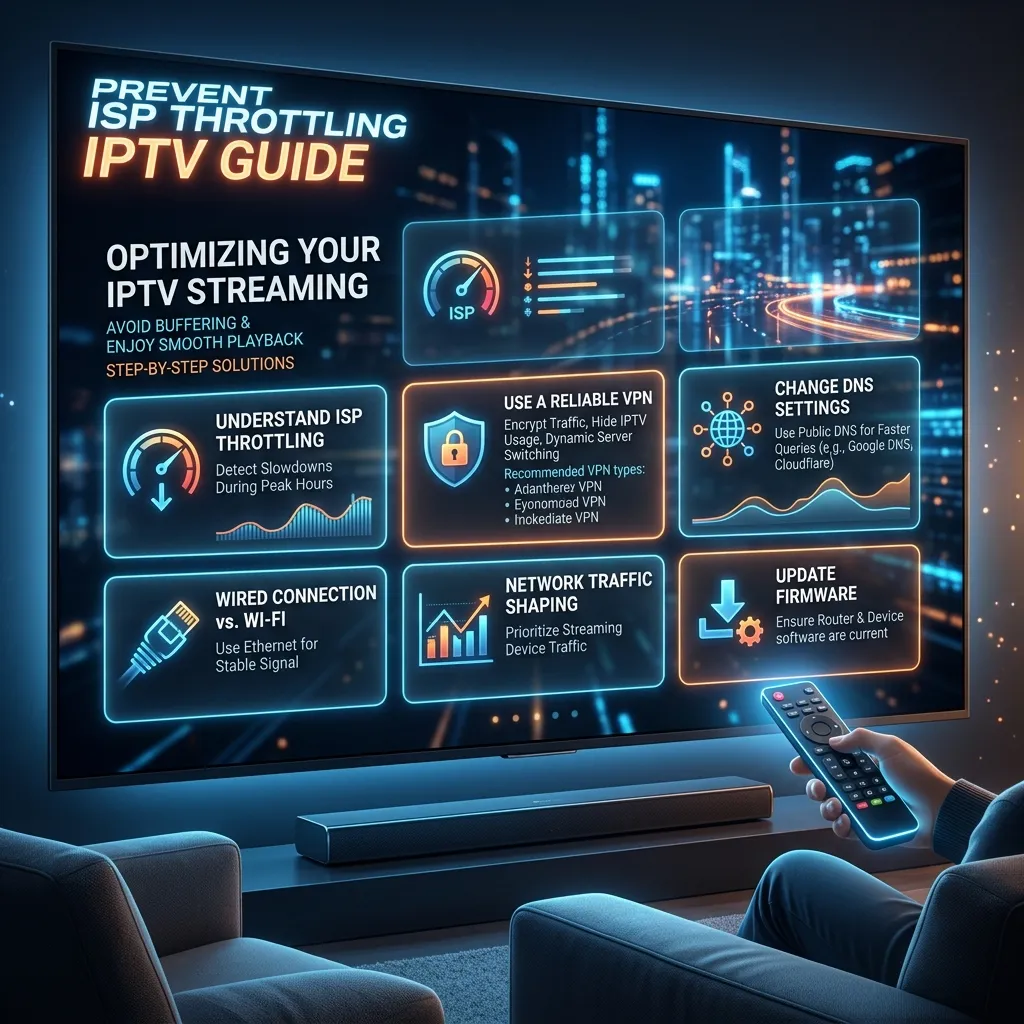
Have you ever settled down to watch a highly anticipated live sports event or the finale of your favorite TV series, only to be met with endless buffering circles, pixelated video quality, and frustrating connection drops? If you are an IPTV user, you might have experienced this scenario more often than you'd like. While many users immediately blame their IPTV service provider or their home Wi-Fi router, the hidden culprit behind these streaming woes is frequently something much more insidious: ISP throttling.
In this comprehensive, massively detailed guide, the Smartiflix team will take you on a deep dive into the world of Internet Service Provider (ISP) throttling. We will uncover exactly what ISP throttling is, why it happens, how you can detect it, and, most importantly, the actionable steps you can take to bypass it completely. Whether you are streaming movies on your smart TV, watching live sports on your tablet, or enjoying premium channels via your Amazon Firestick, this guide will empower you to take back control of your internet connection and enjoy the flawless, buffer-free IPTV Subscription experience you deserve.
1. Understanding the Basics: What is ISP Throttling?
To put it simply, ISP throttling (also known as bandwidth throttling) is the intentional slowing down of internet service by an Internet Service Provider (ISP). It is a reactive measure employed in communication networks to regulate network traffic and minimize bandwidth congestion.
When you purchase an internet package from your ISP, you are typically promised a certain bandwidth—let's say 100 Mbps, 500 Mbps, or even 1 Gbps. However, this advertised "up to" speed is not always what you get, especially when you are engaging in data-heavy activities like streaming high-definition (HD) or 4K video content via IPTV. Your ISP constantly monitors your internet traffic. Through a sophisticated process called Deep Packet Inspection (DPI), they can analyze the data packets you are sending and receiving. They can see not just how much data you are using, but also what type of data it is and where it is going.
If your ISP detects that you are streaming massive amounts of video data—which is characteristic of IPTV services—they might artificially limit your connection speed to that specific service or for that specific type of traffic. The result? Your 100 Mbps connection might drop to 5 Mbps when you open your IPTV app, leading to severe buffering and quality degradation.
The Mechanics of Throttling
To understand how to defeat throttling, it is crucial to understand the technical mechanics of how ISPs implement it. ISPs use sophisticated network management hardware and software to inspect traffic at their routing hubs.
- Deep Packet Inspection (DPI): This is the core technology used for throttling. DPI allows the ISP to look beyond the basic header of a data packet (which simply tells it where the packet is going) and examine the payload (the actual data being transferred). By analyzing the payload, the ISP can identify protocols and applications, such as BitTorrent, Netflix, YouTube, or specific IPTV streaming protocols (like M3U, Xtream Codes, or MAG portals).
- Traffic Shaping: Once specific traffic is identified, the ISP applies traffic shaping rules. This means prioritizing certain types of traffic (like VoIP calls or basic web browsing) while de-prioritizing or explicitly slowing down others (like continuous IPTV streaming).
- Data Caps and Thresholds: Throttling is often triggered automatically when a user exceeds a certain data threshold within a billing cycle, or during peak network usage hours (typically between 7:00 PM and 11:00 PM local time).
- Peering Disputes: Sometimes throttling is the result of business disputes. If the network provider hosting your IPTV server refuses to pay transit fees to your ISP, the ISP might intentionally throttle all traffic coming from that specific network to pressure them into a business agreement.
2. Why Do ISPs Throttle IPTV Traffic?
You might be wondering: "I pay good money for my high-speed internet, so why does my ISP care what I do with it?" There are several reasons why ISPs engage in bandwidth throttling, ranging from network management necessities to potentially anti-competitive business practices.
2.1. Network Congestion Management
The most common official reason ISPs give for throttling is network congestion. Internet infrastructure has physical limitations. During peak hours, when everyone in your neighborhood comes home from work and starts streaming videos, downloading games, or browsing the web, the local network node can become overwhelmed.
To prevent the entire network from crashing or slowing to an unusable crawl for everyone, ISPs implement traffic shaping. They throttle high-bandwidth users (like those streaming 4K IPTV) to ensure that other users can still perform basic tasks like checking email or loading web pages. While this makes sense from a network management perspective, it is highly frustrating for the user who is paying for high-speed internet specifically to stream high-quality content.
2.2. Data Cap Enforcement and Fair Usage Policies
Many internet plans, particularly in certain regions, rural areas, or with satellite/mobile providers, come with data caps (e.g., 1 TB per month) or strict "Fair Usage Policies." Once you exceed this soft limit, your ISP might significantly throttle your speeds for the remainder of the billing cycle. IPTV consumes a massive amount of data. Streaming a single 4K movie can use upwards of 7 to 10 GB of data. Regular IPTV viewers who leave their TV running can easily blow past their data caps, triggering automatic throttling protocols.
2.3. Anti-Competitive Practices and Prioritization
This is the most controversial reason for throttling. Many large ISPs (like Comcast, AT&T, or BT) are also traditional cable television providers. IPTV directly competes with their highly profitable legacy cable TV business models. By throttling IPTV traffic, ISPs degrade the quality of the competing service, making their own cable packages look more appealing and reliable in comparison.
Furthermore, without strict Net Neutrality rules enforcing equal treatment of all data, ISPs have leeway to create "fast lanes" and "slow lanes" on the internet. They can throttle services that don't pay a premium for fast-lane access, or they can throttle competing streaming services to favor their own proprietary streaming platforms. This creates an uneven playing field where the consumer ultimately suffers through artificial buffering and poor video quality.
3. The Impact of Net Neutrality on IPTV Throttling
To truly grasp the landscape of ISP throttling, one must understand the concept of Net Neutrality. Net Neutrality is the principle that Internet Service Providers must treat all internet communications equally, and not discriminate or charge differently based on user, content, website, platform, application, type of attached equipment, or method of communication.
When strong Net Neutrality laws are in place, your ISP cannot legally throttle your IPTV stream just because it is video data, nor can they slow it down to prioritize their own cable TV service. They are required to treat a packet of data containing a live football match on an IPTV server identically to a packet of data containing an email.
However, the legal status of Net Neutrality varies wildly across the globe and is subject to frequent political changes. In regions where Net Neutrality laws have been repealed or weakened, ISPs have vastly more power to legally inspect and throttle your traffic. This regulatory uncertainty makes taking your network security into your own hands—such as by using a VPN—an absolute necessity for serious streamers.
4. The Devastating Impact of Throttling on Your IPTV Experience
When your ISP throttles your connection, the impact on your IPTV viewing experience is immediate and severe. Here are the most common symptoms that indicate you are the victim of traffic shaping:
- Constant Buffering: This is the hallmark of throttling. Your video will frequently pause to load more data, displaying the dreaded spinning circle or progress bar. This ruins the flow of whatever you are watching, making fast-paced live sports particularly unwatchable.
- Severe Resolution Downgrades: Most modern IPTV players use adaptive bitrate streaming. If your internet speed drops, the player will automatically lower the video resolution to keep the stream playing without buffering. Your crystal-clear 4K or 1080p stream will suddenly look like an old 480p VHS tape, filled with large, blocky pixels (artifacting).
- Audio Desync: Severe connection drops and packet loss can cause the audio and video tracks to fall out of sync. You'll see an actor's lips move, and hear the words seconds later, completely breaking the immersion.
- Connection Timeouts and Errors: In extreme cases of throttling, your IPTV app may fail to connect to the server entirely, resulting in "Connection Failed," "Playback Error," or "HTTP 404/403" messages.
- Unresponsiveness: The electronic program guide (EPG) may take forever to load, channel icons may fail to populate, and switching channels might take 10-15 seconds instead of being nearly instantaneous.
If you are paying for a premium Smartiflix Pricing plan to enjoy high-quality entertainment, ISP throttling completely negates the value of your investment, turning a luxury experience into a frustrating chore.
5. How to Diagnose ISP Throttling: Is Your ISP the Real Culprit?
Before you start pointing fingers at your ISP and calling customer service to complain, you need to confirm that throttling is actually the problem. Buffering can also be caused by a weak Wi-Fi signal, a slow home router, or issues on the IPTV provider's end. Here is a systematic, technical way to test for ISP throttling.
Test 1: The Baseline Speed Test
First, establish a baseline for your raw internet speed.
- Connect your streaming device directly to your router using an Ethernet cable. If using a smart TV or Firestick, try to use a wired adapter. Avoid Wi-Fi for this baseline test if possible.
- Open a web browser and go to a reputable speed testing website like Speedtest.net or Fast.com.
- Run the test and note your download speed, upload speed, and ping (latency). Is it close to what you are paying for? If you pay for 100 Mbps and get 90 Mbps with a ping under 20ms, your basic connection to the local node is fine.
Test 2: The VPN Speed Comparison Test (The Definitive Test)
This is the most definitive test for ISP throttling. A Virtual Private Network (VPN) encrypts your internet traffic, hiding it from your ISP's Deep Packet Inspection. If your ISP cannot see that you are streaming IPTV, they cannot apply their specific video-throttling rules to that traffic.
- Test your speed WITHOUT a VPN: Open your IPTV app and start streaming a demanding 4K or high-bitrate HD channel, preferably during peak evening hours. Observe the performance. Is it buffering? Note the quality.
- Connect to a VPN: Turn on a reputable premium VPN service. Choose a server location geographically close to you to ensure optimal latency.
- Test your speed WITH a VPN: Open your IPTV app again and stream the exact same channel.
Analyzing the Verdict:
- If the stream continues to buffer just as much with the VPN turned on, the issue is not ISP throttling. It could be poor Wi-Fi reception, a dying router, or an issue with the IPTV server itself. Check our Installation Guide to ensure your app settings are optimized.
- If the buffering immediately stops and the stream quality drastically improves when the VPN is turned on, congratulations (and condolences)—you have conclusively proven that your ISP is actively throttling your IPTV traffic. Because the VPN encrypted your video data, the ISP couldn't identify it, their automated filters were bypassed, and you received your full bandwidth.
Test 3: The "Peak Hours" Observation
Pay attention to when the buffering occurs. If you notice that your IPTV works flawlessly at 10:00 AM on a Tuesday but becomes an unwatchable, pixelated mess between 7:00 PM and 11:00 PM on a Saturday (or during major live Pay-Per-View events), you are almost certainly experiencing congestion-based ISP throttling. ISPs automate their throttling algorithms to kick in aggressively when total network load reaches a certain threshold.
6. Technical Deep Dive: UDP vs. TCP in IPTV Streaming
To further understand why IPTV is so susceptible to throttling and network issues, we must briefly look at the transport protocols used: UDP (User Datagram Protocol) and TCP (Transmission Control Protocol).
Most web browsing and file downloading uses TCP. TCP is a reliable protocol; it requires a "handshake" between the sender and receiver, and if a packet of data is lost in transit, TCP will automatically re-request it until the file is complete. This ensures data integrity, but it takes time.
Live IPTV streaming predominantly uses UDP. UDP is connectionless and prioritizes speed over reliability. It fires data packets at your device as fast as possible in a continuous stream. If a packet gets lost due to network congestion or Wi-Fi interference, UDP does not ask for it again; it just drops it and moves on to the next frame.
Why this matters for throttling: Because UDP does not re-transmit lost data, it is incredibly sensitive to packet loss and jitter. When an ISP throttles your connection, they don't just reduce the speed; they often intentionally drop packets to force the stream to slow down. Because your IPTV app is using UDP, these dropped packets manifest immediately as freezing, macroblocking (huge pixels), and audio drops. This makes IPTV vastly more fragile under throttled conditions compared to watching a YouTube video (which often buffers using TCP or advanced adaptive HTTP streaming).
7. The Ultimate Solution: Using a VPN to Stop Throttling
As clearly demonstrated in the diagnostic tests, a Virtual Private Network (VPN) is the single most effective tool for preventing ISP throttling. But how exactly does it work, and why is it so incredibly powerful against sophisticated ISP tracking?
How a VPN Defeats Deep Packet Inspection
When you connect to the internet normally, your data travels from your device, through your router, to your ISP's servers, and finally to the destination website or IPTV server. During this journey, your data is completely unencrypted. This allows your ISP to use their DPI tools to look inside your data packets like a postal worker opening your mail. They see:
- The Source (your IP address).
- The Destination (the Smartiflix server's IP address).
- The Content (unencrypted video streaming packets and metadata).
When you activate a premium VPN, the entire paradigm shifts:
- Military-Grade Encryption: The VPN client on your device wraps all your internet traffic in an impenetrable layer of encryption (typically AES-256 bit encryption, the same standard used by governments and banks) before it even leaves your device.
- The Secure Tunnel: This encrypted data is then sent through a secure "tunnel" across the internet to a remote VPN server.
- Total Obfuscation: When your encrypted data passes through your ISP's network routers, their DPI tools are completely blinded. They can see that you are sending and receiving a high volume of data, and they can see that you are communicating with a VPN server's IP address, but they cannot see what the data is, what protocol it is using, or where its final destination actually is.
- Bypassing Rules: Because the ISP's automated systems cannot identify the traffic as "IPTV video streaming," their specific traffic shaping rules are never triggered. Your heavy video traffic is treated exactly the same as secure banking data or encrypted emails, allowing you to utilize your full purchased bandwidth without artificial bottlenecks.
Additional Essential Benefits of Using a VPN for IPTV
Beyond simply stopping throttling, incorporating a VPN into your streaming setup offers several critical advantages that enhance your overall experience:
| VPN Benefit | Description & Impact on IPTV |
|---|---|
| Bypassing Geo-Restrictions | Many live sporting events (like EPL matches or regional NFL games) are subject to strict geographical blackouts. A VPN allows you to route your connection through a server in a different city or country, instantly bypassing these blackouts and unlocking global content. |
| Enhanced Privacy & Anonymity | A VPN masks your true IP address and hides your browsing and streaming activity from your ISP, government surveillance agencies, and third-party advertisers. Your viewing habits become your own business. |
| Security on Public Wi-Fi | If you watch IPTV on your mobile device or laptop while connected to public Wi-Fi (like at a hotel, airport, or cafe), a VPN protects you from hackers and packet sniffers who frequently target unencrypted public networks. |
| Avoiding Legal Gray Areas | While Smartiflix is designed to be completely safe and secure, the wider world of third-party streaming can be legally complex. Using a VPN adds an essential layer of anonymity and plausible deniability to all your online activities. |
8. How to Choose the Right VPN for IPTV Streaming
This is a critical point: Not all VPNs are created equal. Using a free, low-quality VPN will absolutely worsen your buffering issues because their servers are often severely overcrowded, terribly slow, and highly restrictive. When selecting a VPN specifically to handle the heavy load of IPTV, you must evaluate several crucial factors:
8.1. Blazing Fast Speeds and Truly Unlimited Bandwidth
IPTV, especially high-framerate sports in HD and 4K content, requires massive and continuous bandwidth. Your VPN must have high-speed, 10Gbps+ servers capable of handling this load without introducing their own server-side bottlenecks. Look for VPNs that explicitly advertise unlimited bandwidth and have independent speed test results proving their capabilities. Never use a free VPN for IPTV; they survive by imposing strict data caps and speed limits that will ruin your stream within minutes.
8.2. A Massive, Global Server Infrastructure
The physical distance between you and the VPN server affects latency (ping). Furthermore, the distance between the VPN server and the IPTV server matters. Therefore, you want a VPN provider with thousands of bare-metal servers distributed across the globe. This ensures you can always find a fast, uncongested server near you. A large network is also essential for reliably bypassing geo-restrictions.
8.3. Modern Protocols: WireGuard is King
The underlying technology the VPN uses to encrypt your data is called a protocol. For years, OpenVPN was the standard, but it is heavy and can slow down router processors. For streaming, you must choose a VPN that offers WireGuard (or proprietary protocols built on WireGuard, like NordLynx or Lightway). WireGuard is vastly lighter, connects instantly, and provides significantly higher throughput speeds, making it the perfect protocol for high-bandwidth video streaming.
8.4. Strict, Audited No-Logs Policy
To ensure your privacy is actually protected, choose a VPN that operates under a strict "no-logs" policy that has been verified by independent third-party audits (like PwC or Deloitte). This means the VPN provider guarantees they do not record your browsing history, your real IP address, connection timestamps, or what you stream. If their servers are ever seized or subpoenaed, there is no data to hand over.
8.5. Broad Device Compatibility and Simultaneous Connections
You likely watch IPTV on an ecosystem of devices—your living room smart TV, your smartphone on the commute, your PC, and perhaps an Amazon Firestick in the bedroom. Ensure the VPN has dedicated, native, and easy-to-use apps for all your platforms. (Check out our dedicated guide on optimizing Smartiflix on Firestick). Also, check how many simultaneous connections the VPN allows. A top-tier VPN should let you connect at least 5 to 10 devices at the exact same time on a single subscription.
9. Step-by-Step Guide: Setting Up a VPN to Stop Throttling
Implementing a VPN is easier than ever. Most premium providers offer highly intuitive applications that require zero technical expertise. Here is a general, foolproof guide applicable to most streaming setups:
Step 1: Subscribe to a Premium VPN Service
Research and choose a top-tier VPN provider (such as ExpressVPN, NordVPN, or Surfshark) and sign up for a subscription. Look for providers that offer a 30-day money-back guarantee so you can test their speeds with your IPTV service risk-free.
Step 2: Download and Install the Native App
Download the official VPN app for the specific device you use to watch IPTV.
- Android/iOS Devices: Download directly from the Google Play Store or Apple App Store.
- Windows/Mac/Linux PCs: Download the installer directly from the VPN provider's official website.
- Amazon Firestick / Android TV: Search for the VPN provider's name directly in the Amazon Appstore or Google Play Store on your television interface.
Step 3: Log In and Configure Crucial Settings
Open the newly installed app and log in using your account credentials. Before you hit the connect button, dive into the settings menu to optimize the app for streaming:
- Select the Right Protocol: Change the connection protocol to WireGuard (or Lightway/NordLynx) if it isn't the default. This is non-negotiable for maximum speed.
- Enable the Kill Switch: Turn on the Network Kill Switch. If your VPN connection drops unexpectedly for even a microsecond, the kill switch will instantly sever your device's internet connection. This prevents your true IP and unencrypted streaming traffic from temporarily leaking out to your ISP.
- Split Tunneling (Optional but Recommended): This advanced feature allows you to route only your IPTV app traffic through the encrypted VPN tunnel, while allowing the rest of your device's traffic (like web browsing or local network file sharing) to use your regular unencrypted, high-speed network.
Step 4: Connect to the Optimal Server
For the best possible speeds and to defeat throttling without changing your geographic region to bypass blackouts, connect to a VPN server that is geographically closest to your actual physical location. If you live in London, connect to a London server. The shorter the physical distance the encrypted data has to travel, the lower the latency and the higher the speed.
Step 5: Launch Your IPTV App and Enjoy
Once the VPN is firmly connected and running silently in the background, open your Smartiflix app or your preferred IPTV player. Begin streaming a demanding channel. You should immediately notice a drastic reduction in buffering, faster channel zapping times, and a perfectly stable, high-definition stream. You have successfully defeated ISP throttling.
10. Advanced Tactics: Router-Level VPN Configuration for Complete Network Protection
If you are a power user with multiple devices in your home that utilize IPTV (e.g., three different smart TVs, multiple phones, and tablets), installing and managing a VPN app on every single individual device can become tedious. Furthermore, some devices—like older LG WebOS TVs, Samsung Tizen TVs, Apple TVs, or gaming consoles like the PS5—do not natively support VPN applications at all.
The ultimate solution to this problem is a Router-Level VPN Configuration.
By installing the VPN client directly onto your home network's main router, every single device that connects to your Wi-Fi or Ethernet network will automatically be encrypted and protected by the VPN tunnel. Your ISP will only see a single, massive stream of encrypted data coming from your house, completely shielding all your devices from throttling simultaneously.
Pros and Cons of a Router VPN
The Pros:
- Whole-Home Protection: Every connected device is instantly protected without needing individual app installations or setups.
- Bypass Device Limitations: It seamlessly protects devices like Apple TVs, Smart TVs, and IoT devices that have closed ecosystems and don't allow native VPN apps.
- Always-On Security: You never have to remember to turn the VPN on before opening your IPTV app; it runs constantly at the network level, providing 24/7 security.
The Cons:
- Complex Setup Process: Installing a VPN on a router requires technical knowledge. It often involves "flashing" the router with custom, open-source firmware (like DD-WRT, OpenWrt, or Tomato) to support VPN clients.
- Significant Hardware Requirements: Running AES-256 encryption requires serious processing power. Standard, cheap ISP-provided routers will fail completely. Forcing a weak router to encrypt all network traffic will choke your internet speed to a crawl. You need a highly powerful, modern router with a fast dual-core or quad-core processor.
- Inflexible Server Switching: Changing the VPN server location (e.g., to bypass a sports blackout) requires logging into the router's complex web interface on a browser, which is far less convenient than simply tapping a screen on a mobile app.
Pro Tip: If you are serious about your home theater and IPTV setup but intimidated by flashing firmware, consider purchasing a "pre-flashed" VPN router from companies like FlashRouters. These come optimized out-of-the-box for top VPN providers.
11. Beyond the VPN: Network Optimization to Ensure Flawless IPTV Performance
While a VPN is the definitive, guaranteed cure for ISP throttling, it is not a magic bullet for all network problems. There are other vital network optimizations you must perform to ensure you are getting the absolute best IPTV experience possible. Sometimes, what looks and feels like ISP throttling is actually severe local network congestion or hardware failure.
11.1. Change Your DNS Servers Away from Your ISP
The Domain Name System (DNS) is the phonebook of the internet. It translates human-readable domain names (like iptv-server-url.com) into the numerical IP addresses that computers use to connect. Your ISP provides default DNS servers automatically, but they are notoriously slow, highly unreliable, and frequently used by the ISP to log your browsing habits or actively block access to specific IPTV portals.
Switching from your ISP's DNS to a fast, secure, third-party DNS provider can dramatically speed up initial connection times, resolve EPG loading issues, and sometimes help bypass basic, DNS-level regional blocks implemented by your ISP.
Top Recommended Third-Party DNS Providers:
- Cloudflare (1.1.1.1 & 1.0.0.1): Globally recognized as the fastest public DNS, highly focused on speed and privacy.
- Google Public DNS (8.8.8.8 & 8.8.4.4): Incredibly reliable, massive infrastructure, and very fast.
- Quad9 (9.9.9.9): Focuses heavily on security, automatically blocking known malicious domains and botnets.
You can change your DNS settings directly on your streaming device (e.g., in the advanced network settings of your Firestick or Android TV) or apply it network-wide at the router level.
11.2. Ditch Wi-Fi: Embrace the Stability of Ethernet
Wi-Fi is incredibly convenient, but it is inherently unstable and entirely unsuited for sustained, heavy UDP video streaming. Wi-Fi signals operate via radio waves and are subject to massive interference from walls, furniture, microwaves, Bluetooth devices, and even your neighbors' overlapping Wi-Fi networks. This constant interference causes packet loss and jitter—which, as we discussed earlier regarding UDP traffic, your IPTV app instantly interprets as buffering and freezing.
Whenever physically possible, connect your IPTV streaming device directly to your router or a network switch using a high-quality Cat 6 or Cat 7 Ethernet cable. An Ethernet connection provides full-duplex transmission (sending and receiving data simultaneously), zero signal interference, and guarantees you are receiving the absolute maximum, rock-solid speed your router can output.
If your router is in the living room and your TV is in the bedroom, making a long cable run impossible, strongly consider investing in Powerline Adapters. These ingenious devices route an Ethernet connection through your home's existing electrical wiring, providing a connection that is vastly superior and more stable than Wi-Fi.
11.3. Upgrade Your Router and Optimize Wi-Fi Settings
If you absolutely must use Wi-Fi, you must ensure your networking equipment is up to the task. The router provided for free by your ISP is almost always a cheap, low-performance device designed to save them money, not to handle 4K streaming.
- Always Use the 5GHz Band: The older 2.4GHz Wi-Fi band is incredibly crowded, slow, and highly susceptible to interference. Always ensure your streaming devices are connected exclusively to the 5GHz Wi-Fi band. While 5GHz has a shorter physical range, it offers significantly faster speeds and much cleaner channels.
- Upgrade to Wi-Fi 6 (802.11ax): If your current router is more than 3-4 years old, it is heavily bottlenecking your network. Upgrading to a modern Wi-Fi 6 router will dramatically improve your network's ability to handle dozens of connected devices and heavy, simultaneous streaming traffic without dropping packets.
- Enable Quality of Service (QoS): Log into your router's administrative settings and locate the Quality of Service (QoS) feature. QoS allows you to prioritize specific devices (like your Nvidia Shield, Firestick, or Smart TV) over all others on your network. This ensures that even if someone else in the house starts downloading a massive 100GB video game update, your IPTV stream retains priority access to the bandwidth, preventing buffering.
11.4. Fine-Tune Your IPTV App Settings
Sometimes, tweaking the internal settings within your specific IPTV player can mitigate minor buffering issues caused by network jitter.
- Increase Buffer Size/Time: Many advanced premium IPTV apps (such as Tivimate, iMPlayer, or IPTV Smarters Pro) allow you to manually increase the buffer size. This setting forces the app to download and store more seconds of video in its memory cache before it begins playing. While this means it might take 3-5 seconds longer for a channel to initially load, it provides a much larger cushion of stored video. If your internet speed drops momentarily, the app plays from the cache instead of freezing.
- Change Video Decoder Settings: Experiment with switching between Hardware (HW) and Software (SW) decoding in your app's playback settings. Different devices possess different chipsets and handle video decoding differently. Finding the optimal setting for your specific hardware can dramatically improve playback smoothness and frame rates.
12. The Smartiflix Advantage: An Infrastructure Built for Uncompromising Performance
While understanding and defeating ISP throttling is a crucial step for any cord-cutter, your ultimate viewing experience depends entirely on the fundamental quality of your IPTV provider. Even the most expensive VPN and the fastest fiber-optic internet cannot fix buffering if the IPTV server you are connecting to is overloaded, poorly maintained, or running on cheap infrastructure.
This is where Smartiflix sets the absolute gold standard in the industry.
When you make the decision to choose a Smartiflix Subscription, you are not simply buying access to a list of channels and movies; you are investing in a premium, enterprise-grade, high-performance streaming infrastructure that has been meticulously engineered from the ground up to minimize buffering at the source.
Why Smartiflix Outperforms the Competition:
- Massive, Globally Distributed Server Infrastructure: Smartiflix does not rely on a single, centralized server that can easily be overwhelmed. We utilize a vast, globally distributed CDN (Content Delivery Network) of ultra-high-bandwidth bare-metal servers. We strictly monitor capacity and do not overcrowd our servers. By maintaining an incredibly low user-to-server ratio, we guarantee that there is always ample overhead bandwidth available, even during peak load times like the Super Bowl, UFC PPVs, or Champions League finals.
- Proprietary Anti-Freeze Technology: Our advanced backend systems utilize dynamic load-balancing algorithms. The system constantly monitors server loads in real-time. If one node begins to experience heavy traffic, our technology instantly and seamlessly routes your connection to a faster, less congested server behind the scenes. This sophisticated routing virtually eliminates server-side freezing and buffering.
- Adaptive Streaming and Multiple Formats: We understand that user connections fluctuate. We offer our extensive content library in various resolutions (SD, HD, 1080p, and pristine 4K UHD). If your internet speed drops due to temporary local issues (or aggressive ISP throttling before you activate your VPN), you can seamlessly switch to an HD or SD stream to maintain uninterrupted, stable viewing until your connection recovers.
- Expert Dedicated Support: Our highly trained, expert support team is always available to help you troubleshoot your specific setup. Whether you need advanced advice on configuring a router-level VPN, optimizing your home network's QoS settings, or just getting started with our app, we are here to ensure you extract maximum value and performance from your subscription.
Experience the undeniable difference of a truly premium service. Stop settling for less. Explore our flexible Smartiflix Pricing options today and take the definitive first step towards building a flawless, cinematic home entertainment system.
13. Frequently Asked Questions (FAQ) About ISP Throttling and IPTV
Q: Is using a VPN to bypass ISP throttling legal? A: Yes, absolutely. In the vast majority of democratic countries (including the US, UK, Canada, and most of Europe), utilizing a VPN to secure your internet connection, encrypt your traffic, and maintain your fundamental right to privacy is completely 100% legal. You possess the right to encrypt your data to prevent your ISP from inspecting it. (For a deeper dive into security, read our comprehensive Is Smartiflix Safe? guide).
Q: Will running a VPN permanently slow down my overall internet speed? A: Because a VPN encrypts your data (which takes processing power) and routes it through an intermediary server (adding physical distance), there is inherently some speed loss—typically around 10% to 20% on a premium VPN using WireGuard. However, consider the context: If your ISP is aggressively throttling your IPTV traffic down to an unwatchable 5 Mbps, and turning on a VPN allows you to bypass that throttle and achieve 80 Mbps, the VPN is effectively massively increasing your speed for that specific streaming task. A premium VPN minimizes the overhead speed loss so you won't notice it during regular browsing.
Q: Can my ISP detect that I am using a VPN and block me? A: Some highly strict ISPs, restrictive corporate networks, and authoritarian governments attempt to block VPN traffic using advanced DPI techniques to identify the signature of VPN protocols. However, top-tier premium VPN providers offer features called "Obfuscated Servers" or "Stealth VPN." These specialized servers disguise your VPN traffic to look exactly like regular, unencrypted HTTPS web browsing, successfully bypassing even the most aggressive VPN blocks and firewalls.
Q: I pay for a premium 1 Gbps Gigabit internet connection; can my ISP still throttle me? A: Yes, absolutely. This is a common misconception. Throttling is rarely based on your maximum total speed capability; it is based entirely on the type of traffic you are generating. Your ISP might happily allow you to download a large Steam video game at 900 Mbps, but simultaneously intentionally restrict your UDP IPTV streaming traffic to a fraction of that speed to manage their network costs or enforce hidden Fair Usage policies.
Q: Does changing my device's MAC address stop throttling? A: No, this is a myth. Your MAC (Media Access Control) address is the physical, hardcoded hardware address of your device on your local home network. Your ISP does not throttle based on your local MAC address. They throttle based on your public IP address and the internal content of your data packets via DPI. Changing the MAC address will do absolutely nothing to hide your traffic from the ISP's external filters.
Q: Can I just use a free proxy server instead of paying for a VPN? A: No, a proxy will not solve this problem. Proxies change your IP address, allowing you to bypass basic geo-blocks, but they do not encrypt your traffic. Because your video data remains completely unencrypted in plaintext, your ISP's DPI tools can still easily look inside the packets, identify the IPTV stream, and throttle it just as before. A VPN with robust AES-256 encryption is absolutely mandatory to stop throttling.
14. Conclusion: Take Back Ultimate Control of Your Streaming Experience
Dealing with constant buffering, sudden resolution drops, and poor video quality is an incredibly frustrating ordeal, especially when you are paying a premium for high-speed internet and high-quality IPTV services. While major ISPs often operate in the shadows, utilizing complex Deep Packet Inspection technologies to throttle your connection and manage their networks without your explicit knowledge or consent, you are not powerless in this situation.
By thoroughly understanding the underlying technical mechanics of ISP throttling and implementing the comprehensive solutions outlined in this massive guide—most notably, utilizing a high-quality, reputable VPN to encrypt your traffic—you can permanently blind your ISP to your streaming activities.
When you combine a robust, optimized home network setup with a premium, high-performance provider like Smartiflix, you can finally experience television the way it was truly meant to be experienced: crystal clear, instantaneous, and entirely buffer-free.
Stop letting your Internet Service Provider dictate the quality of your entertainment experience. Take back control. Invest in a premium VPN, hardwire your connection, optimize your router, and enjoy the limitless, high-definition world of premium IPTV today.