Perfect Player IPTV Settings: Eliminate Buffering Today
Discover perfect settings for Perfect Player IPTV to eliminate buffering. Optimize your streaming experience with our expert guide and troubleshooting tips.
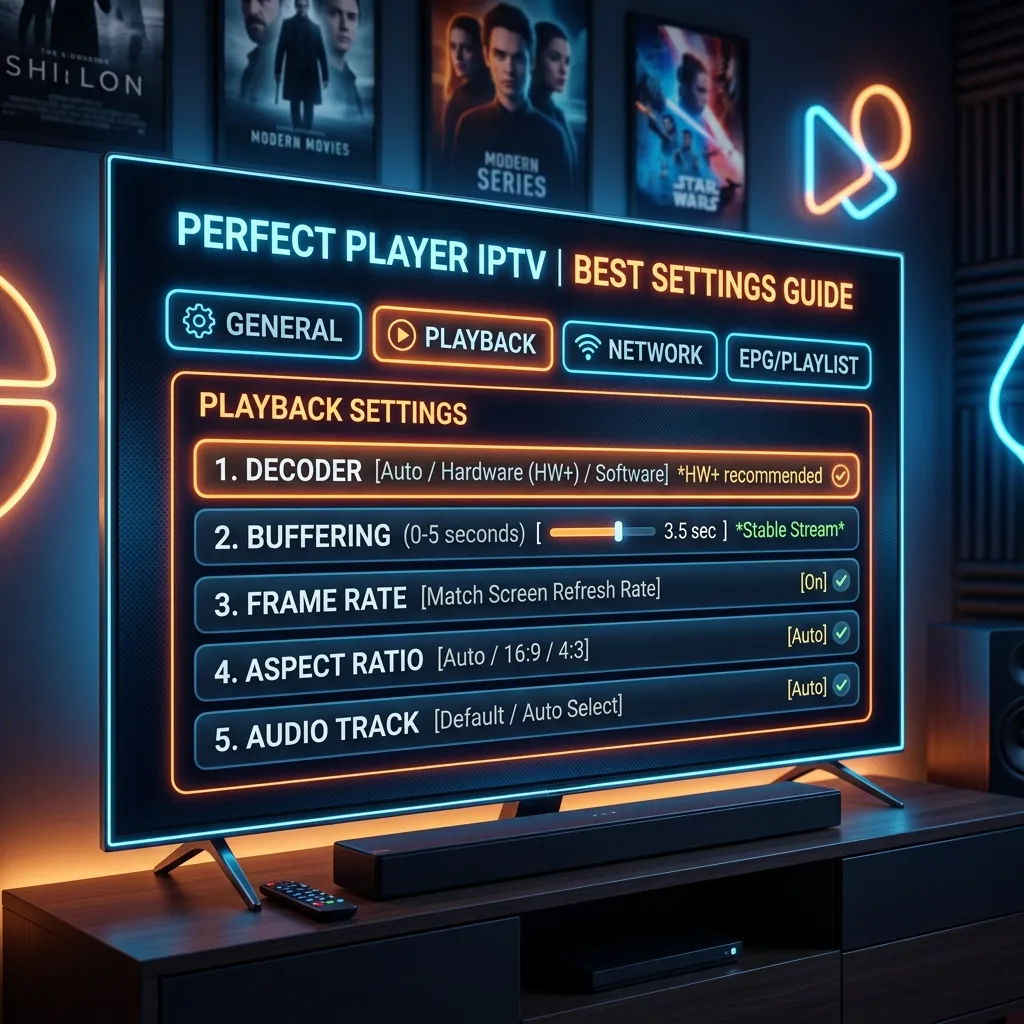
If you are an avid consumer of internet television, you already know that nothing ruins a movie night, a live sports event, or a binge-watching session quite like the dreaded buffering wheel. For many cord-cutters, Perfect Player IPTV is the application of choice due to its advanced set-top box interface, customizable features, and lightweight performance on various devices. However, even the most robust applications can fall victim to stuttering video and endless loading screens if they are not configured correctly.
In this massive, exhaustive guide, we are diving deep into the Perfect Player IPTV best settings for buffering. We will cover everything from internal application tweaks and hardware decoding options to network optimization, device-specific configurations, and choosing the right IPTV Subscription to ensure you get a flawless, buffer-free streaming experience.
Whether you are running Perfect Player on an Android TV box, a smartphone, or looking to master your Firestick Setup, this 3,000+ word comprehensive manual will be your ultimate resource. Welcome to the Smartiflix Homepage, your home for premium streaming insights.
1. Understanding Perfect Player IPTV
Before diving into the settings, it is crucial to understand what Perfect Player is and how it processes media. Perfect Player is an advanced, set-top box style IPTV/Media player intended for watching videos on TVs, tablets, and smartphones. Unlike basic players that merely read an M3U playlist, Perfect Player acts as a full-fledged media hub capable of advanced playlist management, Electronic Program Guide (EPG) integration, and intricate video decoding.
Why Do Users Love Perfect Player?
- Classic Set-Top Box UI: The interface mimics traditional cable or satellite TV boxes, making it incredibly intuitive for users transitioning from traditional TV.
- On-Screen Display (OSD): The menus are scalable, large, and highly legible from a distance, perfect for living room setups.
- Advanced EPG Support: It flawlessly handles complex XMLTV EPG formats, displaying what is on now and next.
- Customizability: From themes to playback decoders, almost every aspect of the app can be tweaked.
Despite these advantages, the app’s default settings are not always optimized for every device. A configuration that works beautifully on a high-end Nvidia Shield might cause severe buffering on a lower-end Fire TV Stick.
2. The Root Causes of IPTV Buffering
To effectively eliminate buffering, we must diagnose the root cause. Buffering in IPTV is rarely caused by a single factor. It is typically a combination of several overlapping issues.
A. Internet Speed and Stability
IPTV requires a constant, stable stream of data. While standard definition (SD) streams might only require 5-10 Mbps, High Definition (HD), Full HD (FHD), and 4K streams demand significantly higher, more stable bandwidth. It is not just about the speed of your connection, but the stability (low ping and low jitter).
B. ISP Throttling
Internet Service Providers (ISPs) often monitor user traffic. If they detect high-bandwidth continuous streaming—especially from IPTV servers—they may intentionally slow down your connection to save their network capacity. This is known as ISP throttling.
C. Inadequate Hardware Resources
Devices like older Amazon Firesticks, budget Android boxes, and older Smart TVs have limited RAM and weak processors. When these devices try to decode high-bitrate video streams, the processor gets bottlenecked, resulting in stuttering and buffering.
D. Server-Side Overload
Sometimes, the issue isn't on your end at all. If your IPTV provider has overloaded servers, weak infrastructure, or poor routing to your geographical location, you will experience buffering regardless of your settings. This is why investing in a premium provider, like those found on our Pricing page, is essential.
E. Improper Player Configuration
Using the wrong video decoder (Hardware vs. Software) or incorrect buffer size inside Perfect Player can force the app to work inefficiently, leading directly to dropped frames and buffering.
Pro Tip: Always run a speed test directly on your streaming device, not just your smartphone. The Wi-Fi reception on a TV box tucked behind a television is often much worse than the reception on your phone in the middle of the room.
3. Perfect Player IPTV: Best Settings for Buffering
Now, let's get into the core of this guide. We will walk through the exact internal settings within Perfect Player that you need to adjust. Open your Perfect Player app, click on the Gear Icon to access the Settings menu, and follow along.
Step 1: Choosing the Right Playback Decoder
This is the absolute most critical setting in Perfect Player. The decoder dictates how the app processes the incoming video data.
Navigate to Settings > Playback > Decoder.
You will see several options. Here is a detailed breakdown of what they mean and which one you should choose:
| Decoder Option | How it Works | Best Used For |
|---|---|---|
| Hardware (HW) | Uses your device's physical CPU/GPU to decode the video. It is highly efficient and uses less battery/processing power. | High-end devices (Nvidia Shield), 4K streams, and devices with powerful built-in video processing. |
| Hardware+ (HW+) | An advanced version of the Hardware decoder with extended codec support. | Most modern Android TV boxes, Firesticks, and smartphones. This is usually the best setting for preventing buffering. |
| Software (SW) | Uses the app's internal software algorithm to decode video rather than the device's chip. Highly CPU intensive. | Older devices where hardware decoders fail, or when playing rare video formats (like older AVI or specific audio codecs). |
| Auto | Lets Perfect Player decide which decoder to use dynamically based on the stream. | Not recommended for buffering issues, as the app can switch decoders mid-stream, causing a stutter. |
The Verdict for Buffering: Change your decoder to HW+. Test a few channels. If the video plays smoothly but you have no audio, switch back to HW. If your device is very old (e.g., an early-generation Android box), you might actually have better luck with SW, but be aware that it will run your device hot.
Step 2: Adjusting the Buffer Size
Perfect Player allows you to define how much video data is pre-loaded before playback begins.
Navigate to Settings > Playback > Buffer size.
By default, the buffer size is usually set to a standard or dynamic level. If you are experiencing constant pausing and playing (stuttering), your device is playing the video faster than it is downloading it.
- Increase the Buffer Size: Change this to Large or Max.
- Why this works: A larger buffer forces the player to download 5 to 10 seconds of video before it starts playing on your screen. If your internet connection dips for 2 seconds, the video will keep playing flawlessly from the pre-loaded buffer until the connection stabilizes.
- The Trade-off: Increasing the buffer size means channels will take slightly longer to load when you first click them (zapping time). However, a 3-second wait for a channel to open is infinitely better than continuous mid-stream buffering.
Step 3: Changing the AFR (Auto Frame Rate) Settings
Auto Frame Rate matching is a feature that synchronizes the refresh rate of your TV screen with the frame rate of the IPTV stream.
Navigate to Settings > Playback > AFR.
- If your TV is running at 60Hz but the UK or European sports stream you are watching is broadcasting at 50fps (frames per second), you will experience "judder," which looks very similar to buffering.
- Recommendation: Turn AFR ON. This allows Perfect Player to automatically switch your TV's refresh rate to match the video, resulting in buttery-smooth playback.
- Note: Your device and your TV must support AFR for this to work. If you turn it on and your screen goes black for too long, turn it off.
Step 4: Tweaking GUI/OSD Settings for Performance
Believe it or not, an overly complex user interface can bog down a weak streaming device, leaving less CPU power for actual video playback.
Navigate to Settings > GUI.
- Theme: Choose the default, lightweight theme. Heavily customized graphic themes use up RAM.
- EPG (Electronic Program Guide): If your provider's EPG is massive (containing data for 20,000 channels), it will crush your device's memory. Go to Settings > General > EPG and set it to only download EPG data for the groups you actually watch.
- Hide Unused Groups: In the channel list, hide VOD (Video on Demand) or international country groups that you never watch. Less data to process equals more speed.
4. Advanced Network Optimization for Perfect Player
Even if you have the perfect settings inside the app, a poor network connection will ruin your experience. Let's tackle network optimization.
Wi-Fi vs. Ethernet (Hardwiring)
Wi-Fi is convenient, but it is the enemy of stable IPTV streaming. Wi-Fi signals are subject to interference from microwaves, Bluetooth devices, neighbors' routers, and even thick walls.
- The Fix: Whenever possible, connect your streaming device directly to your router using a Cat5e or Cat6 Ethernet cable.
- If you are using a Firestick, purchase a USB Ethernet adapter. The stability difference between Wi-Fi and Ethernet is night and day. Hardwiring will instantly reduce packet loss and latency, two primary culprits of buffering.
Using a Premium VPN (Virtual Private Network)
As mentioned earlier, ISP throttling is incredibly common with IPTV services. If your Perfect Player buffers wildly in the evening (peak hours) but works fine in the morning, your ISP is almost certainly throttling your connection.
A VPN encrypts your internet traffic. When your ISP looks at your connection, they can only see encrypted data; they cannot see that you are streaming high-bandwidth IPTV. Because they don't know what the data is, they don't throttle it.
Furthermore, a VPN can improve routing. Sometimes your ISP takes a "long route" to connect to the IPTV server. A VPN can provide a more direct path, lowering your ping. For comprehensive security advice, read our guide: Security Guide: Is Smartiflix Safe?.
Change Your DNS Settings
Your Domain Name System (DNS) is like the phonebook of the internet. Default ISP DNS servers are often slow and sluggish. Changing the DNS on your device or router can drastically improve the time it takes for Perfect Player to connect to media servers.
Best Free DNS Servers to try:
- Cloudflare: 1.1.1.1 and 1.0.0.1 (Fastest, best for streaming)
- Google: 8.8.8.8 and 8.8.4.4 (Highly stable)
How to change DNS on an Android Device:
- Go to Device Settings > Network & Internet.
- Click on your connected Wi-Fi or Ethernet.
- Scroll down to IP Settings and change it from DHCP to Static.
- Enter
1.1.1.1in DNS 1 and1.0.0.1in DNS 2.
5. Device-Specific Optimizations
The hardware running Perfect Player plays a massive role in buffering. Let's look at how to optimize the two most common devices.
A. Amazon Fire TV Stick Optimization
The Firestick is affordable and powerful, but it comes loaded with Amazon bloatware that runs in the background, consuming valuable RAM and CPU power. If you are setting up a Firestick, we highly recommend reading our complete Firestick Setup guide. To optimize it for Perfect Player:
- Clear App Cache: Go to Firestick Settings > Applications > Manage Installed Applications. Find Perfect Player, click it, and select Clear Cache. Do this regularly.
- Turn off Background Data Collection: Amazon tracks your usage. Go to Settings > Preferences > Privacy Settings. Turn off "Device Usage Data" and "Collect App Usage Data."
- Turn off Automatic Updates: Background updates will destroy your bandwidth while you are trying to stream. Go to Settings > Applications > Appstore and turn off Automatic Updates.
- Uninstall Unused Apps: Keep your Firestick lean. If you only use Perfect Player and Netflix, uninstall all the random games and news apps. Firesticks need at least 1GB to 1.5GB of free storage to function optimally.
B. Android TV Boxes (Nvidia Shield, Formuler, Xiaomi Mi Box)
Android boxes vary wildly in quality. If you have a premium box like the Nvidia Shield, hardware limitations are rarely your problem. If you have a budget generic Android box from Amazon or AliExpress:
- Keep it Cool: Budget boxes have terrible thermal management. If the box gets too hot, the CPU will "thermal throttle" (slow itself down to prevent melting), causing massive buffering. Ensure the box is in a well-ventilated area, not stuffed behind a hot television.
- Use a Cache Cleaner: Download a lightweight background cache cleaner app from the Google Play Store to automatically clear RAM when it gets too full.
- Update Firmware: Always check your device settings for Over-The-Air (OTA) firmware updates. Manufacturers frequently release patches that improve video decoding capabilities.
6. The Role of the IPTV Provider
We have covered app settings, network tweaks, and hardware optimization. But what if you have done all of this and Perfect Player is still buffering?
The harsh reality is that you cannot fix a terrible IPTV provider from your end.
If the server hosting the stream has a maximum upload capacity of 1 Gbps, and 1,000 users try to watch a 5 Mbps stream at the same time, the server will crash, stutter, and buffer for everyone. No amount of Perfect Player tweaking can solve server-side congestion.
Why Choosing Smartiflix Eliminates Buffering
This is where choosing a premium, high-capacity provider is critical. At Smartiflix, we utilize state-of-the-art server infrastructure with massive redundancy.
- Anti-Freeze Technology: Our servers are equipped with load-balancing tech that automatically reroutes your connection to the least congested server in your region.
- High-Bandwidth Capacity: We never oversell our servers. Whether it is a random Tuesday or the biggest sporting event of the year, our capacity exceeds demand.
- Multiple Formats: We provide streams in 4K, FHD, HD, and SD. If your internet is acting up, you can easily switch to a lower-resolution stream to maintain a buffer-free experience.
Ready to experience television the way it was meant to be? Explore our packages on our IPTV Subscription page and check out our incredibly affordable Pricing plans.
7. Step-by-Step Troubleshooting Checklist
Bookmark this section. The next time you experience buffering on Perfect Player, run through this checklist in order:
- Restart Everything: Unplug your router, modem, and streaming device. Wait 60 seconds, then plug them back in. This clears the RAM and establishes a fresh connection.
- Run a Speed Test: Test the speed on the actual device. You need a minimum of 25 Mbps for stable HD streaming and 50+ Mbps for 4K.
- Change the Decoder: Go to Perfect Player Settings > Playback > Decoder. Toggle between HW+ and HW.
- Increase Buffer Size: In Perfect Player Playback settings, bump the buffer size to Maximum.
- Turn on your VPN: If the buffering stops immediately after connecting the VPN, your ISP was throttling you.
- Clear the App Cache: Go to your device settings, find Perfect Player, and clear the cache.
- Check with your Provider: If everything above fails, the issue is likely server-side. Contact your provider's support.
Need Help Setting Up? If you are migrating to a new provider or setting up Perfect Player for the first time, don't miss our comprehensive Installation Guide.
8. Comparing Perfect Player to Alternative Applications
Sometimes, despite all best efforts, a specific app simply does not play nicely with a specific device’s operating system firmware. If you have exhausted the Perfect Player IPTV best settings for buffering and are still struggling, it might be worth testing an alternative player to isolate the issue.
Perfect Player vs. TiviMate
TiviMate is currently the gold standard for Android IPTV applications. It features a highly modern interface and incredibly robust internal decoders. If Perfect Player buffers on your Nvidia Shield, TiviMate might run flawlessly because of how it handles ExoPlayer integration.
Perfect Player vs. IPTV Smarters Pro
IPTV Smarters is excellent for multi-screen viewing and VOD management. However, Perfect Player is generally considered more lightweight. If you have a very old, low-RAM device, Perfect Player with HW decoding will often outperform Smarters.
We highly recommend having at least two IPTV players installed on your device. If a channel buffers on Perfect Player, try opening it in Smarters. If it buffers on both, the issue is your network or the provider. If it only buffers on Perfect Player, you know the app configuration is to blame.
9. Understanding Video Codecs and Bitrates
To truly master Perfect Player, a brief understanding of video codecs helps. When you select a channel, you are downloading a video file compressed with a specific codec, usually H.264 (AVC) or H.265 (HEVC).
- H.264: The older standard. Highly compatible with almost every device. Requires more internet bandwidth to deliver high quality.
- H.265 (HEVC): High-Efficiency Video Coding. This codec compresses video incredibly well, meaning it requires half the internet speed to deliver the same visual quality as H.264. However, it requires significant hardware power to decode.
If you are watching an H.265 stream on an old Firestick, it will buffer constantly because the processor cannot decode it fast enough, regardless of your internet speed.
How to use this knowledge in Perfect Player: Many premium providers offer two versions of channels (e.g., "Sky Sports HD" and "Sky Sports HEVC").
- If your internet is slow but your device is powerful (Nvidia Shield), choose the HEVC channel.
- If your internet is fast but your device is weak (old Firestick), choose the standard HD/H.264 channel.
10. Frequently Asked Questions (FAQs)
Q1: Will clearing data in Perfect Player delete my playlist? Yes. Clearing Cache is safe and recommended. However, clearing Data will wipe the app completely back to factory settings, and you will lose your M3U URL, EPG URL, and custom settings. Always stick to clearing the cache.
Q2: What is the ideal internet speed for buffer-free Perfect Player? While providers often claim 10 Mbps is enough, real-world experience dictates that you need a minimum stable connection of 30 Mbps for HD, and 60+ Mbps for 4K content to account for household network congestion and jitter.
Q3: Does a VPN slow down my internet speed? By nature, VPN encryption does add overhead, which can reduce your raw top speed by 10-20%. However, if your ISP is throttling your IPTV connection down to 2 Mbps, applying a VPN might lower your overall maximum speed, but it will bypass the throttle, giving you the 50 Mbps you actually need to stream. In IPTV, a VPN often speeds up your connection.
Q4: My audio works perfectly, but the video is frozen or buffering. Why? This is a classic decoder issue. The app is successfully processing the lightweight audio stream, but the CPU/Hardware is failing to decode the heavy video stream. Go into Perfect Player settings and switch from HW+ to SW, or vice versa.
Q5: Perfect Player keeps looping the last 5 seconds of video over and over. How do I fix this? This is known as a "stream loop" and usually happens when the app loses connection to the server momentarily, and upon reconnecting, it grabs the same chunk of data. Increasing your buffer size to Maximum and changing your streaming format (from TS to M3U8 if your provider allows) usually fixes this.
Q6: Can I use Perfect Player on my Roku? No. Perfect Player is primarily an Android-based application (available via APK). Roku uses a closed operating system that does not natively support Android applications or advanced third-party IPTV players easily. You would need an Android TV box or Firestick.
11. Conclusion
Dealing with a buffering IPTV stream is incredibly frustrating, but as we have explored, it is rarely an unsolvable problem. By applying the Perfect Player IPTV best settings for buffering detailed in this guide, you are taking control of your viewing experience.
Remember the core pillars of a perfect stream:
- Optimal App Settings: Utilize the HW+ decoder and increase your buffer size.
- Stable Network: Hardwire your device via Ethernet, use a premium VPN to avoid throttling, and utilize fast DNS servers.
- Capable Hardware: Ensure your streaming device has the processing power to handle modern HD/4K video codecs. Keep it clean and uncluttered.
- A Premium Provider: Never compromise on the source. High-quality, redundant servers with anti-freeze technology are non-negotiable.
If you are tired of tweaking settings and still facing constant buffering from a sub-par provider, it is time for an upgrade. Visit our Pricing page today and join the thousands of satisfied users who have cut the cord without compromising on quality with Smartiflix.
Enjoy your seamless, buffer-free entertainment!
For more tutorials, setup guides, and industry news, bookmark the Smartiflix Homepage. If you need help installing our service on your device, check out our dedicated Installation Guide and Firestick Setup manuals.