OTT Navigator IPTV Premium Review: Ultimate Setup Guide
Explore our comprehensive OTT Navigator IPTV Premium review. Learn setup tips and tricks for optimizing your streaming experience.
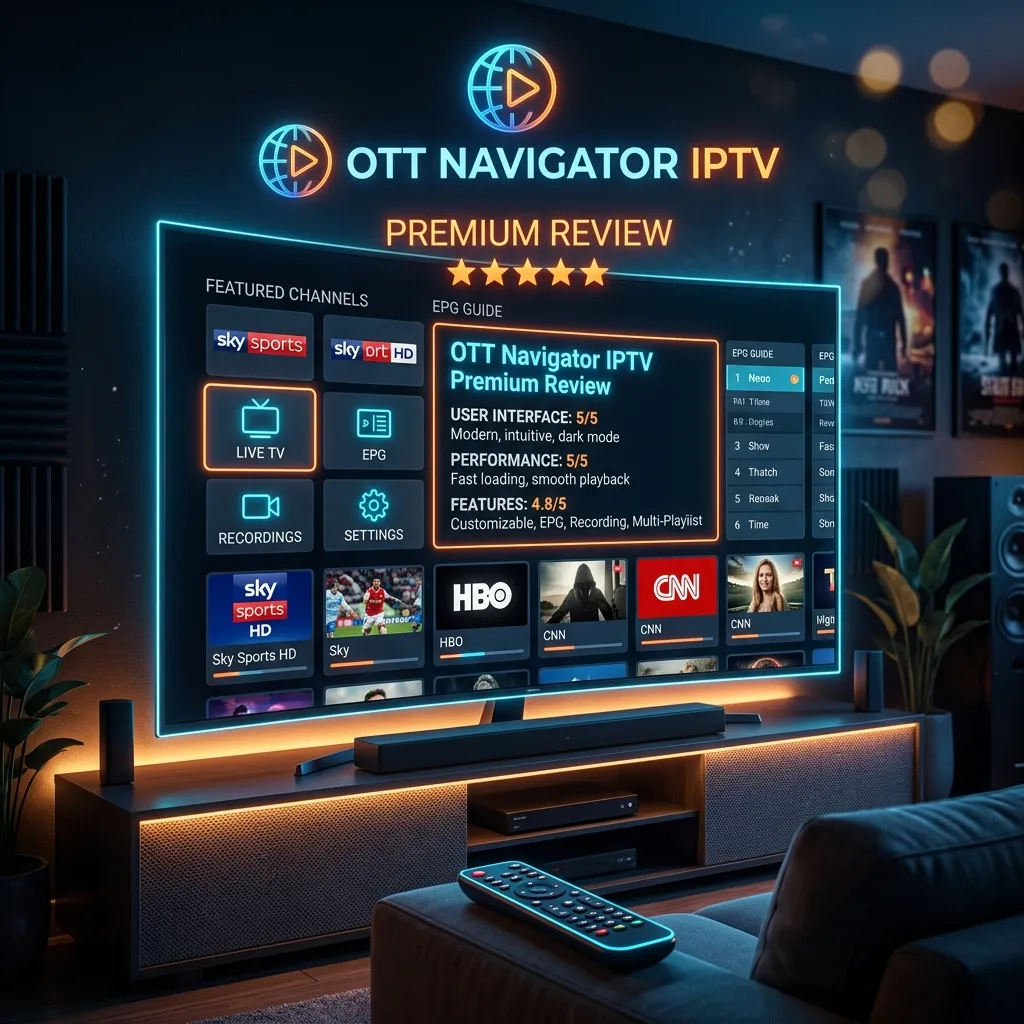
The world of cord-cutting has evolved tremendously over the past few years, with millions of users migrating from traditional cable television to more flexible, affordable, and feature-rich alternatives. At the heart of this revolution is Internet Protocol Television (IPTV), a technology that delivers live TV channels, movies, and series over the internet. However, having a great IPTV service is only half the battle; the other half is having an exceptional IPTV player to decode, organize, and present that content. This is where OTT Navigator IPTV comes into play.
For users seeking a highly customizable, lightweight, and powerful IPTV player, OTT Navigator is frequently recommended by enthusiasts and experts alike. While the free version of the application offers a solid foundation for streaming, it is the OTT Navigator Premium version that truly unlocks the app's full potential. With its advanced Electronic Program Guide (EPG) integration, robust timeshift capabilities, picture-in-picture modes, and extensive customization options, the premium tier elevates your streaming setup from good to professional grade.
In this massive, comprehensive review and guide, we are going to dive deep into everything you need to know about OTT Navigator IPTV Premium. We will explore its standout features, compare it with the free version, and provide an exhaustive, step-by-step tutorial on how to install and configure it on various devices, including Android TV boxes, smartphones, and the Amazon Firestick. We will also discuss the best settings to eliminate buffering, optimize video quality, tailor the user interface to your exact preferences, and manage parental controls effectively.
Whether you are a newcomer to the world of IPTV or a seasoned cord-cutter looking for the ultimate application to pair with your Smartiflix IPTV Subscription, this guide will serve as your definitive resource. Welcome to the future of television streaming, where you are in complete control of your entertainment experience. Let's begin our journey by exploring what makes OTT Navigator such a compelling choice for modern viewers. For more insights on our primary services and offerings, visit the Smartiflix Homepage.
What is OTT Navigator IPTV?
Before we can appreciate the premium features, it is essential to understand what OTT Navigator IPTV actually is. The acronym "OTT" stands for "Over-The-Top," which refers to the delivery of film and television content via the internet, bypassing traditional cable, broadcast, and satellite television platforms. OTT Navigator is an application designed specifically to act as a client or a player for this OTT and IPTV content.
It is crucial to note that OTT Navigator itself does not provide any content. There are no built-in live TV channels, free movies, or series bundled within the app download. Instead, it is an empty vessel—a highly sophisticated media player that requires a playlist or an IPTV subscription provided by a third-party service, such as Smartiflix. Once you input your provider's credentials (usually in the form of an M3U URL, Xtream Codes API, or Stalker Portal), OTT Navigator parses that data, downloads the channel list, fetches the EPG (TV Guide), and presents everything in a visually appealing, easy-to-navigate interface.
The Evolution and Architecture of OTT Navigator
To understand why OTT Navigator is so highly regarded, we have to look back at the history of IPTV players. Years ago, the market was dominated by apps like Perfect Player and early versions of IPTV Smarters. While functional, many of these older apps suffered from bloat, slow parsing times for large playlists, and a lack of modern aesthetic appeal. They often struggled when providers began offering massive playlists with over 10,000 channels and massive VOD libraries. The apps would crash, or the EPG would take agonizing minutes to load.
OTT Navigator was developed as a direct response to these issues. Built completely independently and highly regarded within the Android enthusiast ecosystem, OTT Navigator was engineered from the ground up with performance, scalability, and speed in mind. The architecture of the app handles massive data streams with exceptional efficiency. Unlike some other bloated IPTV players that can lag on older or less powerful hardware, OTT Navigator is optimized to run smoothly across a wide range of Android devices. Whether you are using a high-end Nvidia Shield Pro, a budget-friendly generic Android TV box from Amazon, an everyday Android smartphone, or a basic Amazon Firestick, the app dynamically scales its memory usage and processing power to match the hardware it resides on.
The core philosophy behind OTT Navigator is ultimate user customization. The developers deeply understand that no two users consume media in exactly the same way. Some users want a simple, straightforward grid interface mimicking the traditional cable boxes they grew up with, while others desire a modern, Netflix-style layout with large cinematic thumbnails, detailed metadata, and rich, dynamic categorization. OTT Navigator allows you to tweak almost every visual and functional aspect of the app, making it one of the most versatile players on the market today. If you can dream of a specific layout or button behavior, odds are OTT Navigator has a setting for it.
Platform Compatibility and Ecosystem Limitations
Currently, OTT Navigator is fundamentally an Android-centric application. It relies heavily on Android's media playback libraries and API structures. This means it is natively compatible with:
- Android Smartphones and Tablets: Any modern device running Android OS.
- Android TV devices: This includes premium smart TVs like Sony Bravia and Philips models running Android TV/Google TV, as well as set-top boxes like the Nvidia Shield, Chromecast with Google TV, Xiaomi Mi Box, and various ONN streaming boxes.
- Amazon Fire TV devices: Including the Firestick Lite, Firestick 4K, Firestick 4K Max, and Fire TV Cube. Because Fire OS is essentially a custom fork of Android, the app runs flawlessly, though it requires sideloading as it is not listed in the official Amazon Appstore.
Unfortunately, for users embedded deeply in the Apple ecosystem (iOS for iPhones/iPads, macOS, tvOS for Apple TV) or utilizing Roku devices, OTT Navigator is not natively available. The underlying code is not compatible with Apple's Swift/Objective-C frameworks or Roku's proprietary BrightScript. For those platforms, other alternatives (like iPlayTV or Smarters Player Lite) must be sought. However, for the vast majority of cord-cutters who rely on affordable, powerful Android-based streaming devices, OTT Navigator is a prime candidate for their daily driver.
OTT Navigator Free vs. Premium: Is the Upgrade Truly Worth It?
When you first download OTT Navigator from the Google Play Store or sideload it onto your device, you are granted access to the free version of the software. The free tier is entirely functional and is not a mere "trial." It allows you to add your playlist, watch live TV, access Video on Demand (VOD) content, and generally test out the stability of the player. However, it is an ad-supported experience and deliberately restricts access to several of the app's most powerful, advanced features.
To truly understand why the premium upgrade is not just recommended, but practically essential for serious viewers, let's break down the differences between the free and premium versions in detail.
Feature Comparison Breakdown
| Feature / Functionality | OTT Navigator Free | OTT Navigator Premium |
|---|---|---|
| Price Structure | Free to download | One-time payment or Subscription (varies by region/platform) |
| Advertisements | Yes (Persistent banners, occasional pop-ups) | 100% Ad-Free Experience |
| Playlists Supported | Limited (Usually restricted to 1 or 2 active providers) | Unlimited Playlists and Providers |
| Studio Mode (Multi-screen) | Disabled entirely | Fully Enabled (Watch up to 9 channels simultaneously) |
| Picture-in-Picture (PiP) | Limited functionality / Often disabled | Fully Supported (Customizable window size and position) |
| Advanced Catch-up TV | Basic playback only | Advanced scrubbing, visual thumbnails, precise seeking |
| Custom EPG Sources | Basic primary EPG only | Multiple custom XMLTV sources, priority assignment |
| UI Customization | Basic dark/light themes | Advanced theming, custom hex colors, extensive layout tweaks |
| Parental Controls | Basic app lock | Advanced PIN protection for specific categories, channels, or VODs |
| Backup and Restore | Local basic backup | Cloud Backup, local backup of all settings, UI preferences |
| Remote Button Remapping | Standard default layout only | Fully customizable mapping for every button on your remote |
Analyzing the Premium Benefits in Depth
1. A Clean, Uninterrupted, Ad-Free Experience The most immediate and noticeably positive benefit of upgrading to OTT Navigator Premium is the complete and total removal of advertisements. In the free version, banner ads sit at the bottom of menus, and occasionally, pop-up ads can interrupt your browsing experience, taking up valuable screen real estate and occasionally slowing down the interface's responsiveness. For an application that you will likely use for multiple hours every single day, removing these ads is often worth the upgrade price alone. It provides a cleaner, faster, more immersive viewing experience that feels truly professional and native to your television.
2. Multi-Playlist and Provider Management If you are a serious, dedicated cord-cutter, you might rely on more than one IPTV provider as a backup strategy, or you might have a primary comprehensive service for general entertainment and a secondary, niche service specifically for international sports feeds. OTT Navigator Premium allows you to add an absolutely unlimited number of providers. More importantly, it can seamlessly merge their channels and EPG data. You can create combined "Favorites" lists that pull channels from three different subscriptions, presenting them in one unified, cohesive entertainment hub without having to switch between different provider logins.
3. Studio Mode and Picture-in-Picture (The Sports Fan's Dream) For sports fanatics, this is undeniably the killer feature that justifies the premium tag. Studio Mode (often called Multi-screen or Multi-view) allows you to split your television screen into a grid and watch multiple live channels simultaneously. Imagine watching four different NFL Sunday ticket games, or keeping an eye on multiple UEFA Champions League matches on the exact same screen—OTT Navigator Premium makes this a reality.
[!NOTE] A quick note on Studio Mode: To utilize this feature effectively without buffering, you need a high-speed internet connection and, crucially, an IPTV subscription that allows for multiple concurrent connections. If your Smartiflix plan is limited to one connection, opening four streams will cause your account to flag and buffer.
Additionally, the Picture-in-Picture (PiP) feature lets you minimize the current live video player into a small floating window in the corner of your screen while you browse the massive EPG, tweak advanced settings, or even minimize the app entirely to use other applications on your Android device without ever losing track of the game.
4. Advanced Catch-up TV and Timeshift Precision Catch-up TV is a revolutionary feature offered by top-tier providers like Smartiflix, allowing you to watch live broadcasts that aired hours or even days ago, effectively acting as an automated cloud DVR. OTT Navigator Premium enhances this baseline feature by offering a vastly more intuitive interface for browsing past content. Instead of just blindly skipping backwards, Premium offers visual scrubbers, preview thumbnails (if supported by the provider), and much faster fast-forward/rewind seek times. It seamlessly integrates the Catch-up archive into the regular EPG grid, visually indicating which shows can be replayed, making it incredibly easy to navigate back in time.
5. Total Control: Backup, Restore, and Button Remapping Setting up an IPTV app exactly the way you want it—customizing the UI, hiding unwanted categories, building favorite lists, and tweaking decoder settings—takes time. If you buy a new TV or a second Firestick for the bedroom, doing it all over again is incredibly tedious. Premium unlocks robust Backup and Restore features. You can export your entire configuration to a local file or cloud storage and instantly import it onto a new device, cloning your perfect setup in seconds. Furthermore, Premium allows for Remote Button Remapping. Do you want the 'Color' buttons on your TV remote to instantly launch specific VOD categories? Do you want the 'Long Press OK' to trigger a different menu? Premium gives you total control over the physical interaction with the app.
In summary, while the free version is a great way to test the waters and verify compatibility with your device, anyone serious about their long-term IPTV setup should undoubtedly invest in the Premium version. It transforms a basic, functional player into an absolute powerhouse media center.
Deep Dive: Unpacking the Key Features of OTT Navigator Premium
Let's explore some of the other standout features that make OTT Navigator Premium the player of choice for power users, network engineers, and IPTV enthusiasts. This section will highlight the specific technical functionalities that set it distinctly apart from heavy competitors like TiviMate, IPTV Smarters Pro, and XCIPTV.
A Masterclass in User Interface Customization
One of the greatest, and sometimes overwhelming, strengths of OTT Navigator is its immense adaptability. Out of the box, it features a functional, clean, dark-themed interface, but digging into the settings reveals a literal treasure trove of visual customization.
- Layout and Grid Options: You are not locked into one view. You can choose between a standard grid EPG (like a traditional cable guide), a list view with detailed metadata descriptions on the side, or a modern, Netflix-style horizontal scrolling interface specifically tailored for VODs and television series.
- Color Themes and Opacity: Premium users can adjust the primary accent colors, highlight colors, background transparency, and even specific font text sizes. This is particularly useful for users with visual impairments who need larger, high-contrast text, or for those simply trying to match the app's aesthetic with their television's native OS interface.
- Startup Screen Behavior: You can heavily configure what the app does the moment it is launched. You can set it to automatically launch directly into the last watched channel, open the TV guide to a specific category, jump straight to the VOD section, or boot directly into a custom favorites group.
Advanced Electronic Program Guide (EPG) Handling
An IPTV service is fundamentally only as good as its TV guide. Without accurate, up-to-date EPG data, you are left blindly clicking through thousands of channels hoping to find something to watch. OTT Navigator handles EPG data better than almost any app on the market.
- Multiple EPG Sources and Merging: While your premium provider usually supplies an integrated EPG URL, it might not cover every single hyper-niche or local channel. OTT Navigator Premium allows you to add secondary, tertiary, and even quaternary XMLTV EPG sources. The app's engine intelligently parses and merges these sources, ensuring maximum schedule coverage across your entire channel list. You can prioritize which EPG source takes precedence if there is conflicting data.
- EPG Time Offset and Shifting: IPTV streams often originate from various global time zones. If a UK channel is broadcasting from London but you are watching in New York, the guide data might be mismatched by several hours. OTT Navigator allows you to apply a time offset (e.g., +5 hours, -2 hours) globally, on a per-provider basis, or even micro-managed down to a per-channel basis to perfectly align the schedule with reality.
An Unmatched, Resilient Video Player Engine
Under the hood, the actual video playback is what matters most. OTT Navigator uses a highly resilient, heavily modified media player capable of decoding almost any obscure video format thrown at it.
- Hardware Acceleration (HW/HW+): By aggressively utilizing the hardware decoding capabilities of your specific device's System on a Chip (like the Firestick's internal Amlogic chip or the Nvidia Shield's Tegra X1), the app ensures buttery smooth playback of 4K, 60fps, and high-bitrate HDR content without dropping frames or causing the device to rapidly overheat and thermal throttle.
- AFR (Auto Frame Rate) Matching: This is a crucial, high-end feature for cinephiles and purists. OTT Navigator can automatically communicate with your TV to adjust its physical refresh rate to match the native frame rate of the content being played (e.g., switching your TV to output at exactly 24Hz for cinematic movies or 50/60Hz for smooth live sports broadcasts). This effectively eliminates screen tearing and the infamous "judder" effect, providing a flawless viewing experience.
- Software Decoder Fallback (SW): If a specific live stream uses an unusual, outdated, or corrupted audio/video codec that your hardware chip struggles to understand, OTT Navigator can instantly and seamlessly switch to software decoding (using the CPU instead of the GPU). This ensures the stream continues playing rather than freezing the picture or crashing the app entirely.
Comprehensive VOD and Series Integration
While live television, news, and sports are the main draw for many users, premium IPTV subscriptions also offer massive, constantly updated libraries of Movies and TV Series. OTT Navigator treats this VOD content with the respect and cinematic presentation it deserves.
- Rich Metadata Scraping: The app automatically reaches out to databases to fetch high-quality movie posters, detailed plot summaries, extensive cast information, release years, and live IMDb/TMDb ratings for your movies and series.
- Watch History and Intelligent Resume: It precisely remembers exactly where you left off in a 2-hour movie or halfway through a sitcom episode. The dynamic "Continue Watching" row placed prominently on the dashboard makes it incredibly easy to jump back into a binge-watching session without having to manually search for the title again.
- Trakt.tv Integration: Premium users can securely link their Trakt.tv accounts to the app. This will automatically scrobble (track and record) what they have watched and sync their viewing history, ratings, and watchlists across multiple devices and platforms automatically.
How to Install OTT Navigator IPTV Premium on Any Device
The installation process for OTT Navigator varies significantly depending on the ecosystem and specific device you are utilizing. Because the app is not natively available on the heavily curated Amazon Appstore, Firestick users will need to utilize a process known as "sideloading." Conversely, Android TV and Android mobile users have the luxury of simply downloading it directly from the Google Play Store.
Method 1: Installing on Android TV / Google TV / Android Mobile / Tablets
This is by far the easiest, safest, and most straightforward method, as it utilizes official channels.
- Power on your Android device and ensure it is connected to the internet.
- Open the Google Play Store application from your home screen.
- Navigate to the Search bar (usually indicated by a magnifying glass icon at the top of the screen).
- Type "OTT Navigator IPTV" using the on-screen keyboard, or utilize the voice search feature on your remote.
- Select the official app from the search results. Ensure you are selecting the correct app—look for the distinct, recognizable blue compass/navigator icon developed by 'SIA Scillarium Studio'.
- Click the Install button and wait a few moments for the download and installation to complete.
- Once successfully installed, click Open to launch the application for the first time.
- To instantly upgrade to Premium: Once inside the app, navigate using your remote to Settings > Premium/Billing. Follow the on-screen prompts to securely purchase the premium license via your standard Google Play account billing system.
Method 2: Sideloading on Amazon Firestick / Fire TV Cube
Amazon heavily restricts its native app store, often blocking applications that compete with its own services or offer unrestricted IPTV access. Therefore, you must install OTT Navigator manually using the incredibly useful Downloader app. For a broader, more comprehensive overview of optimizing your Fire device for streaming, be sure to check out our dedicated Firestick Setup guide.
Step 1: Prepare Your Firestick OS for Sideloading Before you can install third-party applications, you must tell the Firestick to allow them.
- From the main Firestick home screen, navigate to the Settings gear icon located on the far right of the navigation bar.
- Scroll down and select the My Fire TV tile (Note: On some older or newer models, this may be labeled "Device & Software").
- Select Developer Options.
[!TIP] (Crucial Note: If you do not see the 'Developer Options' menu, do not panic. Amazon recently hid this menu by default. To reveal it, click on "About", highlight the name of your specific Firestick device at the top of the list, and rapidly click the center OK button on your remote 7 times. A small notification will appear saying "You are now a developer." Press the back button once, and Developer Options will now be visible).
- Within Developer Options, turn ON the setting for Apps from Unknown Sources. If you are using a newer Fire OS version, you will instead click on "Install unknown apps" and you will need to specifically toggle it ON for the Downloader app in the next step.
Step 2: Install the Downloader Utility App
- Return to the main Firestick Home screen.
- Click on the Find menu icon, then select the Search bar.
- Type the word "Downloader".
- Select the official Downloader app (it has a distinct orange background with a white download arrow icon) from the search results.
- Click Download or Get to install it onto your device.
- Open the Downloader app and crucially, click Allow when prompted for file and media permissions. Without this permission, the app cannot save the downloaded files.
Step 3: Download and Install the OTT Navigator APK via Downloader
- In the Downloader app, make sure you are on the "Home" tab on the left menu, and click into the URL/Search bar area.
- You will now need to enter a direct download link or navigate to a trusted APK repository. Because direct links to APK files update and change frequently with new app versions, the safest method is to use a reputable site like APKPure. Enter the URL:
https://apkpure.com(or simply type "OTT Navigator APK" directly into the Downloader's built-in browser search). - Alternative Shortcode Method: If you are part of an IPTV community or Discord server, they often provide numeric shortcodes (e.g., 123456) that link directly to the file. Enter that code if you have a trusted one.
- Navigate the webpage using your remote's directional pad to locate and download the latest, official OTT Navigator APK file.
- Once the file download is 100% complete, the Downloader app will automatically trigger the Android installer prompt. Click Install in the bottom right corner.
- After a successful installation, click Done (do not click Open just yet). The Downloader app will ask if you want to delete the installation file. Click Delete, and then Delete again to confirm. This is a great habit to free up precious storage space on your Firestick's limited internal memory.
- Return to your Firestick Home screen, navigate to the end of your Apps list, click the icon with the three squares and a plus sign, find OTT Navigator, press the menu button on your remote, and select 'Move to Front' for easy access.
How to Upgrade to Premium on Firestick: Since Fire OS devices do not have the Google Play Store framework installed, purchasing the premium license natively within the sideloaded app is usually impossible and will throw an error. The standard, recommended method is to temporarily install OTT Navigator on an Android smartphone or tablet, purchase the premium license via the Google Play Store on that device, and then use the "Link Device" or companion account feature within the app settings to push the Premium activation over to your Firestick over your local network.
Configuring Your IPTV Subscription on OTT Navigator
Now that you have the powerful premium application successfully installed, it currently sits as a beautiful but blank canvas. To bring it to life and start watching television, you need to add your IPTV service credentials. For the purpose of this comprehensive tutorial, we will assume you are setting up a high-quality, premium service like the comprehensive packages detailed on our official Pricing page.
When you purchase an IPTV subscription from a reputable provider, you generally receive your secure login credentials via an automated email. The most common, modern, and reliable method of connecting a player to a server is via the Xtream Codes API.
Step-by-Step Configuration utilizing Xtream Codes API
- Launch OTT Navigator. Upon the very first boot, you will immediately be greeted by the Provider setup wizard screen.
- Select the option to Add Provider.
- You will see several technical options listed (M3U playlist, Xtream Codes, Stalker Portal, Media server, etc.). Select Mac/Stalker/Xtream.
- Choose Xtream Codes from the subsequent sub-menu.
- You will now be presented with a standard login form. It is absolutely vital that you enter these details exactly as provided by your IPTV host, as they are case-sensitive and unforgiving of typos:
- Name: Enter any display name you like to identify the sub (e.g., "Smartiflix Premium Feed" or "Main TV").
- Server / URL / Host: Enter the server URL provided in your email. It usually looks something like
http://premium.exampledomain.com:8080. Be absolutely sure to include thehttp://orhttps://prefix and the port number at the end. - Username: Enter your assigned username. Pay attention to capital letters.
- Password: Enter your assigned password.
- Once all fields are meticulously entered, click the Apply or Add button.
- OTT Navigator will now reach out over the internet to connect to the remote server, authenticate your credentials against the database, and begin the heavy lifting of downloading the entire playlist structure. This includes parsing thousands of Live TV channels, organizing massive VOD categories, structuring Series, and pulling the Electronic Program Guide (EPG) data.
- Depending heavily on the size of the playlist (Smartiflix, for example, offers tens of thousands of channels and massive VOD libraries) and the speed of your internet connection, this initial comprehensive download might take anywhere from 30 seconds to three full minutes. Be patient and do not interrupt the process.
- Once the sync is 100% complete, you will be seamlessly taken to the main dashboard of OTT Navigator, fully populated with media.
Configuration via M3U URL / Playlist File
If you are using a provider that only supplies a raw M3U link rather than an API login, the setup process is slightly different but equally straightforward:
- Select Add Provider from the main menu.
- Select the Playlist (M3U/M3U8) option.
- In the designated URL field, very carefully type in or paste the incredibly long M3U web address provided to you.
- Give the playlist a recognizable name in the Name field.
- Click Apply.
- Important Note on M3U: M3U links often do not include the EPG guide data automatically bundled within the URL. You will very likely need to go back into the app Settings > EPG and manually add the separate XMLTV EPG URL that your service provider (should have) included in your welcome email.
Configuration via MAC Address (Stalker Portal)
If your provider utilizes MAG box emulation via a Stalker Portal setup:
- Select Add Provider.
- Select Mac/Stalker/Xtream and then choose Stalker Portal.
- The app will display a randomly generated MAC address on the screen (usually starting with 00:1A:79). You must provide this exact MAC address to your IPTV provider so they can activate it on their server end.
- Once they confirm activation, enter the Portal URL they provided into the app and click Apply.
[!TIP] Pro Tip for Frustration-Free Entry: Typing long, complex URLs and passwords using a simple directional TV remote is tedious and highly prone to frustrating errors. We strongly recommend using the official 'Amazon Fire TV' remote app on your smartphone, or an Android TV remote app. This allows you to simply copy the credentials directly from your email app on your phone and instantly paste them onto the TV screen! For more detailed step-by-step instructions on various devices and methods, please refer to our complete Installation Guide.
Optimizing OTT Navigator for the Ultimate Streaming Experience
Simply entering your credentials will get you watching TV, but stopping there is a mistake. Tweaking the advanced settings of OTT Navigator Premium is how you transition from a basic viewing experience to achieving a flawless, buffer-free, visually stunning, and highly personalized media center. Here is an exhaustive, technical look at the absolute best settings to optimize the application.
1. Fine-Tuning Video Player Engine Settings
Navigate to the main menu and select Settings > Player.
- Hardware Codec (Video): Ensure this is permanently enabled. Hardware decoding violently forces the GPU of your device to handle the heavy lifting, providing smooth playback for HD and 4K streams while keeping the device cool. Only disable this if a specific channel is giving you a black screen with audio only.
- Audio Passthrough: If you have your television connected to a high-end Soundbar or an AV Receiver capable of decoding raw Dolby Digital or DTS audio formats, enable Audio Passthrough immediately. This forces the app to pass the raw, untouched audio signal directly to your dedicated audio hardware, resulting in vastly superior, immersive surround sound.
- Buffer Size Mastery: This is arguably the most critical setting for preventing the dreaded spinning wheel of buffering. The buffer is a small reserve cache of video that downloads slightly ahead of what you are currently watching on screen.
- If you have a highly stable, very fast, hardwired internet connection, setting the buffer to Small or Zero ensures blazing-fast channel zapping (the time it takes to switch from one channel to another).
- If you experience frequent micro-stutters, live in an area with fluctuating internet speeds, or are forced to use a weaker Wi-Fi signal, increase the buffer size to Medium or Large. This forces the app to build a larger safety net of pre-loaded video, smoothly absorbing and hiding temporary internet hiccups from your view.
2. User Interface, Aesthetics, and Navigation Tweaks
Navigate to Settings > Visual & UI.
- List Style Configuration: Change the default grid to a style that perfectly suits your brain. The "Modern" or "Cards" layout is highly recommended for users who prefer large, highly visible channel logos and prominent EPG information right up front.
- Background Transparency: Adjusting the background transparency of the menus can make the application look much sleeker and modern, allowing the live video stream to subtly and beautifully show through the menus while you browse for what to watch next.
- Intelligent Channel Sorting: You can set the app to automatically sort channels alphabetically, strictly by the provider's default curated order, or dynamically by the channels you physically watch the most frequently, ensuring your favorites naturally bubble to the top.
3. Managing Massive Playlists (The Art of Hiding Unwanted Content)
Premium IPTV services, by their nature, provide content from all over the globe. You likely do not need or want hundreds of channels from countries whose languages you do not speak cluttering up your guide. Navigate to Settings > Provider > [Select Your Playlist Name] > Groups Management. Here, you can systematically uncheck the boxes next to entire vast categories (e.g., "Arabic Channels", "German VOD", "24/7 Shows", etc.). Spending ten minutes hiding these unwanted groups has two massive, tangible benefits:
- It drastically unclutters your interface, making the process of finding the content you actually want to watch infinitely faster and less frustrating.
- It significantly and permanently reduces the sheer amount of EPG data the app needs to download, parse, and process every single day in the background, leading to drastically faster startup times and noticeably better overall app performance.
4. Setting Up Favorites and Custom Groups
Do not rely on endlessly scrolling through thousands of channels every time you simply want to watch the local news or a specific sports game.
- While actively watching a channel you love, press the Menu/OK button on your remote to bring up the on-screen player controls.
- Navigate to and select the Star icon to instantly add the channel to your global Favorites list.
- Over time, you organically build a highly custom, perfectly curated category containing only your most-watched channels. You can then go into the UI settings and configure OTT Navigator to intelligently boot directly into this Favorites list immediately upon startup, saving you clicks every single day.
5. Implementing Robust Parental Controls
If you have children in the house, IPTV can be a minefield of mature content or violent VODs. OTT Navigator Premium offers robust tools to handle this. Navigate to Settings > Parental Control. Here, you can create a secure numeric PIN code. Once established, you can apply this PIN lock to specific mature categories, individual channels, or the entire VOD section. Without the PIN, the app will refuse to display the content or even the titles within those locked categories, ensuring your children only have access to safe, appropriate family entertainment.
Why Smartiflix is the Absolute Best IPTV Service for OTT Navigator
You have successfully installed and meticulously configured a world-class, highly advanced IPTV player, but a player is ultimately only as good as the data stream it receives. Pairing a powerful engine like OTT Navigator Premium with an unreliable, low-quality, budget IPTV provider is like putting cheap, bald tires on a high-performance Ferrari—it simply will not perform to its potential. To truly experience the breathtaking capabilities of OTT Navigator, you need a top-tier, premium provider like Smartiflix.
Here is exactly why our specific service architecture perfectly complements and enhances OTT Navigator:
1. Blazing Fast Global Servers and Anti-Freeze Technology OTT Navigator's advanced, customizable player engine shines brightest when fed a highly stable, consistent stream. Smartiflix utilizes an expensive, globally distributed network of high-bandwidth servers equipped with proprietary anti-freeze and load-balancing technology. This ensures that even during massive peak traffic times—such as a highly anticipated Pay-Per-View boxing match, a major UFC event, or the Super Bowl—your stream remains rock solid, without dropping frames or looping.
2. True Uncompressed 4K and 60FPS Content OTT Navigator actively supports advanced hardware decoding and Auto Frame Rate matching. However, these incredible features are utterly useless if your provider only outputs highly compressed, low-bitrate 720p streams. Smartiflix offers a vast, ever-expanding library of True 4K VODs and high-framerate (60fps) live sports channels, allowing OTT Navigator to finally push your expensive television's display panel to its absolute technical limits.
3. Extensive, Deep Catch-up TV Archive Integration As discussed, OTT Navigator possesses one of the best, most intuitive Catch-up TV interfaces in the entire industry. Smartiflix provides a massive, deeply integrated Catch-up archive, automatically recording days' worth of live programming on hundreds of the most popular premium channels. The seamless technical synergy between our expansive server-side archive and the app's intuitive timeshift scrubbing means you never have to worry about missing your favorite shows or setting a DVR ever again.
4. Flawless Xtream Codes API Backend Integration Our entire backend database infrastructure is perfectly optimized for the Xtream Codes protocol. When you plug your Smartiflix credentials into OTT Navigator, the server handshake is instantaneous. The massive channel list downloads incredibly quickly, VOD categories are perfectly organized with rich metadata, and the massive EPG XML data populates perfectly without throwing frustrating parsing errors.
To experience this flawless synergy for yourself and elevate your viewing experience, explore our various subscription packages on the official Smartiflix IPTV page.
The Important Question: Is OTT Navigator Safe and Legal to Use?
When entering the world of IPTV applications, serious questions regarding user safety, privacy, and legality are incredibly common and entirely valid. It is critically important to separate the application software itself from the media content it plays.
The Legality of the Application
Let us be clear: OTT Navigator IPTV is 100% legal to download, install, and possess. It is merely a blank media player, legally and functionally no different from VLC Media Player on a PC, Windows Media Player, or MX Player on a phone. By downloading and installing OTT Navigator from the Play Store or sideloading it, you are not breaking any laws, nor are you illegally accessing pirated content. The app itself contains absolutely zero media, streams, or channels.
The legality of the situation comes into question based entirely on the specific IPTV service subscription you choose to plug into the app. Subscribing to unauthorized services that broadcast copyrighted material without proper licensing can violate local copyright laws depending on your jurisdiction. It is the sole responsibility of the end-user to ensure that the content they are streaming is obtained legally and complies with local regulations.
Security and Privacy Considerations
Because the official version of OTT Navigator is available on the heavily monitored Google Play Store, it has undergone Google's automated security screening processes. The official app does not contain malware, invasive spyware, or malicious code. It is a very safe application to install on your network devices.
However, when streaming massive amounts of IPTV data, your personal privacy should always be a top priority. Your Internet Service Provider (ISP) can monitor, log, and analyze your online activities. Furthermore, many major ISPs actively throttle (intentionally slow down) known IPTV data traffic, leading to severe buffering issues regardless of how incredibly fast your internet connection is, or how stable your IPTV provider's servers are.
To protect your personal privacy, completely prevent ISP throttling, and secure your network connection, it is highly, almost unconditionally recommended to use a high-quality Virtual Private Network (VPN) while streaming IPTV. A VPN heavily encrypts your internet traffic, routing it through a secure tunnel, making it entirely unreadable to your ISP and protecting your data packets from prying eyes. For a much more detailed breakdown of essential IPTV security practices, VPN recommendations, and how we protect our users, please read our comprehensive Security Guide: Is Smartiflix Safe?.
Troubleshooting Common OTT Navigator Issues and Errors
Even with the absolute best application in the world and the most premium provider available, complex network technology is not always flawless. You may occasionally run into sudden hiccups. Here are the most common issues users face specifically with OTT Navigator and the exact technical steps to resolve them quickly and permanently.
1. Constant Buffering, Freezing, or Stuttering Video
Buffering is the ultimate enemy of all cord-cutters. If you experience buffering specifically in OTT Navigator while other apps work fine:
- Test Your Real Device Speed: You need a highly stable minimum of 25 Mbps for 1080p and 50 Mbps+ for 4K streams. Run a speed test application directly on your streaming device (like the Firestick), not just on your smartphone standing near the TV. Wi-Fi degrades over distance.
- Hardwire the Connection: If physically possible, always connect your streaming device directly to your router via an Ethernet cable. Wi-Fi signals can fluctuate wildly due to microwave interference or neighboring networks, causing sudden packet loss and severe buffering.
- Adjust the Buffer Cache Size: As mentioned in the optimization section, immediately go to Settings > Player and aggressively increase the Buffer Size to Large or Very Large.
- Change the Video Decoder Engine: Sometimes, switching the Video Codec from Hardware (HW) to Software (SW) in the Player settings can instantly resolve stuttering on specific problematic channels utilizing older codecs.
- Bypass the ISP with a VPN: If your device speed test is blazing fast (e.g., 200Mbps+) but the buffering persists, your ISP is almost certainly throttling your IPTV traffic. Turn on a premium VPN, connect to a local server, and watch the buffering vanish.
2. The EPG (TV Guide) is Completely Empty or Shows "No Information"
Staring at an empty TV guide is incredibly frustrating when you just want to see what is on.
- Force a Manual Refresh: Go to the app's Main Menu, navigate to the top right, select Update > Update EPG. This violently forces the app to ping the provider's server and download the latest XMLTV guide file immediately.
- Check Device Storage Space: Uncompressed EPG files can be quite large (sometimes 50MB+). If your Firestick or Android Box internal storage is at 99% capacity, it literally cannot download and extract the guide data. Clear the cache of other heavy apps (like YouTube or Netflix) or delete unused applications to free up at least 500MB of space.
- Clear the App Cache: Go to your device's master system settings > Apps > OTT Navigator > Clear Cache. Then restart the app and allow it to perform a fresh sync.
- Provider Server Maintenance: Sometimes, the dedicated EPG server of the IPTV provider goes down for scheduled maintenance or crashes. If you have tried all the above steps and the guide is still hopelessly empty, the issue is likely on the provider's end, and you simply need to wait a few hours for them to restore the service.
3. "Playlist Parsing Error" or "Failed to Connect to Server"
If you receive a massive red error screen when initially attempting to set up your provider:
- Check for Tiny Typos: The Xtream Codes API database requires exact, perfectly case-sensitive input. Double-check your server URL, username, and password character by character. Pay special attention to easily confused characters (like a capital 'I', lowercase 'l', the number '1', or an accidental space at the end of the password).
- Ensure Protocol is Included: Ensure your server URL specifically begins with
http://orhttps://as required by the provider. - VPN IP Block: Many premium IPTV providers block known VPN IP addresses by default to prevent widespread account sharing across different countries. Try turning your VPN entirely OFF temporarily to see if the app suddenly connects. If it does, contact your IPTV provider's support team to see if they can manually whitelist your specific VPN's IP address on their firewall.
- Subscription Expired/Banned: Verify via your provider's billing portal that your IPTV subscription is still active, payment has cleared, and your account has not been suspended for violating connection limits.
4. Audio is Out of Sync with the Video (Lip Sync Issue)
If the lips of the actors or news anchors on screen do not match the audio you hear:
- Do not restart the app. While actively watching the problematic stream, press the OK button to bring up the Player controls. Look for the audio settings icon (often resembling a speaker or a gear icon) and look for a setting labeled Audio Delay, Audio Offset, or Lip Sync. You can manually adjust the audio track forward or backward in fine millisecond increments until it perfectly syncs with the video feed.
5. App Crashing Immediately to Home Screen on Startup
If opening OTT Navigator results in an immediate crash back to the Firestick or Android TV home screen:
- This is almost always caused by a corrupted database or a massive memory leak. First, try forcing the app to stop and clearing the cache via device settings. If that fails, you may need to clear the app data (which will erase your login credentials) or entirely uninstall and reinstall the application to fix the corrupted internal files.
Final Conclusion
Making the monumental leap to IPTV is an incredibly exciting transition that offers unparalleled, unrestricted access to global entertainment, live sports, and massive cinematic libraries at a mere fraction of the cost of traditional, restrictive cable packages. However, the software application you use to interface with that massive ocean of content is just as important as the content itself. A bad app can ruin a great service.
OTT Navigator IPTV Premium undeniably stands out as one of the elite, top-tier choices in the highly competitive and crowded landscape of IPTV players. Its obsessive dedication to user customization, its incredibly robust and resilient media player engine, and highly advanced features like multi-screen Studio Mode and deep, intuitive Catch-up integration make it an absolute powerhouse for both casual viewers and hardcore cord-cutting enthusiasts. While the free version is highly competent for testing, the one-time upgrade to the Premium tier is a micro-investment that pays massive, daily dividends in usability, gorgeous aesthetics, and overall flawless enjoyment.
By carefully reading and following the detailed, step-by-step instructions in this massive guide, you now possess the expert knowledge required to confidently install, meticulously configure, and perfectly optimize OTT Navigator on any supported Android or Fire OS device. You understand the technical nuances of how to permanently eliminate buffering, dynamically organize massive global playlists, and tailor the visual interface to your exact, uncompromising liking.
The final, and most crucial piece of the puzzle is pairing this incredible, finely-tuned software with an equally incredible, premium service provider. We invite you to experience the absolute ultimate television streaming setup by combining the power of OTT Navigator Premium with a rock-solid, high-performance Smartiflix IPTV Subscription. Say goodbye forever to constant buffering, missing sports channels, and restricted viewing, and say a warm hello to the future of high-definition, truly limitless entertainment.
Disclaimer: This extensive guide is intended for educational and informational purposes only. Smartiflix does not independently host, broadcast, or distribute any copyrighted material. Users are solely and entirely responsible for ensuring they have the legal right to access and stream the specific media content provided by their third-party IPTV subscriptions in their respective local jurisdictions.