IPTV Streaming: Optimize Router QoS Settings for No Buffering
Discover how to enhance your IPTV streaming experience by optimizing router QoS settings. Say goodbye to buffering and enjoy seamless viewing.
There is arguably nothing more frustrating in the digital age than settling in to watch the climax of a live sports match, a highly anticipated season finale, or a breaking news broadcast, only to be interrupted by the dreaded spinning wheel of death. Buffering, stuttering audio, and pixelated screens are the bane of any cord-cutter’s existence. When you have finally cut the cord and transitioned to the vast, flexible world of internet protocol television, you expect a pristine, broadcast-quality experience. The reality, however, is that your home network is a busy, chaotic digital highway, and your IPTV stream is often forced to share the lane with massive game downloads, video calls, smartphone updates, and smart home chatter.
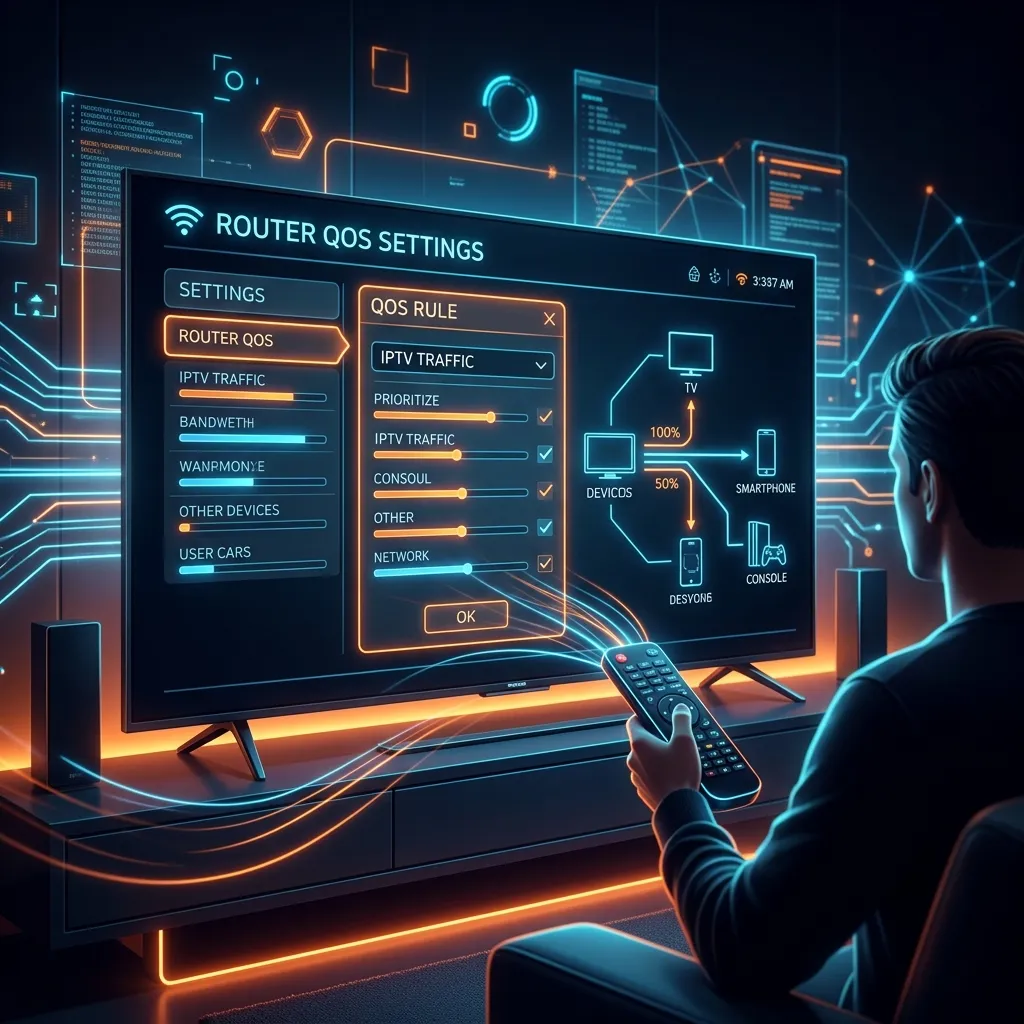
This is where your router’s Quality of Service (QoS) settings come into play. QoS is the ultimate traffic cop for your home network. By properly optimizing these settings, you can ensure that your IPTV packets are treated as VIPs, arriving at your screen exactly when they need to, completely uninterrupted by the noise and congestion of other internet activities.
Welcome to the definitive guide from Smartiflix. In this exhaustive, multi-layered resource, we will break down exactly how your network handles video traffic, explain the intricate mechanics of QoS, and walk you through a detailed, step-by-step process for optimizing your router for flawless IPTV streaming. Whether you are a networking novice or a seasoned tech enthusiast looking to squeeze every drop of performance out of your hardware, this guide will provide you with the tools you need to build an unshakeable streaming setup.
1. The Anatomy of IPTV Streaming: How Video Travels Through Your Network
To understand why Quality of Service is so vital, you must first understand how IPTV fundamentally differs from traditional cable or satellite broadcasts, and how it interacts with your home internet.
Traditional Broadcast vs. Internet Protocol Television
In a traditional cable setup, a dedicated frequency is reserved entirely for television signals. The data flows in one direction, unimpeded by your home’s internet usage. You could be downloading terabytes of data on your computer, and your cable TV would not flinch.
IPTV, however, delivers television content over the same IP network that handles all your other internet traffic. The video is compressed into digital data packets, sent from the IPTV provider’s servers, routed across the global internet infrastructure, processed by your local Internet Service Provider (ISP), handed off to your home modem, routed through your Wi-Fi router, and finally decoded by your streaming device or Smart TV.
TCP vs. UDP Protocols in Video Streaming
Internet traffic relies primarily on two protocols: TCP (Transmission Control Protocol) and UDP (User Datagram Protocol).
- TCP is reliable but slow. It requires the receiving device to acknowledge every single packet of data. If a packet is lost, TCP pauses the transfer and asks for the packet to be resent. This is perfect for downloading files or loading web pages where accuracy is critical.
- UDP is fast but unforgiving. It blasts data to the receiver without waiting for acknowledgment. If a packet drops, it is gone forever. Live IPTV streams heavily utilize UDP or UDP-based protocols because in live video, speed is more important than absolute perfection. You would rather miss a single frame of a soccer match than have the entire broadcast pause for three seconds to retrieve that frame.
The Network Killers: Latency, Jitter, and Packet Loss
Because IPTV relies on a constant, real-time flow of data, it is highly sensitive to network instability. There are three main culprits behind a poor viewing experience:
| Metric | Definition | Impact on IPTV |
|---|---|---|
| Latency (Ping) | The time it takes for a data packet to travel from the server to your device. | High latency delays live streams. If you are watching a football game with high latency, your neighbors will cheer for a goal 10 seconds before you see it. |
| Jitter | The variation in latency over time. If packets arrive at wildly different speeds, it creates inconsistency. | Severe jitter forces the IPTV player to constantly adjust its buffer, leading to stuttering video, out-of-sync audio, and frequent micro-pauses. |
| Packet Loss | When data packets fail to reach their destination and are dropped entirely. | Causes visual artifacts, macro-blocking (large blocky pixels), robotic audio, or complete stream freezing. |
When your home network is congested, jitter and packet loss skyrocket. This is the exact problem QoS is designed to solve.
2. What Exactly is Quality of Service (QoS)?
Quality of Service (QoS) is a set of technologies that work on a network to guarantee its ability to dependably run high-priority applications and traffic under limited network capacity.
Without QoS, most consumer routers operate on a FIFO (First In, First Out) basis. This means the router processes data packets in the exact order they arrive. If your PlayStation starts downloading a massive 100GB game update, it floods the router with millions of TCP packets. When your smart TV subsequently requests data for an IPTV stream, the router places the TV’s video packets at the very back of the line behind the massive game download. The result? Your stream buffers endlessly.
"Think of your home network as a major highway, and your internet bandwidth as the number of lanes. When traffic is light, everyone travels at the speed limit. But during rush hour (when multiple devices are active), a traffic jam occurs. QoS acts as an emergency siren, carving out a dedicated VIP lane exclusively for your IPTV stream, forcing all other traffic to yield."
Types of QoS
Modern routers typically offer one or more of the following QoS implementations:
- Device-Based Priority (MAC Address/IP Binding): You tell the router to prioritize a specific physical device. For example, you can guarantee that your NVIDIA Shield or Amazon Firestick always gets priority, regardless of what application it is running.
- Application/Service-Based Priority: You prioritize specific types of traffic. You can tell the router to always prioritize "Video Streaming" or "Voice over IP (VoIP)" traffic over "File Transfers" or "P2P Downloads."
- Smart/Adaptive QoS: Advanced routers (like modern ASUS or Netgear Nighthawk models) use deep packet inspection and dynamic algorithms to automatically identify what you are doing and allocate bandwidth accordingly, requiring very little manual input.
- Traditional Bandwidth Control: The most basic form of QoS, allowing you to simply cap the maximum download and upload speeds of specific devices to prevent them from hogging the network.
3. Why Your IPTV Setup Needs Dedicated Priority
If you pay for a premium service like our IPTV Subscription, you are accessing high-bitrate, 4K, and 60fps live content. These streams require a robust, stable connection. Even if you have a gigabit fiber connection, you can still experience buffering. Why? Because of a hidden network phenomenon known as Bufferbloat.
Understanding Bufferbloat
Bufferbloat is the undesirable latency that comes from a router or other network equipment buffering too much data. When a network link becomes congested, routers queue the excess packets in a buffer. While buffering prevents packet loss, it massively increases latency and jitter for subsequent packets trapped in the queue.
When large downloads (like a software update or a cloud backup) fill up your router's buffer, your time-sensitive IPTV UDP packets get stuck behind them. Even though you might have 500 Mbps of total bandwidth, the router's queue is so mismanaged that the video stream chokes.
By properly configuring QoS, you implement algorithms (like FQ_CoDel or Cake) that smartly manage these queues, dropping unimportant delayed packets and allowing the video stream packets to skip to the front of the line.
4. Pre-Configuration Network Diagnostics
Before you dive into your router's settings, you must establish a baseline of your network's health. Misconfigured QoS can actually do more harm than good if you feed the router inaccurate information about your internet speed.
Step 1: Determine Your True Internet Speed
Do not rely on the speeds advertised by your ISP. You need to know your actual, real-world throughput during peak hours.
- Connect a laptop directly to your router via an Ethernet cable.
- Ensure no other devices are actively downloading or streaming.
- Visit a reliable speed testing site, preferably one that measures bufferbloat (like Waveform's Bufferbloat Test).
- Note your exact Download Speed and Upload Speed.
Step 2: Test for Network Throttling
Sometimes the issue isn't your router; it's your ISP deliberately slowing down IPTV traffic. ISPs often throttle high-bandwidth video streams to save money on peering costs. If you suspect your ISP is throttling your connection, you may need to use a VPN. You can learn more about protecting your privacy and bypassing ISP throttling in our comprehensive Security Guide.
Step 3: Update Router Firmware
Outdated firmware is a leading cause of router instability. Before configuring complex QoS rules, log into your router and check for firmware updates. Manufacturers frequently release updates that improve QoS algorithms and patch security vulnerabilities.
5. Wired vs. Wireless: The Foundation of Stable Streaming
We cannot overstate this: If you want flawless IPTV, hardwire your streaming device.
While modern Wi-Fi 6 and Wi-Fi 7 routers are incredibly fast, wireless signals are inherently unstable. They are subject to interference from walls, microwaves, Bluetooth devices, and your neighbors' networks. Wi-Fi operates in half-duplex mode, meaning devices cannot send and receive data simultaneously—they must take turns. This introduces micro-latency that can disrupt live video feeds.
The Ethernet Advantage
Using a Cat5e, Cat6, or Cat7 Ethernet cable provides a full-duplex, dedicated, interference-free pipeline from your router directly to your TV box. If running a long Ethernet cable is impossible, consider these alternatives before relying on Wi-Fi:
- MoCA Adapters: MoCA (Multimedia over Coax Alliance) uses your home's existing coaxial cable wiring to transmit Ethernet data. It is nearly as fast and stable as pure Ethernet.
- Powerline Adapters: These adapters transmit data through your home's electrical wiring. While susceptible to interference from large appliances, they often provide lower latency and less jitter than Wi-Fi across long distances.
If you absolutely must use Wi-Fi, ensure your streaming device is connected to the 5GHz or 6GHz band, not the crowded 2.4GHz band.
6. Accessing Your Router's Control Panel
To configure QoS, you need administrative access to your router's firmware. Here is how to get in.
Find Your Default Gateway (Router IP Address)
- Windows: Press
Win + R, typecmd, and hit Enter. Typeipconfigand look for the "Default Gateway" address (usually192.168.1.1or192.168.0.1). - macOS: Open System Preferences > Network > Advanced > TCP/IP. Note the "Router" IP address.
- Mobile (iOS/Android): Check your Wi-Fi connection details. The router's IP is listed under the network info.
Log In to the Web Interface
- Open a web browser on a device connected to your network.
- Type the Router IP address into the URL bar and press Enter.
- You will be prompted for a username and password. If you haven't changed this, check the sticker on the back or bottom of your physical router. Common defaults are
admin/adminoradmin/password. - Once logged in, look for a tab labeled Advanced, Network Settings, Traffic Control, or QoS.
7. The Core Strategy: How to Configure QoS for IPTV
The exact interface will vary wildly depending on your router's brand, but the core principles of setting up QoS remain universally identical. Follow these sequential steps for the best results.
Step 1: Enable QoS and Enter Bandwidth Limits
When you enable QoS, the router needs to know the absolute maximum capacity of your internet connection so it knows when to start queuing traffic.
- The Golden Rule of QoS: Set your global Upload and Download bandwidth limits to 85% to 90% of your actual tested speeds.
- Why? If you set the QoS to 100% of your speed, the bottleneck will still occur at your ISP's modem, which usually has terrible, bloated buffers. By artificially bottlenecking your speed at 90% on your router, you ensure your router (which now has QoS enabled) is entirely in charge of managing traffic queues, effectively eliminating bufferbloat.
Step 2: Find Your Streaming Device's MAC Address
A MAC (Media Access Control) address is a unique hardware identifier for your network card. You need this to tell the router exactly which device to prioritize.
- If you are using an Android Box or Firestick, navigate to Settings > Network > Network Status/Details to find the MAC address. For detailed device setup, check out our Firestick Setup guide.
- Alternatively, look at the "Attached Devices" or "Client List" in your router's admin panel to find the device.
Step 3: Assign a Static IP Address (Optional but Recommended)
Routers dynamically assign IP addresses via DHCP. This means your TV's IP address might change when the router reboots. To ensure your QoS rules always apply to the correct device, bind the MAC address to a Static (Reserved) IP address in your router’s DHCP/LAN settings.
Step 4: Create the QoS Priority Rule
Navigate to the QoS rule creation section.
- Target: Input the MAC Address or Static IP of your IPTV device.
- Priority Level: Set this to Highest, Premium, or Maximum.
- Application Type (If required): If your router asks for the type of traffic, select "Video/Audio Streaming" or specify the UDP ports used by your IPTV provider (if known).
Once saved, reboot your router to apply the new queueing algorithms.
8. Brand-Specific QoS Setup Guides
Different manufacturers use completely different terminology and interfaces for QoS. Here is a breakdown of how to tackle the most popular router brands.
ASUS Routers
ASUS provides some of the best built-in QoS tools on the consumer market, primarily utilizing their "Adaptive QoS" engine powered by Trend Micro.
- Log in to your ASUS Web GUI (usually
router.asus.com). - Under "General" on the left sidebar, click Adaptive QoS.
- Toggle "Enable QoS" to ON.
- Select Adaptive QoS from the QoS Type dropdown.
- Choose Video and Audio Streaming as the primary preset, OR manually drag and drop "Video and Audio Streaming" to the top priority slot.
- Alternatively, use the Bandwidth Limiter to heavily restrict the download speeds of non-essential devices (like kids' tablets or guest phones).
Netgear Routers
Modern Netgear Nighthawk routers use a system called Dynamic QoS.
- Log in via
routerlogin.netor the Nighthawk App. - Go to Advanced > Setup > QoS Setup.
- Check the box for Enable Dynamic QoS.
- Netgear attempts to auto-detect your bandwidth, but it is highly recommended to click Specify bandwidth manually and input 90% of your tested speeds.
- Apply and reboot. Netgear's internal database will automatically prioritize streaming packets.
TP-Link Routers
TP-Link routers often brand their QoS under the "HomeCare" or "HomeShield" umbrellas.
- Log in to
tplinkwifi.netor use the Tether App. - Navigate to Advanced > QoS (or the HomeShield section).
- Enable QoS and input your total bandwidth (again, use the 90% rule).
- Go to Device Priority, locate your IPTV device in the client list, and toggle the priority switch. You can often set the duration to "Always."
Linksys Routers
Linksys uses a highly visual, drag-and-drop Media Prioritization tool.
- Access the Smart Wi-Fi dashboard.
- Click on Media Prioritization on the left panel.
- Turn the feature ON.
- Go to Settings and input your Downstream Bandwidth manually.
- In the "Devices" list, simply click and drag your IPTV box into the High Priority block.
If you need help connecting your specific device to our service after optimizing your network, refer to our comprehensive Installation Guide.
9. Advanced QoS Settings: DSCP and WMM
If you want to dig deeper into the granular settings of network administration, you may encounter advanced QoS features.
WMM (Wi-Fi Multimedia)
If your streaming device is connected via Wi-Fi, WMM must be enabled. WMM is a Wi-Fi Alliance specification based on the IEEE 802.11e standard. It provides basic QoS features for wireless networks, prioritizing audio, video, and voice traffic over background data transfers.
- Where to find it: Usually located under Wireless Settings > Advanced or Professional.
- Action: Ensure WMM is set to "Enable." Without it, your router treats all Wi-Fi packets equally, which is disastrous for high-definition streaming over wireless.
IGMP Snooping
Internet Group Management Protocol (IGMP) snooping is crucial if your IPTV provider utilizes multicast streams (where one server broadcasts a single stream to multiple users simultaneously, often used by official telecom ISP TV boxes).
- While OTT (Over-The-Top) services like Smartiflix primarily use unicast streams (a dedicated stream for each user), enabling IGMP Snooping can still prevent multicast traffic on your local network (like Apple AirPlay or smart home discovery protocols) from flooding the Wi-Fi bandwidth of your streaming devices.
- Action: Enable IGMP Snooping in your LAN or IPTV advanced settings.
10. Deep Dive: Modifying Maximum Transmission Unit (MTU)
While configuring QoS handles the priority of packets, adjusting your Maximum Transmission Unit (MTU) can fundamentally alter how efficiently those packets travel. The MTU determines the maximum size of a packet that can be sent over your network.
By default, most routers set the MTU to 1500 bytes. However, if your ISP uses certain encapsulation protocols (like PPPoE, common with DSL and some fiber providers), an MTU of 1500 might cause packet fragmentation. Fragmentation happens when a packet is too large to pass through a network node and must be sliced into smaller pieces, which drastically increases latency and processing time—the natural enemy of IPTV.
Finding the Optimal MTU Size
You can find your ideal MTU using a simple ping test in your computer's command prompt or terminal:
- Open Command Prompt (Windows) or Terminal (Mac).
- Type:
ping google.com -f -l 1472(Windows) orping -D -s 1472 google.com(Mac). - If you get a message saying "Packet needs to be fragmented," lower the number by 10 (e.g., 1462) and try again.
- Continue lowering the number until you get a successful reply without fragmentation.
- Take that number, add 28 (for the IP and ICMP headers), and you have your optimal MTU.
- Enter this optimal MTU into your router’s WAN/Internet settings.
When paired with a finely tuned QoS setup, a properly configured MTU ensures that your IPTV packets flow smoothly without ever needing to be stopped and chopped up by intermediate servers.
11. The Interplay Between VPNs and QoS
Many users stream IPTV behind a Virtual Private Network (VPN) to bypass ISP throttling, bypass geo-blocks, or protect their privacy. While VPNs are incredibly useful, they introduce a massive complication to Quality of Service.
When you run a VPN application directly on your streaming device (like a Firestick), the VPN encrypts all the data packets leaving the device. Because the data is heavily encrypted, your router’s deep packet inspection (used in Smart QoS or Adaptive QoS) can no longer "see" that the packets contain video streaming data. The router just sees a blind tunnel of encrypted VPN traffic and will often assign it standard or low priority.
How to Prioritize VPN Traffic for IPTV
To solve this, you must rely on Device-Based MAC Priority rather than Application-Based Priority.
- Since the router cannot read the encrypted packets to know it's a video stream, you must tell the router: "Regardless of what this specific device is doing, give it maximum priority."
- By setting the MAC address of the Firestick/Android Box to the highest QoS tier, the router will prioritize the encrypted VPN tunnel, ensuring your IPTV stream remains buffer-free while still staying secure and anonymous.
12. Common Pitfalls and Troubleshooting
Optimizing a network requires trial and error. If you have followed the steps above and are still experiencing issues, you may have fallen into one of these common traps.
Trap 1: The "Everything is High Priority" Mistake
The most common mistake novices make is setting every device in their home to "High Priority." If everything is high priority, nothing is high priority. The router's queueing system becomes just as congested as it was without QoS.
- Solution: Be ruthless. Only your main IPTV streaming devices and VoIP work phones should be given maximum priority. Laptops, gaming consoles (unless actively playing competitive multiplayer), and smart home devices should remain on standard or low priority.
Trap 2: Double NAT Configurations
If your ISP forces you to use their combined Modem/Router unit, and you plug your own high-end Wi-Fi router into it, you have created a Double NAT (Network Address Translation). This means data packets are being processed and routed twice, adding significant latency and often breaking QoS functionality.
- Solution: You must put the ISP's modem into Bridge Mode. This disables its routing capabilities, turning it into a simple modem that passes the raw internet connection directly to your dedicated router, allowing your router's QoS to do its job unimpeded.
Trap 3: Hardware Bottlenecks
QoS is incredibly demanding on a router's processor. Deep packet inspection and active queue management require computing power. If you are using a cheap, $30 router provided by your ISP, turning on QoS might actually decrease your network performance because the router's weak CPU cannot process the queues fast enough, causing massive systemic latency.
- Solution: Monitor your router's CPU usage in the admin panel while streaming. If it is pinned at 100%, you need a hardware upgrade.
13. Upgrading Your Hardware: When QoS Isn't Enough
Sometimes, software tweaks cannot overcome physical hardware limitations. If you have an enormous home, dozens of smart devices, and gigabit internet, a standard budget router will collapse under the pressure, QoS or not.
The Shift to Wi-Fi 6 (802.11ax) and Wi-Fi 7
If you must use wireless for your IPTV setup, upgrading to a modern standard is essential.
- OFDMA (Orthogonal Frequency-Division Multiple Access): Introduced in Wi-Fi 6, OFDMA fundamentally changes how routers handle traffic. Instead of serving one device at a time, it slices the wireless channel into smaller sub-channels, allowing the router to transmit data to your TV, phone, and laptop simultaneously. This inherently reduces latency and acts as a physical layer of QoS.
- BSS Coloring: Helps mitigate interference from neighboring Wi-Fi networks in crowded apartment buildings.
Look for SQM (Smart Queue Management)
If you are purchasing a new router specifically for flawless streaming and gaming, look beyond basic QoS and seek out routers that support SQM. Algorithms like FQ_CoDel (Fair Queueing Controlled Delay) or Cake are the gold standard. Instead of forcing you to manually assign device priorities, SQM automatically manages packet flows to ensure no single application can ever cause bufferbloat. Routers running custom firmware like OpenWrt, or specialized hardware like Eero meshes and Ubiquiti Unifi systems, handle SQM beautifully.
14. Smartiflix: The Ultimate IPTV Experience
No amount of router optimization can fix a broken source. If your IPTV provider uses cheap servers, poor routing, and over-sold bandwidth, you will experience buffering even on a flawless, NASA-grade home network.
At Smartiflix, we eliminate the source-side issues. Our infrastructure is built on a global network of high-performance CDN (Content Delivery Network) nodes. When you request a stream, our system dynamically routes the video from the server geographically closest to you, drastically reducing latency and packet loss before the data even reaches your ISP.
We utilize state-of-the-art Anti-Freeze technology and redundant stream sources to guarantee 99.9% uptime. When you pair our premium service with a properly optimized home network running configured QoS, you achieve the holy grail of cord-cutting: a television experience that is indistinguishable from, or better than, expensive traditional cable.
Stop paying exorbitant cable fees and stop settling for inferior, buffering streams. Check out our Pricing plans today and experience the absolute pinnacle of digital television.
15. Conclusion
Transitioning to IPTV is the smartest entertainment choice you can make, but it requires your home network to step up and perform. Buffering is not an inevitability; it is a symptom of poor network traffic management.
By taking the time to access your router, understand your bandwidth limits, and properly configure Quality of Service rules, you elevate your IPTV traffic from the chaotic general lanes of the internet highway into its own dedicated, high-speed VIP lane.
Remember the core tenets: Hardwire your devices whenever possible, utilize the 85-90% bandwidth rule to eliminate bufferbloat, ruthlessly prioritize your streaming box over background downloads, and ensure your router hardware is capable of handling the load.
Take control of your network today, implement these QoS strategies, and settle in for thousands of hours of flawless, uninterrupted entertainment with Smartiflix.