IPTV Setup Guide: Maximize Your Nvidia Shield TV Pro Experience
Unlock the full potential of IPTV with the Nvidia Shield TV Pro. Follow our guide for setup, app installation, and optimization tips for smooth streaming.
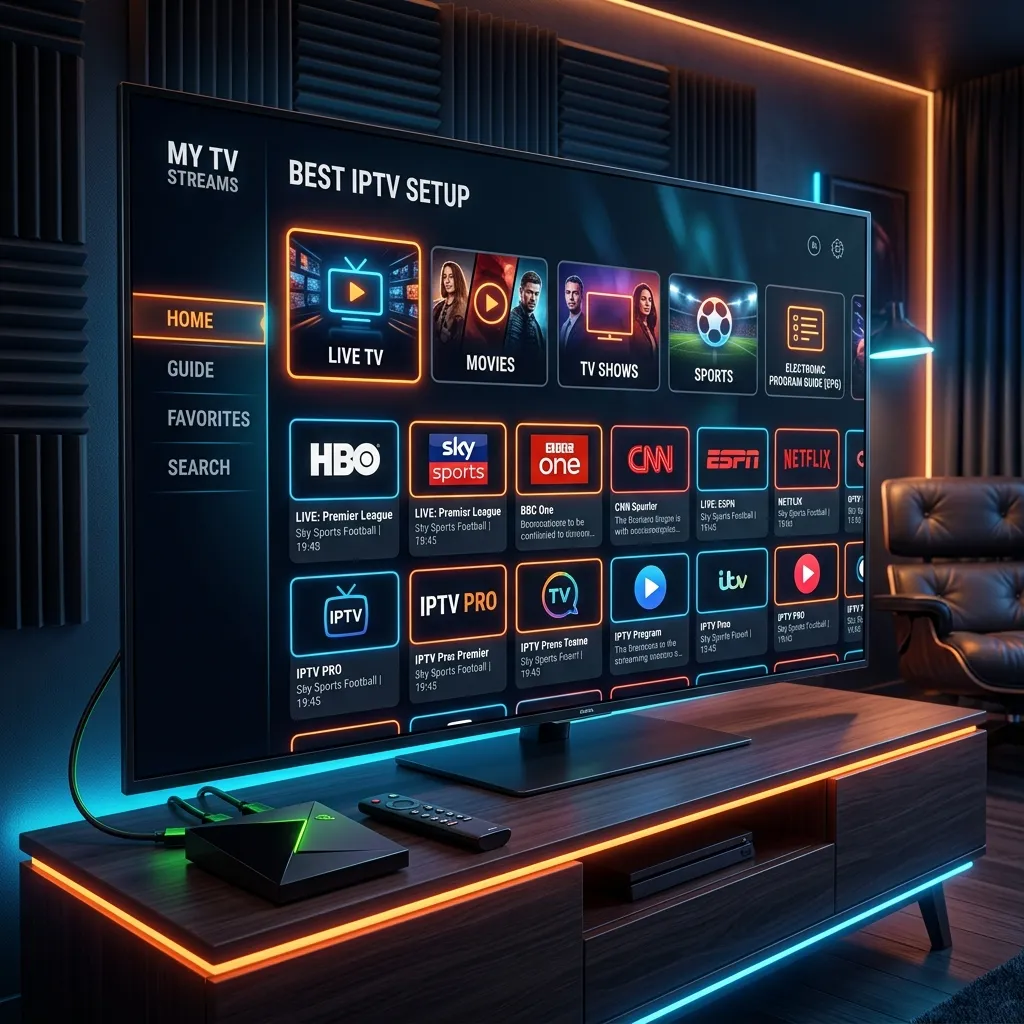
Welcome to the definitive guide on transforming your entertainment setup into a powerhouse of endless media with the Nvidia Shield TV Pro. If you have been searching for the perfect device to handle your streaming needs without breaking a sweat, you have found it. The streaming landscape is vast, but true cord-cutters and home theater enthusiasts know that standard smart TVs and budget streaming sticks often fall short when it comes to performance, longevity, and flexibility.
In this comprehensive, 3000+ word guide, we will explore exactly why the Nvidia Shield TV Pro reigns supreme in the world of IPTV (Internet Protocol Television). We will walk you through unboxing, initial configuration, installing top-tier IPTV applications, optimizing your settings for absolute peak performance, and ensuring a buffer-free viewing experience. By the time you finish reading, you'll be an expert in maximizing the potential of this incredible device.
At Smartiflix, we are dedicated to providing you with the best streaming resources, guides, and services to elevate your viewing experience. Let's dive deep into why the Nvidia Shield TV Pro is the best investment you can make for your home entertainment system.
Why the Nvidia Shield TV Pro is the Ultimate IPTV Device
The market is flooded with streaming devices, ranging from inexpensive HDMI dongles to premium set-top boxes. Yet, since its release, the Nvidia Shield TV Pro has maintained its status as the "King of Streaming." But why? What makes this specific piece of hardware so revered by the IPTV community?
1. The Power of the Tegra X1+ Processor
At the heart of the Nvidia Shield TV Pro lies the Tegra X1+ processor. Designed by Nvidia, a global leader in computing and AI graphics, this processor is incredibly powerful. While most streaming devices use low-cost, low-power ARM chips designed merely to load menus and decode standard video, the Tegra X1+ is a desktop-class mobile chip. It provides the Shield TV Pro with up to 25% faster performance than its predecessor and leagues ahead of standard smart TV processors.
When it comes to IPTV, processing power is crucial. Loading large M3U playlists containing tens of thousands of live channels, movies, and TV shows requires significant RAM and CPU power. Budget devices often crash, lag, or stutter when scrolling through massive Electronic Program Guides (EPGs). The Nvidia Shield TV Pro, equipped with 3GB of RAM and the Tegra X1+, glides through these massive lists effortlessly, ensuring a fluid, frustration-free navigation experience.
2. AI-Enhanced Upscaling
One of the most revolutionary features of the Nvidia Shield TV Pro is its AI-enhanced upscaling. Standard upscaling simply stretches lower-resolution images to fit a 4K screen, often resulting in blurry, pixelated, or soft images. Nvidia, however, trained an artificial intelligence neural network on thousands of hours of footage to intelligently predict and fill in missing pixels.
For IPTV users, this is an absolute game-changer. While top-tier services like our IPTV Subscription offer extensive HD and 4K content, many live TV broadcasts around the world are still transmitted in 720p or 1080p. The Shield's AI upscaler takes these 720p/1080p streams and enhances them to near-4K quality in real-time. The result is sharper edges, clearer text (perfect for sports tickers and news banners), and a vastly improved visual experience that no other device on the market can match.
3. Comprehensive Format Support: Dolby Vision and Atmos
For the cinephiles and home theater enthusiasts, the Nvidia Shield TV Pro supports an array of high-end audio and video formats. It seamlessly handles Dolby Vision HDR and HDR10, ensuring that you get the widest color gamut, deepest blacks, and brightest highlights from compatible content.
On the audio front, it supports Dolby Atmos pass-through. If you have a surround sound system or a high-end soundbar, the Shield ensures you are getting the uncompressed, immersive audio experience the director intended. When you access high-quality VOD (Video on Demand) sections through your IPTV provider, you will experience the content exactly as it was meant to be seen and heard.
4. Expandable Storage and Versatile Connectivity
Unlike many modern streaming sticks that rely solely on Wi-Fi and offer zero expandability, the Nvidia Shield TV Pro is built for power users.
- Gigabit Ethernet Port: While Wi-Fi has improved, a hardwired connection is always superior for live streaming. The gigabit ethernet port ensures you get the maximum bandwidth from your ISP without wireless interference, which is critical for preventing buffering during peak events.
- Two USB 3.0 Ports: These ports allow you to expand the device's internal storage indefinitely using external hard drives or USB flash drives. This is incredibly useful if you want to record live IPTV streams or use the Shield as a Plex Media Server.
Unboxing and Initial Setup of the Nvidia Shield TV Pro
When your Nvidia Shield TV Pro arrives, the unboxing experience reflects the premium nature of the device.
What’s in the Box?
Inside the packaging, you will find:
- The Nvidia Shield TV Pro console.
- The uniquely shaped, triangular remote control with motion-activated backlit buttons.
- A power adapter.
- A quick start guide.
(Note: Nvidia does not include an HDMI cable in the box. You will need to purchase a high-speed HDMI 2.0 or 2.1 cable separately to ensure you can pass 4K HDR content to your television).
Connecting the Device
- Placement: Place the Shield TV Pro on your entertainment center. Its sleek, black aesthetic with a subtle green LED accent fits well in any modern setup.
- Power: Connect the power adapter to the Shield and plug it into a wall outlet or surge protector.
- HDMI: Connect your high-speed HDMI cable from the back of the Shield to an HDMI 2.0/2.1 port on your TV or AV Receiver.
- Network: For the best IPTV experience, we highly recommend connecting an Ethernet cable from your router directly into the Shield’s Gigabit Ethernet port. If that's not possible, make sure you are in range of a strong 5GHz Wi-Fi signal.
Android TV OS Initial Configuration
Turn on your TV and switch to the correct HDMI input. The Shield will boot up, displaying the Nvidia logo, followed by the Android TV setup screen.
- Pair the Remote: Follow the on-screen instructions to pair the remote control via Bluetooth.
- Language and Network: Select your preferred language. If you didn't connect an Ethernet cable, you will be prompted to connect to your Wi-Fi network.
- Google Account: Sign in with your Google account. This is necessary to access the Google Play Store, download apps, and use Google Assistant.
- Updates: The device will likely prompt you to download and install the latest system updates. Do not skip this step. Nvidia provides fantastic long-term software support, and these updates often include critical security patches, bug fixes, and performance improvements.
For a broader overview on setting up devices for our service, you can also check out our comprehensive Installation Guide.
Preparing the Nvidia Shield for IPTV Applications
While the Google Play Store on Android TV has many great apps, the absolute best IPTV players (like TiviMate) or specific tools require you to sideload them. Sideloading is the process of installing an application directly via its APK file rather than through the official app store.
To do this, we need to prepare the Shield TV Pro by adjusting a few developer and security settings.
Step 1: Install the "Downloader" App
- From the Nvidia Shield Home Screen, navigate to the Google Play Store.
- Use the search function (either by typing or using voice search on your remote) and search for "Downloader by AFTVnews".
- Select the app (it has an orange icon) and click Install.
- Once installed, return to the home screen.
Step 2: Enable Developer Options
To allow the installation of apps from unknown sources, you first need to unlock the developer options.
- Go to the Settings gear icon in the top right corner of the home screen.
- Scroll down to Device Preferences and select About.
- Scroll down to Build.
- Click on Build rapidly 7 times. You will see a countdown message appear at the bottom of the screen saying "You are now X steps away from being a developer."
- Once completed, a message will pop up saying, "You are now a developer!"
Step 3: Enable Apps from Unknown Sources
Now that developer options are unlocked, you can grant the Downloader app permission to install APKs.
- Press the back button to return to the main Settings menu.
- Go to Apps, then scroll down to Security & restrictions.
- Select Unknown sources.
- Find the Downloader app in the list and toggle the switch to the Right (On).
Your Nvidia Shield TV Pro is now fully unlocked and ready to install any third-party IPTV application you desire.
Choosing the Right IPTV Subscription
Before you install an app, you need a high-quality IPTV subscription. Having the most powerful streaming box in the world means nothing if the service you are connecting to is unstable, overloaded, or offers poor-quality streams.
What Defines a Premium IPTV Service?
When evaluating IPTV providers, you should look for the following criteria:
- Server Stability and Uptime: Look for services that boast 99.9% uptime with load-balanced servers to prevent buffering during major sporting events.
- Extensive Channel Lineup: A good service provides comprehensive coverage of local networks, international channels, premium sports packages, and pay-per-view events.
- High-Quality VOD Library: Beyond live TV, a robust library of movies and TV series (updated regularly) is essential.
- Resolution Options: The service should offer channels in SD, HD, FHD, and 4K so you can choose the best stream for your internet connection.
- Customer Support: Responsive technical support can save you hours of frustration.
At Smartiflix, we pride ourselves on checking all these boxes and more. We offer blazing-fast servers, an unparalleled selection of global content, and dedicated support to ensure your viewing experience is flawless. To view our competitive plans that perfectly complement your Nvidia Shield TV Pro, visit our Pricing page.
Top IPTV Apps for the Nvidia Shield TV Pro
The Android TV ecosystem offers a plethora of IPTV player apps. However, because you are using a premium device, you should pair it with premium software. Here are the top three IPTV apps recommended for the Nvidia Shield TV Pro.
1. TiviMate IPTV Player (The Undisputed King)
When it comes to IPTV players, TiviMate is the gold standard. It is built specifically for Android TV interfaces, making it incredibly easy to navigate with a remote control.
Why TiviMate is the best:
- Modern User Interface: It looks and feels like a professional cable or satellite TV guide. It is sleek, fast, and highly customizable.
- Multiple Playlists: You can add multiple IPTV subscriptions and seamlessly integrate them into one unified TV guide.
- Catch-up TV: If your provider supports it, TiviMate offers an elegant interface for watching past broadcasts.
- Customizable EPG: You can adjust the time shift, hide groups, reorder channels, and customize the look of the guide.
- Recording: TiviMate allows you to schedule recordings of live TV directly to the Shield’s internal storage or an attached USB drive.
Note: TiviMate has a free version, but the premium version (which unlocks all features) is highly recommended. It requires a one-time lifetime payment or a yearly subscription.
2. IPTV Smarters Pro
IPTV Smarters Pro is arguably the most popular and widely used IPTV application globally. It is an excellent all-in-one solution that separates Live TV, Movies, and Series into distinct, easy-to-navigate categories.
Why choose IPTV Smarters Pro:
- User-Friendly Layout: Its dashboard is incredibly intuitive, making it perfect for users who are new to IPTV.
- Excellent VOD Organization: It pulls TMDB (The Movie Database) metadata efficiently, displaying movie posters, cast information, and synopses beautifully.
- Multi-Screen Viewing: You can watch up to 4 live streams simultaneously, which is perfect for sports Sundays.
- Parental Controls: Easily lock adult categories or specific channels with a PIN code.
3. Sparkle TV / OTT Navigator
For users looking for alternatives to TiviMate that offer similar advanced functionalities, Sparkle TV and OTT Navigator are excellent choices. They are heavily focused on power users who want maximum control over how their streams are decoded and displayed.
Comparison Table: Top IPTV Apps
| Feature | TiviMate Premium | IPTV Smarters Pro | Sparkle TV |
|---|---|---|---|
| Best For | Advanced Users & Live TV | Beginners & VOD Lovers | Tinkers & Customizers |
| Interface Style | Traditional Cable EPG | Dashboard Category Tiles | Modern EPG |
| Multi-Screen | Yes | Yes | Yes |
| Recording | Excellent | Basic | Good |
| VOD Integration | Good | Excellent | Good |
| Cost | Paid (Yearly/Lifetime) | Free (Premium Available) | Paid |
Step-by-Step IPTV Setup Guide on the Shield
For this guide, we will outline the setup process using TiviMate, as it is the most highly recommended app for the Nvidia Shield TV Pro.
Step 1: Downloading TiviMate
Since TiviMate is available on the Google Play Store, you don't necessarily have to sideload it, though sideloading ensures you get the absolute latest unpatched APK.
- Open the Google Play Store on your Shield.
- Search for TiviMate IPTV Player.
- Click Install.
(Alternatively, if you need to sideload a specific version, open your Downloader app, enter the APK URL provided by the developer, download, and click install).
Step 2: Adding Your Playlist
To proceed, you will need your subscription details. When you sign up for an IPTV Subscription, you will receive either an M3U Link or Xtream Codes API credentials (Username, Password, and Server URL). Xtream Codes is vastly preferred as it loads faster and automatically organizes VOD content.
- Open TiviMate.
- Click on Add Playlist.
- Select Xtream Codes Login (Recommended) or Enter URL (for M3U).
- Enter the Server URL, Username, and Password provided by Smartiflix.
- Check the box for "Include VOD" if you want movies and series imported.
- Click Next.
- The app will process the playlist. Depending on the size of the subscription, this could take a few seconds to a minute.
- Once processed, you can name the playlist (e.g., "Smartiflix") and click Done.
Step 3: Configuring the EPG (Electronic Program Guide)
TiviMate generally pulls the EPG automatically if you used Xtream Codes. However, if it doesn't:
- Go to TiviMate Settings (gear icon).
- Select EPG.
- Ensure Update on app start is enabled.
- You can manually force an update by clicking Update EPG.
Step 4: Exploring VOD (Video on Demand)
TiviMate separates Live TV and VOD.
- Press the Left button on your remote to open the main side menu.
- Scroll down to the Movies or TV Shows section.
- Here, you will find beautifully organized categories for all your favorite on-demand content.
Optimizing Settings for the Best Viewing Experience
Out of the box, the Nvidia Shield TV Pro is fantastic, but tweaking a few advanced settings can elevate your experience from great to perfect.
1. Match Frame Rate (Crucial for Smooth Video)
Movies and TV shows are typically shot in 24 frames per second (fps), European TV at 25/50fps, and US TV at 30/60fps. If your Nvidia Shield is outputting at a constant 60Hz while you are watching a 24fps movie, you will experience "judder" (a slight stuttering effect during panning shots).
To fix this:
- Many modern apps, including TiviMate, have Auto Frame Rate matching built-in.
- In TiviMate: Go to Settings -> Playback -> Auto frame rate (AFR) and turn it ON.
- This ensures the Shield automatically switches your TV's refresh rate to match the native frame rate of the content you are watching, resulting in buttery-smooth playback.
2. AI Upscaling Configuration
You want to make sure you are getting the most out of the Tegra X1+ processor.
- Go to Shield Settings -> Device Preferences -> Display & Sound -> AI upscaling.
- Set it to AI-Enhanced.
- Set the Detail Enhancement to Medium or High based on your preference. (High can sometimes over-sharpen lower quality streams, so Medium is a safe default).
3. Audio Passthrough
If you are using an AV Receiver or a Soundbar:
- Go to Shield Settings -> Device Preferences -> Display & Sound -> Advanced sound settings.
- Ensure Match content audio resolution is enabled.
- In your IPTV app (like TiviMate), go to Settings -> Playback -> Audio passthrough and enable it. This sends the raw audio data (like Dolby Digital) directly to your sound system to decode.
4. Customizing the Android TV Home Screen
The default Android TV home screen can be cluttered with recommendations from apps you don't use. Clean it up for a faster experience.
- Scroll down to the bottom of the home screen and click Customize your home screen.
- Turn off channels for apps you don't care about.
- You can reorganize the apps in your "Favorites" row by long-pressing an app and selecting "Move." Put your primary IPTV app right at the front!
Security and Privacy Considerations
When streaming online, especially via IPTV, privacy and security should be a priority. While the Nvidia Shield is a secure device running official Android TV, your internet activity is still visible to your Internet Service Provider (ISP).
Why You Need a VPN for IPTV
A VPN (Virtual Private Network) is an essential tool for any cord-cutter. Here is why you should install one on your Nvidia Shield:
- ISP Throttling: Many ISPs intentionally slow down (throttle) traffic when they detect high-bandwidth video streaming or IPTV connections. This is the #1 cause of buffering. A VPN encrypts your traffic, preventing your ISP from seeing what you are doing, thereby bypassing throttling.
- Privacy: A VPN hides your IP address, keeping your viewing habits private and secure from third-party tracking.
- Geo-Blocking: Sometimes, certain sporting events are subjected to local blackouts. By connecting to a VPN server in a different city or country, you can bypass these geo-restrictions.
Installing a VPN on the Shield is incredibly easy. Top providers like ExpressVPN, NordVPN, and Surfshark have native, remote-friendly apps available directly in the Google Play Store. Simply download, log in, and connect.
For a deeper dive into staying safe while streaming, read our comprehensive guide: Is Smartiflix Safe? Your Ultimate Security Guide.
Comparing Nvidia Shield TV Pro to Other Devices
You might be wondering if it's really worth spending the premium price for the Nvidia Shield TV Pro compared to cheaper alternatives. Let's compare it against the competition.
Nvidia Shield TV Pro vs. Amazon Fire TV Stick 4K Max
The Firestick 4K Max is an excellent budget device and wildly popular for IPTV. However, it simply cannot compete with the Shield in raw power. The Firestick has less RAM (2GB vs 3GB), less storage (8GB vs 16GB expandable), and lacks the AI upscaling feature. The FireOS is also heavily modified by Amazon, pushing Amazon Prime content aggressively, whereas Android TV on the Shield is cleaner and more customizable. If you are on a budget, the Firestick is great (see our Firestick Setup Guide), but the Shield is the superior experience.
Nvidia Shield TV Pro vs. Apple TV 4K
The Apple TV 4K is perhaps the only device that matches the Shield in raw processing power. It is incredibly fast, has a beautiful UI, and integrates perfectly into the Apple ecosystem. However, for IPTV, the Apple TV falls short. Apple's closed ecosystem means you cannot sideload apps easily. You are restricted to the IPTV players approved by Apple in their App Store (like iPlayTV or UHF), which, while decent, do not offer the sheer power and customization of Android apps like TiviMate.
Nvidia Shield TV Pro vs. Formuler Boxes (e.g., Z11 Pro Max)
Formuler devices are dedicated IPTV boxes that run their proprietary MYTVOnline software. They are excellent for users who want an experience that mimics a traditional cable box perfectly out of the box. However, Formuler boxes are highly specialized. The Nvidia Shield TV Pro is a jack-of-all-trades that masters them all; it is an incredible IPTV box, an elite Plex server, an amazing retro gaming console, and a premium smart TV hub, making it a much better overall value for your living room.
Troubleshooting Common IPTV Issues on the Shield
Even with the best hardware and a premium IPTV Subscription, you might occasionally run into hiccups. Here are the most common issues and how to resolve them on your Nvidia Shield.
1. Constant Buffering and Stuttering
- Check your Connection: Are you using Wi-Fi? Switch to an Ethernet cable. If you must use Wi-Fi, ensure you are connected to the 5GHz band, not the 2.4GHz band.
- ISP Throttling: As mentioned earlier, turn on your VPN. If buffering stops immediately after connecting the VPN, your ISP was throttling you.
- Clear Cache: Over time, apps accumulate cache data. Go to Settings -> Apps -> TiviMate (or your player) -> Clear Cache. Do not clear data, or you will lose your playlist settings!
- Change Streaming Format: In TiviMate settings, try changing the stream output format from MPEG-TS to HLS, or vice versa, to see which works better with your provider.
2. EPG (TV Guide) Not Loading or Showing "No Information"
- Manual Update: Force a manual update in your IPTV app's EPG settings.
- Check URL: Ensure your Xtream Codes API or EPG URL was entered correctly with no typos.
- Clear EPG Data: In TiviMate, go to Settings -> EPG -> Clear EPG, and then update it again. Sometimes the database gets corrupted and needs a fresh pull.
3. Audio out of Sync
- If the audio isn't matching the lips of the people speaking, this is usually an issue with Bluetooth speakers or AV receiver processing delays.
- The Nvidia Shield has a built-in tool for this. Go to Settings -> Device Preferences -> Display & Sound -> Advanced sound settings -> Audio video sync. Use the on-screen bouncing ball tool to delay the audio perfectly until it matches.
- Alternatively, most IPTV apps like TiviMate have an "Audio Offset" feature within the playback menu to fix sync issues on a per-channel basis.
4. App Crashing or Freezing
- Ensure your Nvidia Shield OS is fully up to date.
- Ensure your IPTV application is the latest version.
- Restart the Shield: A simple reboot clears the RAM and often solves erratic behavior. Go to Settings -> Device Preferences -> About -> Restart.
Frequently Asked Questions (FAQ)
To make this guide as exhaustive as possible, let's address some common questions regarding the Nvidia Shield TV Pro and IPTV.
Q: Do I need a Smart TV to use the Nvidia Shield TV Pro? A: No! You only need a TV with an HDMI port. In fact, bypassing your TV's slow built-in smart features and using the Shield exclusively will provide a much better experience.
Q: Can I record live TV with the Shield? A: Yes. Apps like TiviMate support recording. Because the Shield has USB 3.0 ports, you can attach a massive external hard drive and use it as a DVR to record hours of live television.
Q: Is 16GB of internal storage enough? A: For apps, yes. If you only plan to install streaming apps (Netflix, YouTube, TiviMate, a VPN), 16GB is plenty. However, if you plan to download heavy Android games or record live TV, you should immediately expand the storage using a high-speed USB flash drive. The Shield allows you to format USB drives as "Device Storage," seamlessly merging it with the internal space.
Q: Will the Nvidia Shield TV Pro be updated to newer Android versions? A: Nvidia is famous in the Android community for its unparalleled support. Devices released back in 2015 still receive updates. You can rest assured the Pro model will be supported for years to come.
Conclusion
The Nvidia Shield TV Pro is not just a streaming device; it is a premium piece of home theater equipment. By combining the immense power of the Tegra X1+ processor, revolutionary AI upscaling, and the freedom of the Android TV ecosystem, it provides an unparalleled platform for IPTV.
When you pair this elite hardware with a top-tier application like TiviMate and a rock-solid, premium service from Smartiflix, you effectively eliminate the need for expensive, restrictive cable contracts forever. You gain access to a world of global sports, infinite video-on-demand, and pristine live television streams, all delivered in the highest possible quality.
Taking the time to set up your Nvidia Shield TV Pro properly—configuring frame rate matching, optimizing your home screen, and securing your connection with a VPN—guarantees a luxurious, frustration-free cord-cutting experience.
Ready to unlock the full potential of your new Nvidia Shield? Head over to our homepage at Smartiflix to explore our services, or jump straight to our Pricing page to grab a subscription that matches the power of your setup. Happy streaming!
Disclaimer: Smartiflix provides educational content regarding streaming technology. Users must ensure they comply with their local laws regarding copyright and streaming content.