Net IPTV Player Setup Guide: Install & Configure Easily
Discover how to set up Net IPTV Player on Smart TVs, Firestick, and Android. Follow our guide for seamless installation and activation today!
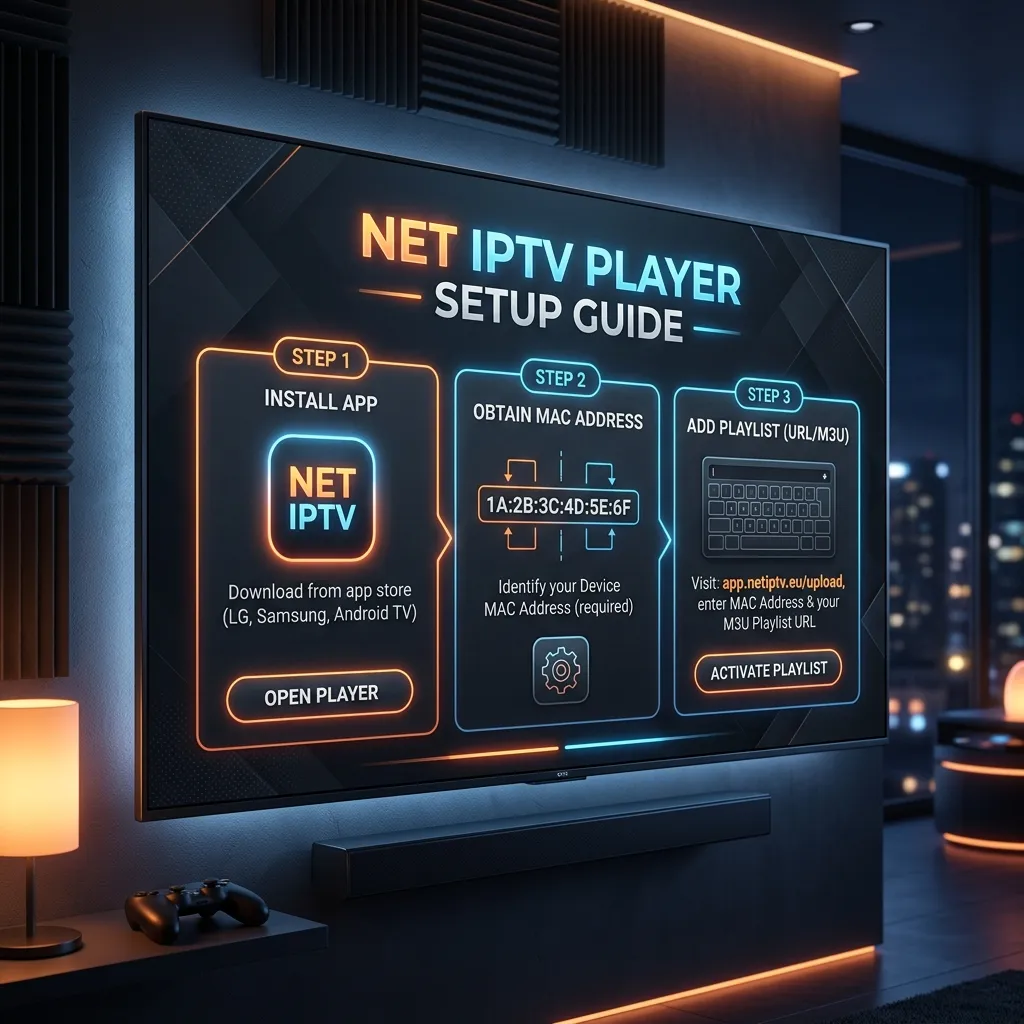
The evolution of digital entertainment has drastically transformed how we consume television. Gone are the days of expensive cable contracts, bulky set-top boxes, and limited channel packages. Today, IPTV (Internet Protocol Television) reigns supreme, offering unprecedented access to thousands of live channels, movies, and TV shows from around the globe. To access this vast ocean of content, however, you need a reliable media player. Enter Net IPTV Player—one of the most popular, versatile, and user-friendly IPTV applications available on the market today.
Welcome to the ultimate resource on the internet for setting up this incredible application. Whether you are completely new to the world of internet protocol television or a seasoned cord-cutter looking to upgrade your streaming setup, this comprehensive guide covers everything. From installation on various devices and MAC address activation to troubleshooting common errors and securing your connection, we leave no stone unturned.
Before we dive into the technical details, if you are looking for a premium, buffer-free streaming experience to pair with this app, be sure to visit the Homepage to learn more about what we offer, or jump straight into choosing your perfect plan by checking out our IPTV Subscription packages.
1. What is Net IPTV Player?
Net IPTV is a newly developed media player application designed specifically for streaming IPTV content on smart devices. It acts as a bridge between your device and your IPTV service provider.
Understanding the Core Concept
A crucial point that many beginners misunderstand is that Net IPTV itself does not provide any content. It does not come pre-loaded with channels, movies, or series. Think of it as an empty DVD player; without a DVD (in this case, an M3U playlist from an IPTV provider), the player cannot display anything.
Net IPTV is highly regarded in the streaming community because of its lightweight nature, lightning-fast channel zapping, and compatibility with a wide array of smart TVs. It supports multiple M3U playlists, allowing users to aggregate content from different providers into a single, cohesive interface.
Key Features of Net IPTV
The developers behind Net IPTV have continuously updated the app to include modern features that enhance the viewing experience. Here are some of the standout capabilities:
- Multi-Playlist Support: Upload and manage several M3U links simultaneously. This is perfect for users who use backup providers.
- Intuitive User Interface: A sleek, dark-themed UI that is easy to navigate using a standard TV remote.
- Subtitles and Audio Tracks: Full support for multi-language audio streams and embedded subtitles for VOD (Video on Demand) content.
- Catch-up TV Support: If your provider offers Catch-up, Net IPTV allows you to rewind and watch programs you missed over the past few days.
- Favorites Management: Easily add and remove channels from a dedicated Favorites list, so you don't have to scroll through thousands of channels to find what you want.
- High Definition Support: Fully capable of handling 1080p, 4K, and even 8K streams, provided your internet connection and TV hardware can keep up.
- Search Functionality: A powerful built-in search tool to quickly locate specific channels or movies.
[!NOTE] To get the most out of these features, you need a high-quality IPTV provider. Review our Pricing page to find a package that offers 4K streams and an extensive Catch-up library.
2. Pros and Cons of Net IPTV Player
No application is perfect. To help you decide if Net IPTV is the right choice for your entertainment center, we have compiled a balanced list of its advantages and disadvantages.
Pros and Cons Comparison
| Advantages (Pros) | Disadvantages (Cons) |
|---|---|
| Wide Compatibility: Available on Samsung Tizen, LG webOS, and Android platforms. | Not Free Forever: Requires a one-time activation fee after a 7-day trial. |
| Fast Performance: Extremely lightweight, meaning menus load quickly without lag. | No Xtream Codes API Support: Relies strictly on M3U links via their web portal. |
| Excellent EPG Integration: Automatically pulls TV guide data if provided by the M3U link. | No Built-in VPN: You must install a VPN separately on your device. |
| Multiple Playlists: Allows the addition of up to 4 different M3U links per MAC address. | Limited Customization: You cannot drastically change the UI themes or colors. |
| Easy Upload Portal: Uploading playlists via web browser is much easier than typing long URLs on a TV. | Occasional App Store Removals: Sometimes temporarily removed from official TV app stores for updates. |
3. Supported Devices and Minimum Requirements
Net IPTV is designed to work across a broad spectrum of hardware. However, ensuring your device meets the necessary requirements will save you a lot of troubleshooting later.
Device Compatibility
- Samsung Smart TVs: Models from 2016 onwards running the Tizen OS.
- LG Smart TVs: Models from 2016 onwards running webOS 3.0 or higher.
- Android Devices: Android Smart TVs (Sony, Philips, TCL), Android TV Boxes (Nvidia Shield, Xiaomi Mi Box), Android smartphones, and tablets.
- Amazon Fire TV Devices: Firestick Lite, Firestick 4K, Firestick 4K Max, and Fire TV Cubes (via sideloading).
Network Requirements
Because IPTV streams high-definition video data over the internet, a stable and fast connection is non-negotiable.
- Standard Definition (SD): Minimum 5 Mbps.
- High Definition (HD / 1080p): Minimum 15 Mbps.
- Ultra High Definition (4K): Minimum 30+ Mbps.
[!TIP] Whenever possible, connect your Smart TV or Android Box directly to your router using an Ethernet cable. Wi-Fi connections can suffer from interference, packet loss, and fluctuating speeds, which are the primary causes of streaming buffering.
4. How to Install Net IPTV on Samsung Smart TV
Samsung TVs utilize a proprietary operating system known as Tizen. Fortunately, Net IPTV is usually available directly from the official Samsung Apps Store, making installation a breeze.
Step-by-Step Installation for Samsung Tizen
- Turn on your Samsung TV and ensure it is connected to the internet.
- Press the Smart Hub or Home button on your remote control to bring up the main menu ribbon.
- Navigate to the left and select the Apps icon (usually depicted by four small squares).
- In the Apps section, look for the Magnifying Glass (Search) icon, typically located in the top right corner of the screen.
- Use the on-screen virtual keyboard to type "Net IPTV".
- The app icon (a distinct logo featuring the word "NET" with a play button) should appear in the search results. Select it.
- Click on the Install or Download button.
- Wait for the installation to complete. Once finished, you can click Open to launch the app immediately.
- Optional but recommended: Click Add to Home to place a shortcut to Net IPTV on your main menu ribbon for easy access in the future.
If you cannot find the app in your regional Samsung Store, you may need to temporarily change your TV's region to the US or UK.
5. How to Install Net IPTV on LG Smart TV
Similar to Samsung, LG uses its own operating system called webOS. The installation process is straightforward via the LG Content Store.
Step-by-Step Installation for LG webOS
- Turn on your LG Smart TV and confirm your internet connection.
- Press the Home button on your LG Magic Remote to open the app launcher.
- Scroll through the apps until you find the LG Content Store (often a pink/red icon resembling a shopping bag) and click on it.
- Once the store loads, select the Search icon (magnifying glass) at the top of the screen.
- Type "Net IPTV" using the on-screen keyboard.
- Locate the Net IPTV application in the search results and select it to open its details page.
- Click the Install button.
- After the installation concludes, click Launch to open the player.
- Upon the first launch, the app will display a MAC Address. Write this 12-character alphanumeric code down immediately; you will need it for the activation and playlist upload process.
6. How to Install Net IPTV on Amazon Firestick
The Amazon Firestick is arguably the most popular streaming device in the world. Since Net IPTV is not natively hosted on the Amazon Appstore, you will need to "sideload" it using the Downloader app. For a broader understanding of setting up your Amazon device, you can also refer to our dedicated Firestick Setup guide.
Part 1: Preparing the Firestick for Sideloading
- From the Firestick Home screen, navigate to the Gear icon (Settings) on the far right.
- Scroll down and select My Fire TV (or Device & Software on some models).
- Click on Developer Options.
- Note: If you don't see Developer Options, click on 'About', highlight 'Fire TV Stick', and click the select button on your remote 7 times quickly. A message will say "You are now a developer." Go back one step to find Developer Options.
- Select Install unknown apps (or Apps from Unknown Sources).
- Turn this setting to ON for the Downloader app.
Part 2: Sideloading Net IPTV via Downloader
- Return to the Firestick Home screen and navigate to the Find menu, then select Search.
- Type in "Downloader".
- Select the Downloader app (an orange icon with a downward-facing arrow) and install it.
- Open Downloader and click Allow when prompted to access photos, media, and files (this is necessary to save the APK file).
- On the left-hand menu, ensure you are on the Home tab.
- Click into the URL address bar on the right side.
- Enter the official Net IPTV APK download URL. (Note: Since URLs change, the most reliable method is to search "Net IPTV APK" in the Downloader's built-in browser and download it from a trusted site like APKPure). Alternatively, enter the shortcode provided by your IPTV vendor if you have one.
- Click Go. The APK file will begin downloading.
- Once downloaded, the Firestick will automatically prompt you to install it. Click Install.
- After installation, click Done, then select Delete to remove the APK file and save storage space on your device.
- You can now launch Net IPTV from your Apps & Channels list.
7. How to Install Net IPTV on Android TV and Android Boxes
Installing Net IPTV on an Android-based system (like Nvidia Shield, Chromecast with Google TV, or generic Android boxes) is typically the easiest method, provided the app is available in the Google Play Store.
Method 1: Google Play Store
- Open the Google Play Store from your Android TV home screen.
- Navigate to the search bar and type "Net IPTV".
- Select the app from the list of results.
- Click Install.
- Once installed, open the app to retrieve your MAC address.
Method 2: Sideloading (If not in the Play Store)
If the app is geo-blocked or unavailable in your specific Play Store:
- Go to your Android device Settings > Security & Restrictions.
- Toggle on Unknown Sources.
- Open your device's web browser (like Google Chrome or Puffin TV Browser).
- Navigate to a reputable APK website (e.g., APKMirror or APKPure) and search for the Net IPTV APK.
- Download the APK file.
- Open your device's File Manager app, locate the downloaded APK in the 'Downloads' folder, and click it to install.
8. Understanding the MAC Address System
Before proceeding to activation and uploading your playlist, it is crucial to understand what a MAC address is in the context of Net IPTV.
A MAC (Media Access Control) Address is a unique identifier assigned to the network interface of your device. In the world of Net IPTV (and similar apps like Smart IPTV or SET IPTV), the MAC address acts as your unique user ID.
Format of a MAC Address: 00:1A:79:XX:YY:ZZ (12 characters separated by colons).
When you open Net IPTV for the first time, this MAC address will be prominently displayed on the screen. Do not share this MAC address publicly. Anyone who possesses your MAC address and knows the portal URL can potentially overwrite your playlist or gain unauthorized access to your IPTV subscription.
9. How to Activate Net IPTV Player (Payment and Trial)
Net IPTV offers new users a 7-day free trial to test the application's functionality. It is highly recommended that you use this trial period to ensure the app works smoothly with your device and your Smartiflix M3U playlist.
Once the 7 days have passed, the app will lock, and you will see an "Expired" message on your screen. To continue using the player, you must pay a one-time activation fee. As of the latest update, the lifetime activation fee is approximately €5.79 per device.
[!IMPORTANT] Paying the activation fee to the Net IPTV developers does NOT provide you with live TV channels, movies, or shows. The fee is strictly for unlocking the media player software. You still need an active subscription from us. Visit our IPTV Subscription page to purchase your content access.
Step-by-Step Activation Guide
- Open a web browser on your computer, smartphone, or tablet.
- Navigate to the official Net IPTV activation portal:
https://www.netiptv.eu/Payment - In the designated field, carefully type in the MAC Address displayed on your TV screen. Double-check for typos; entering the wrong MAC address will activate someone else's device.
- Select your preferred payment method (Credit Card, PayPal, etc.).
- Complete the secure checkout process.
- Once the payment is confirmed, the activation is immediate.
- Restart the Net IPTV app on your TV, and the "Expired" or "Trial" warning should be gone permanently.
10. How to Upload Your IPTV Playlist to Net IPTV
Now that your app is installed and (optionally) activated, it's time to add your content. To do this, you will need the M3U link provided by Smartiflix after you completed your purchase. If you haven't received yours yet, check out our Installation Guide for details on how we deliver credentials.
Step-by-Step Upload Instructions
- Locate your M3U Link: This is a long URL sent to your email upon subscription. It usually looks something like this:
http://server-url.com:8080/get.php?username=YOURUSER&password=YOURPASS&type=m3u_plus&output=ts - Go to the Upload Portal: On your computer or smartphone, open a web browser and go to
https://www.netiptv.eu/Upload - Enter your MAC Address: In the section labeled "UPLOAD M3U/URL", type your TV's MAC address in the "MAC / APP ID" field.
- Add a List Name (Optional): You can name your playlist (e.g., "Smartiflix Premium").
- Paste your M3U Link: In the "URL1" field, paste the complete M3U link exactly as it was provided to you. Ensure there are no extra spaces at the beginning or the end of the URL.
- Add Multiple Playlists: If you have more than one subscription or a backup provider, you can use the "URL2", "URL3", etc., fields to add additional M3U links.
- Click 'Add List': Press the green button to upload the playlist to the server. You should see a success message indicating the playlist was added.
- Restart the App: Go back to your TV and close the Net IPTV app completely, or simply press the '0' button on your remote to reload the portal.
- The app will now download the channel list, VODs, and EPG data. This initial load might take a minute or two depending on the size of the playlist and your internet speed.
Deleting or Updating an Old Playlist
If you need to update an expired subscription with a new one:
- Go to the same upload page (
https://www.netiptv.eu/Upload). - Enter your MAC Address in the "Delete All Playlist" section.
- Click the "Delete" button to wipe the memory.
- Follow the upload steps above to add your fresh M3U link.
11. Customizing the Net IPTV Experience
Once your channels are loaded, Net IPTV offers several ways to customize your viewing experience. Taking the time to set these up will drastically improve your day-to-day use.
Setting Up Favorites
Scrolling through a playlist containing 15,000+ channels every time you want to watch the news is tedious. Use the Favorites feature:
- Navigate to a channel you want to favorite.
- Press and hold the OK / Select button on your remote, or look for the designated color-coded button (usually the Yellow or Green button) indicated at the bottom of the screen.
- A star icon will appear next to the channel name.
- To access your favorites, simply navigate to the "Favorites" category at the top of the main group list.
Managing Subtitles and Audio Tracks
When watching VOD content (Movies and Series), you might want to change the language or enable subtitles.
- While a movie is playing, press the OK button to bring up the playback controls.
- Look for the Settings gear icon or specific Audio/Subtitle icons on the on-screen display.
- Select your preferred audio track (e.g., English, Spanish, French).
- Select your subtitle file. (Note: This only works if the IPTV provider has embedded multiple tracks into the video file).
Parental Controls
To prevent children from accessing mature content categories:
- Go to the main menu and navigate to Settings.
- Select Parental Control or Lock Categories.
- Set up a 4-digit PIN code.
- Select the specific channel groups (e.g., "Adult", "Uncensored Movies") you wish to lock.
- Whenever someone tries to open these groups, they will be prompted for the PIN.
12. Security First: Why You Need a VPN for IPTV
When using any IPTV service, maintaining your digital privacy and security should be a top priority. While Net IPTV is just a media player and completely legal to use, the content routed through it may trigger alerts from your Internet Service Provider (ISP).
What is ISP Throttling?
ISPs frequently monitor user traffic. If they detect heavy bandwidth usage commonly associated with IPTV streaming, they may artificially slow down (throttle) your connection speed. This is the #1 cause of buffering, freezing, and stuttering during live sports events or prime-time television.
How a VPN Solves This
A Virtual Private Network (VPN) encrypts your internet traffic and routes it through a secure server.
- Bypasses Throttling: Because your traffic is encrypted (usually military-grade AES-256 encryption), your ISP cannot see what you are streaming, meaning they cannot throttle your IPTV traffic specifically.
- Unblocks Geo-Restrictions: Some IPTV servers block specific countries. A VPN allows you to change your IP address to a different country, granting you access.
- Protects Privacy: Keeps your viewing habits private from third parties, government surveillance, and hackers.
[!WARNING] We strongly advise all our users to pair their Smartiflix subscription with a reputable VPN. To learn more about securing your connection, read our comprehensive Security Guide.
13. Troubleshooting Common Net IPTV Errors
Even with a perfect setup, you might occasionally run into technical hiccups. Here is an exhaustive troubleshooting guide to help you resolve the most common issues without needing to contact support.
Error 1: "Playlist URL is Invalid" or "Check Playlist URL"
Cause: The M3U link was entered incorrectly, the link has expired, or the provider's server is currently down. Solution:
- Check your Smartiflix account to ensure your subscription is still active.
- Log back into the Net IPTV upload portal.
- Delete the existing playlist.
- Copy the M3U link directly from your email again and paste it, ensuring no spaces are accidentally included.
- If the problem persists, try loading the M3U link in VLC Media Player on your computer to verify if the link itself is active.
Error 2: Constant Buffering or Freezing
Cause: Slow internet speed, ISP throttling, or connecting via a weak Wi-Fi signal. Solution:
- Perform a speed test on your device. Ensure you have at least 15 Mbps download speed.
- Restart your router (unplug it for 30 seconds and plug it back in) to clear cache and establish a fresh connection to your ISP.
- Switch from a Wi-Fi connection to a hardwired Ethernet connection.
- Activate your VPN to bypass potential ISP throttling.
Error 3: "MAC Address Not Found" or "Expired"
Cause: Your 7-day trial has ended, or you mistyped the MAC address during activation. Solution:
- Verify the MAC address displayed on your TV exactly matches what you typed in the payment portal.
- If the trial has expired, you must pay the activation fee at
netiptv.eu/Payment.
Error 4: Missing EPG (Electronic Program Guide)
Cause: The provider's EPG server is down, or Net IPTV failed to sync the XMLTV data. Solution:
- Press the '0' button or the designated reload button on your remote to force the app to fetch the latest data.
- Wait a few minutes. Sometimes the EPG data takes longer to download than the channel list due to the massive amount of text data.
- Ensure your M3U link is an "M3U Plus" (M3U_Plus) link, as standard M3U links often do not carry integrated EPG data.
Error 5: Audio out of Sync
Cause: Device processing lag or an issue with the specific channel stream. Solution:
- Change to a different channel and change back. This forces the media player engine to resync the audio and video packets.
- If it only happens on VODs, pause the movie for 10 seconds and press play.
- Clear the cache of the Net IPTV app in your TV/Device settings and restart your device.
14. Net IPTV vs. Other Popular IPTV Players
How does Net IPTV stack up against the competition? While it is an excellent player, the IPTV ecosystem is filled with alternatives. Here is a comprehensive comparison to help you understand the landscape.
| Feature | Net IPTV | IBO Player | TiviMate | Smart IPTV (SIPTV) |
|---|---|---|---|---|
| Best For | Smart TVs (Samsung/LG) | Smart TVs & Android | Android / Firestick | Older Smart TVs |
| User Interface | Modern, Dark, Clean | Highly Visual, Netflix-style | Premium, Cable-like EPG | Basic, text-heavy |
| Xtream Codes API | No (M3U Only) | Yes | Yes | No (M3U Only) |
| Multi-Screen | No | No | Yes (Up to 4 screens) | No |
| Catch-up TV | Yes | Yes | Yes (Excellent UI) | Yes |
| Cost | ~€5.79 (Lifetime per MAC) | ~€8.00 (Lifetime per MAC) | ~$29.99 (Lifetime for 5 devices) | ~€5.49 (Lifetime per MAC) |
The Verdict: If you are using an Android TV Box or an Amazon Firestick, TiviMate remains the undisputed king due to its multi-screen capabilities and unmatched EPG interface. However, TiviMate is not available on Samsung Tizen or LG webOS.
If you are using a Samsung or LG Smart TV, Net IPTV and IBO Player are currently the top two choices available. Net IPTV wins for simplicity and speed, while IBO Player offers a slightly more graphical, poster-rich interface for VODs.
15. The Importance of a Reliable IPTV Provider
We cannot stress enough that an IPTV player is only as good as the IPTV service providing the content. You can have the most expensive OLED Smart TV and the highest-rated application, but if your IPTV provider relies on cheap, overcrowded servers, your experience will be miserable.
When choosing a provider, look for:
- Anti-Freeze Technology: Load-balanced servers that prevent buffering during major sporting events.
- Massive VOD Libraries: Regularly updated movies and TV series in 4K and 1080p.
- Reliable EPG: Accurate TV guides that actually tell you what is playing.
- Customer Support: Real humans available to help you when things go wrong.
At Smartiflix, we pride ourselves on ticking all these boxes. We offer premium, high-bandwidth servers that integrate flawlessly with Net IPTV. Don't settle for subpar streams. Check out our IPTV Subscription plans today and elevate your viewing experience.
16. Frequently Asked Questions (FAQ)
To wrap up this ultimate guide, we have compiled the most frequently asked questions regarding the Net IPTV Player.
Q1: Is Net IPTV legal to use? Yes, the Net IPTV application itself is 100% legal. It is simply a media player, much like VLC or Windows Media Player. The legality comes into play depending on the copyright status of the content provided by your IPTV service provider.
Q2: Does Net IPTV include free channels? No. Net IPTV is an empty media player. You must purchase an IPTV subscription (an M3U playlist) from a provider like Smartiflix to watch TV.
Q3: Can I use one Net IPTV activation on multiple TVs? No. The activation fee is tied directly to the MAC address of the specific TV or device. If you have three Smart TVs, you will need to pay the activation fee three times (once for each MAC address).
Q4: What happens if I buy a new TV? Do I have to pay again? Unfortunately, yes. Because the MAC address is hardcoded to the network card inside the TV, buying a new TV means you get a new MAC address. You will need to activate the new MAC address. Some developers allow MAC transfers if your TV breaks under warranty, but you must contact Net IPTV support directly for this via their website.
Q5: Can I hide adult channels on Net IPTV? Yes. You can either lock the adult category using the Parental Control PIN feature within the app settings, or you can ask your IPTV provider (like Smartiflix) to completely remove the adult channels from your M3U link before you upload it.
Q6: Why is the Net IPTV app suddenly missing from my TV app store? App stores (especially Samsung and LG) frequently update their developer policies. Sometimes, IPTV apps are temporarily removed while the developers update the app to comply with new regulations. If it disappears, just wait a few days or weeks, and it usually returns. If you already have it installed, do not uninstall it!
Q7: How do I update Net IPTV? If you downloaded it from the Samsung or LG store, the app will update automatically if your TV is set to auto-update apps. On Firestick or Android (if sideloaded), you will need to manually download the newest APK and install it over the old one.
Q8: Does Net IPTV support VPNs directly in the app? No. Net IPTV does not have an integrated VPN interface. You must install a standalone VPN application (like Surfshark, NordVPN, or ExpressVPN) directly on your device and connect it before launching Net IPTV.
17. Conclusion: Elevate Your Streaming Today
Setting up an IPTV system can initially seem daunting with acronyms like MAC, M3U, EPG, and APK flying around. However, as this guide has shown, installing and configuring Net IPTV Player is a logical, step-by-step process that anyone can master in under 15 minutes.
By choosing Net IPTV, you are opting for a fast, reliable, and straightforward media player that strips away unnecessary bloatware, focusing entirely on delivering your content as smoothly as possible. Whether you are installing it on a brand new LG OLED, an older Samsung Smart TV, or sideloading it onto an Amazon Firestick, the result is the same: absolute control over your digital entertainment.
Remember, the hardware and software are only half the equation. To truly unlock the potential of your home theater setup, you need a provider that delivers uncompromised quality.
Ready to cut the cord properly? Head over to our Pricing page, secure your subscription, follow this guide to load your playlist into Net IPTV, and step into the future of television with Smartiflix. Happy streaming!