MyTVOnline 2: Essential Tips and Tricks for IPTV Mastery
Unlock the full potential of MyTVOnline 2 with our essential tips and tricks. Enhance your IPTV experience with expert insights and hidden features.
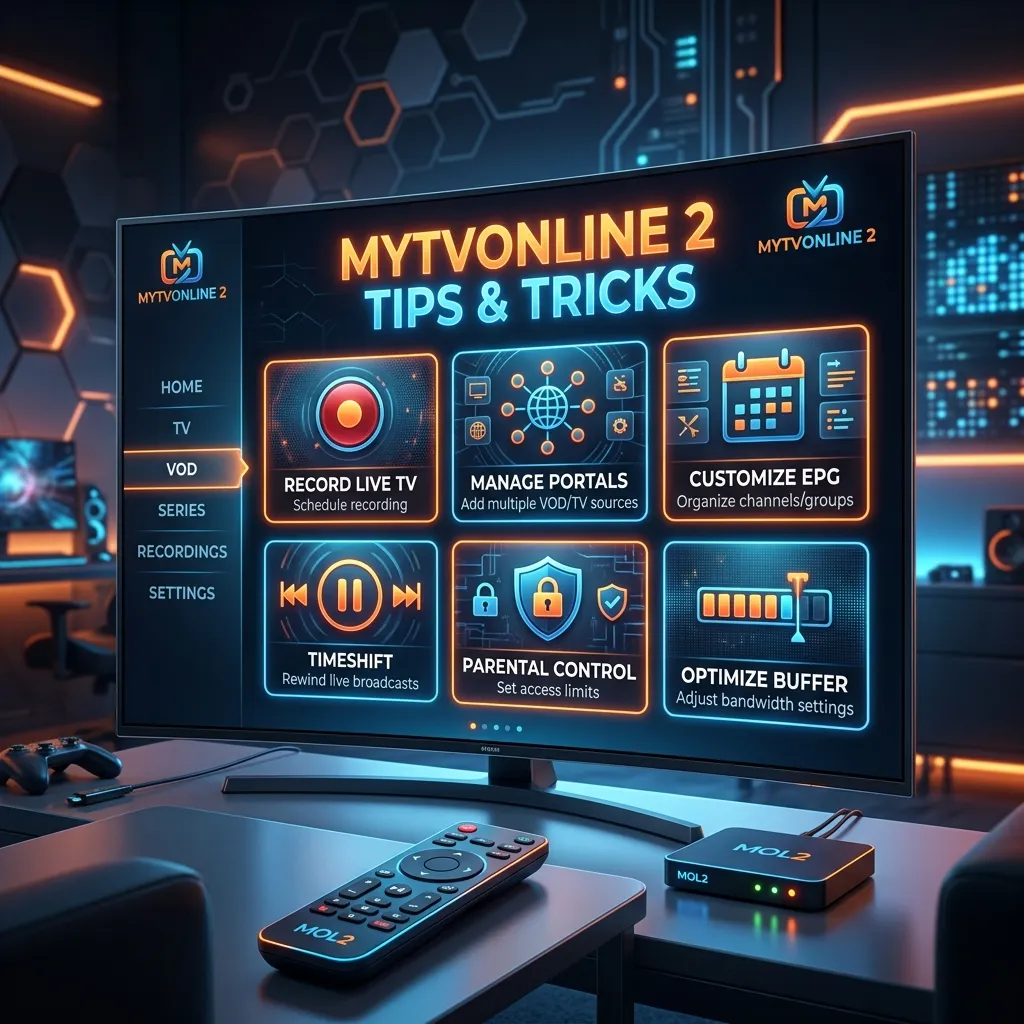
If you own a Formuler streaming device, you are already intimately familiar with the absolute crown jewel of its software ecosystem: MyTVOnline 2 (MOL2). Widely considered one of the most sophisticated, user-friendly, and profoundly feature-rich IPTV applications available on the market today, MyTVOnline 2 bridges the gap between traditional, reliable cable TV and the dynamic, modern world of streaming. While it is incredibly intuitive for beginners to pick up and play, diving deep into its advanced features can completely transform and elevate your viewing experience.
In this exhaustive, massive guide, we will explore the deepest depths of MyTVOnline 2. From uncovering hidden remote shortcuts and advanced electronic program guide (EPG) customizations, to granular network optimization, setting up complex recording schedules, and perfectly configuring a premium IPTV Subscription, you will learn absolutely everything you need to know to master this exceptional application. Whether you are a casual viewer looking to visually tweak your interface, or a hardcore power user aiming to set up network-attached storage (NAS) for unlimited, multi-channel PVR recording, this guide is your definitive, one-stop resource.
1. What is MyTVOnline 2 (MOL2) and Why Does It Dominate?
Before we dive into the granular advanced tips, it is absolutely essential to understand what exactly makes MyTVOnline 2 so special and why it holds such a legendary status within the IPTV community. Developed exclusively by and for Formuler Android set-top boxes (such as the critically acclaimed Formuler Z8, Z10, and Z11 series), MOL2 is a dedicated, ground-up engineered IPTV client. It is meticulously designed to handle live TV, video on demand (VOD), and TV series with unparalleled fluidity, stability, and visual flair.
1.1 The Evolution from the Original MyTVOnline
The original MyTVOnline application set a very high standard years ago, but MOL2 rebuilt the entire experience from scratch. It introduced a vastly modernized, sleek user interface, dramatically improved memory management protocols, and integrated advanced features like true Picture-in-Picture (PiP), multi-portal support, and highly enhanced server-side catch-up TV functionalities. Unlike the generic, sometimes clunky IPTV apps available on the Google Play Store, MOL2 is deeply, inherently integrated with Formuler’s specific hardware. This allows it to seamlessly leverage native hardware decoding, advanced remote control infrared/Bluetooth mapping, and highly optimized networking protocols that generic apps simply cannot access.
1.2 Why Not Just Use Other Apps?
While there are certainly fantastic applications out there—and if you are using an Amazon device, you might strongly prefer our dedicated Firestick Setup guide—MyTVOnline 2 offers a cable-like, premium set-top-box experience that is incredibly hard to replicate on generic Android TV platforms. The seamless hardware-to-software integration means there is virtually zero lag when switching channels, instantaneous loading of massive EPG databases, and absolutely zero compatibility issues with your Formuler remote control. It is a closed ecosystem, but one that yields maximum performance.
2. The Ultimate Setup Guide: Connecting to Your Provider
While setting up MOL2 is generally straightforward, utilizing the absolute optimal connection method ensures you get the absolute most out of your premium service. There are three primary ways to connect MyTVOnline 2 to your IPTV provider, and choosing the right one is your first step to mastery.
2.1 Connection Methods Compared
| Connection Method | Pros | Cons | Best For |
|---|---|---|---|
| MAC Address (Stalker) | Highest level of security, incredibly precise EPG syncing, very fast channel zapping, cable-box feel. | Locked strictly to a single device (MAC address). Harder to migrate. | Users who want a traditional, set-it-and-forget-it cable box feel. |
| Xtream Codes API | Highly flexible, easy to type (username/password), excellent VOD categorization, allows multi-device usage. | Requires typing long credentials. Prone to typos during setup. | Power users who manage multiple devices or travel often. |
| M3U Playlist URL | Universal format, works offline for local media, highly editable text files. | Bulky to load, EPG URLs must be added manually and often separately. | Legacy setups, custom playlists, and highly specific niche uses. |
2.2 Advanced Setup: The Xtream Codes API Method
For the best balance of raw performance, UI aesthetics, and flexibility, we highly recommend using the Xtream Codes API method in conjunction with your IPTV Subscription.
- Open MyTVOnline 2 from your Formuler home screen and navigate to Connections.
- Select Add Portal.
- Give your portal a recognizable nickname (e.g., "Smartiflix Premium Primary").
- Carefully enter the Portal URL provided by your service. Ensure you include the
http://orhttps://prefix and the correct port number if applicable. - Enter your Username and Password.
- Crucial Pro Tip: Ensure that the VOD and Series toggles are enabled. Some providers separate these data streams, and if disabled, your movie library will appear completely empty.
- Click Connect.
Pro Tip for Multi-Portal Users: If you frequently switch between providers or have a backup service for major events, you can add multiple portals. MyTVOnline 2 elegantly handles up to 10 distinct portals seamlessly, allowing you to switch between entirely different IPTV infrastructures with just a few clicks of the remote.
For more generalized, cross-platform setup instructions across different devices and operating systems, visit our comprehensive Installation Guide.
3. Mastering the EPG (Electronic Program Guide)
The Electronic Program Guide (EPG) is the absolute heartbeat of any good IPTV setup. A poorly configured EPG can lead to massive frustration, missed recordings, and a deeply disjointed viewing experience. MyTVOnline 2 offers incredibly robust EPG management tools that the vast majority of users never even touch.
3.1 Fixing Time Zone Issues: Adjusting the EPG Offset
One of the most common, glaring issues with international IPTV services is time zone discrepancies. If your EPG strictly shows that the 8:00 PM local news is airing at 11:00 PM, you need to adjust the EPG offset.
- Press the Menu button on your Formuler remote while watching live TV.
- Navigate down to Settings and then select EPG Mode.
- Look for the setting labeled EPG Offset or Time Shift.
- Adjust the time forward (+1, +2) or backward (-1, -2) in 1-hour increments until the TV guide perfectly matches your local wall clock time.
3.2 Customizing the EPG Visual View
MyTVOnline 2 provides multiple unique ways to view your TV guide. By simply pressing the EPG button on your remote, you pull up the default, standard grid. However, you can change this to suit your specific viewing preference:
- Classic Grid View: The standard cable-box layout showing multiple channels stacked vertically over a 2-to-3-hour horizontal time window.
- Single Channel View: Focuses entirely on the upcoming schedule of the currently selected channel. This is absolutely perfect for planning a weekend binge-watching session on a specific network like HBO or Sky Sports.
- Mini EPG (On-Screen Display): Shows a small, unobtrusive overlay at the bottom of the screen while you continue to watch live TV in the background.
3.3 Forcing an EPG Refresh and Clearing Guide Cache
If your guide stubbornly says "No Information" across multiple channels, the EPG XML data may have failed to download properly from your provider's server.
- Go back to the main Connections screen.
- Select your active portal and press the right directional button.
- Click Refresh EPG.
- Advanced Troubleshooting Tip: If the EPG is completely corrupted, go to the Formuler Android Settings > Apps > MyTVOnline 2 > Clear Cache. This forces MOL2 to completely dump the old XML file and download a fresh, uncorrupted version upon the next launch.
4. Advanced VOD (Video on Demand) & Series Management
MyTVOnline 2 isn't just about Live TV; its Video on Demand (VOD) and Series sections are meticulously designed to rival, and sometimes surpass, popular streaming giants like Netflix, Prime Video, and Hulu.
4.1 Utilizing Advanced Search and Filter Functions
When you have a massive library (often containing tens of thousands of movies and TV episodes), mindless scrolling is simply not an option.
- Press the dedicated Search (Magnifying Glass) button on your remote to bring up the global search keyboard.
- Use the Filter option (often permanently mapped to a colored button on the remote, specifically the Green button). You can dynamically filter massive movie lists by Release Year, Specific Genre, or Recently Added, instantly cutting down a list of 10,000 movies to a manageable 50.
4.2 Managing Audio Tracks and Subtitle Synchronization
If you are watching a brilliant foreign film, an anime, or simply need closed captions because the dialogue is too quiet, MOL2 makes it incredibly easy:
- During playback of any VOD, press the Menu button.
- Select Audio Track to switch between available embedded languages (e.g., from a Russian dub to the original English audio).
- Select Subtitles to download external SRT files or activate embedded MKV captions.
- Hidden Ninja Feature: You can actually adjust the Subtitle Sync on the fly if the text is appearing too early or too late. Use the left/right directional pad within the advanced subtitle menu to dynamically adjust the delay in precise milliseconds (+100ms, -200ms) until the text perfectly matches the spoken words.
4.3 Resume Playback and Watch History Tracking
MyTVOnline 2 automatically and persistently keeps track of exactly where you left off. If you stop a 3-hour epic movie halfway through to go to bed, simply go back to the VOD section the next day. A visual progress bar indicator will show your exact progress. Click play, and you will be immediately prompted to resume from your exact last position or start over from the beginning.
Important Reminder: To ensure your VOD library is constantly populated with the absolute latest blockbuster releases in glorious 4K resolution, make sure you are actively subscribed to top-tier Pricing plans that guarantee daily, automated backend library updates.
5. Timeshift and Catch-Up TV: Controlling Live Broadcasts
Missing a live broadcast is absolutely no longer an issue thanks to Timeshift and Catch-Up TV technologies. However, fundamentally understanding the technical difference between the two is key to mastering MOL2.
5.1 Catch-Up TV (Server-Side)
Catch-Up is a server-side feature fully provided and hosted by your IPTV service provider. If your provider explicitly supports it, you will visibly see a small clock icon next to the channel name directly in the EPG.
- How to uniquely use it: Navigate backward in time in the EPG past the current time. Highlight a specific program that aired yesterday, or even up to 7 days ago, and press OK. The program will instantly start playing exactly as it originally aired.
- Fast Forwarding: You can seamlessly fast-forward through commercial breaks in Catch-Up mode, just like it was a locally recorded video file.
5.2 Timeshift (Client-Side Local Storage)
Timeshift is a local, client-side feature processed entirely by your Formuler box. It allows you to pause, rewind, and fast-forward Live TV in real-time.
- Strict Requirements: To use Timeshift, you MUST have a USB flash drive, MicroSD card, or external hard drive physically plugged into your Formuler device.
- Advanced Setup:
- Insert a high-speed USB 3.0 drive properly formatted to NTFS or exFAT (do NOT use FAT32, as it restricts file sizes to 4GB, which will crash HD streams).
- Go to Menu > Settings > DVR Options.
- Toggle Timeshift to ON.
- Explicitly choose the USB drive as the designated storage location.
- Real-World Usage: While intently watching a live Champions League soccer match, press the Pause button to go grab a drink. When you return 5 minutes later, press Play, and the match resumes exactly where you left off. You can even dynamically rewind to instantly rewatch a controversial penalty call.
6. PVR and Recording Secrets: Build Your Own Ultimate DVR
Why continue to pay exorbitant monthly fees for a separate cable DVR service when your Formuler box can do it for free? MyTVOnline 2 boasts an incredibly powerful, enterprise-grade Personal Video Recorder (PVR).
6.1 Scheduled Recordings directly from the EPG
The absolute easiest and most reliable way to record is via the integrated TV guide:
- Open the EPG.
- Highlight any upcoming show, movie, or sporting event you desperately want to record.
- Press the Record button (the distinct red dot) on your physical remote.
- A red clock icon will instantly appear, indicating the recording is locked and scheduled.
- Crucial Advanced Tip: You absolutely must modify the recording buffer. Since live broadcast events (like UFC PPVs or Championship Boxing) notoriously run late, go to Settings > PVR and explicitly set the Post-Recording Padding to 30 or even 60 minutes. This guarantees you will never miss a knockout because the broadcast ran over its scheduled time slot.
6.2 Background Recording (Multi-Tasking)
Because modern Formuler devices are equipped with powerful processors and ample RAM, you can comfortably watch one channel while simultaneously recording another. However, this heavily depends on your IPTV provider's strict rules.
- The Catch: Your specific IPTV Subscription account must mathematically allow for multiple concurrent connections. If you only have a standard single-connection plan, attempting to watch Channel A while recording Channel B will inevitably cause one of them to aggressively freeze, or worse, your account may be temporarily IP-banned by the provider. Always double-check your chosen Pricing tier to confirm exactly how many connections you are authorized for.
6.3 Using Network Attached Storage (NAS) for Unlimited Recording
For absolute, uncompromising power users, a small 32GB USB thumb drive simply isn't enough space. You can easily map a massive multi-terabyte network drive (NAS) directly to your Formuler box.
- Ensure your dedicated NAS and Formuler box are hardwired on the same local network subnet.
- On the main Formuler Android home screen, go to the built-in system File Manager or network settings.
- Mount the NAS drive securely using SMB or NFS protocols. Enter your NAS credentials if prompted.
- Open MyTVOnline 2, go to Settings > Storage Options.
- Select your newly mounted NAS as the absolute default PVR destination. Congratulations, you now have terabytes upon terabytes of dedicated space for archiving high-definition sports, movies, and entire TV series!
7. Picture-in-Picture (PiP) & Multi-Screen Viewing
One of the most visually impressive and heavily marketed features of MyTVOnline 2 is hardware-accelerated Picture-in-Picture (PiP). This is an absolute, undeniable game-changer for hardcore sports fans who actively want to monitor two different live matches simultaneously without constantly flipping back and forth.
7.1 Activating PiP Mode
- While currently watching a live channel (let's call it Channel A), press the Menu button.
- Select the distinct PiP icon from the bottom navigation bar.
- A secondary, smaller window will immediately appear in the corner of your screen showing Channel A.
- The main screen will momentarily go blank, allowing you to use the channel up/down buttons to select a new channel (Channel B) for the main background view.
7.2 Swapping Screens and Audio Control
If something incredibly exciting happens in the small window (like a sudden goal), you can instantly swap it with the main screen for a better look.
- Press and gently hold the OK button, or press the dedicated, physical PiP swap button if your specific Formuler remote model features one.
- Audio Rule: The audio will always seamlessly transition to play from the main (larger) screen.
- Note: Just like background DVR recording, running PiP inherently requires pulling two distinct live streams simultaneously. Ensure your provider explicitly allows multi-connections, or one of the windows will indefinitely buffer.
8. Customizing the User Interface and Remote Control
MyTVOnline 2 is highly modular and customizable, allowing you to intricately tailor the visual experience and control scheme to your exact liking.
8.1 Group Editor and Ruthlessly Hiding Unwanted Content
IPTV playlists are notoriously bloated, often coming with tens of thousands of channels, many of which you will absolutely never watch (e.g., hundreds of regional international channels in languages you do not speak). Visual clutter ruins the lean-back experience.
- Open the Live TV section.
- Press the Menu button and explicitly go to Group Manager or Edit Groups.
- Here, you can permanently uncheck entire massive categories (e.g., "Kids," "News," "International", "Radio").
- Once hidden, these specific categories will no longer ever appear in your EPG or main channel list, drastically speeding up your visual navigation and saving system memory.
8.2 Creating a Bulletproof Favorites List
Instead of mindlessly scrolling through hundreds of channels every single day, aggressively curate your own personalized list.
- Highlight a beloved channel.
- Press the physical Star button on your Formuler remote (or press the Menu button and explicitly select Add to Favorites).
- Your newly curated Favorites will securely appear at the very top of your master category list for instantaneous access.
8.3 Ironclad Parental Controls
If you have young children in the house, you will absolutely want to strictly restrict access to adult content or ultra-violent VODs.
- Go deeply into Settings > Parental Options.
- Create a highly secure 4-digit PIN (do not use 0000 or 1234).
- You can now systematically lock entire categories, specific individual channels, or entire adult VOD sections. The PIN will be mandatorily required anytime anyone attempts to access restricted content.
8.4 Programming Hotkeys
Formuler remotes are exceptionally smart. You can program the colored buttons (Red, Green, Yellow, Blue) to perform specific actions inside MOL2.
- Go to the Android Formuler Settings > Remote Settings > Hotkey Setup.
- Map the Red button to instantly launch the VOD section, or the Blue button to instantly trigger PiP mode. This shaves precious seconds off your daily navigation.
9. Network Optimization and Eradicating Buffering
Even the absolute best IPTV application in the known world cannot perform well on a degraded, heavily congested, or poorly configured network connection. If you are persistently experiencing buffering, stuttering, audio desync, or complete freezing on MyTVOnline 2, follow these advanced, highly technical troubleshooting steps immediately.
9.1 The Golden Rule: Ethernet Over Wi-Fi
This is the single most important rule of IPTV. Live video streaming requires totally consistent, unbroken packet delivery. Wi-Fi, by its very nature, is highly subject to invisible interference from solid walls, microwaves, Bluetooth devices, and overlapping neighboring routers.
- Required Action: Hardwire your Formuler box directly to your main router using a high-quality Cat6 or Cat7 Ethernet cable. If your router is unfortunately in another room, strongly consider investing in high-end Powerline adapters or MoCA adapters to seamlessly route the internet through your home's existing electrical or coaxial wiring.
9.2 Adjusting the Network Buffer Size
Sometimes, the core issue isn't the raw download speed of your internet, but rather how the MOL2 app handles network jitter and latency spikes.
- Go to Settings > Player Options.
- Look closely for Buffer Size or Network Buffer.
- Change it from Default/Auto to Large, 5 Seconds, or even 10 Seconds.
- This heavily forces the application to secretly download more of the video stream in advance, creating a vital digital cushion that completely prevents freezing if your internet speed temporarily dips for a few seconds.
9.3 Clearing App Cache and Freeing Up RAM
Like absolutely any Android application, MOL2 constantly collects temporary cache data over time. If the app begins to feel sluggish, unresponsive, or the EPG is painfully slow to load:
- Go to the main Android Formuler Home Screen.
- Open Settings > Apps > MyTVOnline 2.
- Select Clear Cache (WARNING: Do NOT ever select Clear Data, or you will irreversibly lose your entire portal setup and all settings).
- Reboot the Formuler box by unplugging it from the wall for 30 seconds.
9.4 Beating ISP Throttling: The Absolute Importance of a Good VPN
Some aggressive Internet Service Providers (ISPs) actively monitor and illegally throttle (artificially slow down) IPTV traffic, especially during massive live sporting events like the Super Bowl, World Cup, or Champions League finals.
- If you notice that Netflix or YouTube works perfectly in 4K, but MyTVOnline 2 is buffering heavily on a 720p stream, your ISP is almost certainly to blame.
- Installing a premium, high-speed VPN on your Formuler box mathematically encrypts your traffic, hiding it entirely from your ISP and physically preventing them from throttling your stream.
- For a massive deep dive into online privacy, stream security, and our top VPN recommendations, read our comprehensive Security Guide.
10. Managing Multiple Portals/Playlists Like a Pro
As explicitly mentioned earlier, MOL2 fully supports up to 10 distinct, simultaneous portals. But how do you realistically manage them efficiently without losing your mind?
10.1 The Bulletproof Backup Portal Strategy
Savvy, veteran IPTV users inherently know that no server on earth has 100% uptime. They always have a primary premium service (like Smartiflix) and a cheaper, secondary backup service.
- Set your main, highest-quality service as Portal 1.
- Set your secondary backup as Portal 2.
- If Portal 1 experiences a rare, unforeseen server routing outage during the final minutes of a massive game, simply go to Connections, highlight Portal 2, and click Connect. It takes less than 5 seconds to switch over, ensuring you never miss a pivotal, game-winning moment.
10.2 Mixing M3U Playlists and MAC Connections
You absolutely do not have to stick to just one protocol format. You can easily have a MAC-based connection dedicated entirely for your Live TV (for the absolute fastest zapping speeds) sitting securely on Portal 1, and an Xtream Codes API connection dedicated to a massive, beautifully categorized VOD library on Portal 2. MyTVOnline 2 expertly handles these vastly disparate protocols seamlessly in the background without breaking a sweat.
11. MyTVOnline 2 vs. The Heavyweights: TiviMate and IPTV Smarters
How exactly does MyTVOnline 2 logically stack up against the fierce competition? While there are literally hundreds of mediocre IPTV players, its only real main rivals are TiviMate and IPTV Smarters Pro.
11.1 MyTVOnline 2 vs. TiviMate
TiviMate is universally and highly regarded as the absolute best third-party application for generic Android TV devices (like the Nvidia Shield, Chromecast with Google TV, or Amazon Firestick).
- UI/UX: Both offer truly stunning, highly modern interfaces. TiviMate might edge out slightly in deeply customizable color schemes and typography, but MOL2 feels noticeably more tightly integrated.
- Hardware Integration: MOL2 decisively wins hands down. Because it is built exclusively for specific Formuler hardware, it utilizes the physical hardware decoding chips vastly more efficiently, resulting in slightly better, crisper picture quality and definitively faster channel changing times.
- Cost Factor: TiviMate demands an annual or one-time lifetime premium fee to unlock its best, most usable features. MOL2 is completely, 100% free and permanently included with the purchase of any Formuler device.
11.2 MyTVOnline 2 vs. IPTV Smarters Pro
IPTV Smarters is undeniably the most widely downloaded and popular app in the world strictly due to its massive cross-platform availability (iOS, Android, Windows, macOS, Samsung/LG Smart TVs).
- VOD Layout: Smarters is historically famous for its clean, Netflix-style VOD layout, but MOL2's recent massive updates have matched and arguably utterly surpassed it with far better IMDB metadata integration, dynamic actor search, and higher-resolution poster rendering.
- Live TV Performance: MOL2 is vastly, undeniably superior for Live TV. Smarters notoriously struggles with heavy, 100MB+ XML EPG files and completely lacks the robust, hardware-level PiP and Timeshift features found naturally in MOL2.
If you fundamentally do not own a Formuler box, you will absolutely need to rely on alternative apps like TiviMate or Smarters. Check out our detailed Firestick Setup guide if you are currently using an Amazon streaming device.
12. Unlocking Hidden Android Menus and Developer Tools
For the true, uncompromising tech enthusiasts and IT professionals, there are a few deeply hidden menus within the underlying Formuler ecosystem that can radically improve your MOL2 viewing experience.
12.1 The Formuler Audio Optimizer App
Sometimes, you may frustratingly encounter live channels with absolutely no sound, or massive 4K VODs with totally distorted, robotic audio codecs. Formuler inherently provides a built-in "Audio Optimizer" app located directly on the main home screen (outside of MOL2).
- Run the Audio Optimizer. It will reach out to Formuler's servers, download the absolute latest advanced, proprietary audio codecs (like AC3, DTS, Dolby Digital Plus, and TrueHD) and install them deeply at the root system level. Once totally complete, restart MOL2, and 99% of your weird audio issues will be instantly permanently resolved.
12.2 Auto Frame Rate (AFR) and Color Space Matching
To definitively extract the absolute best, most cinematic picture quality out of your expensive television:
- Go to the main Android Settings > Display.
- Ensure the base resolution is permanently set to the maximum your TV supports (e.g., 4K at 60Hz).
- Turn on Auto Frame Rate (AFR). This incredibly important, often-overlooked setting forcefully commands the Formuler box to dynamically match the exact refresh rate of the content you are currently watching (e.g., automatically switching to 24Hz for a cinematic Hollywood movie, then seamlessly switching back to 60Hz or 50Hz for live, high-speed sports). This entirely eliminates the subtle, highly annoying "judder" or stuttering effect often seen in slow panning camera shots.
13. Why Smartiflix is the Absolute Perfect Match for MyTVOnline 2
You can logically own the most expensive, top-of-the-line Formuler device on the market and expertly master every single advanced setting detailed in this guide within MyTVOnline 2, but if your underlying IPTV service provider is sub-par, overloaded, or poorly maintained, your overall experience will be totally miserable. A $300,000 Ferrari is completely useless if you fill its tank with cheap, contaminated fuel.
This is exactly where Smartiflix decisively enters the picture. Our massive server infrastructure is specifically built, strictly maintained, and highly optimized to strategically take full, uncompromised advantage of high-end clients like MOL2.
13.1 Instantaneous Seamless API Integration
Our global servers utilize the absolute latest load-balancing technologies. This means that when you input our Xtream Codes API into your MOL2 setup, the complex authentication handshake happens in milliseconds. Your massive EPG downloads instantly without timing out, and channel zapping feels completely indistinguishable from an expensive, traditional fiber-optic satellite TV setup.
13.2 A Jaw-Dropping Massive 4K VOD Library
MyTVOnline 2’s beautiful, highly visual VOD interface only truly shines when it is heavily populated with high-quality, rich metadata. Our library seamlessly includes full IMDB synopses, comprehensive cast lists, and gorgeous, high-resolution movie posters. Furthermore, our dedicated 4K UHD movie section is encoded beautifully, allowing the Formuler box's advanced hardware decoder to effortlessly display breathtaking, crystal-clear, HDR visuals without unnecessarily straining your available internet bandwidth.
13.3 Flawless Catch-Up Support
We proudly offer highly robust, reliable 7 to 14-day Catch-Up on all major premium live channels. This perfectly and seamlessly complements MOL2’s native Catch-Up interface, allowing you to fluidly navigate backward in time through the EPG without a single error message or missing stream.
Ready to completely upgrade and revolutionize your viewing experience? Head straight over to our Homepage to learn more about our premium services, or extensively explore our fully transparent Pricing to quickly find the perfect, affordable package for your Formuler device.
14. Frequently Asked Questions (FAQ)
Q: Can I somehow install MyTVOnline 2 on my Amazon Firestick, Nvidia Shield, or Google Chromecast? A: Absolutely not. MyTVOnline 2 is highly proprietary, closed-source software aggressively developed by Formuler and is exclusively, strictly available only on Formuler-branded set-top boxes. Attempting to extract and sideload the APK file onto a Firestick or Shield will instantly result in the app crashing, failing to authenticate, or simply refusing to open. For non-Formuler devices, please refer to our Firestick Setup guide for the best alternatives.
Q: Why does my scheduled PVR recording stop randomly after 20 minutes? A: This is almost universally caused by either a micro-drop in your internet connection or a critical USB drive formatting issue. Ensure your USB drive is explicitly formatted to NTFS or exFAT (the older FAT32 standard has a hard-coded 4GB file size limit, which will prematurely cut off any high-definition recording). Also, heavily ensure you hardwire your device via Ethernet to completely prevent random network drops.
Q: Is it technically safe to use MyTVOnline 2 without an active VPN? A: The application itself is perfectly, 100% safe and contains no malware. However, your overall safety depends entirely on your specific ISP and your strict local country regulations regarding IPTV streaming. We strongly, emphatically recommend using a highly reputable VPN to ensure your private streaming habits remain totally private, encrypted, and to successfully avoid any aggressive ISP throttling. Read vastly more in our comprehensive Security Guide.
Q: How do I safely backup my MyTVOnline 2 settings before a factory reset? A: You can easily backup your entire portal configurations, layout settings, and hidden groups directly to a plugged-in USB drive. Go to Settings > Backup & Restore, and explicitly select Backup to USB. This is highly, strongly recommended before doing any firmware updates or a full factory reset on your Formuler box to save you hours of setup time later.
Q: The app just says "Portal Loading..." or "Code 7" and gets completely stuck. How do I easily fix this? A: This usually means one of three things: your subscription has officially expired, the provider's server URL has changed, or your local internet connection has completely dropped. First, deeply verify your internet connection by opening YouTube. Next, actively check your IPTV Subscription status on our website. Finally, try fully power-cycling and restarting both your router and the Formuler box.
15. The Final Verdict and Conclusion
MyTVOnline 2 undoubtedly represents the absolute pinnacle of IPTV software engineering today. By thoroughly mastering its massive array of advanced features—such as intricate PVR recording to a multi-terabyte NAS, seamlessly utilizing Picture-in-Picture for intense sports weekends, surgically fine-tuning your network buffers, and aggressively curating customized channel groups—you comprehensively elevate your daily streaming setup from basic and functional to truly breathtaking and elite.
While it absolutely does require purchasing a dedicated Formuler hardware device, the initial hardware investment is vastly, more than justified by the ultra-premium, incredibly stable, cable-like experience it consistently delivers day in and day out. Remember, hardware and software are only two crucial pieces of the ultimate streaming puzzle. To unlock the true, unbridled potential of MyTVOnline 2, you absolutely need a world-class, premium IPTV provider to feed it the data it craves.
Do not ever settle for constantly buffering streams, missing audio, and incomplete, frustrating EPGs. Check out our ultra-high-performance IPTV Subscription today, carefully choose the right, affordable Pricing plan for your family's needs, and completely transform your living room into the ultimate, uncompromised digital entertainment hub. Welcome to the absolute bleeding-edge future of television with Smartiflix.