Minimum Internet Speed Required for 4K IPTV Streaming
Learn the minimum internet speed for 4K IPTV streaming to prevent buffering and optimize your viewing experience with essential network tips.
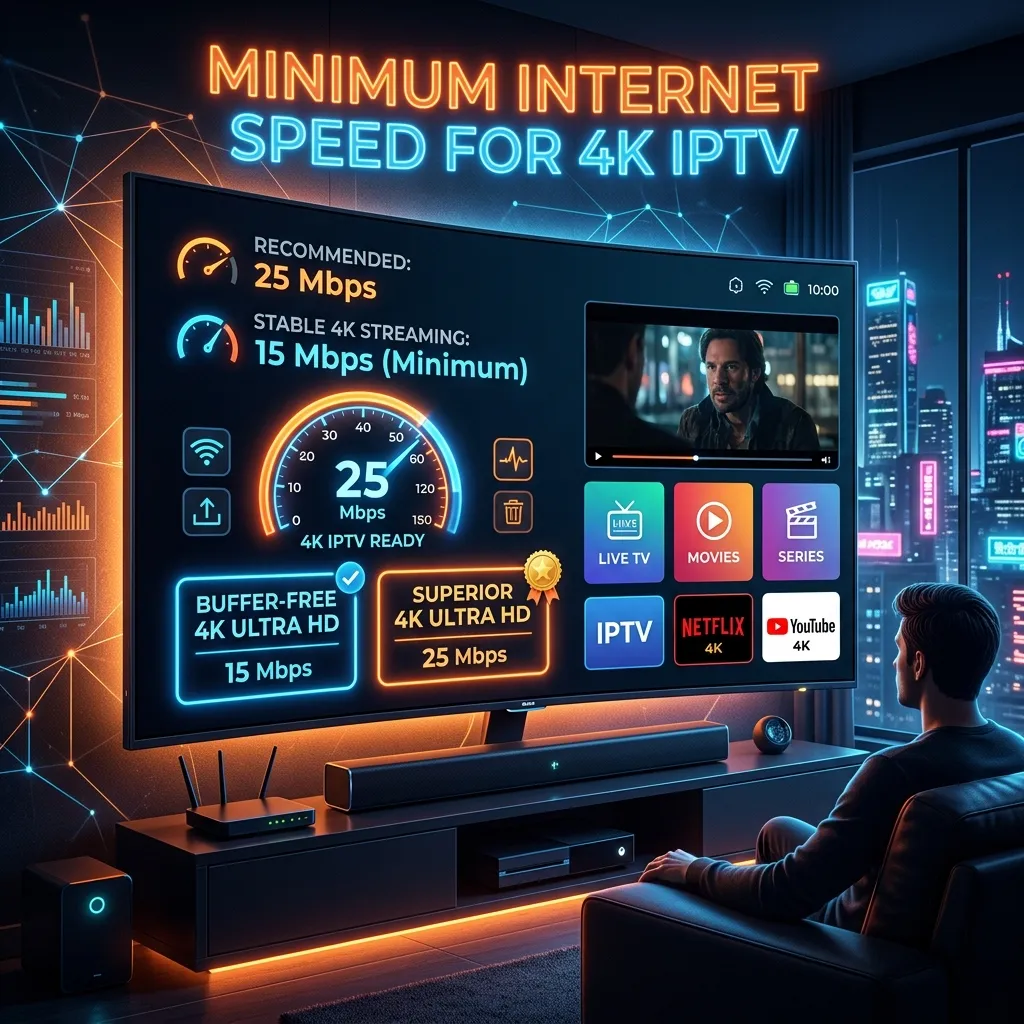
In today’s hyper-connected digital era, the way we consume television and entertainment has undergone a massive paradigm shift. The days of relying on bulky cable boxes, rigid broadcasting schedules, and low-resolution analog signals are long gone. Instead, the world has embraced Internet Protocol Television (IPTV), a revolutionary technology that delivers television content over Internet Protocol (IP) networks. At the forefront of this revolution is 4K Ultra High Definition (UHD) streaming—a visual experience so immersive, crisp, and vibrant that it practically turns your living room into a private cinema.
However, the leap from standard definition (SD) or high definition (HD) to glorious 4K resolution comes with a significant technological caveat: it requires a tremendous amount of data. If your home network is not properly equipped to handle the heavy lifting, your cinematic experience will be abruptly ruined by pixelated screens, audio desync, and the universally despised loading wheel. There is nothing more frustrating than gathering your friends to watch the most anticipated live sports event or the season finale of your favorite show, only to have the stream constantly buffer.
Understanding the minimum internet speed for 4K IPTV streaming is the foundational step to guaranteeing a flawless, stutter-free viewing experience. In this massive, exhaustive 3000+ word guide, we will break down everything you need to know about network speeds, bandwidth requirements, hardware optimization, and advanced troubleshooting. Whether you are a streaming novice trying to set up your first device or a tech-savvy enthusiast looking to fine-tune your home theater, this guide will serve as your ultimate resource.
Welcome to the future of television. Before we dive into the technical details, if you are looking for the absolute best streaming experience available, be sure to visit our homepage to explore what next-generation television looks like.
Understanding the Basics: What is IPTV and Why is 4K So Demanding?
To truly grasp why internet speed is so critical, we first need to understand the underlying mechanics of how digital content is delivered to your screen.
The Mechanics of Internet Protocol Television
Unlike traditional satellite or cable television, which broadcasts signals indiscriminately to anyone with a receiver, IPTV delivers media content specifically to your IP address over your internet connection. It is a two-way street; your device requests a specific stream (like a live sports channel or a movie on demand), and the server sends that specific stream directly to you in the form of data packets.
Because the delivery relies entirely on your internet connection, the quality of your stream is directly tethered to the health, speed, and stability of your local network. A premium IPTV subscription can offer tens of thousands of live channels and video-on-demand (VOD) options, but without the necessary bandwidth to receive that data, the service cannot perform optimally.
The Staggering Data Density of 4K Resolution
Resolution refers to the number of pixels displayed on your screen. The more pixels, the sharper and more detailed the image. Let’s break down the math to understand why 4K is so demanding:
- Standard Definition (SD / 480p): Approximately 345,600 pixels per frame.
- High Definition (HD / 720p): Approximately 921,600 pixels per frame.
- Full High Definition (FHD / 1080p): Approximately 2,073,600 pixels per frame.
- Ultra High Definition (4K UHD / 2160p): Approximately 8,294,400 pixels per frame.
When you stream in 4K, your television is updating over 8 million individual pixels 30 to 60 times per second! This requires pushing an astronomical amount of data through your internet pipeline in real-time. If your "pipeline" (your internet bandwidth) is too narrow, the data gets stuck in a bottleneck. When the video player on your TV doesn't receive the data fast enough to display the next frame, it has no choice but to pause the video and wait. This waiting period is what we call "buffering."
The Role of Video Compression and Codecs
To make streaming 8 million pixels per frame mathematically possible over consumer internet connections, streaming providers use complex algorithms called codecs (Coder-Decoder) to compress the video before it leaves the server and decompress it when it arrives at your TV. Currently, the standard for 4K streaming is H.265 (also known as High-Efficiency Video Coding or HEVC). HEVC is incredibly efficient, compressing video files to half the size of its predecessor (H.264) without sacrificing visual fidelity. However, even with the magic of HEVC compression, 4K streams still generate massive files that demand robust internet speeds.
The Official Minimum Internet Speed for 4K IPTV Streaming
Let's get straight to the numbers. When determining the minimum internet speed for 4K IPTV streaming, we must look at the recommendations from major industry players as well as the real-world requirements for sustained, high-quality live television.
The Baseline Requirement: 25 Mbps
The general consensus across the streaming industry—including giants like Netflix, Amazon Prime Video, and YouTube—is that you need a minimum continuous download speed of 25 Megabits per second (Mbps) to stream 4K content successfully.
[!IMPORTANT]
Notice the word "continuous." An internet speed test might show that you briefly hit 30 Mbps, but if your connection fluctuates and frequently drops down to 15 Mbps, your 4K stream will stutter. The 25 Mbps requirement must be stable and sustained.
The Ideal Recommendation: 50 Mbps or Higher
While 25 Mbps is the absolute bare minimum for a single 4K stream under perfect laboratory conditions, the real world is rarely perfect. Network overhead, background processes, and minor fluctuations mean that relying on exactly 25 Mbps is a recipe for occasional buffering.
For a genuinely flawless 4K IPTV experience, network engineers and streaming experts strongly recommend a stable connection of 50 Mbps or higher. At 50 Mbps, your network has a comfortable "buffer zone" to absorb temporary drops in speed without interrupting your viewing experience.
Speed Requirements by Streaming Resolution
To help you scale your expectations based on your current network capabilities, here is a comprehensive breakdown of the recommended internet speeds for various video resolutions.
| Video Resolution | Minimum Required Speed | Recommended Ideal Speed | Expected Data Usage (Per Hour) |
|---|---|---|---|
| SD (480p) | 3 Mbps | 5 Mbps | ~1 GB |
| HD (720p) | 5 Mbps | 10 Mbps | ~2.5 GB |
| FHD (1080p) | 10 Mbps | 20 Mbps | ~4.5 GB |
| 4K UHD (2160p) | 25 Mbps | 50 Mbps+ | ~11.5 GB |
| 8K UHD (4320p) | 50 Mbps | 100 Mbps+ | ~25 GB+ |
As you can clearly see from the table above, the data jump from 1080p to 4K is massive. A single hour of 4K streaming will consume nearly 12 Gigabytes of internet data. If you are on a metered internet connection with a strict data cap, frequent 4K streaming can drain your monthly allowance in a matter of days.
The "Bandwidth Hog" Dilemma: Why Your 100 Mbps Connection Still Buffers
One of the most common complaints among cord-cutters is: "I pay my Internet Service Provider for 100 Mbps! Why is my 4K IPTV stream still buffering?"
Understanding why high-speed internet still fails requires an understanding of how bandwidth is distributed in a modern household. Think of your internet bandwidth as a wide highway. If the highway is 100 lanes wide (100 Mbps), and your 4K stream requires 25 lanes, you should theoretically have plenty of room. However, you are rarely the only car on the road.
The Reality of Shared Network Bandwidth
In a typical smart home, your IPTV stream is competing for bandwidth against dozens of other devices silently consuming data in the background. Your 100 Mbps connection is not dedicated solely to your television; it is a shared pool of resources.
Consider a realistic evening scenario in a modern household:
- The Main TV: You are streaming a live football match in 4K on your IPTV service (-35 Mbps due to live stream overhead).
- The Secondary TV: Someone else is watching a 1080p movie on Netflix in the bedroom (-10 Mbps).
- The Gamer: A family member is playing a competitive online multiplayer game while talking on Discord (-5 Mbps).
- Smartphones & Tablets: Three smartphones are connected to the Wi-Fi, silently downloading app updates, backing up photos to the cloud, and refreshing social media feeds (-20 Mbps).
- Smart Home Devices: Your smart doorbell, security cameras, smart thermostat, and voice assistants are periodically sending data to their respective servers (-10 Mbps).
Suddenly, your massive 100 Mbps highway is congested. You are using 80 Mbps of your total bandwidth just to keep the household running. If your internet speed slightly drops due to network congestion at your ISP level, or if someone decides to download a large file, the available bandwidth for your 4K stream dips below the 25 Mbps threshold, and the buffering wheel of death appears.
To future-proof a multi-user household for uninterrupted 4K streaming, investing in internet packages of 200 Mbps to 500 Mbps is highly advisable. You can review different IPTV pricing plans to ensure your streaming budget aligns with your internet utility costs.
Beyond Download Speeds: Latency, Jitter, and Packet Loss
When we talk about the minimum internet speed for 4K IPTV streaming, we are usually referring to download speed—the volume of data transferred from the server to your home per second. However, download speed is only one piece of the network puzzle. For live IPTV streaming, three other network metrics are equally critical: Latency, Jitter, and Packet Loss.
Latency (Ping)
Latency is the time it takes for a data packet to travel from your device to the IPTV server and back again. It is measured in milliseconds (ms). High latency causes a delay between the broadcast and what you see on screen. While high latency is mostly noticeable in competitive gaming, it severely impacts live IPTV by causing the video player to struggle to keep the stream synchronized. For smooth live 4K streaming, you want your latency (ping) to the streaming server to be below 50ms, and ideally under 30ms.
Jitter
Jitter is the variance in latency over time. If your ping is consistently 40ms, that is a stable connection. But if your ping rapidly fluctuates between 20ms, 150ms, 30ms, and 200ms, you have high jitter. Live IPTV relies on a steady, continuous stream of data. High jitter means the data packets are arriving out of order or at unpredictable intervals. The video player has to pause the stream to reassemble the packets, resulting in severe micro-stutters and buffering. Jitter should ideally be kept under 5ms.
Packet Loss
When data travels across the internet, it is broken down into small digital envelopes called packets. Sometimes, due to poor hardware, network congestion, or faulty wiring, these packets get lost in transit and never arrive at your TV. If your television is expecting a packet containing the visual data for the top left corner of the screen and it doesn't arrive, the stream will glitch, display heavy pixelation (macroblocking), or freeze entirely until the packet is re-requested. For flawless 4K streaming, your packet loss must be 0%. Even a 1% packet loss will dramatically ruin an ultra-high-definition stream.
Wired vs. Wireless: The Great Network Debate
If you take nothing else away from this guide, remember this golden rule of streaming: Always use a wired Ethernet connection for 4K streaming if it is physically possible.
The debate between Wi-Fi and Ethernet is as old as home networking itself, but when dealing with the massive data requirements of an uninterrupted 4K live stream, wired connections win every single time. Here is a deep dive into why.
The Limitations of Wi-Fi for 4K Streaming
Wi-Fi is undeniably convenient, but it is inherently flawed when it comes to sustained high-bandwidth tasks. Wireless signals are subject to extreme interference. Every time a Wi-Fi signal passes through a wall, a wooden door, or a piece of furniture, it degrades. Furthermore, your Wi-Fi signal is competing with invisible interference from your neighbors' routers, bluetooth devices, baby monitors, and even your microwave oven.
If you must use Wi-Fi, you must ensure you are using the correct frequency band:
- 2.4 GHz Band: This frequency has excellent range and can penetrate walls easily, but it has a very low maximum speed and is highly prone to interference. Do not use 2.4 GHz for 4K streaming.
- 5 GHz / 6 GHz Bands (Wi-Fi 5, Wi-Fi 6, Wi-Fi 6E): These frequencies offer massively higher speeds (easily capable of passing the 50 Mbps minimum internet speed for 4K IPTV streaming) but have much shorter ranges. If you use 5 GHz, your streaming device must be in the same room as the router or very close to it.
[!TIP]
If your router and your TV are in different rooms and running a wire is impossible, consider investing in a high-quality Wi-Fi Mesh Network (like Eero or Google Nest) rather than a cheap Wi-Fi extender. Extenders halve your bandwidth, while mesh networks intelligently route traffic to maintain high speeds.
The Supremacy of Ethernet
An Ethernet cable (Cat5e, Cat6, or Cat8) provides a dedicated, insulated physical pipeline directly from your router to your streaming device. It is entirely immune to wireless interference, it is not blocked by walls, and it provides the absolute lowest latency and zero jitter. By hardwiring your smart TV or set-top box, you are guaranteeing that it receives 100% of the bandwidth allocated to it by your router. If you are reading our installation guide to set up your new service, plugging in an Ethernet cable should be step number one.
Hardware Matters: Choosing the Right Setup for 4K
Your internet speed is only as good as the weakest link in your hardware chain. You could be paying for a 1-Gigabit fiber optic connection, but if you are streaming on an outdated device with a weak internal processor, you will still experience lag and buffering.
Modems and Routers
Many consumers simply use the default modem/router combo provided by their Internet Service Provider. These default devices are often cheaply made and feature subpar internal antennas. They struggle to manage traffic in homes with 15+ connected smart devices. Upgrading to a high-end, dedicated third-party router (such as those from ASUS, Netgear, or TP-Link) will dramatically improve your local network's ability to handle high-bandwidth 4K video. Look for routers that feature Quality of Service (QoS). QoS is a router feature that allows you to prioritize specific devices. You can use QoS to tell your router: "Always give 50 Mbps to the Living Room TV first, no matter what other devices are doing."
Streaming Devices: The Engine of Your TV
Not all streaming devices are created equal. The processor inside your device must be powerful enough to decode the massive H.265 4K video files on the fly.
- Smart TVs: While modern Smart TVs have built-in apps, their internal processors are notoriously weak, and their built-in Wi-Fi chips are often outdated. They can handle 4K streaming, but they often struggle with the heavy menus and live TV guides of IPTV applications.
- Amazon Fire TV Stick 4K Max: An excellent, budget-friendly entry point. It features a powerful processor, supports Wi-Fi 6, and easily handles 4K IPTV. Check out our comprehensive Firestick setup tutorial to optimize your Amazon device.
- Apple TV 4K: A premium device with incredibly fast processing power (the A15 Bionic chip), a seamless interface, and gigabit ethernet ports. It effortlessly decodes 4K content.
- NVIDIA Shield TV Pro: Widely considered the undisputed king of IPTV streaming devices. It features AI upscaling, immense processing power, gigabit ethernet, and flawless handling of complex video codecs. If you want the ultimate 4K setup, the Shield is the gold standard.
ISP Throttling and the VPN Solution
There is a dark secret in the world of home networking that ISPs don't want you to know about: Bandwidth Throttling.
You might run a speed test and see a glowing 200 Mbps download speed. Yet, when you turn on your IPTV service, the video buffers. Why? Because many Internet Service Providers utilize Deep Packet Inspection (DPI) to monitor what type of data you are downloading.
When ISPs detect that you are streaming massive amounts of high-bandwidth video data for hours on end, they often artificially slow down (throttle) your connection specifically for that video traffic to save network load. Your general internet speed remains fast, but your IPTV connection slows to a crawl.
Beating the Throttling with a VPN
A Virtual Private Network (VPN) encrypts your internet traffic before it leaves your house. By routing your connection through an encrypted tunnel, your ISP can no longer see what you are doing. They simply see a stream of encrypted data. Because they cannot identify the traffic as a high-bandwidth video stream, they cannot apply selective throttling to it.
If you have fast internet but your IPTV still buffers constantly, your ISP is likely throttling you. Using a high-quality, paid VPN (like ExpressVPN, NordVPN, or Surfshark) can completely eliminate this issue.
[!CAUTION]
Never use free VPNs for 4K streaming. Free VPNs have severe speed limits and data caps that will make your streaming experience significantly worse. Always invest in a premium VPN service.
Aside from bypassing throttling, VPNs add an essential layer of privacy and security to your home network. To understand more about the security infrastructure of digital streaming, we highly recommend reading our guide on is Smartiflix safe to understand the protocols we use to protect our users.
How to Properly Test Your Internet Speed for IPTV
Before you can fix a buffering issue, you need to diagnose your current network status accurately. Running a speed test seems simple, but doing it correctly requires a few specific steps to get an accurate reading of your network's capacity.
Step-by-Step Speed Testing Guide
- Test on the Device You Use for Streaming: Do not test the speed on your smartphone while standing next to the router if your TV is in the basement. You need to know the internet speed at the exact location of your TV. If your TV or streaming box has a web browser, use it. Better yet, download a dedicated speed test app (like Speedtest by Ookla or Analiti) directly onto your streaming device.
- Test During Peak Hours: Your internet speed at 9:00 AM on a Tuesday will be vastly different from your speed at 8:00 PM on a Saturday. Your ISP's neighborhood nodes get congested when everyone comes home from work and starts streaming. Run your speed test during "Prime Time" (7 PM to 10 PM) to see your true worst-case scenario bandwidth.
- Analyze All Three Metrics: When the test finishes, don't just look at the big download number. Check the Ping (Latency)—is it under 50ms? Check the Jitter—is it under 5ms? If your download speed is 100 Mbps but your jitter is 40ms, your network is unstable, and you will experience buffering.
- Isolate the Network: If your speeds are low, temporarily disconnect other heavy-usage devices in the house and test again to see if device congestion is the root cause.
The Ultimate Troubleshooting Checklist for 4K Buffering
If you are experiencing buffering despite seemingly meeting the minimum internet speed for 4K IPTV streaming, follow this comprehensive diagnostic checklist to isolate and eliminate the problem.
1. The Power Cycle (The 60-Second Miracle)
It sounds like a cliché IT joke, but turning it off and on again works 80% of the time. Routers are essentially tiny computers. Over weeks of continuous operation, their RAM fills up with error logs and stale data, causing them to slow down.
- Unplug your router and modem from the wall.
- Wait for a full 60 seconds (this allows the capacitors to drain completely).
- Plug the modem back in and wait for it to fully boot.
- Plug the router back in.
- Restart your TV/Streaming device.
2. Check the Ethernet Cable Quality
If you are hardwired but still experiencing slow speeds, your Ethernet cable might be outdated or damaged. Older Cat5 cables physically cap out at 100 Mbps. Look at the printing on the side of your cable. If it doesn't say at least Cat5e or Cat6, throw it in the trash and buy a modern Gigabit-capable cable. Also, inspect the cable for tight kinks or crushed sections, which can cause internal wire breakages and packet loss.
3. Change Your DNS Servers
Your ISP provides you with a default Domain Name System (DNS) server, which acts as the phonebook of the internet. ISP DNS servers are notoriously slow and frequently go down. Changing the DNS settings on your router or streaming device to a faster, public DNS can dramatically decrease latency and initial load times for streams.
- Google DNS: 8.8.8.8 and 8.8.4.4
- Cloudflare (Fastest & Most Private): 1.1.1.1 and 1.0.0.1
4. Clear the App Cache
IPTV applications store temporary files (cache) to load menus and channel guides faster. Over time, this cache can become corrupted or excessively large, forcing the app to slow down and causing playback stutters. Go into the settings of your Firestick, Android TV, or Apple TV, find the application you use for streaming, and hit "Clear Cache." (Do not hit "Clear Data" unless you want to log in again).
5. Adjust the Streaming Player Settings
Many modern IPTV apps allow you to change the underlying video player engine (e.g., switching from VLC to ExoPlayer). If your 4K stream is stuttering but your internet is fast, your device might be struggling with hardware decoding. Go into the app settings and try toggling "Hardware Decoding" on or off. Sometimes forcing software decoding can smooth out playback on older devices.
Preparing for the Future: 8K Streaming and Beyond
While we are currently obsessing over the minimum internet speed for 4K IPTV streaming, the technological horizon is already moving toward 8K.
8K resolution (7680 × 4320) packs four times as many pixels as 4K, and a staggering 16 times as many pixels as standard 1080p HD. The visual fidelity of 8K is essentially indistinguishable from reality, making it the holy grail for live sports and cinematic epics.
However, the data demands of 8K are equally staggering. Currently, streaming true 8K video requires a sustained, unflinching internet connection of at least 100 Mbps to 150 Mbps, purely dedicated to that single stream.
Fortunately, advancements in technology are paving the way for 8K viability:
- Fiber Optic Expansion: The global rollout of FTTH (Fiber to the Home) is making gigabit and multi-gigabit symmetrical connections available to the average consumer.
- AV1 Codec: The new AV1 video codec is significantly more efficient than HEVC, promising to deliver higher quality video at much lower bitrates.
- Wi-Fi 7: The upcoming Wi-Fi 7 standard promises wireless speeds that rival direct ethernet connections, with massive reductions in latency and jitter.
By ensuring your home network is over-engineered today to perfectly handle 4K, you will be laying the necessary groundwork for the eventual leap to 8K in the coming years.
Frequently Asked Questions (FAQ) About IPTV Speed Requirements
Q: Can I stream 4K IPTV on a 10 Mbps connection? A: No. While highly compressed 4K videos on YouTube might aggressively scale down to play on a 10 Mbps connection with frequent buffering, live 4K IPTV simply cannot function. The video will freeze endlessly. You must stick to 1080p or 720p feeds.
Q: Does using a VPN slow down my streaming speed? A: Because a VPN encrypts your data and routes it through an external server, it will naturally cause a small drop in your raw top-end speed (usually 10-20%). However, if your ISP is heavily throttling your video traffic, using a VPN will actually increase your functional streaming speed by bypassing the throttle.
Q: Why does Netflix play in 4K without buffering, but my live IPTV buffers? A: Netflix uses Video-on-Demand (VOD). Because the movie file is static on their server, Netflix can heavily compress the file and preload (buffer) several minutes of the movie ahead of time to your TV. Live IPTV is happening in real-time. The server cannot preload a live football match because the events haven't happened yet. Live streaming requires a constant, unyielding flow of live data, making it much more sensitive to network instability.
Q: How much data does a 2-hour 4K movie consume? A: At an average 4K bitrate, you will consume approximately 11.5 GB of data per hour. A two-hour movie will consume roughly 23 to 25 Gigabytes of your monthly data allowance.
Q: What is the difference between Megabits (Mbps) and Megabytes (MBps)? A: Internet speed is measured in Megabits per second (Mbps—lowercase 'b'). File sizes are measured in Megabytes (MB—uppercase 'B'). There are 8 Megabits in 1 Megabyte. If your internet speed is 80 Mbps, you are downloading exactly 10 Megabytes of data every second.
Q: Should I buy an expensive gold-plated HDMI cable to improve 4K streaming? A: No. HDMI signals are digital—they are composed of 1s and 0s. The data either arrives at the TV perfectly, or it doesn't arrive at all. A $10 High-Speed HDMI cable from Amazon will deliver the exact same 4K picture quality as a $100 "premium" gold-plated cable. Just ensure the cable is rated as "Premium High Speed" (HDMI 2.0 or 2.1) to support 4K at 60 frames per second.
Q: My router has a "Game Mode", should I turn it on for streaming? A: "Game Mode" or QoS prioritizing gaming traffic focuses on keeping Latency (ping) as low as possible, usually at the expense of raw download bandwidth. Since live 4K streaming requires huge raw bandwidth, turning on Game Mode can sometimes restrict the massive data chunks your TV needs. It is better to set your router's QoS to prioritize "Video Streaming" rather than gaming.
Q: Is mobile 5G internet good enough for home 4K streaming? A: Yes, modern 5G Home Internet (from providers like T-Mobile or Verizon) can routinely pull down speeds of 300+ Mbps, which is more than enough for 4K. However, cellular networks are highly susceptible to weather interference, tower congestion during peak hours, and physical obstructions. If you rely on 5G internet, place the receiver gateway right next to a window facing the cellular tower for maximum stability.
Conclusion
Elevating your home entertainment setup to embrace ultra-high-definition television is an incredibly rewarding experience. The breathtaking clarity, the vibrant colors, and the lifelike motion of 4K content offer a truly transformative way to experience movies, documentaries, and live sports.
However, as we have thoroughly explored in this guide, that visual fidelity comes with strict technological demands. To ensure your viewing experience remains spectacular, you must respect the minimum internet speed for 4K IPTV streaming. By securing a stable internet connection of at least 50 Mbps, utilizing a hardwired Ethernet connection whenever possible, investing in powerful routing hardware, and understanding how to effectively troubleshoot network bottlenecks, you can permanently eradicate the frustration of buffering.
Take control of your home network today. Run your speed tests, optimize your router settings, bypass ISP restrictions with a premium VPN, and prepare to immerse yourself in the flawless future of digital television.
If you are ready to put your optimized internet connection to the ultimate test and experience the very best in premium global entertainment, explore our cutting-edge IPTV subscription packages and transform your living room into the ultimate digital cinema.