Kodi IPTV Simple Client Setup: Complete 2026 Guide
Master the Kodi IPTV Simple Client with this complete 2026 setup guide. Learn to install, configure, and optimize your streaming experience effortlessly.
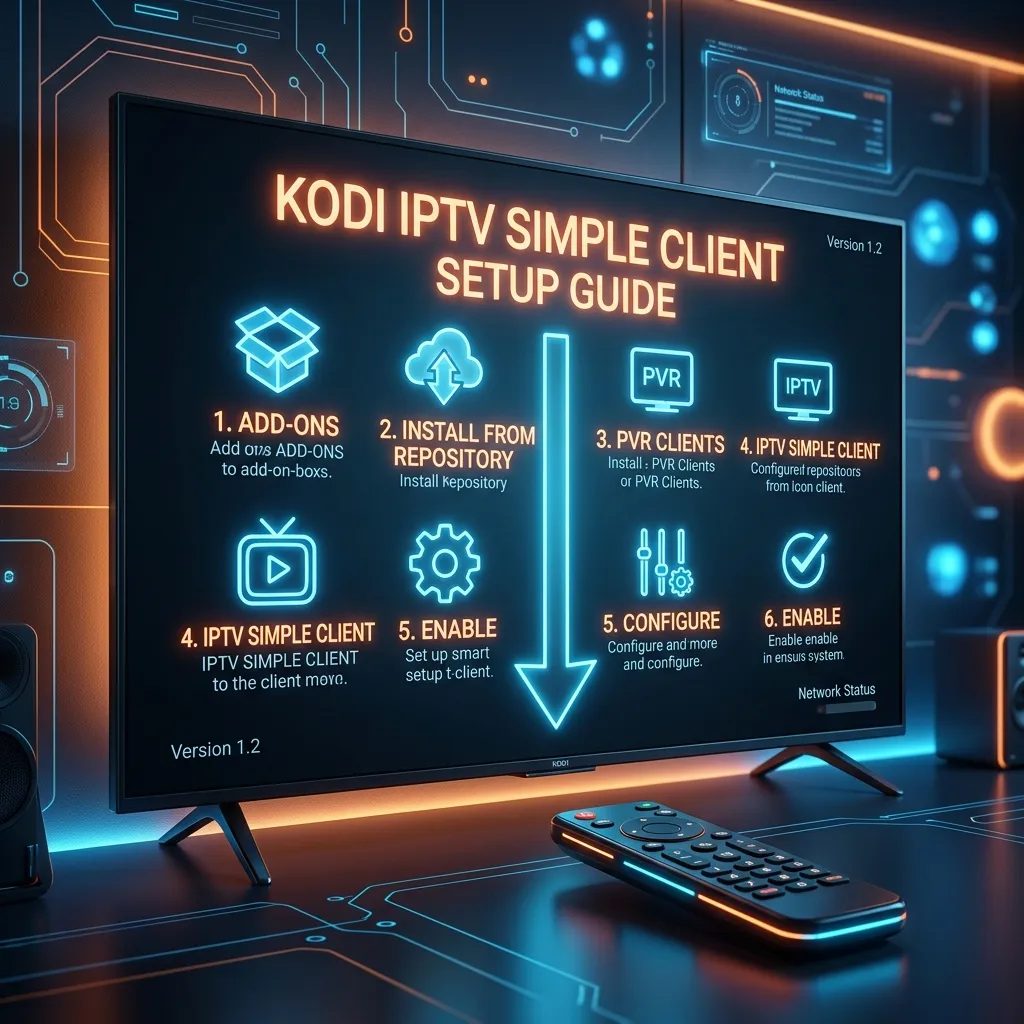
The world of home entertainment has evolved drastically over the last decade, transitioning away from traditional, expensive cable packages toward flexible, affordable, and high-quality digital streaming. If you are exploring the best ways to consolidate your media consumption into a single, unified interface, you have undoubtedly come across Kodi.
Kodi is an incredibly powerful open-source media player that transforms your TV, PC, or smartphone into the ultimate digital hub. But Kodi truly shines when paired with live television capabilities through the PVR IPTV Simple Client. This built-in add-on allows you to stream live TV channels, access on-demand movies, and utilize Electronic Program Guides (EPG) directly within the Kodi ecosystem.
In this exhaustive 3000+ word guide, we will walk you through every single step required to install, configure, and optimize the Kodi IPTV Simple Client. Whether you are a beginner looking to set up your first streaming device or an advanced user aiming to tweak the advancedsettings.xml file to eliminate buffering, this guide has everything you need.
What is Kodi and Why Use It for IPTV?
Understanding Kodi
Originally launched as the Xbox Media Center (XBMC) in 2002, Kodi has grown into a versatile, open-source media center software managed by the non-profit XBMC Foundation. It is entirely free and available across a vast array of operating systems, including Windows, macOS, Linux, Android, iOS, and various smart TV operating systems.
Kodi acts as a blank canvas. By itself, it contains no content. It relies on the user to provide media—either locally stored files on a hard drive or external streams accessed via official and third-party add-ons. Its strength lies in its customizable "10-foot user interface" designed for living room televisions, allowing users to browse their media seamlessly using a remote control.
What is the PVR IPTV Simple Client?
PVR stands for Personal Video Recorder, though in the context of Kodi, it generally refers to the live TV backend framework. The IPTV Simple Client is an official Kodi add-on (usually pre-installed or available in the official Kodi repository) that enables users to load M3U playlists and XMLTV EPG guides.
When you purchase an IPTV Subscription, your provider usually gives you an M3U URL. This URL is essentially a text file that lists all the available channels, categories, and direct links to the video streams. The IPTV Simple Client parses this M3U file and translates it into a beautiful, native Live TV interface within Kodi, complete with categories, channel logos, and programming schedules.
Advantages of Using Kodi over Dedicated Apps
You might be wondering: "Why should I use Kodi when there are dedicated apps like TiviMate or IPTV Smarters?"
While dedicated applications are fantastic, Kodi offers several unique benefits:
- All-in-One Media Hub: Kodi allows you to seamlessly switch between your local movie library, music collection, retro gaming emulators, and live IPTV without ever leaving the app.
- Extreme Customizability: You can completely change the look and feel of your IPTV setup using Kodi "Skins" (such as Aeon Nox, Titan Bingie, or Arctic Horizon).
- Cross-Platform Consistency: The Kodi interface is identical on a PC, an Android TV box, a Raspberry Pi, and a Mac. Learn it once, use it everywhere.
- No Ads or Tracking: Because Kodi is open-source, there are no hidden advertisements, premium paywalls for basic features, or invasive tracking scripts.
Pro Tip: If you prefer dedicated applications, you can explore our comprehensive Installation Guide which covers a variety of other software options for your devices.
Prerequisites for the Setup
Before we dive into the technical installation process, you need to ensure you have all the right tools and information at your disposal.
1. Hardware Requirements
Kodi is lightweight, but IPTV streams (especially 4K and 1080p 60fps channels) require a decent internet connection and capable hardware. You can install Kodi on:
- Amazon Firestick & Fire TV Cube: Arguably the most popular choice due to cost and performance. (Check out our dedicated Firestick Setup Guide).
- Android TV Boxes: Devices like the NVIDIA Shield Pro or Google Chromecast with Google TV.
- PCs and Laptops: Windows, macOS, or Linux environments.
- Single Board Computers: Raspberry Pi running LibreELEC or OSMC.
2. Software Requirements
Ensure you are running the latest stable version of Kodi (Kodi v20 "Nexus" or Kodi v21 "Omega"). Older versions (like Kodi v18 Leia or v19 Matrix) may have outdated PVR frameworks that struggle with modern M3U playlists, especially those with tens of thousands of channels and VODs.
3. A Premium IPTV Subscription
As mentioned earlier, Kodi provides the player, but you must provide the content. To get the best experience, you need a high-quality, buffer-free IPTV service. A good provider will offer an M3U link and an EPG URL.
At Smartiflix, we offer industry-leading server stability, thousands of global channels, and a massive VOD library. Check out our Pricing Plans to choose a package that suits your needs. Alternatively, explore our Homepage to learn more about our 99.9% uptime guarantee.
Step-by-Step Installation of PVR IPTV Simple Client
If you are starting with a fresh installation of Kodi, follow these detailed steps to enable and install the PVR IPTV Simple Client.
Step 1: Launch Kodi and Navigate to Add-ons
- Open the Kodi application on your device.
- On the main home screen, look at the left-hand menu pane.
- Scroll down and select Add-ons.
- In the Add-ons menu, look to the top left of the screen and click on the Package Installer Icon (it looks like an open cardboard box).
Step 2: Access the Official Kodi Repository
- Select Install from repository.
- If you have multiple third-party repositories installed, you will need to select the Kodi Add-on repository. If you have a fresh installation, it will default to the official repository automatically.
- Scroll down the list of categories and select PVR clients.
Step 3: Locate and Install the Add-on
- You will see a long alphabetical list of different PVR backends (like MythTV, NextPVR, Stalker Client, etc.).
- Scroll down until you find PVR IPTV Simple Client.
- Click on it to open the add-on information page.
- Click the Install button located at the bottom right corner of the screen.
- A prompt may appear showing additional dependencies required for the add-on to function. Click OK to accept and install them.
- Wait for a few seconds. You will see a notification in the top right corner of the screen saying "PVR IPTV Simple Client Add-on installed".
Configuring Your IPTV Playlist (M3U)
Now that the add-on is installed, you need to configure it by inputting your IPTV subscription details. This is where you will add your M3U playlist.
Step 1: Open the Configuration Menu
- Still on the Add-on information screen for the PVR IPTV Simple Client, click on Configure (or Settings).
- A settings window will pop up with several tabs on the left side: General, EPG Settings, Catchup, and Advanced.
Step 2: Adding the M3U Playlist URL
- Make sure you are on the General tab.
- Look for the setting called Location. It will likely be set to Local Path (include Local Network) by default.
- Click on Location and change it to Remote Path (Internet Address).
- Next, click on M3U Play List URL.
- A keyboard prompt will appear. Carefully type in the exact M3U URL provided by your IPTV service (e.g., Smartiflix). Note: M3U URLs are often very long and contain your personal username and password. If you are doing this on a TV box, it is highly recommended to use a smartphone remote app (like Yatse or the official Kodi Remote) to copy and paste the link, rather than typing it manually with an IR remote.
- Once entered, click OK.
Step 3: Local vs. Remote M3U Files
Important Note: You can technically download your M3U file to your device and use the Local Path setting. However, this is highly discouraged. IPTV providers constantly update their channel lists, add new movies, and fix broken links. If you use a remote URL, Kodi will fetch the latest list every time it starts. If you use a downloaded local file, your channel list will remain stagnant and eventually stop working.
Setting Up the Electronic Program Guide (EPG)
An IPTV experience is incomplete without a TV Guide. The EPG tells you what is currently playing, what is coming up next, and provides descriptions of the shows. IPTV services provide this data via an XMLTV link.
Step 1: Navigating to EPG Settings
- In the same PVR IPTV Simple Client configuration window, navigate to the EPG Settings tab on the left.
- Ensure the Location is set to Remote Path (Internet Address).
Step 2: Entering the XMLTV URL
- Click on XMLTV URL.
- Carefully type or paste the EPG link provided by your IPTV service.
- Click OK.
- Leave the Cache XMLTV at local storage setting enabled (usually default). This prevents Kodi from having to download a massive EPG file every single time you switch channels, vastly improving performance.
Step 3: EPG Time Shift
Sometimes, the EPG data provided by the server is in a different time zone than your local time. If you notice that the TV guide says a show is playing at 8:00 PM, but it's actually playing at 6:00 PM, you need to adjust the time shift.
- In the EPG Settings tab, look for EPG Time Shift (hours).
- You can increase or decrease this number to offset the time and align it with your local timezone.
Adding Channel Logos and Catch-up TV
To make your Kodi interface look visually appealing and function like a modern set-top box, you should configure Channel Logos and Catch-up settings.
Channel Logos Setup
- Navigate to the Channel Logos tab in the configuration window.
- Ensure that Channels Logos from XMLTV is set to Prefer XMLTV. This tells Kodi to pull the high-quality logo images directly from the EPG data.
- You can also set a default logo for channels that do not have one to keep the interface looking clean.
Enabling Catch-up Features
Many premium providers (like Smartiflix) offer "Catch-up" TV, which allows you to watch shows that aired up to 72 hours ago.
- Navigate to the Catchup tab.
- Toggle Enable Catchup to ON.
- Ensure the Catchup window is set appropriately (e.g., 3 days).
- Play from EPG in Live TV mode: Enable this so you can simply scroll backward in your TV guide, click on a past show, and have it play instantly.
Once you have configured the General, EPG, Logos, and Catchup tabs, click OK on the right side of the window to save all your settings.
Restarting Kodi
After clicking OK, Kodi will prompt you that it needs to restart to apply the PVR settings.
- Close Kodi completely.
- Re-launch Kodi.
- Upon launching, look at the top right corner of the screen. You should see a notification saying "PVR Manager is starting up" followed by "Loading channels from clients" and "Loading EPG from clients".
- Once this process reaches 100%, go to the TV menu on the main Kodi home screen. You will now see all your channels beautifully organized!
Advanced Kodi Optimizations for IPTV
If you have successfully installed the IPTV Simple Client but are experiencing playback issues, you might need to dive into some advanced Kodi tweaks. Kodi's default settings are optimized for playing local files from a hard drive, not for streaming high-bitrate live video over the internet.
Modifying AdvancedSettings.xml for Buffer Fixing
If you experience constant buffering despite having a fast internet connection, you need to alter how Kodi handles video caching. This is done by creating or editing a file called advancedsettings.xml in your Kodi userdata folder.
Here is an optimized XML configuration specifically designed for IPTV streaming on devices with at least 2GB of RAM (like a Firestick 4K Max or Android Box):
<advancedsettings>
  <cache>
    <!-- Increase buffer size. 139460608 bytes equals roughly 133MB of RAM allocated for cache -->
    <memorysize>139460608</memorysize>

    <!-- Cache all file types, including internet streams -->
    <buffermode>1</buffermode>

    <!-- Read the stream faster than real-time to fill the buffer quickly -->
    <readfactor>20</readfactor>
  </cache>

  <pvr>
    <minvideocachelevel>20</minvideocachelevel>
    <minaudiocachelevel>20</minaudiocachelevel>
  </pvr>

  <network>
    <curlclienttimeout>10</curlclienttimeout>
    <curllowspeedtime>10</curllowspeedtime>
  </network>
</advancedsettings>
How to Apply This:
- You can create this file manually on a PC and transfer it to your Kodi device using a file manager or FTP.
- Alternatively, you can use Kodi add-ons like the Arez Wizard or Open Wizard which have "System Tweaks" modules that automatically generate and apply these advanced XML settings for you based on your device's available RAM.
Clearing Cache Regularly
IPTV streaming can generate a massive amount of temporary thumbnail and cache data, which can bog down devices with limited storage (like Firesticks). Regularly clearing Kodi's cache will keep the PVR client snappy.
- Navigate to Settings > system > File manager > Profile directory > Database.
- Delete the
TVxx.dbandEPGxx.dbfiles if your channel lists get corrupted or stuck. Kodi will automatically rebuild them freshly upon the next boot.
Setting Up Kodi IPTV on Amazon Firestick
Because the Amazon Firestick is the most heavily utilized device for IPTV globally, it warrants its own specific instructions regarding Kodi. Amazon does not allow Kodi in the official Amazon App Store, meaning you must "sideload" it.
Step 1: Enable Apps from Unknown Sources
- From the Firestick Home screen, go to Settings (the gear icon).
- Select My Fire TV.
- Select Developer Options. (If you do not see Developer Options, click on About, then rapidly click the Fire TV Stick device name 7 times to unlock it).
- Turn ON Apps from Unknown Sources.
Step 2: Install the Downloader App
- Go back to the Firestick Home screen and navigate to the Search icon.
- Type in Downloader.
- Install the orange Downloader app.
Step 3: Download and Install Kodi
- Open Downloader.
- In the URL bar, type in the official Kodi website:
https://kodi.tv/download - Select Android, then choose the ARMV7A (32BIT) APK file. (Most Firesticks run 32-bit architecture, even if they output 4K).
- Once downloaded, click Install.
- Once Kodi is installed on your Firestick, simply follow the PVR IPTV Simple Client installation instructions detailed earlier in this guide.
For more details on optimizing Amazon devices, refer to our Firestick Setup Guide.
Is Using Kodi for IPTV Safe?
One of the most frequently asked questions is regarding the security and legality of using Kodi for IPTV streaming.
The Legality of Kodi
Kodi itself is a 100% legal, open-source media player. It is essentially an empty shell. The legality comes entirely down to what third-party add-ons or M3U playlists you load into it.
Security Privacy and VPNs
When streaming IPTV through the PVR Simple Client, your device is maintaining a constant connection to your IPTV provider's servers. Depending on your region, Internet Service Providers (ISPs) are known to throttle streaming traffic or block IPTV portals entirely during major sporting events.
To protect your privacy, avoid ISP throttling, and maintain a stable connection, using a VPN (Virtual Private Network) is highly recommended. A VPN encrypts your internet traffic and routes it through a secure server, masking your streaming activities from your ISP.
For a deeper dive into IPTV security protocols and how to keep your network safe, read our comprehensive guide: Is Smartiflix Safe?.
Comparing M3U vs. Xtream Codes API on Kodi
While the PVR IPTV Simple Client relies strictly on M3U playlists, it is worth understanding the alternative formats available in the IPTV ecosystem.
| Feature | M3U Playlist Format | Xtream Codes API Format |
|---|---|---|
| Data Input | A long URL ending in .m3u or .m3u8 |
URL Portal, Username, Password |
| Kodi Compatibility | Native via PVR IPTV Simple Client | Requires third-party add-ons (e.g., Xtream-Codes Addon) |
| VOD Integration | Clunky; VODs appear as standard channels | Excellent; separated into distinct Movie/Series folders |
| Speed | Can be slow to load if the playlist exceeds 50k lines | Fast, requests data dynamically from the server |
| Security | Username/Password exposed in the URL | Credentials separated from the portal URL |
Recommendation: If your provider gives you thousands of VODs (movies and TV series), the PVR IPTV Simple Client might struggle to load the massive M3U file efficiently, causing long boot times. In this scenario, you can ask your provider to send you an M3U link that only contains Live TV channels, which will make Kodi run lightning fast.
Troubleshooting Common Kodi IPTV Issues
Even with a perfect setup, technology can sometimes hiccup. Here are the most common issues users face with the Kodi IPTV Simple Client and how to resolve them permanently.
Issue 1: "PVR Manager is Starting" Stuck at 0%
This is the most common bug encountered by Kodi IPTV users. The system attempts to load the M3U file but gets stuck infinitely.
- Cause: This usually happens if the M3U URL was typed incorrectly, the IPTV provider's server is down, or your internet connection dropped during the boot sequence.
- Solution: Double-check the URL for typos (Capital "I" vs lowercase "l" is a common mistake). Ensure your subscription is active. Navigate to Add-ons > My Add-ons > PVR Clients > PVR IPTV Simple Client > Disable it, then Re-enable it.
Issue 2: Channels Not Loading or Missing Categories
You booted up Kodi, but your TV section is completely empty, or certain country categories are missing.
- Cause: Corrupted PVR database. Kodi sometimes fails to overwrite old channel data with the new list.
- Solution: Go to Kodi Settings > PVR & Live TV > General. Click on Clear data. This forces Kodi to delete its internal channel registry and download a fresh copy from your M3U link immediately.
Issue 3: Constant Buffering and Freezing
Your stream plays for 10 seconds, freezes, buffers, and then skips forward.
- Cause: ISP throttling, weak Wi-Fi signal, or inadequate Kodi cache settings.
- Solution: First, reboot your router and device. Ensure you are using a 5GHz Wi-Fi network or an Ethernet cable. If the issue persists, apply the
advancedsettings.xmlmodifications detailed in the Advanced Optimizations section of this guide. Finally, activate your VPN to bypass ISP throttling.
Issue 4: EPG Data Missing (No Information Available)
The channels work flawlessly, but the TV Guide is empty, displaying only "No Information Available" for every program.
- Cause: Invalid XMLTV link, or the EPG server is down.
- Solution: Verify the EPG link in the add-on settings. Go to Kodi Settings > PVR & Live TV > Guide. Click on Clear data to force an EPG refresh. Ensure the Catchup XMLTV at local storage option is enabled.
Exploring Alternative IPTV Setups
While Kodi is phenomenal, it may feel a bit overwhelming for elderly family members or users who simply want a "plug and play" experience without tinkering with add-ons and XML files.
If you decide that Kodi's PVR IPTV Simple Client isn't the right fit for your household, consider the following premium, dedicated IPTV applications that offer incredibly user-friendly interfaces:
- TiviMate: Exclusive to Android devices. Widely considered the gold standard for IPTV. It features multi-screen viewing, flawless VOD integration, and lightning-fast EPG loading.
- IPTV Smarters Pro: Available on almost every platform (Windows, Mac, iOS, Android, Smart TVs). Uses the Xtream Codes API for easy login.
- XCIPTV: A highly reliable, lightweight app with excellent media player codecs built-in.
If you are interested in trying these alternatives, we have step-by-step walk-throughs available in our comprehensive Installation Guide.
Frequently Asked Questions (FAQ)
To wrap up this ultimate guide, we have compiled the most frequently asked questions regarding the Kodi PVR IPTV Simple Client.
1. Does Kodi provide the IPTV channels?
No. Kodi is merely the software that plays the media. You must purchase an IPTV subscription from a provider like Smartiflix to get an M3U playlist containing the channels.
2. Can I use multiple IPTV subscriptions at once in Kodi?
Yes, but it requires a workaround. The native PVR IPTV Simple Client only supports one M3U link. However, Kodi v20 and v21 allow you to install multiple "instances" of the PVR IPTV Simple Client add-on (e.g., Instance 1, Instance 2), allowing you to merge multiple playlists into one massive TV guide.
3. Is the PVR IPTV Simple Client free?
Yes. The add-on is completely open-source and free, as is Kodi itself. You only pay for the IPTV service you choose to use with it.
4. How do I record Live TV on Kodi?
While the PVR Simple Client allows you to watch live TV, it does not natively support recording streams to your hard drive out-of-the-box. To record IPTV on Kodi, you would need to integrate a more complex backend server like TVheadend or NextPVR, or use a dedicated app like TiviMate which has native recording features.
5. Why is my audio out of sync with the video?
This is usually caused by hardware acceleration issues. While streaming a channel, open the video player settings (the gear icon on the playback bar), scroll down to Audio offset, and manually adjust the slider until the voices match the lips. You can then select "Set as default for all media".
6. Do I need a VPN for Kodi?
While not strictly required, it is highly recommended to use a VPN to prevent your ISP from logging your traffic or throttling your bandwidth during live sports broadcasts. Refer to our Security Guide for more information.
7. Can I watch Video On Demand (VOD) with the Simple Client?
Yes, but it is not optimal. The Simple Client treats VODs (Movies and TV Shows) exactly like Live TV channels. They will appear as a massive, unorganized list at the bottom of your channel groups. If VOD is important to you, a dedicated IPTV application or an Xtream Codes compatible Kodi add-on is highly recommended.
8. Will Kodi update my channel list automatically?
Yes. As long as you used the Remote Path (Internet Address) option when inputting your M3U link, Kodi will fetch the latest updated channel list from your provider's server every time you start the application.
9. What is the best Kodi Skin for IPTV?
The default "Estuary" skin is great, but for a true set-top box feel, skins like Arctic Zephyr, Titan Bingie Mode, and Aeon Nox: Silvo provide stunning visual layouts for Live TV and EPG navigation.
10. How do I update the PVR IPTV Simple Client?
The add-on usually updates automatically in the background. If you want to force an update, navigate to Add-ons > My Add-ons > PVR Clients > PVR IPTV Simple Client > click Versions and select the newest available version from the official Kodi repository.
Conclusion
Setting up the Kodi PVR IPTV Simple Client transforms any compatible device into an incredibly powerful, customizable, and ad-free cable box alternative. While the initial setup process—installing the add-on, pasting long M3U and EPG URLs, and adjusting time shifts—might seem daunting at first glance, the result is a beautifully unified entertainment center.
By following the steps outlined in this massive guide, you ensure that your Kodi setup is not only functional but optimized to prevent buffering and maximize visual quality. You've learned how to input your Smartiflix IPTV Subscription, clear caching issues, adjust your advancedsettings.xml, and secure your network.
Embrace the freedom of cord-cutting with Kodi and Smartiflix today. With 99.9% uptime, thousands of live channels, and a massive on-demand library, your home entertainment experience will never be the same.
Ready to start your premium streaming journey? Visit our Pricing Page to choose your perfect package and begin enjoying buffer-free live television instantly.