Watch IPTV on PS5 & Xbox Series X: Step-by-Step Guide
Discover how to watch IPTV on PS5 and Xbox Series X. Follow our easy guide for streaming live TV and VOD on your gaming console!
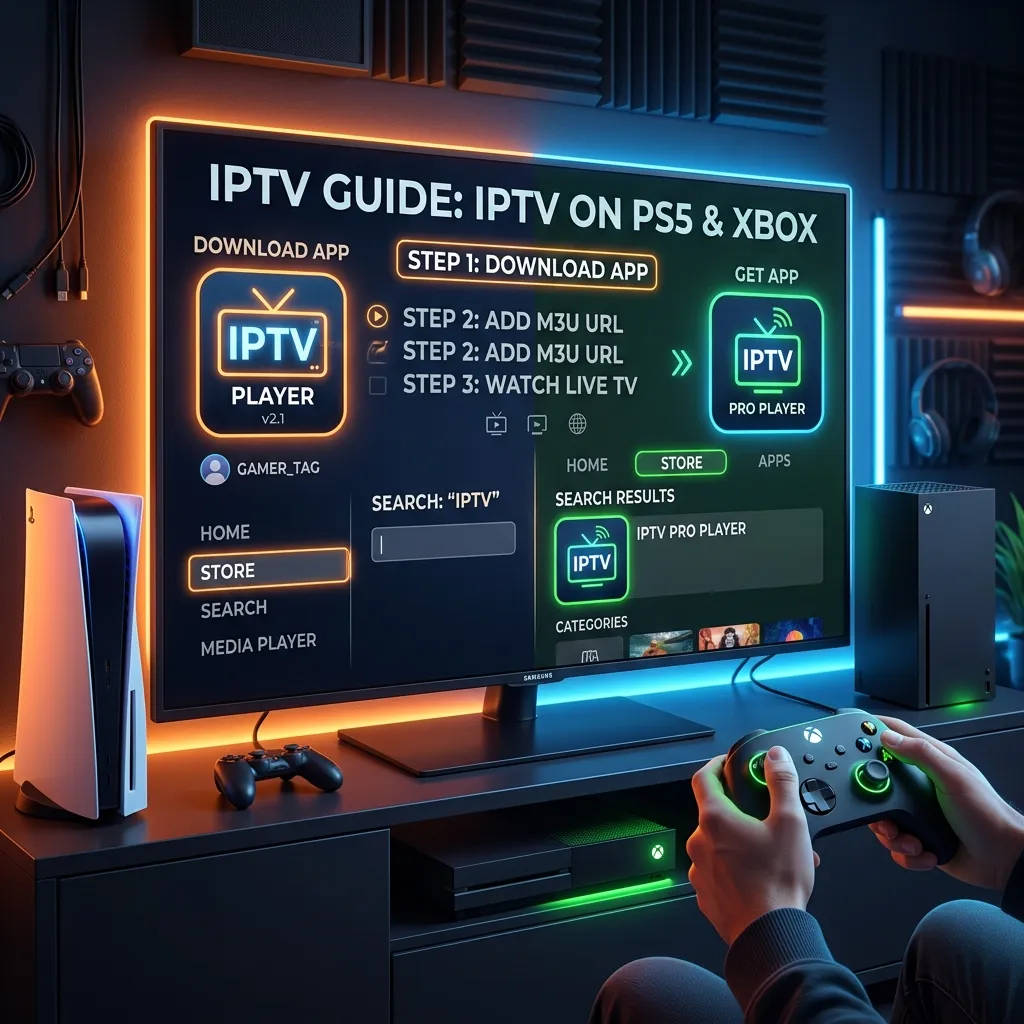
The modern living room has evolved. Gone are the days when a gaming console was just for playing video games. Today, powerhouse systems like the PlayStation 5 (PS5) and the Xbox Series X/S serve as the central entertainment hubs for millions of households worldwide. They stream movies, play music, browse the web, and yes—they can even stream live television through Internet Protocol Television (IPTV).
If you are a proud owner of a next-generation console and you are looking to cut the cord on traditional cable, you are in the right place. In this massive, exhaustive, and fully comprehensive 3000+ word guide, we will walk you through exactly how to watch IPTV on PS5 and Xbox Series X.
Whether you want to catch live sports, binge-watch international channels, or access thousands of Video on Demand (VOD) titles, integrating an IPTV Subscription into your gaming setup is a game-changer. We will cover native apps, web browser workarounds, Plex media server integrations, screen mirroring, network optimization, and much more. Welcome to the future of home entertainment on Smartiflix.
Table of Contents
- Understanding IPTV: Why Use Your Console?
- The Console Divide: Xbox Series X vs. PlayStation 5
- Preparing Your Console for IPTV
- How to Watch IPTV on Xbox Series X / Series S
- How to Watch IPTV on PlayStation 5 (PS5)
- Advanced Method: Using Plex Media Server for Both Consoles
- Network Optimization: Getting Buffer-Free Streams on Consoles
- Security and Privacy: Is IPTV Safe on Consoles?
- Consoles vs. Dedicated Streaming Devices
- Troubleshooting Common Console IPTV Issues
- Frequently Asked Questions (FAQs)
- Conclusion
Understanding IPTV: Why Use Your Console?
Internet Protocol Television (IPTV) is the delivery of television content over internet protocol networks. This is in contrast to delivery through traditional terrestrial, satellite, and cable television formats. Unlike downloaded media, IPTV offers the ability to stream source media continuously. As a result, a client media player can begin playing the content almost immediately.
The All-in-One Entertainment Hub
Gamers heavily invest in their console setups. You likely have your PS5 or Xbox Series X hooked up to the best television in your house—probably a stunning 4K OLED or QLED screen with HDR capabilities. You might also have a premium surround sound system or a high-end soundbar connected.
By running your IPTV service through your console, you eliminate the need to switch HDMI inputs, change remotes, or buy secondary devices. Everything happens within the seamless, high-performance ecosystem of your gaming machine.
Processing Power
Gaming consoles possess incredibly powerful processors and massive amounts of RAM compared to standard smart TVs or cheap streaming sticks. This sheer processing power means that navigating through massive Electronic Program Guides (EPGs) containing thousands of channels is buttery smooth. Video decoding, even for heavy 4K streams, is handled effortlessly without the sluggishness often experienced on lower-end hardware.
The Console Divide: Xbox Series X vs. PlayStation 5
Before we dive into the step-by-step tutorials, it is crucial to understand that the Xbox and PlayStation ecosystems treat media apps very differently.
Microsoft's Open Approach (Xbox Series X/S)
The Xbox operates on a modified version of Windows. This means it has access to the Universal Windows Platform (UWP). Developers can easily port their Windows applications to the Xbox. Consequently, the Microsoft Store on Xbox is filled with excellent, native IPTV player applications. Setting up IPTV on an Xbox is almost identical to setting it up on a Windows PC—it is straightforward, officially supported, and highly reliable.
Sony's Walled Garden (PlayStation 5)
Sony, on the other hand, runs a highly proprietary operating system. The PlayStation Store has a very strict curation process for media apps. You will find Netflix, Hulu, and YouTube, but you will not find native M3U IPTV players. Furthermore, Sony famously removed the easily accessible web browser from the PS5 interface (though it is still hidden in the system). Watching IPTV on a PS5 requires workarounds, such as using the hidden browser, setting up a Plex server, or casting from another device.
Important Note: While Xbox offers an easier route, PS5 users can absolutely still enjoy IPTV. It just requires following our specific Installation Guide workarounds detailed later in this article.
Preparing Your Console for IPTV
Regardless of which console you own, you need a few prerequisites before you start streaming.
1. A High-Quality IPTV Subscription
The player app is just an empty shell. To watch live TV, movies, and series, you need a premium provider. Smartiflix offers industry-leading stability, an enormous library of 4K and HD channels, and lightning-fast servers. Check out our IPTV Subscription packages and visit our Pricing page to find a plan that fits your budget.
2. Your Subscription Credentials
When you subscribe, you will receive an email containing:
- M3U URL: A long web link that contains your channel playlist.
- Xtream Codes API: A server URL, a Username, and a Password. (This is generally the preferred, faster method for logging into modern apps).
- EPG URL: The link that populates your TV guide.
3. A Stable Internet Connection
Consoles are capable of massive download speeds, but IPTV requires consistent bandwidth to avoid buffering. We strongly recommend wiring your console directly to your router using an Ethernet cable (Cat 6 or higher). If you must use Wi-Fi, ensure your console is connected to a 5GHz band rather than the congested 2.4GHz band.
How to Watch IPTV on Xbox Series X / Series S
The Xbox Series X and Series S are absolute dream machines for IPTV users. Thanks to the Microsoft Store, you have a wealth of native applications to choose from. Here are the three best methods.
Method 1: Using MyIPTV Player (Highly Recommended)
MyIPTV Player is arguably the most popular and reliable free UWP app for Xbox. It handles massive M3U lists with ease and has a clean, TV-friendly interface.
Step 1: Download the App
- Turn on your Xbox and navigate to the Store icon on your dashboard.
- Go to the Search bar and type "MyIPTV Player".
- Select the app (it usually has a blue icon with a TV) and click Get to install it.
Step 2: Add Your Playlist
- Launch MyIPTV Player.
- Navigate to Settings (the gear icon).
- Select Add new playlist and EPG source.
- Under the "Remote channel list" section, type a name for your playlist (e.g., "Smartiflix").
- In the "Remote channel list URL" box, carefully enter the M3U link provided by your IPTV Subscription. (Tip: You can use the Xbox mobile app on your phone to copy and paste the long URL directly onto your console).
- Click Add remote list.
Step 3: Add the EPG (Electronic Program Guide)
- Scroll down to the "Program guide (EPG)" section.
- Name it (e.g., "Smartiflix EPG").
- Enter your EPG URL and click Add EPG source.
Step 4: Load and Watch
- Go back to the main Settings menu.
- Under "Select playlist", choose the playlist you just created.
- Click Refresh.
- Go back to the main screen, click on the Channels tab, and enjoy your live TV!
Method 2: Using Kodi on Xbox
Kodi is a powerhouse media center available natively on the Xbox store. It uses an add-on called "PVR IPTV Simple Client" to play IPTV streams.
- Open the Xbox Store and search for Kodi. Install and launch it.
- In the Kodi main menu, navigate to Add-ons > My add-ons > PVR clients.
- Scroll down and select PVR IPTV Simple Client.
- Click Install. Once installed, click on it again and select Configure.
- Under the General tab, set "Location" to Remote Path (Internet Address).
- Click on M3U Play List URL and enter your Smartiflix M3U link. Click OK.
- Go to the EPG Settings tab, select Remote Path, and enter your EPG URL.
- Click OK, then restart Kodi.
- On the main Kodi menu, a new TV tab will appear. Click it to view your channels.
Method 3: Using "Best Player & IPTV"
If you prefer Xtream Codes login (Username/Password) instead of typing out long M3U URLs, "Best Player & IPTV" is a great premium alternative available in the Xbox store. It has a slicker UI, similar to popular Firestick apps like Smarters Pro. Simply download it, choose the Xtream Codes login option, input your Smartiflix server details, and you are good to go.
How to Watch IPTV on PlayStation 5 (PS5)
Because Sony strictly limits media apps, you won't find MyIPTV Player or Kodi on the PS5. However, gamers are resourceful. Here are the most effective workarounds to get Smartiflix running beautifully on your PlayStation 5.
Method 1: The Hidden Web Browser Method (Using Web Players)
The PS5 actually has a web browser, but Sony hid it to prevent security exploits. You can access it by messaging a link to a friend and clicking on it. We will use this hidden browser to access IPTV Web Players.
Step 1: Access the Hidden Browser
- Press the PS Button on your controller to open the Control Center.
- Go to Game Base and select a friend (or create a secondary dummy account to message).
- Send them a message containing exactly this text:
https://www.google.com - Once the message is sent, click on the link you just created. The PS5 hidden web browser will open and take you to Google.
Step 2: Navigate to a Web Player Many great IPTV player apps have web-based versions. For example, Smarters Web Player or XCIPTV Web.
- In the Google search bar, search for "Smarters Web Player" (usually found at
webtv.iptvsmarters.comor a similar host provided by your IPTV service). - Click on the link to open the web player.
- You will be greeted by an Xtream Codes login screen.
- Enter your Smartiflix Server URL, Username, and Password.
- Click Login.
Step 3: Streaming The interface will load right inside your PS5 browser. You can navigate Live TV, Movies, and Series using your DualSense controller. You can press the square or triangle button to enter fullscreen mode. While not a native app, this method is surprisingly fast and effective.
Method 2: Casting / Screen Mirroring via Third-Party Apps
If you don't want to use the web browser, you can run the IPTV app on your smartphone or tablet and cast the screen to your PS5.
- You will need a casting receiver app on your PS5. Search the PlayStation Store for apps like Screen Mirroring App or check if YouTube casting can be manipulated (though dedicated apps work better).
- Download a high-quality IPTV app on your iOS or Android device (e.g., IPTV Smarters Pro, GSE Smart IPTV).
- Connect both your phone and your PS5 to the exact same Wi-Fi network.
- Use your phone's native screen mirroring (AirPlay for iPhone, Smart View for Samsung) to cast your phone screen to the TV/PS5 interface.
- Open the IPTV app on your phone, play a channel in fullscreen, and enjoy it on your large display.
(Note: Screen mirroring can introduce slight latency or compression, so the Web Browser or Plex method is generally preferred for optimal quality).
Advanced Method: Using Plex Media Server for Both Consoles
If you want the ultimate, most elegant solution for both Xbox and PS5, setting up a Plex Media Server with a plugin like "xTeVe" or "Threadfin" is the holy grail. This method requires a PC or a NAS (Network Attached Storage) device running in your home, but the result is a beautifully organized, native-feeling app on your consoles.
What is Plex?
Plex is a client-server media player system. The Plex Media Server runs on a PC and organizes your media. The Plex app (available officially on both the Xbox Store and the PS5 Media tab) connects to the server and plays the content. Plex has a built-in "Live TV & DVR" feature.
How it Works with IPTV
Plex natively supports physical digital tuners (like HDHomeRun), but it does not natively accept M3U playlists. To fix this, we use a proxy software.
- Install xTeVe or Threadfin on your PC: This software acts as a proxy. You input your Smartiflix M3U and EPG into xTeVe.
- xTeVe Translates: xTeVe outputs a signal that mimics an HDHomeRun tuner.
- Connect to Plex: In your Plex Media Server settings on your PC, go to Live TV & DVR. Add a device, and type in the IP address provided by xTeVe. Plex will now "see" your IPTV playlist as a physical antenna.
- Map the Channels: Let Plex download the guide data or use your own EPG.
- Watch on Console: Turn on your PS5 or Xbox. Open the official Plex app. Navigate to the Live TV tab. You will see a beautiful, fully functional TV guide featuring all your Smartiflix channels.
This method requires technical know-how to set up the initial proxy server on your PC, but once completed, it provides the cleanest, most responsive IPTV interface possible on next-gen consoles.
Network Optimization: Getting Buffer-Free Streams on Consoles
Gaming consoles are built for high-speed data transfer, but live video streaming requires specific network conditions. If you experience buffering on your Xbox or PS5, follow these advanced optimization steps.
1. Hardwire Your Connection
We cannot stress this enough: Use an Ethernet cable. Wi-Fi signals are subject to interference from microwaves, Bluetooth devices, thick walls, and neighboring networks. A direct Cat 6 or Cat 8 ethernet cable from your router to your console guarantees zero packet loss and a consistent bitrate, which is vital for live 4K sports streams.
2. Change Your DNS Settings
ISPs (Internet Service Providers) often have slow default DNS servers. Changing your console's DNS to a faster public server can improve connection times and occasionally bypass minor ISP throttling.
On Xbox Series X/S:
- Go to Settings > General > Network settings.
- Select Advanced settings > DNS settings > Manual.
- Set Primary IPv4 DNS to
1.1.1.1(Cloudflare) or8.8.8.8(Google). - Set Secondary IPv4 DNS to
1.0.0.1or8.8.4.4.
On PS5:
- Go to Settings > Network > Settings > Set Up Internet Connection.
- Hover over your connected network, press the Options button, and select Advanced Settings.
- Change DNS Settings to Manual.
- Enter the same Primary (
1.1.1.1) and Secondary (1.0.0.1) addresses.
3. Quality of Service (QoS) on Your Router
If you live in a house with multiple people downloading games, watching Netflix, or doing video calls, your console might be fighting for bandwidth. Log into your home router's admin panel and look for QoS (Quality of Service) settings. Set your Xbox or PS5 as the highest priority device. This ensures that even if someone starts a massive download, your IPTV stream will not be interrupted.
Security and Privacy: Is IPTV Safe on Consoles?
When dealing with third-party streaming links, privacy and security are natural concerns. Because consoles are closed ecosystems (especially the PS5), they are inherently very secure against viruses, malware, and ransomware. You cannot accidentally "infect" your PS5 by typing a URL into the hidden browser.
However, your ISP can still see what you are streaming, and they might throttle your speeds if they detect heavy continuous data usage from IPTV servers.
The VPN Conundrum on Consoles
The best way to protect your privacy and stop ISP throttling is by using a Virtual Private Network (VPN). However, neither Xbox nor PS5 allows native VPN applications to be installed directly onto the system.
To secure your console's connection, you have two options:
- Install a VPN on your Router: This protects every device in your home, including your console.
- Share a VPN connection from your PC: Run a VPN on your Windows PC, and share its network connection to your console via an Ethernet cable.
For a deeper dive into protecting your data and understanding the legalities and safety protocols of streaming, read our comprehensive Security Guide: Is Smartiflix Safe?.
Consoles vs. Dedicated Streaming Devices
While watching IPTV on your PS5 or Xbox Series X is entirely possible (and quite great on Xbox), it is worth asking: Should you do it?
Here is a comparison table outlining the pros and cons of using a console versus a dedicated streaming device like an Amazon Fire TV Stick 4K Max.
| Feature | Xbox Series X/S | PlayStation 5 (PS5) | Amazon Firestick 4K Max |
|---|---|---|---|
| Native IPTV Apps | Yes (MyIPTV, Kodi, etc.) | No (Web browser/Plex only) | Yes (Smarters, TiviMate, etc.) |
| Setup Difficulty | Easy | Hard | Very Easy |
| Remote Control | Controller (Media remote optional) | Controller (Media remote optional) | Dedicated Voice Remote |
| Power Consumption | High (~150W-200W) | High (~200W) | Very Low (~5W) |
| VPN Support | Router-level only | Router-level only | Native VPN Apps available |
| UI Speed & Processing | Extremely Fast | Extremely Fast | Fast |
The Verdict: Why Consider a Firestick?
If your primary goal is to use your console so you don't have to buy another device, the Xbox is fantastic. However, the high power consumption of next-gen consoles means you are using 200 watts of electricity just to watch TV. Furthermore, the lack of native apps on the PS5 can be frustrating for non-technical users.
For the cost of a modern AAA game, you can purchase an Amazon Firestick 4K. Firesticks allow for the installation of TiviMate (the gold standard of IPTV players) and native VPN apps. If you decide to go this route, check out our dedicated Firestick Setup Guide to see how incredibly simple it is to integrate Smartiflix into a Fire TV device.
Troubleshooting Common Console IPTV Issues
Even with a perfect setup, you might encounter occasional hiccups. Here are the most common issues when using IPTV on PS5 and Xbox, and how to fix them.
1. "Playlist Format Not Supported" Error (Xbox)
If MyIPTV Player or Kodi throws an error saying the M3U cannot be read, it usually means there is a typo in the URL. M3U links are extremely long and case-sensitive.
- Fix: Do not type the link manually using the controller. Open the Xbox app on your smartphone, copy the M3U link from your Smartiflix welcome email, and paste it into the Xbox text field using your phone's keyboard.
2. Audio is Playing, but the Screen is Black
This happens when the IPTV stream uses a video codec that the console's media player does not support natively (such as certain high-profile HEVC/H.265 streams).
- Fix (Xbox): If using MyIPTV Player, go to Settings and try switching the default media player engine from UWP to VLC (if the option is available in your version), or switch to Kodi, which has built-in decoders for almost every video format on earth.
- Fix (PS5): If using the web browser method, ensure you are using a modern web player like Smarters Web. If it still fails, the Plex method is your best bet because the Plex Media Server will transcode the video on the fly into a format the PS5 can understand.
3. Constant Buffering or Freezing
If your stream is stuttering every few seconds, the issue is almost always network-related.
- Fix:
- Switch from Wi-Fi to Ethernet.
- Restart your home router and your console.
- Check if your ISP is throttling your connection (using a router-level VPN can solve this).
- Contact Smartiflix support to see if there is temporary maintenance on the specific channel server.
4. EPG (TV Guide) is Blank or "No Information"
The Electronic Program Guide needs to sync with the channel names.
- Fix: Force refresh the EPG in your app settings. Check that your EPG URL matches the one provided in your subscription email. Sometimes, EPGs take a few minutes to fully populate upon first boot due to the massive amount of data (often covering 7 days of programming across thousands of channels).
Frequently Asked Questions (FAQs)
Q1: Will I get banned from Xbox Live or PSN for using IPTV? No. Using a media player app like Kodi or MyIPTV Player on Xbox, or using the web browser on PS5, does not violate the terms of service of the console networks. You are simply accessing media streams. However, ensure you are using a legitimate service.
Q2: Can I record Live TV (DVR) on my console? Native apps like MyIPTV Player have very limited recording capabilities on the Xbox. If you want robust DVR functionality (scheduling series recordings, pausing live TV), the Plex Media Server method is highly recommended, as Plex handles DVR tasks beautifully and saves the files directly to your PC's hard drive.
Q3: Do I need a separate Smartiflix subscription for my console and my phone? Our Pricing plans outline our multi-connection policies. Standard plans usually allow one simultaneous connection. If you plan to watch on your Xbox in the living room while someone else watches on an iPad in the bedroom at the exact same time, you will need a plan that supports multiple connections.
Q4: Why did Sony remove the web browser from the PS5? Historically, the web browsers on the PS3 and PS4 were used by hackers as entry points to run exploits and jailbreak the consoles. To tighten system security, Sony removed the user-facing web browser app from the PS5 UI.
Q5: What internet speed do I need for 4K IPTV on consoles? For stable 4K streaming, we recommend a minimum sustained download speed of 25-30 Mbps. For 1080p HD, 10-15 Mbps is sufficient. Remember, this is the speed reaching the console, not just the speed you pay your ISP for.
Conclusion
Transforming your PlayStation 5 or Xbox Series X into a limitless television hub is an excellent way to maximize the value of your hardware.
For Xbox users, the path is wide open with native apps like MyIPTV Player and Kodi making the setup process a breeze. For PS5 users, while it takes a bit of technical maneuvering using the hidden web browser or setting up a Plex proxy, the stunning visual results on your big screen make the effort well worth it.
If you are tired of paying exorbitant monthly cable bills and want to unlock thousands of live global channels, massive VOD libraries, and all the premium sports packages directly on your console, it is time to make the switch.
Start your journey today by securing a premium IPTV Subscription from Smartiflix. Follow our setup instructions, optimize your network, and prepare to experience the ultimate fusion of gaming and television.
If you decide that using a console is too complex and you prefer a dedicated setup, do not forget to check out our extremely simple Firestick Setup guide as an alternative.
Welcome to the cord-cutting revolution. Welcome to Smartiflix.