VPN on LG Smart TV for IPTV: Step-by-Step Setup Guide
Learn how to set up a VPN on your LG Smart TV for IPTV. Bypass geo-restrictions and enjoy secure streaming with our comprehensive guide!
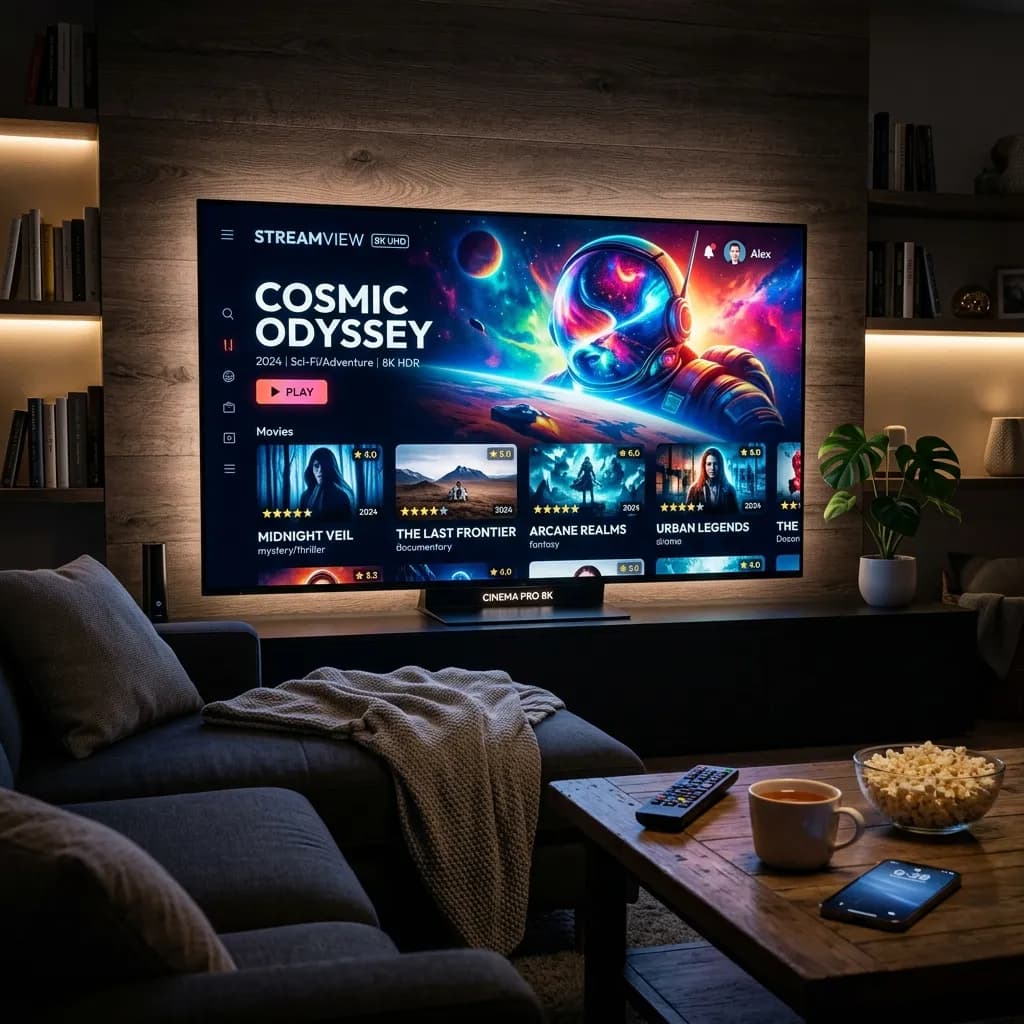
If you own an LG Smart TV and want to take your streaming experience to the next level, utilizing an IPTV service is one of the best decisions you can make. The ability to access thousands of live channels, on-demand movies, and exclusive sports events from the comfort of your living room is truly unparalleled. However, as the popularity of IPTV grows, so do the challenges associated with online privacy, internet service provider (ISP) throttling, and frustrating geographic restrictions.
This is exactly where a Virtual Private Network (VPN) becomes essential. A VPN encrypts your internet connection, masking your IP address and routing your traffic through a secure server. This not only protects your digital footprint but also ensures that you can unlock a world of unrestricted content.
However, there is a significant catch: LG Smart TVs run on WebOS, a proprietary operating system that, unlike Android TV, does not natively support VPN applications. You cannot simply open the LG Content Store, search for your favorite VPN, and click install. This limitation has left countless users scratching their heads, wondering how to secure their IPTV streams on their stunning OLED and QNED screens.
But don't worry—there are several highly effective workarounds to get a VPN running flawlessly on your LG Smart TV. Whether you choose to configure a VPN on your router, share a connection from your computer, utilize Smart DNS, or plug in a secondary streaming device, this comprehensive, step-by-step guide will cover every possible method. By the end of this extensive tutorial, you will know exactly how to use a VPN on LG Smart TV for IPTV, ensuring a buffering-free, highly secure, and limitless entertainment experience.
Before we dive into the technical tutorials, be sure to check out the Smartiflix Homepage to discover why we are considered the premier choice for top-tier IPTV streaming in 2026.
Why You Absolutely Need a VPN for IPTV on Your LG Smart TV
Before we explore how to set up a VPN on your LG TV, it is crucial to understand why it is an indispensable tool for any serious IPTV enthusiast. The intersection of IPTV and VPN technology solves several critical issues that streamers face daily.
1. Stopping ISP Throttling Dead in Its Tracks
Have you ever noticed that your internet speed mysteriously drops right when you are trying to stream a live football match or a 4K movie, despite paying for a high-speed fiber connection? This phenomenon is known as ISP throttling.
Internet Service Providers frequently monitor your online activities. When they detect high-bandwidth activities—such as streaming live IPTV—they may intentionally slow down your connection to manage network congestion. This results in the dreaded endless buffering circle, pixelated video quality, and audio sync issues.
By using a VPN, your internet traffic is encrypted. Your ISP can only see that you are sending and receiving encrypted data, but they cannot see what you are doing. Because they cannot identify that you are streaming IPTV, they cannot apply targeted throttling, allowing you to enjoy your IPTV Subscription at maximum speeds.
2. Bypassing Geographic Restrictions
The internet is increasingly fragmented by invisible borders. Many IPTV providers offer channels from specific countries that are geo-blocked for international viewers. For example, you might want to watch a localized British broadcast, a specific US sports network, or a regional European news channel, only to be met with a "This content is not available in your region" error.
A VPN solves this by allowing you to connect to a server located in the country of your choice. By masking your real IP address and assigning you one from the target location, you essentially trick the streaming servers into believing you are physically present there. This unlocks a massive library of global content, making your LG TV a truly international entertainment hub.
3. Enhancing Digital Privacy and Security
In today's digital landscape, privacy is a luxury. Every time you connect to the internet without protection, your IP address is exposed to websites, apps, advertisers, and potentially malicious third parties.
When you stream via IPTV, especially if you are testing out various third-party apps, maintaining your privacy is paramount. A VPN encrypts your connection using military-grade protocols (like AES-256), ensuring that your streaming habits, personal data, and location remain entirely confidential. For a deeper dive into staying protected while streaming, read our comprehensive Security Guide.
"A VPN is not just an optional add-on for IPTV; it is the fundamental foundation of a secure, unrestricted, and high-quality streaming setup."
The Challenge: LG WebOS and VPN Compatibility
As mentioned earlier, the primary hurdle in using a VPN on an LG Smart TV is the operating system itself. LG uses WebOS, a sleek, fast, and user-friendly platform that is excellent for navigating apps like Netflix and YouTube. However, WebOS is a closed ecosystem.
Unlike televisions powered by Android TV (such as Sony or Philips), which have access to the Google Play Store and native VPN apps, WebOS does not support the installation of VPN clients. There are no official apps for ExpressVPN, NordVPN, Surfshark, or any other major provider in the LG Content Store.
Therefore, we cannot install the VPN directly on the TV. Instead, we must provide the TV with an internet connection that is already encrypted by a VPN. There are four primary methods to achieve this, ranging from simple device additions to advanced router configurations.
Comparison of VPN Methods for LG Smart TV
To help you choose the best approach for your specific setup, we have compiled a comparison table of the available methods:
| Method | Difficulty | Security | Bypasses Geo-Blocks | ISP Throttling Protection | Best For |
|---|---|---|---|---|---|
| 1. Smart DNS | Easy | Low (No Encryption) | Yes | No | Quick setup for unblocking content without speed loss. |
| 2. Router VPN | Hard | Very High | Yes | Yes | Complete network protection; protecting all household devices. |
| 3. PC/Mac Sharing | Medium | High | Yes | Yes | Occasional use; those who don't want to buy a new router. |
| 4. Streaming Stick | Easy | High | Yes | Yes | Users who want the easiest, native app experience via HDMI. |
Let’s dive deep into each of these methods so you can get your LG TV protected and ready for uninterrupted IPTV streaming.
Method 1: Using a Smart DNS on LG Smart TV
If your primary goal is to bypass geographic restrictions and you are less concerned about encryption or ISP throttling, utilizing a Smart DNS is the easiest and fastest method.
What is Smart DNS?
A Smart DNS routes your Domain Name System (DNS) requests through a proxy server located in a different country. Unlike a traditional VPN, it does not encrypt your traffic or hide your IP address. Because there is no encryption overhead, Smart DNS generally offers faster streaming speeds, making it ideal for 4K content.
Most premium VPN providers (such as NordVPN, ExpressVPN, and Surfshark) include a Smart DNS feature for free with their subscriptions.
Step-by-Step Smart DNS Setup on WebOS
-
Register Your IP Address with Your VPN Provider:
- Log in to your VPN provider's account dashboard on your computer or smartphone.
- Navigate to the "Smart DNS" or "MediaStreamer" section.
- Click the button to register your current IP address. This authorizes your network to use their DNS servers.
- The dashboard will provide you with a Primary and Secondary DNS address (e.g.,
104.23.45.67). Note these down.
-
Configure Your LG Smart TV:
- Turn on your LG TV and press the Settings button (gear icon) on your Magic Remote.
- Navigate to All Settings -> Network.
- Select either Wi-Fi Connection or Wired Connection (Ethernet), depending on how your TV is connected to your router.
- Scroll down and select Advanced Wi-Fi Settings (or just Advanced Settings).
- Find the DNS Server field. By default, it is likely set to "Automatic."
- Uncheck the "Set Automatically" box to enable manual entry.
- Enter the primary Smart DNS address provided by your VPN.
- Click Connect or OK.
-
Restart Your TV:
- Turn your TV off, wait 30 seconds, and turn it back on.
- Open your IPTV app. You should now be able to access geo-blocked content as if you were located in the region of the DNS server.
Pros of Smart DNS: Extremely easy to set up on WebOS; no loss in internet speed. Cons of Smart DNS: Zero encryption; does not hide your IP address; cannot prevent ISP throttling.
Method 2: Installing a VPN on Your Home Router (The Best Overall Method)
If you want the ultimate security, privacy, and the ability to defeat ISP throttling, installing a VPN at the router level is the gold standard. When your router is connected to a VPN, every single device connected to your Wi-Fi network—including your LG Smart TV, smartphones, laptops, and smart home gadgets—is automatically protected.
Prerequisites for Router VPNs
Not all routers support VPN connections. Most standard ISP-provided routers (the ones you rent from Comcast, AT&T, Virgin Media, etc.) are locked down and do not allow VPN configurations.
To use this method, you need a router with VPN Client support.
- Pre-flashed Routers: You can buy routers that come pre-configured with VPN software (like FlashRouters).
- Custom Firmware: You can flash compatible routers with custom firmware like DD-WRT, Tomato, or Asuswrt-Merlin. Asus routers are particularly highly recommended because their native firmware often includes excellent OpenVPN and WireGuard client support out of the box.
Step-by-Step Guide for Setting Up a VPN on an Asus Router
(Note: The exact steps will vary depending on your router brand and firmware, but the general principle remains the same. We are using Asus as an example due to its popularity.)
-
Obtain OpenVPN Configuration Files:
- Log in to your VPN provider's website.
- Look for the "Manual Setup" or "Router Configuration" section.
- Download the
.ovpnconfiguration files for the specific server locations you want to connect to (e.g., US-New York, UK-London). - Copy the manual setup Username and Password provided by your VPN (this is often different from your standard app login).
-
Access Your Router’s Admin Panel:
- On a computer connected to your home network, open a web browser and enter your router's IP address (typically
192.168.1.1orrouter.asus.com). - Log in with your router's admin credentials.
- On a computer connected to your home network, open a web browser and enter your router's IP address (typically
-
Navigate to the VPN Client Section:
- Look for the VPN tab on the left-hand sidebar.
- Select the VPN Client tab at the top.
- Click Add profile.
-
Upload the Configuration:
- Select the OpenVPN tab within the popup window.
- Fill in a description (e.g., "Smartiflix US Server").
- Enter the manual Username and Password you copied earlier.
- Click Choose File and upload the
.ovpnfile you downloaded. - Click Upload, then click OK.
-
Activate the Connection:
- Back on the VPN Client screen, you will see your new profile listed.
- Click the Activate button next to it.
- Wait a few moments. A blue checkmark will appear, indicating that the router is successfully connected to the VPN.
-
Connect Your LG TV:
- Simply connect your LG Smart TV to your home Wi-Fi as you normally would.
- Since the entire network is now routed through the VPN, your TV is fully protected.
For further assistance on optimizing your network for IPTV, refer to our detailed Installation Guide.
Pros of Router VPN: Secures all devices instantly; full encryption; stops ISP throttling; requires no setup on the TV itself. Cons of Router VPN: Can be technically complex to set up; requires a compatible router; may slightly reduce overall network speed depending on router processing power.
Method 3: Sharing a VPN Connection from a Windows PC
If buying a new router isn't an option, but you still want full VPN encryption for your LG TV, you can turn your Windows PC into a virtual VPN router. This method involves running the VPN app on your Windows computer and sharing that secure connection with your TV via a Wi-Fi hotspot or an Ethernet cable.
Step-by-Step Windows Virtual Router Setup
Step 1: Enable the Mobile Hotspot
- On your Windows 10/11 PC, click the Start button and go to Settings (gear icon).
- Navigate to Network & Internet -> Mobile hotspot.
- Toggle the switch to Turn on the mobile hotspot.
- Under "Share my Internet connection from," select Wi-Fi (or Ethernet, depending on how your PC connects to the internet).
- Take note of the Network name (SSID) and Network password. You can click Edit to change these to something memorable (e.g., "LG-VPN-Network").
Step 2: Share the VPN Adapter
- Still in the Network & Internet settings, go to Advanced network settings -> More network adapter options (or "Change adapter options" in older Windows versions).
- This opens the Network Connections window. You will see several adapters. Look for the one associated with your VPN (it will usually have the VPN provider's name or say "TAP-Windows Adapter").
- Right-click the VPN adapter and select Properties.
- Click on the Sharing tab.
- Check the box that says Allow other network users to connect through this computer's Internet connection.
- In the "Home networking connection" dropdown menu, select the adapter that represents your newly created Mobile Hotspot (it usually says "Local Area Connection* XX").
- Click OK.
Step 3: Connect Your LG TV
- Open the VPN app on your Windows PC and connect to your desired server.
- Turn on your LG Smart TV and go to the Wi-Fi settings.
- Search for the mobile hotspot network you created on your PC (e.g., "LG-VPN-Network").
- Enter the password and connect.
- Your TV is now routing all its IPTV traffic securely through your PC's VPN connection.
Pros of Windows Sharing: No extra hardware required; full encryption; easy to switch VPN servers via the PC app. Cons of Windows Sharing: Your PC must remain powered on and connected whenever you want to watch IPTV on the TV.
Method 4: Sharing a VPN Connection from a Mac
Mac users can achieve the same result as Windows users by utilizing the built-in Internet Sharing feature in macOS. Note that this works best if your Mac is connected to the internet via an Ethernet cable, and you broadcast the VPN via Wi-Fi to the LG TV.
Step-by-Step Mac Network Sharing
-
Prepare the VPN:
- Install your VPN provider’s app on your Mac.
- For this to work smoothly, it's highly recommended to configure the VPN manually using the IKEv2 or L2TP/IPsec protocol in the macOS Network settings, rather than using the provider's standalone app, as macOS sharing handles native connections better.
-
Configure Internet Sharing:
- Click the Apple logo in the top left corner and select System Settings (or System Preferences).
- Go to General -> Sharing (or just Sharing in older macOS versions).
- Find Internet Sharing in the list, but do not toggle it on just yet. Click the "i" info button or click on the text.
- In the "Share your connection from" dropdown, select your active VPN connection (e.g., "My VPN - L2TP").
- In the "To computers using" section, check the box for Wi-Fi.
-
Set Up the Wi-Fi Network:
- Click the Wi-Fi Options button.
- Create a Network Name (e.g., "Mac-VPN-Hotspot").
- Set the Security to WPA2/WPA3 Personal.
- Create a strong password.
- Click OK.
-
Activate Sharing and Connect the TV:
- Now, toggle the switch next to Internet Sharing to turn it on. Click Start to confirm.
- Connect to your VPN on the Mac.
- Turn on your LG Smart TV, go to Wi-Fi settings, and connect to "Mac-VPN-Hotspot".
- Your LG TV is now securely tethered to your Mac’s VPN connection.
Method 5: Bypassing WebOS with a Streaming Stick (Highly Recommended)
If the router setup sounds too complicated, and you don't want to leave your PC running just to watch TV, there is a brilliant, inexpensive, and highly effective workaround: Don't use the LG WebOS operating system for IPTV at all.
Instead, purchase a secondary streaming device powered by Android TV or Fire OS, such as an Amazon Firestick, a Chromecast with Google TV, or an Nvidia Shield.
These devices plug directly into an empty HDMI port on your LG Smart TV. Because they run on Android-based operating systems, they have native, official app stores where you can download VPN applications directly to the device.
Why This is the Most Popular Choice
For many users, combining an LG TV's superior display technology with the flexibility of an Android-based streaming stick is the ultimate home theater setup.
- Native App Support: You can install apps like ExpressVPN, Surfshark, or NordVPN directly onto the Firestick in seconds.
- Better IPTV Apps: The Android ecosystem has a vastly superior selection of premium IPTV player applications (like TiviMate, IPTV Smarters Pro, and XCIPTV) compared to the limited selection on WebOS.
- Dedicated Processing Power: Your IPTV apps run on the stick's processor, keeping your LG TV's interface snappy.
How to Set Up a VPN on a Firestick Connected to an LG TV
If you decide to go this route, the process is incredibly simple. Check out our dedicated guide on Firestick Setup for advanced tips, but the basic process is as follows:
- Plug the Amazon Firestick into the HDMI port of your LG Smart TV and switch to that input.
- Navigate to the Firestick Home Screen and click on the Find (magnifying glass) icon.
- Search for your chosen VPN provider (e.g., "ExpressVPN").
- Click on the official app and select Download or Get.
- Once installed, open the app and log in with your credentials.
- Select a server location and click the massive Connect button.
- Your Firestick (and all IPTV apps installed on it) is now fully protected.
Expert Tip from Smartiflix: We highly recommend the Firestick 4K Max paired with your LG OLED TV. This combination gives you the breathtaking visual quality of LG screens, the incredible flexibility of Android apps, and the rock-solid security of a native VPN application.
What to Look for in a VPN for LG TV IPTV
If you haven't yet purchased a VPN subscription, or if you are considering switching providers, it is vital to know that not all VPNs are created equal. When your primary use case is streaming high-definition IPTV on a large LG display, you need a service engineered for performance.
Here are the critical features you must look for:
1. Blazing Fast Speeds and Unlimited Bandwidth
IPTV streaming—especially live sports and 4K VODs—requires significant bandwidth. A low-quality VPN will bottleneck your connection, leading to buffering. Look for VPNs that utilize modern, lightweight protocols like WireGuard or proprietary variations (like NordVPN's NordLynx or ExpressVPN's Lightway). These protocols offer top-tier encryption with minimal speed degradation. Furthermore, ensure the provider has no data caps or bandwidth limits.
2. Massive Server Network
The ability to bypass geo-restrictions relies entirely on the VPN’s server locations. If you want to watch UK television, you need UK servers. If you want US sports, you need US servers. Look for providers that offer thousands of servers spread across 60+ countries to ensure you always have a fast, uncrowded connection nearby.
3. Router Compatibility
As discussed in Method 2, installing a VPN on your router is the most robust solution for an LG TV. Therefore, you must choose a VPN provider that officially supports router installations, offers comprehensive setup guides, and provides easily downloadable .ovpn configuration files.
4. Smart DNS Inclusion
If you prefer the simpler Method 1, ensure the VPN provider includes a Smart DNS service at no extra cost. This is essential for unblocking content directly via the WebOS network settings.
5. Strict No-Logs Policy
Your privacy is paramount. Ensure the VPN provider has an independently audited strict "no-logs" policy. This means they do not track, store, or record your browsing history, streaming habits, or connection timestamps.
6. Stellar Customer Support
Setting up virtual routers or configuring custom firmware can sometimes lead to technical hiccups. Choosing a VPN with 24/7 live chat support ensures you can get immediate assistance if you run into any trouble configuring your LG TV.
Troubleshooting Common LG TV VPN and IPTV Issues
Even with the best setup, technology can occasionally be temperamental. If you have followed the methods above but are still experiencing issues with your IPTV service on your LG TV, here are some common troubleshooting steps to resolve the problems.
Issue 1: Severe Buffering After Connecting the VPN
The Cause: You might be connected to a VPN server that is geographically very far away, or the server might be congested with too many users. Alternatively, your router might not have enough processing power to handle the heavy encryption overhead of OpenVPN protocols at high speeds.
The Fix:
- Switch to a different VPN server closer to your physical location.
- If bypassing geo-blocks isn't necessary for the specific channel you are watching, connect to a server in your own country purely for ISP throttling protection.
- If using a router VPN, check if your router supports WireGuard, which is much less CPU-intensive than OpenVPN.
Issue 2: IPTV App Fails to Load or Connect
The Cause: Some IPTV providers have built-in blocks against known VPN IP addresses to prevent account sharing or abuse. Alternatively, the DNS configuration might be leaking.
The Fix:
- Disconnect the VPN, clear the cache of your IPTV app (or restart the TV), and try reconnecting without the VPN. If it works, the specific VPN server IP might be blocked by your IPTV host.
- Try connecting to a different VPN server to get a fresh IP address.
- Ensure "DNS Leak Protection" is enabled in your VPN settings (if using the PC/Mac sharing method or a Firestick).
Issue 3: Smart DNS is Not Unblocking Content
The Cause: Your ISP might be enforcing "Transparent DNS Proxies," which forcibly routes your DNS requests through their servers regardless of what you set on your LG TV. Alternatively, your IP address may have changed, and the VPN provider no longer recognizes your network.
The Fix:
- Log back into your VPN dashboard on your computer and re-register your current IP address for the Smart DNS service.
- If your ISP uses transparent proxies, Smart DNS will not work. You will be forced to use Method 2 (Router VPN) or Method 5 (Firestick).
Issue 4: LG TV Cannot Find the PC/Mac Hotspot
The Cause: Distance, interference, or incorrect Wi-Fi frequency bands.
The Fix:
- Ensure the computer acting as the virtual router is in the same room as the LG TV.
- Try changing the hotspot broadcast band from 5GHz to 2.4GHz in the Windows/Mac settings, as 2.4GHz has better range and wall-penetration capabilities.
Why Smartiflix is the Ultimate IPTV Companion for Your LG TV Setup
Once you have successfully secured your LG Smart TV with a VPN, the final step is ensuring you have a reliable, high-quality IPTV service to stream. This is where Smartiflix steps in as the industry leader.
At Smartiflix, we understand the demands of modern cord-cutters. We have engineered our infrastructure to deliver an unparalleled viewing experience that pairs perfectly with secure VPN setups.
What Sets Smartiflix Apart?
- Massive Content Library: Access to over 20,000 live HD and 4K channels spanning global sports, premium movies, breaking news, and international entertainment.
- Vast VOD Selection: A constantly updated Video On Demand library featuring the latest cinema releases and binge-worthy TV series.
- Anti-Freeze Technology: Our dedicated servers utilize advanced load-balancing and anti-freeze technology, ensuring your streams remain stable and buffering-free, even during major high-traffic sporting events.
- Total VPN Compatibility: We fully support and encourage the use of VPNs. Unlike some providers that block VPN IP addresses, Smartiflix welcomes secure connections, ensuring your privacy is never compromised.
- Cross-Platform Support: Whether you end up using the native WebOS apps (like IPTV Smarters or IBO Player) or decide to plug in a Firestick, Smartiflix provides customized playlists and seamless integration for every device.
If you are tired of overpaying for traditional cable and dealing with unreliable, buffering IPTV streams, it is time to upgrade your home theater. Explore our flexible and affordable Pricing Plans today and transform your LG Smart TV into the ultimate entertainment powerhouse.
Conclusion
Securing your LG Smart TV with a VPN might seem daunting at first glance due to the limitations of the WebOS operating system. However, as this guide has demonstrated, there are multiple robust solutions available to suit every technical skill level and budget.
To summarize the best approaches:
- For the easiest setup to bypass region locks: Use the Smart DNS method directly in your TV's network settings.
- For complete household security and anti-throttling: Invest the time in setting up a Router VPN.
- For the best balance of performance, ease of use, and app variety: Bypass WebOS entirely and use a Firestick or Android TV box plugged into your LG TV's HDMI port.
By implementing one of these strategies, you will successfully shield your internet traffic from prying ISPs, unlock a massive global library of geo-restricted content, and guarantee that your IPTV streams remain fast, stable, and completely private.
Take control of your digital privacy today. Secure your network, fire up your LG OLED, and dive into the endless entertainment possibilities provided by your Smartiflix IPTV Subscription. Happy streaming!