IBO Player on Smart TVs: Setup, Features, and Troubleshooting
Learn how to use IBO Player on your Smart TV with our detailed guide. Master setup, features, and troubleshooting for an optimal IPTV experience!
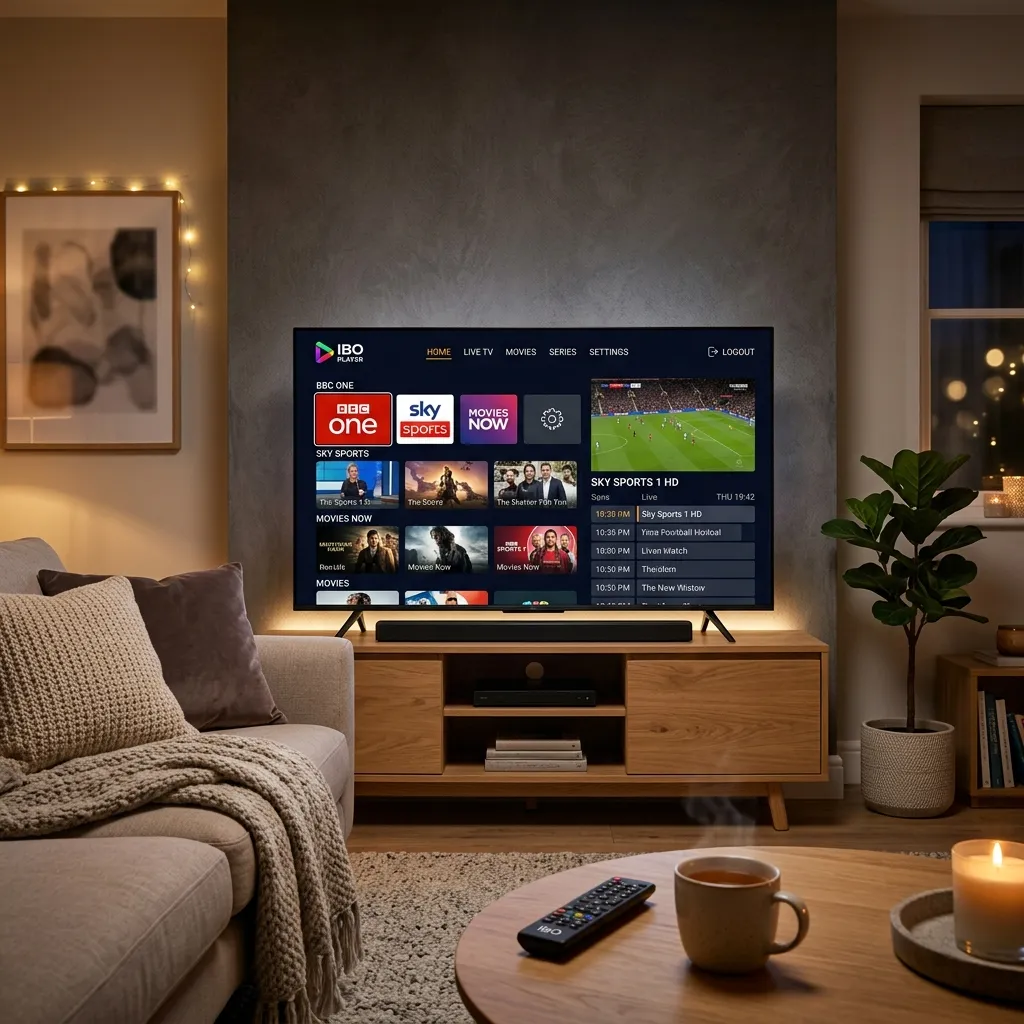
The world of streaming has evolved dramatically over the last few years. Gone are the days when traditional cable TV was the only option for consuming high-quality entertainment, live sports, and global news. With the advent of Internet Protocol Television (IPTV), cord-cutting has never been easier or more rewarding. Among the myriad of IPTV players available on the market today, IBO Player has rapidly emerged as one of the most reliable, feature-rich, and user-friendly media players specifically designed for Smart TVs. If you've been wondering how to use IBO Player on Smart TVs, you have come to the right place.
In this comprehensive, massive 3000+ word guide, we will walk you through absolutely everything you need to know about IBO Player. From understanding what it is and why it's highly recommended, to detailed, step-by-step installation guides for Samsung, LG, and Android Smart TVs. We'll also cover activation, adding playlists, exploring its premium features, and troubleshooting common issues. By the end of this guide, you will be an IBO Player expert, ready to maximize your home entertainment experience.
For the ultimate streaming experience, pairing a robust player like IBO Player with a premium IPTV Subscription from the Smartiflix Homepage is the best way to unlock thousands of live channels, movies, and TV shows in 4K and Full HD.
1. What is IBO Player?
IBO Player is a highly advanced, premium media player application designed specifically to stream IPTV content on Smart TVs. It acts as a bridge between your IPTV service provider and your television. It is important to clarify right from the start: IBO Player does not provide any media content or playlists of its own. It is purely a media player, much like VLC or Windows Media Player, but optimized for parsing and playing IPTV streams seamlessly.
The Mechanics of IBO Player
When you subscribe to an IPTV service, your provider typically gives you an M3U URL or Xtream Codes API credentials. These credentials contain the directory of all the live TV channels, Video on Demand (VOD) movies, and TV series that you are authorized to watch. You simply input these credentials into the IBO Player, and the application organizes, categorizes, and displays the content in a beautiful, easy-to-navigate graphical user interface (GUI).
Key Characteristics
- Platform Agnostic (to an extent): While incredibly popular on Smart TVs (Samsung Tizen and LG webOS), it is also available for Android devices, Fire TV devices, and Apple TV.
- Premium Nature: IBO Player is a premium app. It offers a 7-day free trial, allowing users to test its capabilities and ensure compatibility with their devices and IPTV playlists. After the trial period, a small, one-time activation fee is required to bind the device's MAC address to the app permanently.
- Fast and Lightweight: Unlike some clunky legacy IPTV players, IBO Player is engineered to be incredibly lightweight, ensuring fast channel zapping times, minimal buffering, and a lag-free menu navigation experience even on older Smart TV models.
2. Why Choose IBO Player for Smart TVs?
With dozens of IPTV players available, such as TiviMate, IPTV Smarters Pro, and Flix IPTV, you might wonder why IBO Player stands out, particularly for Smart TVs. Here are the most compelling reasons:
Exceptional User Interface and Experience (UI/UX)
One of the biggest hurdles for new IPTV users is navigating complicated, unintuitive menus. IBO Player solves this by offering a sleek, modern, and highly intuitive user interface. The categorization of Live TV, Movies, and Series is distinct and easy to navigate using a standard Smart TV remote control. The Electronic Program Guide (EPG) is beautifully integrated, making it simple to see what is currently playing and what is up next.
Superior Codec Support
Smart TVs often have distinct operating systems (like Tizen for Samsung or webOS for LG), and native media players can sometimes struggle with certain video and audio codecs. IBO Player comes with robust, built-in media engines (like ExoPlayer and VLC engine configurations) that ensure flawless playback of virtually any format, including 4K HEVC, H.264, AC3 audio, and more. This means less buffering, no "audio not supported" errors, and a pristine viewing experience.
Multi-Playlist Management
Many advanced IPTV users have multiple subscriptions—perhaps one for global sports and another for regional VOD content. IBO Player allows you to add and manage multiple playlists simultaneously. You can easily switch between different M3U links or Xtream Codes accounts without having to log out or delete your previous setup.
Parental Controls
For households with children, parental control is a non-negotiable feature. IBO Player offers a robust PIN-lock system. You can easily lock specific categories, live channels, or mature VOD content, ensuring your children only have access to age-appropriate entertainment.
Multi-Language and Subtitle Support
Whether you are watching an international film or simply prefer subtitles, IBO Player handles multi-language audio tracks and external/embedded subtitles flawlessly. You can switch audio tracks and subtitle languages on the fly while streaming.
Device Synchronization
By registering your device's MAC address on the IBO Player web portal, you can easily manage your playlists remotely from your smartphone or computer. This eliminates the tedious process of typing long, complex M3U URLs using a clunky TV remote.
If you are setting up your home theater and want to explore flexible packages, be sure to check our Pricing page to find the best IPTV plan that suits your family's needs.
3. Prerequisites: What You Need Before Starting
Before diving into the installation process, let’s ensure you have everything prepared. Being ready will make the setup process smooth and take less than 10 minutes.
1. A Compatible Smart TV
IBO Player is officially available on the application stores for:
- Samsung Smart TVs (Tizen OS, typically models from 2017 onwards)
- LG Smart TVs (webOS, generally models from 2016 onwards)
- Android TVs (Sony, Philips, TCL, Hisense models running Android TV/Google TV OS)
- Amazon Fire TV Devices (Although this guide focuses on Smart TVs, you can read our dedicated Firestick Setup guide for Amazon devices).
2. A Reliable Internet Connection
IPTV relies entirely on your internet connection. For optimal performance:
- Standard Definition (SD): 10 Mbps minimum
- High Definition (HD): 25 Mbps minimum
- 4K Ultra HD: 50+ Mbps minimum
Pro Tip: Whenever possible, connect your Smart TV directly to your router using an Ethernet cable rather than Wi-Fi. A hardwired connection drastically reduces latency, jitter, and buffering, providing a much more stable streaming experience.
3. An Active IPTV Subscription
As mentioned, IBO Player is an empty shell. You need content to put in it. Ensure you have an active subscription from a reliable provider. You will need one of the following from your provider:
- An M3U URL: A long web link that ends in
.m3uor.m3u8. - Xtream Codes API Credentials: This includes a Server URL, a Username, and a Password. (This is generally the preferred, faster, and more stable method).
If you haven't secured a high-quality provider yet, explore the top-tier options at Smartiflix IPTV.
4. A Secondary Device (Smartphone, Tablet, or PC)
You will need a secondary device with a web browser to visit the IBO Player management portal to upload your playlist. Typing URLs on a TV screen is frustrating; the web portal makes it effortless.
4. Step-by-Step Guide to Installing IBO Player on Samsung Smart TVs (Tizen OS)
Samsung dominates the Smart TV market, and installing IBO Player on their Tizen operating system is a straightforward process. Follow these exact steps:
Step 1: Power On and Connect
Ensure your Samsung Smart TV is powered on and connected to the internet.
Step 2: Access the Smart Hub
Press the Home button on your Samsung remote control to bring up the Smart Hub menu at the bottom of the screen.
Step 3: Navigate to 'Apps'
Using the directional pad on your remote, scroll to the left until you find the Apps icon (usually represented by four small squares) and press Enter/Select.
Step 4: Search for IBO Player
Once inside the App Store, navigate to the magnifying glass (Search icon) located in the top right corner of the screen. Using the on-screen keyboard, type "IBO Player".
Step 5: Install the Application
The IBO Player application should appear in the search results. Highlight the app, press Enter, and then select the Install button. The app is small in size, so installation should only take a few seconds depending on your internet speed.
Step 6: Launch and Retrieve Credentials
Once installed, open the app. Upon launching, you will be greeted by a welcome screen that displays two critical pieces of information:
- Device MAC Address (e.g.,
00:1A:2B:3C:4D:5E) - Device Key (e.g.,
123456)
Crucial Step: Take a clear photo of this screen with your smartphone or write down these two codes exactly as they appear. You will need them to activate the app and upload your playlist.
5. Step-by-Step Guide to Installing IBO Player on LG Smart TVs (webOS)
LG's webOS is widely celebrated for its magic remote and smooth interface. Here is how to get IBO Player running on your LG Smart TV:
Step 1: Access the Home Dashboard
Press the Home button on your LG Magic Remote to bring up the main dashboard menu.
Step 2: Open the LG Content Store
Scroll through the menu ribbon and locate the LG Content Store (sometimes just labeled 'Apps' on newer webOS versions). Click to open it.
Step 3: Use the Search Function
In the LG Content Store, navigate to the top right corner and click on the Search icon (magnifying glass).
Step 4: Locate IBO Player
Type "IBO Player" using the on-screen keyboard. Select the official IBO Player app from the drop-down results.
Step 5: Install and Launch
Click the Install button. Wait for the installation to complete, which typically takes under a minute. Once done, click Launch to open the app.
Step 6: Note Your Device Identifiers
Similar to the Samsung setup, the first screen you see will display your Device MAC Address and Device Key. Document these details carefully, as they are essential for the next steps in our guide.
6. Step-by-Step Guide to Installing IBO Player on Android TVs
If you own a Sony, Philips, TCL, Hisense, or a generic Android TV box (like Nvidia Shield or Xiaomi Mi Box), you are running the Android TV operating system. The process here leverages the Google Play Store.
Step 1: Open the Google Play Store
From your Android TV home screen, navigate down to the 'Apps' row or select the Google Play Store icon directly.
Step 2: Search for the App
Navigate to the top of the Play Store interface and select the Search icon. Use the voice search feature on your remote or the on-screen keyboard to search for "IBO Player".
Step 3: Install the App
Select the official IBO Player app from the search results (make sure the developer matches the official IBO team to avoid copycats). Click Install.
Step 4: Alternative Method (Sideloading via Downloader)
If, for some reason, IBO Player is not available in your region's Google Play Store, you can easily sideload it:
- Install the Downloader app from the Google Play Store.
- Open Downloader and go to Settings to 'Enable JavaScript'.
- Go to the Downloader Home tab and enter the official APK download link for IBO Player (often found on their official website or reputable APK mirrors).
- Download and install the APK. (Note: You may need to enable "Install from Unknown Sources" in your Android TV settings).
For more comprehensive sideloading techniques, check out our Installation Guide.
Step 5: Launch and Save Credentials
Open the app. You will see the standard welcome screen displaying your Device MAC Address and Device Key. Keep these safe.
7. How to Add IPTV Playlists to IBO Player (M3U & Xtream Codes)
Now that you have the app installed on your Smart TV and have noted your MAC Address and Device Key, it’s time to link your IPTV subscription to the player. You will do this using a web browser on your phone, tablet, or computer.
Step 1: Visit the Official IBO Player Portal
Open a web browser on your secondary device and go to the official IBO Player management website. The URL is typically displayed on the TV screen next to your MAC address (e.g., iboplayer.com/device/login).
Step 2: Log In to Your Device
On the web portal, you will see fields requesting your Device MAC Address and Device Key. Enter the exact characters you wrote down from your TV screen and click Login.
Step 3: Choose Your Playlist Method
Once logged in, you will be presented with a dashboard where you can manage your playlists. You have two main options: Add Playlist (M3U) or Add Xtream Playlist.
Method A: Adding an M3U URL
- Click on Add Playlist.
- Playlist Name: Enter a recognizable name (e.g., "Smartiflix Master", "Sports VIP").
- Playlist URL: Paste the massive M3U link provided by your IPTV service provider.
- Click Save.
Method B: Adding Xtream Codes (Highly Recommended)
Xtream Codes API is far superior to M3U links. It is faster, updates more reliably, and handles massive libraries of VOD and EPG data much better.
- Click on Add Xtream Playlist.
- Playlist Name: Give it a name.
- Host URL / Portal URL: Enter the server URL provided by your IPTV service (e.g.,
http://iptv-server.com:8080). - Username: Enter your assigned username.
- Password: Enter your assigned password.
- Click Save.
Step 4: Refresh the App on Your Smart TV
Return to your Smart TV. Using your remote, press the 'Refresh' button or exit and restart the IBO Player app. The app will now connect to your provider's server, download the channel list, EPG data, and VOD library. Depending on the size of the playlist, this initial load might take 30 to 60 seconds.
Congratulations! You should now see the vibrant, categorized interface of IBO Player, populated with Live TV, Movies, and Series.
8. How to Activate IBO Player
As mentioned earlier, IBO Player is a premium application. It usually comes with a free 7-day trial period from the moment you first open it. Once the trial expires, the app will lock, and you will not be able to access your playlists until you activate it.
Understanding the Activation
The activation fee is usually a small, one-time payment (often around €8 - €10) per device. This is NOT a subscription for TV channels. This is purely a license to use the software application. You still need an IPTV subscription from providers like Smartiflix to get content.
Activation Steps:
- Go back to the IBO Player website on your phone or PC.
- Navigate to the Activation page.
- Enter your Device MAC Address.
- Select your preferred payment method (Credit Card, PayPal, Crypto, etc., depending on what the official site supports).
- Complete the transaction.
- Once payment is confirmed, the MAC address is permanently registered. Restart the app on your Smart TV, and the trial expiration warning will disappear.
9. Exploring IBO Player Features
IBO Player isn’t just a basic media parser; it is packed with features designed to rival the capabilities of traditional high-end cable boxes. Here is how to use some of its best features:
1. The Electronic Program Guide (EPG)
The EPG is your TV guide. When you select a live TV channel, IBO Player will display what is currently airing and what is coming up next. To access the full guide, press the 'Guide' or 'Right/Left' directional buttons on your remote while watching a channel. Ensure your provider includes high-quality EPG data.
2. Catch-Up TV
If your IPTV provider supports Catch-Up, IBO Player can utilize it perfectly. Catch-Up allows you to watch shows that aired hours or days ago. Channels with Catch-Up enabled usually have a small clock icon next to them. Simply navigate to the past in the EPG and press play.
3. Favorites List Management
Scrolling through 15,000 channels to find ESPN or HBO is tedious. IBO Player allows you to create custom favorites lists.
- Highlight the channel you want to favorite.
- Press and hold the 'OK/Select' button on your remote, or press the dedicated color-coded button as indicated on the screen (often the 'Yellow' button).
- The channel will be added to your Favorites category, making it instantly accessible.
4. Adjusting Subtitles and Audio Tracks
When watching VOD (Movies or Series), press the 'OK/Select' button to bring up the playback menu. Navigate to the 'Settings' gear icon or the 'CC' (Closed Caption) icon. Here, you can switch between available audio languages and turn on subtitles, adjusting their size and color to your preference.
5. Parental Controls & PIN Lock
To lock adult content or specific categories:
- Go to the IBO Player main Settings.
- Select Parental Control.
- Create a 4-digit PIN.
- Select the categories or specific channels you wish to lock. Anyone trying to access these folders will now be prompted for the PIN.
10. Troubleshooting Common IBO Player Issues on Smart TVs
Even the best software can encounter hiccups. Here is a massive troubleshooting guide for the most common issues you might face while using IBO Player on your Smart TV.
Issue 1: "Playlist Not Loading" or "Authorization Failed"
- Check Typos: The most common cause is a typo in the Xtream Codes credentials or M3U URL. Go to the IBO web portal, delete the playlist, and re-enter the details very carefully. Pay attention to uppercase/lowercase letters and avoid accidental spaces at the end of URLs.
- Provider Outage: Your IPTV provider's server might be temporarily down. Check with your provider's support channels.
- ISP Blocking (Crucial): Many Internet Service Providers (ISPs), especially in the UK, USA, and Europe, actively block IPTV traffic during major sporting events. If your playlist works on mobile data but not on your home Wi-Fi, your ISP is blocking it. The solution is to use a reliable VPN on your router or Smart TV. For more on this, read our comprehensive Security Guide.
Issue 2: Buffering, Stuttering, or Freezing Streams
- Internet Speed: Run a speed test on your Smart TV. You need consistent speeds. A 100 Mbps connection is useless if it fluctuates heavily.
- Wi-Fi Interference: Move your router closer to the TV or, preferably, use an Ethernet cable. Wi-Fi signals degrade quickly through walls and interference from other electronics.
- Change the Stream Format: In IBO Player settings, try changing the built-in media player engine (e.g., switch from ExoPlayer to VLC engine or vice-versa). Sometimes one engine handles specific stream codecs better than the other.
- Clear App Cache: If your Smart TV allows it, go into the TV settings, find IBO Player, and clear the cache. This removes temporary files that might be causing the app to lag.
Issue 3: "Audio Format Not Supported"
- This occasionally happens on older Samsung and LG TVs with specific VOD movies using advanced audio codecs like Dolby TrueHD or DTS-HD.
- Go into your Smart TV’s core audio settings (not the IBO app, the TV itself) and ensure the audio output format is set to 'PCM' rather than 'Bitstream' or 'Auto'. This forces the TV to decode the audio into a universally supported format.
Issue 4: EPG (TV Guide) is Missing or Empty
- Ensure your provider actually supplies EPG data.
- If using an M3U, check if your provider requires a separate EPG URL, and add it in the IBO Player web portal.
- If using Xtream Codes, force an EPG update within the IBO Player app settings on your TV. Sometimes the daily automatic sync fails.
Issue 5: App Crashes or Freezes on Startup
- Uninstall and reinstall the app.
- Check if your Smart TV OS needs a firmware update.
- Ensure your TV has enough internal storage space. Smart TVs generally have very small storage capacities. Delete old, unused apps to free up memory.
11. Is IBO Player Safe and Legal?
When discussing IPTV, the topics of safety and legality inevitably arise. It is crucial to understand the distinction between the software and the content.
Legality
Yes, IBO Player is 100% legal. As stated earlier, IBO Player is merely a media playback tool. It is no different than downloading a web browser or a video player on your computer. It does not come pre-loaded with any channels, pirated streams, or illegal content.
The legality comes into question based on the IPTV service provider you choose to use with the app. Subscribing to an unauthorized service that rebroadcasts copyrighted material without a license is against the law in many jurisdictions. Always ensure you are using a reputable, legal IPTV provider.
Safety
The IBO Player application itself is safe. It is verified and hosted on the official Samsung, LG, and Google Play App Stores, which means it has passed their stringent security and malware checks.
However, your safety while streaming depends on your network. To protect your privacy, prevent ISP throttling, and secure your digital footprint, we highly recommend reading our guide: Is Smartiflix Safe?, which details the best security practices, including the use of Virtual Private Networks (VPNs).
12. Best Alternatives to IBO Player for Smart TVs
While IBO Player is fantastic, the IPTV ecosystem offers several excellent alternatives. If IBO Player doesn't quite fit your needs or isn't available in your specific app store region, consider these robust options:
1. TiviMate (Android TV Only)
TiviMate is widely considered the undisputed king of IPTV players for Android TV devices. Its UI mimics a premium cable box perfectly, it handles massive playlists with ease, and its recording features are unmatched. However, it is not available for Samsung Tizen or LG webOS.
2. IPTV Smarters Pro
A highly versatile, free application available on almost all platforms, including Samsung, LG, Android, iOS, and PC. It’s incredibly user-friendly and great for beginners. While the UI isn't as polished as IBO Player, its multi-screen viewing feature is a major plus.
3. Flix IPTV
Another premium player very similar to IBO Player. It features a Netflix-style interface, great subtitle integration, and is available across all major Smart TV platforms. It also requires a one-time activation fee after a trial period.
4. XCIPTV Player
Known for its robust performance and excellent handling of VOD content, XCIPTV is a popular choice for Android and Fire TV users. It has a built-in ExoPlayer and VLC Player and offers a highly customizable interface.
5. Smart IPTV (SIPTV)
One of the oldest IPTV players for Smart TVs. Its interface is quite dated and basic, but it is incredibly lightweight and reliable, especially on much older Smart TV models where newer, graphic-heavy apps might lag.
13. Advanced Tips and Tricks for IBO Player Users
To truly master IBO Player and get the absolute most out of your Smart TV streaming experience, consider implementing these advanced strategies:
1. Optimize Your Router Quality of Service (QoS)
If you live in a busy household where people are gaming, downloading files, and streaming simultaneously, your IPTV stream might suffer. Log into your router’s admin panel and enable QoS (Quality of Service). Set the MAC address or IP address of your Smart TV to the highest priority. This ensures that the TV always gets the bandwidth it needs first, eliminating buffering caused by local network congestion.
2. Regularly Clear VOD History
If you watch a lot of movies and TV shows, IBO Player keeps a track record so you can resume where you left off. Over time, this data can build up. Periodically clearing your watch history within the app settings can help maintain snappy navigation performance.
3. Utilize the Catch-Up Offset Feature
Sometimes, IPTV provider Catch-Up times are slightly out of sync with your local timezone, causing shows to start halfway through. Dive into IBO Player’s EPG settings and look for the EPG Time Offset or Catch-Up Offset feature. You can adjust this by +1 or -1 hours to perfectly align the guide with the recorded stream.
4. Create Household Profiles (If Supported)
While IBO doesn't have native "Netflix-style" profiles built into the frontend easily, you can mimic this. In the web portal, upload the exact same Xtream Codes API twice, but name them differently (e.g., "Dad's Profile", "Kids Profile"). You can then apply different parental control PINs and favorites lists to each specific playlist within the app.
14. Conclusion
Transforming your Smart TV into a boundless entertainment hub has never been easier thanks to applications like IBO Player. Its combination of a sleek interface, robust codec support, and easy playlist management via a web portal makes it a top-tier choice for any cord-cutter.
By following this massive, step-by-step guide, you should now know exactly how to use IBO Player on Smart TVs, from initial installation on Samsung, LG, or Android platforms, to uploading your playlists, activating the license, and troubleshooting common internet and stream issues.
Remember, the player is only as good as the content you feed it. To ensure you are getting the sharpest 4K streams, the most reliable live sports, and an endless VOD library without buffering, you need a premium provider. Head over to the Smartiflix Homepage to explore our top-rated services and elevate your viewing experience today. Happy streaming!
15. Frequently Asked Questions (FAQs)
Q: Does IBO Player include live TV channels? A: No. IBO Player is purely a media player software. It contains absolutely zero content. You must provide your own content by subscribing to an IPTV service and adding your M3U link or Xtream Codes API to the app.
Q: Is IBO Player totally free? A: No, it is a premium app. It offers a 7-day free trial so you can test its functionality. After 7 days, you must pay a small, one-time activation fee (usually around €8) on the official IBO website to keep using it.
Q: Can I use one IBO Player activation for multiple TVs? A: No. The activation is tied strictly to the unique Device MAC Address. If you have three Smart TVs in your house, you must pay the activation fee three times, once for each specific TV's MAC address.
Q: Why is my IBO Player buffering constantly? A: Buffering is almost never the fault of the IBO Player app itself. It is usually caused by:
- Slow or unstable internet connection (use an Ethernet cable!).
- Your Internet Service Provider (ISP) intentionally throttling IPTV traffic (use a VPN).
- Overloaded servers on the side of your IPTV provider.
Q: Can I install IBO Player on an Amazon Firestick? A: Yes. While it's not directly in the Amazon App Store, you can easily sideload it using the Downloader app. For a detailed walkthrough on setting up Fire devices, read our Firestick Setup Guide.
Q: How do I update the channels in IBO Player? A: If you added your playlist via Xtream Codes API, IBO Player will automatically update your live channels and VOD library every time you open the app. You can also manually refresh the playlist within the app's settings menu.
Q: I lost my Device Key; how can I log into the web portal? A: Simply open the IBO Player app on your Smart TV. The Device MAC Address and the current Device Key are almost always displayed on the main startup screen or within the app's 'Account' or 'Settings' section.
Q: Can I change the language of the IBO Player interface? A: Yes, IBO Player supports multiple languages. You can change the main menu language by navigating to the app's Settings menu, selecting 'Language,' and choosing your preferred option.
Q: Is it possible to record live TV on IBO Player? A: Currently, native recording to local Smart TV storage is very limited or unsupported on IBO Player due to the hardware constraints of most Smart TVs. For heavy recording features, Android TV boxes using apps like TiviMate are recommended.