Update IPTV Playlist URL Automatically for Seamless Streaming
Learn how to automatically update your IPTV playlist URL across devices like Firestick and Smart TVs. Ensure uninterrupted streaming with our step-by-step guide!
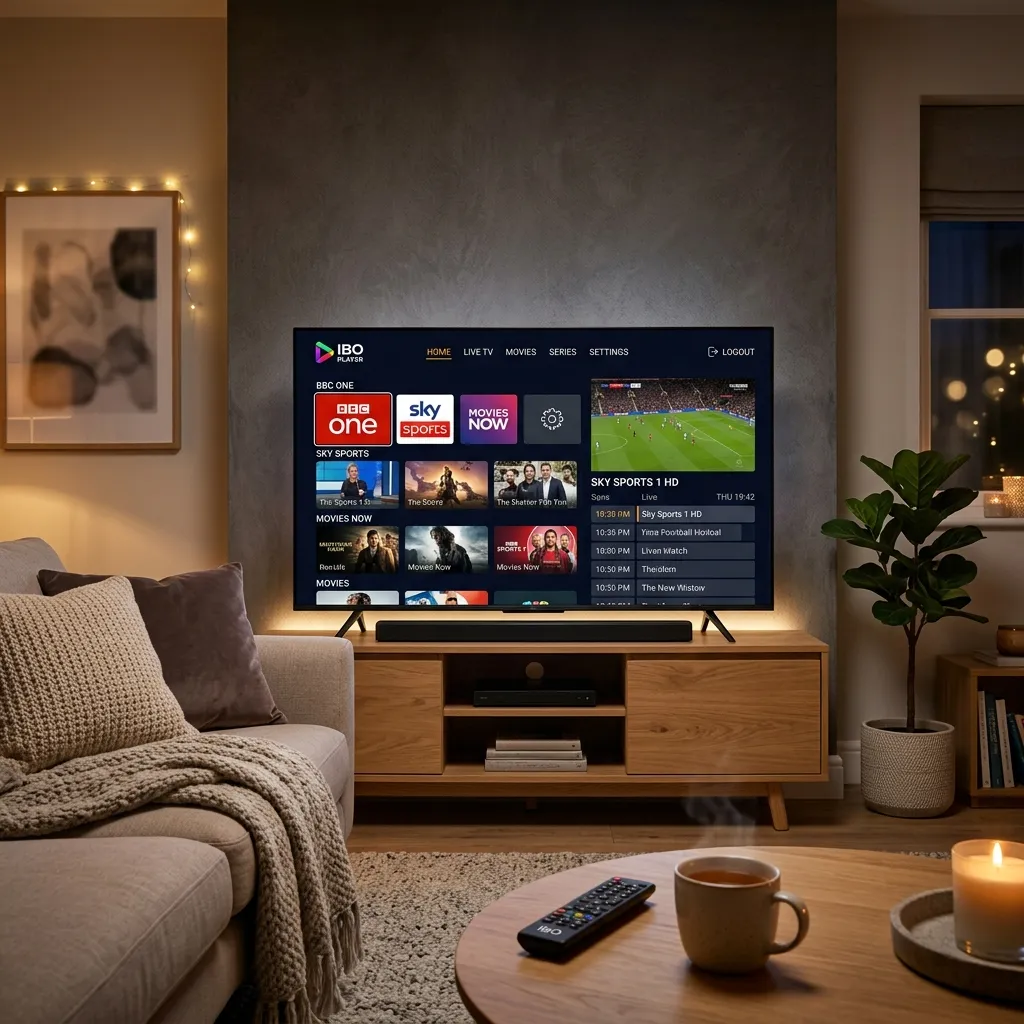
The world of cord-cutting has revolutionized the way we consume television. No longer are we tethered to expensive, rigid cable contracts. Instead, we have the freedom to explore vast libraries of live television, movies, and series through Internet Protocol Television (IPTV). But as any seasoned cord-cutter knows, maintaining an IPTV setup requires a bit of know-how. One of the most critical aspects of ensuring a flawless, uninterrupted viewing experience is understanding how to keep your channel list current. If you've ever turned on your TV only to find empty channel categories, missing electronic program guides (EPG), or streams that simply won't load, you've encountered the frustration of an outdated playlist. In this massive, comprehensive guide, we are going to dive deep into exactly how to update IPTV playlist URL automatically, ensuring you never miss a moment of your favorite sports, news, or entertainment.
Whether you are using a dedicated set-top box, a smart TV, an Android device, or an Amazon Firestick, setting up your IPTV app to refresh on its own is the secret to a zero-maintenance entertainment hub. By the end of this guide, you will be equipped with the knowledge to configure the industry’s top applications—such as TiviMate, IPTV Smarters Pro, GSE Smart IPTV, and more—so they handle the heavy lifting for you. We will also explore the underlying technology of M3U links and the Xtream Codes API, troubleshoot common update failures, and ensure your setup is secure.
If you are new to the world of IPTV or looking for a more reliable, premium provider that makes automatic updates a breeze, be sure to check out our ultimate Smartiflix IPTV service or visit the Smartiflix Homepage to see how we are changing the game.
1. Understanding the Anatomy of an IPTV Playlist
Before we can automate the update process, it is essential to understand what exactly an IPTV playlist is and how it communicates with your device. At its core, an IPTV playlist is a simple text file or a dynamic URL that contains a directory of multimedia streams. It tells your IPTV player where to find the video and audio feeds on the internet.
What is an M3U Playlist?
The most common format for an IPTV playlist is the M3U (MP3 URL) file. Originally designed for audio files, the M3U format was adopted for video streaming because of its simplicity. When you subscribe to an IPTV provider, you are typically given a long web address that ends in .m3u or .m3u8. This URL points to a file hosted on the provider’s server.
An M3U file contains two main types of lines:
- Directives: Lines starting with
#EXTINFthat provide metadata about the stream, such as the channel name, logo URL, and category grouping. - Stream URLs: The actual web address of the live stream or video-on-demand (VOD) file.
Example of an M3U snippet:
#EXTM3U
#EXTINF:-1 tvg-id="CNN" tvg-logo="http://example.com/logo/cnn.png" group-title="News",CNN International
http://server-address.com:8080/live/username/password/12345.ts
Static Files vs. Dynamic URLs
There is a crucial distinction between downloading an M3U file to your device and using an M3U URL.
- Static M3U File: If you download the
.m3ufile to your computer or USB drive and upload it to your IPTV player, you are using a static file. A static file cannot update automatically. If your provider adds new channels, changes a stream URL, or updates the VOD library, your static file will remain unchanged, leading to dead links. - Dynamic M3U URL: When you input the full HTTP link into your IPTV player, the player downloads the playlist from the server in real-time. This dynamic link allows the player to fetch the latest version of the playlist every time an update is triggered.
[!IMPORTANT] To enable automatic updates, you must use a dynamic URL or an API login method, never a downloaded static file.
The Rise of the Xtream Codes API
While M3U URLs are standard, they are notoriously long and difficult to type using a TV remote. Enter the Xtream Codes API. This system simplifies the login process by breaking the connection details into three easy-to-manage parts:
- Server URL (Portal URL): e.g.,
http://server-address.com:8080 - Username: e.g.,
user123 - Password: e.g.,
pass456
When you use the Xtream Codes login method, your IPTV app connects directly to the provider's database. This method is highly recommended because it is natively designed for automatic, seamless syncing. Your app can query the server for channel changes, EPG updates, and VOD additions with extreme efficiency.
If you are looking for a service that fully supports dynamic M3U and Xtream Codes API for flawless auto-updating, take a look at our Smartiflix Pricing plans to find a package that suits your needs.
2. Why Manual Updates Are Obsolete: The Benefits of Automation
You might wonder why taking the time to set up automatic updates is necessary. Why not just refresh the playlist when a channel goes down? Relying on manual updates is a fast track to a frustrating viewing experience. Here is why automating the process is a game-changer.
Constant Provider Maintenance
Premium IPTV providers are constantly working behind the scenes. They are actively adding new channels, updating existing streams for better quality (e.g., swapping a 720p stream for a 1080p or 4K stream), and removing dead links. If your app is not set to auto-update, you will simply lose access to these channels as the backend URLs change. This results in channels continuously buffering or throwing playback errors.
Video on Demand (VOD) Expansion
A massive benefit of a top-tier IPTV service is the VOD library—movies and TV series on demand. Providers upload new episodes and blockbuster movies daily. If your playlist doesn't automatically refresh, you won't see the newly added content until you manually force an update. Automation ensures your library is always populated with the newest releases.
The Electronic Program Guide (EPG)
The EPG is your TV guide. It tells you what is playing now and what is coming up next. EPG data is usually only generated for a few days in advance due to the sheer size of the data files. If your playlist and EPG are not automatically syncing every 24 hours, you will eventually face a blank TV guide, making it impossible to see the schedule, plan viewing, or schedule DVR recordings.
Eradicating Buffering and Dead Links
Often, a channel will buffer because the original stream source has become unstable, and the provider has migrated that channel to a new, stable server. Your app needs to pull the new playlist to get the updated, stable link. Auto-updating ensures you always have the most optimized route to the content, minimizing buffering and playback interruptions.
| Feature | Manual Updates | Automatic Updates |
|---|---|---|
| New Channels | Only visible after manual refresh | Appear seamlessly in the background |
| VOD Additions | Delayed access | Instant access upon app launch |
| EPG Accuracy | Frequently blank or outdated | Always current and accurate |
| User Experience | Frustrating, requires technical intervention | Smooth, zero-maintenance, "cable-like" feel |
By taking five minutes today to configure your app properly, you are investing in hundreds of hours of frustration-free entertainment. Need help getting the initial setup running? Check out our comprehensive Smartiflix Installation guide.
3. How Automatic Updates Work Under the Hood
To configure your device properly, it helps to understand what the app is actually doing when it "updates."
When you enable auto-updating, you are configuring a polling interval. This is a set schedule telling your IPTV player, "Every X hours, or every time the app opens, send a request to the provider's server and ask for the latest M3U file or Xtream API database."
The player then downloads the new data, compares it against the locally cached data, and overwrites the old information. It rebuilds the channel categories, updates the logos, and maps the EPG data to the correct channels.
The Golden Rule of Update Intervals
While it might be tempting to set your app to update every 10 minutes to ensure you never miss a thing, do not do this.
Aggressive polling puts immense strain on your IPTV provider's servers. If thousands of users update every 10 minutes, the server can crash, leading to downtime for everyone. Furthermore, many providers employ anti-DDoS (Distributed Denial of Service) protection or firewalls that will temporarily ban your IP address if it detects you pinging the server too frequently.
Recommended Best Practices for Polling Intervals:
- Update on App Start: This is the most efficient setting. Every time you launch the app, it fetches the latest data. Since you aren't using the app when it's closed, there's no need for background polling.
- Daily Updates (Every 24 Hours): If you leave your device running 24/7, setting a once-a-day update is perfect.
- Avoid: Intervals shorter than 12 hours unless specifically instructed by your provider.
4. Setting Up Auto-Updates on TiviMate (Firestick & Android TV)
TiviMate is widely considered the gold standard for IPTV players on Android and Fire OS devices. Its sleek, cable-like interface is unparalleled, and its handling of playlist updates is incredibly robust. If you are using a Firestick, TiviMate combined with our service is an unbeatable combo. (Learn more about optimizing your Amazon device in our Smartiflix Firestick Setup guide).
Here is exactly how to ensure TiviMate keeps your playlist and EPG perfectly synced.
Step-by-Step Guide for TiviMate Playlist Updates:
- Open TiviMate and navigate to the live TV screen.
- Press the Left directional button on your remote to open the main menu panel.
- Scroll down and select Settings (the gear icon).
- Select Playlists.
- Click on the name of your specific playlist (e.g., "Smartiflix").
- Scroll down to the section labeled Update playlist.
- Here, you have several crucial toggles:
- Update on app start: Toggle this ON. This ensures that every time you sit down to watch TV and open TiviMate, it pulls the freshest data.
- Auto-update playlist: Toggle this ON. This enables background updating based on a timer.
- Update interval (hours): Click this and set it to 24. As discussed, once a day is optimal.
- Press the Back button to save these settings.
Step-by-Step Guide for TiviMate EPG Updates:
The TV Guide requires its own update settings.
- From the main Settings menu, select EPG.
- Scroll to the Update EPG section.
- Toggle Update on app start to ON.
- Toggle Update on playlist change to ON. This ensures that if the channel list changes, the guide adapts immediately.
- Set the Update interval (hours) to 24.
- Set Days to keep EPG to 1 or 2 to save storage space on your device.
[!TIP] If you are experiencing storage issues on your Firestick, setting the EPG retention to 1 day and turning off "Store VOD data" can free up hundreds of megabytes while still keeping your live TV perfectly updated.
5. Setting Up Auto-Updates on IPTV Smarters Pro
IPTV Smarters Pro is one of the most versatile and universally compatible apps available. It works on Android, iOS, Windows, Mac, and various Smart TVs (Samsung Tizen, LG WebOS). Its layout naturally favors the Xtream Codes API, making it an excellent choice for automatic syncing.
Enabling Auto-Updates in Smarters Pro:
- Launch IPTV Smarters Pro and log in to your profile.
- From the main dashboard (where you see Live TV, Movies, Series), look for the Settings icon (usually a gear in the top right corner).
- Select General Settings.
- Look for the toggle labeled Auto Update Live TV, VOD, and Series.
- Switch this toggle to the ON position.
- Click Save Changes.
Unlike TiviMate, Smarters Pro simplifies the process by rolling everything into one toggle. Whenever you open the app or transition between main menus, Smarters Pro will briefly communicate with the server to check for structural changes.
Manually Forcing an Update on Smarters Pro
Even with auto-update enabled, sometimes you need to force a refresh if you know a massive update just dropped (like a PPV event being added).
- On the main dashboard, look for the circular arrow icon in the top right corner.
- Clicking this icon will manually trigger an immediate download of the latest channels, movies, and series.
- Alternatively, you can click on the Install EPG button at the bottom of the screen to manually pull the latest TV guide data.
6. Automating Updates on GSE Smart IPTV
GSE Smart IPTV is a veteran application that is highly popular among Apple TV, iOS, and macOS users, though it is also available on Android. It is slightly more complex than Smarters Pro but offers deep customization, particularly for users managing multiple playlists simultaneously.
Configuring GSE for Automatic Updates:
- Open GSE Smart IPTV.
- Tap the hamburger menu (three horizontal lines) in the top left corner.
- If you use an M3U URL, select Remote Playlists. If you use Xtream Codes, select Xtream-Codes API.
- Find your existing playlist in the list.
- Tap the three vertical dots (options menu) next to your playlist name.
- Select Edit.
- Look for a setting named Auto Update.
- GSE usually allows you to select an interval. Choose Every 1 Day or On App Start.
- Tap Save or Update.
For the EPG in GSE Smart IPTV:
- Go back to the main menu and select EPG Program Guide.
- Tap the options menu next to your EPG source.
- Set the update interval to 1 Day.
- Check the box to allow updates over mobile data if you use GSE on your smartphone while commuting.
7. Smart IPTV (SIPTV) App on Samsung and LG Smart TVs
The Smart IPTV app (often referred to by its icon, SIPTV) is a staple for users operating directly through their Samsung or LG Smart TV app stores, eliminating the need for an external streaming device like an Android box.
Updating playlists on SIPTV is handled a bit differently because the app relies heavily on a web-based portal to manage playlists. Your TV's MAC address links directly to their backend server.
How to Ensure Your SIPTV Playlist Stays Current:
When you initially set up SIPTV, you visit their website (siptv.app/mylist/), enter your TV's MAC address, and input your M3U URL.
- The Critical Step: When entering your M3U URL on the SIPTV website, there is a checkbox next to the URL field labeled "Save online" or "Keep Online".
- You MUST check this box.
- If you upload a static downloaded M3U file, or if you uncheck the "Keep Online" box, the SIPTV app will download the playlist to the TV's limited internal memory and it will never update dynamically.
- By inputting the dynamic M3U URL and checking "Keep Online," the SIPTV app will fetch the latest version of the playlist directly from your provider's server every single time you restart the app on your TV.
[!WARNING] Smart TVs have very limited processing power and memory. If your IPTV provider offers a massive playlist (e.g., 100,000+ channels and VODs), the SIPTV app may crash or fail to update. It is highly recommended to ask your provider to filter your playlist to only include the countries and VOD categories you actually watch before linking it to SIPTV.
8. Formuler Devices and MYTVOnline 2 & 3
Formuler devices are premium, dedicated IPTV set-top boxes. They come with an exclusive, highly optimized software called MYTVOnline (versions 2 or 3 depending on the hardware). These devices emulate the traditional MAC-address-based portals (Stalker Middleware) as well as Xtream Codes, offering an incredibly seamless, cable-box-like experience.
Because MYTVOnline is designed from the ground up for IPTV, its automatic update functionality is deeply integrated and handles massive lists with ease.
Setting Up Updates on MYTVOnline:
- Open MYTVOnline.
- Press the Menu button on your Formuler remote.
- Navigate to Connections or Portals.
- Select your active portal and choose Edit.
- Scroll down to the Update settings.
- Ensure that Auto Update is enabled.
- Set the EPG Update Interval to 1 Day.
- Save your settings.
MYTVOnline 3 takes this a step further with background syncing, meaning even when the box is in standby mode, it periodically wakes its network interface to pull EPG and playlist updates so that it is instantly ready the moment you turn the TV on. It also performs background channel logo caching, dramatically speeding up the UI.
9. Advanced Playlist Management: Using M3U Editors
As the IPTV industry has evolved, playlists have become massive. A standard premium subscription might include 20,000 live channels and 80,000 VOD entries. Downloading this massive file every day can bog down your device and cause automatic updates to fail or timeout.
To solve this, many advanced users employ M3U Editors like M3U4U or IPTVBoss.
How an M3U Editor Helps with Auto-Updating:
- The Middleman: You take your provider's massive M3U URL and input it into an online M3U editor service.
- Filtering: Inside the editor, you delete all the countries you don't watch. You remove foreign language VODs, leaving only the exact 500 channels and specific VOD categories you care about.
- The New URL: The editor generates a new, unique dynamic URL for your customized, lightweight list.
- Auto-Sync: You put this new, lightweight URL into TiviMate or Smarters.
- The Magic: The M3U editor automatically pulls the giant update from your provider every day, filters it according to your rules, and hosts the lean file. Your TV app automatically pulls the lean file from the editor.
This strategy ensures lightning-fast, failure-proof automatic updates because your app is only downloading a fraction of the data. This is an incredible workaround for older Firesticks and Smart TVs with limited RAM.
10. Troubleshooting Common Playlist Update Failures
Even with auto-updates configured perfectly, you may occasionally run into issues where the playlist fails to refresh, leaving you with outdated channels or a blank screen. Here is a massive troubleshooting matrix to help you diagnose and resolve these issues.
1. ISP Blocking and Throttling
The Problem: You try to update the playlist, but the app throws a "Network Error," "Download Failed," or "Check your internet connection" error, despite your internet working perfectly on other devices. The Cause: Internet Service Providers (ISPs), particularly in the UK, USA, and parts of Europe, actively block connections to known IPTV servers, especially during major live sporting events. Your ISP is intercepting the playlist update request and killing it. The Solution: You must use a Virtual Private Network (VPN). A VPN encrypts your traffic and routes it through an intermediary server, hiding the destination from your ISP. Connect to a VPN server, restart your IPTV app, and the update should succeed instantly. For more details on protecting your connection, read our guide: Is Smartiflix Safe?.
2. Provider Server Maintenance
The Problem: The playlist update hangs at 50% or times out. The Cause: Your IPTV provider is currently rebooting their servers, migrating databases, or suffering an outage. The Solution: Patience. Server maintenance usually takes less than an hour. Do not delete your playlist or factory reset your app. Check your provider's Telegram, Discord, or support page for status updates.
3. App Cache Corruption
The Problem: The app says the playlist updated successfully, but the new channels are not showing up, or the EPG remains completely blank. The Cause: The app's internal cache is storing old data and refusing to display the newly downloaded data. The Solution (Android/Firestick):
- Go to your device's main Settings menu (not the IPTV app settings).
- Select Applications > Manage Installed Applications.
- Find your IPTV app (e.g., TiviMate, Smarters).
- Select Force Stop.
- Select Clear Cache (Do NOT click Clear Data, or you will delete your login details).
- Relaunch the app and manually trigger an update.
4. Expired Subscription
The Problem: Authentication fails, or the update returns a "401 Unauthorized" or "Account Expired" error. The Cause: Your IPTV subscription has run out. When the app tries to pull the dynamic URL, the server rejects the login credentials. The Solution: Renew your subscription. If you are looking for a reliable provider, view the amazing packages available at Smartiflix Pricing and upgrade your entertainment experience.
5. URL Typo (The Most Common Error for Beginners)
The Problem: The very first time you set up the app, the playlist fails to download. The Cause: A typo in the M3U URL or the Xtream Codes portal address. A single mistaken character (e.g., a capital 'I' instead of a lowercase 'l', or a missing colon) will break the entire link. The Solution: Double-check every single character. Better yet, use a companion app like the Fire TV remote app on your smartphone to copy and paste the URL directly, eliminating human error.
11. Security, Privacy, and Safe Streaming Practices
Automating your IPTV updates means your device is routinely pinging a remote server. While this is standard practice, it is vital to ensure you are engaging in safe streaming habits.
Exposing Your IP Address
Every time your device polls the IPTV server for an update, your home IP address is logged by the provider's server. If your provider is compromised, or if your ISP is monitoring traffic, your streaming habits can be tracked.
Why a VPN is Mandatory for IPTV:
- Encryption: A VPN wraps your IPTV update requests and video streams in a layer of military-grade encryption. Your ISP can see that you are downloading data, but they cannot see what the data is or where it is coming from.
- Bypassing Geo-Blocks: Sometimes a provider's server is blocked in your specific country. Changing your VPN location allows the update to pass through.
- Preventing Throttling: If your ISP detects heavy video streaming, they may artificially slow down your connection, leading to buffering. A VPN masks the type of traffic, preventing targeted throttling.
Trusted Providers vs. Free Lists
You might find "Free Daily M3U Playlists" on forums or sketchy websites. These free lists are notorious for dying within 24 hours (which is why people constantly search for auto-update methods for them). More importantly, these free servers can be malicious, tracking your data or serving corrupted files.
Investing in a premium, closed-server provider like Smartiflix IPTV ensures that the server you are automatically communicating with is secure, maintained professionally, and free from malicious injection.
Read our comprehensive security breakdown here: Is Smartiflix Safe?.
12. Frequently Asked Questions (FAQ)
To wrap up this ultimate guide, let's address some of the most common questions regarding IPTV playlist updates.
Q: Can I set my playlist to update every hour so I don't miss anything? A: You can in some apps, but you shouldn't. Updating every hour is completely unnecessary and puts a heavy load on the provider's servers. EPGs and channel rosters do not change that frequently. Setting it to update "On App Start" or every 24 hours is the most efficient, polite, and effective method.
Q: My M3U link is too long to type into my TV. What can I do? A: Use a URL shortener like Bitly, or better yet, ask your provider for your Xtream Codes API login credentials. Xtream Codes only requires a short portal URL, a username, and a password, making it far easier to type and less prone to errors.
Q: If I use a static M3U file, can I write a script to auto-update it?
A: For average users, no. While advanced users can use tools like curl and cron jobs on a dedicated server to fetch and rewrite local M3U files, it completely defeats the purpose of modern IPTV apps. Simply inputting the dynamic URL into your player accomplishes exactly what a complex script would do, with zero coding required.
Q: Why does my EPG say "No Information" even after a successful playlist update? A: The playlist (which contains the channels) and the EPG (which contains the TV guide data) are often hosted on two different URLs or databases. If your channels updated but your EPG is blank, you need to manually refresh the EPG source in your app settings. If it still fails, your provider's EPG server may be temporarily down.
Q: Does updating the playlist use a lot of internet data? A: No. An M3U text file or an API JSON response is very small, typically ranging from a few kilobytes to around 20 megabytes, depending on the size of the channel list. Updating daily will not impact your internet data cap.
Q: Will auto-updating my playlist delete my Favorite channels? A: In almost all premium apps like TiviMate and Smarters Pro, your favorites are completely safe. The app maps your favorites by the hidden Channel ID or exact Channel Name. When the playlist updates, the app re-links the fresh stream URL to your saved favorite. The only time a favorite will disappear is if the provider completely deletes the channel from their network.
Q: What do I do if my provider changes their Server Portal URL? A: Providers occasionally migrate servers and change their root portal URL. In this scenario, automatic updates will fail with a "Host Not Found" error. You will need to go into your app settings, edit the playlist details, manually update the old URL to the new one provided by your service, and then manually trigger an update to reconnect the auto-sync.
Q: How do I update the channel logos (picons)? A: Channel logos are embedded inside the M3U code or delivered via the API. When you automatically update your playlist, the app will scan for new logo links and download them. If logos are missing after an update, clear your app's cache (as explained in the troubleshooting section) and force a manual playlist update to redownload the image assets.
Q: Can I manage multiple IPTV subscriptions and update them all automatically? A: Yes! Advanced apps like TiviMate Premium allow you to add multiple playlists. You can set independent update rules for each one. For example, Playlist A can update on App Start, while Playlist B updates every 24 hours. The app will merge the EPG data for a seamless viewing experience.
Q: Does Smartiflix support automatic playlist updates? A: Absolutely. Smartiflix utilizes top-tier, robust servers built specifically for high availability. Both our dynamic M3U URLs and Xtream Codes API endpoints are fully optimized to communicate instantly with any major IPTV application, ensuring your channel list and EPG are always perfectly synced with zero downtime.
13. Conclusion
The beauty of a premium IPTV setup lies in its ability to replicate and exceed the traditional cable TV experience at a fraction of the cost. However, the key to unlocking that "cable-like" seamlessness is automation. By taking the time today to configure your favorite app—be it TiviMate, IPTV Smarters Pro, or MYTVOnline—to update your playlist URL and EPG automatically, you are guaranteeing that your entertainment hub will always be ready when you are.
You will never have to miss a blockbuster VOD release, suffer through dead channel links, or stare at a blank TV guide ever again. Remember to adhere to the best practices: use dynamic URLs or Xtream Codes API, set reasonable update intervals (like 24 hours or on app launch), and always protect your connection with a reliable VPN.
If you are tired of dealing with low-quality providers that require constant manual tweaking, it is time to upgrade. At Smartiflix, we pride ourselves on delivering rock-solid server stability, massive VOD libraries, and seamless integration with all major IPTV applications.
Ready to transform your television viewing experience? Head over to the Smartiflix Homepage to learn more, check out our Smartiflix Pricing to find the perfect package, and join the revolution of hassle-free, premium streaming today!