IPTV Setup on Roku Devices: Complete Guide for 2026
Discover how to setup IPTV on Roku devices in 2026 with our detailed guide. Unlock seamless streaming and entertainment like never before!
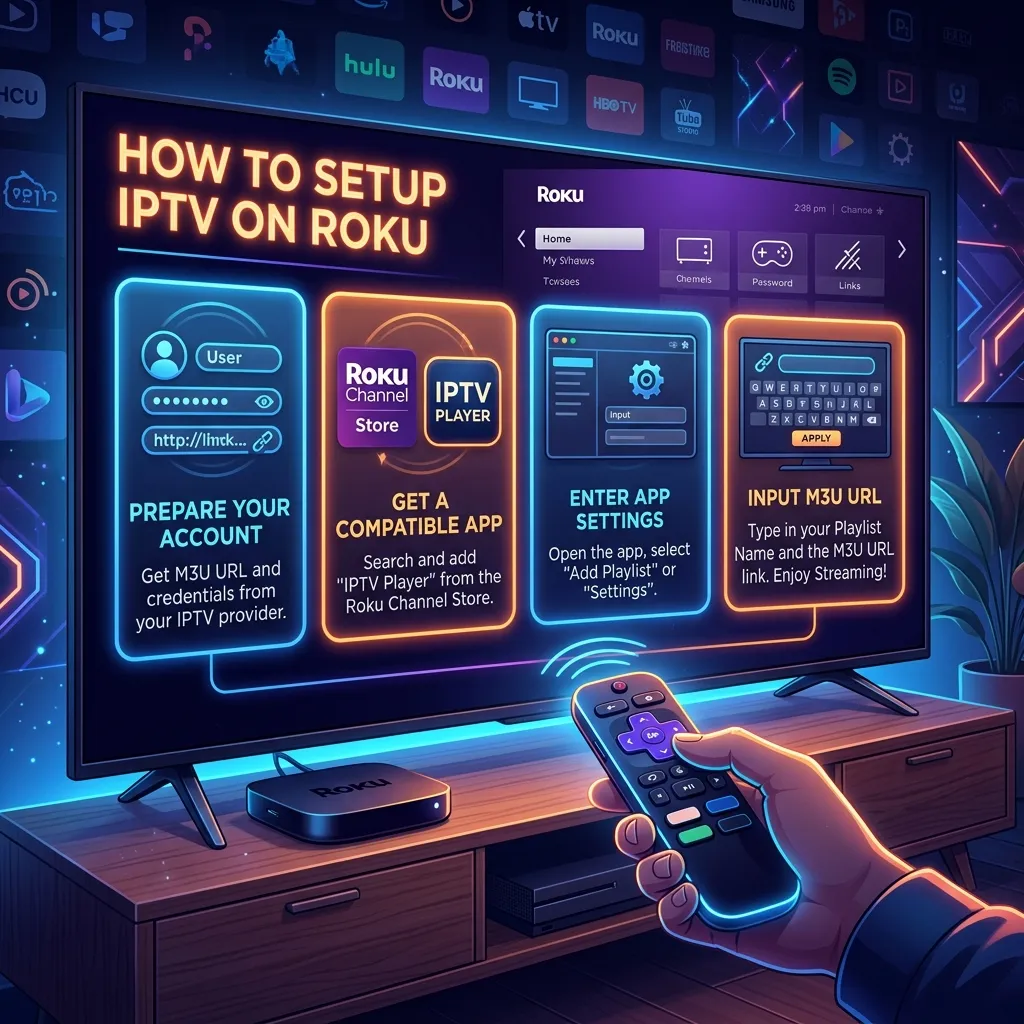
Welcome to the ultimate, definitive guide on how to setup IPTV on Roku devices in 2026. The world of digital entertainment is evolving faster than ever, and finding the perfect synergy between your streaming hardware and your content provider is the key to unlocking an unparalleled viewing experience. If you own a Roku device—whether it’s a Roku Express, a Roku Streaming Stick 4K, a powerful Roku Ultra, or an integrated Roku TV—you already have an incredible piece of hardware. However, out of the box, Roku’s closed ecosystem can make accessing Internet Protocol Television (IPTV) seem like a daunting challenge.
In this exhaustive 3000+ word guide, we are going to demystify the process. We will walk you through every possible method to stream high-quality IPTV content on your Roku device, explore the nuances of the Roku operating system, and demonstrate how you can integrate world-class services directly to your screen. From screen mirroring and casting to enabling developer options for sideloading, no stone will be left unturned.
By the time you finish reading, you will be a Roku power user, ready to bypass standard restrictions and enjoy limitless live TV, movies, and series. And if you are looking for the absolute best content to stream once your setup is complete, look no further than the Smartiflix Homepage. We provide a premium viewing experience designed for the modern cord-cutter.
Table of Contents
- Understanding the Roku Ecosystem in 2026
- What is IPTV and Why Choose It?
- The Challenge: Why Roku Makes IPTV Difficult
- Prerequisites: Getting Ready for the Setup
- Method 1: The Screen Mirroring Approach
- Method 2: Using Casting Applications (Web Video Caster)
- Method 3: Sideloading via Developer Mode
- Integrating Your Smartiflix Subscription
- Comparing Roku to Other Streaming Devices
- Optimizing Your Roku for the Best Streaming Quality
- Troubleshooting Common Roku IPTV Issues
- Frequently Asked Questions (FAQ)
- Conclusion
Understanding the Roku Ecosystem in 2026
Roku has maintained its position as one of the most popular streaming platforms in the world. Its user-friendly interface, affordable hardware, and massive library of official channels have made it a staple in millions of living rooms. In 2026, the Roku OS is faster, more refined, and more integrated with smart home ecosystems than ever before.
The Roku Hardware Lineup
Before we dive into the setup methods, it is helpful to identify which device you are using, as processing power can affect the smoothness of your IPTV experience:
- Roku Express / Express 4K+: The entry-level devices. Perfect for standard streaming but can occasionally stutter if you are casting massive 4K IPTV streams from an older smartphone.
- Roku Streaming Stick 4K: A massive upgrade in Wi-Fi connectivity and processing power. Excellent for all IPTV methods discussed in this guide.
- Roku Ultra: The flagship model. It features an Ethernet port, expanded storage, and the fastest processor. If you are serious about IPTV and want zero buffering, this is the device to use.
- Roku TVs (TCL, Hisense, etc.): Televisions with the Roku OS built directly into the hardware. They function exactly like the standalone players but free up an HDMI port.
Regardless of the device you own, the operating system under the hood is fundamentally the same, meaning the methods we outline below will work across the board.
What is IPTV and Why Choose It?
Internet Protocol Television (IPTV) is the delivery of television content over IP networks. Instead of relying on traditional terrestrial, satellite, or cable television formats, IPTV streams media continuously, allowing you to play media seamlessly as it downloads.
The Shift from Traditional Cable
The mass exodus from traditional cable providers is driven by three main factors:
- Cost: Cable subscriptions have skyrocketed. IPTV provides thousands of channels at a fraction of the cost. Check out our Pricing page to see how much you can save annually.
- Choice: Traditional cable limits you to local and national broadcasts. IPTV opens the door to international channels, bespoke sports packages, and massive Video on Demand (VOD) libraries.
- Convenience: You can watch IPTV on your phone, tablet, PC, or smart TV. Your content travels with you.
By choosing a reliable provider like Smartiflix, you get access to an optimized, buffer-free experience that traditional providers simply cannot match. Learn more about our flagship offerings on the Smartiflix IPTV page.
The Challenge: Why Roku Makes IPTV Difficult
If IPTV is so fantastic, why isn't there a straightforward "IPTV Smarters" or "TiviMate" app on the Roku Channel Store?
The answer lies in Roku's strict content policies. Roku operates a "walled garden." To prevent copyright infringement and maintain strict quality control, Roku regularly purges generic M3U playlist players and IPTV applications from its official store. Unlike Android-based devices where you can easily toggle "Install from Unknown Sources" and download an APK file, Roku uses a proprietary operating system built on custom C/C++ and BrightScript.
Because of this, you cannot simply download an APK to a Roku device. However, "difficult" does not mean "impossible." The streaming community is highly resourceful, and there are several robust, reliable methods to get your IPTV streams playing beautifully on your Roku screen.
Prerequisites: Getting Ready for the Setup
Before attempting any of the setup methods, you must ensure your digital environment is prepared. Skipping these steps can lead to frustrating playback issues, buffering, or security risks.
1. Secure Your Connection
When streaming IPTV, privacy and security should be your top priority. ISPs (Internet Service Providers) often throttle streaming traffic, leading to endless buffering during high-traffic events like live sports. We highly recommend understanding the security implications of streaming. Read our comprehensive guide on this topic: Is Smartiflix Safe?.
Pro Tip: Always use a reputable VPN when streaming IPTV. Not only does it protect your data, but it also masks your traffic from your ISP, ensuring you get the full bandwidth you pay for.
2. Network Stability
IPTV requires a continuous, stable connection.
- For HD Streams (1080p): You need a minimum of 15-20 Mbps stable download speed.
- For 4K Streams: You need a minimum of 50 Mbps stable download speed.
If your router is far from your Roku, consider using a Wi-Fi extender, or better yet, connect via an Ethernet cable if you are using a Roku Ultra.
3. Your IPTV Credentials
You will need your subscription details handy. Most providers, including Smartiflix, will provide you with:
- An M3U URL (A long web link containing your playlist).
- Xtream Codes API details (Username, Password, and Server URL).
Once you have these ready, you can proceed to the setup methods.
Method 1: The Screen Mirroring Approach
Screen mirroring is the most accessible method for getting IPTV onto a Roku device. Because Roku devices natively support Miracast (for Android/Windows) and Apple AirPlay (for Apple devices), you can run a dedicated IPTV app on your phone, tablet, or computer, and wirelessly beam the screen to your TV.
Option A: Screen Mirroring from Android
Android users have it incredibly easy. You can download fantastic IPTV apps like TiviMate, IPTV Smarters Pro, or XCIPTV directly from the Google Play Store, and mirror them to the Roku.
Step-by-Step Guide for Android:
- Connect to the same network: Ensure your Android device and your Roku are connected to the exact same Wi-Fi network.
- Enable Screen Mirroring on Roku: Go to Settings > System > Screen mirroring > Screen mirroring mode and set it to Prompt or Always allow.
- Launch your IPTV App: Open your preferred IPTV application on your Android phone and start playing a channel.
- Activate Cast/Smart View: Swipe down from the top of your Android screen to open the Quick Settings panel. Look for Smart View, Cast, Screen Cast, or Mirroring (the name varies by manufacturer).
- Select your Roku: Tap the casting icon and select your Roku device from the list.
- Enjoy: Your TV will now display exactly what is on your phone.
Drawbacks: You cannot use your phone for other tasks while mirroring, and it will drain your phone's battery. Keep a charger handy!
Option B: Screen Mirroring via Apple AirPlay (iOS/Mac)
Modern Roku devices support Apple AirPlay 2, making mirroring from an iPhone, iPad, or Mac incredibly seamless.
Step-by-Step Guide for iOS:
- Check Compatibility: Ensure your Roku supports AirPlay (most models from 2021 onwards do). Go to Settings > Apple AirPlay and HomeKit and ensure AirPlay is turned On.
- Download an IPTV App: Go to the Apple App Store and download an app like GSE Smart IPTV, Smarters Player Lite, or IBO Player.
- Start Streaming: Open the app, input your Smartiflix M3U link, and start playing a video.
- Open Control Center: Swipe down from the top right of your iPhone screen.
- Tap Screen Mirroring: It looks like two overlapping rectangles.
- Select your Roku: Tap your Roku device. You may need to enter a PIN displayed on your TV screen for the first connection.
Option C: Screen Mirroring from Windows PC
If you prefer managing your streams from a laptop or desktop computer, Windows 10 and Windows 11 have built-in casting features.
- Press the Windows Key + K on your keyboard. This opens the "Cast" menu.
- Select your Roku device from the list of available wireless displays.
- Once connected, you can use software like VLC Media Player or Kodi on your PC to load your M3U playlist, and the video will be cast to your Roku TV.
Method 2: Using Casting Applications (Web Video Caster)
If you find screen mirroring restrictive because it ties up your device, casting is the superior alternative. Casting sends the video link to the Roku, telling the Roku to fetch and play the video directly. This allows you to turn off your phone screen or use other apps while the video plays on the TV.
The absolute best app for this in 2026 is Web Video Caster.
Step-by-Step Setup using Web Video Caster:
- Download Web Video Caster: Install the app on your Android or iOS device from your respective app store.
- Install the Roku Receiver: Turn on your Roku and search for the Web Video Caster Receiver in the Roku Channel Store. Install it.
- Launch the App on your Phone: Open Web Video Caster on your mobile device.
- Open the IPTV Section: Tap the hamburger menu (three horizontal lines) in the top left corner and scroll down to IPTV.
- Add your Playlist: Tap the + icon to add a new playlist. You can paste your Smartiflix M3U URL here. Give the playlist a name (e.g., "Smartiflix Premium").
- Browse and Select: The app will parse your M3U list. You will see all your Live TV categories, movies, and series. Navigate to a channel you want to watch and tap it.
- Connect to Roku: The app will ask where you want to cast. Select your Roku device from the list.
- Playback Begins: The Web Video Caster Receiver app on your Roku will automatically launch, buffer the stream, and begin playback.
Why this method rocks: It is incredibly stable. Because the Roku itself is doing the downloading and decoding (rather than your phone), you eliminate the lag and battery drain associated with screen mirroring.
Method 3: Sideloading via Developer Mode
For the technically inclined, sideloading is the holy grail. Sideloading allows you to install custom, third-party channels directly onto your Roku that are not available in the official store. While Roku actively tries to patch these out, the developer community continually creates independent IPTV wrappers.
Disclaimer: Developer channels are subject to removal by Roku during system updates. You may have to reinstall them periodically.
Phase 1: Enabling Developer Mode on Roku
To sideload an app, you must first turn your Roku into a developer device. You will need your Roku remote.
- Turn on your TV and go to the Roku Home Screen.
- Press the following button sequence rapidly and precisely:
- Home button 3 times
- Up button 2 times
- Right button 1 time
- Left button 1 time
- Right button 1 time
- Left button 1 time
- Right button 1 time
- If done correctly, a hidden "Developer Settings" screen will appear.
- Write down the IP Address displayed on the screen (e.g.,
http://192.168.1.15). - Select Enable installer and restart (or Disable if you wish to turn it off later, but we need it on).
- You will be prompted to create a Web Server Password. Make it simple, like
1234oradmin. - Click Set password and reboot. Your Roku will restart.
Phase 2: Finding a Roku IPTV Package (.zip file)
Unlike Android which uses .apk files, Roku apps are packaged as .zip files. You need to find a custom BrightScript IPTV player. Due to constant takedowns, the names of these files change frequently. Search developer forums like GitHub or Reddit for terms like "Roku IPTV M3U Player zip 2026".
Download this .zip file to your PC or Mac.
Phase 3: Sideloading the Application
- Open a web browser (Chrome, Safari, Edge) on a computer connected to the same Wi-Fi network as your Roku.
- In the address bar, type the IP address you wrote down earlier (e.g.,
http://192.168.1.15). - A login prompt will appear. The username is always
rokudev. The password is the one you created in Phase 1 (e.g.,1234). - You are now logged into the Roku Development Application Installer.
- Click the Upload button and browse your computer for the
.zipfile you downloaded. - Once uploaded, click Install.
- Look at your TV screen. The custom IPTV application will immediately launch.
From here, you simply input your M3U link into the newly installed channel and enjoy your content. Be aware that you can generally only have one sideloaded app installed at a time.
Integrating Your Smartiflix Subscription
Regardless of which method you choose—mirroring, casting, or sideloading—the quality of your stream ultimately depends on your IPTV provider. This is where Smartiflix shines.
When you purchase a subscription from Smartiflix IPTV, you are provided with premium, anti-freeze technology servers that guarantee 99.9% uptime.
How to Apply Smartiflix Details:
- Retrieve your Welcome Email: After purchasing via our Pricing page, you will receive an email containing your M3U Link and EPG (Electronic Program Guide) link.
- Input into your App: Whether you are pasting this link into Web Video Caster or an Android app you plan to mirror, ensure you paste the link exactly as provided. M3U links are case-sensitive.
- Load the EPG: To see what shows are currently playing (the TV Guide), ensure you also input the EPG URL into your app's settings.
If you ever need help with the initial configuration, our comprehensive Installation Guide covers setup protocols for a massive variety of software platforms.
Comparing Roku to Other Streaming Devices
While Roku is fantastic, its closed ecosystem undeniably adds extra steps for IPTV users. If you find the methods above too cumbersome, it might be worth considering alternative hardware.
How does Roku stack up against the competition in 2026?
| Feature | Roku OS | Amazon Firestick / Android TV | Apple TV |
|---|---|---|---|
| Native IPTV Apps | Very Few / Mostly Banned | Abundant (TiviMate, Smarters) | Moderate (Smarters, IBO Player) |
| Sideloading Difficulty | Hard (Requires Dev Mode, ZIPs) | Easy (Simply allow unknown apps) | Hard (Requires Xcode or AltStore) |
| Interface | Clean, grid-based, ad-heavy | Modern, integrates Live TV | Premium, seamless, ad-free |
| Screen Mirroring | Excellent (AirPlay & Miracast) | Good (Miracast mostly) | Flawless (AirPlay only) |
| Overall IPTV Score | 6/10 | 9/10 | 8/10 |
Should You Switch to a Firestick?
If your primary goal is watching IPTV, an Amazon Firestick or an Android TV box (like the Nvidia Shield) is vastly superior because you can install dedicated, highly optimized IPTV apps directly to the device.
If you are open to switching hardware, we highly recommend reading our dedicated guide on Smartiflix Firestick Setup. It outlines why the Firestick is the undisputed king of cheap, accessible IPTV hardware.
Optimizing Your Roku for the Best Streaming Quality
If you decide to stick with your Roku, there are several tweaks you can make to the operating system to ensure your streams run without stuttering or freezing.
1. Hardwire Your Connection
If you are using a Roku Ultra, use an Ethernet cable to connect the device directly to your router. Wi-Fi signals are subject to interference from walls, microwaves, and other devices. Ethernet provides a dedicated, uninterrupted data stream.
2. Adjust Display Refresh Rate
By default, Roku devices output at 60Hz. However, many international IPTV streams broadcast at 50Hz (standard in Europe and the UK). This mismatch can cause micro-stuttering during fast-moving scenes, like live sports.
- Go to Settings > System > Advanced system settings > Advanced display settings.
- Turn ON Auto-adjust display refresh rate.
- This allows the Roku to match the framerate of the video being cast to it, ensuring buttery-smooth playback.
3. Clear the Cache
Unlike Android, Roku doesn't have a simple "Clear Cache" button in the settings. However, you can force a deep cache clear by performing a specific remote button combination:
- Ensure you are on the Home Screen.
- Press Home 5 times.
- Press Up 1 time.
- Press Rewind 2 times.
- Press Fast Forward 2 times. The screen will freeze for about 15-30 seconds, and then the Roku will reboot itself, thoroughly cleared of temporary garbage files.
4. Keep Your Device Updated
Roku frequently releases firmware updates that patch network connectivity issues and improve AirPlay/Miracast stability.
- Go to Settings > System > System update > Check now.
Troubleshooting Common Roku IPTV Issues
Even with a perfect setup, the nature of streaming over the internet means you might occasionally run into hiccups. Here are the most common issues and how to fix them.
Issue 1: Endless Buffering when Casting
The Problem: You select a channel on Web Video Caster, but the TV just shows a loading circle. The Fix:
- The channel itself might be down. Try a different channel to rule out a broken link.
- Your phone and Roku might be out of sync. Restart your router, your phone, and your Roku device to refresh the local network protocols.
Issue 2: Audio is Playing, but the Screen is Black
The Problem: You can hear the TV show, but the video feed is missing. The Fix: This is a codec issue. Roku devices do not natively support all video codecs (like older AVI formats or specific HEVC encodings used by some generic IPTV providers).
- If using Web Video Caster, go into the app settings and enable "Route audio and video through phone". This uses your phone's processor to transcode the video into a format the Roku can understand before sending it to the TV.
Issue 3: Screen Mirroring Keeps Disconnecting
The Problem: Your AirPlay or Android Cast session drops every 10 minutes. The Fix: Screen mirroring requires immense local bandwidth. Ensure your router is not heavily loaded (e.g., someone else downloading huge files). Additionally, ensure your phone is not engaging battery-saving modes, which often kill background network processes like screen mirroring.
Issue 4: EPG (TV Guide) is Blank
The Problem: You can watch channels, but you don't know what is playing because the guide is empty. The Fix: EPG data is massive. If you have a slow connection, it can fail to download. Refresh the playlist in your casting app. Ensure the EPG URL provided by your IPTV service is typed correctly.
Frequently Asked Questions (FAQ)
To make this the most comprehensive guide available, we have compiled the most frequently asked questions regarding Roku and IPTV.
Q1: Can I get banned from Roku for using IPTV?
A: No. Using screen mirroring or web casting apps is fully within Roku's Terms of Service. If you use Developer Mode to sideload, Roku might occasionally delete the sideloaded app during an update, but they do not ban or brick user hardware for this.
Q2: Is there any official IPTV app on the Roku Store?
A: Official apps for legal, free services like Pluto TV, Tubi, and The Roku Channel exist. However, generic M3U players (like IPTV Smarters) have been permanently banned from the Roku Channel Store due to copyright concerns.
Q3: Do I need a VPN for my Roku?
A: Roku devices do not natively support VPN apps. You cannot download ExpressVPN or NordVPN directly to the Roku. To protect your Roku traffic, you must install the VPN directly on your Wi-Fi router, or use a Virtual Router via a Windows PC. Read more about VPN usage on our Safety Page.
Q4: Why does my stream quality drop randomly?
A: This is usually due to ISP throttling. Your internet provider recognizes streaming traffic and intentionally slows it down. Using a VPN prevents your ISP from seeing what you are doing, thus bypassing the throttle.
Q5: Can I watch 4K IPTV on a Roku Express?
A: The standard Roku Express only outputs at 1080p. To watch 4K content, you need the Roku Express 4K+, Streaming Stick 4K, or the Roku Ultra, paired with a 4K television.
Q6: What is an M3U link?
A: An M3U link is a text file formatted to contain the media URLs for thousands of live TV channels and VODs. It is the standard delivery method for IPTV subscriptions.
Q7: Will Web Video Caster drain my phone battery?
A: No. Web Video Caster simply sends the video link to the Roku. The Roku does all the heavy lifting (downloading and playing the video). You can even turn your phone completely off, and the video will continue playing on the TV.
Q8: Can I record Live TV (DVR) on Roku?
A: Roku devices have extremely limited internal storage (usually less than 1GB) and no native recording features. To record IPTV, you would need to use a PC-based setup or an advanced Android box like the Nvidia Shield with an external hard drive attached.
Q9: How much does a good IPTV service cost?
A: Prices vary, but premium services that offer anti-freeze technology, massive VOD libraries, and reliable customer support typically range from $10 to $15 a month, with heavy discounts for annual plans. Visit the Smartiflix Pricing page for our competitive rates.
Q10: Can I use one IPTV subscription on my Roku and my phone simultaneously?
A: This depends on the number of connections allowed by your subscription. Most standard plans offer 1 connection, meaning you can install it on multiple devices but only watch on one device at a time. Smartiflix offers multi-connection plans if you need simultaneous viewing in different rooms.
Conclusion
Setting up IPTV on a Roku device in 2026 requires a bit more ingenuity than setting it up on an Android or Fire OS device. Roku’s restrictive environment means we have to rely on screen mirroring, robust casting apps like Web Video Caster, or the slightly technical sideloading process via Developer Mode.
However, with the step-by-step instructions provided in this guide, anyone can successfully bridge the gap between their Roku hardware and the limitless entertainment potential of IPTV.
Whether you are casting from your smartphone or streaming directly via a sideloaded app, the ultimate factor in your viewing experience will always be the quality of your IPTV provider. For a seamless, buffer-free, and premium entertainment experience, ensure you are backed by the best.
Ready to transform your Roku into the ultimate media powerhouse? Head over to the Smartiflix Homepage, explore our vast channel offerings, and start your journey toward unlimited, high-definition streaming today. Happy watching!
Disclaimer: This guide is for educational purposes. Smartiflix does not host or distribute copyrighted material. Users must ensure they have the legal right to access any streams or content they consume via IPTV protocols.