How to Install IPTV on Philips Smart TV: A Complete Guide
Discover how to install IPTV on your Philips Smart TV effortlessly. Get detailed tips on apps, settings, and troubleshooting for the best streaming experience.
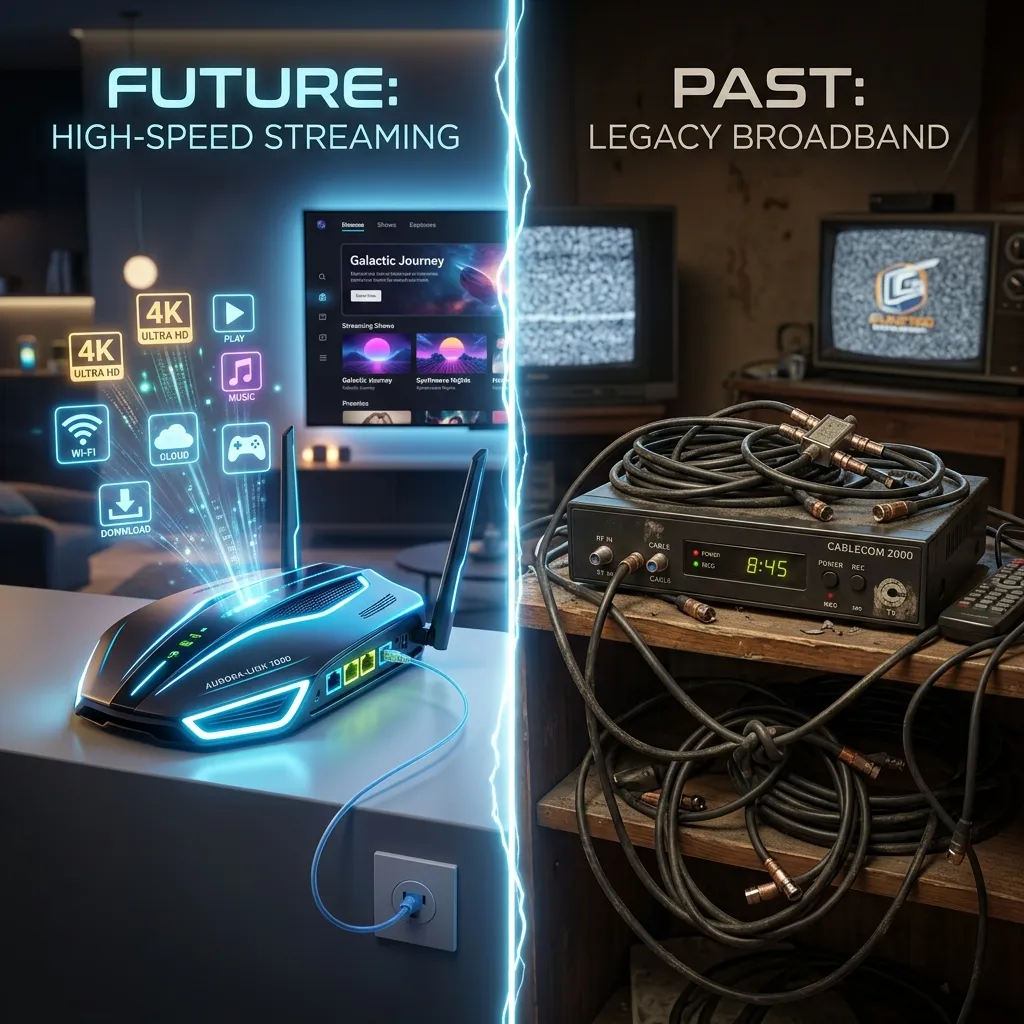
Are you looking to revolutionize your home entertainment setup? If you own a Philips Smart TV, you already know about its incredible picture quality, sleek design, and, for many models, the immersive Ambilight technology that paints your living room walls with the colors of whatever you are watching. But what if you could take this phenomenal hardware and pair it with an infinite library of live television channels, blockbuster movies, and on-demand series from around the globe? Welcome to the world of Internet Protocol Television.
In this comprehensive, extensively detailed guide, we are going to explore exactly how to install IPTV on a Philips Smart TV. Whether you are an absolute beginner who has never heard of an M3U playlist, or a tech-savvy cord-cutter looking for advanced optimization tips, this article will serve as your ultimate resource. We will cover everything from identifying your specific Philips operating system (Android TV, Saphi OS, or Roku OS) to selecting the best applications, entering your credentials, optimizing your picture settings, and troubleshooting common playback errors.
The traditional cable TV model is rapidly becoming obsolete. High monthly fees, restrictive channel bundles, and outdated hardware have pushed millions of viewers toward more flexible streaming alternatives. By leveraging the power of an IPTV Subscription, you can access thousands of channels—ranging from local news and international sports to premium movie networks—at a mere fraction of the cost of traditional cable.
If you are ready to unlock the true potential of your television, read on. By the end of this guide, your Philips TV will be transformed into the ultimate streaming powerhouse.
Understanding Your Philips Smart TV Operating System
Before we dive into the installation process, it is absolutely critical to understand that not all Philips Smart TVs are created equal. Over the past decade, Philips has utilized several different operating systems to power their televisions. The operating system your TV uses will dictate exactly which apps are available to you and what installation method you must follow.
Here is a breakdown of the three primary operating systems found on modern Philips Smart TVs:
1. Android TV (and Google TV)
Android TV is by far the most versatile, powerful, and widely used operating system on premium and mid-range Philips TVs. If your TV has the Google Play Store pre-installed, you are running Android TV (or its newer iteration, Google TV).
- Pros: Access to thousands of apps, seamless integration with Google Assistant, built-in Chromecast, and the ability to easily sideload third-party applications.
- IPTV Compatibility: Excellent. Almost every major IPTV player (TiviMate, IPTV Smarters Pro, XCIPTV) is natively available or easily sideloaded.
2. Saphi OS
Saphi OS is Philips’ proprietary, Linux-based operating system. It was primarily used on budget and entry-level models to keep costs down while still offering smart functionality. It features a simple, fast interface but suffers from a severely limited app store.
- Pros: Fast boot times, easy to navigate, lightweight.
- IPTV Compatibility: Limited but possible. You will not find advanced apps like TiviMate here. Instead, you must rely on simpler web-based players like SS IPTV or Smart IPTV (SIPTV).
3. Roku TV
In certain regions (particularly North America), Philips has partnered with Roku to produce televisions with the Roku OS built directly into the hardware. Roku is famous for its user-friendly interface and massive channel store.
- Pros: Extremely easy to use, great universal search, thousands of official streaming apps.
- IPTV Compatibility: Poor natively. Roku maintains strict anti-piracy policies and regularly bans third-party IPTV players. Getting IPTV on a Philips Roku TV usually requires workarounds like screen mirroring or using an external device.
[!TIP] To check your OS, press the "Home" button on your remote. If you see a row of apps with a prominent "Google Play Store" icon, you have an Android TV. If you see a minimalist grid with a "Philips App Gallery," you are likely running Saphi OS.
Why Upgrade to IPTV? The Ultimate Cord-Cutting Strategy
If you have just purchased a new Philips TV or are looking to get more out of your existing set, you might be wondering why you should go through the trouble of setting up IPTV when apps like Netflix or Amazon Prime already exist. Here is a deep dive into the compelling reasons to make the switch:
Massive Content Libraries
Traditional cable providers offer packages consisting of perhaps 100 to 300 channels. In contrast, a premium IPTV service can provide upward of 10,000 to 20,000 live channels from every country on earth. This includes dedicated sports networks, 24/7 movie channels, PPV (Pay-Per-View) events, and vast VOD (Video on Demand) libraries that rival the catalogs of major streaming services.
Significant Cost Savings
The average cable bill in many Western countries exceeds $100 per month. When you explore our Pricing plans, you will quickly realize that an entire year of comprehensive IPTV access often costs less than a single month of traditional cable or satellite TV.
High-Definition and 4K Streaming
Modern IPTV providers have invested heavily in high-bandwidth servers. This means that a large percentage of channels are broadcast in Full HD (1080p), and many premium movie and sports channels are available in stunning 4K UHD. When paired with the image processing power of a Philips TV (especially the P5 Perfect Picture Engine), the visual clarity is breathtaking.
Flexibility and Portability
A traditional cable box is tethered to your living room. An IPTV subscription, however, is digital. You can use the same credentials on your Philips TV, your smartphone, your tablet, or your laptop while traveling.
| Feature | Traditional Cable TV | Premium IPTV Service |
|---|---|---|
| Average Cost | $80 - $120 / month | $10 - $15 / month |
| Live Channels | 100 - 300 | 10,000+ |
| VOD Library | Limited / Extra Cost | Massive (Included) |
| Hardware Required | Rented Set-Top Box | Any Smart Device |
| Contract | Usually 1-2 Years | Month-to-Month available |
Preparing Your Philips Smart TV: Crucial Prerequisites
Before you start downloading apps and entering passwords, there are three fundamental pillars you must have in place to guarantee a smooth, buffer-free streaming experience. Neglecting these preparation steps is the number one reason users encounter frustration.
1. Acquiring a High-Quality IPTV Subscription
You cannot stream anything without a provider. You need a service that offers reliable servers, anti-freeze technology, and a comprehensive channel list. Once you subscribe, the provider will send you an email containing your login credentials. These usually come in two formats:
- M3U URL: A very long web link ending in
.m3uor.m3u8. When entered into a player, it downloads your specific channel list. - Xtream Codes API: A more modern and user-friendly format consisting of three parts: a Server URL (Portal), a Username, and a Password. We highly recommend using Xtream Codes whenever possible, as it allows the app to load TV guides (EPG) and VOD categories much faster than an M3U playlist.
2. Ensuring Adequate Internet Speed
IPTV relies entirely on your home internet connection. Because live video streaming—especially in HD and 4K—requires a constant, uninterrupted flow of data, your internet speed is paramount.
- Minimum for SD Streaming: 10 Mbps
- Minimum for HD (1080p) Streaming: 25 - 30 Mbps
- Minimum for 4K UHD Streaming: 50+ Mbps
[!IMPORTANT] Speed is not the only factor; stability is equally important. Wi-Fi signals can be interrupted by walls, furniture, and other electronic devices. If your Philips TV is located near your router, we strongly recommend connecting it directly via an Ethernet cable. A wired connection practically eliminates packet loss and latency, solving 90% of buffering issues.
3. Implementing Security and Privacy Measures (VPN)
The intersection of IPTV and internet privacy is a critical topic. Many Internet Service Providers (ISPs) actively monitor user traffic. If they detect heavy streaming data—especially from IPTV servers—they may intentionally slow down (throttle) your connection during peak hours, resulting in massive buffering during important live events like sports matches. Furthermore, to protect your personal data and ensure your viewing habits remain private, using a Virtual Private Network (VPN) is highly recommended. To understand more about the legality and safety of streaming, read our comprehensive Security Guide.
Detailed Installation Guide: Philips Android TVs
If your Philips TV runs Android TV, you are in luck. This is the absolute best scenario for IPTV users. You have access to the Google Play Store, which hosts several top-tier IPTV player apps.
Method A: Installing Apps via the Google Play Store
The easiest and safest way to get started is by using apps officially approved by Google.
Step 1: Access the Google Play Store
- Turn on your Philips Android TV.
- Press the "Home" button on your remote.
- Scroll down to the "Apps" row and select the Google Play Store icon.
Step 2: Search for an IPTV Player
- Navigate to the search icon (magnifying glass) in the top-right corner.
- Using the on-screen keyboard, type in the name of your desired player. The two absolute best options are:
- IPTV Smarters Pro: The industry standard. Extremely user-friendly, great for beginners, and supports Xtream Codes flawlessly.
- TiviMate IPTV Player: The premium choice for power users. It offers the most beautiful interface, advanced recording features, picture-in-picture, and an incredible EPG layout.
Step 3: Download and Install
- Select the app from the search results.
- Click the Install button.
- Wait for the download to finish, then click Open.
Step 4: Configure the App (Using IPTV Smarters Pro as an Example)
- When you open IPTV Smarters Pro, accept the Terms of Service.
- You will be presented with a menu of login options. Select "Login with Xtream Codes API".
- A form with four fields will appear:
- Any Name: Enter anything you like (e.g., "Smartiflix").
- Username: Enter the username provided in your subscription email.
- Password: Enter your subscription password.
- URL: Enter the Portal URL provided by your service. Make sure to type it exactly, including "http://" and the port number (e.g., :8080) if required.
- Click Add User.
- The app will take a few moments to download your Live TV channels, Movies, and Series categories. Once complete, you are ready to stream!
Method B: Sideloading Apps via Downloader
Sometimes, an app might be removed from the Play Store, or you may want a specific modified version. In this case, you can "sideload" the APK file using an app called Downloader.
Step 1: Enable Unknown Sources
- Go to your Philips TV Settings (usually a gear icon in the top right).
- Navigate to Device Preferences > Security & restrictions.
- Enable Unknown sources. (You may need to enable this specifically for the Downloader app later).
Step 2: Install Downloader
- Open the Google Play Store on your TV.
- Search for Downloader (by AFTVnews) and install it.
Step 3: Download the IPTV APK
- Open the Downloader app. Allow it access to your files when prompted.
- In the URL field, type the direct download link for the APK you want (for example, the official link for XCIPTV or an unlisted Smarters version). Many guides use shortcodes (like 54321) that redirect to APK files.
- Click Go. The APK file will download.
Step 4: Install and Launch
- Once the download finishes, an installation prompt will appear automatically.
- Click Install.
- Once installed, open the app and enter your Xtream Codes or M3U playlist as described in Method A.
Detailed Installation Guide: Philips Saphi OS TVs
If you have a Philips TV running Saphi OS, your options are more constrained, but setting up IPTV is still entirely feasible. Because Saphi is a closed ecosystem, you cannot install Android APKs. You must rely on the apps available in the Philips App Gallery.
The two most reliable apps for Saphi OS are SS IPTV and Smart IPTV (SIPTV).
Setting Up SS IPTV on Saphi OS
SS IPTV is a free, popular multi-purpose player that works well on smart TVs.
Step 1: Install the App
- Press the "Home" button on your remote.
- Navigate to the Philips App Gallery (or App Collection).
- Use the search function to look for SS IPTV.
- Select the app and click Add or Install.
Step 2: Generate a Connection Code
- Launch SS IPTV.
- Navigate to the Settings gear icon in the top right corner of the app.
- Go to the General tab.
- Click the Get Code button. The screen will display a temporary, alphanumeric code (e.g., A1B2C). Note this code down; it expires in a few minutes.
Step 3: Upload Your Playlist via Computer or Smartphone
- Leave your TV on this screen.
- Open a web browser on your computer or phone and go to the official SS IPTV upload portal:
https://ss-iptv.com/en/users/playlist. - Enter the connection code you got from your TV and click Add Device.
- Once connected, navigate to the External Playlists tab.
- Click Add Item.
- Give the list a name (e.g., "My IPTV") and paste your M3U URL into the Source field.
- Click Save.
Step 4: Sync Your TV
- Go back to your Philips TV and return to the main screen of the SS IPTV app.
- Click the Refresh icon (two circular arrows) at the top of the screen.
- A new folder with the name you chose ("My IPTV") will appear. Click it, and your channel list will load.
Setting Up Smart IPTV (SIPTV)
Note: SIPTV offers a 7-day free trial, after which it requires a one-time activation fee of roughly €5.49.
Step 1: Download Smart IPTV from the Philips App Gallery.
Step 2: Open the app. The screen will display a MAC Address (a string of letters and numbers like 00:AA:11:BB:22:CC). Write this down.
Step 3: Go to siptv.app/mylist on your computer.
Step 4: Enter your TV's MAC Address in the designated field.
Step 5: Paste your M3U URL in the "URL" field. Complete the Captcha and click Send.
Step 6: Restart the Smart IPTV app on your Philips TV. The channels should now be loaded.
Detailed Installation Guide: Philips Roku TVs
Roku OS is fantastic for mainstream apps like Netflix, but it is notoriously hostile toward third-party IPTV applications. Roku regularly purges IPTV players from its channel store due to copyright concerns. Therefore, installing a native IPTV app on a Philips Roku TV is almost impossible today.
However, there are workarounds:
Workaround 1: Screen Mirroring (Casting)
The simplest way to watch IPTV on a Roku TV is to run the app on your smartphone and cast the screen to the TV.
- Ensure your smartphone (Android or iOS) and your Philips Roku TV are on the same Wi-Fi network.
- Install an IPTV player on your phone (e.g., IPTV Smarters Pro from the App Store/Google Play).
- Enter your credentials and load the channels on your phone.
- On your phone, use the screen mirroring function (Smart View on Samsung, Screen Mirroring on iOS) or cast directly from within the app if supported.
- Select your Philips Roku TV from the list of available devices. Your phone's screen will now be mirrored on the TV.
Workaround 2: The External Device Solution
If screen mirroring is too cumbersome, the ultimate solution for Roku TV owners is to bypass the Roku OS entirely by utilizing an external HDMI streaming stick.
The External Device Solution: The Amazon Firestick Alternative
If your Philips TV is running an older, sluggish version of Android, a limited Saphi OS, or the restrictive Roku OS, the absolute best investment you can make is purchasing an external streaming device. The most popular, affordable, and IPTV-friendly device on the market is the Amazon Fire TV Stick.
By plugging a Firestick into the HDMI port of your Philips TV, you essentially overwrite the TV's operating system with Amazon's Fire OS, which is based on Android and allows for incredibly easy sideloading.
Benefits of Using a Firestick on a Philips TV
- Massive Performance Boost: External sticks often have faster processors and more RAM than older smart TVs, resulting in faster app navigation and zero menu lag.
- Unrestricted App Access: You can easily sideload any IPTV app, including TiviMate, XCIPTV, and Cinema HD, using the Downloader app.
- Portability: You can unplug your Firestick and take your entire IPTV setup with you on vacation.
Quick Setup Overview
- Plug the Firestick into an empty HDMI port on your Philips TV.
- Change the TV's input source to that HDMI port.
- Follow the on-screen setup to connect the Firestick to your Wi-Fi.
- Go to the Firestick settings, navigate to My Fire TV, and enable Developer Options (Apps from Unknown Sources).
- Install the Downloader app and use it to sideload your preferred IPTV player.
For an exhaustive, step-by-step walkthrough on this specific method, please visit our dedicated Firestick Setup guide.
A Deep Dive into IPTV Protocols: M3U, Xtream Codes, and MAG Portals
When setting up your Philips TV, you will encounter various acronyms related to how the IPTV data is delivered. Understanding these will make you a more informed user.
- M3U Playlists: This is the oldest and most universal format. An M3U file is essentially a massive text document containing the direct web addresses for thousands of individual video streams. While widely supported, M3U files are clunky. The TV has to download and parse the entire file every time it updates, which can be slow and crash older TVs.
- Xtream Codes API: This is the modern standard. Instead of downloading a massive text file, Xtream Codes uses a username, password, and a portal URL to log into a server database. The app then requests only the data it needs at that moment (e.g., just the sports category). This is infinitely faster and more stable, allowing for rich features like Catch-Up TV and detailed EPGs.
- MAG Portals (Stalker Middleware): Originally designed for dedicated MAG set-top boxes, some modern apps (like STB Emulator) can mimic this environment on Android TVs. It uses your device's MAC address for authentication. While highly secure and offering a cable-like interface, it is less flexible than Xtream Codes since your account is locked to a single device's MAC address.
Understanding Bitrates, Compression, and Resolution in IPTV
When you see a channel labeled "4K" or "FHD" on your IPTV list, you might wonder why it sometimes looks slightly less crisp than a 4K movie on Netflix. The answer lies in bitrate and compression. Live television must be encoded and transmitted in real-time. To send a massive 4K video file across the world instantly, IPTV providers must compress the video data.
- Bitrate refers to the amount of data transmitted per second (e.g., 5 Megabits per second or 5 Mbps).
- A high-resolution image with a very low bitrate will look pixelated or "blocky," especially during fast-moving scenes like explosions or sports.
This is where your Philips TV's internal processing comes in. The P5 Perfect Picture Engine is designed to clean up digital noise from compressed sources. However, it cannot perform miracles. For the absolute best picture quality, prioritize providers that offer high-bitrate streams rather than just looking for the "4K" label.
Managing Favorites, Catch-Up TV, and Parental Controls
Once you have successfully loaded your 15,000+ channel list onto your Philips TV, navigation can become overwhelming.
- Creating Favorites: Every good IPTV app allows you to long-press the "OK" button on your remote to add a channel to your "Favorites" group. Spend your first evening adding your most-watched local channels, sports networks, and news stations to this group. It will save you from scrolling through thousands of international channels every time you turn on the TV.
- Using Catch-Up TV: Catch-Up is a revolutionary feature offered by premium IPTV services. It automatically records a rolling 24 to 72 hours of content on select channels. If you missed a live football match or the evening news, you can simply open the TV guide, scroll backward in time, and play the broadcast as if it were a VOD movie. Look for a clock icon next to the channel name to see if Catch-Up is supported.
- Parental Controls: With thousands of channels comes access to adult content and mature movies. If you have children in the house, it is vital to lock this down. In apps like IPTV Smarters or TiviMate, navigate to the settings menu, find the Parental Control section, set a 4-digit PIN, and lock specific categories or channels.
Optimizing Your Philips TV Settings for the Best IPTV Experience
Once you have your IPTV channels flowing, you might notice that live broadcasts—especially sports—look a bit strange. This is because standard TV picture settings are usually optimized for cinematic movies or brightly lit showrooms, not highly compressed live IP streams.
To get the most out of your Philips TV, you need to dive into the settings menu and make some adjustments.
Adjusting the Picture Settings
Press the "Settings" button on your remote and navigate to Picture.
- Picture Style: Change this to Standard or Movie. "Vivid" or "Dynamic" modes artificially oversaturate colors and blow out highlights, which can make low-bitrate IPTV streams look terrible.
- Sharpness: Turn this down significantly (between 0 and 2). Over-sharpening highly compressed video highlights pixelation, macro-blocking, and visual artifacts.
- Noise Reduction & MPEG Artifact Reduction: Set these to Low or Medium. These features are designed to smooth out blocky streams, but setting them too high will make the image look like a blurry watercolor painting.
Taming the "Soap Opera Effect"
Philips TVs are famous for their aggressive motion smoothing technology, often called Perfect Natural Motion or Motion Styles. This technology inserts artificial frames between real frames to make motion look smoother. While great for slow panning shots in documentaries, it makes sports look unnatural and causes visual tearing around fast-moving objects (like a football).
- Navigate to Advanced Picture Settings > Motion.
- We highly recommend setting this to Off or Minimum when watching live IPTV channels to preserve the natural cadence of the broadcast.
Maximizing the Ambilight Experience
If your Philips TV features Ambilight, IPTV is where it truly shines. Ensure Ambilight is turned on and set to follow the video content.
- Go to Ambilight Settings.
- Set the style to Follow Video.
- Adjust the Brightness and Saturation according to the lighting in your room. Watching a live concert or a visually stunning movie via VOD with Ambilight projecting onto your walls is a game-changer.
Enhancing Audio Quality for IPTV on Philips TVs
Great visuals are only half of the experience. Many IPTV streams compress audio heavily to save bandwidth, which can lead to flat, lifeless sound or dialogue that is hard to hear over background music.
- Clear Dialogue Mode: Philips TVs often feature an audio setting specifically designed to boost human voices. Go to Audio Settings and enable "Clear Dialogue" or "Clear Sound."
- External Audio Devices: If you are using a soundbar or a home theater system connected via HDMI ARC or Optical cable, ensure your TV is outputting the correct audio format. Go to Settings > Sound > Advanced > Digital Out Format, and select "Multichannel" or "Bypass" to allow your soundbar to handle the decoding, which often results in superior sound staging.
Troubleshooting Common IPTV Errors on Philips TVs
Even with the best hardware and a premium subscription, you may occasionally encounter hiccups. IPTV relies on a complex chain of servers, routing nodes, and local network hardware. Here is how to troubleshoot the most common issues you will face on your Philips Smart TV.
Issue 1: Constant Buffering, Stuttering, or Freezing
This is the most common complaint in the IPTV world. It manifests as a spinning circle on the screen, audio dropping out, or the video pausing for several seconds.
- The Fix: 95% of the time, this is an internet issue at the user's end. First, run a speed test directly on your TV. If the speed is adequate, switch from Wi-Fi to a wired Ethernet cable.
- ISP Throttling: If buffering only happens during major sporting events or weekend evenings, your ISP is likely throttling your connection. Activating a reputable VPN will encrypt your traffic, preventing your ISP from identifying and throttling your IPTV stream.
- Clear App Cache: If you are using an Android TV, go to Settings > Apps > [Your IPTV Player] > Clear Cache. A bloated cache can severely slow down the app's performance.
Issue 2: "Playback Error" or "Video Cannot Be Played"
This usually means the media player built into your app cannot decode the specific video or audio codec being broadcast by the channel.
- The Fix: If you are using an app like TiviMate or IPTV Smarters, go into the app's settings and look for the Player Selection or Hardware/Software Decoding options. Switch from Hardware (HW) decoding to Software (SW) decoding, or vice versa. Additionally, you can install an external player like VLC Media Player from the app store and set your IPTV app to use VLC for playback.
Issue 3: EPG (TV Guide) is Empty or "No Information"
An empty Electronic Program Guide makes it very difficult to navigate live TV.
- The Fix: First, ensure you are using Xtream Codes API login rather than an M3U file, as M3U files often struggle to pull EPG data efficiently. Second, go to your app settings and locate the EPG tab. Click "Update EPG" manually. If the issue persists, contact your IPTV provider; the server hosting the XMLTV guide data may be temporarily down.
Issue 4: Black Screen with Only Audio
You can hear the news anchor or the sports commentary, but the screen is pitch black.
- The Fix: This is another codec mismatch issue, almost always related to the TV's native player failing to handle the video stream. Again, switching from Hardware decoding to Software decoding within the app settings is the standard solution.
Frequently Asked Questions (FAQs)
Is it legal to watch IPTV on my Philips Smart TV? IPTV technology itself—the delivery of television content over IP networks—is completely legal. However, the legality of the content depends on the provider. Streaming copyrighted material without proper authorization is against the law in many jurisdictions. Always ensure you are using a legitimate service. For a deeper dive into this topic, review our Security Guide.
Do I really need a VPN for IPTV? While not strictly mandatory for the service to function, using a VPN is highly recommended for two reasons: it protects your digital privacy from surveillance, and it circumvents ISP throttling, which is the primary cause of buffering during peak hours.
Can I record live TV on my Philips Smart TV? Yes, provided you are using an Android TV with an advanced app like TiviMate. TiviMate allows you to schedule recordings to the TV's internal storage or an attached USB drive. Note that recording requires multiple concurrent connections on your IPTV subscription.
Why is my M3U link not working? M3U links are extremely long and case-sensitive. A single typo will result in a failure to connect. We strongly advise copying and pasting the link using a smartphone or computer (as described in the SS IPTV section) rather than trying to type it out with a TV remote. Alternatively, ask your provider for an Xtream Codes login, which is much shorter and easier to type.
How often should I update my IPTV app? You should keep your apps updated to the latest versions to benefit from bug fixes, security patches, and performance improvements. If you downloaded the app from the Google Play Store, updates should happen automatically. If you sideloaded an APK via Downloader, you will need to manually check for updates and sideload the newer version periodically.
Best Practices for a Seamless IPTV Experience
To summarize and ensure you get the absolute most out of your new setup, follow these best practices:
- Hardwire Everything: Wi-Fi is convenient, but Ethernet is king for live streaming.
- Regular Maintenance: Restart your router and your Philips TV at least once a week. This clears temporary memory and resolves hidden network conflicts.
- Invest in Premium Apps: While free apps like SS IPTV work in a pinch, spending a few dollars on a premium app like TiviMate unlocks a vastly superior user interface and feature set.
- Communicate with Your Provider: If a specific channel is constantly buffering, let your IPTV provider know. Often, they can switch the routing or fix the source on their end.
Conclusion and Next Steps
Installing IPTV on your Philips Smart TV is one of the most rewarding technological upgrades you can make for your home entertainment system. Whether you are navigating the robust Google Play Store on an Android TV, utilizing web-based players on Saphi OS, or plugging in a Firestick to bypass Roku restrictions, the process is straightforward once you understand the underlying mechanics.
You are now equipped with the knowledge to download the right apps, configure your Xtream Codes, optimize your picture settings to eliminate motion blur, and troubleshoot the dreaded buffering circle. The era of being chained to expensive, restrictive cable contracts is over.
If you are ready to take the final step and dive into a world of limitless, high-definition entertainment, it is time to secure a reliable connection. Visit our Homepage to learn more about our services, or jump straight into our Installation Guide to finalize your setup and start watching today!