Install IPTV on Android TV: Easy Step-by-Step Guide
Discover how to install IPTV on your Android TV with our easy step-by-step guide. Unlock endless entertainment with the best apps and setups!
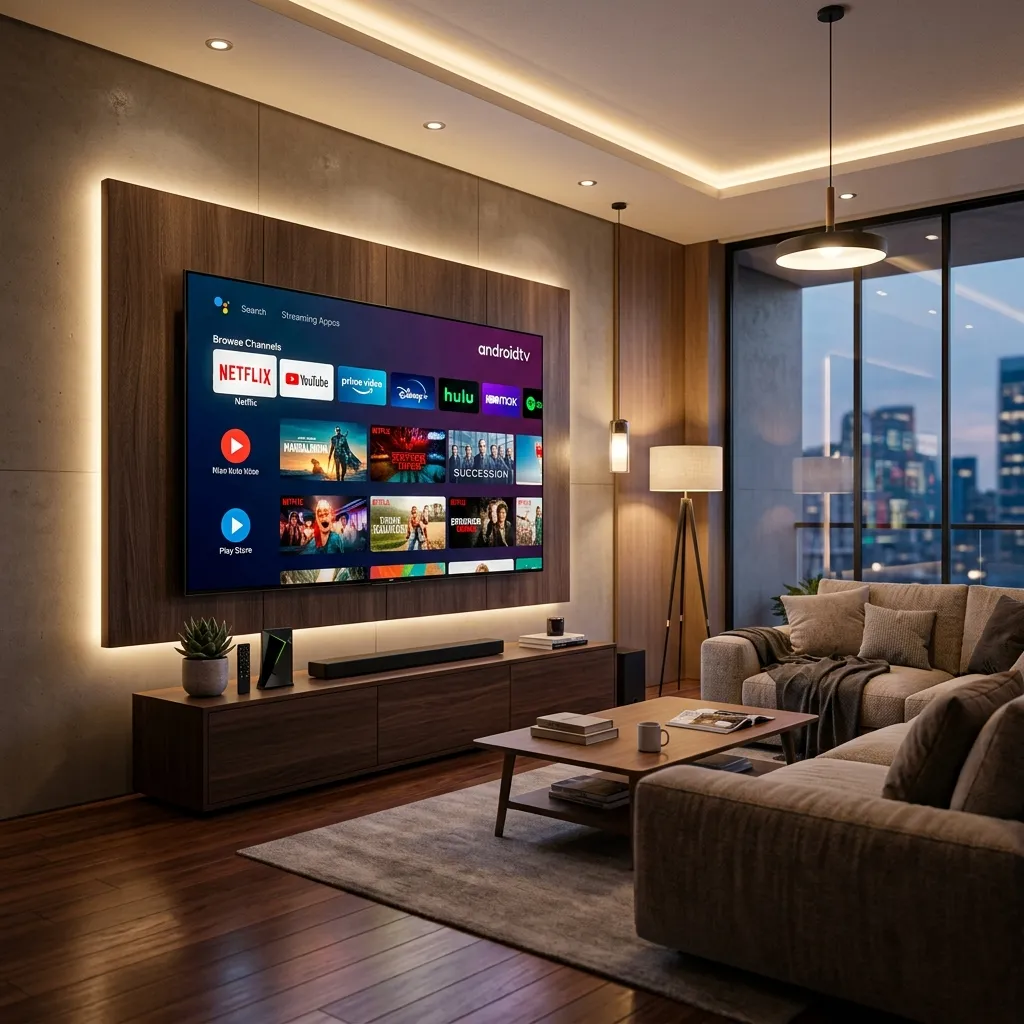
Welcome to the ultimate resource on transforming your living room entertainment experience. If you are tired of exorbitant cable bills, limited channel selections, and restrictive viewing schedules, you have come to the right place. In this extensive guide, we will walk you through exactly how to install IPTV on Android TV. Whether you are using a Sony Bravia, a TCL smart TV, a Hisense model, an Nvidia Shield, or an Android TV box, this guide is your key to unlocking thousands of live channels, movies, and TV shows on demand.
The shift from traditional broadcast and cable television to Internet Protocol Television (IPTV) has completely revolutionized how we consume media. With an Android TV, you have one of the most powerful and flexible operating systems available for this technology. We at Smartiflix are dedicated to helping you make the most out of your home theater. Head back to our Homepage to explore more about what makes us the ultimate streaming hub.
By the end of this massive, 3000+ word guide, you will be an expert in IPTV installation, configuration, sideloading, troubleshooting, and optimization. Let's dive in!
Chapter 1: The Evolution of Television and the Rise of IPTV
Before we get into the technical steps, it is important to understand what you are installing. IPTV stands for Internet Protocol Television. Unlike traditional cable or satellite TV that uses broadcast signals delivered via coaxial cables or satellite dishes, IPTV delivers television content over Internet Protocol (IP) networks.
How IPTV Differs from Traditional TV
- Two-Way Communication: Traditional TV is a one-way street. Broadcasters send signals, and your antenna or cable box receives them. IPTV allows for two-way communication. You request a specific stream, and the server sends it directly to you. This enables Video on Demand (VOD) and interactive features.
- Bandwidth Efficiency: Cable providers send all channels to your house simultaneously, which requires massive bandwidth and limits the number of channels they can offer. IPTV only sends the specific channel you choose to watch, meaning an IPTV Subscription can offer tens of thousands of channels from all over the globe without overwhelming your internet connection.
- Device Agnostic: While a cable subscription requires a specific, rented set-top box, IPTV can be viewed on smartphones, tablets, computers, Smart TVs, and dedicated streaming devices.
[!NOTE] The flexibility of IPTV is unparalleled. You can start watching a movie on your Android TV in the living room and finish it on your smartphone while commuting.
The Components of an IPTV Ecosystem
To successfully run an IPTV setup, you need three main components:
- The Service Provider: The company hosting the channels and VOD content (e.g., Smartiflix).
- The Hardware: Your device, which in this case is your Android TV or Android TV box.
- The Software (IPTV Player): The application you install on your Android TV that reads the data from your provider and displays it on your screen with a user-friendly interface.
Chapter 2: Why Android TV is the Ultimate IPTV Machine
When deciding how to consume IPTV, users have many choices: Roku, Apple TV, Fire OS, WebOS (LG), Tizen (Samsung), and Android TV. So, why do enthusiasts and experts universally recommend Android TV for IPTV?
1. Open Ecosystem and Sideloading
Unlike Apple TV or Roku, which operate within strictly walled gardens, Google's Android TV is an open platform. While it has an official Google Play Store packed with fantastic IPTV players, you are not limited to it. If an app isn't available on the store, Android TV allows you to easily "sideload" the APK file. This freedom ensures you can always install the latest, most powerful IPTV software available.
2. Hardware Capabilities
Android TV powers some of the most robust streaming hardware on the market. Devices like the Nvidia Shield TV Pro feature top-tier processors and AI upscaling, which takes a standard 1080p IPTV stream and intelligently upscales it to stunning 4K resolution.
3. Native Integration and UI
Android TV’s interface is designed around content discovery. Many premium IPTV players can integrate directly into the Android TV home screen, placing your favorite live channels right alongside recommendations from Netflix or YouTube.
4. Storage Expandability
IPTV apps themselves are small, but if you want to record live TV (a feature supported by top-tier apps like TiviMate), Android TV devices easily allow you to plug in external USB hard drives or mount network-attached storage (NAS) drives.
If you are currently using a different device like an Amazon Firestick and are considering switching, or if you just want to set up your current Amazon device, check out our dedicated Firestick Setup guide.
Chapter 3: Essential Prerequisites Before You Begin
Installing an app takes seconds, but ensuring you have the right environment for a flawless streaming experience takes a bit of preparation. Do not skip these prerequisites, as they are the foundation of a buffer-free IPTV experience.
1. High-Speed Internet Connection
IPTV relies entirely on your internet connection. A slow or unstable connection will lead to buffering, freezing, and poor picture quality. Here are the recommended speeds based on the resolution you plan to stream:
| Content Resolution | Minimum Required Speed | Recommended Speed for Stability |
|---|---|---|
| Standard Definition (SD) | 5 Mbps | 10 Mbps |
| High Definition (HD 720p/1080p) | 15 Mbps | 25-30 Mbps |
| Ultra High Definition (4K) | 30 Mbps | 50+ Mbps |
[!TIP] Use Ethernet when possible! Wi-Fi is prone to interference from walls, microwaves, and neighboring networks. Hardwiring your Android TV directly into your router using an Ethernet cable will dramatically reduce latency and packet loss, leading to a much smoother IPTV experience.
2. An Active IPTV Subscription
An IPTV player is just an empty shell without content. You need a reliable provider. We recommend checking out our competitive Pricing plans to find a subscription that gives you access to premium sports, global channels, and a massive library of VOD content with high uptime.
3. A Virtual Private Network (VPN)
Security and privacy should be your top priority. Many Internet Service Providers (ISPs) actively monitor traffic. When they detect high bandwidth usage from video streaming, they may intentionally slow down (throttle) your connection, causing endless buffering.
A VPN encrypts your traffic, making it impossible for your ISP to see what you are doing. Furthermore, it protects your data from hackers. For a deep dive into streaming security, read our comprehensive Security Guide.
Chapter 4: Preparing Your Android TV (Enabling Unknown Sources)
Before we start installing anything, we need to prepare the Android TV operating system. By default, Google prevents the installation of apps from outside the official Google Play Store. Because some of the best IPTV apps (or direct provider apps) require sideloading, you must grant the system permission to install "Unknown Apps."
Depending on the version of Android TV you are running, the steps might vary slightly.
For Older Android TV Versions (Android 8 and 9)
- Turn on your Android TV and navigate to the Home Screen.
- Go to the top right corner and select the Settings icon (the gear).
- Scroll down and select Device Preferences.
- Select Security & Restrictions.
- Toggle the switch for Unknown Sources to the ON position. Accept any warning prompts.
For Newer Android TV/Google TV Versions (Android 10, 11, 12+)
On newer operating systems, permission is granted on a per-app basis rather than globally. We will be using the "Downloader" app to install our IPTV software later, so we need to give Downloader the permission.
- From the Home screen, navigate to Settings (gear icon).
- Go to Apps -> Security & Restrictions -> Unknown apps.
- Note: If you haven't installed 'Downloader' or a file manager yet, you won't see them here. Install them from the Play Store first.
- Find Downloader in the list and toggle the switch to Allowed.
[!IMPORTANT] Developer Options: Sometimes, you may need to enable Developer Options to sideload via ADB or USB. To do this, go to Settings -> Device Preferences -> About. Scroll down to Build and click the OK/Select button on your remote 7 times rapidly. You will see a toast notification saying "You are now a developer!"
Chapter 5: Method 1 - Installing Official Apps from the Google Play Store
The easiest and safest way to get an IPTV player on your Android TV is directly through the Google Play Store. Many exceptional, legally compliant IPTV players exist on the store. Remember, these apps do not contain any content; they simply act as a media player for your IPTV Subscription.
Step-by-Step Installation
- Turn on your Android TV and go to the Home Screen.
- Navigate to the Apps tab or find the Google Play Store icon and open it.
- Use the search icon (magnifying glass) at the top of the screen.
- Using the voice remote or on-screen keyboard, search for an IPTV player.
- Select the app from the search results.
- Click Install.
- Once installed, click Open to launch the application.
Top 3 Highly Recommended Play Store IPTV Players
1. TiviMate IPTV Player
TiviMate is widely considered the undisputed king of IPTV players for Android TV. It features a modern, cable-box-like interface that feels incredibly premium.
- Pros: Blazing fast EPG (Electronic Program Guide) loading, beautiful UI, support for multiple playlists, excellent recording features, catch-up TV support, customizable channel sorting.
- Cons: The free version is heavily restricted. To unlock its true potential (like adding multiple playlists or favorites), you must purchase TiviMate Premium via a companion Android app.
- Best for: Power users who want a traditional cable-like experience.
2. IPTV Smarters Pro
A staple in the IPTV community, Smarters Pro is loved for its simplicity and robust cross-platform availability.
- Pros: Very easy to set up using the Xtream Codes API, distinct categorization for Live TV, Movies, and Series, built-in speed test, parental controls.
- Cons: The UI looks a bit dated compared to TiviMate, and the VOD section can be sluggish with massive libraries.
- Best for: Beginners and users who prioritize a seamless VOD library experience alongside Live TV.
3. XCIPTV Player
XCIPTV is a highly stable player built specifically to work flawlessly with Xtream Codes API setups.
- Pros: Extremely fast channel switching, built-in VPN integration, sleek VOD layout, excellent ExoPlayer integration.
- Cons: Less customization for the TV guide view compared to TiviMate.
- Best for: Users who want a reliable, "set it and forget it" app with an intuitive VOD poster layout.
Chapter 6: Method 2 - Sideloading Using the Downloader App
Sometimes, the IPTV app you want (such as a customized app provided directly by your IPTV service provider) is not available on the Google Play Store. In this case, you will need to "sideload" the APK (Android Package Kit) file. The easiest way to do this on Android TV is using an app called Downloader by AFTVnews.
Step 1: Install the Downloader App
- Open the Google Play Store on your Android TV.
- Search for "Downloader". Look for the app with the orange icon containing a white download arrow.
- Click Install and then Open.
Step 2: Enable the Downloader Browser Plugin
Due to Google's restrictions, the Downloader app on the Play Store does not have a built-in web browser by default. You need to enable it.
- Open Downloader. Allow it access to photos, media, and files (this is required so it can save the APK).
- In the URL bar on the Home tab, type exactly:
browser.aftvnews.com - Click Go.
- The app will download a small plugin. Click Install when prompted.
- Once installed, click Done. Delete the plugin installation file to save space. You now have a fully functional web browser inside Downloader.
Step 3: Grant Downloader "Unknown Sources" Permission
As discussed in Chapter 4, if you are on Android 10+, you must give Downloader permission to install apps.
- Go to Android TV Settings -> Apps -> Security & Restrictions -> Unknown apps.
- Toggle the switch next to Downloader to the ON position.
Step 4: Sideload the IPTV App
- Open the Downloader app again.
- Ensure you are on the Home tab on the left sidebar.
- Click on the URL text box.
- Enter the direct URL to the APK file of the IPTV app you wish to install. Alternatively, if you have a shortcode (like those used for popular apps), you can enter the 5-digit or 6-digit Downloader Code.
- For example, entering a code like
12345will redirect you to the specific download link.
- For example, entering a code like
- Click Go.
- The app will begin downloading. Depending on your internet speed and the app size (usually 30-80 MB), this will take a few seconds.
- Once the download is complete, Downloader will automatically launch the Android installation prompt.
- Click Install.
- Once finished, click Done (do not click Open just yet).
- A popup will ask if you want to delete the APK file. Click Delete, and then Delete again. This removes the installation file to prevent your Android TV's storage from filling up.
- You can now find your sideloaded IPTV app in your Android TV app drawer.
Chapter 7: Method 3 - The USB Drive Sideloading Method
If your Android TV is disconnected from the internet (temporarily), if the Downloader app is acting up, or if you prefer managing files from your computer, the USB sideloading method is highly reliable. Note: Your Android TV must have a physical USB port for this to work.
Step 1: Prepare Your USB Drive
- Insert a USB flash drive into your Windows PC or Mac.
- Format the USB drive to FAT32. (Most Android TVs will not recognize NTFS or exFAT formats).
- On Windows: Right-click the drive, select Format, choose FAT32, and click Start.
- On Mac: Open Disk Utility, select the drive, click Erase, and choose MS-DOS (FAT).
Step 2: Download the APK
- On your computer, open a web browser and download the APK file for your desired IPTV player (e.g., download the TiviMate APK from an authorized source or grab your provider’s custom APK).
- Drag and drop the
.apkfile onto your freshly formatted USB drive. - Safely eject the USB drive from your computer.
Step 3: Install a File Manager on Android TV
To read the USB drive on your TV, you need a file explorer.
- Open the Google Play Store on your Android TV.
- Search for and install File Commander, Solid Explorer, or FX File Explorer.
- Open the file manager and grant it permissions to access files.
Step 4: Install the App
- Plug the USB drive into the USB port on the back or side of your Android TV.
- A prompt may appear asking if you want to open the drive. If so, accept it. If not, open your File Manager app and navigate to the USB drive directory.
- Locate the
.apkfile you transferred earlier. - Click on the file.
- Android TV will prompt you to install it. If you haven't enabled "Unknown Sources" for your File Manager app, you will be prompted to go to settings and toggle it on (just as we did for Downloader).
- Click Install.
- Once complete, you can safely unplug your USB drive.
Chapter 8: Configuring Your IPTV Service
Now that you have successfully installed an IPTV player using one of the three methods above, the next step is connecting it to your IPTV provider. For detailed provider-specific setups, see our Installation Guide.
There are two primary ways IPTV providers deliver their service credentials to you: via an M3U Playlist URL or via the Xtream Codes API.
Method A: Xtream Codes API Login (Highly Recommended)
Xtream Codes is the modern standard for IPTV logins. It is significantly faster to load, organizes VOD and Live TV perfectly, and requires typing much less text with your TV remote.
When you purchase a subscription, your provider will email you three pieces of information:
- Server URL (Portal URL): e.g.,
http://tv.smartiflix.net:8080 - Username: e.g.,
JohnDoe123 - Password: e.g.,
PassWord987
How to set it up (using IPTV Smarters Pro as an example):
- Open IPTV Smarters Pro.
- Accept the terms of service.
- Select Add Your Playlist (via XC API) or Login with Xtream Codes API.
- In the first box (Any Name), type a name for the service (e.g.,
Smartiflix). - In the Username box, carefully type your provided username. Ensure exact case sensitivity.
- In the Password box, type your password. Watch out for confusing characters (like 0 vs O, or I vs l).
- In the URL box, type the Portal URL exactly as provided, including the
http://and the port number at the end. - Click Add User.
- The app will authenticate with the server and begin downloading the channel list, TV guide, and VOD library.
Method B: M3U Playlist URL
An M3U URL is a very long web address that points directly to a text file containing the entire list of your channels and stream links.
An M3U URL looks something like this:
http://server.url/get.php?username=JohnDoe123&password=PassWord987&type=m3u_plus&output=ts
How to set it up (using TiviMate as an example):
- Open TiviMate.
- Click Add Playlist.
- Select M3U Playlist.
- Now comes the tedious part: use your remote to type out that massive URL perfectly. One typo, and it will fail.
- Pro Tip: Use the Android TV remote app on your smartphone to copy and paste the URL from an email directly to the TV screen!
- Click Next. TiviMate will process the playlist and inform you of the number of channels loaded.
- Next, you will be prompted to add an EPG (Electronic Program Guide) URL. Enter the EPG URL provided by your service so your channels have a TV guide.
- Click Done.
Chapter 9: Optimizing Your Android TV for the Best IPTV Experience
Installing the app and logging in is only half the battle. To ensure you get a buffering-free, crisp, and fluid viewing experience, you should implement the following optimizations on your Android TV.
1. Clear Cache Regularly
Android TV devices, especially older or budget models, have limited RAM and internal storage. As you stream, IPTV apps cache data (channel icons, EPG data, image posters). Over time, a bloated cache can severely slow down your TV.
- How to fix: Go to Settings -> Apps -> See all apps. Select your IPTV player (e.g., TiviMate), scroll down, and click Clear Cache. Do this once a week or whenever the app feels sluggish. Do not click "Clear Data," as this will wipe your login credentials.
2. Adjust Video Decoder Settings
Most premium IPTV apps allow you to choose between Hardware (HW) and Software (SW) decoding.
- Hardware Decoding: Uses your Android TV's dedicated graphics chip to render video. This is the best option and should be used 99% of the time, especially for HD and 4K streams.
- Software Decoding: Uses the TV's CPU. This can cause the TV to overheat and lag.
- How to fix: In your IPTV app settings (usually under 'Playback' or 'ExoPlayer Settings'), ensure that Hardware Decoding (HW) is set to ON.
3. Tweak Buffer Size
If your internet speed is fast but you still experience micro-stuttering, adjusting the buffer size in your IPTV app can help.
- How to fix: Go into your IPTV player's playback settings. Look for Buffer Size. If you experience buffering, change the buffer size from 'Default' to 'Large' or 'Very Large'. This tells the app to download a larger chunk of the video ahead of time, providing a cushion against momentary network drops.
4. Optimize Network Settings
As mentioned in Chapter 3, hardwire your TV via Ethernet. If you must use Wi-Fi, ensure your Android TV is connected to the 5GHz band on your router, not the 2.4GHz band. 5GHz provides significantly faster speeds, though it has a shorter range. Ensure your router is placed in an open area, free from obstructions like thick concrete walls.
Chapter 10: Troubleshooting Common IPTV Issues on Android TV
Even with a perfect setup, technical glitches can occur. Here is a massive troubleshooting guide to solve the most common issues you will encounter while using IPTV on an Android TV.
Issue 1: Constant Buffering and Freezing
Symptoms: The picture stops every few seconds, a loading circle appears, or the stream skips backward. Solutions:
- Speed Test: Use an app like Analiti or Ookla Speedtest on your Android TV. Verify you are actually getting at least 30 Mbps down to the device.
- Restart the Router: Unplug your modem and router for 60 seconds, then plug them back in. This clears the network cache and often resolves routing issues.
- Use a VPN: If your speed test is fine but the stream still buffers (especially during live sports events), your ISP is likely throttling you. Turn on your VPN and connect to a server close to your physical location.
- Change the Stream Format: If you are using an M3U line, try changing the end of the URL from
.tsto.m3u8(or vice versa). Some Android TV decoders handle.m3u8(HLS streaming) better than.ts(MPEG-TS).
Issue 2: EPG (TV Guide) is Missing or Says "No Information"
Symptoms: Channels play fine, but the TV guide is blank, making it impossible to see what's on. Solutions:
- Force Update: In your IPTV app settings, find the EPG menu and click "Update EPG" manually.
- Check the EPG URL: If you used the M3U method, ensure you typed the EPG URL correctly. EPG URLs often end in
.xmlor.xml.gz. - Clear App Cache: A corrupted cache can prevent the guide from displaying. Clear the app cache (as detailed in Chapter 9) and restart the app.
- Time Zone Settings: Ensure your Android TV's system clock and time zone are set correctly. If your TV's clock is off by a few hours, the EPG will display the wrong shows or nothing at all.
Issue 3: Login Failed / Authorization Error
Symptoms: When trying to log in using Xtream Codes, you get an "Invalid Details" or "Failed to Authenticate" error. Solutions:
- Check Typos: The most common cause. Double-check your Username and Password. They are strictly case-sensitive.
- Check the Portal URL: Ensure you included
http://(orhttps://if specified) and the correct port number (e.g.,:8080). - Subscription Expired: Verify with your provider (like Smartiflix) that your account is active and hasn't expired.
- Multi-Connection Limit: Most IPTV subscriptions only allow 1 or 2 simultaneous connections. If you are watching on your phone and try to log in on your TV simultaneously, the server will block the second connection. Make sure all other devices are disconnected.
Issue 4: App Crashes to Home Screen
Symptoms: You open the IPTV app, and it immediately closes, returning you to the Android TV home screen. Solutions:
- Storage Full: Android TVs have very small hard drives (often 8GB). If your storage is 100% full, apps will crash. Go to Settings -> Device Preferences -> Storage and delete unused apps or files.
- Outdated App: Ensure you are running the latest version of the IPTV app. If you sideloaded it, you might need to download the newest APK and install it over the old one.
- Reinstall: If the app data is completely corrupted, go to Settings -> Apps, uninstall the IPTV app, and reinstall it from scratch.
Chapter 11: Frequently Asked Questions (FAQs)
To ensure this guide leaves no stone unturned, here are the most frequently asked questions regarding IPTV on Android TV.
Q1: Is IPTV legal to use on Android TV? A: IPTV technology itself is 100% legal; it is simply a method of data delivery. Using verified, official apps from the Google Play Store is entirely safe. However, the legality of the content depends on your service provider. Ensure you use reputable providers that hold the proper broadcasting rights for your region.
Q2: Do I need to "Jailbreak" my Android TV to install IPTV? A: No. "Jailbreaking" is a term generally associated with Apple devices or heavily locked ecosystems. Because Android is an open-source operating system, enabling "Unknown Sources" is a built-in, fully supported feature that allows you to easily install third-party applications without modifying the core system files or voiding your warranty.
Q3: Can I record live TV on my Android TV? A: Yes! Advanced IPTV players like TiviMate Premium support recording. However, video files are large. You will quickly fill up the internal storage of your TV. It is highly recommended to attach a formatted external USB hard drive or map an SMB network drive to save your recordings safely.
Q4: Will IPTV work if I travel with my Android TV box? A: Yes. Because IPTV is tied to the internet and not a geographical satellite footprint or local cable line, you can take your Android TV box to a hotel or an Airbnb. As long as you have internet access, your service will work. Note: Some providers IP-lock their accounts. If you travel to a different country, you might need to notify your provider or use a VPN to route your connection back to your home country.
Q5: What is Catch-Up TV? A: Catch-Up is a premium feature offered by top-tier IPTV providers. It records and archives live TV channels on the provider's server for a set period (usually 3 to 7 days). This allows you to open your TV guide, scroll backward in time, and watch a show that aired yesterday as if it were a VOD movie. You need both a provider that supports Catch-Up and an app (like TiviMate or XCIPTV) capable of displaying it.
Q6: Why is the audio out of sync with the video? A: This happens occasionally with heavy streams. Most modern IPTV apps have an "Audio Offset" or "Audio Delay" setting in their playback menu. You can adjust this slider in milliseconds (e.g., +200ms or -200ms) until the lip movements match the sound. Alternatively, switching from Hardware decoding to Software decoding for that specific channel often fixes audio sync issues.
Q7: Can I use a free IPTV provider? A: While there are free M3U lists floating around the internet, they are highly unreliable. They suffer from massive buffering, dead links, terrible video quality, and potential malware risks if they require custom APK installations. For a seamless, living-room-ready experience, a premium, low-cost paid subscription is infinitely better. Check out our IPTV Subscription page for reliable, high-quality options.
Conclusion
Installing IPTV on your Android TV might seem daunting at first, given the acronyms like APK, M3U, and API. However, by following this comprehensive guide, you have transformed your television into the ultimate entertainment powerhouse.
By choosing Android TV, you have ensured that you possess the hardware capability to handle 4K streaming and the software flexibility to install the absolute best IPTV players on the market, whether officially from the Play Store or seamlessly sideloaded.
Remember the golden rules of a perfect IPTV experience: maintain a fast, hardwired internet connection, utilize a VPN for privacy and to prevent ISP throttling, use a premium app like TiviMate or Smarters Pro, and most importantly, partner with a reliable service provider.
Ready to cut the cord permanently and elevate your streaming experience? Visit our Pricing page to choose your perfect plan, or return to our Homepage, and welcome to the future of television with Smartiflix. Happy streaming!