Fix Missing EPG Guide on IPTV: Quick Troubleshooting Steps
Struggling with a missing EPG guide on your IPTV? Discover quick fixes and troubleshooting tips to restore your Electronic Program Guide effortlessly.
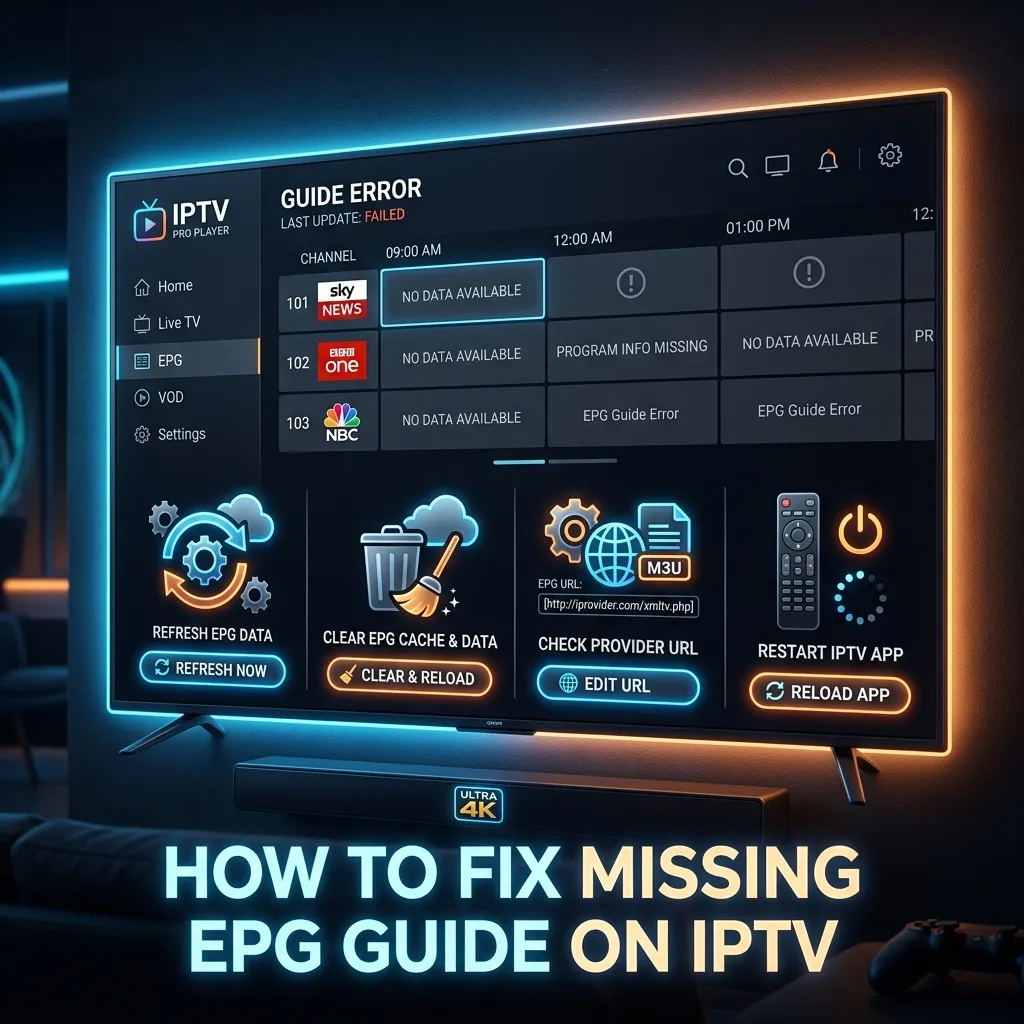
If you have recently switched to streaming your favorite channels via IPTV, you already know that it completely transforms the way we consume television. It is cost-effective, expansive, and incredibly customizable. However, there is one common problem that frustrates thousands of users worldwide: a missing, blank, or broken Electronic Program Guide (EPG). Without a functioning EPG, navigating through thousands of live TV channels is like wandering through a massive library with no index, catalog, or labels.
You find yourself asking, "What is currently airing?" or "When does the big match start?" only to be met with an empty screen reading "No Information Available." The good news is that learning how to fix missing EPG guide on IPTV is easier than you might think. Whether you are using TiviMate, IPTV Smarters Pro, or any other popular player on a Firestick or Smart TV, this exhaustive guide will walk you through everything you need to know.
Welcome to the comprehensive, step-by-step walkthrough from the Smartiflix homepage. In this massive guide, we will dissect exactly what an EPG is, how providers source this data, why it seemingly disappears out of nowhere, and most importantly, how to get it back up and running so you never miss a second of your favorite content again.
What is an EPG (Electronic Program Guide) and Why Do You Need It?
An Electronic Program Guide (EPG) is the digital equivalent of a printed television schedule. It is a highly interactive, menu-based system that provides users of television, radio, and other media applications with continuously updated menus displaying scheduling information for current and upcoming programming. It is the backbone of modern television viewing, bridging the gap between raw video streams and a polished, user-friendly interface.
The Anatomy of an EPG
When an EPG is functioning correctly within your IPTV app, it fetches a structured data file (usually in XML format) and maps it to your channel list. You will typically see:
- Channel Name and Logo: Identifying the broadcaster quickly without reading.
- Current Program Title: What is currently playing live.
- Start and End Times: The exact duration of the show or movie, often displaying a progress bar.
- Program Description: A brief synopsis of the episode, movie plot, or sporting event details.
- Upcoming Shows: The timeline of what is airing next, allowing you to plan your viewing schedule.
- Catch-Up TV Availability: Some premium EPGs will show an icon next to programs that can be replayed from the server's archive.
Without an EPG, your IPTV viewing experience is severely diminished. You are forced to click blindly through channels, hoping to stumble upon something interesting. A robust, fast-loading EPG saves you time and significantly enhances the overall value of your premium IPTV subscription.
The Evolution of EPG: From Traditional Cable to Modern IPTV
In the days of analog cable, viewers relied on a scrolling TV Guide channel that cycled through schedules at a painfully slow pace. With the advent of digital cable and satellite, providers embedded interactive guides directly into their proprietary set-top boxes. Because these legacy providers controlled both the hardware and the localized network, their EPGs were almost always perfectly synced.
IPTV completely changes this dynamic. Instead of receiving guide data from a local coaxial cable, your IPTV app downloads a massive text file (XMLTV) from a server located halfway across the world, via the public internet. Because IPTV allows you to access channels from dozens of different countries simultaneously, the provider must aggregate EPG data from thousands of different international sources, translate it, format it uniformly, and host it for your app to download. It is a massive technological undertaking, which is why EPGs on cheaper services often fail.
How Do IPTV Providers Source Their EPG Data?
Understanding the backend of how EPG data is sourced can help you understand why it sometimes goes missing. Most high-quality IPTV providers do not write their EPG data manually—that would be impossible for 10,000+ channels. Instead, they rely on specialized EPG aggregation services and XMLTV scrapers.
- Broadcaster Scraped Data: Scripts are deployed to automatically read and extract scheduling information directly from the official websites of major networks (like HBO, ESPN, Sky Sports, etc.).
- Third-Party EPG APIs: Providers pay for access to commercial databases like Gracenote or IMDb TV schedules, which provide clean, highly accurate scheduling data for a fee.
- Open-Source XMLTV Projects: Some providers use open-source community projects where volunteers maintain the TV schedules for specific countries.
Once the provider has this data, they compile it into one massive .xml or .xml.gz (compressed) file. Your IPTV player app uses your unique playlist to query this specific file. If the "Channel ID" in your playlist matches the "Channel ID" in the EPG file, the app successfully displays the guide. If there is a mismatch, the guide remains blank. This complex data-matching process is why you need a reliable provider to ensure smooth operation.
Common Reasons Why Your IPTV EPG is Missing
Before diving into the detailed fixes, it is crucial to understand why your EPG is missing. By identifying the root cause, you can apply the appropriate fix much faster. Here are the most common culprits:
1. Outdated IPTV Player App
Just like any other software, IPTV apps receive regular updates to fix bugs, improve performance, and maintain compatibility with external API structures. If you are using an outdated version of TiviMate, XCIPTV, or IPTV Smarters, the app might fail to fetch the latest XMLTV or EPG data. Developers frequently patch apps to handle new forms of server encryption and data compression; using an old app guarantees eventual failure.
2. Incorrect EPG Source URL
If you set up your IPTV using an M3U playlist instead of the Xtream Codes API, you likely had to input an EPG URL separately. A single typo in this URL will result in a blank guide. Furthermore, providers periodically update their EPG URLs to prevent scraping or to switch servers, rendering the old URLs completely obsolete.
3. Server Issues from the IPTV Provider
Not all IPTV providers are created equal. Sometimes, the issue is not on your end at all. If the provider's server goes down, gets overloaded during a major sporting event, or undergoes routine maintenance, the EPG data will fail to load. This is an incredibly common issue with free or ultra-budget services. Upgrading to a premium, reliable service ensures higher uptime and better EPG stability.
4. Network Connectivity and DNS Issues
Your EPG data requires an active, stable, and unblocked internet connection to download. If your Wi-Fi is fluctuating, or if your Internet Service Provider (ISP) is actively blocking the EPG server (a common anti-piracy practice during live Premier League or NFL games), your guide will remain blank. DNS resolution failures can also prevent your app from translating the EPG URL into a connectable IP address.
5. Time and Date Sync Errors
This is a surprisingly common, yet easily overlooked, issue. An EPG relies heavily on precise UNIX timestamps. If the internal time and date on your streaming device (like a Firestick or Android TV box) do not match the real-world time perfectly, the EPG will fail to sync. The app will assume the downloaded programming data is either from the distant past or far into the future, resulting in a blank screen for "Today".
6. Cache and Data Overload
Over time, your IPTV app accumulates a massive amount of temporary data (cache). When the cache becomes bloated, corrupted, or exceeds the storage limits of your device, it acts as a roadblock. It prevents new data—like today's updated EPG schedule—from downloading and displaying properly.
7. ISP Throttling and Blocking
As IPTV becomes more popular, major Internet Service Providers (like Comcast, BT, Sky Broadband, and AT&T) have deployed sophisticated packet inspection algorithms. Even if they don't block the video stream itself, they might identify and block the massive .xml file download required for the EPG, assuming it to be illicit traffic.
Step-by-Step Guide: How to Fix Missing EPG on IPTV
Now that we have comprehensively covered the potential causes, let us walk through the most effective solutions to restore your missing Electronic Program Guide. We recommend following these steps in chronological order, from the simplest 30-second fixes to the more advanced troubleshooting methods.
Step 1: Force Update the EPG Data
The very first thing you should do when your EPG goes blank is to force a manual update within your IPTV player. Most apps do not continuously update the EPG in real-time; they fetch the data periodically (e.g., every 12 to 24 hours) to save server bandwidth.
How to do it generally:
- Open your IPTV app.
- Navigate to the Settings menu.
- Look for a section labeled EPG, Live TV, or Program Guide.
- Click on Update EPG, Refresh EPG, or Reload Guide.
- Wait a few moments for the download to complete. You should see a progress bar indicating the data is being fetched.
Pro Tip: In premium apps like TiviMate, you can set the EPG to update automatically every time the app opens or every time the playlist changes, reducing the need for manual intervention.
Step 2: Clear the App Cache and Data
If a manual update does not work, the next logical step is to clear the app's cache. A corrupted or full cache is one of the leading causes of a frozen or blank EPG.
On an Android, Android TV, or Firestick Device:
- Go to your device's main Settings menu.
- Select Applications > Manage Installed Applications.
- Find and highlight your specific IPTV player (e.g., IPTV Smarters, TiviMate, XCIPTV).
- Click Force Stop to halt all background processes.
- Click Clear Cache. (Warning: Do not click "Clear Data" unless you are fully prepared to log in with your credentials again from scratch, as this will completely wipe your playlist, favorites, and settings).
- Relaunch the app, allow it to initialize, and try to manually update the EPG again.
If you are using an Amazon Fire TV Stick, we highly recommend checking out our comprehensive Firestick setup guide for optimal device performance settings and storage management tips.
Step 3: Verify Your EPG URL or Xtream Codes Login
If you are using an M3U playlist, your provider gave you two distinct URLs: one for the video playlist and one for the EPG.
- Double-check the EPG URL in your app's playlist settings.
- Ensure there are absolutely no typos, extra blank spaces, or missing characters. Even a single missed lowercase letter will break the link.
- If you are using the Xtream Codes API (which we highly recommend), ensure your Username, Password, and Server URL are 100% correct. Sometimes providers migrate servers and update their base URL, requiring you to update your login portal.
If your current provider's EPG is constantly breaking and their support is unresponsive, it might be time to review our affordable pricing plans for a stable, professional alternative.
Step 4: Reboot Your Network Hardware Thoroughly
Often, the problem is not your device or the app, but your local home network. Routers store DNS caches that can become corrupted over time.
- Turn off your TV and streaming device.
- Unplug your Wi-Fi router and your modem directly from the wall outlet. Do not just press the power button; physically remove the power source.
- Wait for at least 60 to 90 seconds. This allows residual power to drain and forces the router to acquire a fresh IP and DNS table from your ISP upon rebooting.
- Plug everything back in, wait for the lights to stabilize, and test your IPTV app.
Step 5: Check Your Internet Connection and VPN Settings
If your ISP is deploying blocks against IPTV traffic, the EPG server is usually the first casualty.
- Test your speed: Ensure you have adequate bandwidth. While the EPG is just text, a heavily throttled connection will cause the download to timeout.
- Use a VPN: Connecting to a reputable Virtual Private Network (VPN) can instantly bypass ISP restrictions, DNS hijacking, and throttling. Connect to a VPN server that is geographically close to your real location to maintain high speeds, or try switching to a different country if a localized block is occurring.
- If you want to understand more about securing your connection, preserving your privacy, and staying safe while streaming, read our detailed, in-depth article on is Smartiflix safe to use.
Step 6: Adjust Time and Date Settings on Your Device
As explained previously, out-of-sync time settings will immediately destroy an EPG's ability to populate accurately.
- Navigate to your streaming device's Settings from the home screen.
- Find the System, Device Preferences, or My Fire TV menu.
- Select Date & Time.
- Ensure that Automatic Date & Time (provided by the network) is toggled ON.
- Ensure your Time Zone is correct for your physical, real-world location. Do not set it to the location of the IPTV server; set it to where you currently live.
- Restart your device and reload the IPTV app. The EPG should now map the timestamps correctly.
Step 7: Switch to a Reliable Premium IPTV Provider
If you have meticulously tried all the steps above and your EPG is still missing or wildly inaccurate, the harsh reality is that the problem lies entirely with your IPTV service provider. Free, cheap, or unprofessionally managed providers simply do not invest the capital required to maintain the complex server infrastructure needed to host heavy XMLTV files for thousands of channels 24/7.
A high-quality, premium provider ensures their EPG is perfectly mapped correctly to their channel list, updating dynamically on the backend. For a seamless experience with zero EPG downtime, consider exploring our premium offerings and upgrading your setup via the Smartiflix homepage.
Advanced EPG Troubleshooting: Network and Router Tweaks
For users who want to go the extra mile, sometimes tweaking the deeper settings of your home network is the key to unlocking a stubborn EPG.
Modifying DNS Settings for Faster EPG Resolution
By default, your router uses the Domain Name System (DNS) provided by your ISP. These default DNS servers are often slow, prone to censorship, and can fail to resolve the URL of your IPTV provider's EPG server. Changing your device's DNS to a public, ultra-fast option can instantly fix the issue.
We recommend using one of the following:
- Google DNS: Primary
8.8.8.8, Secondary8.8.4.4 - Cloudflare DNS: Primary
1.1.1.1, Secondary1.0.0.1
How to change DNS on an Amazon Firestick:
- Go to Settings > Network.
- Select your Wi-Fi network and click Forget this network.
- Reconnect to the network, but enter your password and click Advanced instead of Connect.
- Enter your IP address manually, along with your Gateway prefix.
- When prompted for DNS 1 and DNS 2, enter the Google or Cloudflare numbers above.
Disabling IPv6 on Your Router
Many modern routers enable IPv6 by default. However, a vast majority of IPTV servers and EPG XML files are hosted on legacy IPv4 architecture. Sometimes, the translation between IPv6 and IPv4 on your local network causes massive packet loss during the EPG download.
Log into your router's admin panel (usually accessible via 192.168.1.1 or 10.0.0.1 in your web browser) and look for the LAN or Network settings. Disable IPv6 routing and save the changes. Restart your router and see if your EPG populates faster.
How to Fix EPG Issues on Specific IPTV Players
Different apps handle EPG data rendering in different ways. Below are highly tailored instructions for resolving guide issues on the most popular IPTV players on the market today.
Fix EPG on TiviMate
TiviMate is widely considered the absolute best IPTV player available, but its sophisticated caching system can occasionally suffer from EPG hiccups.
- Open TiviMate and go to Settings (the gear icon).
- Select EPG.
- Scroll down and click Update EPG.
- If the manual update fails, go to Settings > EPG > EPG Sources. Ensure your provider's specific source is toggled firmly to the ON position.
- In the EPG settings, you can also toggle on Update on app start and Update on playlist change to automate the process seamlessly.
- For severe, persistent issues, go to Settings > General > Clear EPG. This will completely wipe the old, potentially corrupted database from the device storage. Once cleared, return to the EPG menu and force a fresh update.
Fix EPG on IPTV Smarters Pro
IPTV Smarters Pro is incredibly popular due to its highly visual, user-friendly interface and flawless Xtream Codes integration.
- Open the app and remain on the primary Home screen dashboard.
- Click on the large Install EPG or EPG button.
- If the EPG loads but is completely blank, go back, click the Settings gear icon > EPG Timeline.
- Click on the circular refresh arrow icon located in the top right corner.
- Alternatively, click Refresh Data on the main dashboard screen to simultaneously pull fresh playlist data and EPG information directly from the server.
Fix EPG on GSE Smart IPTV
GSE Smart IPTV is a legacy app heavily used on older Apple devices and Android setups. It is versatile but requires manual coaxing occasionally.
- Open the main menu by clicking the three horizontal lines (hamburger icon) in the top left corner.
- Navigate down to the EPG Program Guide section.
- Click the circular refresh icon.
- If you are utilizing an M3U link instead of an API login, ensure you have added the EPG URL correctly by going to Remote EPG in the menu and clicking the + button to manually add the XMLTV link provided by your host.
Fix EPG on XCIPTV
XCIPTV is a sleek, modern app that generally handles EPG data completely automatically via the Xtream Codes API.
- From the main multi-colored dashboard, locate the Settings icon.
- Find and select the EPG tab.
- Click on the prominently displayed Force EPG Update button.
- Wait patiently for the progress bar to reach 100%. If it stalls or hangs at 0%, forcefully restart the app through your device settings and try again.
Fix EPG on iPlayTV (Apple Devices)
iPlayTV is a premium player for tvOS (Apple TV). Because Apple's ecosystem handles background processing differently, the EPG can drop.
- Go to the app's settings menu.
- Select your specific playlist.
- Click Refresh EPG.
- If using Apple TV, make sure your tvOS is fully updated. Sometimes, an older tvOS version has network stack bugs that interrupt large background XML downloads.
EPG Missing on Specific Devices? Here's the Fix
Sometimes, the specific hardware you are using interacts poorly with the app's cache management system. Here is how to tackle device-specific EPG problems based on your hardware platform.
Fixing EPG on Amazon Firestick
The Amazon Fire TV Stick is undoubtedly the most popular streaming device in the world, but its severe limitations regarding local storage space can cause chronic cache issues, especially with massive EPG files.
- Check Storage Space: Go to the Firestick Home Screen > Settings > My Fire TV > About > Storage. If your Firestick is completely full (less than 500MB remaining), it simply cannot physically download the EPG file. You must delete unused apps, games, or clear cache across all apps to free up space.
- Clear App Cache Regularly: As outlined in Step 2, clearing the cache of your specific IPTV app is highly effective on Fire OS.
- Need a full, step-by-step setup walkthrough to optimize your device? Refer to our highly detailed IPTV installation guide.
Fixing EPG on Android TV and Smart TVs
Smart TVs (such as Sony Bravia, Philips, or TCL models running the native Android TV OS) often feature highly aggressive background app killers to save system RAM.
- Ensure your IPTV app has explicit permission to run in the background. If the TV kills the app the second you exit it, the app cannot fetch EPG data on a schedule.
- Hard Reset Your TV: Simply pressing the power button on the remote only puts the TV to sleep. To fix systemic memory issues causing blank EPGs, physically unplug the TV from the wall socket, wait two full minutes, and plug it back in. This completely clears the system RAM and resolves a multitude of internal connectivity issues.
Fixing EPG on Apple TV and iOS Devices
Apple devices feature incredibly strict and rigid memory management protocols. Apps like iPlayTV or Smarters on iOS might frequently drop the EPG if the app is force-closed by the user.
- Do Not Force Close: Stop swiping up to force-close your IPTV app after every use. Allow it to suspend naturally in the background so it can maintain its cache integrity.
- Update iOS/tvOS: Ensure your operating system is fully up to date. Networking bugs in older iOS versions have been known to silently prevent large XMLTV downloads without throwing a visible error code.
Advanced Techniques: Managing XMLTV and External EPGs
For the tech-savvy users, cord-cutters, and hobbyists who want to dive deeper and take absolute control over their setup, understanding the raw mechanics behind the EPG can help you solve complex, persistent issues.
Understanding XMLTV Formats
EPG data is most commonly delivered in the standardized XMLTV format. This is an XML-based plain-text file that contains meticulously nested tags for channels, programs, start times, and descriptions.
If your EPG is partially showing (for example, showing the channel names but no program blocks, or vice versa), the XML file generated by your provider might be malformed or missing closing tags.
How to test your provider's EPG health:
You can safely test your EPG URL by pasting it directly into a web browser on your PC or Mac. If the browser begins downloading a .xml or .gz file, the link is alive and the server is functioning. If you receive a 404 Not Found or 502 Bad Gateway error, the link is dead, and you must immediately contact your provider's support team for an updated URL.
Adding External EPG Sources using Third-Party Tools
If your provider offers fantastic streaming quality but a notoriously terrible, constantly breaking EPG, you do not necessarily have to change providers immediately. Many premium IPTV players (like TiviMate and Perfect Player) allow you to add an External EPG Source.
There are highly sophisticated free and paid services online (such as m3u4u, epg.best, or IPTVBoss) that allow you to generate a custom, highly accurate EPG URL. You can upload your provider's raw M3U playlist to these services, use their tools to match each channel to their premium EPG databases, and then generate a brand new URL. You then map this custom EPG URL to your existing playlist in your player app, completely bypassing your provider's faulty EPG server entirely.
M3U Playlists vs. Xtream Codes API: The EPG Impact
When initially setting up an IPTV service, you generally have two login methods provided to you: M3U Playlist URLs or the Xtream Codes API portal. Your choice here drastically impacts your EPG experience.
Comparison Table: Which is Better for EPG?
| Feature / Metric | Xtream Codes API Login | M3U Playlist URL |
|---|---|---|
| Ease of Setup | High (Requires only Username, Password, and Base URL) | Low (Requires typing incredibly long, complex URLs) |
| EPG Integration | Automatic and completely built-in | Manual (Requires a second, separate EPG URL to function) |
| EPG Stability | Very High (Dynamically queries the server database) | Moderate (Relies on downloading massive static text files) |
| Data Usage & Speed | Loads significantly faster, parses data cleanly | Can be very bulky, slow to extract, and freezes older devices |
| Catch-up TV Support | Fully supported directly in the UI | Rarely supported gracefully |
As clearly demonstrated in the table above, utilizing the Xtream Codes API method is vastly superior for EPG reliability. Because the API protocol queries the server directly for specific data chunks rather than blindly downloading massive, static text files over and over, the EPG updates far more dynamically and is significantly less prone to breaking. If your IPTV provider offers both methods, always choose the Xtream Codes login option for a headache-free EPG experience.
Why Free IPTV EPGs Always Fail
It is tempting to rely on free IPTV lists found on GitHub, Pastebin, or Reddit. However, these free lists are notorious for having completely non-existent or broken EPGs. Why?
Hosting EPG data requires substantial server processing power and massive outbound bandwidth. An XMLTV file for a 5,000-channel list can exceed 50MB. If 100,000 users of a free list try to download a 50MB file simultaneously every day, it requires enterprise-grade server infrastructure that costs thousands of dollars a month to maintain. Free list providers simply cannot afford this, so they host their EPGs on cheap servers that instantly crash under the load, leaving you with a blank screen. If you want a working EPG, investing in a premium service is mandatory.
Avoiding EPG Issues in the Future
Fixing the issue once is a great relief, but actively preventing it from happening again is even better. Here is how you can effectively future-proof your IPTV setup to ensure maximum uptime.
Importance of Premium IPTV Services
The absolute ultimate solution to missing EPG issues is subscribing to a highly reputable, professionally managed service. Premium providers dedicate substantial server bandwidth specifically to ensure their XMLTV files are constantly updated, error-free, and highly accessible globally.
At Smartiflix, we pride ourselves on delivering a flawless, fully populated Electronic Program Guide alongside our thousands of high-definition channels. Experience the undeniable difference by exploring our premium IPTV subscription packages today.
Regular Device Maintenance Regimen
Make it a strict habit to perform basic, preventative maintenance on your streaming hardware:
- Restart your router and streaming device weekly. This clears stale network DNS caches and prevents memory leaks.
- Clear app cache monthly. Keep your player app running smoothly and efficiently.
- Uninstall unused apps immediately. Ensure your device always has at least 1GB to 2GB of free internal storage space dedicated solely for EPG downloads, caching, and operating system updates.
Frequently Asked Questions (FAQs) About Missing EPGs
To make this guide as exhaustive as possible, we have compiled the most frequently asked questions regarding EPG troubleshooting.
1. Why is only half of my EPG showing data, while the rest is blank?
This is almost exclusively a mapping issue on the provider's end. It means the XMLTV file they generated contains data for some popular channels, but is missing the data blocks for others. A manual EPG update can sometimes fill in the blanks if the server was recently patched, but consistently partial EPGs require the provider's technical team to fix their server-side database mapping.
2. Does an EPG use a large amount of internet data to update?
Generally, no. An EPG file is primarily raw text data and usually ranges in size from 10MB to 50MB for a full week's worth of programming. However, if your streaming device has extremely low remaining storage space (like an old Firestick), even a tiny 30MB file might fail to download and extract properly, aborting the entire process.
3. Can I securely use a third-party EPG with my current IPTV provider?
Yes, absolutely! As long as your preferred IPTV player app supports adding secondary or external EPG sources (like TiviMate or Perfect Player do), you can utilize third-party EPG services to overwrite the default data or fill in the massive gaps left by your provider's default, faulty guide.
4. My EPG time is off by a few hours. How do I easily fix this?
Most modern, premium IPTV apps feature an "EPG Time Shift" or "Time Offset" function buried in their settings menu. If your programming is consistently showing up exactly two hours late on the guide, you can set the time shift configuration to +2 or -2 hours to manually align the guide data perfectly with real-time live broadcasts.
5. Why does my EPG disappear entirely every single time I close the app?
This is a critical sign that your app is failing to save the downloaded EPG database to your device's local physical storage. This is almost always caused by a total lack of storage space on your device, or simply because you have accidentally denied the app "Storage Permissions" in your device's core privacy settings. Check your app permissions immediately.
6. Will resetting my router really help fix a blank guide?
Yes. Resetting your router clears its local DNS cache and establishes a fresh connection with your ISP. If your ISP recently changed routing tables and your router is trying to reach an old IP address for the EPG server, a reset forces it to find the new, correct pathway.
7. Does using a VPN block the EPG from downloading?
Usually, it is the exact opposite. A VPN helps the EPG download by bypassing ISP blocks. However, if you are connected to a notoriously slow or heavily congested VPN server, the download might time out. If you suspect your VPN is the issue, temporarily turn it off, update the EPG, and turn it back on.
8. What is the difference between XMLTV and JTV formats?
XMLTV is the modern, universal standard for IPTV guides, utilizing readable XML tags. JTV is an older, legacy format (often a .zip containing proprietary database files) that was used heavily years ago. Almost all modern apps and providers rely exclusively on XMLTV today due to its flexibility.
9. Why does my EPG say "No Information Available" for local regional channels?
Local regional channels (like a specific city's local news station) are extremely difficult for global EPG scrapers to track accurately. While premium providers do their best, local channels frequently change their daily schedules on the fly, making it hard to maintain an accurate guide for them.
10. How long does a typical EPG file cover?
Most premium providers generate an EPG file that covers the current day, plus 3 to 7 days into the future. It rarely covers past programming unless the provider heavily supports a "Catch-Up" server feature, in which case it might cover up to 7 days in the past as well.
Conclusion
A missing EPG guide can quickly turn a relaxing, enjoyable evening of television into an incredibly frustrating, tedious experience. You pay for the convenience of modern streaming, and you deserve a fully functioning interface to go along with it. However, armed with the exhaustive knowledge detailed in this guide, you are now fully equipped to troubleshoot, diagnose, and permanently resolve these complex issues.
Remember, the vast majority of EPG issues boil down to a few simple fixes: forcing a manual update, clearing out a bloated app cache, fixing your device's internal time and date settings, or checking for ISP-level internet connectivity blocks. By systematically and patiently working through the steps outlined above, you can confidently restore your viewing guide and get back to enjoying seamless, high-definition entertainment.
If you find yourself constantly battling with a broken EPG, dead channels, frozen streams, and endless buffering, it might be time to accept that the root issue is your current budget provider. Stop settling for subpar streaming and endless technical headaches. Upgrade your entertainment experience with a stable, reliable, and truly premium service. Check out the Smartiflix homepage, explore our IPTV installation guide for a fresh start on a new device, and secure a subscription plan that guarantees a fully functioning EPG day in and day out.
Happy streaming, and never miss a moment of the action again!