Configure MAG Box for IPTV Streaming: Step-by-Step Guide
Discover how to configure your MAG Box for IPTV streaming. Follow our detailed guide for setup, troubleshooting, and optimized settings.
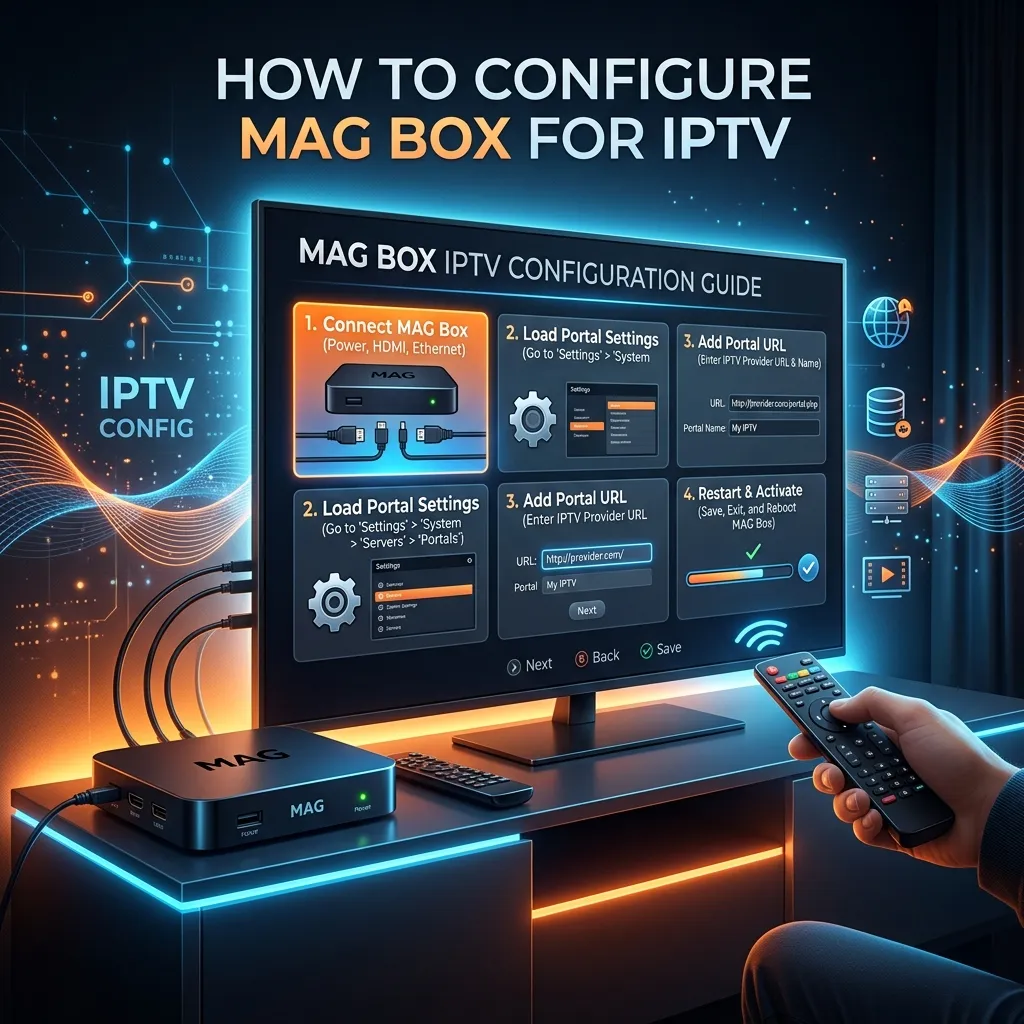
When it comes to dedicated IPTV streaming hardware, very few devices carry the prestige and reputation of the Infomir MAG Box. Over the years, the MAG series has become synonymous with seamless, high-quality, and robust IPTV streaming. Unlike generic Android TV boxes or smart TV applications, MAG boxes are purpose-built to do exactly one thing: deliver an exceptional, television-like live streaming experience using Stalker portals and advanced middleware.
However, if you have just purchased your first MAG box, the initial setup process might look a little daunting. It doesn't run standard Android, meaning you can't just open a Google Play Store and download a convenient app. Instead, you'll be navigating a customized Linux-based environment that requires precise URL inputs and MAC address registrations.
In this exhaustive, step-by-step guide, we will walk you through everything you need to know about setting up a MAG box for IPTV. From unboxing your device and configuring network settings to optimizing video output, adjusting buffer sizes, and troubleshooting common errors. By the end of this guide, your living room will be transformed into an ultimate entertainment hub.
If you haven't yet secured a premium IPTV provider to use with your new hardware, be sure to check out our IPTV Subscription packages and explore our competitive Pricing to unlock thousands of live channels, movies, and TV shows. Let's dive in!
Understanding the MAG Box Ecosystem
Before we jump into the setup process, it's highly beneficial to understand exactly what a MAG box is and why it operates differently from other streaming devices on the market.
What Makes MAG Boxes Unique?
The MAG box is manufactured by Infomir, a European company specializing in creating set-top boxes (STBs) for internet service providers, OTT operators, and content aggregators. The fundamental difference between a MAG box and an Android box (like an Nvidia Shield or a generic Android TV stick) lies in the operating system and the primary software architecture.
Most traditional streaming devices run Android, utilizing a varied mixture of third-party applications to decode and play video streams. MAG boxes, on the other hand, run a heavily optimized Linux-based operating system. They are designed specifically to connect to Stalker Middleware (now known as Ministra TV Platform).
Stalker middleware allows your IPTV provider to serve you an interface that mimics a traditional cable or satellite TV guide. When you turn on your MAG box, it connects directly to the provider's servers, authenticates your unique device via its MAC address, and loads a customized user interface complete with an Electronic Program Guide (EPG), Video on Demand (VOD) libraries, and interactive features.
Popular MAG Box Models in 2026
Over the years, Infomir has released several iterations of the MAG box to keep up with advancing video codecs and resolution standards. If you are setting up a MAG box today, you likely have one of the following models:
- MAG 540 / MAG 540w3: The current standard for 4K streaming, featuring an ARM Cortex-A35 processor and robust HEVC (H.265) hardware decoding. The 'w3' variant includes built-in dual-band Wi-Fi.
- MAG 520 / MAG 520w3: A highly capable 4K device running Linux 4.9. Still incredibly popular and widely supported by almost all premium IPTV providers.
- MAG 420 / MAG 424: Older 4K units that are still highly functional but slightly slower in menu navigation compared to the 500 series.
- MAG 322 / MAG 254 / MAG 256: Legacy 1080p devices. While the venerable MAG 254 is considered a legend in the IPTV community, it is generally recommended to upgrade to a 500-series model to handle modern high-bitrate HEVC streams without buffering.
No matter which model you own, the core software interface—often referred to as the "Inner Portal"—remains largely identical, meaning the setup steps in this guide will apply universally across the Infomir hardware lineup.
Why Choose a MAG Box Over Other Devices?
If you visit our comprehensive Homepage, you will see that we support a massive array of devices, including Smart TVs, Android boxes, Apple TV, and mobile phones. So why do purists and enthusiasts still swear by the MAG box?
1. Native Stalker Portal Support
While Android apps like STB EMU attempt to emulate the MAG interface, nothing beats the native hardware integration of an actual MAG box. The communication between a MAG device and an IPTV server is highly efficient, resulting in incredibly fast channel zapping times (the time it takes to switch from one channel to another).
2. Dedicated Remote Control
A frequently overlooked advantage of the MAG box is its remote control. Generic Android remotes often lack essential television-centric buttons. The MAG remote features dedicated buttons for the EPG, video-on-demand menus, audio track switching, subtitle toggles, and colored shortcut keys that directly interact with the IPTV interface. It feels exactly like a high-end cable box remote.
3. Reliability, Stability, and Zero Bloatware
Because a MAG box doesn't run background Android services, Google Play integrations, or unnecessary manufacturer bloatware, 100% of the hardware resources are dedicated to playing video. This lean operating system drastically reduces the likelihood of the device freezing, crashing, or suffering from memory leaks after prolonged use. It is a true "plug-and-play" appliance once configured.
4. Hardware-Level Video Decoding
MAG boxes utilize specialized silicon specifically tuned for decoding complex IPTV video streams. They handle interlaced video (often used in live sports broadcasts) exceptionally well, applying hardware de-interlacing that results in a noticeably smoother and crisper picture during fast-moving scenes compared to software-based players on other platforms.
Pre-Installation Checklist: What You Need
Before modifying any settings on your television screen, ensure you have gathered all the necessary components and information. Being prepared will make the setup process smooth and error-free.
Essential Hardware components
- Your MAG Box and Power Adapter: Ensure you are using the official power supply included in the box. Using an under-powered adapter is a leading cause of random reboots.
- An HDMI Cable: To support 4K 60fps streaming, you should use an HDMI 2.0 or HDMI 2.1 cable.
- The MAG Remote Control: Make sure you have inserted fresh AAA batteries.
- An Ethernet Cable (Highly Recommended): While Wi-Fi is supported on 'w' models, hardwiring your device to your router is always the best practice for live IPTV streaming.
Network Requirements
Live IPTV requires a consistent, stable internet connection. Unlike Netflix, which can heavily buffer content in advance, live television broadcasts in real-time.
| Resolution / Quality | Minimum Download Speed | Recommended Download Speed |
|---|---|---|
| Standard Definition (SD) | 5 Mbps | 10 Mbps |
| High Definition (HD 1080p) | 15 Mbps | 30 Mbps |
| Ultra HD (4K / UHD) | 30 Mbps | 50 Mbps+ |
[!IMPORTANT]
A Note on Ping and Jitter: Download speed isn't everything. For IPTV, having a low ping (under 50ms) and low network jitter is critical to preventing the stream from pausing or stuttering. If you experience buffering despite having high download speeds, network jitter is the likely culprit.
Account Credentials
To connect to your provider, you will need the specific Portal URL provided when you purchased your subscription. If you are using our services, this URL was sent to you in your welcome email after selecting a package from our Pricing page.
Finding and Registering Your Device's MAC Address
This is the most critical step that differentiates MAG box setup from almost any other device. MAG boxes do not use usernames and passwords. Instead, they authenticate to the IPTV server using a unique hardware identifier known as a MAC Address (Media Access Control address).
A MAG box MAC address ALWAYS begins with 00:1A:79.
Locating the MAC Address on the Device
The easiest way to find your MAC address is to look at the physical box itself.
- Turn your MAG box upside down.
- Locate the white barcode sticker.
- Look for the alphanumeric string labeled MAC. It will look something like this:
00:1A:79:XX:YY:ZZ.
Locating the MAC Address in System Settings
If the sticker on your device has faded or been removed, you can find the MAC address through the software:
- Boot up the MAG box without connecting it to the network.
- When you reach the main screen (Inner Portal), navigate to Settings.
- Select System Settings.
- Select Device Info.
- Your MAC address will be displayed prominently on this screen.
Crucial Step: Once you have this MAC address, you MUST provide it to your IPTV provider. The provider needs to add this address to their server's database. If they have not registered your MAC address on their end, the portal will reject your connection, resulting in a "Your STB is Blocked" or "Authentication Failed" error.
Step-by-Step: Initial Hardware and Network Setup
Let's get your hardware plugged in and talking to the internet.
Physical Connections
- Connect the HDMI cable from the back of the MAG box to an open HDMI port on your television.
- Connect your Ethernet cable from your router directly into the LAN port on the MAG box.
- Plug the power adapter into the wall, and connect the barrel jack to the MAG box. The device will automatically power on.
- Switch your television to the correct HDMI input. You will see the Infomir splash screen as the Linux OS begins to boot.
Configuring Ethernet (Wired) Connection
If you plugged in an Ethernet cable, the MAG box will usually configure itself automatically using DHCP. However, it is good practice to verify:
- Wait for the box to load into the Inner Portal (the default dark-themed screen with icons like TV, Settings, Weather, etc.).
- Navigate to Settings (the gear icon) and press OK.
- Select System Settings.
- Select Network.
- Select Wired (Ethernet).
- Select Auto (DHCP).
- Press the OK button to save the settings. The screen should indicate that the network configuration was successful.
Configuring Wi-Fi (Wireless) Connection
If you are using a Wi-Fi enabled MAG box (e.g., MAG 520w3) and cannot use an Ethernet cable:
- From the Inner Portal, navigate to Settings > System Settings > Network.
- Select Wireless (Wi-Fi).
- Select Auto (DHCP).
- A list of available Wi-Fi networks will appear. Select your home network's SSID.
- A virtual keyboard will pop up. Carefully enter your Wi-Fi password. Use the colored buttons on your remote as indicated on the screen to switch between uppercase, lowercase, and symbols.
- Once entered, press the OK button or the button designated for "Enter/Save" on the virtual keyboard.
- Allow the box a few moments to negotiate the connection. You should see a status message confirming you are connected to the network.
[!TIP]
If you are using Wi-Fi, ensure your MAG box is connected to the 5GHz band rather than the 2.4GHz band. 5GHz provides significantly faster speeds and is less prone to interference from other household devices, which is vital for smooth HD streaming.
How to Configure the Stalker Portal for IPTV (Primary Method)
With your MAC address registered with your provider and your device connected to the internet, you are now ready to point the MAG box to the IPTV server.
Step 1: Accessing the Inner Portal
Turn on your MAG box. If it immediately attempts to load a portal and gets stuck on a loading bar, press the Setup button on your remote (usually located near the top left, possessing a gear icon) to force the box back into the Inner Portal settings.
Step 2: Navigating to Portal Settings
- From the main Inner Portal screen, navigate to Settings and press OK.
- Go to System Settings.
- Scroll down and select Servers.
- Select Portals.
Step 3: Entering the Portal URL
You will now see a screen that allows you to input up to two different portals (Portal 1 and Portal 2).
- Highlight Portal 1 Name and press the KB (Keyboard) button on your remote to bring up the on-screen keyboard. Type a name for your provider (e.g., "Smartiflix") and press OK.
- Scroll down to highlight Portal 1 URL.
- Press the KB button again.
- Carefully type out the exact portal URL provided to you in your subscription email.
- Example:
http://mag.smartiflix.com/c/ - Pay close attention to detail! The URL must be exact. Do not miss a trailing slash (
/), and ensure you typehttp://correctly. One wrong character will prevent the portal from loading.
- Example:
- Press OK on the virtual keyboard once the URL is perfectly typed.
- Press the OK button on your remote control to save these changes. The screen will display a message that the settings have been saved.
Step 4: Rebooting to Load the Portal
- Press the Exit button (or the 'Home' button, depending on your remote version) multiple times until you back out completely to the main System Settings menu.
- Scroll all the way to the bottom and select Restart Portal or Reboot Device.
- Confirm that you want to reboot.
Step 5: The Loading Process
When the device restarts, you will see a yellow loading bar traversing the screen. If your MAC address is properly registered and you typed the URL perfectly, the bar will fill completely, and you will be greeted by your provider's custom interface!
From here, you can navigate to the "TV" section to access live channels, or "Video Club" / "VOD" to browse movies and series.
Alternative Setup: Using M3U Playlists on a MAG Box
While the Stalker Portal method is the absolute best way to use a MAG box, there may be instances where a provider only supplies an M3U playlist link rather than a portal URL. While an M3U setup is more common on Android applications (see our broader Installation Guide), it is possible to load an M3U on a MAG device.
- Obtain your M3U Plus URL from your provider.
- Boot into the MAG Inner Portal.
- Navigate to Home Media.
- Press the Menu button on your remote.
- Select Add IPTV list or Add M3U Playlist.
- You can type the long URL directly using the virtual keyboard (which is tedious), or you can place the
.m3ufile onto a USB flash drive, plug it into the MAG box, and select the file from the local storage menu. - Once loaded, you can access your channels through the Home Media section.
Note: Using an M3U file on a MAG box means you will lose the beautifully integrated EPG and interactive menus that make the Stalker Portal so desirable. We highly recommend using the Portal URL method whenever possible.
Advanced System Configurations for Optimal Viewing
Once your MAG box is up and running, you might notice that the picture doesn't look quite right, or you may experience occasional buffering. The default settings aren't always optimized for modern 4K televisions. Let's tweak the advanced settings.
Accessing the Advanced Bios/Boot Menu
Some critical settings, like deep video resolution changes, must be done from the bootloader menu before the OS loads.
- Unplug the power cord from the MAG box.
- Plug the power cord back in.
- Immediately and repeatedly press and hold the Menu button (or the Setup gear button) on your remote control.
- A blue screen with white text will appear. This is the BIOS/Bootloader menu.
Video Output and Resolution Settings
From the blue bootloader menu:
- Navigate to TV System.
- By default, it might be set to
Autoor720p. If you have a modern television, use the right arrow key to change this to1080p-60or2160p-60(if you have a 4K MAG box and a 4K TV). The-60indicates 60 hertz, which is the standard refresh rate for North American TVs. If you are in Europe, you may want to select1080p-50. - Scroll down to Graphic Resolution. Change this to match your TV System setting (e.g.,
1920x1080or3840x2160). - Scroll down to Save & Exit, press right to select
Save & Reboot, and press OK.
Audio Output and Passthrough
If you have your MAG box hooked up to an AV Receiver or a high-end soundbar and you want Dolby Digital surround sound:
- Go to the Inner Portal > Settings > System Settings > Audio.
- Change the Audio Output from
PCMtoBitstreamorSPDIF/HDMI Passthrough. - This forces the MAG box to send the raw audio data to your receiver, allowing your receiver to decode the high-quality surround sound.
Adjusting the Buffer Size to Stop Freezing
If you are experiencing micro-stutters or freezing, adjusting the buffer size is the best internal fix. The buffer tells the MAG box to download a few seconds of video ahead of time to compensate for network fluctuations.
- Navigate to the Inner Portal > Settings > System Settings > Advanced Settings.
- Look for the Buffer Size option.
- By default, this is often set to
0(which means no buffer). - Increase this to
1000(1 second),3000(3 seconds), or even5000(5 seconds). - Save the settings and reboot.
[!TIP]
A larger buffer means live TV will be slightly more delayed from real-time (e.g., you might hear your neighbor cheer for a football touchdown 3 seconds before you see it), but the stream will be vastly more stable and resistant to buffering.
Comparing MAG Devices with the Amazon Firestick
Many users ask whether they should invest in a MAG box or opt for the ubiquitous Amazon Fire TV Stick. You can read our complete Firestick Setup guide to see how the other side lives, but here is a quick comparative breakdown:
| Feature | Infomir MAG Box | Amazon Fire TV Stick 4K |
|---|---|---|
| Primary Focus | Dedicated Live IPTV | Streaming Apps (Netflix, Hulu, Prime) |
| Operating System | Custom Linux | Android / Fire OS |
| UI Experience | Cable TV-like Interface | App grid, heavy Amazon advertisements |
| Remote Control | Traditional TV Remote (Numbers, Color keys) | Minimalist Remote (Voice control focus) |
| Setup Complexity | Moderate (Requires MAC registration) | Low (App download) |
| Performance for IPTV | Excellent (Hardware decoding, zero bloatware) | Good (Relies on 3rd party apps like Tivimate) |
The Verdict: If 90% of your viewing time is spent watching live TV, sports, and your provider's VOD library, the MAG box provides a superior, more authentic television experience. If you also need access to official DRM-protected streaming apps like Netflix, Disney+, and HBO Max, the Firestick is the necessary choice, as MAG boxes cannot run these applications.
Essential Security Measures for MAG Streaming
Privacy and security are critical considerations for anyone using modern streaming technologies. Your Internet Service Provider (ISP) actively monitors your web traffic. Many ISPs employ aggressive bandwidth throttling when they detect heavy streaming activity, which can instantly ruin your IPTV experience.
Why You Need a VPN
To protect your privacy and ensure your ISP cannot throttle your connection, you must use a Virtual Private Network (VPN). For a deep dive into the legalities and technicalities, read our comprehensive Security Guide.
How to use a VPN with a MAG Box
Because MAG boxes run Linux and do not have an app store, you cannot simply download an app like NordVPN or ExpressVPN directly onto the device. You have two primary options:
- A VPN Router: This is the most secure and reliable method. You install the VPN software directly onto your home network router (or purchase a pre-flashed VPN router). Once active, every device connected to the router—including your MAG box—is automatically encrypted and protected.
- Smart DNS / Proxy Configuration: Some VPN providers offer Smart DNS settings. While this doesn't encrypt your traffic, it does mask your location and bypass some geo-blocks. You can enter these DNS addresses manually in the MAG box's Network settings under the "Manual IP" configuration.
Comprehensive Troubleshooting Guide
Even with perfect hardware, software glitches and network hiccups can occur. Here are the most common MAG box errors and how to solve them immediately.
Error: "Page Loading Error" or "Portal Cannot Load"
This is the most frequent issue encountered by new users.
- Cause: The MAG box cannot reach the server URL.
- Solutions:
- Double-check the URL. 90% of the time, this is caused by a typo in the Portal URL setting. Did you forget the
http://or use a comma instead of a period? - Check your internet connection. Try pulling up the web browser on the MAG box to see if Google loads.
- Your ISP might be blocking the portal URL. In this case, setting up a VPN on your router is mandatory.
- The provider's servers may be temporarily down for maintenance. Contact your provider.
- Double-check the URL. 90% of the time, this is caused by a typo in the Portal URL setting. Did you forget the
Error: "STB Blocked"
A massive red screen appearing that declares your "Set Top Box is Blocked."
- Cause: The server actively rejected your device's MAC address.
- Solutions:
- You have not provided your MAC address to your IPTV provider.
- You provided the wrong MAC address (double-check it in System Settings).
- Your subscription has expired, and your provider has disabled your access. Contact their support team to renew.
Authentication Failed
- Cause: Similar to the STB blocked error, but often related to a MAC address conflict or a portal platform update.
- Solutions: Ensure your provider knows you are using a true MAG device. Some providers require specific settings enabled on their panel to allow Infomir hardware to connect.
Audio Sync Issues or No Sound on VODs
- Cause: The audio codec of the specific movie or channel is not playing nicely with your TV.
- Solutions: Press the "Audio" button on your remote while the movie is playing. Change the audio track. If that fails, go into the Inner Portal > System Settings > Audio and change the output type to PCM.
Infinite "Loading..." Screen with a Black Background
- Cause: The portal loaded, but the video stream itself cannot connect due to a timeout.
- Solutions: Reboot your router, then reboot the MAG box. If the problem persists, increase your Buffer Size as detailed in the Advanced Setup section.
Routine Maintenance and Software Updates
To keep your MAG box running at peak performance, you should ensure its firmware is up to date. Infomir periodically releases OTA (Over-The-Air) updates to improve codec support, patch security vulnerabilities, and enhance menu speed.
Over-The-Air (OTA) Firmware Updates
- Go to the Inner Portal.
- Navigate to Settings > System Settings > Software Update.
- Choose Update from HTTP (or Update Method: HTTP).
- Select Verify or Check for Updates.
- If an update is available, press F1 (the red button on the remote) to start the download and installation.
- CRITICAL: Do NOT unplug your device during the flashing process. If the device loses power while updating, it can become permanently bricked. The box will reboot automatically once finished.
Performing a Factory Reset
If your box is completely frozen, endlessly looping, or settings have become hopelessly corrupted, a factory reset will bring it back to a clean slate.
- Enter the BIOS/Bootloader menu (unplug power, plug back in, repeatedly press Menu/Setup).
- Navigate to Def. Settings (Default Settings).
- Press the Right arrow key, then press OK.
- Navigate to Save & Exit.
- Press the Right arrow key to select Save & Reboot, then press OK.
- You will need to re-enter your network details and Portal URL after doing this.
Frequently Asked Questions (FAQs)
Q: Can I use Wi-Fi with my MAG box? A: Yes, if you have a 'w' model (like the 540w3) or a compatible USB Wi-Fi adapter. However, for 4K streaming, a hardwired Ethernet connection is strongly recommended to prevent buffering caused by wireless interference.
Q: Why doesn't the MAG box have a Google Play Store? A: MAG boxes run a proprietary Linux operating system designed strictly for Stalker middleware and IPTV, not Android. This ensures maximum performance for live TV but means you cannot install standard Android applications.
Q: Can I use multiple IPTV subscriptions on one MAG box? A: Yes! The portal settings allow you to enter "Portal 1" and "Portal 2". You can subscribe to two different providers and switch between their portals via the system settings.
Q: What is the best video resolution for a MAG 540?
A: Set your TV System to 2160p-60 and Graphic Resolution to 3840x2160 if you own a 4K television. This will provide the sharpest UI and allow 4K VODs to play in native resolution.
Q: Is it illegal to own a MAG Box? A: Owning a MAG box is 100% legal. It is simply a piece of networking hardware. The legality depends entirely on the content provided by the IPTV service you choose to subscribe to and the copyright laws of your specific country. Always use a VPN to protect your privacy.
Conclusion
Configuring a MAG box may require a few more technical steps than downloading an app on a Firestick, but the reward is vastly superior. By registering your MAC address and dialing in the perfect portal, video, and buffer settings, you unlock a premium, cable-like experience that is highly responsive, visually stunning, and rock-solid stable.
Whether you are enjoying live sports, international news, or the latest blockbuster VODs, your Infomir device is now perfectly tuned to deliver. Remember to keep your firmware updated, utilize an Ethernet connection whenever possible, and always protect your connection with a router-level VPN.
Ready to put your newly configured MAG box to the ultimate test? Head over to our IPTV Subscription page to explore our channel packages, or return to our Homepage to discover more guides, tips, and tricks for mastering the cord-cutting lifestyle. Happy streaming!