GSE Smart IPTV: Setup, Tips, and Full Configuration Guide
Unlock the potential of GSE Smart IPTV with our ultimate guide. Learn to set up, configure, and optimize your streaming experience effortlessly.
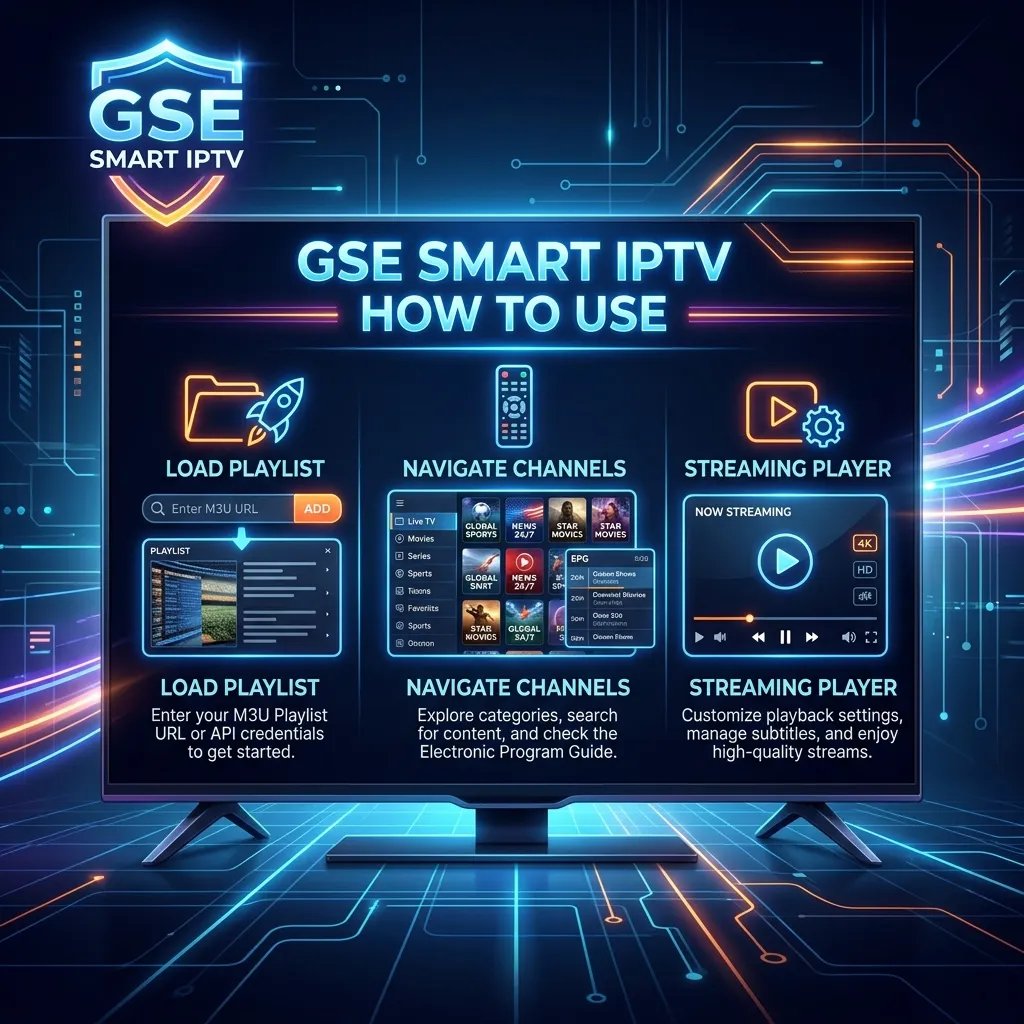
The world of entertainment has undergone a massive transformation over the past decade. Traditional cable and satellite TV services are rapidly being replaced by more flexible, affordable, and content-rich alternatives. At the forefront of this cord-cutting revolution is Internet Protocol Television, commonly known as IPTV. By delivering television programming and video content over internet protocol networks, IPTV offers an unparalleled viewing experience tailored to the modern consumer's needs. However, to truly harness the power of IPTV, you need a robust, reliable, and feature-rich IPTV player. Enter GSE Smart IPTV—one of the most popular, versatile, and advanced IPTV applications available today.
In this exhaustive, step-by-step guide, we will dive deep into everything you need to know about GSE Smart IPTV. Whether you are a complete beginner looking to cut the cord or a seasoned IPTV enthusiast searching for tips to optimize your viewing experience, this article has you covered. We will explore what GSE Smart IPTV is, its myriad of features, how to install it across various devices, and, most importantly, how to configure it correctly to ensure seamless streaming. By the end of this guide, you will be a GSE Smart IPTV master.
Disclaimer: GSE Smart IPTV is purely a media player. It does not provide or include any media or content of its own. Users must provide their own content by subscribing to a third-party IPTV service provider.
What is GSE Smart IPTV?
GSE Smart IPTV is an advanced, user-defined Advanced IPTV solutions for live and non-live TV/stream. With a built-in strong player that supports most formats including M3U with options, JSON formats, Database formats, and much more, GSE Smart IPTV stands out as a premier choice for streaming live TV, movies, and TV shows (VOD).
Unlike dedicated streaming apps like Netflix or Hulu that provide their own content library, GSE Smart IPTV is simply a vehicle or a platform. It acts as a bridge between you and your IPTV service provider. You input the playlist or credentials provided by your IPTV service into the GSE Smart IPTV app, and the app decodes the links, organizing them into a visually appealing, easy-to-navigate user interface complete with categories, channel logos, and an Electronic Program Guide (EPG).
Cross-Platform Compatibility
One of the main reasons GSE Smart IPTV has garnered millions of downloads and a loyal user base is its exceptional cross-platform compatibility. It is not limited to just one operating system. You can install and enjoy GSE Smart IPTV on:
- Android: Smartphones, Tablets, Android TV Boxes, Smart TVs.
- iOS: iPhones, iPads, Apple TV.
- Amazon Fire OS: Amazon Firestick, Fire TV Cube.
- macOS / Windows: Via Android emulators like BlueStacks or NoxPlayer.
This multi-platform support ensures that you can enjoy your favorite content on the big screen in your living room or on your mobile device while commuting, all with the same familiar interface.
Key Features of GSE Smart IPTV
Why should you choose GSE Smart IPTV when there are dozens of other IPTV players on the market? The answer lies in its rich feature set. The developers behind GSE Smart IPTV have continuously updated the application to meet the evolving demands of IPTV users. Here is a detailed look at the standout features:
1. Comprehensive Format Support
GSE Smart IPTV is incredibly versatile when it comes to the types of playlists and streaming protocols it can handle. It supports:
- Xtream Codes API: The most popular and user-friendly way to connect to an IPTV service using a username, password, and server URL.
- M3U / M3U8 Playlists: Both local files and remote web URLs.
- JSON Formats: Advanced playlist formats.
- VOD Support: Video On Demand (Movies and TV Shows) with IMDB info integration.
2. Powerful Built-in Media Player
The app comes equipped with a highly capable native media player built on advanced streaming technology. It supports a vast array of video and audio codecs, ensuring that whether your stream is in SD, HD, 4K, or uses complex audio formats, the player can handle it smoothly without constant buffering—provided you have a stable internet connection.
3. Electronic Program Guide (EPG)
A TV viewing experience is incomplete without a TV guide. GSE Smart IPTV supports multiple EPG formats (XMLTV, JTV). A properly configured EPG allows you to see what is currently playing, what is coming up next, and the schedule for the next several days, complete with show descriptions.
4. Chromecast Support
If you have the app installed on your smartphone or tablet, you can easily cast the live stream or VOD content directly to your Chromecast-enabled TV. This is incredibly convenient if you are visiting a friend or staying in a hotel and want to watch your content on a bigger screen.
5. Parental Controls
For families, parental control is a must-have feature. GSE Smart IPTV allows you to set up a PIN code to lock specific channels, categories, or entire VOD sections, ensuring that children cannot access inappropriate content.
6. Dynamic Language Support
The app caters to a global audience with support for over 31 languages. The interface dynamically adjusts, making it accessible to non-English speakers worldwide.
7. Customization and Themes
Tired of the same old look? GSE Smart IPTV offers multiple themes, allowing you to change the color scheme and overall aesthetic of the application to suit your preferences.
Why Choose GSE Smart IPTV Over Other Players?
To help you understand where GSE Smart IPTV stands in the competitive landscape of IPTV players, we have compiled a comparison table highlighting its pros and cons, especially when compared to rivals like IPTV Smarters Pro and TiviMate.
| Feature / Aspect | GSE Smart IPTV | IPTV Smarters Pro | TiviMate |
|---|---|---|---|
| User Interface | Highly customizable, slightly complex | Simple, user-friendly, clean | Modern, premium, intuitive |
| Platform Support | Android, iOS, Apple TV, macOS | Android, iOS, Windows, Web | Android TV / Firestick (Only) |
| Xtream Codes | Excellent Support | Excellent Support | Excellent Support |
| M3U Support | Yes (Advanced handling) | Yes | Yes |
| Casting | Chromecast Supported | Very Limited | No |
| Price | Free (with ads) / Premium (One-time) | Free / Premium | Premium (Subscription/One-time) |
The Verdict: If you are looking for an app that works across all your Apple and Android devices, supports casting, and handles M3U playlists exceptionally well, GSE Smart IPTV is the clear winner. However, if you strictly use an Android TV or Firestick and want the most television-like interface, TiviMate might edge it out. If you need a reliable IPTV Subscription to test these players out, ensure you choose a provider that supports both M3U and Xtream Codes APIs.
Prerequisites: What You Need Before You Start
Before we dive into the installation and configuration of GSE Smart IPTV, there are two crucial components you must have in place:
- A Compatible Device: As discussed, this could be an Android phone, iPhone, Firestick, or Smart TV. Ensure your device is connected to a stable, high-speed internet connection (minimum 25 Mbps recommended for HD/4K streaming).
- An Active IPTV Subscription: GSE Smart IPTV does not provide content. You need a subscription from a premium IPTV provider. If you haven't chosen one yet, check out our highly-rated IPTV Subscription packages. We offer thousands of live channels, premium sports, and a massive VOD library. You can review our affordable Pricing plans to find the perfect fit for your entertainment needs.
Once you have your device ready and your IPTV credentials (either an M3U URL or Xtream Codes login details) in hand, you are ready to proceed.
How to Download and Install GSE Smart IPTV
The installation process varies depending on the device you are using. Below are comprehensive, step-by-step instructions for the most popular platforms.
1. Installing on Android Devices (Smartphones, Tablets, Android TV)
Installing GSE Smart IPTV on Android is straightforward, as the app is officially available on the Google Play Store.
Step 1: Turn on your Android device and open the Google Play Store. Step 2: Tap on the search bar at the top and type "GSE Smart IPTV". Step 3: Look for the official app (usually developed by GSE INTL or similar, featuring the distinct blue and white logo). Step 4: Tap on Install. Step 5: Wait for the download and installation to complete. Step 6: Tap Open to launch the application.
Note: If for some reason the app is not available in your region's Play Store, you can sideload it by downloading the official APK file from a trusted source via your web browser.
2. Installing on iOS Devices (iPhone, iPad, Apple TV)
Similarly, Apple users can easily find GSE Smart IPTV in the Apple App Store.
Step 1: Open the App Store on your iOS device or Apple TV. Step 2: Tap the search icon (magnifying glass) and enter "GSE Smart IPTV". Step 3: Locate the app in the search results and tap Get. Step 4: Authenticate the download using Face ID, Touch ID, or your Apple ID password. Step 5: Once installed, tap Open to start the app.
3. Installing on Amazon Firestick / Fire TV
Because GSE Smart IPTV is not natively available on the Amazon Appstore, we must "sideload" it using the popular Downloader app. If you are new to Firestick, you might want to read our comprehensive Firestick Setup guide first.
Step 1: Enable Apps from Unknown Sources
- Go to the Firestick Home Screen.
- Navigate to Settings (the gear icon on the right).
- Select My Fire TV.
- Click on Developer Options. (If Developer Options is missing, go to 'About', click on your Fire TV device name 7 times to unlock it).
- Turn ON Apps from Unknown Sources.
Step 2: Install the Downloader App
- Return to the Home Screen and click on the Find > Search icon.
- Type "Downloader".
- Select the Downloader app (orange background) and click Download or Get.
- Open the Downloader app and click Allow when prompted for permissions.
Step 3: Download and Install GSE Smart IPTV
- In the Downloader app, click on the URL bar.
- Enter the exact URL for the GSE Smart IPTV APK. (You can search online for a reliable APK link, e.g.,
https://gsesmartiptv.com/download/gse.apk- note: always use official or trusted sources). - Click Go.
- The Downloader app will connect to the server and download the APK file.
- Once downloaded, an installation prompt will appear automatically. Click Install.
- After installation, click Done. You can then delete the APK file to save space on your Firestick.
- You will now find GSE Smart IPTV in your Apps & Channels list.
4. Installing on Windows PC or Mac
To use GSE Smart IPTV on a computer, you need an Android Emulator to simulate an Android environment.
Step 1: Download and install a reliable Android Emulator such as BlueStacks or NoxPlayer from their official websites. Step 2: Launch the emulator and sign in with your Google Account. Step 3: Open the Google Play Store within the emulator. Step 4: Search for "GSE Smart IPTV". Step 5: Install the app just as you would on a standard Android phone. Step 6: Launch the app from the emulator's home screen.
How to Configure and Setup GSE Smart IPTV
Now that you have successfully installed GSE Smart IPTV on your preferred device, it is time to connect it to your IPTV service. This is where your subscription details come into play.
There are two primary methods to add your IPTV playlist: Xtream Codes API and M3U Playlist / URL. We highly recommend using the Xtream Codes API as it is faster, more stable, and updates automatically.
For a broader understanding of IPTV configurations across different apps, you can also refer to our general Installation Guide.
Method 1: Setting up via Xtream Codes API (Highly Recommended)
When you purchase an IPTV subscription, your provider will typically email you the following details:
- Server URL (Portal URL) (e.g.,
http://server.url.com:8080) - Username
- Password
Here is how to input them into GSE Smart IPTV:
- Open GSE Smart IPTV and accept any initial terms and conditions.
- Tap on the Hamburger Menu (three horizontal lines) in the top-left corner of the screen to open the side menu.
- Scroll down and select Xtream-Codes API.
- Tap the "+" (Plus) icon usually located in the top-right corner (or bottom right depending on the device/version) to add a new portal.
- A dialog box will appear asking for four pieces of information:
- Any Name: Enter a name for this playlist (e.g., "Smartiflix Premium").
- Server URL: Enter the exact URL provided by your IPTV service (make sure to include
http://orhttps://and the port number if specified). - Username: Enter your provided username (case-sensitive).
- Password: Enter your provided password (case-sensitive).
- Double-check all entries for typos. Even a single incorrect character will prevent connection.
- Tap Add or Login.
- The app will now connect to the server and download the playlist. Depending on the size of the channel list and your internet speed, this may take a few seconds to a minute.
- Once downloaded, you will see your playlist name listed. Tap on it.
- You will now be presented with three main categories: LIVE TV, VOD (Movies), and TV SERIES.
- Navigate through the categories, select a channel, and start streaming!
Method 2: Setting up via M3U URL / Remote Playlist
If your provider only gave you a long M3U URL (a link ending in .m3u or .m3u8), you will use this method.
- Open the Side Menu (hamburger icon).
- Select Remote Playlists.
- Tap the "+" (Plus) icon.
- Select Add M3U URL.
- You will need to fill in two fields:
- Playlist Name: Enter a memorable name (e.g., "My IPTV List").
- Playlist Link: Carefully type or paste the entire M3U URL provided by your service.
- Tap Add.
- The app will fetch the channels. Once completed, tap on your newly created playlist to access the channel groups.
How to Add and Configure the EPG (Electronic Program Guide)
If you used the Xtream Codes API method, the EPG usually downloads and configures automatically. However, if you used an M3U playlist, you might need to add the EPG source manually.
- Obtain the EPG URL from your IPTV provider (it usually ends in
.xmlor.xml.gz). - Open the GSE Smart IPTV side menu.
- Select EPG Program Guide.
- Tap the "+" (Plus) icon to add a new EPG source.
- Select Add Remote EPG source.
- Enter an EPG Name and paste the EPG Link.
- Tap Add.
- Go back to the main menu and enter your playlist. The TV guide should now populate next to the channels. You can force an update by clicking the refresh icon on the EPG page.
Exploring the GSE Smart IPTV User Interface
Understanding how to navigate GSE Smart IPTV will drastically improve your viewing experience. Let's break down the main sections:
- Live TV: This section houses all your live broadcasting channels, typically organized by country, genre (Sports, News, Entertainment), or language. You can use the search feature (magnifying glass) at the top to quickly find a specific channel.
- VOD (Video On Demand): Here you will find an extensive library of movies. High-quality IPTV providers categorize these by genre, release year, and popularity. GSE Smart IPTV pulls IMDB information, showing you the movie poster, plot summary, cast, and ratings before you hit play.
- TV Series: Similar to VOD, but structured for episodic content. You can easily navigate through seasons and individual episodes.
- Favorites: To avoid scrolling through thousands of channels, you can add your most-watched channels to the Favorites list. Simply long-press on a channel name and select "Add to Favorites".
- Catch-up: If your provider supports Catch-up TV (recording past broadcasts), you will see a clock icon next to supported channels. This allows you to watch programs you missed over the last few days.
Advanced Settings and Optimization
To get the absolute best performance out of GSE Smart IPTV, you should dive into the settings menu and tweak a few configurations.
1. Hardware / Software Decoding
By default, the app uses its internal decoder. If you experience choppy video or audio out of sync, navigating to Settings > Player Settings and toggling between Hardware Decoding and Software Decoding can often resolve the issue. Hardware decoding utilizes your device's GPU for smoother playback, while software decoding relies on the CPU.
2. Auto-Update Playlist
IPTV providers frequently update their channel lists, adding new content or fixing broken links. To ensure you always have the latest list, go to Settings > General Settings and enable Auto-update Remote Playlists. You can set it to update every time the app opens or daily.
3. Setting up Parental Controls
To restrict access to adult content or specific categories:
- Go to the side menu and select Parental Control.
- Set a secure 4-digit PIN.
- Navigate to the Live TV or VOD section, long-press on a category (e.g., "Adult"), and select "Lock Category". You will now need the PIN to open it.
4. Customizing the Theme
GSE Smart IPTV looks a bit utilitarian by default. Go to Settings > Theme Settings to change the primary and secondary colors, or switch to a dark mode which is much easier on the eyes in a dark room.
Troubleshooting Common GSE Smart IPTV Issues
Even with the best app and a premium IPTV provider, you might occasionally run into technical hiccups. Here are solutions to the most common problems users face:
Issue 1: Constant Buffering and Freezing
Causes: Slow internet speed, Wi-Fi interference, ISP throttling, or overloaded IPTV servers. Solutions:
- Check Internet Speed: You need at least 25 Mbps for stable HD streaming. Use a speed test app.
- Use a Wired Connection: If you are on an Android TV or Firestick, using an Ethernet cable instead of Wi-Fi drastically reduces buffering.
- Restart Router: Unplug your modem and router for 60 seconds, then plug them back in.
- Use a VPN: Internet Service Providers (ISPs) often throttle IPTV traffic. Using a reliable VPN encrypts your traffic, preventing your ISP from slowing down your stream.
- Adjust Buffer Size: In GSE Smart IPTV settings, try increasing the network buffer size so the app pre-loads more of the stream before playing.
Issue 2: "Playlist / URL Not Found" Error
Causes: Typo in the URL/username/password, expired subscription, or the provider's server is temporarily down. Solutions:
- Meticulously check the spelling of your Xtream Codes or M3U URL. Pay attention to capital letters, numbers, and symbols.
- Verify with your IPTV provider that your account is active and has not expired.
- Try accessing the URL on a web browser on your computer to see if the server is responding.
Issue 3: EPG (TV Guide) is Blank or "No Information"
Causes: The app failed to download the EPG, or the provider's EPG link is broken. Solutions:
- Go to the EPG section in the app and manually click the Refresh/Update button.
- Ensure the EPG URL is entered correctly in the settings.
- Contact your provider; sometimes EPG servers require maintenance.
Issue 4: App Crashing or Extremely Slow Navigation
Causes: Device is out of storage space, cache is full, or using an outdated app version. Solutions:
- Clear Cache: Go to your device's settings (Android/Firestick) > Apps > GSE Smart IPTV > Clear Cache.
- Free Up Space: Delete unused apps or old files from your device.
- Update App: Check the Play Store, App Store, or your sideloading source for the latest version of GSE Smart IPTV.
Is GSE Smart IPTV Safe and Legal?
When discussing third-party streaming applications, safety and legality are paramount concerns.
Safety
GSE Smart IPTV, as an application downloaded from official app stores like Google Play and the Apple App Store, is completely safe. It has been vetted for malware and viruses. However, if you are downloading the APK from third-party websites to install on a Firestick, you must ensure you are using a reputable source to avoid malicious modified versions.
Legality
The GSE Smart IPTV app itself is 100% legal. It is merely a media player, akin to VLC Media Player. The legality comes into question regarding the content you stream through it.
If you use GSE Smart IPTV to watch free, non-copyrighted M3U playlists, it is completely legal. However, if you subscribe to an unverified IPTV service that broadcasts copyrighted premium channels, sports, and movies without proper licensing, you are entering a legal gray area. Depending on your jurisdiction, streaming unlicensed content can violate copyright laws.
For comprehensive information on how to protect your privacy, avoid ISP throttling, and ensure you are streaming securely, we strongly recommend reading our detailed guide: Is Smartiflix Safe? Your Complete Security Guide.
Crucial Tip: We highly advocate the use of a reputable Virtual Private Network (VPN) whenever streaming via IPTV. A VPN masks your IP address, encrypts your internet traffic, and protects your privacy from ISPs and potential hackers.
Top Alternatives to GSE Smart IPTV
While GSE Smart IPTV is phenomenal, it might not be everyone's cup of tea, especially those who prefer a more traditional "Smart TV" aesthetic. If you want to explore other options, consider these top-tier alternatives:
- TiviMate IPTV Player: Arguably the best IPTV player for Android TV and Firestick. It features an incredibly modern, sleek UI that looks exactly like a traditional cable box guide. It handles massive playlists effortlessly and supports multi-screen viewing.
- IPTV Smarters Pro: A highly popular, cross-platform app known for its simplicity. It separates Live TV, Movies, and Series into large, easy-to-navigate blocks. It is excellent for beginners.
- XCIPTV Player: Built specifically for Xtream Codes API, XCIPTV offers a robust, branded experience with built-in VPN support integration and an excellent built-in media player.
- Flix IPTV: A premium app available on various Smart TV platforms (Samsung Tizen, LG WebOS) as well as Android. It requires a small one-time activation fee but offers a very stable and clean interface.
Regardless of which app you choose, the quality of your stream ultimately depends on your IPTV provider. Ensure you partner with a reliable service that offers high uptime and anti-freeze technology.
Frequently Asked Questions (FAQs)
To wrap up this comprehensive guide, let's address some of the most frequently asked questions regarding GSE Smart IPTV.
Q1: Is GSE Smart IPTV free? A1: Yes, the basic version of GSE Smart IPTV is free to download and use. However, the free version contains advertisements. You can usually pay a small one-time fee via in-app purchase to remove the ads and unlock some premium features.
Q2: Can I record Live TV with GSE Smart IPTV? A2: Yes, GSE Smart IPTV does support recording, provided you have sufficient storage space on your device. You can record live streams and save them as local files to watch later.
Q3: How do I remove a playlist from GSE Smart IPTV? A3: Open the side menu, go to 'Remote Playlists' or 'Xtream-Codes API' (depending on where you added it). Long-press on the playlist name you wish to delete, and select the 'Delete' or 'Trash' option.
Q4: Why is there no sound on some channels? A4: This is usually a codec issue. Go to Player Settings and switch from Hardware to Software decoding (or vice versa). Alternatively, check if the app has permission to use your device's audio.
Q5: Can I use one IPTV subscription on multiple devices using GSE Smart IPTV? A5: This depends entirely on your IPTV provider, not the app. If your subscription allows for multiple simultaneous connections, you can install GSE on several devices and watch at the same time. If it only allows one connection, attempting to watch on two devices simultaneously will result in buffering or account suspension.
Conclusion
GSE Smart IPTV remains a powerhouse in the IPTV community for good reason. Its extensive format support, cross-platform availability, and array of customization options make it an incredibly versatile tool for accessing your favorite media. While the interface may present a slight learning curve for absolute beginners compared to simpler apps, mastering it unlocks a highly optimized viewing experience.
By following the detailed steps in this guide, from downloading the app on your specific device to configuring your Xtream Codes API and tweaking the advanced settings, you are now equipped to enjoy seamless, buffer-free streaming.
Remember, an exceptional player deserves an exceptional service. If you are ready to cut the cord and experience thousands of live channels and VODs in pristine quality, explore our offerings and return to our Homepage. Dive into the future of television with confidence, knowing you have the knowledge to configure and use one of the best IPTV players available today. Happy streaming!