Flix IPTV Setup Guide: Activate on Any Device Effortlessly
Discover how to activate and set up Flix IPTV on Firestick, Android TV, Smart TV, and more with our easy-to-follow guide!
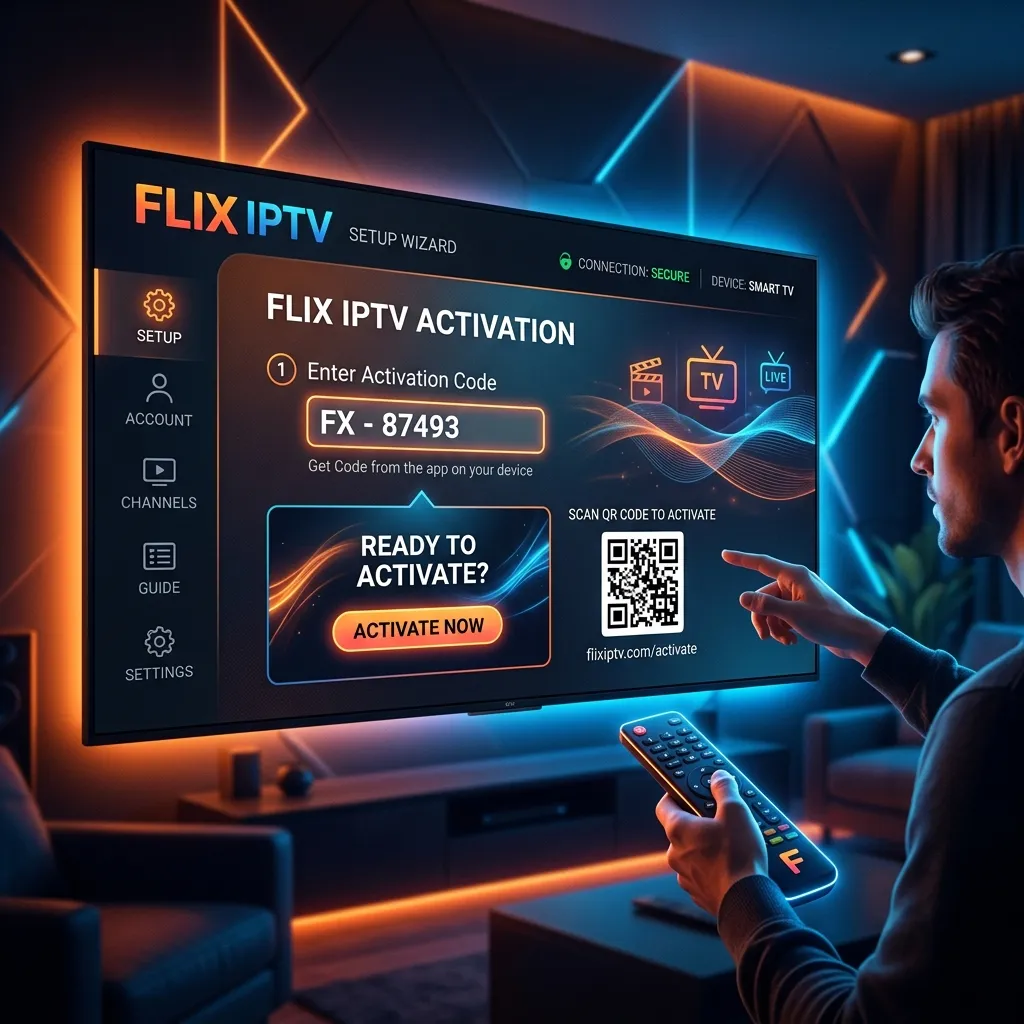
The television landscape has experienced a monumental shift over the last decade. Traditional cable subscriptions, characterized by bulky hardware, restrictive contracts, and exorbitant monthly fees, are rapidly becoming obsolete. In their place, Internet Protocol Television (IPTV) has emerged as the definitive future of digital entertainment, offering unparalleled flexibility, a massive array of content, and significant cost savings. However, transitioning to this modern broadcasting medium requires the right tools. Among the myriad of applications available to facilitate this transition, Flix IPTV stands out as one of the most reliable, feature-rich, and user-friendly media players on the market today.
Whether you are a seasoned cord-cutter or a complete beginner exploring the world of digital streaming for the first time, setting up an IPTV service can initially seem like a daunting task. This comprehensive, step-by-step guide is designed to demystify the entire process. We will walk you through everything you need to know about Flix IPTV—from understanding its core features and downloading the application on various devices, to activating your account, importing your playlists, and troubleshooting common issues. By the end of this extensive tutorial, you will have a fully optimized, seamlessly functioning entertainment hub right in your living room.
Disclaimer: Flix IPTV is strictly a media player application. It does not provide, host, or broadcast any media content, live TV channels, or VOD (Video on Demand) libraries. To utilize Flix IPTV, you must integrate it with a legitimate, high-quality IPTV service provider like Smartiflix. If you haven't secured a provider yet, we highly recommend exploring our IPTV Subscription packages for an elite viewing experience.
1. What is Flix IPTV and Why Should You Use It?
Before diving into the technical setup, it is crucial to understand what Flix IPTV is and why it has garnered such immense popularity among streaming enthusiasts globally. Flix IPTV is a dedicated IPTV player application. Think of it as the sophisticated digital vessel that organizes and displays the content provided by your chosen IPTV service.
While there are dozens of generic media players available on various app stores, Flix IPTV distinguishes itself through a combination of a sleek user interface, robust stability, and an impressive suite of advanced features tailored specifically for heavy media consumers.
Key Features of Flix IPTV
Flix IPTV is not just a basic video player; it is a comprehensive media management system. Here are some of the standout features that make it a premier choice:
- Exceptional User Interface (UI): The visual layout of Flix IPTV is modern, intuitive, and designed for easy navigation using a standard TV remote. It closely mimics the polished interfaces of mainstream streaming giants like Netflix or Prime Video, making the transition seamless for new users.
- Extensive Device Compatibility: Whether you are rocking the latest Samsung Smart TV, a dedicated Android set-top box, or a portable Amazon Firestick, Flix IPTV is built to run smoothly across almost all major operating systems.
- Multiple Playlist Support: If you utilize multiple IPTV providers to ensure you never miss a specific sports event or international channel, Flix IPTV allows you to add and manage multiple M3U playlists or Xtream Codes accounts simultaneously.
- Electronic Program Guide (EPG): A high-quality IPTV experience relies heavily on a functional TV guide. Flix IPTV seamlessly integrates EPG data, allowing you to see what is currently playing and what is scheduled for the coming days, complete with show synopses and channel logos.
- Catch-Up TV Functionality: Missed the live broadcast of your favorite show? If your IPTV provider supports Catch-Up, Flix IPTV features a dedicated interface that lets you rewind and watch previously aired programs with the click of a button.
- Advanced Subtitle and Audio Track Management: For international viewers or cinephiles, Flix IPTV supports easy switching between different audio languages and subtitle tracks embedded in the broadcast or VOD files.
- Customizable Themes: The application allows users to tweak the visual aesthetics, offering various color themes to suit personal preferences or living room ambiance.
- Robust Parental Controls: Protect your children from age-inappropriate content by utilizing the built-in PIN protection system to lock specific channels or entirely block mature categories.
Flix IPTV vs. Other IPTV Players
To give you a clearer picture of where Flix IPTV stands in the market, here is a quick comparison table against other popular players:
| Feature | Flix IPTV | TiviMate | IPTV Smarters Pro | Smart IPTV (SIPTV) |
|---|---|---|---|---|
| Interface Design | Excellent/Modern | Excellent/Classic | Good/Functional | Basic/Outdated |
| Setup Difficulty | Easy (Web Portal) | Easy (In-App) | Very Easy | Easy (Web Portal) |
| Multiple Playlists | Yes | Yes | Yes | Limited |
| EPG Support | Very Strong | Best in Class | Good | Moderate |
| Cross-Platform | High (Tizen, WebOS, Android) | Android Only | Very High | High |
| Price | One-time (~€7.99) | Yearly or One-time | Free / Premium | One-time (~€5.49) |
2. Pre-Requisites: Preparing for Your IPTV Setup
A flawless streaming experience requires a solid foundation. Before you begin downloading apps and entering codes, ensure you have the following prerequisites sorted. Taking these preliminary steps will save you hours of frustration down the line.
A High-Speed, Stable Internet Connection
IPTV works by streaming heavy packets of video data over your internet network in real-time. Unlike traditional cable, your internet speed directly dictates the quality of your television experience.
- Standard Definition (SD): Minimum of 5 Mbps.
- High Definition (HD / 1080p): Minimum of 10 to 15 Mbps.
- Ultra High Definition (4K): Minimum of 25 to 30 Mbps, though 50 Mbps is highly recommended for stable 4K sports streaming.
Pro Tip for Connection Stability: Whenever possible, hardwire your streaming device (Smart TV, Firestick, or Android Box) directly to your router using an Ethernet cable. Wi-Fi networks, while convenient, are prone to interference from household appliances, walls, and neighboring networks, leading to dreaded buffering screens.
A Premium IPTV Subscription
As reiterated previously, Flix IPTV is merely a shell. You need high-quality fuel to run the engine. A premium IPTV subscription is what provides you with the thousands of live channels, movies, and TV series.
When choosing a provider, look for robust server infrastructure, anti-freeze technology, and comprehensive customer support. At Smartiflix, we pride ourselves on delivering an elite streaming experience. If you are looking for the best performance to pair with Flix IPTV, review our Pricing tiers to find a package that fits your entertainment needs.
Consider a Virtual Private Network (VPN)
While not strictly mandatory for the app to function, using a VPN is highly recommended for IPTV users for several vital reasons:
- ISP Throttling Prevention: Many Internet Service Providers (ISPs) actively monitor your traffic and will intentionally slow down (throttle) your speeds if they detect heavy video streaming, resulting in buffering. A VPN encrypts your traffic, making it impossible for your ISP to see what you are doing, thus preventing targeted throttling.
- Privacy and Anonymity: Protect your digital footprint and keep your viewing habits completely private.
- Geo-Restrictions: Some specific regional content might be blocked depending on your geographical location. A VPN allows you to virtually relocate your device to bypass these restrictions.
For a deeper dive into the importance of cybersecurity while streaming, we highly recommend reading our comprehensive Security Guide.
3. How to Download and Install Flix IPTV on Various Devices
One of the greatest strengths of Flix IPTV is its broad compatibility. Depending on the hardware you have in your living room, the installation process will vary. Below, we have outlined the step-by-step instructions for the most popular devices.
A. Installing Flix IPTV on Samsung Smart TVs (Tizen OS)
Samsung is arguably the most popular Smart TV brand globally. Fortunately, Flix IPTV is officially available on the Samsung Smart Hub, making installation a breeze.
- Turn on your Samsung Smart TV and ensure it is connected to the internet.
- Press the Smart Hub (or Home) button on your Samsung remote control.
- Navigate to the Apps section located on the bottom menu bar.
- In the Apps screen, locate the Search icon (usually a magnifying glass in the top right corner).
- Using the on-screen keyboard, type in "Flix IPTV".
- The app should appear in the search results. Select it and press Install (or Download).
- Once the installation is complete, you can choose to Add to Home for quick access.
- Launch the Flix IPTV application.
- Upon opening the app for the first time, the screen will display your device's unique MAC Address (a combination of letters and numbers, e.g.,
A1:B2:C3:D4:E5:F6). Write this MAC address down, as it is strictly required for the activation and playlist setup steps later.
B. Installing Flix IPTV on LG Smart TVs (WebOS)
Similar to Samsung, LG provides a native, officially supported version of Flix IPTV through its internal app store.
- Turn on your LG Smart TV and ensure internet connectivity.
- Press the Home button on your LG Magic Remote.
- Navigate to the LG Content Store (often represented by a pink shopping bag icon).
- Once in the Content Store, navigate to the Search icon (magnifying glass) at the top of the screen.
- Type "Flix IPTV" into the search bar.
- Select the application from the search results and click Install.
- After installation, launch the app.
- As with the Samsung process, the app will display a MAC Address on the initial launch screen. Take a photo or note down this MAC Address.
C. Installing Flix IPTV on Android TV and Android TV Boxes
If you are using a Sony Smart TV, a TCL Android TV, or a dedicated Android set-top box like the NVIDIA Shield, Xiaomi Mi Box, or Chromecast with Google TV, the process leverages the Google Play Store.
- Power up your Android device and navigate to the home screen.
- Open the Google Play Store app.
- Navigate to the search bar and type in "Flix IPTV".
- Note: Depending on your region or specific device version, Flix IPTV might sometimes be unlisted from the Play Store. If you see it, simply click Install.
- If it is not listed, you will need to sideload it. To do this, download an app called Downloader from the Play Store.
- Open Downloader and enter the official APK URL for Flix IPTV (usually found on their official site or via a trusted APK repository like APKPure).
- Download the APK and follow the prompt to Install. (You may need to grant Downloader permission to "Install Unknown Apps" in your Android Security Settings).
- Launch Flix IPTV and note the MAC Address displayed on the screen.
D. Installing Flix IPTV on Amazon Firestick / Fire TV
Amazon's Firestick operates on Fire OS, which is a modified version of Android. Because Amazon curates its app store heavily, Flix IPTV is usually not available directly from the Amazon Appstore. You will need to "sideload" it using the Downloader app.
For an overarching view of configuring Amazon devices, check out our dedicated Firestick Setup page. For Flix IPTV specifically, follow these detailed steps:
Phase 1: Enable Unknown Sources
- From the Firestick home screen, navigate to the Settings gear icon on the far right of the menu bar.
- Scroll down and select My Fire TV.
- Select Developer Options. (If Developer Options is hidden, go to 'About', highlight your Fire TV Stick's name, and click the 'Select' button on your remote 7 times rapidly to unlock it).
- Turn ON the option for Apps from Unknown Sources.
Phase 2: Install Downloader
- Return to the Firestick Home screen.
- Navigate to the Find menu and select Search.
- Type "Downloader" using the virtual keyboard.
- Select the Downloader app (orange icon) from the results and click Download / Get.
Phase 3: Sideload Flix IPTV
- Open the Downloader app. Allow any permissions it requests.
- Select the URL bar in the center of the screen.
- Enter the exact download code or URL for the Flix IPTV APK. (You can usually find the most up-to-date APK link directly on the Flix IPTV official website:
flixiptv.eu). Alternatively, you can use a shortcode if provided by a reliable source. - Click Go. The APK file will begin downloading.
- Once downloaded, the installation prompt will automatically appear. Click Install.
- Once installed, click Open to launch the app.
- The home screen will display your MAC Address. Keep this safe; you will need it shortly.
Important Note on MAC Addresses: The MAC address displayed by the Flix IPTV app is a unique identifier generated by the application for licensing purposes. It may not necessarily match the physical hardware MAC address of your TV or device. Always use the MAC address displayed directly on your TV screen within the Flix IPTV app.
4. Understanding the Flix IPTV Activation Process
One of the most common points of confusion for new users is the difference between purchasing an IPTV subscription and activating a media player.
Let's clarify:
- Your IPTV Subscription (e.g., Smartiflix): This is what you pay for on a monthly, bi-annual, or yearly basis to access the live channels, movies, and VODs.
- Flix IPTV App Activation: Flix IPTV is an independent software application developed by a third-party team. They charge a one-time, lifetime fee (currently around €7.99) for the use of their software.
When you first download and install Flix IPTV, the developers generously provide a 7-day free trial. This allows you to set up your playlists, test the interface, and ensure the app runs smoothly on your specific television before committing financially.
How to Activate Your Flix IPTV License
Once your 7-day trial concludes, the app will lock, and you will be prompted to activate it to continue using it. You can choose to activate it immediately or wait until the trial expires. Here is the step-by-step process for activating your device:
- Retrieve your MAC Address: Turn on your TV, launch the Flix IPTV app, and locate the MAC address displayed on the screen.
- Access the Activation Portal: Using a web browser on your computer, tablet, or smartphone, navigate to the official Flix IPTV activation webpage:
https://flixiptv.eu/activation. - Enter Your Details: On the activation page, you will see a form.
- Input the MAC Address exactly as it appears on your TV screen (including the colons). Double-check for typos, as activating the wrong MAC address is non-refundable.
- Select Payment Method: The portal typically accepts major credit cards, PayPal, and occasionally cryptocurrency. Select your preferred payment method.
- Complete the Transaction: Follow the standard online checkout process to pay the one-time fee of ~€7.99.
- Confirmation: Once the payment is successful, your MAC address is instantly registered in their global database.
- Restart the App: Go back to your TV, close the Flix IPTV app entirely, and reopen it. The activation prompt should disappear, and you now have a lifetime license for that specific device.
Warning: Be highly cautious of third-party websites claiming to offer "Flix IPTV Activation Cracks" or free lifetime accounts. These are inevitably scams designed to steal your credit card information or infect your devices with malware. Always activate strictly through the official
flixiptv.euportal.
5. How to Setup and Load Your IPTV Playlist on Flix IPTV
Now that you have the app installed, your MAC address handy, and (optionally) your activation complete, it is time for the most exciting part: injecting life into the application by uploading your IPTV playlist.
If you have purchased a subscription from us at Smartiflix, you will have received an email containing your login credentials. This email typically includes an M3U Link (a long URL) and/or Xtream Codes API details (Username, Password, and Server URL).
Flix IPTV uses a highly efficient web-based portal to manage playlists. This means you do not have to type insanely long URLs using your clunky TV remote. You do it all from the comfort of your computer or smartphone.
Step-by-Step Playlist Upload Guide
- Navigate to the Playlist Portal: Open a web browser on your PC or smartphone and go to the official Flix IPTV list management page:
https://flixiptv.eu/mylist. - Fill in the MAC Address: In the designated field labeled "MAC Address", type in the unique code displayed on your TV screen.
- Enter Your Playlist Details: You will see a field labeled "URL". This is where you paste the M3U Link provided by your IPTV provider (e.g., Smartiflix).
- M3U Link Example:
http://server-address.com:8080/get.php?username=YOURUSER&password=YOURPASS&type=m3u_plus&output=ts
- M3U Link Example:
- Security Verification: Complete any CAPTCHA or security checkboxes required on the page to prove you are human.
- Send / Submit: Click the "Send" or "Submit" button. You should receive a brief pop-up notification on the website stating "Playlist sent successfully" or "Playlist Added".
- Refresh Your TV App: Turn your attention back to your Smart TV or streaming device. With the Flix IPTV app open, you need to prompt it to pull the new data from the server.
- You can usually achieve this by pressing the "Refresh" or "Reload" button on the screen, or by simply exiting the application entirely and restarting it.
- Enjoy the Content: Upon reloading, the app will briefly state "Downloading Playlist" or "Loading Channels". Within a few seconds, your home screen will populate with Live TV categories, Movies, and Series.
Updating or Changing Playlists
If you ever need to update your playlist (for example, if you renew your subscription and receive a new link, or if you switch providers), you follow the exact same process.
Simply go back to https://flixiptv.eu/mylist, enter your MAC address, paste the new M3U link into the URL field, and hit send. The portal will automatically overwrite your old playlist with the new one.
6. Configuring and Optimizing Your Flix IPTV Experience
Loading the channels is just the beginning. To truly get the most out of Flix IPTV, you should explore the robust settings menu to tailor the experience to your household's needs.
Customizing the User Interface (Themes)
Flix IPTV allows you to move away from the standard dark layout if you prefer a different aesthetic.
- Navigate to the Settings icon (usually a gear symbol) on the main menu.
- Select Settings > Themes.
- You can choose from a variety of pre-set color schemes to match your room's decor or reduce eye strain during nighttime viewing.
Setting Up Parental Controls
If you have a family, ensuring that adult or mature content is inaccessible to children is paramount. Flix IPTV includes a sturdy parental control system.
- Go to Settings > Parental Control.
- The default PIN code for the application is usually
0000. Enter this to access the menu. - You will immediately be prompted to create a New PIN. Choose a 4-digit number you will remember but your children cannot guess.
- Once the new PIN is set, you can navigate through your channel list or VOD categories. By pressing a designated button on your remote (often the yellow or blue button, check on-screen prompts), you can "Lock" specific categories or individual channels.
- Anyone attempting to open a locked category will now be required to enter the secret PIN.
Managing Subtitles and Audio Tracks
When watching Video on Demand (Movies and Series), you may want to enable subtitles or switch the audio language.
- While a movie or episode is playing, press the OK / Select button on your remote to bring up the player control bar.
- Look for the Subtitle (CC) or Audio icon.
- Selecting this will bring up a menu showing all available embedded tracks. Simply highlight your preferred language and select it.
- You can also adjust the subtitle size and color in the main app Settings to make them easier to read.
7. Troubleshooting Common Flix IPTV Issues
Even with the most premium setups, the nature of internet streaming means you might occasionally run into a hiccup. Before you panic or contact support, consult this troubleshooting guide for the most common Flix IPTV problems.
Issue 1: "Mac Address Not Found" or Playlist Will Not Load
- The Cause: This usually means there was a typographical error when entering the MAC address on the web portal, or your M3U link is invalid/expired.
- The Fix:
- Carefully re-read the MAC address on your TV screen. Distinguish between '8' and 'B', or '0' and 'O'.
- Go back to
flixiptv.eu/mylistand try uploading again. - Test your M3U link on a different device (like VLC media player on your PC) to ensure your IPTV subscription is actually active. If the link doesn't work anywhere, you need to contact your provider.
Issue 2: Constant Buffering, Freezing, or Stuttering Video
- The Cause: This is almost always an internet connection issue. It could be insufficient bandwidth, a weak Wi-Fi signal, or your ISP actively throttling IPTV traffic.
- The Fix:
- Reboot Everything: Turn off your TV, unplug your internet router for 60 seconds, and plug it back in. This clears cache and resets connections.
- Use Ethernet: Switch from Wi-Fi to a hardwired Ethernet connection.
- Enable a VPN: If your speed tests show fast internet but your IPTV still buffers, your ISP is likely throttling you. Turn on a premium VPN and connect to a server close to your location to bypass the throttling.
- Change Player Engine: In the Flix IPTV settings, look for the 'Player' or 'Stream Engine' options. Switching from hardware decoding to software decoding (or vice versa) can sometimes resolve stuttering on specific devices.
Issue 3: EPG (TV Guide) is Missing or Says "No Information"
- The Cause: The app has lost sync with the EPG server, or your provider is currently updating their guide data.
- The Fix:
- Completely close the Flix IPTV application and reopen it to force a fresh server sync.
- Go to the Settings menu within the app and look for an option that says "Reload EPG" or "Update Guide".
- Keep in mind that some obscure international channels may inherently not have EPG data provided by the network.
Issue 4: Audio and Video are Out of Sync
- The Cause: This is typically a hardware decoding issue where the TV processor is struggling to process the heavy video file and the audio track simultaneously.
- The Fix:
- Pause the stream for 5-10 seconds and press play. This allows the buffer to catch up and re-align.
- If it persists across all VODs, go into the Flix IPTV settings, navigate to Player Settings, and change the Audio Decoder from Hardware to Software.
8. Why Pair Flix IPTV with Smartiflix?
Having a top-tier app like Flix IPTV is only half the battle. To experience true cinematic quality and uninterrupted sports broadcasting, you need an IPTV provider that matches the app's potential.
Here is why thousands of users choose to pair Flix IPTV with Smartiflix:
- Massive Content Library: Access to over 20,000 live premium channels from around the globe, ensuring you never miss a premier league match, a PPV event, or breaking international news.
- Exceptional VOD Selection: A constantly updated library of the latest blockbuster movies and trending TV series, organized beautifully with posters and IMDB ratings.
- Anti-Freeze Technology: Our servers are optimized with load-balancing infrastructure to ensure a buffer-free experience, even during peak traffic times like major sporting events.
- Dedicated Support: If you ever struggle with your Installation Guide, our dedicated customer support team is on standby to assist you through every step.
- Affordable Packages: We offer highly competitive rates. Check out our Homepage to explore our current promotions and discover why cord-cutters everywhere are making the switch.
9. Frequently Asked Questions (FAQ)
To wrap up this extensive guide, let's address some of the most common questions users have regarding Flix IPTV.
Q: Is Flix IPTV legal to use? A: Yes, the Flix IPTV application itself is 100% legal. It is simply a media player, much like VLC or Windows Media Player. The legality of what you watch depends entirely on the IPTV service provider you choose to integrate with it. Always ensure you are using legitimate services that hold the rights to broadcast their content.
Q: Do I have to pay €7.99 every month for Flix IPTV? A: No. The activation fee for Flix IPTV is a strict one-time payment for a lifetime license on that specific device. You will only pay monthly or yearly fees to your IPTV content provider (like Smartiflix).
Q: I bought a new TV. Do I have to pay for Flix IPTV again? A: Unfortunately, yes. The Flix IPTV license is bound strictly to the MAC address of the device it was activated on. If your TV breaks or you buy a new one, the new TV will generate a new MAC address, requiring a new €7.99 activation.
Q: Can I use Flix IPTV on my smartphone? A: While primarily designed for Smart TVs and set-top boxes, you can technically sideload the APK onto an Android smartphone. However, the interface is optimized for a television remote, so navigating via touch screen can be slightly cumbersome. For mobile viewing, apps like Smarters Player Lite are generally recommended.
Q: Does Flix IPTV come with channels? A: No. We cannot stress this enough. Flix IPTV comes completely empty. It is a blank canvas. You must provide your own playlist (M3U or Xtream Codes) from a provider to watch content.
10. Conclusion
Making the jump from traditional cable to an IPTV setup can initially feel like navigating a maze, but armed with the right knowledge and tools, it is incredibly straightforward.
Flix IPTV has rightfully earned its place as one of the elite media players in the streaming community. Its elegant interface, robust feature set, and cross-platform compatibility make it a joy to use on a daily basis. By following this exhaustive guide, you should now have a comprehensive understanding of how to install the app on your preferred device, activate your lifetime license securely, and upload your premium playlist.
Remember, the hardware and software are only as good as the stream they are processing. To guarantee an unmatched viewing experience free of buffering and rich in 4K content, ensure you pair your newly configured Flix IPTV app with a world-class provider.
Ready to unlock the ultimate entertainment experience? Visit our Homepage today to explore our premium subscription plans and transform your living room into the ultimate digital cinema. Happy streaming!