Fix IPTV EPG Sync Issues: Step-by-Step Troubleshooting Guide
Resolve IPTV EPG sync issues with our detailed troubleshooting guide. Get back to enjoying your shows with accurate program information!
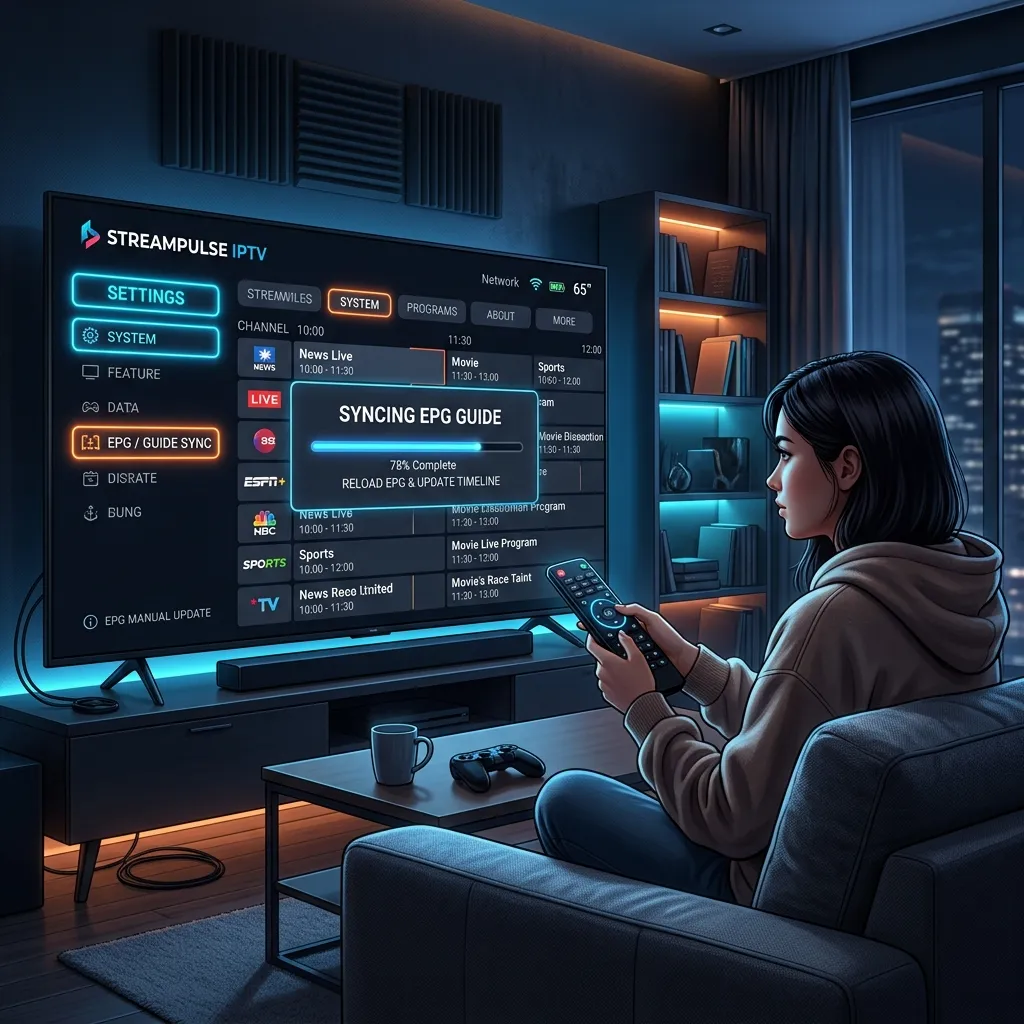
If you have ever settled down on the couch, grabbed your remote, and opened your IPTV app only to find a frustrating wall of "No Information" messages across your channel list, you are not alone. Electronic Program Guide (EPG) sync issues are among the most common and perplexing problems faced by cord-cutters today. There is nothing quite as disruptive to your entertainment experience as tuning into a highly anticipated live sports event, only to find that the guide says a cooking show is airing, or worse, completely blank scheduling data that prevents you from setting up recordings or knowing what is up next.
Welcome to the most comprehensive guide on the internet for resolving EPG sync issues. In this massive, detailed tutorial, we will explore the inner workings of IPTV guides, diagnose the root causes of synchronization failures, and provide you with actionable, step-by-step solutions to fix these problems across various devices and applications. Whether you are using a dedicated Android box, a Smart TV, or following our Firestick Setup guide, this article will serve as your ultimate resource.
By the end of this guide, you will have a perfectly synced, fully populated TV guide that enhances your streaming experience. Let's dive deep into the world of EPGs, XMLTV data, timeshift offsets, and advanced troubleshooting techniques.
Table of Contents
- Understanding the EPG: What Is It and How Does It Work?
- The Anatomy of EPG Data: XMLTV Explained
- The Impact of EPG Sync Issues on Your Viewing Experience
- Top 10 Causes of EPG Synchronization Failures
- Pre-Troubleshooting Checklist
- Basic EPG Troubleshooting: The First Steps
- Understanding and Fixing Timezone Offsets (EPG Timeshift)
- App-Specific EPG Troubleshooting Guides
- Advanced EPG Management: Using Third-Party Editors (m3u4u)
- Network, DNS, and Security Factors Affecting EPG
- Why Your IPTV Provider Quality Matters
- Frequently Asked Questions (FAQs)
- Conclusion
1. Understanding the EPG: What Is It and How Does It Work?
Before we can fix an EPG, we must understand what it is. EPG stands for Electronic Program Guide. It is the digital equivalent of the printed TV listings you used to find in newspapers or TV Guide magazines. In the realm of digital television and IPTV (Internet Protocol Television), the EPG is an interactive on-screen menu that displays scheduling information for current and upcoming broadcast programming.
When you launch an IPTV application, the app performs two primary functions to deliver your content:
- Fetching the Playlist (M3U or Xtream Codes): This tells the app which channels are available, providing the stream URLs and channel logos (picons).
- Fetching the EPG Data: This involves downloading a separate file (usually an XML or GZ file) that contains the schedule for every channel in the playlist.
The application then matches the EPG data to the corresponding channels in your playlist using unique identifiers (such as tvg-id or channel names). When this matching process works perfectly, you see a beautifully populated grid showing what is playing now, what is coming up next, and details like episode descriptions, cast members, and release years.
When you navigate the Smartiflix Homepage, you expect a seamless, premium experience. A fully functioning EPG is a critical component of that premium feel, transforming a raw list of video links into a traditional, intuitive television interface.
2. The Anatomy of EPG Data: XMLTV Explained
To truly master EPG troubleshooting, it helps to look under the hood. Almost all IPTV EPGs are built using a standardized format called XMLTV. XMLTV is an XML-based file format designed specifically for describing TV listings.
When your IPTV app downloads an EPG URL, it is retrieving a massive text file formatted with XML tags. Here is a simplified example of what that raw data looks like:
<?xml version="1.0" encoding="UTF-8"?>
<tv generator-info-name="Smartiflix EPG Generator">
  <!-- Channel Definition -->
  <channel id="CNN.us">
    <display-name>CNN HD</display-name>
    <icon src="https://example.com/logos/cnn.png" />
  </channel>

  <!-- Program Schedule -->
  <programme start="20260613160000 +0000" stop="20260613170000 +0000" channel="CNN.us">
    <title lang="en">The Situation Room</title>
    <desc lang="en">In-depth coverage of the day's top news stories and political events.</desc>
    <category lang="en">News</category>
  </programme>
</tv>
Key Components of the XMLTV File:
<channel id="...">: This is the unique identifier for the channel. For the EPG to sync with your playlist, thetvg-idin your M3U playlist MUST exactly match this channel ID. If your playlist saystvg-id="CNN_News"but the EPG file usesid="CNN.us", the guide will show "No Information."<programme start="..." stop="...">: This defines the exact start and end times of a specific show. Notice the timestamp format:YYYYMMDDHHMMSS +0000. The+0000indicates the timezone offset (in this case, UTC/GMT). If your IPTV app does not correctly translate this UTC time to your local timezone, the schedule will be misaligned.<title>and<desc>: These tags provide the text you see when you highlight a show on your screen.
Understanding this structure is vital. When you experience "EPG Sync Issues," it almost always boils down to one of two things:
- Identifier Mismatch: The app cannot link the playlist channel to the EPG channel because the IDs do not match.
- Time Parsing Error: The app links the channel correctly, but calculates the
startandstoptimes incorrectly due to timezone confusion.
3. The Impact of EPG Sync Issues on Your Viewing Experience
You might wonder, "If the stream plays fine, why does the guide matter?" For casual viewers, a missing EPG might be a minor annoyance. But for power users and dedicated cord-cutters, a broken EPG severely limits functionality.
Loss of Catch-Up TV
Many premium providers, like those recommended in our IPTV Subscription plans, offer a "Catch-Up" feature. This allows you to watch shows that aired up to 7 days ago. Catch-Up relies entirely on the EPG. The app looks at the past EPG data, finds the exact start and stop times of a broadcast, and requests that specific time segment from the server. Without an accurate EPG, Catch-Up is impossible to use.
Inability to Schedule Recordings
If you use apps like TiviMate or a Formuler box to record live TV to a USB drive or network-attached storage (NAS), the DVR function uses the EPG to know when to start and stop recording. A synced EPG means you capture the exact show you wanted. An unsynced EPG means you might record 30 minutes of the preceding news broadcast and miss the finale of your movie.
Poor User Navigation
Scrolling through thousands of channels blindly is a frustrating experience. A populated EPG allows you to filter by categories (Movies, Sports, News), see visual thumbnails, read plot summaries, and search for specific programming. It turns a static list of links into an interactive media center.
4. Top 10 Causes of EPG Synchronization Failures
To effectively fix a problem, we must first diagnose the cause. EPG issues are rarely caused by a single factor. Let's break down the top 10 reasons your guide might be failing to sync.
| Cause | Description | Common Symptom |
|---|---|---|
| 1. Timezone Mismatch | Your device's system time differs from the EPG data's UTC base time, or the app is failing to apply the correct offset. | Shows appear in the guide, but the times are shifted by hours. |
| 2. Stale Cache Data | The IPTV app has cached old, corrupted, or outdated EPG data and refuses to download the fresh file. | Guide shows old programming from days ago, or randomly drops data. |
| 3. Invalid EPG URL | The EPG source URL provided by your IPTV service has changed, expired, or was typed incorrectly. | "Failed to update EPG" error message; completely blank guide. |
4. ID Mismatch (tvg-id) |
The channel identifiers in the M3U playlist do not match the identifiers in the XMLTV file. | Some channels have perfect EPG data, while others show "No Information." |
| 5. Server-Side Downtime | Your IPTV provider's EPG server is temporarily down for maintenance or is overwhelmed by traffic. | Complete EPG failure across all devices simultaneously. |
| 6. Massive File Size | The EPG file is too large (often >100MB uncompressed) for the device's RAM to process, leading to a crash or timeout. | App crashes during EPG update, or update gets stuck at a certain percentage. |
| 7. Device Date/Time Errors | The physical device (e.g., Firestick or Android TV) has the wrong date or time set in its system settings. | Guide data is completely empty, or shows dates from the past/future. |
| 8. ISP Blocking / DNS Issues | Your Internet Service Provider (ISP) is blocking the specific URL that hosts the EPG data. | Playlist loads fine, but EPG URL constantly times out. |
| 9. App Bugs | The specific version of the IPTV player app you are using has a known bug regarding XML parsing. | Guide data is scrambled, missing descriptions, or poorly formatted. |
| 10. Incomplete Provider Data | The IPTV provider simply does not supply EPG data for obscure, regional, or international channels. | Major channels have EPG, but niche/local channels are blank. |
Understanding these 10 root causes will dramatically reduce the time you spend troubleshooting.
5. Pre-Troubleshooting Checklist
Before you start changing settings, altering URLs, or downloading new apps, you need to establish a baseline. Follow this pre-troubleshooting checklist to rule out the most obvious problems.
- Verify Your Subscription Status: Ensure your account is active. Sometimes, providers disable EPG access for accounts that are past due or nearing expiration. Check our Pricing page if you need to renew or upgrade your service.
- Check Your Internet Connection: EPG files can be large. A weak Wi-Fi signal might allow a compressed video stream to play, but cause a large file download to timeout. Try connecting your device via Ethernet.
- Restart Your Router and Device: The oldest trick in the IT playbook is still the most effective. Unplug your router and your streaming device (Firestick, Apple TV, etc.) from the power outlet for 60 seconds. Plug them back in and test.
- Confirm the Issue is Widespread: Open a secondary IPTV app on your phone or PC. Does the EPG work there? If it works on your phone but not your TV, the issue is device-specific. If it fails on all devices, the issue is with your provider or network.
6. Basic EPG Troubleshooting: The First Steps
If the pre-checklist didn't solve the issue, it is time to roll up our sleeves. Start with these foundational steps, which resolve approximately 70% of all EPG synchronization issues.
Step 1: Force a Manual EPG Update
Most IPTV applications are set to update the EPG automatically every 24 hours. However, if the app was closed forcefully or the device went to sleep during the update window, it might have skipped the download.
- How to do it: Go to your IPTV app's settings menu. Look for options labeled
EPG,TV Guide, orPlaylist. You should see a button that saysUpdate EPG,Refresh Guide, orForce Update. Click it and wait for the download to finish. Do not navigate away from the screen while it downloads.
Step 2: Clear App Cache and Data
Over time, the cached EPG data can become corrupted. Clearing the cache forces the app to rebuild its database from scratch.
- On Android TV / Firestick:
- Navigate to your device's home screen.
- Go to Settings > Applications > Manage Installed Applications.
- Select your IPTV app (e.g., TiviMate, Smarters).
- Click Force Stop, then click Clear Cache. (Note: Do NOT click 'Clear Data' unless you want to completely erase your login details and playlists).
- Reopen the app and force an EPG update.
Step 3: Verify the Device's System Time
IPTV apps rely entirely on the hardware's internal clock to map the EPG data accurately.
- How to check: Go to your device's general settings. Find the
Date & Timesection. Ensure that Automatic Date & Time (provided by the network) is turned ON. If your device is set to the wrong timezone or the clock is exactly 12 hours off (AM vs PM mix-up), your EPG will be completely desynchronized.
7. Understanding and Fixing Timezone Offsets (EPG Timeshift)
The concept of "Timeshift" or "EPG Offset" is the single most confusing aspect of IPTV guides for new users. If your EPG shows that the 8:00 PM evening news is airing at 3:00 PM, you have a timezone offset issue.
Why Does This Happen?
When an IPTV provider generates an EPG file, they usually base all the timestamps on UTC (Coordinated Universal Time) or GMT (Greenwich Mean Time).
Your IPTV app is supposed to read that UTC timestamp, look at your device's local timezone (e.g., EST, PST, CET), and mathematically shift the display time so it matches your local clock.
However, sometimes:
- The provider generates the EPG in their local timezone instead of UTC.
- The app fails to calculate the difference.
- The channel itself is a delayed broadcast (e.g., a West Coast feed of an East Coast channel).
How to Fix EPG Timeshift
Almost all premium IPTV players include a feature to manually adjust the EPG offset. You will usually find this under Settings > EPG > EPG Timeshift or EPG Offset.
The setting allows you to add or subtract hours: +1, +2, -1, -5, etc.
Practical Example: Let's say you live in New York (EST). Your current time is 8:00 PM. You tune into NBC, and a live football game is playing. However, your EPG says the football game starts at 1:00 AM. 1:00 AM is exactly 5 hours ahead of 8:00 PM. Therefore, you need to go into your EPG settings and set the Timeshift to -5. After applying the setting, refresh the guide, and the football game will correctly align with the 8:00 PM slot.
Pro Tip: When adjusting timeshift, always clear the EPG cache and force a new download for the changes to apply accurately to the entire visual grid.
8. App-Specific EPG Troubleshooting Guides
Every application handles XMLTV data differently. What works for one app might require a completely different menu navigation path in another. Here are detailed, step-by-step guides for the most popular IPTV players on the market.
TiviMate Premium EPG Fixes
TiviMate is widely considered the gold standard for IPTV on Android devices. It has robust EPG management tools.
- Multiple EPG Sources: TiviMate allows you to assign multiple EPG URLs to a single playlist. Go to
Settings > EPG > EPG Sources. Ensure your primary URL is active. You can also add secondary URLs (like generic GitHub EPG repositories) as backups. - Assign EPG to Channels Manually: If only a few channels are missing data, it's an ID mismatch. Highlight the channel in the guide, long-press the
OKbutton on your remote to bring up the right-side menu. Scroll down and selectAssign EPG. Use the search function to find the correct channel name manually and link it. - Clear EPG Settings: Go to
Settings > EPGand clickClear EPG. This deletes the database entirely. Then clickUpdate EPG. - Update Intervals: In the EPG settings, change the "Update interval" to
Every 12 hoursorUpdate on app startto ensure you always have fresh data.
IPTV Smarters Pro EPG Fixes
IPTV Smarters is the most universally used app across various platforms. Its EPG engine is simpler but can sometimes get stuck.
- The "Install EPG" Button: From the main dashboard, you should see a specific button labeled
Install EPGorEPG. Click it. If it fails, look for the circular refresh icon in the top right corner of the dashboard. - Xtream Codes API vs M3U: If you logged in using an M3U URL, the EPG URL is separate. Ensure you typed the EPG URL correctly in the settings. If you logged in using the Xtream Codes API (Username, Password, Portal URL), the EPG is fetched automatically. If it fails, your provider's API might be struggling.
- EPG Timeshift in Smarters: Go to
Settings > EPG Timeline. Here you will find theEPG Shiftoption to correct hourly mismatches. - Clear Data: If Smarters gets a corrupted EPG file, simply clicking refresh won't fix it. You must go to the device's Android settings, force stop Smarters, and clear the cache.
XCIPTV Player EPG Fixes
XCIPTV is highly optimized for Xtream Codes and usually handles EPGs flawlessly, but when it breaks, it usually requires a reset.
- Refresh from Settings: Open XCIPTV, navigate to the
Settingsgear icon. Click onEPG. SelectUpdate EPG. - Change Media Player Engine: Strangely, in some older versions of XCIPTV, changing the underlying media player engine (from ExoPlayer to VLC, for instance) in the settings and restarting the app forces a completely fresh database initialization, solving stubborn guide issues.
- Auto EPG Update: Ensure the toggle for
Auto EPG Updateis turned on in the EPG settings menu.
GSE Smart IPTV EPG Fixes
GSE Smart IPTV is popular on Apple/iOS devices and older Android boxes.
- EPG Timeline Menu: Open the left-hand hamburger menu. Select
EPG Timeline. - Add EPG Source: If the guide is blank, you may need to add the EPG URL manually. Go to
EPG Program Guidein the main menu, click the+icon, and paste your XMLTV URL. - Force Download: Tap the download icon next to your EPG source. Wait for the file to completely extract. GSE is notorious for timing out on massive EPG files, so ensure your device screen does not lock during the download.
Formuler MYTVOnline (MOL2 & MOL3) EPG Fixes
Formuler devices have proprietary hardware-integrated IPTV apps (MYTVOnline 2 and 3) that are highly advanced.
- Portal Connection: Ensure you are using the MAC ID / Portal connection method rather than M3U if your provider supports it. MAC connections deliver EPG data seamlessly in small, real-time packets rather than one massive XML file download.
- Clear EPG Data: Press the Menu button, go to
Connections, select your portal, and look for the option toClear EPG Data. - Change UTC Offset: Formuler boxes handle timezones at the hardware level. Go to the Android settings of the Formuler box (not the MYTVOnline app settings), select
Date & Time, and experiment with changing the timezone manually rather than relying on the "Network Provided" time.
9. Advanced EPG Management: Using Third-Party Editors (m3u4u)
If you have tried everything above and your guide is still riddled with "No Information" blocks, the fault lies entirely with your provider's raw XMLTV data. The IDs do not match, or the data simply isn't there.
To fix this permanently, you can take control of your own playlist and EPG using third-party management tools. The most popular, free tool is m3u4u.com.
What is m3u4u?
m3u4u is a web-based playlist editor. You upload your provider's M3U playlist to their server. They provide a massive, highly accurate, crowdsourced EPG database. You can manually link your provider's channels to m3u4u's EPG data. m3u4u then gives you a new M3U URL and a new EPG URL to put into your IPTV app.
Step-by-Step Guide to Fixing EPG with m3u4u:
- Create an Account: Visit m3u4u.com and create a free account.
- Create a Playlist: Click on
Playlists > Create. Give it a name, and paste your provider's M3U URL into the required field. Save it. - Let it Sync: m3u4u will download your provider's channel list. This may take a few minutes.
- Auto-Assign EPGs: Go to
EPGs > Auto Assign. The system will automatically try to match your channel names with its own highly accurate EPG database. It usually gets about 80% correct immediately. - Manual Assignment: For the remaining channels, go to
EPGs > Assign/Edit. Here, you will see a list of your unassigned channels. Click on one, search for the channel name in the m3u4u database (e.g., search "HBO"), select the correct region, and assign it. - Export Your New URLs: Once you are satisfied with your assignments, go to
Playlists > Download. You will be provided with two new links: a customized M3U URL and a custom EPG URL. - Input into App: Open TiviMate, Smarters, or your preferred app. Delete your old provider details. Input the new M3U and EPG URLs generated by m3u4u.
You will now have a perfectly curated, custom-built guide that is immune to your provider's EPG server crashes. For a detailed guide on inputting these URLs into devices, review our Installation Guide.
Important Note: Do not share your m3u4u URLs with anyone else. They contain your provider's unique access tokens, and sharing them could result in your IPTV subscription being banned.
10. Network, DNS, and Security Factors Affecting EPG
Sometimes, the EPG issue is completely unrelated to the app or the provider. The problem lies within your home network or Internet Service Provider (ISP).
ISP Blocking and Throttling
During major sporting events, ISPs in countries like the UK, USA, and Italy actively block servers associated with IPTV. While they might not block the video stream server, they might block the separate server hosting the EPG XML file.
- The Fix: Use a high-quality Virtual Private Network (VPN). A VPN encrypts your traffic and routes it through a secure server, preventing your ISP from seeing or blocking the EPG download URL. If your guide mysteriously disappears on Premier League match days, ISP blocking is the culprit. We discuss VPN necessity heavily in our Is Smartiflix Safe? security overview.
DNS Resolution Failures
The EPG URL (e.g., http://epg.premium-streams.com/guide.xml) must be translated into an IP address by a Domain Name System (DNS) server. Default ISP DNS servers are often slow, outdated, or actively censor URLs.
- The Fix: Change your device's DNS settings to Cloudflare (1.1.1.1) or Google DNS (8.8.8.8).
- On Firestick/Android TV: Go to Network Settings, select your Wi-Fi, click "Forget Network". Reconnect, but click "Advanced Options". Enter your IP address manually, and when prompted for DNS 1 and DNS 2, enter
8.8.8.8and8.8.4.4.
- On Firestick/Android TV: Go to Network Settings, select your Wi-Fi, click "Forget Network". Reconnect, but click "Advanced Options". Enter your IP address manually, and when prompted for DNS 1 and DNS 2, enter
Router Security and Firewalls
Modern routers from ISPs (like Comcast xFi or AT&T Gateway) have aggressive "Advanced Security" features. These firewalls often flag EPG .xml.gz file downloads as suspicious malware payloads and silently block them.
- The Fix: Log into your router's admin panel (usually 192.168.1.1 or 10.0.0.1) and temporarily disable "Advanced Web Security" or "Shield" features to see if the EPG downloads successfully.
11. Why Your IPTV Provider Quality Matters
We can troubleshoot settings all day, but the harsh reality is that you cannot fix an EPG that doesn't exist.
Many ultra-cheap, low-tier IPTV providers cut costs by ignoring EPG infrastructure. Hosting a massive XMLTV database that is constantly queried by tens of thousands of users requires expensive, high-bandwidth servers. Cheap providers simply let their EPG servers crash or fail to update the XMLTV data with new show schedules.
If you are constantly battling EPG issues, it might be time to upgrade your service.
The Smartiflix Difference
At Smartiflix, we understand that a premium viewing experience requires more than just high-quality streams; it requires an impeccable, intuitive interface.
- Dedicated EPG Servers: We route our EPG traffic through dedicated, load-balanced servers entirely separate from our streaming infrastructure. This ensures 99.9% uptime for your TV guide.
- Rich Metadata: Our EPG doesn't just show the title of the show. We provide season/episode numbers, detailed descriptions, cast lists, and high-resolution channel picons.
- Automated Syncing: Our identifiers (
tvg-id) are meticulously maintained and mapped. When we add a new channel to the playlist, the EPG data is mapped instantly.
Stop fighting with broken guides. Experience television the way it was meant to be. Explore our IPTV Subscription packages today.
12. Frequently Asked Questions (FAQs)
Q1: How often should my EPG update? Ideally, your IPTV app should be configured to update the EPG automatically every 24 hours. Some apps allow updates every 12 hours. Updating more frequently than that is unnecessary and can cause your provider to temporarily ban your IP address for spamming their server.
Q2: What does "No Information" mean in my guide?
"No Information" means the app successfully downloaded the channel list, but either the EPG file failed to download, or the app could not find a matching channel id in the EPG file for that specific channel.
Q3: Can a VPN fix my EPG?
Yes. If your Internet Service Provider is actively blocking the domain name associated with your provider's EPG server, turning on a VPN will bypass the block and allow the .xml file to download seamlessly.
Q4: My EPG URL is a .gz file. What is that?
A .gz file is simply a compressed (zipped) version of the XML file. Because XMLTV files contain text for thousands of shows, they can be over 100MB. GZ compression shrinks this to around 15MB, making it faster to download. Modern apps like TiviMate and Smarters extract .gz files automatically.
Q5: Why is my Catch-Up TV playing the wrong show? Catch-Up relies entirely on the EPG time stamps. If your EPG is suffering from a Timezone Offset issue (e.g., it is shifted by 3 hours), asking the Catch-Up feature to play the 8:00 PM news will actually pull the stream from 5:00 PM. You must fix the EPG Timeshift (as detailed in Section 7) to fix Catch-Up playback.
Q6: Does clearing the cache delete my playlist? Clearing the Cache only deletes temporary files, like the downloaded EPG file and channel logos, forcing the app to re-download fresh ones. Clearing the Data will wipe the app completely, removing your username, password, and playlists. Be careful to only clear the cache when troubleshooting.
13. Conclusion
Dealing with IPTV Guide EPG sync issues can be highly frustrating, but it is rarely an unfixable problem. By understanding the underlying XMLTV technology, recognizing the symptoms of timezone mismatches, and utilizing the robust settings available in premium apps like TiviMate or IPTV Smarters, you can regain total control over your viewing schedule.
Remember the golden rules of EPG troubleshooting:
- Always start by forcing a manual update and clearing the app cache.
- Check your device's date, time, and timezone settings.
- Utilize the EPG Timeshift/Offset feature to fix hourly discrepancies.
- Don't be afraid to use external tools like m3u4u for absolute control.
If you are tired of spending more time troubleshooting your current provider than actually watching TV, it is time for a change. Upgrade to a service that prioritizes user experience, stability, and comprehensive EPG data. Check out our Smartiflix Homepage, explore our Pricing, and transform your digital entertainment setup today. Happy streaming!