Fix IPTV Channel Loading Error: Check Your Playlist URL Quickly
Struggling with IPTV channel loading errors? Discover how to check your playlist URL, troubleshoot issues, and restore your streaming experience.
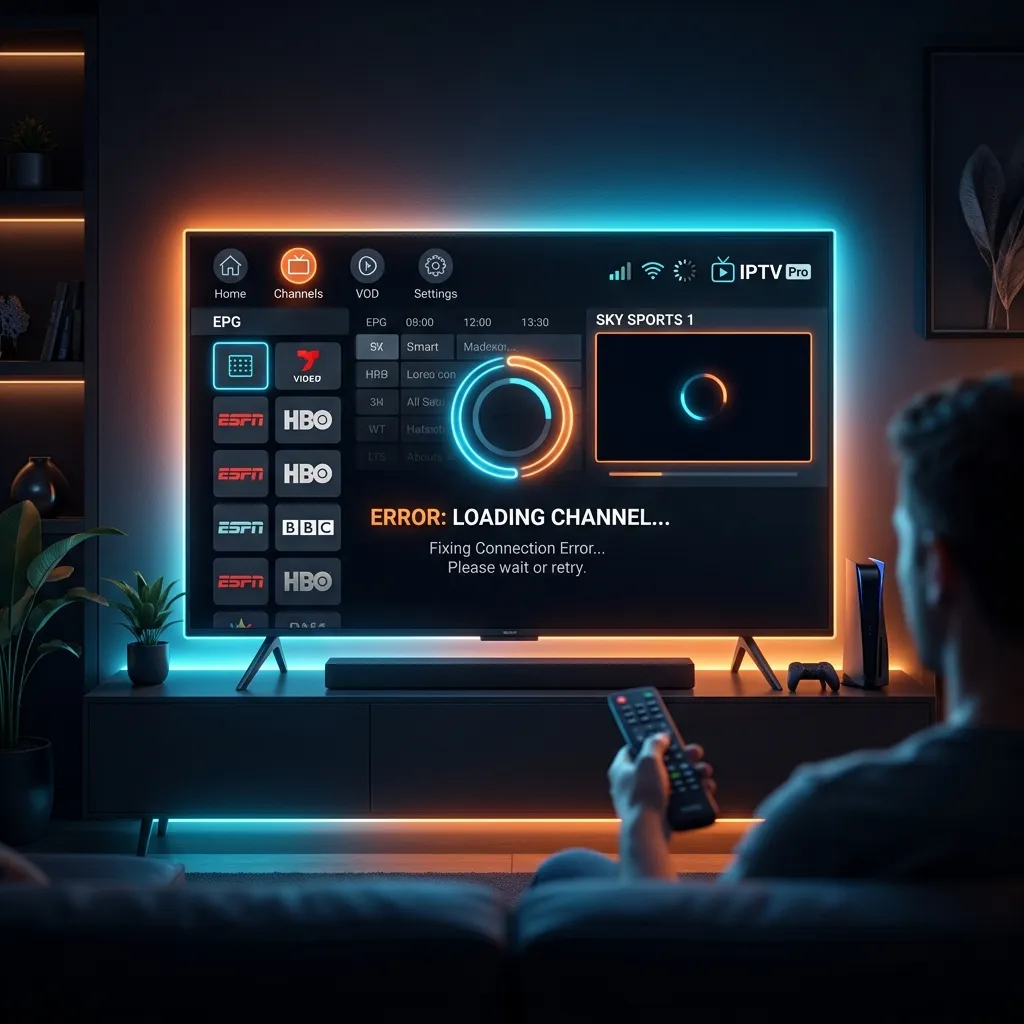
If you have recently booted up your favorite IPTV application, only to be greeted by the immensely frustrating message stating "Channel Loading Error" or "Check Playlist URL," you are certainly not alone. This is arguably one of the most common, yet solvable, issues that cord-cutters and streaming enthusiasts encounter in the digital age. The transition from traditional cable to Internet Protocol Television (IPTV) has brought unparalleled convenience, immense channel variety, and substantial cost savings. However, it has also introduced a new set of technical nuances that users must navigate.
When you sit down to watch a highly anticipated live sports event, a breaking news broadcast, or the season finale of your favorite television series, the last thing you want to deal with is a black screen, an endless buffering wheel, or a blunt error prompt. The "Check Playlist URL" error acts as a roadblock between your device's media player and the server hosting the content you wish to stream. But what exactly does this error mean? Why does it specifically point to the "Playlist URL"? And most importantly, how can you permanently eradicate it to restore your seamless viewing experience?
This comprehensive, step-by-step guide is designed to transform you from a frustrated viewer into a capable troubleshooter. We will delve deeply into the architecture of IPTV playlists, meticulously dissect the common culprits behind connectivity failures, and provide robust, actionable solutions tailored to various devices. By the end of this extensive article, you will possess a profound understanding of how IPTV functions under the hood and the precise tools necessary to fix the channel loading error once and for all.
Whether you are using a state-of-the-art Amazon Firestick, a powerful Android TV box, an Apple TV, or a dedicated MAG portal, the principles of resolving this issue remain largely consistent. Let us embark on this deep dive into the world of IPTV troubleshooting, ensuring that your premium entertainment remains uninterrupted. If you are looking to upgrade to a seamless streaming experience right away, explore our premium offerings at Smartiflix.
Table of Contents
- Demystifying IPTV Playlists: The Backbone of Your Stream
- Deep Dive: The Architecture of Streaming and Error Codes
- The Root Causes: Why Does the Error Occur?
- The Master Troubleshooting Protocol: Step-by-Step Fixes
- Device-Specific Troubleshooting Strategies
- Advanced Networking for IPTV Resilience
- Proactive Strategies: Preventing Future Errors
- Frequently Asked Questions (FAQs)
- Conclusion
1. Demystifying IPTV Playlists: The Backbone of Your Stream
To effectively troubleshoot the "Check Playlist URL" error, one must first comprehend what a playlist URL is and the critical role it plays in the IPTV ecosystem. In the simplest terms, an IPTV playlist is a digital roadmap. It is a structured file or a direct link that instructs your IPTV player (such as IPTV Smarters Pro, TiviMate, or GSE Smart IPTV) exactly where to find the video and audio streams hosted on your provider’s remote servers.
Without a functional, correctly formatted, and active playlist, your IPTV app is essentially an empty shell—a television set with no antenna or cable plugged into it. The error message you are seeing is your app's way of saying, "I cannot find the map," or "The map you provided is leading me to a dead end."
The Three Primary Formats of IPTV Connections
IPTV providers utilize different methods to deliver these digital roadmaps to your devices. Understanding which format you are utilizing is the first crucial step in diagnosing the loading error.
A. The M3U Playlist URL
The M3U (MP3 URL) format is undeniably the most ubiquitous standard in the IPTV industry. Originally developed for organizing audio files in media players like Winamp, it has been widely adopted for video streaming. An M3U URL is a lengthy web address that points directly to a plain-text file hosted on a server.
When your IPTV app processes an M3U URL, it downloads this text file. Inside the file is a massive list of individual channels, video-on-demand (VOD) titles, series, and their corresponding direct streaming links, alongside metadata like channel logos (picons) and Electronic Program Guide (EPG) mapping tags.
Characteristics of M3U:
- Structure: Extremely long URLs, often containing your unique username and password embedded directly within the link itself.
- Flexibility: Can be easily downloaded, edited in a text editor to remove unwanted channels, and uploaded locally.
- Vulnerability: Due to their length, they are highly susceptible to typos if entered manually.
B. Xtream Codes API
The Xtream Codes API was introduced to simplify the user experience and enhance security, significantly mitigating the risks of manual entry errors associated with M3U links. Instead of providing one monolithic URL, the provider gives you three distinct pieces of information:
- Server URL (or Portal URL): The web address of the provider's server (e.g.,
http://server-address.com:8080). - Username: Your unique account identifier.
- Password: Your secure passphrase.
The IPTV application uses these credentials to log into the provider's API portal, authenticating your account and dynamically pulling the channel list and VOD library directly into the app's interface.
Characteristics of Xtream Codes:
- User-Friendly: Much easier to type out with a remote control compared to an M3U link.
- Dynamic: The channel list updates seamlessly in the background without needing to reload a massive text file.
- Security: Hides the direct streaming links from plain sight, making it harder for unauthorized sharing.
C. Stalker Portal (MAG Devices)
For users utilizing MAG set-top boxes or apps that emulate them (like STB Emulator), the connection method relies on MAC address authentication. You provide your device's unique MAC address to the IPTV provider, and in return, they give you a Portal URL.
Characteristics of Stalker Portals:
- Hardware-Bound: The subscription is inextricably linked to the specific MAC address of the device.
- Interface: Provides a highly specialized, cable-like interface that is controlled entirely via a remote.
- Error Handling: "Check Playlist URL" in this context usually means the MAC address isn't activated on the server or the Portal URL is entered incorrectly.
Summary of IPTV Formats
| Connection Type | How It Works | Ease of Setup | Susceptibility to Typo Errors | Ideal Use Case |
|---|---|---|---|---|
| M3U URL | Direct link to a downloadable text file containing all channel streams. | Moderate | Very High (due to lengthy URLs) | Users who want to customize and edit their channel lists. |
| Xtream Codes API | Requires Server URL, Username, and Password to authenticate dynamically. | High | Low | Most modern Android, Firestick, and Smart TV applications. |
| Stalker Portal / MAC | Ties subscription to the device's hardware MAC address via a Portal URL. | High | Low | Dedicated MAG set-top boxes and STB emulators. |
Understanding these formats is paramount. If you are encountering a channel loading error, knowing whether you are dealing with a broken M3U link or a failed Xtream Codes authentication will dictate your troubleshooting path.
2. Deep Dive: The Architecture of Streaming and Error Codes
To truly master IPTV troubleshooting, one must peek behind the curtain of the application's user interface. When an IPTV application attempts to load a stream and fails, it often receives specific HTTP status codes from the server. While most user-friendly apps suppress these technical codes and instead display the generic "Channel Loading Error," understanding what they mean can accelerate your diagnostic process.
Common HTTP Status Codes in IPTV Streaming
When your app pings the Playlist URL, the server responds. If the response isn't successful (typically a 200 OK code), it returns an error code:
- HTTP 401 Unauthorized: This is a definitive sign that the server recognizes the request, but your credentials are invalid. This points directly to an incorrect username/password in an Xtream Codes setup, or an expired/suspended subscription.
- HTTP 403 Forbidden: Similar to 401, but implies the server understands the request and actively refuses to fulfill it. This often happens if the provider has locked your account to a specific IP address and you are trying to connect from a different location, or if you are using a VPN that the provider has blacklisted.
- HTTP 404 Not Found: The app reached the server, but the specific file or stream it asked for does not exist. This is the classic indicator of a typographical error in an M3U URL, or it indicates that the provider has changed their file structure without notifying you.
- HTTP 500 Internal Server Error: This means the problem is entirely on the provider's end. The server is malfunctioning, undergoing maintenance, or experiencing a crash. There is nothing you can do locally to fix a 500 error; you must wait for the provider to resolve their infrastructure issues.
- HTTP 502 Bad Gateway / 504 Gateway Timeout: These codes indicate massive server congestion. The server is acting as a gateway and isn't receiving a timely response from the upstream server holding the actual video file. This typically happens during massively popular live events when thousands of users overwhelm the provider's network simultaneously.
By recognizing that "Check Playlist URL" is often just a mask for these underlying HTTP failures, you can approach the troubleshooting steps with a much clearer understanding of the mechanics at play.
3. The Root Causes: Why Does the Error Occur?
Now that we have established the architecture, let us meticulously break down the most prevalent causes behind this frustrating roadblock. The "Check Playlist URL" error is an umbrella term for a failure to handshake with the remote streaming server.
A. The Human Element: Typographical Errors
It sounds incredibly simple, almost insultingly so, but typographical errors are undeniably the number one cause of playlist loading failures. Entering a long M3U URL using the clunky on-screen keyboard of a smart TV or the directional pad of an Amazon Firestick remote is an exercise in immense patience and precision.
A single missed character, an accidental capitalization where a lowercase letter should be, or substituting a zero ('0') for the letter 'O' will render the entire URL completely useless. The server will not recognize the request, and your app will unceremoniously spit out the loading error. This is especially true for the complex authentication strings embedded within M3U links.
B. Expired or Suspended IPTV Subscriptions
Your IPTV playlist URL is intimately tied to your account status with your provider. Unlike free, public M3U lists found haphazardly on internet forums (which often go offline within hours), premium IPTV services require active, paid subscriptions.
If your subscription period has lapsed, or if your provider has suspended your account for violating terms of service (such as attempting to use a single connection on multiple devices simultaneously when you only paid for one), the server will immediately revoke access to the playlist. When your app attempts to ping the URL to refresh the channels, the server actively blocks the request, resulting in a loading error. To ensure you always have an active, high-quality connection, consider reviewing the top-tier packages available at Smartiflix Pricing.
C. The Invisible Barrier: ISP Blocking and Throttling
This is a sophisticated and increasingly common issue, particularly in regions with stringent copyright enforcement laws, such as the United Kingdom, the United States, and parts of the European Union.
Major Internet Service Providers (ISPs) actively monitor network traffic. When they detect heavy, continuous data streaming originating from known, unregistered IPTV server IP addresses, they may intervene. This intervention takes two primary forms:
- Throttling: The ISP deliberately slows down the connection speed between your router and the IPTV server. This doesn't necessarily break the playlist URL, but it causes relentless, unwatchable buffering.
- Blocking (DNS Filtering): The ISP completely blocks access to the domain name or the IP address associated with your provider's Server URL. When your app tries to reach the playlist, your ISP intercepts the request and drops it. Your app assumes the URL is dead and displays the error.
If you suspect your network is being manipulated by your provider, we highly recommend reading our comprehensive Security Guide: Is Smartiflix Safe? to understand the importance of encrypted connections.
D. Provider-Side Server Outages or Migrations
Sometimes, the issue is completely out of your hands. The infrastructure required to broadcast thousands of live, high-definition channels globally is immense and highly complex.
IPTV providers occasionally suffer from hardware failures, massive Distributed Denial of Service (DDoS) attacks from malicious actors, or necessary, scheduled server maintenance. Furthermore, for security reasons, providers frequently migrate their services to new domain names to evade ISP blocks. If they migrate to a new Server URL and you have not updated your app with this new information, your old Playlist URL will point to a dead server, triggering the error.
E. Corrupted Application Cache and Data Accumulation
IPTV applications are robust pieces of software that constantly download metadata, EPG information, channel logos, and temporary video cache. Over time, particularly on devices with limited storage capacity like older generation Firesticks, this cache can become corrupted or bloated.
When the application's internal database becomes fragmented, it may fail to properly parse or read the playlist URL, even if the URL itself is perfectly valid and the server is online. The app effectively "chokes" on its own accumulated data.
F. Geolocation and VPN Conflicts
While Virtual Private Networks (VPNs) are essential tools for bypassing ISP blocks, they can paradoxically also cause connection issues if used incorrectly.
Some premium IPTV providers implement strict geofencing or IP-locking protocols for security purposes. They may lock your subscription to the IP address from which you first logged in. If you subsequently turn on a VPN, masking your true IP address and appearing to connect from a different country, the provider's server will view this as an unauthorized login attempt from a hijacked account and instantly block the connection, returning a playlist error.
4. The Master Troubleshooting Protocol: Step-by-Step Fixes
Now that we possess a deep understanding of the underlying causes, we can approach the solution systematically. Do not haphazardly change settings; follow this chronological, methodical protocol to isolate and eliminate the "Check Playlist URL" error.
Step 1: The Meticulous Verification of Credentials
Before diving into complex network diagnostics, we must eliminate the most probable culprit: human error.
- Locate Your Welcome Email: Retrieve the original communication from your IPTV provider that contains your M3U link or Xtream Codes API details.
- Scrutinize the URL: Carefully compare the URL entered into your IPTV application against the original text. Look for:
- HTTP vs. HTTPS: Some servers strictly require one or the other. Ensure you haven't missed the 's' if it is required.
- Port Numbers: Xtream Codes server URLs almost always end with a colon followed by a port number (e.g.,
:8080or:25461). Missing this is a guaranteed point of failure. - Case Sensitivity: Usernames and passwords are strictly case-sensitive. "JohnDoe" is fundamentally different from "johndoe".
- Invisible Spaces: Ensure there are no leading or trailing spaces before or after the URL, username, or password. This frequently happens when copying and pasting text on mobile devices.
Pro Tip for Firestick/TV Users: Typing complex URLs with a remote is dreadful. We highly recommend using a companion app. If you use a Firestick, download the "Amazon Fire TV" app on your smartphone. It allows you to use your phone's keyboard to effortlessly copy and paste the long URLs directly into your TV screen.
Step 2: The Independent Environment Test (VLC Media Player)
To determine if the issue lies with your specific streaming device (e.g., your Android box) or with the IPTV provider's server itself, you must test the Playlist URL in an independent, isolated environment. The best tool for this is VLC Media Player on a desktop computer or laptop.
- Download VLC: Ensure you have VLC Media Player installed on your PC or Mac. It is free and open-source.
- Open Network Stream: Launch VLC. Go to the top menu bar, click on Media, and select Open Network Stream... (Shortcut: Ctrl+N or Cmd+N).
- Enter the M3U URL: In the network URL box, paste your full M3U link. (If you only have Xtream Codes, you can usually construct an M3U link by combining them:
http://server_url:port/get.php?username=YOUR_USER&password=YOUR_PASS&type=m3u_plus&output=ts). - Execute the Test: Click Play.
Analyzing the Results:
- Scenario A: The channels load and play flawlessly in VLC. This is a critical finding. It definitively proves that your subscription is active, the URL is correct, and the provider's server is perfectly fine. The issue is localized entirely to your streaming device (Firestick/Android Box), your specific IPTV app, or your home network setup blocking that specific device. Proceed to Steps 4 and 5.
- Scenario B: VLC displays an error or fails to load. This indicates a broader problem. Either the URL has a typo you missed, your subscription has genuinely expired, or the provider's server is currently experiencing a total outage. In this scenario, you must immediately contact your IPTV provider's customer support for a status update on their servers.
Step 3: Purging the Application Cache and Data
If the URL works in VLC (Step 2), the IPTV application itself is likely the culprit, choking on corrupted internal data. You need to perform a digital deep clean.
- For Android TV / Firestick Devices:
- Navigate to the main Settings menu of your device.
- Select Applications or Apps.
- Choose Manage Installed Applications.
- Scroll down and locate your specific IPTV app (e.g., TiviMate, Smarters Pro).
- Select Force Stop to halt all background processes.
- Select Clear Cache. (This deletes temporary files and is usually safe).
- Crucial Step: If clearing the cache fails, select Clear Data.
- WARNING: Clearing Data will completely wipe the app. It will delete your saved playlists, login credentials, and customized settings. The app will return to its factory default state. You will have to input your Playlist URL or Xtream Codes from scratch. This is often the necessary nuclear option to fix deeply corrupted files that are causing the "Check Playlist URL" error.
Step 4: Bypassing ISP Interference with a VPN
If you have verified your credentials, tested the URL on VLC, and cleared your app data, but you still receive the channel loading error, you are almost certainly a victim of ISP throttling or DNS blocking. Your Internet Service Provider is actively identifying the IPTV traffic and shutting down the connection before it can be established.
The absolute, definitive solution to this problem is utilizing a high-quality Virtual Private Network (VPN).
How a VPN Resolves the Playlist Error: A VPN acts as an impenetrable, encrypted tunnel between your streaming device and the vast internet.
- Encryption: It scrambles your data. Your ISP can see that you are downloading data, but they cannot see what that data is. They cannot identify it as IPTV traffic, meaning their automated throttling algorithms are rendered useless.
- Anonymity: It hides your destination. Your ISP cannot see that you are trying to connect to a known IPTV server URL.
- Bypassing Blocks: By routing your connection through a secure server in a different location, you effectively bypass local DNS blocks established by your ISP.
Actionable VPN Steps:
- Subscribe to a reputable, premium VPN service (avoid free VPNs, as they are too slow for video streaming and often harvest your data).
- Install the VPN application directly onto your streaming device (available in the Amazon Appstore or Google Play Store).
- Connect to a VPN server. Ideally, choose a server geographically close to your physical location to minimize latency, or a server located in a country with less strict internet regulations.
- Once the VPN is connected and running in the background, open your IPTV app and reload the playlist. In cases of ISP blocking, the channels will immediately populate.
Step 5: Upgrading Your Application Ecosystem
Not all IPTV player applications are created equal. Some are poorly coded, rarely updated, and struggle to handle modern, massive playlist files that contain tens of thousands of streams. If you are using an antiquated, generic, or poorly rated IPTV app, it might simply lack the processing capability to parse the URL correctly.
We strongly advise upgrading to industry-standard, robust applications.
- TiviMate (Premium): Widely considered the gold standard for Android and Firestick devices. It features incredible stability, a stunning user interface, and robust handling of massive M3U and Xtream Code playlists.
- IPTV Smarters Pro: A highly versatile, user-friendly application available across multiple platforms, renowned for its simple Xtream Codes API integration.
If your current app is failing, download one of these premium alternatives, input your credentials, and observe if the "Check Playlist URL" error persists. Often, a superior app is the only fix you need.
Step 6: Evaluating Your IPTV Provider
If you have meticulously followed every single step in this guide—you have verified the URL, tested it independently, cleared caches, used a premium VPN, and upgraded your software—and the "Check Playlist URL" error still stubbornly remains, the bitter truth must be faced: the problem is not on your end.
You are likely dealing with a substandard, unreliable IPTV provider. The IPTV market is unfortunately saturated with "fly-by-night" resellers who utilize cheap, overloaded servers with poor uptime. When their cheap infrastructure collapses under the weight of user traffic, their servers go offline, and your app throws the loading error.
At this juncture, it is time to cut your losses and migrate to a professional, premium service that guarantees stability, superior uptime, and dedicated customer support. We invite you to experience the difference with our top-tier service. Explore our comprehensive packages and secure a stable connection today by visiting Smartiflix IPTV.
5. Device-Specific Troubleshooting Strategies
While the fundamental principles outlined above apply universally, the precise methodology for executing them can vary drastically depending on the hardware ecosystem you are operating within. Let us break down device-specific nuances for resolving the playlist loading error.
A. Fixing Playlist Errors on Amazon Firestick
The Amazon Fire TV Stick is arguably the most popular device for IPTV consumption due to its affordability and the ease with which users can "sideload" third-party applications. However, its limited internal storage and aggressive power management can sometimes hinder IPTV performance.
- Storage Management: Firesticks typically only have 8GB of total storage. If this storage drops below 1GB of free space, IPTV apps will struggle to download the playlist file and cache video data, leading directly to loading errors.
- Navigate to Settings -> My Fire TV -> About -> Storage to check your available space.
- Delete unused applications, games, and aggressively clear the cache of all your streaming apps to free up critical space.
- Sideloading Complexities: Because the best IPTV apps (like TiviMate) are often not natively available in the Amazon Appstore, they must be sideloaded using the "Downloader" app. Ensure you have granted the Downloader app the necessary permissions ("Install Unknown Apps") in the Firestick developer options.
- Detailed Setup: If you are struggling with the initial configuration on this device, we have a meticulously detailed, step-by-step tutorial available. Please consult our comprehensive Firestick Setup Guide to ensure your device is perfectly optimized for our services.
B. Fixing Playlist Errors on Android TV OS (Nvidia Shield, Smart TVs)
Android TV devices, particularly high-end hardware like the Nvidia Shield, offer unparalleled processing power and are generally more robust than Firesticks. However, they are still susceptible to network and software glitches.
- Background Process Management: Android TV is excellent at multitasking, but having too many heavy applications running simultaneously in the background can starve your IPTV app of vital RAM (Random Access Memory), preventing it from processing large M3U lists. Double-tap the home button to bring up the recent apps menu and forcefully close applications you are not actively using.
- OS Updates: Ensure your Android TV operating system is fully updated. Manufacturers frequently release firmware patches that resolve underlying networking bugs that could be interfering with your IPTV connection.
- Optimized Installation: For a flawless setup experience on the Android TV ecosystem, please follow the best practices outlined in our dedicated Installation Guide.
C. Fixing Playlist Errors on MAG Boxes and STB Emulators
MAG set-top boxes operate on a fundamentally different architecture, relying heavily on Stalker Middleware and MAC address authentication rather than standard M3U URLs or Xtream Codes.
- The MAC Address Crux: If you receive a loading error on a MAG device, 99% of the time it means the MAC address of your specific device is not actively registered on your IPTV provider's server.
- Locate the MAC address (usually printed on a sticker on the underside of the box, starting with
00:1A:79:...). - You must actively contact your IPTV provider's support team and provide them with this exact MAC address to bind it to your subscription.
- Locate the MAC address (usually printed on a sticker on the underside of the box, starting with
- Portal URL Accuracy: Instead of an M3U link, you must enter a specific Portal URL provided by your service into the MAG's internal settings menu (Settings -> System Settings -> Servers -> Portals). A single typo here will result in a total connection failure.
- Device Factory Reset: If the portal URL is correct and the MAC is registered but the box still fails to load the portal, performing a hard factory reset of the MAG box from the internal BIOS menu is often the only way to clear deep-seated software corruption.
D. Fixing Playlist Errors on Apple TV and iOS Devices
The Apple ecosystem (tvOS and iOS) is notoriously rigid regarding third-party applications, making IPTV slightly more complex to navigate than on Android platforms.
- App Selection is Critical: High-quality IPTV apps are scarce on the Apple App Store. "Smarters Player Lite" and "iPlayTV" are currently among the most reliable options. Using subpar, generic iOS apps is a frequent cause of URL parsing failures.
- iCloud Sync Issues: Some Apple IPTV apps attempt to synchronize your massive M3U playlists across your devices via iCloud. If your iCloud storage is full, or if the sync process hangs, it can corrupt the local playlist file on your Apple TV, leading to the loading error. Try disabling iCloud sync specifically for your IPTV application in the device settings.
6. Advanced Networking for IPTV Resilience
A stable, robust internet connection is the absolute lifeblood of high-definition IPTV streaming. Even minor network fluctuations can sever the connection to the playlist URL. Advanced users should consider optimizing their network environment to prevent these errors from occurring at the physical layer.
A. Execute a Hard Reboot (Power Cycling)
This is the oldest trick in the IT playbook because it works. Unplug your streaming device (Firestick, Android Box), your Wi-Fi router, and your internet modem directly from the wall outlet. Wait a full, agonizing 60 seconds. This allows all residual power to drain and clears temporary network caches. Plug the modem in first and let it connect. Then the router. Finally, power up your streaming device. This simple action resolves nearly 40% of all localized network handshake errors.
B. Evaluate Your Network Bandwidth
Do not rely on what your ISP claims you get. Open a web browser on your streaming device (or a smartphone connected to the same Wi-Fi network) and navigate to a speed testing website.
- Minimum Requirements: For standard definition (SD), you need at least 5 Mbps. For High Definition (HD), 15 Mbps is required. For 4K/UHD streaming, a rock-solid, sustained connection of 30+ Mbps is non-negotiable. If your speeds are dipping below these thresholds, your app will fail to load the heavy playlist file.
C. The Undeniable Ethernet Advantage
Wi-Fi is incredibly susceptible to interference from walls, microwaves, Bluetooth devices, and neighboring networks. If your device supports it, hardwire your streaming device directly to your router using a Cat6 or Cat7 Ethernet cable. This guarantees maximum bandwidth and zero packet loss, creating a concrete pathway for the playlist URL to load.
D. Custom DNS Configuration
Sometimes, the default Domain Name System (DNS) servers provided by your ISP are slow, unreliable, or actively filtering IPTV domains. Changing your device's DNS settings to a fast, public DNS resolver can bypass these blocks and significantly speed up the connection to the playlist URL.
- Google DNS: Primary
8.8.8.8/ Secondary8.8.4.4 - Cloudflare DNS: Primary
1.1.1.1/ Secondary1.0.0.1Navigate to your device's network settings and manually input these addresses for a more robust connection.
7. Proactive Strategies: Preventing Future Errors
Troubleshooting is vital, but prevention is the ultimate goal. Once you have successfully resolved the "Check Playlist URL" error and your channels are flowing smoothly, implement these proactive strategies to ensure your setup remains resilient.
A. Embrace the Superiority of Xtream Codes API
If your IPTV provider offers you a choice between a raw M3U link and Xtream Codes API credentials, always choose the Xtream Codes. As discussed earlier, the API is significantly more stable, drastically reduces the possibility of typographical errors, and allows the application to update the channel directory dynamically without needing to redownload a massive, monolithic text file every single time you open the app.
B. Regular Maintenance Schedule
Treat your streaming device like a miniature computer. It requires regular maintenance to perform optimally.
- Weekly Reboots: Make it a habit to completely restart your Firestick or Android Box at least once a week to clear system memory.
- Monthly Cache Clearing: Go into your device settings once a month and aggressively clear the cache of your IPTV application to prevent data bloat and database corruption.
C. Maintain Communication with Your Provider
Join your IPTV provider's official communication channels, such as their Telegram group, Discord server, or email newsletter. Providers use these platforms to announce scheduled server maintenance, notify users of mandatory domain URL changes, and provide real-time updates during unexpected outages. Being informed prevents you from wasting hours troubleshooting an issue that is entirely server-side.
D. Invest in Redundancy (Backup Services)
If continuous, uninterrupted access to live television—especially live sports—is absolutely critical to you, the smartest strategy is redundancy. Do not rely entirely on a single IPTV provider. Serious cord-cutters maintain a primary, premium subscription and a cheaper, secondary "backup" subscription from a completely different provider utilizing different server infrastructure. If your primary service goes down during a major broadcast, you can seamlessly switch to your backup.
E. Secure Your Connection Proactively
We cannot overstate the importance of a VPN. It is the definitive shield against ISP interference, throttling, and targeted blocking. A VPN ensures that your connection to the playlist URL remains private, unhindered, and secure. Even if you aren't currently experiencing errors, a VPN is a critical investment in your long-term streaming stability.
8. Frequently Asked Questions (FAQs)
Q1: I typed the URL perfectly, but it still says error. What now?
A: Double and triple-check for invisible trailing spaces at the end of the URL, especially if you copied and pasted it. Ensure you haven't missed the port number at the end (e.g., :8080). If it is flawless, test the URL in VLC Media Player on a computer to isolate if the issue is your device or the provider's server.
Q2: Can my Internet Service Provider really block my playlist URL? A: Absolutely. ISPs actively monitor traffic. If they detect a connection to a known, blacklisted IPTV server, they will block the DNS request entirely. Your app will try to reach the URL, hit a brick wall constructed by your ISP, and return the "Check Playlist URL" error. Using a reputable VPN is the only way to bypass this invisible blockade.
Q3: Do I need to constantly update my M3U URL? A: It depends on your provider. Most premium providers use dynamic URLs that update automatically. However, if your provider changes their underlying server infrastructure or domain name to evade ISP blocks, they will issue a new URL, and your old one will die, causing the error. Always monitor your provider's announcements.
Q4: Will resetting my router fix the loading error? A: Often, yes. A hard reset of your router and modem clears local network caches, re-establishes a fresh IP connection with your ISP, and resolves temporary network handshakes that might be preventing your app from reaching the remote server.
Q5: Is using an Ethernet cable genuinely better than Wi-Fi for IPTV? A: Yes, definitively. Wi-Fi is subject to packet loss, latency spikes, and interference from household appliances. Hardwiring your device with an Ethernet cable provides a direct, uninterrupted, high-bandwidth pipeline that significantly reduces buffering and connection failures.
Q6: What should I do if my IPTV app says "Authorization Failed"? A: "Authorization Failed" is slightly different from a generic URL error. It means the server received your request but rejected your username and password. Verify your credentials, check if your subscription has expired, or contact your provider to ensure your account hasn't been locked to a different IP address or device.
9. Conclusion: Reclaiming Your Entertainment Experience
Encountering the "Check Playlist URL" or "Channel Loading Error" is an undeniable annoyance in the world of cord-cutting. It abruptly halts your entertainment and forces you to confront the technical realities of digital streaming. However, as this exhaustive guide has demonstrated, it is rarely a terminal diagnosis for your IPTV setup.
By understanding the distinct differences between M3U links, Xtream Codes, and MAG portals, you equip yourself with the foundational knowledge required to identify the root cause of the failure. By systematically applying the troubleshooting protocol—meticulously verifying your credentials, isolating the issue with VLC, optimizing your local network, clearing corrupted application data, and deploying a VPN to neutralize ISP interference—you can confidently dismantle the barriers preventing your stream from loading.
Remember that technology is inherently imperfect. Applications will occasionally glitch, networks will experience temporary congestion, and servers will inevitably require maintenance. The key to a frustration-free IPTV experience is not expecting perfection, but rather possessing the knowledge and the tools to quickly and efficiently resolve the inevitable errors when they arise.
Stop battling with endless buffering wheels and dead URLs. Take control of your streaming ecosystem today. For a robust, reliable, and premium viewing experience backed by exceptional infrastructure, we invite you to explore the elite subscription packages available at Smartiflix. Your flawless entertainment journey awaits.