IPTV Black Screen Issues: Your Ultimate Fixing Guide
Struggling with IPTV black screen issues? Our comprehensive guide reveals effective troubleshooting tips to restore your IPTV app's functionality!
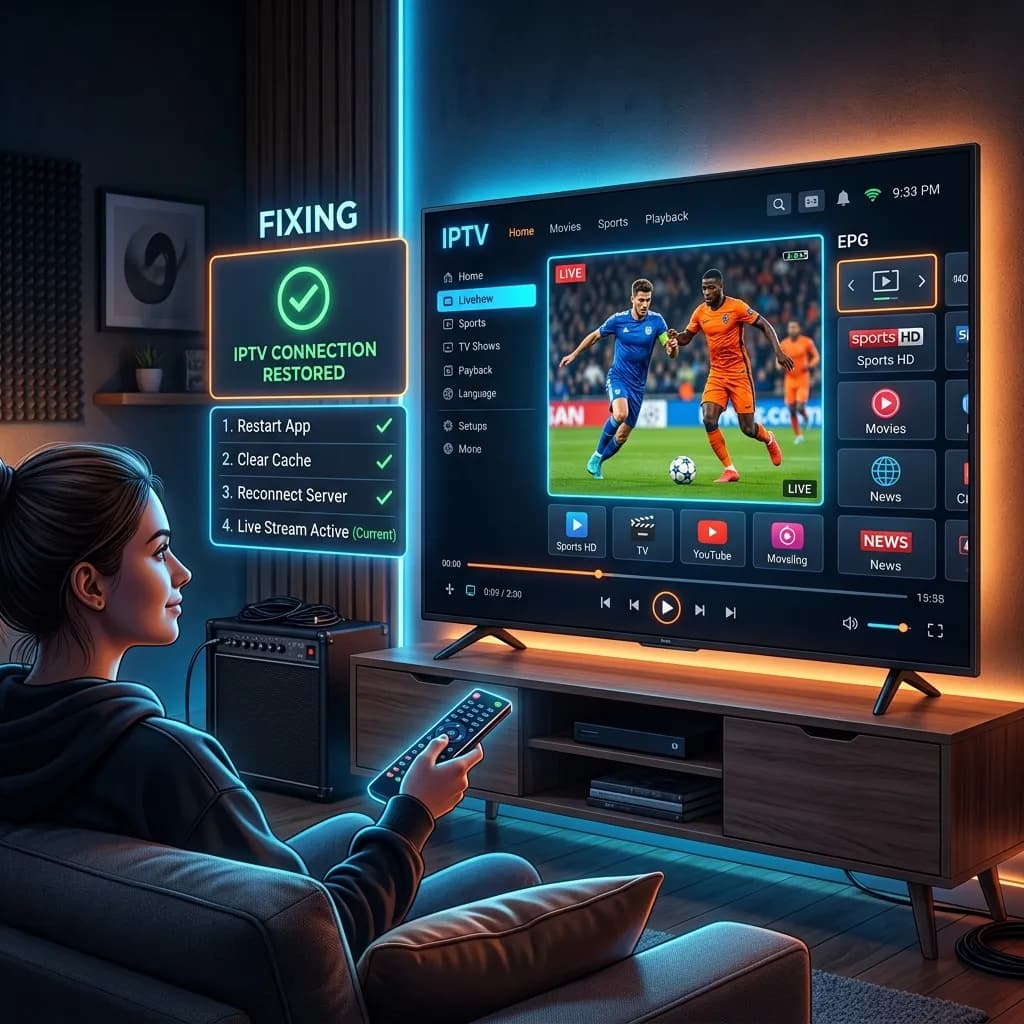
There is nothing quite as frustrating as settling down on the couch after a long, exhausting day, ready to catch up on your favorite television series, watch a highly anticipated live sports event, or enjoy a blockbuster movie, only to be greeted by an unrelenting, silent black screen on your television. You launch your IPTV application, navigate to the channel of your choice, and then... nothing. No audio, no video, just a dark void staring back at you. This phenomenon, universally known in the cord-cutting community as the "IPTV black screen issue," is one of the most common, yet solvable, technical glitches faced by streamers worldwide.
If you are currently staring at a blank display and wondering why your IPTV service is failing you, you have landed in exactly the right place. In this exhaustively detailed, definitive 3000+ word guide, we are going to dive deep into the mechanics of Internet Protocol Television (IPTV) to understand exactly why these black screen anomalies occur. More importantly, we will provide you with a comprehensive, step-by-step troubleshooting manual designed to eradicate this issue across a multitude of devices, from Smart TVs and Android boxes to the immensely popular Amazon Fire TV Stick.
Whether you are a complete novice who has just purchased their first IPTV Subscription or a seasoned cord-cutter looking for advanced technical solutions, this guide will arm you with the knowledge necessary to restore your streaming experience to its former glory. We will cover network diagnostics, hardware limitations, software conflicts, Internet Service Provider (ISP) interference, and much more. Welcome to the Smartiflix masterclass on fixing the IPTV black screen issue. Let’s get your screens lit up again!
Understanding the Black Screen Issue on IPTV Apps: The Technical Perspective
Before we can effectively implement solutions, it is crucial to understand the anatomy of the problem. Diagnosing a tech issue without understanding its root cause is like trying to fix a complex car engine while blindfolded. To fix the issue, we first have to ask: what exactly is the technology doing in the background when it fails?
What Exactly is the Black Screen Issue?
In the context of Internet Protocol Television, the black screen issue is precisely what it sounds like: you open a channel, a movie (VOD), or a TV series within your IPTV application, but the media fails to render on your screen. Instead of the broadcast, your screen remains completely black.
This issue can manifest in several different variations, each providing a subtle but vital clue as to what the underlying problem might be:
- Total Blackout (No Audio, No Video): This is the most common variant. The application interface (menus, guides) is fully visible, but the designated media player area is completely black without any sound. This usually points to a complete failure to connect to the stream source or a severe network block.
- Audio Only (Black Screen with Sound): In this highly confusing scenario, you can hear the dialogue, background music, or sports commentary perfectly clearly, but there is absolutely no visual output. This almost universally points to a video codec issue or a hardware decoding failure on your device.
- Intermittent Blackouts (Flashing Black): The video plays normally for a few minutes, then cuts to black for several seconds before returning, often accompanied by severe buffering or stuttering. This is a classic symptom of an unstable network connection, packet loss, or an overwhelmed provider server struggling to maintain the data flow.
- App-Wide Black Screen (Failure to Launch): The entire application launches into a black screen, failing to even load the user interface, menus, or electronic program guide (EPG). This indicates a catastrophic software crash, a corrupted app installation, or a severe lack of device memory (RAM).
Why Does the Black Screen Happen? The Core Mechanics of Streaming
Traditional television broadcasting relies on terrestrial signals, satellite dishes, or dedicated, closed-loop cable lines to transmit media directly to your receiver. It is a one-way street with very few obstacles. IPTV, however, operates fundamentally differently. It delivers television content over Internet Protocol networks—the open, chaotic, and heavily congested public internet.
When you select a channel on your IPTV app, a complex chain of events is triggered:
- Your app sends a request to your IPTV provider's server.
- The server authenticates your account and begins transmitting the live video and audio feed.
- This feed is compressed and broken down into thousands of tiny data packets.
- These packets travel across the global internet backbone, routing through various data centers.
- They pass through your Internet Service Provider's (ISP) network infrastructure.
- They enter your home through your modem, get routed wirelessly or via cable by your router.
- Finally, they arrive at your streaming device, where your IPTV app must instantly reassemble, decompress, and render them onto your screen as a continuous video.
Because this delivery method relies on a continuous, uninterrupted stream of digital data passing through multiple checkpoints, there are numerous potential points of failure. If the data packets are delayed (latency), lost in transit (packet loss), intentionally blocked (ISP throttling), or if your device lacks the computational power or software codecs to decode them quickly enough, the final step fails. The result of this failure to render the video stream is the dreaded black screen.
Comprehensive Breakdown of Common Causes of IPTV Black Screens
To effectively and permanently troubleshoot, we must deeply categorize the potential culprits. The reasons behind a black screen can broadly be divided into four main categories: Network, Hardware, Software, and Provider-side issues. Let's explore each in exhaustive detail.
1. Network and Connectivity Problems
The foundational backbone of any IPTV experience is the internet connection. Without a robust, high-speed, and crucially, stable connection, high-definition streaming is mathematically impossible.
- Insufficient Bandwidth Capacity: Live TV, especially in Full HD (1080p) or modern 4K (Ultra HD), demands a significant and continuous amount of bandwidth. Unlike a webpage that loads once, a video stream is a relentless flow of data. If your total internet speed drops below the required threshold, the stream will starve for data, resulting in buffering that eventually collapses into a black screen.
- High Latency (Ping) and Jitter: It is a common misconception that raw download speed is the only metric that matters. For live streaming, stability is arguably more important. High ping times (latency) or inconsistent packet delivery intervals (jitter) can cause the stream to desynchronize. The video player waits for delayed data that arrives out of order, eventually giving up and displaying a black screen.
- Wi-Fi Interference and Signal Degradation: Wireless signals are notoriously fickle. They are susceptible to interference from physical obstacles (thick concrete walls, metal framing, large furniture) and electronic devices (microwaves, baby monitors, Bluetooth devices, and overlapping neighboring Wi-Fi networks). This interference can degrade the signal quality drastically, causing packet loss between your router and your device.
- IPv4 vs IPv6 Conflicts: Some older IPTV provider networks or specific app configurations may struggle with newer IPv6 network addressing. If your router is prioritizing IPv6 but the server requires IPv4, the handshake can fail, resulting in an inability to pull the stream.
2. Outdated, Corrupted, or Poorly Configured IPTV Applications
The software acting as the vital bridge between your IPTV provider's servers and your television screen is your IPTV player application. Software vulnerabilities are a leading cause of playback issues.
- Inherent Software Bugs and Memory Leaks: Like any complex software, IPTV applications can have poorly written code or bugs. Over extended viewing sessions, an app might suffer from a "memory leak," consuming more and more of the device's RAM until it crashes the video rendering engine, leaving the UI visible but the video black.
- Corrupted Cache and App Data: As you navigate an app, load the EPG, and fetch channel logos, the app stores temporary files (cache) locally to speed up future load times. Over weeks or months, these cache files can become massive or corrupted. When the app attempts to read this corrupted data to load a stream, it crashes the playback sequence.
- Outdated Application Versions: The streaming landscape evolves rapidly. Streaming protocols and security certificates are constantly updated. If you are using an app version that is months or years out of date, it may literally no longer speak the same digital language as the servers it is trying to connect to.
- Incorrect Playlist/Portal Formatting: Sometimes, human error is to blame. If there is a typo in your Xtream Codes API login, or if the M3U URL you inputted is slightly incorrect or uses an unsupported format variation, the app may authenticate enough to show the channel list but fail completely when trying to resolve the actual video link.
3. Incompatible Codecs, Video Formats, and Hardware Limitations
A "codec" (coder-decoder) is a critical piece of software or hardware logic that compresses raw video data for faster internet transmission and decompresses it on your end for playback.
- Missing or Unsupported Codecs: If your IPTV provider transmits a live channel encoded in a highly efficient modern format (e.g., H.265/HEVC or AV1) and your older Smart TV or budget streaming box does not have the corresponding codec built into its operating system to decode it, the stream cannot be read. You will almost always experience the "Audio Only" variant of the black screen here, as audio codecs (like AAC) are more universally supported than advanced video codecs.
- Hardware Decoding Failures (HW vs SW): Most modern IPTV apps default to using "Hardware Decoding." This means the app tells the device's physical CPU and GPU chips to do the heavy lifting of processing the video. This is highly efficient but relies on the hardware fully supporting the stream's exact parameters. If the hardware stumbles, playback halts instantly.
- Thermal Throttling (Overheating): Processing high-definition video generates significant heat. Small devices like Amazon Firesticks or budget Android dongles tucked behind a hot television can easily overheat. When they do, the processor intentionally slows itself down (thermal throttling) to prevent melting. This sudden drop in processing power can cause the video renderer to crash to a black screen.
4. ISP Throttling, Traffic Shaping, and Regional Blocks
Your Internet Service Provider (ISP) is the gatekeeper of your internet access. They have complete visibility over your internet traffic patterns and hold immense power over your streaming capabilities.
- Targeted ISP Throttling: Many ISPs actively monitor for high-bandwidth streaming traffic, especially during peak evening viewing hours or during major live sporting events (e.g., the Super Bowl, World Cup). To manage overall network congestion and save money, they may intentionally slow down (throttle) traffic originating from known IPTV server IP addresses. This artificial restriction acts like a kinked hose; your 500 Mbps connection suddenly drops to 2 Mbps for that specific app, instantly causing a black screen.
- DNS Blocking and Censorship: In many regions, ISPs are legally mandated to block access to certain unauthorized streaming servers. They usually achieve this via DNS (Domain Name System) blocking. When your app tries to find the server address, the ISP's DNS directory lies and says it doesn't exist, meaning your app cannot connect at all.
- Deep Packet Inspection (DPI): Advanced ISPs use DPI to analyze the actual contents of your data packets. Even if they don't block the IP address, they can identify the signature of an IPTV stream and disrupt it. For more extensive details on protecting your digital privacy, avoiding these aggressive blocks, and ensuring a secure setup, read our comprehensive guide exploring is Smartiflix safe.
The Master Step-by-Step Troubleshooting Guide to Fix IPTV Black Screens
Now that we possess a deep understanding of the potential causes, it is time to methodically fight back. Follow these sequential troubleshooting steps with patience. We strongly recommend starting from Step 1 and working your way down the list without skipping. The sequence is designed to progress from the easiest, most common solutions to the more complex, advanced technical fixes.
Step 1: Rigorously Verify Your Internet Connection and Speed Metrics
Before tweaking intricate app settings, you must guarantee your foundational network is robust. Do not assume your internet is fine just because YouTube loads on your phone.
- Run a Localized Speed Test: Open a web browser directly on your streaming device (if possible) or on a smartphone connected to the exact same Wi-Fi network and physical location as your TV. Visit a reliable diagnostic site like Speedtest.net or Fast.com.
- Analyze the Crucial Metrics:
- Download Speed:
- For Standard Definition (SD): You need a rock-solid, constant 5-10 Mbps.
- For High Definition (HD/1080p): You need a stable 15-25 Mbps.
- For 4K/Ultra HD streaming: You require an absolute minimum of 50 Mbps, ideally 100+ Mbps to account for network fluctuations.
- Ping (Latency): This measures response time. Anything under 30ms is excellent. 30ms-80ms is acceptable. Anything consistently over 100ms will cause severe synchronization issues and potential black screens.
- Jitter: This measures the consistency of the ping. High jitter means your connection is erratic, which is fatal for live continuous data streams.
- Download Speed:
- Action: If your speeds are drastically lower than what you pay your ISP for, the issue is your network, not your IPTV.
Step 2: The Golden Rule of IT - Perform a Hard Power Cycle
The age-old IT advice "have you tried turning it off and on again?" holds absolute truth for IPTV. A simple soft reboot often isn't enough. We need a "hard" power cycle to clear the Random Access Memory (RAM), terminate rogue background processes, flush the network routing tables, and force your device to establish a pristine, fresh connection.
- Power Cycle Your Modem and Router: This is crucial. Physically unplug both your modem and your Wi-Fi router from the electrical wall outlet. Do not just press the power button.
- The Wait: Wait a full, uninterrupted 2 to 3 minutes. This prolonged period allows all internal capacitors to drain completely, guaranteeing the internal memory is wiped clean.
- Reboot Your Streaming Device: Similarly, physically unplug your Smart TV, Android Box, or Firestick from the wall power. Wait 60 seconds, then plug it back in.
- Reconnect: Plug your modem/router back in and wait 5 minutes for all lights to stabilize and the network to broadcast before turning on your TV to test.
Step 3: Purge the IPTV App Cache and Local Data
If a specific application is constantly rendering a black screen while other apps (like Netflix or YouTube) work flawlessly, corrupted localized cache data within that specific app is highly likely the culprit.
- On Android TV / Amazon Firestick Devices:
- Navigate to your device's main Settings menu.
- Scroll to and select Applications (or Apps).
- Select Manage Installed Applications.
- Scroll down your list of apps, find, and select your IPTV app (e.g., TiviMate, Smarters Pro, XCIPTV).
- First, click Force Stop to immediately halt all background activity.
- Next, click Clear Cache. This removes temporary, potentially corrupted files.
- Crucial Warning: Do NOT click "Clear Data" unless you are fully prepared to start from scratch, as this will erase your login credentials, server URLs, and all customized settings, resetting the app to its factory state.
Step 4: Systematically Update Your App and Device Firmware
Running outdated software in a fast-paced streaming environment is a recipe for disaster. Software updates contain vital bug fixes, security patches, and crucial codec compatibility updates.
- Application Update: Visit the Google Play Store, the Amazon Appstore, or the developer's official website (if you sideloaded the app) to ensure you are running the absolute latest, patched version of your IPTV player.
- Operating System Update: Navigate to your device’s system settings (e.g., Settings > My Fire TV > About > Check for Updates, or Settings > Device Preferences > About > System Update). Ensure your device's core operating system firmware is fully up to date to handle modern video processing demands.
Step 5: Toggle Video Player Engines (Hardware vs. Software Decoding)
As mentioned earlier, this step is practically a magic bullet for the frustrating "Audio but no Video" variant of the black screen issue. Adjusting how the device attempts to process the video stream can instantly resolve codec conflicts.
- Open the primary Settings menu from within your specific IPTV application.
- Look for a section generally labeled Playback, Player Settings, Video & Audio, or Advanced Settings.
- Locate the toggle for Hardware Decoding (often abbreviated as HW Decoding, HW+, or System Decoder).
- The Toggle: If Hardware Decoding is currently turned ON (which is usually the default), switch it completely OFF (forcing the app to use Software/SW Decoding). Conversely, if it is OFF, try turning it ON.
- Change the Core Engine: Premium applications allow you to swap out the underlying engine entirely. Look for options to switch the "Default Player" from ExoPlayer (common Android default) to an alternative like VLC Player engine or ijkPlayer. Apply the change, restart the app, and test the problematic channel.
Step 6: Implement a Reliable VPN to Bypass ISP Throttling and Blocks
If your speed tests are fantastic, your device is top-tier, you have cleared all caches, but your live IPTV streams still buffer incessantly or drop to a black screen—particularly during evenings or weekend sports—your Internet Service Provider is almost certainly aggressively throttling your connection or blocking the server IP.
A Virtual Private Network (VPN) is the ultimate countermeasure. It encrypts your entire internet traffic stream and routes it securely through a private, intermediary server. Because the traffic is wrapped in encryption, your ISP can no longer see what data you are transmitting (they cannot see you are streaming IPTV), and therefore their automated systems cannot apply targeted throttling rules or DNS blocks to your connection.
How to execute this vital fix:
- Do not use free VPNs; they lack the speed and data limits required for video streaming. Invest in a premium, high-speed, no-logs VPN service widely renowned for its streaming capabilities.
- Download and install the VPN application directly onto your Smart TV or streaming device from its respective app store.
- Open the VPN, log in, and connect to a high-speed server that is geographically relatively close to your actual physical location (e.g., if you are in New York, connect to a New York or New Jersey server) to keep latency low.
- Once the VPN connection is established, launch your IPTV app and test the previously problematic streams. The difference is often night and day.
Step 7: Verify the Integrity of Your IPTV Subscription Status
Sometimes, amidst complex technical troubleshooting, we overlook the most obvious administrative explanations.
- Expiration Date: Has your subscription cycle quietly expired without you realizing it? Check your provider's billing dashboard.
- Simultaneous Connection Limits: Are you attempting to connect more devices at the exact same time than your purchased plan permits? Most standard budget plans strictly allow only 1 connection at a time. If someone turns on the IPTV app on a phone in the bedroom while you are watching the TV in the living room, the server will kick one device off, resulting in an immediate black screen or "Authorization Failed" error.
- Server Maintenance: Providers occasionally must perform essential server maintenance or migrate channels to new servers. This can result in temporary, unavoidable black screens. Check your provider’s Telegram or Discord support groups for outage announcements.
- Time for a Change: If you are constantly facing these server-side blackouts and your provider offers zero support, it is time to upgrade. Consider exploring our ultra-reliable, high-uptime premium IPTV Subscription packages, or review our transparent Pricing to find a multi-connection plan that truly fits your household's needs.
Device-Specific Advanced Fixes for IPTV Black Screens
Because different operating systems and hardware platforms process video rendering in vastly unique ways, generic advice only goes so far. Here are highly targeted, advanced solutions based on the specific hardware you are utilizing in your home setup.
Fixing Black Screen on the Amazon Firestick (Fire TV)
The Amazon Fire TV Stick is an incredibly popular entry-level device, but its highly compact size means it severely lacks RAM and raw processing power compared to dedicated boxes. It is highly susceptible to memory starvation, app crashes, and thermal throttling, all leading to black screens. If you are just starting and need foundational help, check out our comprehensive setup guide on Firestick Setup.
- Aggressively Free Up Internal Storage: Firesticks become incredibly unstable if they have less than 1GB of free internal storage. The OS needs room to breathe and cache data. Navigate to Settings > My Fire TV > About > Storage. If your bar is mostly red, immediately delete unused games and apps.
- Terminate Silent Background Processes: Apps on the Firestick love to run silently in the background, consuming your precious RAM. Download a utility app like "Background Apps and Process List" from the Amazon Appstore. Use it to routinely "Force Close" everything except your IPTV app before a long viewing session.
- Adjust Native Display Settings: Sometimes the Firestick tries to force a display resolution or color depth (like 4K HDR) that either the TV cannot handle perfectly or the app struggles to render, causing a communication breakdown. Go to Settings > Display & Sounds > Display. Ensure your Video Resolution is set to "Auto" and experiment with turning "Match Original Frame Rate" either ON or OFF to see which provides stability.
Fixing Black Screen on Android TV Boxes and Smart TVs (Samsung Tizen / LG WebOS)
Native Smart TVs have their own proprietary, tightly controlled operating systems (Tizen for Samsung, WebOS for LG). These systems are notorious for severely restrictive app updates, rapid obsolescence of codec support, and notoriously weak internal Wi-Fi antennas.
- Execute a "Cold Boot" on the Smart TV: Simply pressing the power button on a modern Smart TV remote only puts the television into a low-power "standby" mode; it does not shut down the operating system. To truly clear its bogged-down memory, physically unplug the TV from the wall socket, press and hold the physical power button on the TV chassis itself for 15-20 seconds to drain residual power, and then plug it back in.
- The Ultimate Fix: Banish the Native App: We will be blunt: Native Smart TV IPTV apps (like Smart IPTV or SET IPTV) are often buggy, slow, and lack modern features. The absolute best, most permanent fix for Smart TV black screens and sluggish performance is to bypass the television's internal software entirely. Purchase an external, dedicated streaming device like an Nvidia Shield TV Pro, a high-end Android Box (e.g., Formuler), or an Amazon Firestick 4K Max, plug it into an HDMI port, and use that exclusively for your IPTV needs.
Fixing Black Screen on Apple TV (tvOS) and iOS Devices (iPhone/iPad)
Apple's walled-garden ecosystem is beautifully optimized, but it strictly enforces the use of Apple's proprietary native media player frameworks. If a stream uses a codec Apple doesn't like, it fails.
- Abandon Generic Apps, Use Dedicated Players: Do not use generic media players. Ensure you are utilizing highly-rated, dedicated IPTV apps from the Apple App Store (like IPTV Smarters, GSE Smart IPTV, or iPlayTV) that have taken the time to integrate their own custom player engines built on top of Apple's framework, bypassing Apple's restrictive default player.
- Manipulate the Streaming Format (.TS vs .M3U8): Apple devices natively handle HTTP Live Streaming (HLS or
.m3u8format) with incredible efficiency, but often struggle heavily with standard MPEG transport streams (.ts). Within your IPTV app's settings or portal configuration, look for an option to change the default stream format from TS to M3U8. This simple switch can eliminate black screens on iOS instantly.
Fixing Black Screen on Windows PC and MacOS
When streaming via a desktop or laptop computer, the issue shifts away from hardware limitations and is almost exclusively related to overly aggressive software firewalls or web browser rendering conflicts.
- Disable Web Browser Hardware Acceleration: If you are utilizing your provider's web-based player portal via Google Chrome, Microsoft Edge, or Brave, the browser's hardware acceleration can conflict with the video stream. Go to your browser's detailed settings menu, search for "hardware acceleration," disable the "Use hardware acceleration when available" toggle, and relaunch the browser.
- Audit Windows Defender and Antivirus Firewalls: Ensure your Windows Defender, Norton, McAfee, or other third-party antivirus software is not actively identifying the incoming UDP/TCP packets required for the live stream as a malicious threat and silently blocking them. You may need to create an exception or whitelist rule for your specific IPTV player application.
- The Unbreakable Fallback: Use VLC Media Player: For absolute, extreme reliability on a desktop environment, bypass dedicated, flashy apps entirely. Download the open-source VLC Media Player. Open VLC, click on "Media" in the top menu, select "Open Network Stream," and paste your M3U playlist URL directly into the field. VLC contains nearly every codec in existence and is incredibly resilient against stream drops.
Optimizing Your Home Network Infrastructure for Flawless IPTV Streaming
Fixing a current black screen is a relief, but proactively preventing it from ever happening again is the ultimate goal. Optimizing your home network is the critical foundation for a buffer-free, uninterrupted, premium viewing experience.
Ethernet vs. Wi-Fi: The Great Streaming Debate
We cannot emphasize this point strongly enough: You must hardwire your primary streaming device using an Ethernet cable whenever physically possible.
While modern Wi-Fi standards (Wi-Fi 5/AC and Wi-Fi 6/AX) advertise incredibly fast theoretical speeds, Wi-Fi technology is fundamentally flawed for live streaming. It is half-duplex (meaning it can only send OR receive data at any one given millisecond, not both simultaneously) and is highly susceptible to environmental interference, signal degradation through walls, and congestion from dozens of other smart devices in your home competing for airtime.
Ethernet cables provide a dedicated, shielded, full-duplex, interference-free data pipeline directly from your router to your streaming device. It guarantees maximum speed, zero packet loss, and the lowest possible latency.
- What if the router is in another room? If running a long Ethernet cable across your house is aesthetically impossible, invest in a high-quality Powerline Adapter kit. These brilliant devices plug into your wall outlets and utilize your home's existing internal copper electrical wiring to transmit the internet signal securely to any room, allowing you to hardwire your TV without drilling holes.
Router Settings Mastery: Utilizing Quality of Service (QoS)
If you live in a busy household where multiple people are gaming, downloading files, and streaming Netflix simultaneously, your router can become overwhelmed, leading to dropped packets for your IPTV device. If your router supports QoS (Quality of Service), you can use it to definitively prioritize your IPTV traffic above all else.
- Log into your router's administrative dashboard via a web browser (usually by typing an IP address like
192.168.1.1or10.0.0.1). - Locate the section labeled QoS, Bandwidth Control, or Traffic Prioritization.
- Find the specific MAC address or IP address of your streaming device (e.g., your Firestick).
- Add a rule assigning that device the highest possible priority (often labeled as "High" or "Premium").
- This critical setting ensures that if network congestion occurs, your router will intentionally throttle the speeds of other devices (like a laptop downloading an update) to ensure your IPTV device receives 100% of the bandwidth it needs, effectively immunizing it against buffering and black screens.
Changing DNS Settings for Faster Resolution and Bypassing Blocks
As discussed, your default ISP-provided DNS servers are often sluggish, easily overwhelmed, or utilized to enforce regional censorship blocks. Changing your device or router's DNS to a premium, fast, public server can dramatically improve initial channel loading times, prevent connection timeouts, and bypass basic ISP interference.
Highly Recommended Public DNS Servers:
- Cloudflare DNS (The undisputed king of speed and privacy): Primary
1.1.1.1and Secondary1.0.0.1 - Google Public DNS (Highly reliable globally): Primary
8.8.8.8and Secondary8.8.4.4
You can manually input these custom DNS numbers within the advanced Wi-Fi or Network configuration menus of your Firestick, Android TV, Apple TV, or, for maximum effect, configure them directly within your main router's settings to protect and speed up your entire home network simultaneously.
The Critical Importance of Choosing the Right IPTV Player Application
It is vital to understand that not all IPTV applications are created equal. The app you choose acts as the sophisticated engine decoding and rendering your viewing experience. Utilizing a poorly coded, free, or unsupported app is a guaranteed, unavoidable recipe for constant black screens, massive audio desynchronization, frustrating UI crashes, and an overall miserable experience.
Top-Tier IPTV Players Renowned for Unshakable Stability
If you are currently struggling with a subpar or generic app provided by your seller, we strongly recommend abandoning it and migrating to one of the industry leaders known for robust codec support, advanced feature sets, and superior playback engines.
| Application Name | Platform Compatibility | Why It Excels at Preventing Black Screens |
|---|---|---|
| TiviMate (Premium) | Android TV, Nvidia Shield, Firestick | Widely considered the undisputed gold standard of IPTV apps. Features incredible multi-playlist management, exceptionally fast channel zapping, and deep, advanced toggles for hardware/software decoding. Highly resilient to stream drops. |
| IPTV Smarters Pro | Cross-Platform Master (Android, iOS, PC, Mac, LG/Samsung Smart TVs) | Incredibly versatile. Its biggest strength is the inclusion of built-in, multiple media player engines (ExoPlayer, VLC, etc.), allowing you to easily switch engines on the fly if a specific channel refuses to load. |
| IMPlayer | Android TV, Firestick | An app heavily optimized specifically for the demands of Live TV. It features aggressive automatic reconnection protocols that seamlessly re-establish a connection in milliseconds if a stream briefly drops, hiding network hiccups from the viewer. |
| iBO Player | Smart TVs (Samsung Tizen/LG WebOS), Android | Excellent native support and highly optimized coding for older Smart TV operating systems that typically struggle with newer video codecs and heavy interfaces. |
Essential Features to Look for in a Premium IPTV Player
When evaluating, purchasing, or installing a new player application to avoid future black screen nightmares, ensure it includes the following critical capabilities:
- Aggressive Auto-Reconnect: The application must automatically and persistently attempt to reconnect to the stream server if a packet drop occurs or the connection is briefly severed, rather than throwing its hands up and freezing permanently on a black screen.
- Manual Buffer Size Adjustment: The app should grant you the ability to manually increase the internal buffer size (e.g., from Default to Large or Extra Large). A larger buffer forces the app to download more seconds of video in advance, providing a substantial cushion against momentary network dips or jitter.
- Comprehensive Multiple Codec Support: It absolutely must support modern formats natively out of the box, including H.264, the highly compressed H.265 (HEVC) vital for 4K streaming, and advanced audio formats like AC3 and Dolby Digital.
- Seamless Catch-Up Support: A reliable, well-coded player will smoothly and reliably integrate with your provider's server API to allow for seamless Catch-Up TV playback (watching past broadcasts) without glitching or crashing.
For an extensive, step-by-step walkthrough on getting these premium applications properly downloaded, installed, and optimally configured on your specific devices, visit our detailed and easy-to-follow Installation Guide.
The Ultimate Truth: Why Your IPTV Provider is the Most Important Factor
You can spend thousands of dollars outfitting your home with a gigabit fiber-optic internet connection, purchase the most powerful Nvidia Shield Pro streaming box on the market, wire your entire house with CAT-8 Ethernet cables, and perfectly configure the premium version of TiviMate. However, if the foundational source of the stream—your IPTV provider—is deeply flawed, you will still, inevitably, experience black screens.
Server Capacity, Uptime, and Infrastructure Quality
The dark secret of the IPTV industry is that many cheap, low-tier, "budget" IPTV providers vastly oversell their server capacity to maximize profit. They cram tens of thousands of active users onto server networks designed and budgeted to handle only a few hundred.
During normal viewing hours, this might seem fine. But during major, high-demand events (like a massive Pay-Per-View boxing match, a UFC title fight, or the final match of the Premier League), these underpowered servers become catastrophically overwhelmed by the sheer, sudden volume of connection requests.
When the server maxes out its CPU or bandwidth capabilities, it physically stops sending data packets to your device. Your app, sitting in your living room waiting for data that will never arrive, simply gives up and displays a black screen. It is not your fault; it is a fundamental failure of the provider's infrastructure.
Premium providers operate entirely differently. They invest heavily in robust, enterprise-grade, load-balanced server infrastructure that is globally distributed across massive Content Delivery Networks (CDNs). This expensive setup ensures that even during massive, sudden global traffic spikes, the server farm can dynamically allocate resources and effortlessly deliver a flawless stream to your device without breaking a sweat.
The Value of Dedicated Customer Support and Technical Assistance
Another glaring hallmark of a poor, budget provider is the complete absence of customer support. When you experience a black screen due to a legitimate server-side issue (like a specific channel's source feed going down for emergency maintenance), a reliable, professional provider will have an active, transparent support channel (such as a managed Discord server, a Telegram announcement channel, or a ticketing system) to communicate these outages to users and provide estimated resolution times. Silence from a provider during an outage is a massive red flag.
It is Time to Upgrade to a True Premium IPTV Service
If you have diligently and exhaustively followed every single troubleshooting step detailed in this massive 3000-word guide—you have power-cycled your router, hardwired your connection, cleared all app caches, utilized a premium VPN to bypass your ISP, and tested multiple high-end player applications—and you are still experiencing persistent, frustrating black screens and endless buffering, the harsh reality must be faced: it is time to permanently abandon your current, subpar provider.
Stop wasting your valuable free time desperately troubleshooting cheap, broken servers. At Smartiflix, we pride ourselves on delivering an unparalleled viewing experience powered by enterprise-grade server infrastructure specifically designed for 99.9% uptime and flawless, buffer-free 4K streaming. Experience the remarkable difference of true premium television. Visit our Homepage, explore our extensive feature sets, and upgrade your home entertainment experience today. You deserve better than a black screen.
Frequently Asked Questions (FAQs) Regarding IPTV Black Screens
To further cement your technical understanding and address any lingering, specific doubts, here are detailed answers to the most commonly asked questions our technical support team receives regarding this pervasive issue.
Q1: Why do VOD (Movies and TV Series) sections work perfectly fine, but Live TV channels constantly show a black screen? Answer: This is a very common scenario with a clear technical explanation. VOD (Video on Demand) content consists of massive, pre-recorded files hosted statically on a server. When you play a movie, your device can rapidly download and buffer large chunks of that file minutes in advance, masking any network instability, much like how Netflix operates. Live TV, however, cannot be buffered minutes in advance; it requires a constant, flawless, real-time data stream. If your network has high latency or jitter, it simply cannot keep up with the live, continuous transmission, resulting in a live TV black screen, even while VOD plays flawlessly.
Q2: I am getting a black screen where the video should be, but I can clearly see the channel guide, menus, and UI of the app. Is my television broken? Answer: No, your television hardware is perfectly fine and fully functional. The very fact that you can see the app's user interface (UI) on your screen proves that your TV's display panel and HDMI connection are working perfectly. The issue is strictly isolated to the application's media player engine being unable to render the incoming video stream. This is almost certainly due to an internal app codec mismatch, an ISP block of the media server IP, or empty/corrupted data packets being sent from your provider.
Q3: Can a cheap, old, or damaged HDMI cable actually cause a black screen on IPTV? Answer: While it is relatively rare for standard 1080p viewing, if you are attempting to push a high-bandwidth, high-framerate 4K HDR IPTV stream through a cheap, faulty, or outdated HDMI cable (like an ancient HDMI 1.4 cable from a decade ago), it can indeed cause issues. The cable simply lacks the bandwidth capacity to carry the massive amount of uncompressed data to the TV, causing the screen to intermittently flicker black, lose signal, or fail to display the image entirely. Ensure you are using a certified, high-speed HDMI 2.0 or 2.1 cable for modern streaming devices.
Q4: Will resetting my Firestick or Android Box completely to factory settings fix the black screen? Answer: A factory reset is the absolute "nuclear option" in tech support. It will aggressively erase all your downloaded apps, saved logins, customized settings, and preferences. While it can indeed fix deeply rooted operating system corruptions or severe malware infections that are causing system-wide video rendering failures, it is highly disruptive. You should exhaust absolutely all other options in this guide—specifically clearing individual app caches, trying alternative player engines, and using a VPN—before resorting to the frustration of a complete factory reset.
Q5: My IPTV service worked absolutely perfectly yesterday, but today, without me changing anything, it is just a black screen. What possibly changed? Answer: The internet infrastructure and the streaming ecosystem are highly dynamic environments. Several critical things could have changed overnight while you slept:
- Your ISP may have implemented a new, aggressive deep-packet inspection blocking algorithm.
- Your IPTV provider may be conducting unexpected emergency server maintenance on their main portal.
- Your streaming device or the app itself may have run an automatic, silent background update that introduced a new bug.
- Your router may have renewed its IP lease, causing a temporary IP conflict or routing error. Your immediate first responses should always be to run through Step 2 (Hard Rebooting everything) and Step 6 (Toggling a VPN on or off) to isolate the new variable.
Conclusion: Taking Permanent Control of Your Digital Viewing Experience
Encountering a sudden, silent black screen when you just want to sit back, relax, and watch television is undeniably one of the most aggravating experiences in the modern cord-cutting era. However, as we have meticulously explored and detailed throughout this comprehensive guide, it is very rarely an unsolvable, mysterious phenomenon. It is almost always a direct symptom of a specific, identifiable break in the complex, multi-layered chain of digital delivery—whether that precise break occurs locally at your home network level, within your streaming hardware's processing capabilities, due to restrictive software limitations within the app, or far away at the source servers managed by your provider.
By systematically, patiently, and logically applying the troubleshooting methods detailed in the steps above—starting from the foundational, easy steps of rigorously verifying your internet speed and hard-rebooting your hardware, and progressing to the advanced, highly effective techniques of toggling hardware decoding engines and implementing a premium VPN to ruthlessly bypass ISP throttling—you are now fully armed and equipped to accurately diagnose and permanently eradicate the black screen issue.
Always remember the golden rule of streaming: the overall quality and reliability of your home streaming setup is only as strong as its absolute weakest link. Investing time and resources into building a robust, hardwired home network, utilizing premium, expertly coded player applications like TiviMate or Smarters Pro, and, perhaps most crucially of all, subscribing to a high-tier, exceptionally reliable service provider are the ultimate, guaranteed preventative measures against future streaming frustrations.
If you are utterly exhausted from battling constant technical glitches, endless buffering circles, and subpar server performance, we cordially invite you to experience the reliability, stability, and crystal-clear high-definition quality of Smartiflix. Stop settling for less. Browse our premium IPTV Subscription options today and permanently transform your television viewing from a nightly troubleshooting headache into the seamless, immersive, cinematic experience it was always meant to be. Welcome to the future of television. Happy streaming!