Fix Audio Sync Issues on IPTV Players: Ultimate Guide
Tired of audio sync issues on your IPTV player? Discover effective solutions to eliminate delays and enjoy seamless streaming for all your favorite shows.
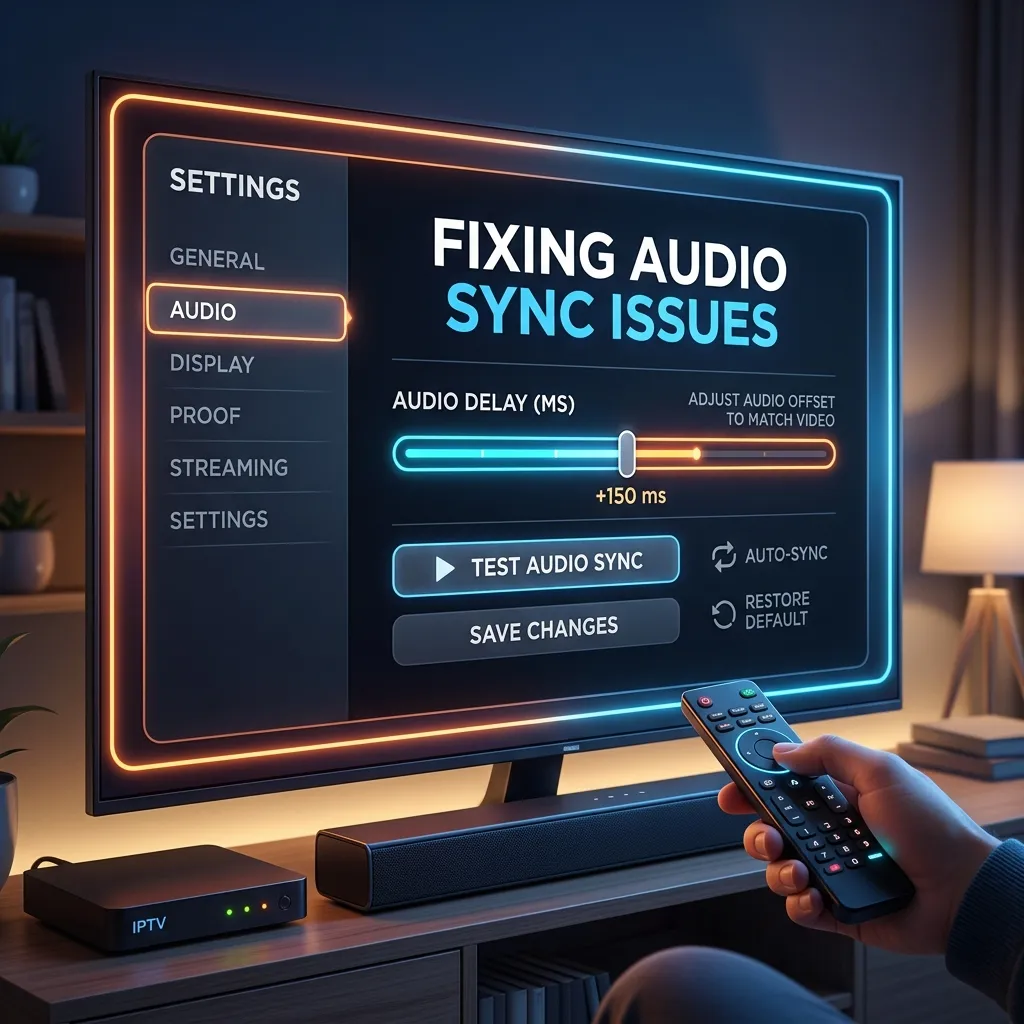
There is perhaps nothing more frustrating in the modern digital streaming experience than encountering persistent audio sync issues. You settle into your favorite recliner, ready to enjoy an action-packed blockbuster, a thrilling live sporting event, or the highly anticipated finale of your favorite television drama, only to quickly realize that the audio and video are entirely out of alignment. When a character’s lips move, the sound of their voice arrives a split second—or sometimes several glaring seconds—later. This phenomenon, widely referred to in the industry as "lip-sync error," "audio desync," or simply "audio delay," can instantly destroy the immersion of any viewing experience, turning a relaxing evening into an annoying troubleshooting session.
If you are a regular user of an IPTV player, you might encounter these frustrating synchronization issues far more frequently than you would with traditional broadcast satellite or cable television. Because IPTV fundamentally relies on capturing, compressing, and transmitting massive amounts of video and audio data packets over the open internet, variations in network latency, encoding profiles, decoding capabilities, and hardware processing speeds can all easily contribute to timing mismatches between the visual and auditory streams. But do not despair—these issues are almost always solvable with the right knowledge and a systematic approach.
In this massive, exhaustive guide, we are going to dive deep into the technical, underlying causes of audio sync problems and provide highly detailed, step-by-step solutions to identify and fix them. Whether you are using a dedicated set-top box, an Amazon Firestick, a modern Smart TV, an Apple TV, or even a mobile device, we have you fully covered. From tweaking deeply hidden player-specific settings in popular apps like Tivimate and IPTV Smarters Pro, to adjusting your high-end home theater's audio pass-through and ARC configuration, you will learn absolutely everything you need to know to ensure perfect, uninterrupted harmony between sound and picture.
Deep Dive: The Science of Audio/Video Synchronization
To effectively fix a complex problem, you must first fully understand the mechanics of what is causing it. In the context of Internet Protocol Television (IPTV), audio and video are captured at the source, compressed into specific codecs, transmitted over the internet via thousands of individual data packets, and then received, decompressed, and finally rendered by your local playback device. This is an incredibly highly complex, mathematically demanding process requiring microscopic, millisecond-precise synchronization.
Presentation Time Stamps (PTS) and Decode Time Stamps (DTS)
At the core of digital video broadcasting are two vital pieces of metadata embedded into every single video stream: the PTS (Presentation Time Stamp) and the DTS (Decode Time Stamp). When a broadcaster encodes a live TV feed, the encoder assigns a specific PTS and DTS to both the video frames and the corresponding audio samples.
- The DTS tells your streaming device's processor when it needs to decompress and decode that specific piece of data.
- The PTS tells your streaming device's display and audio hardware exactly when to present that fully decoded frame and audio sample to the viewer.
Under ideal conditions, your IPTV app reads the PTS of the video frame, reads the PTS of the audio track, and plays them at the exact same millisecond. However, if network packet loss occurs and a chunk of data containing these crucial timestamps goes missing, the player has to "guess" how to realign the stream, which often results in the dreaded lip-sync error.
What Constitutes an Audio Delay or Lip Sync Error?
Audio delay occurs whenever the total time it takes for the audio signal to be processed and reach your speakers fundamentally differs from the time it takes for the video signal to be processed, rendered, and displayed on your screen. Because high-definition (HD) and 4K video files are exponentially larger and infinitely more mathematically complex than audio files, video processing (which includes decoding the codec, rendering the pixels, and applying TV post-processing effects like motion smoothing or HDR tone mapping) usually takes slightly longer than the comparatively simple task of audio processing.
In a perfectly functioning, properly calibrated system, the TV intentionally delays the audio track by the exact amount of milliseconds it takes to process the heavy video frame, resulting in perfectly synchronized playback. However, when this artificial delay is miscalculated by the TV—or when external factors introduce unexpected, fluctuating latency into either the audio or video pipeline—you experience a noticeable desync.
There are two primary categories of synchronization issues:
- Audio Leads Video (Early Audio): The sound of an action (like an explosion or a spoken word) is heard clearly before the corresponding visual action happens on screen. This is by far the most common iteration of the issue. It usually occurs because the Television or streaming device processor is taking far too long to compute and render the heavy video frame, while the simple, lightweight audio track processes instantly and plays immediately.
- Video Leads Audio (Late Audio): The visual action happens on screen, and the corresponding sound follows significantly afterward. This is much less common in local playback but can frequently occur if an external sound system (such as an advanced soundbar or a heavy AV receiver) is applying heavy digital audio processing (DSP), or if you are using a standard Bluetooth connection which introduces high wireless transmission latency.
Common Causes of Audio Sync Issues in IPTV Streaming
The perilous journey of an IPTV stream from the provider's remote server farm to your living room screen is fraught with potential synchronization pitfalls. Here is an exhaustive breakdown of the most common culprits:
1. Hardware Processing Bottlenecks and Overheating
Your chosen streaming device (for example, an older, first-generation Android box, a low-spec budget smart TV, or a thermal-throttling Firestick) might simply lack the raw processing power (CPU/GPU) required to decode high-bitrate, 60fps 1080p or 4K video streams smoothly. When the processor struggles to keep up, it drops video frames entirely or takes drastically longer to render them, causing the heavy video to naturally lag behind the lightweight audio. Furthermore, if a device is overheating, its processor will artificially slow itself down (thermal throttling) to prevent damage, exacerbating sync issues.
2. Network Instability, Jitter, and Packet Loss
Unlike traditional cable TV, IPTV streams are delivered continuously via IP data packets over the chaotic public internet. If your home internet connection is unstable, packets may arrive completely out of order, or some may be lost entirely into the void (a phenomenon known as packet loss). When the IPTV player app attempts to reconstruct the continuous stream using missing or delayed packets, it can easily lose track of the precise PTS/DTS timing information that keeps the audio and video locked together. High network "jitter" (fluctuations in latency) is the primary cause of streams that perfectly sync for five minutes, then suddenly fall out of sync.
3. Misconfigured Audio Settings on the Player or TV
Modern 4K TVs and high-end AV receivers offer a dizzying plethora of audio settings: surround sound processing, dialogue enhancement algorithms, volume leveling, spatial audio, and various digital output formats (such as PCM, Bitstream, Dolby Digital, DTS-HD). Incorrectly configuring these nested settings can force your audio system to unnecessarily spend extra milliseconds actively decoding, transcoding, or upmixing the audio format, intentionally introducing a highly noticeable delay.
4. Bluetooth Wireless Latency
If you are attempting to listen to your live IPTV stream via wireless Bluetooth headphones or a wireless Bluetooth soundbar, the wireless transmission protocol inherently introduces massive latency. While modern Bluetooth 5.0+ devices feature specific low latency codecs (like aptX LL), standard, base-level Bluetooth connections can have inherent delays ranging from 150 to over 300 milliseconds. This delay is completely unnoticeable when listening to Spotify, but when watching a video, a 300ms delay means the audio is permanently almost a third of a second behind the picture.
5. IPTV Provider Source and Encoder Issues
Sometimes, despite your best troubleshooting efforts, the problem is completely out of your hands. The raw source feed that your IPTV provider is capturing from the satellite and rebroadcasting to you might already have a baked-in audio sync issue. Alternatively, the FFmpeg encoding software utilized by the provider's server might be slightly misconfigured, continuously outputting a stream with permanently misaligned audio and video tracks. Choosing a high-quality, premium service is absolutely crucial to avoiding source issues. You can explore high-end, reliable options on our primary IPTV Subscription page.
Hardware vs. Software Factors: Isolating the Core Problem
Before you begin drastically changing settings, factory resetting devices, or buying new hardware, it is absolutely essential to logically isolate whether the audio sync issue is caused by your local hardware setup, your local home network, the specific IPTV player software, or the remote stream itself. Proceed through these diagnostic steps:
Diagnostic Step 1: Test Multiple Channels and VODs
The very first step in proper troubleshooting is simply to change the channel.
- Does the audio sync issue persist universally across all live TV channels? If yes, the issue is almost certainly local. It lies with your hardware, your network, or your global IPTV app settings.
- Is the issue highly isolated to a single specific channel, a specific regional broadcaster, or a single specific VOD (Video on Demand) movie? If the desync only happens on one channel, the problem is entirely at the source (the IPTV provider's remote server end). In this scenario, absolutely no amount of local device troubleshooting will fix it; you simply must wait for the provider's automated systems to detect and correct their feed, or report it to their support team.
Diagnostic Step 2: Test a Completely Different Streaming App
If all your IPTV channels are suffering from being out of sync, try playing a high-definition video on a completely different, mainstream app, such as YouTube, Netflix, or Amazon Prime Video.
- Are YouTube and Netflix videos also exhibiting audio sync issues? If yes, the issue is systemic to your overall device (e.g., your Firestick OS) or your Television/Audio receiver system. You need to adjust system-level, global audio settings.
- Is YouTube playing perfectly in sync, but your IPTV player is failing? The issue is heavily localized to your specific IPTV app (e.g., Tivimate, Smarters, XCIPTV). You should immediately focus your efforts on adjusting the internal media engine settings within that specific app.
Diagnostic Step 3: Test Local Media vs. Streaming Media
To definitively rule out your internet connection and network jitter as the culprit, try playing a locally stored video file (from a USB drive or local network share) on your device. If local, high-bitrate files play flawlessly with perfect lip-sync, but IPTV streams continuously drift out of sync, your internet network connection, your ISP routing, or specific stream buffer bloat might be the root cause.
Exhaustive Troubleshooting on Amazon Firestick Devices
The Amazon Fire TV Stick, particularly the 4K and 4K Max models, is arguably the most popular streaming device utilized for IPTV due to its low cost, portability, and ease of sideloading applications. If you are a dedicated Firestick user experiencing frustrating lip-sync issues, follow these highly specific, comprehensive troubleshooting steps. If you are brand new and haven't fully set up your device yet, strongly consider checking out our dedicated, step-by-step Firestick Setup guide.
1. Utilizing the FireOS AV Sync Tuning Calibration Tool
Amazon recognized that audio desync is a massive, widespread issue with modern complex home theater setups, so their engineers wisely included a built-in calibration tool directly within the Fire TV operating system. This powerful tool allows you to manually adjust the global audio delay across all apps running on the device.
How to systematically access and use the AV Sync Tuning tool:
- Navigate directly to the main Firestick Home Screen.
- Go to Settings (represented by the gear icon on the far right side of the screen).
- Select the Display & Sounds menu tile.
- Choose the Audio sub-menu.
- Scroll down to the bottom and select AV Sync Tuning.
When you open this calibration tool, you will see a visual aid: a bouncing ball moving back and forth across the screen, accompanied by a sharp audio "click" or "beep." The ultimate goal is for the audible click to sound exactly at the precise millisecond the ball hits the vertical line on the screen.
- If the click happens before the ball physically hits the line (meaning Audio leads Video), you actively need to add delay to the audio track. Use the right navigation button on your circular Fire remote to incrementally increase the audio delay by 10ms steps.
- If the click happens after the ball hits the line (meaning Video leads Audio), use the left navigation button to reduce the audio delay or push it forward.
- Once it feels absolutely, perfectly synchronized to your eyes and ears, press the Apply or Select button to permanently save these global settings.
2. Disable Dolby Digital Plus Processing
Dolby Digital Plus (DD+) provides excellent, highly compressed surround sound, but actively decoding it on the fly requires significant, sustained processing power. If you are using standard integrated TV speakers or a budget 2.0 soundbar that does not natively have hardware support for DD+, your TV processor must forcefully transcode the complex signal down to basic stereo PCM. This heavy transcoding process takes precious milliseconds and is historically a leading cause of audio delay specifically on Firestick devices.
To immediately change your audio output format and eliminate this processing:
- Go to Settings > Display & Sounds > Audio.
- Select Surround Sound.
- Change the active setting from Best Available or Always Dolby Digital Plus to specifically PCM or Stereo.
By forcefully mandating the Firestick to output a simple, uncompressed PCM stereo signal, you completely eliminate the need for any downstream TV transcoding, which very frequently instantly fixes stubborn audio sync issues.
3. Clear Cache and Force Stop the Malfunctioning IPTV App
Over continuous hours of usage, IPTV apps aggressively accumulate temporary data, images, and EPG (Electronic Program Guide) data in their cache memory. A corrupted cache, or a slow memory leak in an app that has been running in the background for days, can cause severe system performance degradation. This lack of memory leads directly to dropped video frames, stuttering, and inevitable audio desync.
To properly execute a cache clear of your IPTV app:
- Go to Settings > Applications.
- Select Manage Installed Applications.
- Scroll down the alphabetical list and find your specific IPTV app (e.g., Tivimate, Smarters, XCIPTV).
- Click Force Stop to kill any rogue background processes.
- Click Clear Cache. (CRITICAL WARNING: Do NOT click "Clear Data" under any circumstances unless you wish to permanently erase all your login credentials, playlists, and custom settings).
- Relaunch the app completely fresh.
4. Adjust the Firestick Frame Rate Matching Setting
By factory default, the Firestick outputs all video at a fixed, static frame rate (usually exactly 60Hz to match standard North American TVs). However, many global IPTV streams (especially cinematic movies and European/UK live sports) are natively broadcast at 24fps, 25fps, or 50fps. When the Firestick operating system forcefully crams a 25fps or 50fps stream into a rigid 60Hz output signal, it must utilize a highly imperfect mathematical technique called "pulldown." Pulldown frequently causes visual micro-stutters and, crucially, can cause the audio track timing to slowly drift out of sync over a long viewing session.
You can enable an advanced, experimental feature that allows the Firestick to dynamically alter its output frame rate to perfectly match the original content stream:
- Go to Settings > Display & Sounds > Display.
- Select the Match Original Frame Rate option and toggle it to ON. (Important Note: Not all third-party IPTV apps fully support this FireOS API feature, but it is highly recommended to enable it and test if it resolves your long-term drifting sync issues).
Player-Specific Deep Configurations for Audio Desync
If your rigorous diagnostic testing revealed that your audio sync issues are occurring exclusively within your chosen IPTV app, you need to dive deep into that specific application's internal media player settings. Different apps utilize entirely different underlying media rendering engines (such as Google's ExoPlayer, the open-source VLC core, or IJK Player), and forcefully adjusting how these engines behave can profoundly impact and repair synchronization.
If you are currently looking for detailed instructions on how to install and configure these specific players from scratch, please visit our comprehensive Installation Guide.
Fixing Audio Sync in TiviMate Premium
TiviMate is almost universally regarded by enthusiasts as the absolute best, most robust IPTV player available for Android devices. It is extraordinarily customizable and offers multiple highly effective tools to combat audio desync directly.
1. Manually Adjusting the Live Audio Offset Slider
TiviMate includes a brilliant feature that allows you to manually shift the audio track forward or backward in granular millisecond increments in real-time. This is the absolute most direct, reliable way to quickly fix a desync on a stubbornly out-of-sync channel.
- While actively watching a live stream that is out of sync, press the OK/Select button on your remote to bring up the main player overlay menu.
- Navigate down to the bottom quick-menu bar and select the Audio icon (it typically looks like a speaker or a set of equalizer bars).
- From the popup, select Audio Offset.
- A horizontal slider will appear prominently on the screen.
- If the audio is currently playing too early (you hear the gunshot before the flash), move the slider to the Right (into positive values, e.g., +100ms, +250ms) to artificially delay the sound.
- If the audio is playing too late (you see the explosion, then hear it), move the slider to the Left (into negative values, e.g., -150ms) to aggressively advance the sound.
- The audio timing changes happen in real-time as you move the slider, so simply keep adjusting it left and right until the actors' lips match their voices perfectly.
[!TIP] Master TiviMate Tip: TiviMate intelligently allows you to save this exact audio offset for the specific individual channel you are watching, or you can apply it globally to all channels in your playlist. If only one single channel is acting up, ensure you only apply the offset to that specific channel to avoid ruining the rest of your lineup!
2. Switching the Core Video Decoder (Hardware vs. Software)
By absolute default, TiviMate utilizes Hardware Decoding (HW), meaning it attempts to rely entirely on your streaming device's physical, integrated graphics chip (GPU) to rapidly decode the complex video stream. Sometimes, a very specific, weirdly encoded stream codec simply does not play nicely with your device's physical hardware, causing the video rendering to bottleneck and lag significantly behind the audio.
Switching the engine to Software Decoding (SW) forces the TiviMate app to utilize the device's main general processor (CPU) to decode the video mathematically. While this is far more resource-intensive and runs hotter, it can very frequently bypass weird hardware compatibility issues and instantly fix sync problems.
- Go to the main TiviMate Settings menu (accessed via the gear icon on the left-side home screen panel).
- Select the Playback sub-menu.
- Look for the critical Video Decoder option.
- Change the toggle from Hardware to Software.
- Restart the live stream and closely observe if the audio sync stabilizes.
3. Adjusting Network Buffer Size for Stability
If your home Wi-Fi network is experiencing rapid micro-fluctuations in speed, the player might be constantly dropping packets, causing the internal stream timing to severely desynchronize. Increasing the internal software buffer size gives the TiviMate player more time to actively download, organize, and align the data packets in memory before physically playing them on screen, ensuring a much smoother, perfectly synchronized playback experience.
- Go back to Settings > Playback.
- Select Buffer Size.
- Change it from the default Small/Normal setting to Large or even Very Large. (Note: This will cause channels to take 1-2 seconds longer to initially load, but they will be far more stable once running).
Fixing Audio Sync in IPTV Smarters Pro
IPTV Smarters Pro is another incredibly popular, widely distributed application. It offers similar core media engine tweaks to effectively address playback and synchronization issues.
1. Change the Underlying Media Player Engine
Smarters Pro uniquely allows you to manually choose which underlying open-source media engine physically handles the stream playback. If the default engine is continuously losing synchronization, switching engines is your absolute best bet.
- Open the IPTV Smarters Pro app and click the main Settings icon (gear icon in the top right).
- Select the Player Selection tile.
- Here, you can actively assign completely different player engines (e.g., Built-in Player, VLC Player Core, ExoPlayer Core) to different specific types of content (Live TV, VOD Movies, VOD Series).
- If your Live TV is constantly out of sync while utilizing the Built-in Player, click on it and change the selection to ExoPlayer or VLC Player.
- Save the configuration changes and thoroughly test the live stream again.
2. Toggling Hardware Decoding Settings in Smarters
Exactly like TiviMate, you have the ability to toggle hardware decoding on or off in Smarters Pro.
- Go to Settings > Player Settings.
- Locate the toggle labeled Hardware Decoder.
- If it is currently checked (enabled), uncheck it (forcing software decoding). If it is currently unchecked, check it. You must systematically test the stream after each change to see which decoder your specific device prefers.
Fixing Audio Sync in VLC Media Player and XCIPTV
Many advanced users strongly prefer to utilize VLC Media Player on their PC, Mac, or set it as an "external player" on Android devices strictly because of its legendary, unmatched ability to perfectly play absolutely any video codec in existence. VLC also features the absolute easiest, on-the-fly audio sync adjustment hotkeys available.
Adjusting Sync on PC/Mac via VLC: If you are watching a direct IPTV M3U playlist through the VLC desktop client on a computer, you can rapidly adjust the audio sync using simple keyboard shortcuts without opening any menus.
- Press the
Jkey repeatedly to precisely decrease the audio delay (this brings the audio rapidly forward in time). - Press the
Kkey repeatedly to precisely increase the audio delay (this pushes the audio backward in time). Every single key press adjusts the synchronization by exactly 50 milliseconds. A helpful white text notification will briefly appear in the top right corner of the video window displaying the exact current audio delay offset (e.g., "Audio delay 200 ms").
Adjusting Sync in XCIPTV Player: XCIPTV is another highly utilized application. It operates primarily on the ExoPlayer engine.
- While a video is actively playing in XCIPTV, press the center Select button to bring up the player controls overlay.
- Navigate to the Settings cog on the player bar.
- Look for the Audio Offset or A/V Sync option within the quick menu.
- Utilize the on-screen arrows to add or subtract milliseconds until the stream aligns.
Vital Network Optimizations to Permanently Fix Desync
It cannot be overstated: IPTV is monumentally dependent on a highly stable, low-latency network connection. Even if you pay for a blazing fast gigabit internet package (e.g., 1000 Mbps down), if the connection is fundamentally unstable (suffering from high jitter, interference, or frequent packet loss), your IPTV player application will violently struggle to maintain the delicate mathematical synchronization between the incoming audio and video packets.
1. Ditch Unstable Wi-Fi for a Hardwired Ethernet Connection
Wi-Fi, by its very nature, is highly susceptible to massive interference. Signals from other devices, physical walls, microwaves, and heavily congested neighboring Wi-Fi networks all cause fluctuating latency (commonly known as jitter). Because HD video packets are significantly larger than audio packets, they are far more severely affected by this jitter. They get delayed in the air, causing the tiny audio packets to arrive and play first, ruining the sync.
Whenever physically possible, you must connect your main streaming device directly to your network router utilizing a high-quality Ethernet cable (Cat 5e, Cat 6, or higher).
- If you are utilizing a dedicated Android TV Box or a Smart TV, they almost universally feature an RJ45 Ethernet port built directly into the back panel.
- If you are utilizing an Amazon Firestick or a Chromecast, you can easily purchase a relatively inexpensive official Ethernet Adapter that seamlessly plugs directly into the power port.
A direct, hardwired connection fundamentally guarantees a consistent, ultra-low-latency, zero-jitter data stream. This single physical change drastically reduces the chances of network-induced audio desync by almost 99%.
2. Implement Quality of Service (QoS) Router Settings
If multiple people residing in your household are utilizing the home internet simultaneously (for example, one person is downloading a massive 100GB video game update, while another is uploading files), your standard router will likely deprioritize your delicate IPTV traffic, treating it like normal web browsing. This causes massive buffering and immediate sync loss.
Many modern, mid-to-high-tier routers feature a powerful tool called Quality of Service (QoS). QoS allows you to explicitly instruct the router's processor regarding which specific devices, or which specific types of internet traffic, must absolutely be given highest priority at all times.
- Log directly into your router's administrative dashboard (usually achieved by typing
192.168.1.1or10.0.0.1into a web browser on a computer connected to the network). - Carefully locate the QoS, Traffic Prioritization, or Bandwidth Control settings menu.
- Find your primary streaming device's MAC address or assigned local IP address in the list of currently connected network devices.
- Manually set its priority level to Highest or Maximum. This ensures that even if the network is totally saturated, your IPTV packets will always skip the line and arrive on time.
3. The Crucial Role of a High-Speed VPN
Internet Service Providers (ISPs) in many regions are notorious for actively monitoring and intentionally throttling (slowing down) known IPTV traffic, especially during peak evening viewing hours or major sporting events. This aggressive throttling causes immediate, severe stream buffering, which completely destroys audio/video synchronization as the player struggles to rebuild the broken stream.
Utilizing a high-quality Virtual Private Network (VPN) completely encrypts your outgoing and incoming data traffic within an unbreakable tunnel. This absolutely prevents your ISP from identifying that you are streaming IPTV, making it utterly impossible for them to selectively throttle your connection. A premium VPN can also provide a much more direct, highly optimized routing path directly to the IPTV server, entirely bypassing heavily congested public network nodes that cause jitter.
However, you must exercise extreme caution: utilizing a cheap, free, or low-quality VPN will actually have the inverse effect. A slow VPN server will introduce massive latency and completely ruin your streaming experience. Ensure you exclusively utilize a premium, high-speed VPN specifically optimized and tested for heavy 4K streaming. For more critical information on securing your streaming setup and comprehensively avoiding ISP interference, read our highly detailed security guide: Is Smartiflix Safe?.
Advanced TV and Home Theater Audio System Calibration
If you have exhaustively tried all the local player settings, perfectly optimized your network, and are still experiencing persistent audio delay, the core problem almost certainly lies in exactly how your Television hardware or your expensive external audio system (Soundbar, massive AV Receiver) is actively processing the final audio signal before it hits the speakers.
Modern 4K and 8K TVs perform astonishingly heavy, computationally expensive image processing on the fly. They constantly upscale lower resolution feeds, aggressively apply motion smoothing interpolation (often derisively called the "Soap Opera Effect"), increase contrast dynamically via HDR, and reduce digital noise. This intense video processing requires immense mathematical time, often upwards of 100 to 250 milliseconds per frame.
To ensure the audio properly matches the heavily delayed video frame, the TV OS intentionally delays the audio signal internally before sending it out to the speakers. However, if you are actively bypassing the TV's internal, basic speakers and sending the audio out to a complex soundbar via an HDMI ARC connection or an Optical TOSLINK cable, the delicate synchronization math can easily get completely thrown off.
Here is a rigorous, comprehensive checklist of deep TV and Sound System settings you must adjust to achieve perfect harmony:
1. Force Enable "Game Mode" on Your Television
Game Mode is a specific picture setting designed specifically for video game consoles. When activated, it brutally bypasses almost all the heavy, computationally expensive video processing engines inside your TV (completely disabling motion smoothing, edge enhancement, and noise reduction) to fiercely minimize input lag. By turning off all this heavy processing, the TV processor renders the raw video frame vastly faster, bringing it much closer to the real-time speed of the audio track.
- Grab your original TV remote and navigate into your TV's main Picture Settings menu.
- Look for the option labeled Picture Mode or Preset and change it directly to Game Mode or PC Mode.
- Immediately test your IPTV stream. See if the audio sync dramatically improves. If it does, your TV's massive video processing lag was absolutely causing the desync. You can either permanently leave the TV in Game Mode for all streaming, or try manually, painstakingly disabling individual processing features (like turning off "MotionFlow" on Sony, "TruMotion" on LG, or "Auto Motion Plus" on Samsung) while remaining in standard cinematic viewing modes.
2. Calibrate Global TV Audio Delay / Lip Sync Sliders
Almost all modern, name-brand TVs feature their own dedicated, internal Audio Delay or Lip Sync adjustment slider buried deep in the settings menu.
- For Samsung TVs: Navigate to Settings > Sound > Expert Settings > Digital Output Audio Delay. Adjust the slider until sync is achieved.
- For LG TVs: Navigate to Settings > Sound > Advanced Settings > Match Screen and Sound (or AV Sync Adjustment). Toggle it to ON, and carefully adjust the slider. Alternatively, selecting "Bypass" will forcefully output the audio completely raw, without applying any artificial TV-based delay whatsoever.
- For Sony TVs: Navigate to Settings > Display & Sound > Audio Output > A/V Sync. Set it to Auto or On.
3. Change Digital Audio Output Format to Raw Pass-Through or PCM
When you connect an external streaming device (like a Firestick) into your TV via HDMI, and then output that audio from your TV down to a soundbar via HDMI ARC or Optical cable, you are essentially forcing the Television processor to act as an active audio middleman.
If your TV is set to "Auto" or "Dolby Digital" mode, it may actively attempt to take the audio from the Firestick, decode it, analyze it, and then re-encode it again before passing it down the cable to the soundbar. This double-translation process guarantees added latency.
You absolutely want the TV to pass the raw, untouched audio signal directly to the soundbar, or you want to feed the soundbar a completely uncompressed, pre-decoded signal.
- Navigate to your TV's primary Sound Settings menu.
- Look for the sub-menu labeled Digital Audio Out, Digital Output Format, HDMI ARC Format, or S/PDIF Output.
- Forcefully change the setting from "Auto" to exactly Pass-Through (sometimes labeled as Bitstream). This explicitly commands the TV processor to not touch the audio data whatsoever and let the high-end soundbar handle all the decoding work.
- If Pass-Through does not function correctly, or isn't an available option, change the setting directly to PCM (Pulse-Code Modulation). This forces the TV to output totally uncompressed, basic 2.0 stereo audio. Because PCM is totally uncompressed, it requires absolute zero processing by the soundbar chip, which almost universally, instantly eliminates any lingering audio delay.
4. Investigate Soundbar and AV Receiver Internal Delays
If you are running your audio through a massive, multi-channel AV Receiver (AVR) or a highly advanced, premium soundbar system (like a Sonos Arc or Nakamichi), absolutely check the unit's own internal settings. Many of these complex audio devices feature their own independent "Audio Delay" or "Lip Sync" adjustment controls, either accessible on their physical remote control, hidden in a digital front-panel menu, or located within their dedicated smartphone companion app. Ensure this setting is perfectly zeroed out (0ms) to start, and carefully adjust as necessary.
Furthermore, if your specific soundbar has an artificial "Dialogue Enhancement," a dynamic "Night Mode" compressor, or a "Virtual Surround Sound" (DSP) upmixing feature currently enabled, turn them off immediately. These heavy Digital Signal Processing algorithms require several milliseconds of computational time to aggressively analyze and alter the audio stream before playing it, which very frequently causes the audio to arrive significantly late to your ears.
Provider-Side Issues: Acknowledging When It Is Completely Out of Your Control
We have now meticulously covered massive amounts of extensive, highly technical local troubleshooting steps. However, it is absolutely vital for your own sanity to acknowledge that sometimes, the user is entirely powerless to permanently fix an audio sync issue.
IPTV providers capture their raw video streams from a staggering array of massive satellite dishes, terrestrial broadcast towers, and direct web feeds from across the globe. They then utilize massive, highly complex data servers running intense transcoding software algorithms (like heavy FFmpeg scripts or Xtream Codes panels) to drastically compress these massive, raw video feeds down into manageable bitrates that are actually suitable for transmission over standard home internet connections.
If the provider's heavy transcoding server is improperly configured—for example, if the software is maxing out its CPU and dropping audio frames during the extreme compression phase, or if the critical PTS/DTS timestamps on the audio and video packets are not mathematically aligned correctly during the final stream multiplexing process—the stream is permanently, fundamentally broken directly at the source. Absolutely no amount of tweaking, slider adjusting, or hardware upgrading on your local Firestick or TiviMate app will ever truly fix a stream that is inherently flawed and desynchronized before it ever leaves the server farm.
How to Definitively Identify Provider-Side Desync
As briefly mentioned earlier in the isolation diagnostic steps:
- If the frustrating audio desync occurs on only one single specific channel, or only during a single, massive live event (like an overloaded, high-traffic PPV boxing match), it is a 100% source issue. The server handling that specific feed is failing.
- If the sync issue fluctuates wildly and unpredictably—playing perfectly for exactly 5 minutes, then abruptly falling out of sync by a massive 2 seconds, then suddenly freezing, catching up, and stuttering—this is almost always indicative of an overloaded, struggling server on the provider's remote end that is unable to process the stream fast enough.
The Ultimate Solution: Choosing a Highly Reliable Premium IPTV Service
The absolute, ultimate fix for chronic, unresolvable, across-the-board audio sync issues is aggressively upgrading to a premium, professionally managed, top-tier IPTV service. High-tier, premium providers invest heavily in expensive, enterprise-grade hardware transcoding server racks, globally load-balanced content delivery networks (CDNs), and employ active, 24/7 network engineers who constantly monitor stream health. When a critical channel goes out of sync on a premium service, their automated monitoring systems quickly detect the PTS/DTS mismatch and instantly restart the remote encoder, flawlessly fixing the issue before you ever even need to consider submitting a frustrating support ticket.
If you are utterly exhausted from constantly fiddling with audio offsets, constantly clearing app caches, and missing the climax of movies due to technical glitches, it is definitely time to make a switch. Visit our main Smartiflix Homepage to explore our elite services, carefully review our transparent, highly competitive Pricing plans, and finally discover what a premium, buffer-free, perfectly mathematically synchronized viewing experience truly feels like.
Final Conclusion
Experiencing audio sync issues is undeniably a highly complex, multi-faceted problem born entirely out of the extremely intricate, delicate nature of modern digital video broadcasting and the heavy computational requirements of home theater processing. Because the heavy video pipeline and the lightweight audio pipeline are often processed entirely independently by multiple different computer chips (the processor in the streamer, the mainboard in the TV, the DSP chip in the soundbar), maintaining perfect, millisecond-accurate synchronization requires absolutely everything in your digital chain to operate in flawless, uninterrupted harmony.
By strictly and methodically following this exhaustive guide, you can successfully identify and definitively eliminate the vast majority of lip-sync errors. Always begin your troubleshooting with the absolute simplest fixes: physically reboot your streaming device to clear the RAM, clear the specific app cache to remove corrupted files, and ensure you are utilizing a rock-solid, hardwired ethernet connection to eliminate network jitter. If the problem stubbornly persists, utilize your IPTV app's built-in audio offset sliders (such as the excellent tool found in TiviMate) to manually force the tracks into alignment. Finally, if all else fails, dig deeply into the complex hardware menus of your Firestick and Television, focusing intensely on absolutely disabling unnecessary audio transcoding (by switching output to raw PCM or pure Pass-through) and turning off heavy, lag-inducing TV video processing algorithms (by enabling Game Mode).
With a moderate amount of patience, a logical approach, and methodical troubleshooting, you can permanently banish audio delay from your living room for good, allowing you to return to fully enjoying your favorite movies, sports, and shows exactly as the original directors and broadcasters intended.
Frequently Asked Questions (FAQs) About Audio Sync
Why does the audio sync seem to get progressively worse the longer I watch a single channel?
This highly annoying phenomenon is technically known as "audio drift." It almost universally occurs when the native frame rate of the original video stream (for example, a UK sports broadcast at exactly 25fps or 50fps) does not perfectly match the static, rigid refresh rate output of your streaming device hardware (which is usually locked at exactly 60Hz). Over an extended period of time, the player's attempts to mathematically match these numbers by dropping or duplicating frames causes the video rendering to slowly, inevitably pull away from the audio track. Enabling the "Match Original Frame Rate" option within your streaming device OS, or simply quickly pausing and restarting the stream to force a sync reset, usually temporarily resolves this drift.
Will purchasing a drastically faster gigabit internet connection automatically fix my lip-sync issues?
Surprisingly, no, not necessarily. Raw, top-end speed (total bandwidth) is vastly less important than network stability (low latency and zero jitter) when it comes to smooth IPTV streaming. A highly stable, rock-solid 50 Mbps connection will experience dramatically fewer audio sync issues than a wildly fluctuating, highly unstable 1000 Mbps Wi-Fi connection that constantly drops packets due to interference. Focus entirely on reducing network jitter by exclusively utilizing an Ethernet cable rather than paying your ISP for more raw bandwidth.
Why is my expensive Bluetooth headset constantly, permanently out of sync with my IPTV app?
Standard, base-level Bluetooth wireless transmission simply takes mathematical time to physically encode the audio signal, transmit it wirelessly through the air, and decode it on the tiny chip inside the headset. This complex process inherently adds a massive 150ms to upwards of 300ms of hard delay, meaning the audio will permanently arrive significantly late. To definitively fix this, you must either upgrade to a specific streaming device transmitter and headset combination that both explicitly support the specialized "Bluetooth aptX Low Latency" codec, or alternatively, rely heavily on the audio offset feature within your specific IPTV app (like TiviMate) to intentionally, artificially delay the video feed or advance the audio feed to compensate for the wireless delay.
Is it completely normal to have to constantly adjust the audio delay slider for completely different channels?
While it is certainly not ideal for a relaxing viewing experience, it is relatively common, particularly when utilizing budget or free IPTV providers. Different channels are sourced from wildly different international broadcasters all around the world, encoded utilizing vastly different hardware encoder setups, and subjected to highly different global routing paths. A truly premium IPTV provider actively standardizes and normalizes all their outgoing streams through identical server racks to aggressively minimize these variances between channels.
Can old or cheap optical (TOSLINK) cables physically cause audio delay?
Generally speaking, absolutely not. Optical TOSLINK cables literally transmit digital data utilizing pulses of physical light, traveling at light speed, which introduces virtually zero measurable latency to the signal. If you are experiencing a noticeable delay while heavily utilizing an optical cable connection, the delay is entirely being introduced by the digital processing chip inside the Television (before it physically sends the light signal) or the processing chip inside the receiving soundbar (after it receives the light signal), not the physical cable itself. Altering your TV's optical output format strictly to "PCM" or "Pass-through" will almost always resolve the processing bottleneck.
For infinitely more technical tips, advanced tricks, and massively comprehensive guides on perfectly optimizing every aspect of your home streaming setup, ensure you thoroughly explore the rest of the highly detailed Smartiflix blog. Ensure you are permanently getting the absolute most out of your expensive home entertainment system with our top-tier, reliable services and expert technical advice.