Top IPTV Apps for Windows PC in 2026: Stream Like Never Before
Explore the top IPTV apps for Windows PC in 2026. Unleash your device's potential and enjoy seamless streaming of your favorite channels!
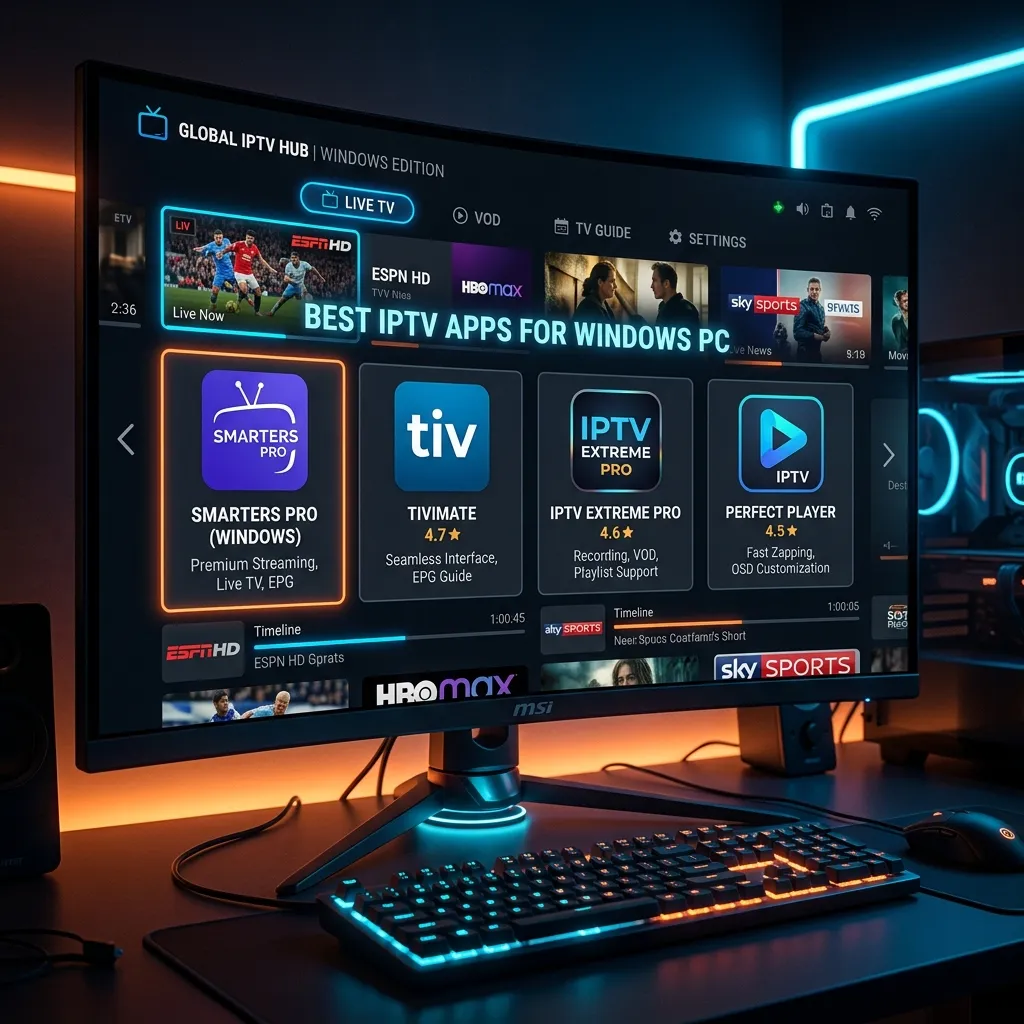
Welcome to the definitive guide for finding the Best IPTV Apps for Windows PC in 2026. As we navigate the rapidly evolving landscape of digital streaming, Internet Protocol Television (IPTV) has cemented its position as the premier alternative to traditional cable, satellite, and fragmented, expensive streaming services. While smart TVs, streaming sticks, and mobile devices dominate the living room and the commute, the sheer processing power, versatility, and multitasking capabilities of a Windows PC make it the ultimate powerhouse for streaming high-quality media.
In this comprehensive, 3000+ word masterclass, we will dive deep into everything you need to know about streaming IPTV on a Windows environment. Whether you are rocking a high-end custom-built gaming rig with multiple 4K monitors, a sleek productivity ultrabook, or an aging but reliable desktop PC, setting up the right IPTV player will transform your hardware into a limitless entertainment hub.
We will explore the top-rated software available today, compare their features in detail, discuss crucial setup procedures, and address the security measures necessary for a seamless viewing experience. At Smartiflix, our mission is to empower you with the best tools and services to cut the cord permanently and take absolute control over your media consumption.
Why Use a Windows PC for IPTV in 2026?
When most people think of IPTV, they immediately picture a television screen powered by a set-top box or a compact streaming stick. However, dedicating your Windows PC to IPTV streaming unlocks a myriad of benefits that specialized streaming devices simply cannot match.
1. Unmatched Processing Power and Hardware Acceleration
Even a budget-tier modern Windows PC possesses significantly more raw CPU and GPU processing power than the average smart TV or streaming stick. This immense computational horsepower means that Windows IPTV apps can handle complex tasks with ease. Navigating massive playlists containing tens of thousands of live channels, decoding uncompressed 4K HDR streams, and rapidly rendering high-definition Electronic Program Guides (EPGs) happen instantaneously. Hardware acceleration via NVIDIA, AMD, or Intel GPUs ensures that video playback is buttery smooth without taxing your processor or causing system lag.
2. Multi-Monitor and Multitasking Capabilities
One of the greatest advantages of using a Windows PC is multitasking. With a multi-monitor setup, you can dedicate one screen entirely to a live sports broadcast or breaking news via your IPTV player while you work, game, or browse the internet on your primary display. Some advanced Windows IPTV players even allow for picture-in-picture (PiP) modes or multi-screen viewing, enabling you to watch two, four, or even more channels simultaneously—a dream come true for sports enthusiasts on busy weekends.
3. Superior Network Connectivity
While Wi-Fi technology has improved dramatically, nothing beats the stability, low latency, and high bandwidth of a hardwired Gigabit Ethernet connection commonly found on desktop PCs. IPTV heavily relies on a stable, continuous flow of data. A direct Ethernet connection on your Windows machine drastically reduces buffering, packet loss, and connection drops, ensuring that your premium IPTV Subscription performs at its absolute peak.
4. Advanced Recording and Storage Options
Windows PCs natively offer massive storage flexibility. If you want to record your favorite live TV shows, sports events, or movies for offline viewing, Windows makes it incredibly easy. You can direct your IPTV app to save recordings to a massive internal HDD, a blazing-fast NVMe SSD, or an external Network Attached Storage (NAS) drive. The recording capabilities on PC applications are generally far more robust and flexible than the limited local storage found on streaming sticks.
"A Windows PC is not just a workstation; in 2026, it is the undisputed command center for digital entertainment, offering unmatched flexibility, storage, and processing power for high-definition IPTV streaming."
Key Features to Look for in a Windows IPTV Player
Before we dive into the ultimate list of the best IPTV apps for Windows PC, it is crucial to understand the criteria we used to evaluate them. Not all media players are created equal, and an app that excels in one area might completely fail in another. Here is what you must consider when choosing your primary desktop IPTV player:
- Format Support (M3U, Xtream Codes, Stalker Portal): The player must be compatible with the playlist formats provided by your IPTV service. While M3U is the traditional standard, Xtream Codes API is highly preferred in 2026 for its organized structure, faster loading times, and automatic EPG integration.
- Electronic Program Guide (EPG): A high-quality IPTV player must seamlessly integrate EPG data (usually in XMLTV format), allowing you to see what is currently airing and what is coming up next in a clean, intuitive grid interface.
- Catch-up TV Support: If you miss a live broadcast, Catch-up TV allows you to go back in time and watch previously aired programs (usually up to 3-7 days, depending on your provider). The player must have native support for accessing these archives easily.
- Video on Demand (VOD) Organization: A premium service like Smartiflix offers thousands of movies and TV series. The ideal Windows player should organize VOD content effectively, automatically pulling in movie posters, cast information, IMDb ratings, and synopses.
- User Interface (UI) and Navigation: A PC app should leverage mouse and keyboard inputs efficiently while still offering a "lean-back" experience if you choose to connect a controller or remote. A clean, modern UI is essential for navigating large libraries without frustration.
- Subtitle and Audio Track Selection: For multi-language content, the ability to quickly switch between different audio streams and subtitle files (like SRT, VTT) is mandatory.
Feature Comparison Table
| Feature / App | IPTV Smarters Pro | VLC Media Player | Kodi | SFVIP Player | MyIPTV Player |
|---|---|---|---|---|---|
| Best For | All-Around Use | Quick Testing | Media Centers | Power Users | Windows UI |
| Xtream Codes | Yes | No | Yes (Add-ons) | Yes | No (M3U Only) |
| EPG Support | Excellent | None | Excellent | Excellent | Good |
| VOD Layout | Netflix-Style | Basic List | Customizable | Excellent | Basic List |
| Catch-up TV | Yes | No | Yes | Yes | No |
| Ease of Setup | Extremely Easy | Easy | Complex | Moderate | Easy |
Top 12 Best IPTV Apps for Windows PC in 2026
After rigorous testing of dozens of applications across various Windows 11 and Windows 10 configurations, our experts at Smartiflix have curated the definitive list of the absolute best IPTV players for your computer.
1. IPTV Smarters Pro (Windows Edition)
The Undisputed King of Cross-Platform IPTV
In 2026, IPTV Smarters Pro remains the industry standard for a comprehensive, user-friendly IPTV experience. While it originated on mobile and smart TV platforms, the dedicated Windows application is remarkably robust and polished.
Key Features:
- Xtream Codes API Integration: Simply enter your username, password, and server URL provided by Smartiflix, and the app takes care of the rest. No need to download massive M3U files.
- Distinct Categories: The app brilliantly separates Live TV, Movies (VOD), and Series into distinct, easy-to-navigate sections.
- Master Search: Features a lightning-fast global search function that scans live channels, VOD, and series simultaneously.
- Parental Controls: Built-in PIN protection allows you to lock specific categories or channels, ensuring a family-friendly environment.
- Multi-Screen Support: Watch up to four different live channels at the same time on a single screen.
Why We Love It: IPTV Smarters Pro effectively mimics the experience of a premium streaming service like Netflix or Hulu but applies it to your IPTV subscription. The VOD section pulls beautiful metadata (posters, plot summaries, ratings) automatically.
2. SFVIP Player
The Best-Kept Secret for Windows Power Users
SFVIP Player has gained a massive cult following in the IPTV community, and for good reason. It is a lightweight, incredibly powerful application designed specifically for Windows, leveraging the highly efficient MPV media player engine.
Key Features:
- Mac Address / Stalker Portal Support: One of the few dedicated Windows apps that flawlessly supports Stalker portals via MAC address emulation, alongside Xtream Codes.
- MPV Engine: Uses the renowned MPV engine for playback, guaranteeing near-perfect decoding, ultra-low latency, and compatibility with virtually every video and audio codec in existence.
- Minimalist Interface: The UI is clean, unobtrusive, and designed to get you straight into your content without unnecessary bloatware.
- Excellent Catch-up: SFVIP handles Catch-up TV (archives) more smoothly than almost any other application on Windows.
Why We Love It: It uses virtually no system resources. If you are running IPTV in the background while playing a heavily demanding PC game or rendering a 3D model, SFVIP Player will not slow your system down.
3. Kodi (with IPTV Simple Client)
The Open-Source Behemoth
Kodi is not just an IPTV player; it is an entire open-source home theater software ecosystem. When properly configured on a Windows PC, it is arguably the most customizable and powerful media center available.
Key Features:
- Endless Customization: You can change every aspect of the UI using "Skins." You can make Kodi look like Apple TV, Netflix, or a futuristic sci-fi interface.
- PVR IPTV Simple Client: This is the primary add-on used to load M3U playlists and XMLTV EPG data. It integrates your IPTV channels directly into Kodi's native "TV" section.
- Add-on Ecosystem: Beyond IPTV, you can install thousands of add-ons for streaming music, podcasts, weather forecasts, and integrating local network storage.
- Advanced Upscaling: Kodi offers sophisticated video upscaling and post-processing algorithms to make lower-resolution streams look fantastic on 4K monitors.
Why We Love It: Kodi is the ultimate "tinkerers" app. If you love spending hours configuring, customizing, and perfecting your media setup, Kodi provides a blank canvas. However, the initial setup curve can be steep for beginners. For a simpler setup, check our Installation Guide.
4. VLC Media Player
The Reliable Swiss Army Knife
VLC Media Player needs no introduction. It is the most famous open-source media player in the world. While it is not a dedicated IPTV application, its ability to play network streams makes it an essential tool for any IPTV user.
Key Features:
- Universal Codec Support: VLC plays literally everything. If a stream won't load in any other player, VLC will usually find a way to display it.
- Quick Playlist Loading: You can drag and drop an
.m3ufile directly into VLC, and it will instantly populate a playlist of channels. - Network Stream Recording: VLC allows you to record live IPTV streams directly to your hard drive with the click of a button.
Why We Love It: We do not recommend VLC as your daily driver for IPTV because it lacks a modern EPG, VOD organization, and an intuitive channel-browsing interface. However, it is the absolute best tool for testing your subscription. If you ever experience buffering or connection issues, loading your M3U link in VLC is the first troubleshooting step to determine if the issue is the app or the network.
5. MyIPTV Player
The Best Native Windows App
Available directly from the Microsoft Store, MyIPTV Player is built specifically for the Windows 10/11 Universal Windows Platform (UWP). It is a highly optimized, no-nonsense application that feels like a native part of the operating system.
Key Features:
- Microsoft Store Integration: Easy one-click installation and automatic background updates without needing to download sketchy executable files from the web.
- Native Windows UI: Uses the Fluent Design system, meaning it looks and acts like an official Microsoft application.
- Channel Filtering and VOD: Supports basic VOD playback and allows you to filter channels by genre, country, or custom favorites.
- HTTP Live Streaming (HLS) Support: Excellent support for HLS and MPEG TS streams.
Why We Love It: It is lightweight, safe, and integrates perfectly with Windows. It is an excellent choice for users who want a simple, clean M3U player without the complexity of Xtream Codes APIs or Stalker portals.
6. ProgDVB / ProgTV
The Professional Broadcasting Tool
ProgDVB is a legendary piece of software that originated in the era of satellite TV tuner cards for PCs. Over the years, it has evolved into a tremendously powerful IPTV client.
Key Features:
- Hybrid Capability: It can blend IPTV playlists with physical digital TV tuners (DVB-S, DVB-T, DVB-C) into one unified channel list.
- Advanced EPG: Offers one of the most detailed and customizable Electronic Program Guides available on PC.
- Picture-in-Picture & Mosaic: Unparalleled multi-channel viewing capabilities.
- Extensive Recording Options: Features a professional-grade scheduler for recording upcoming programs, complete with pre/post-roll padding.
Why We Love It: If you are a hardcore power user who wants granular control over decoders, renderers, broadcast transport streams, and network buffers, ProgDVB is a beast. It is highly complex, but the feature set is unmatched.
7. TiviMate (via Android Emulator)
The Ultimate Living Room Experience on PC
You might be wondering why an Android app is on a Windows PC list. The truth is, TiviMate is widely considered the absolute best IPTV application ever created, bar none. Because a native Windows version does not exist, many users run it via Android emulators like BlueStacks or LDPlayer on their Windows PC.
Key Features:
- Flawless UI: Designed specifically for remote controls, but totally usable with a mouse. The interface is stunning, responsive, and intuitive.
- Multi-Playlist Management: Easily manage multiple IPTV subscriptions simultaneously within the same UI.
- Customizable EPG: The best EPG presentation in the business, with easy timeline scrolling and catch-up indicators.
- Backup & Restore: Easily backup your customized setup and restore it across multiple devices.
Why We Love It: Even with the overhead of running an Android emulator, modern Windows PCs handle it effortlessly. If you want the absolute gold standard in IPTV interfaces and don't mind taking 10 minutes to install BlueStacks, this is a phenomenal route.
8. Windows IPTV Player
Simplicity at its Finest
Not to be confused with generic terms, "Windows IPTV Player" is a specific, lightweight application designed to do one thing: play your IPTV streams with minimal fuss.
Key Features:
- Fast Loading: Incredibly quick at parsing and loading massive M3U playlists that might choke heavier applications.
- Minimal RAM Usage: Perfect for older laptops or budget PCs with limited memory.
- Basic EPG: Supports standard XMLTV links for basic program information.
Why We Love It: It does exactly what it says on the tin. No confusing menus, no mandatory account sign-ups, just a straight pipeline to your video content.
9. GSE Smart IPTV
The Multi-Format Veteran
GSE Smart IPTV has been a staple in the IPTV community for years. Originally famous on mobile devices, it has a dedicated Windows presence that offers fantastic versatility.
Key Features:
- Extensive Format Support: Supports almost every playlist format imaginable, including M3U, JSON, and even local file playlists.
- Dynamic Language Support: Excellent built-in features for switching audio tracks and downloading dynamic subtitles.
- Chromecast Support: While you are on a PC, GSE allows you to easily cast the stream you are watching directly to a Chromecast-enabled TV in another room.
Why We Love It: Its advanced parsing engine ensures that even messy, poorly formatted playlists load correctly.
10. Perfect Player
The Set-Top Box Simulator
Perfect Player was designed specifically to mimic the interface of a traditional hardware set-top box.
Key Features:
- OSD (On Screen Display): The on-screen menus are large, highly visible, and semi-transparent, overlaying your video perfectly.
- Playlist Management: Excellent tools for hiding groups, managing favorites, and rearranging channel orders locally.
- UDP to HTTP Proxy: Built-in tools to handle specific types of multicast network streams gracefully.
Why We Love It: If you are transitioning an older family member from traditional cable to an IPTV setup on a dedicated PC, Perfect Player's interface will feel the most familiar to them.
11. OttPlayer
Cloud-Based Playlist Management
OttPlayer takes a slightly different approach by using a centralized web dashboard to manage your playlists.
Key Features:
- Centralized Dashboard: You upload your M3U links to the OttPlayer website, and it synchronizes the playlist across all your devices, including the Windows app.
- Ad-Free Environment: The Windows application is completely free of advertisements.
- Widget-Based UI: The interface is highly modular and customizable.
Why We Love It: If you frequently switch between your Windows PC, your smartphone, and your smart TV, updating your playlist once on the OttPlayer website updates it everywhere instantly.
12. XCIPTV Player (via Emulator/Port)
The Branded Experience
Similar to Smarters Pro, XCIPTV is a titan in the industry, heavily utilizing the Xtream Codes API.
Key Features:
- Built-in Media Players: Comes with two distinct internal media players (ExoPlayer and VLC) allowing you to switch if a stream is acting up.
- VPN Integration: Some versions of XCIPTV allow for direct OpenVPN integration within the app itself.
- Sleek VOD Design: Extremely beautiful layout for Movies and TV Series, rivaling premium commercial apps.
Why We Love It: It offers one of the most stable VOD playback experiences available, with perfect subtitle synchronization and audio track switching.
How to Set Up IPTV on Windows PC: Step-by-Step Guide
While the specific steps vary slightly depending on the application you choose, the core methodology for setting up an IPTV service on a Windows PC remains consistent. We strongly recommend using Xtream Codes API if your player supports it, as it is much cleaner than dealing with raw M3U URLs.
Here is a general guide to get you up and running within minutes:
Step 1: Secure a Premium IPTV Subscription
The best application in the world is useless without high-quality content. Do not waste your time with free, publicly scraped playlists that buffer endlessly and go offline after a day. Secure a reliable, high-bandwidth service. Visit our Pricing page to choose a Smartiflix plan that fits your needs. Once subscribed, you will receive an email containing your credentials.
Step 2: Download and Install Your Chosen Player
For this example, let's assume you chose IPTV Smarters Pro. Download the official Windows executable file, run the installer, and follow the standard Windows installation prompts.
Step 3: Launch and Select Login Method
Open the application. You will typically be presented with options like "Load your Playlist or File/URL" or "Login with Xtream Codes API".
- Select "Login with Xtream Codes API". This is highly recommended.
Step 4: Enter Your Credentials
You will be prompted to enter four pieces of information:
- Any Name: Enter a nickname for your playlist (e.g., "Smartiflix Premium").
- Username: Enter the username provided in your welcome email.
- Password: Enter your secure password.
- URL: Enter the portal URL provided by Smartiflix (e.g.,
http://premium-server.com:8080).
Step 5: Add User and Download Data
Click "Add User". The application will connect to the Smartiflix servers and begin downloading the Live TV channels, VOD library, TV Series database, and the EPG. Depending on the size of the library and your internet speed, this may take 30 seconds to a couple of minutes.
Step 6: Start Streaming!
Once the data is downloaded, simply click on the "Live TV" icon, select a country or category (e.g., "US Sports", "UK Entertainment"), click a channel, and enjoy high-definition streaming directly on your Windows PC!
For device-specific instructions beyond PC, such as setting up your television, check out our comprehensive Firestick Setup guide.
Is IPTV Safe and Legal to Use on Windows?
When venturing into the world of IPTV, security and legality are common concerns. It is crucial to understand the environment to protect your data and hardware.
Understanding the Legality
IPTV, as a technology, is 100% legal. It is simply a protocol for delivering television content over the internet. Major corporations like AT&T, Verizon, and Comcast use IPTV protocols for their proprietary digital television services. The legality only comes into question regarding what content is being streamed and whether the provider has the proper broadcasting licenses for that specific region. As an end-user streaming content privately, your primary focus should be on personal digital security.
Securing Your Windows PC
Unlike smart TVs, Windows PCs are susceptible to a wide range of malware, viruses, and intrusive tracking. To ensure a safe streaming experience:
- Use a Premium VPN (Virtual Private Network): This is non-negotiable. Your ISP (Internet Service Provider) constantly monitors your traffic. Without a VPN, they can see exactly what you are streaming, and many ISPs will deliberately "throttle" (slow down) your connection if they detect heavy video streaming traffic, leading to buffering. A VPN encrypts your connection, masking your activity from your ISP and routing your traffic through secure servers. This guarantees your privacy and prevents ISP-level buffering.
- Only Download Trusted Apps: Never download IPTV players from unverified third-party forums or suspicious links. Always use official developer websites or the Microsoft Store.
- Keep Windows Defender Active: Ensure your native Windows security is up to date to prevent any malicious scripts from executing.
For a much deeper dive into protecting your digital footprint while streaming, please read our extensive Security Guide.
Troubleshooting Common IPTV Issues on PC
Even with the best hardware and a premium IPTV Subscription, you might occasionally run into technical hiccups. Because a Windows PC gives you deep control over the operating system, fixing these issues is usually straightforward.
1. Constant Buffering or Freezing
- The VPN Check: If you are buffering, turn your VPN on. If it is already on, try switching to a different server location. Sometimes specific VPN nodes get congested.
- Ethernet over Wi-Fi: If you are on a laptop using Wi-Fi, try plugging in an Ethernet cable. Even a "fast" Wi-Fi connection can suffer from micro-packet drops that disrupt IPTV streams.
- Change the Media Engine: If your app allows it (like SFVIP Player or XCIPTV), switch the internal media player from VLC to ExoPlayer, or vice versa. Different codecs handle streams differently.
- Clear DNS Cache: Open your Windows Command Prompt (cmd) and type
ipconfig /flushdns. This forces your PC to establish fresh routing to the streaming servers.
2. EPG (Program Guide) is Empty or "No Information"
- Force Update: Go to your app's settings and look for "Update EPG" or "Refresh Data". EPG links usually update every 24 hours, but sometimes they get stuck.
- Check Timezones: Ensure your Windows PC system clock is accurate and set to "Set time automatically". EPG XML data relies heavily on exact UTC timestamps to display shows correctly.
3. Audio and Video are Out of Sync
- Hardware Acceleration: Go into your IPTV app's settings and toggle "Hardware Decoding" or "Hardware Acceleration" on or off. Sometimes, specific graphics card drivers clash with certain stream formats. Letting the CPU handle the decoding (Software Decoding) often fixes sync issues.
Choosing the Right IPTV Service Provider for Your App
You can have the most expensive Windows gaming rig on the planet running the most flawlessly optimized IPTV application, but if the actual IPTV service you are subscribed to is poor, your experience will be miserable.
The player is just the vehicle; the IPTV service is the fuel.
When you choose a premium provider like Smartiflix, you are guaranteed:
- Anti-Freeze Technology: Our servers utilize advanced load-balancing algorithms to ensure massive sporting events don't crash the network.
- 99.9% Uptime: Enterprise-grade server infrastructure.
- Massive Library: Tens of thousands of live channels globally, plus an ever-expanding library of VOD movies and series in 4K and 1080p.
- Perfect Xtream Codes Integration: Our API is structured cleanly, meaning apps like Smarters Pro and SFVIP Player will load your EPG and VOD categories perfectly every time.
Do not handicap your powerful Windows PC with a sub-par playlist. Upgrade your experience today by visiting our IPTV Subscription page.
Windows PC vs. Firestick: Which is Better for IPTV?
We frequently get asked whether users should stick to their PC or buy a dedicated streaming device. The answer depends entirely on your lifestyle.
Choose a Windows PC if:
- You want absolute maximum performance, zero UI lag, and instant channel switching.
- You use multiple monitors and want to multitask (e.g., working on one screen, watching soccer on the other).
- You want robust, massive-storage recording capabilities.
- You enjoy deep customization and tweaking settings to perfection.
Choose an Amazon Firestick if:
- You want a traditional "living room couch" experience with a dedicated, simple remote control.
- You want a highly portable device you can throw in a suitcase for hotel travel.
- You want something extremely cheap and replaceable.
While the PC is more powerful, the Firestick is undeniably more convenient for the living room. If you decide to go the hardware route, we have you covered with our comprehensive Firestick Setup tutorial. Ultimately, with a Smartiflix subscription, you can have the best of both worlds, installing our service on your PC for the office and your Firestick for the living room.
Conclusion
The year 2026 has brought incredible advancements in streaming technology, and transforming your Windows PC into a dedicated IPTV powerhouse has never been easier or more rewarding. From the sleek, Netflix-like interface of IPTV Smarters Pro to the lightweight, lightning-fast performance of SFVIP Player, and the boundless customization of Kodi, there is a perfect application tailored to your specific needs.
By pairing powerful Windows hardware with a premium, reliable service provider, you unlock a universe of limitless entertainment, live sports, global news, and cinematic blockbusters, all at a fraction of the cost of traditional media packages.
Take the final step towards total media liberation. Explore our highly competitive Pricing plans, choose the perfect player from this list, and experience television the way it was meant to be seen. Welcome to the future of streaming. Welcome to Smartiflix.