Best IPTV Apps for LG WebOS: Top Picks for 2026
Explore the best IPTV apps for LG WebOS and enhance your streaming experience. Discover top apps, installation tips, and optimize your entertainment.
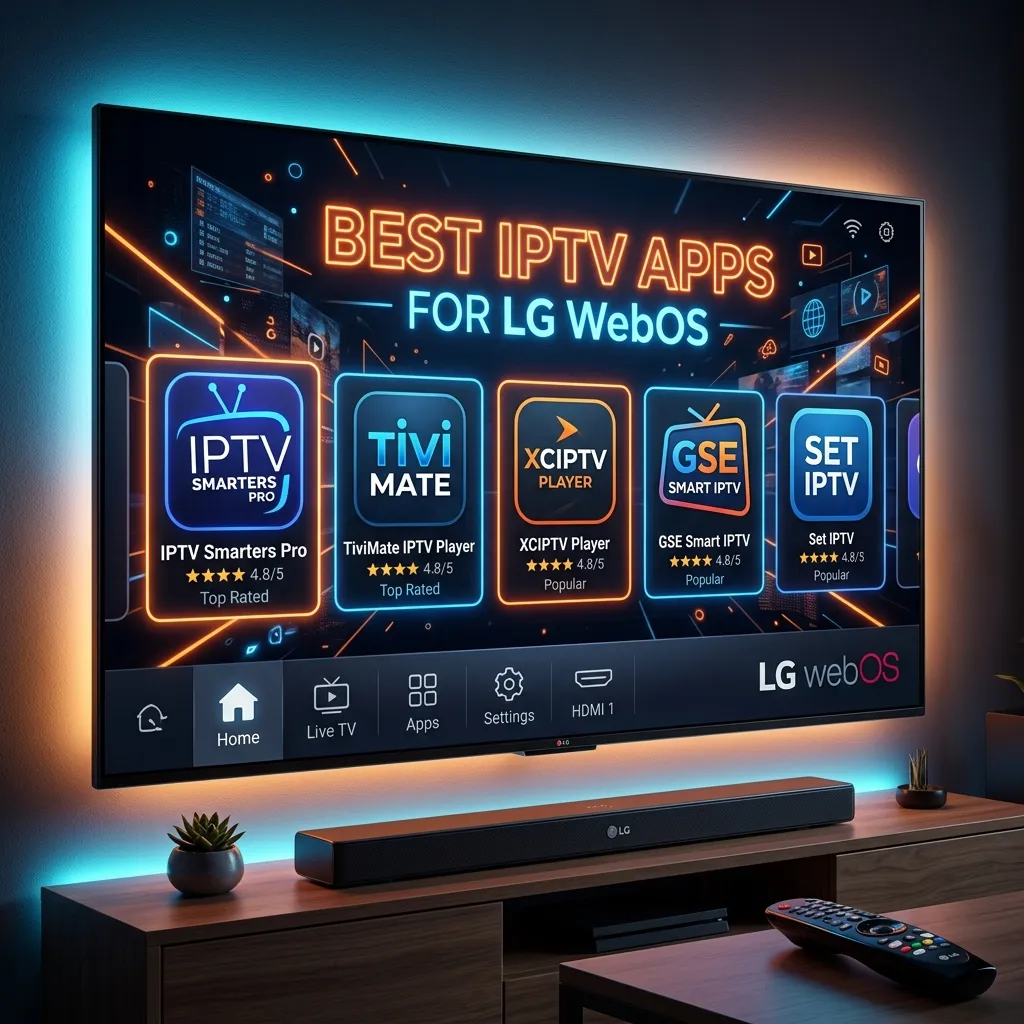
When you purchase a beautiful, high-end LG OLED or QNED Smart TV, you are investing in one of the most stunning visual experiences available on the consumer market today. LG’s proprietary operating system, WebOS, is renowned for its sleek interface, intuitive navigation, and the iconic Magic Remote that makes pointing and clicking a breeze. However, to truly unlock the vast, limitless potential of your home entertainment system, standard cable and default streaming platforms might not be enough. This is where Internet Protocol Television (IPTV) steps in, revolutionizing the way we consume live television, video-on-demand (VOD), and premium international content.
Finding the best IPTV apps for LG WebOS can often feel like navigating a complex maze. Unlike the open-source nature of Android TV, WebOS operates as a closed ecosystem. This means you cannot simply download an APK file from a web browser and install it. Instead, you are restricted to the applications officially approved and hosted on the LG Content Store. Fortunately, developers have recognized the massive demand for IPTV on LG devices, resulting in a rich selection of highly capable, feature-packed IPTV media players available directly on your television.
In this massive, comprehensive guide, we will dive deep into the WebOS ecosystem, explore the absolute best IPTV applications available for your LG Smart TV, and teach you how to properly configure them for a buffer-free, crystal-clear streaming experience. Whether you are a seasoned cord-cutter or a beginner looking to explore alternative broadcasting, this guide will equip you with everything you need to know. And remember, an IPTV app is just a media player—you will need a premium, reliable IPTV Subscription like Smartiflix to actually stream live channels and movies.
Understanding LG WebOS and the IPTV Ecosystem
Before we rank the top applications, it is crucial to understand how LG WebOS interacts with IPTV technologies. WebOS is a Linux-based smart TV operating system that prioritizes speed, security, and multitasking. Because it is highly optimized for LG’s specific hardware architecture, native WebOS apps often run exceptionally smoothly, with minimal lag and rapid load times.
However, this strict optimization comes with a caveat: strict app moderation. LG regularly monitors the applications hosted on its Content Store. While they allow IPTV media players (apps that do not contain any content out of the box), they strictly prohibit applications that come pre-loaded with pirated or unauthorized broadcasts.
Sideloading vs. The LG Content Store
On Android devices or Amazon Firesticks, users frequently "sideload" applications using downloader apps. Sideloading is the practice of installing software from third-party sources rather than the official app store. If you are interested in exploring this route, we highly recommend checking out our comprehensive Firestick Setup guide, as adding a Fire TV Stick to your LG TV is a popular workaround for users who want access to Android-exclusive apps like TiviMate.
For LG WebOS, sideloading is technically possible but highly complex, requiring developer mode access, specialized software on a PC (like WebOS Dev Manager), and regular renewals of developer certificates. For 99% of users, this is not worth the hassle. Therefore, this guide will focus exclusively on official apps available in the LG Content Store that provide a seamless, plug-and-play experience.
The Role of an IPTV Player
It is vital to reiterate: None of the apps listed below include live TV channels, movies, or series. They are simply empty shells—media players designed to read, decode, and display video streams provided by a third-party IPTV service provider.
To use these apps, you must input your provider's details, typically in the form of an M3U Playlist URL or Xtream Codes API credentials (Username, Password, and Portal URL). When you subscribe to our Smartiflix premium service, you are provided with these credentials instantly, allowing you to sync thousands of high-definition channels, blockbuster movies, and binge-worthy TV series directly to your chosen LG WebOS app.
Top 10 Best IPTV Apps for LG WebOS (In-Depth Review)
After extensive testing across various LG Smart TV models—from the entry-level UHD series to the flagship G-series OLEDs—we have compiled the ultimate list of the best IPTV apps for WebOS. We evaluated these applications based on user interface design, playback stability, EPG (Electronic Program Guide) support, subtitle integration, and overall value for money.
1. IBO Player
The Modern King of WebOS IPTV
IBO Player has rapidly ascended the ranks to become one of the most highly recommended IPTV applications for LG Smart TVs. What sets IBO Player apart from the competition is its incredibly fast, responsive, and aesthetically pleasing user interface. It has been built from the ground up to take full advantage of modern TV processors, resulting in zero lag when scrolling through massive playlists containing tens of thousands of channels.
Key Features:
- Exceptional UI: The layout is heavily inspired by premium streaming services like Netflix, making it highly intuitive for new users.
- VLC Media Engine: It utilizes a robust internal media player that handles complex video and audio codecs (including 4K HDR streams and Dolby Digital audio) with ease.
- Multiple Playlists: You can add and manage multiple M3U or Xtream Codes playlists simultaneously.
- Advanced EPG Integration: The TV guide populates quickly and accurately, provided your IPTV service supplies reliable XMLTV data.
Pros:
- Lightning-fast navigation.
- Excellent categorization of Live TV, VOD, and Series.
- Seven-day free trial.
- Supports external subtitles and multiple audio tracks.
Cons:
- It is a paid application (a one-time lifetime activation fee applies after the trial).
- Playlist management must be done via a web browser on your phone or PC.
Pro Tip: To get the best experience with IBO Player, ensure you use the Xtream Codes API login method rather than a standard M3U line. Xtream Codes allows the app to pull categories and VOD posters much faster.
2. IPTV Smarters Pro
The Industry Standard and Fan Favorite
IPTV Smarters Pro is arguably the most famous IPTV application in the world. While it gained its massive popularity on Android and Fire OS, the development team successfully ported a highly capable version to LG WebOS. It is beloved for its straightforward, no-nonsense four-square interface: Live TV, Movies, Series, and Catch Up.
Key Features:
- Xtream Codes API Focus: Smarters Pro is built specifically to utilize the Xtream Codes API, ensuring seamless synchronization with your provider's servers.
- Master Search: A powerful global search function allows you to find specific channels, movies, or TV shows across your entire subscription instantly.
- Parental Controls: Easily lock adult content or specific categories with a master PIN code.
- Multi-Screen Support: (Depending on your LG TV’s processing power) you can watch up to four live streams simultaneously—perfect for sports Sundays.
Pros:
- Completely free to download and use on WebOS.
- Extremely user-friendly, even for non-technical users.
- Excellent Catch-up TV support.
- Built-in VPN integration capabilities (though on WebOS, this feature is limited compared to Android).
Cons:
- The WebOS version rarely receives updates compared to its Android counterpart.
- The interface can feel a bit dated compared to newer apps like IBO Player.
3. Flix IPTV
Sleek, Customizable, and Highly Reliable
Flix IPTV is another premium media player that has gained significant traction among LG OLED owners. It is specifically designed to look gorgeous on large screens. Flix IPTV takes a slightly different approach to customization, allowing users to tweak themes, change player settings, and optimize video buffering based on their internet connection speed.
Key Features:
- Customizable Themes: Users can switch between different color schemes and layout structures to suit their visual preferences.
- Sleep Timer: A handy feature that automatically closes the app or turns off the TV after a set period—great for those who fall asleep watching TV.
- Dynamic Language Support: The app supports over 17 languages, making it a great global choice.
- Fast Zapping: Channel switching is incredibly quick, closely mimicking the experience of traditional cable TV.
Pros:
- Beautiful, high-resolution VOD covers and metadata fetching (pulls IMDB ratings and cast info).
- Very stable playback with advanced anti-buffering settings.
- 7-day free trial to test functionality.
Cons:
- Requires a one-time activation fee of around €7.99 after the trial period.
- Web portal playlist upload can be confusing for absolute beginners.
4. Smart IPTV (SIPTV)
The Pioneer of Smart TV IPTV
Smart IPTV, commonly referred to as SIPTV, is the grandfather of smart TV IPTV apps. It was one of the very first applications to allow users to stream custom M3U playlists directly on their LG and Samsung televisions without needing external set-top boxes. While it lacks the flashy VOD interfaces of modern apps, it remains a favorite for users who exclusively care about Live TV.
Key Features:
- Ultra-Lightweight: Because it has a very basic, text-heavy interface, it consumes almost no system memory. This makes it perfect for older LG WebOS models (from 2014-2018) that struggle with heavy, graphic-intensive apps.
- M3U Mastery: It is heavily optimized for massive M3U playlists, easily handling lists with over 50,000 channels.
- Custom Channel Grouping: You can create custom favorite lists and rearrange categories via their web portal.
Pros:
- Very low one-time activation fee (around €5.49 for a lifetime license per TV MAC address).
- Incredibly fast channel changing.
- Perfect for legacy LG TVs.
Cons:
- The user interface is very outdated and heavily relies on text rather than images.
- VOD (Video on Demand) integration is terrible; it lists movies like live TV channels rather than providing a cinematic poster interface.
5. SET IPTV
A Balanced and Powerful Contender
Developed by a team with a deep understanding of standard Smart TV limitations, SET IPTV is designed to bridge the gap between SIPTV’s lightweight nature and the modern features of Smarters Pro. It performs exceptionally well on mid-range LG Smart TVs.
Key Features:
- Xtream Codes Compatibility: Fully supports modern API logins.
- Clean VOD Section: Unlike SIPTV, SET IPTV offers a dedicated, easy-to-navigate section for Movies and Series with proper thumbnail support.
- Automatic EPG: The app does an excellent job of automatically matching channel names to EPG data, reducing the manual work required by the user.
Pros:
- Very stable during high-demand live events (like major sporting matches).
- Simple setup process via their web portal using the TV's MAC address.
- 7-day trial available.
Cons:
- Paid activation required after the trial (roughly €15).
- Occasionally suffers from audio sync issues on very high-bitrate 4K streams, requiring a quick app restart.
6. NET IPTV
Simplicity at Its Best
If you want an application that your grandparents can use without getting confused, NET IPTV is a fantastic choice. It strips away complicated settings and focuses entirely on delivering a straightforward, easy-to-read grid interface.
Key Features:
- Large Typography: The UI features large text and clear category blocks, making it highly readable from across a large living room.
- Multiple Playlist Support: Easily switch between different IPTV providers if you have backup subscriptions.
- Subtitle Control: Robust handling of embedded and external subtitles for international content.
Pros:
- Extremely user-friendly.
- Reliable streaming with minimal buffering logic built-in.
- Supports modern audio codecs.
Cons:
- Lacks advanced features like multi-screen viewing or extensive layout customization.
- Paid application after a short trial period.
7. Room IPTV
The Rising Star of WebOS
Room IPTV is a relatively newer application that has quickly gained a loyal following. It was built using modern web technologies, ensuring that it runs smoothly on LG's newer WebOS updates (WebOS 5.0 and above).
Key Features:
- Modern Dashboard: The home screen dashboard is beautiful, showing recently watched channels, new VOD additions, and favorite lists.
- Cross-Platform Syncing: If you use Room IPTV on your LG TV and your Samsung TV, you can sync your favorites across devices.
- Hardware Acceleration: Fully utilizes the LG TV’s internal GPU for hardware-accelerated video decoding, significantly reducing CPU load and heat.
Pros:
- Stunning visual design.
- Excellent support for Catch-up TV (Archive).
- Affordable activation fee.
Cons:
- Can be slightly slow to load initially upon booting up the TV.
- EPG loading can sometimes take a minute on exceptionally large playlists.
8. SS IPTV
The Best Free Alternative
SS IPTV (Simple Smart IPTV) is a completely free application that has been around for years. Originally developed for Russian-speaking markets, it expanded globally and remains one of the few truly free, capable IPTV players on the LG Content Store.
Key Features:
- Cloud Synchronization: You can manage your playlists via a unique code generated by the app, linking it to the SS IPTV web portal.
- Internal Provider Lists: It comes pre-loaded with several free, public IPTV provider lists (though the quality of these is often poor).
- Flexible Aspect Ratio Controls: Easily stretch, zoom, or crop video feeds to fit your screen perfectly.
Pros:
- 100% Free forever. No trial periods, no activation fees.
- Very customizable playback settings.
- Lightweight and fast.
Cons:
- The interface is incredibly clunky and outdated.
- Setting up the playlist requires generating temporary connection codes which can be confusing.
- Does not support Xtream Codes API natively (only M3U).
9. Nanomid Player
Premium and Polished
Nanomid Player positions itself as a premium, high-end media player for Smart TVs. It comes with a slightly higher price tag than its competitors, but it justifies this with a highly polished, ad-free, and remarkably stable viewing experience.
Key Features:
- QR Code Setup: One of the most unique features is the ability to load your playlist by simply scanning a QR code displayed on your TV screen using your smartphone.
- Proxy Support: Built-in proxy settings allow users in restrictive network environments to bypass certain ISP blockades.
- High-Quality VOD Engine: The video on demand section is arguably the best on WebOS, offering a Netflix-like browsing experience with trailer support (if provided by the IPTV service).
Pros:
- Extremely easy setup process via QR code.
- Beautiful, premium interface.
- Excellent customer support from the developers.
Cons:
- One of the more expensive apps (around €9.99 for lifetime).
- Requires a strong internet connection; its high-res interface elements can lag on very slow networks.
10. Quzu TV
Streamlined and Efficient
Rounding out our top 10 is Quzu TV. This application focuses on efficiency, ensuring that channels load instantly and EPG data is always synchronized perfectly with the live stream.
Key Features:
- Instant EPG Sync: Quzu TV uses a unique background caching system to ensure your TV guide is always up-to-date without making you wait for a loading bar every time you open the app.
- Dark Mode UI: A visually pleasing dark theme that looks fantastic on OLED displays and reduces eye strain in dark rooms.
- Advanced Favorites Management: Adding and organizing favorite channels is intuitive and can be done entirely via the TV remote without needing a web portal.
Pros:
- Great for users who heavily rely on the TV guide.
- Smooth video playback with fast channel surfing.
- Free trial available.
Cons:
- Paid activation required.
- VOD search function can sometimes be slow.
App Comparison Table: Making the Right Choice
To help you decide which application is best suited for your specific needs, we have created a comprehensive comparison matrix of the top 5 most popular apps on LG WebOS.
| Application Name | Interface Style | Pricing Model | Best Feature | Xtream Codes Support | Ideal For |
|---|---|---|---|---|---|
| IBO Player | Modern / Netflix-style | 7-Day Trial / €8 Lifetime | Lightning-fast navigation | Yes (Highly Optimized) | OLED users wanting premium feel |
| IPTV Smarters | Classic 4-Square | 100% Free | Global Search & VOD | Yes (Native) | Beginners and budget-conscious |
| Flix IPTV | Customizable Grid | 7-Day Trial / €7.99 Lifetime | Theming & Customization | Yes | Users wanting to personalize UI |
| Smart IPTV (SIPTV) | Text-based List | 7-Day Trial / €5.49 Lifetime | Extreme memory efficiency | No (M3U Only) | Older, slower LG Smart TVs |
| Nanomid Player | Premium / Cinematic | 14-Day Trial / €9.99 Lifetime | QR Code easy setup | Yes | Tech-savvy users wanting the best |
(Note: Pricing is approximate and subject to change based on the developer's terms and currency exchange rates. Always check the official app portal for exact pricing.)
How to Install and Configure IPTV Apps on LG WebOS
Installing an IPTV app on your LG TV is remarkably simple, as long as you stick to the official Content Store. However, the configuration process—linking your TV to your IPTV provider—requires a few extra steps involving your smartphone or computer.
Below is a universal step-by-step guide on how to get started. If you run into any specific issues, please refer to our dedicated Smartiflix Installation Guide for highly detailed, app-specific walkthroughs.
Step 1: Download the Application
- Turn on your LG Smart TV and press the Home button on your Magic Remote.
- Navigate to the Apps icon (or LG Content Store on older WebOS versions).
- Click the Search icon (magnifying glass) at the top right of the screen.
- Type in the name of the app you wish to use (e.g., "IBO Player" or "IPTV Smarters").
- Select the app from the search results and click Install.
- Once installed, click Launch to open the application.
Step 2: Retrieve Your TV's Identity
Almost all premium WebOS IPTV applications use a web-based portal for playlist management. To ensure you are uploading your playlist to your specific television, the app will display a unique identifier on the screen.
- When you open the app (like IBO Player, SET IPTV, or Flix IPTV), look at the main screen.
- You will see a MAC Address (e.g.,
00:1A:79:XX:XX:XX) and sometimes a Device Key or OTP Code. - Write these alphanumeric strings down or take a clear photo of your TV screen with your smartphone. You will need them for the next step.
Step 3: Uploading Your IPTV Playlist
- On your smartphone, tablet, or PC, open a web browser.
- Navigate to the official website of the app developer (this URL is usually displayed on your TV screen alongside the MAC address, e.g.,
iboplayer.com/device/login). - Enter your TV's MAC Address and Device Key into the portal to log in to your television's configuration page.
- Click on the option to Add Playlist or Add Xtream Codes Account.
- You will now need your IPTV subscription credentials. If you are a Smartiflix customer, these were sent to your email immediately after purchase.
- For Xtream Codes (Recommended): Enter a Playlist Name (e.g., "Smartiflix"), the Server URL, your Username, and your Password.
- For M3U Link: Paste the long M3U URL provided by your service.
- Click Save, Submit, or Add Playlist.
Step 4: Sync and Stream
- Return to your LG Smart TV.
- Restart the application or click the Reload / Refresh button on the screen.
- The app will connect to the provider's servers. A loading bar will appear as it downloads the channel list, VOD posters, and EPG data.
- Once completed, your dashboard will populate with content. Grab your Magic Remote, browse the categories, and start streaming!
M3U vs. Xtream Codes API: Which is Better for WebOS?
When configuring your IPTV app, you will frequently encounter two different methods of logging in: M3U links and Xtream Codes API. Understanding the difference between these two protocols is crucial for optimizing your experience on an LG Smart TV.
| Feature | M3U Playlist Link | Xtream Codes API |
|---|---|---|
| Format | A single, very long URL string. | Four distinct fields: Name, URL, Username, Password. |
| How it Works | Downloads a massive static text file containing all channel links and category tags. | Communicates directly with the provider's server dynamically database. |
| Loading Speed | Slow. Must parse the entire text file upon every app launch. | Very Fast. Only pulls data for the specific category you are browsing. |
| VOD Integration | Poor. Often lists movies as a continuous text list without posters. | Excellent. Pulls high-resolution posters, IMDB ratings, synopses, and cast info. |
| Catch-up TV | Rarely supported natively through M3U formatting. | Fully supported natively, allowing easy time-shifting. |
| Security | Lower. If someone gets your link, they have full access. | Higher. Credentials are authenticated per session. |
The Verdict for LG WebOS: Because LG TVs have limited internal memory and processing power compared to high-end Nvidia Shields or Apple TVs, you should always use the Xtream Codes API whenever possible. M3U files can exceed 100MB in text data alone for large providers; forcing your TV to read and organize a 100MB text file every time you open the app will lead to severe sluggishness, memory crashes, and freezing.
Xtream Codes solves this by offloading the heavy lifting to the server, only sending your TV the exact data it needs at that specific moment. Ensure you select a provider, like Smartiflix, that issues Xtream Codes credentials by default.
What Makes a Great IPTV Service Provider for Smart TVs?
Having the best application installed on your LG WebOS TV is only half the battle. Think of the app like a high-performance sports car—it doesn't matter how beautiful or fast the car is if you are fueling it with low-quality, dirty gasoline. In the world of IPTV, your subscription service is the fuel.
Many users blame their LG TV or their IPTV application for constant buffering, freezing, or missing EPG data, when in reality, the issue stems entirely from a low-quality IPTV provider utilizing over-crowded offshore servers.
When choosing a premium IPTV provider to pair with your WebOS application, look for the following essential criteria:
- Anti-Freeze Technology: Ensure the provider utilizes load-balancing servers. When a massive event is broadcasting (such as a PPV boxing match or a major football final), cheap servers buckle under the strain of thousands of users tuning in simultaneously. Premium providers route traffic through multiple redundant servers to guarantee a buffer-free experience.
- True 4K & UHD Content: Your LG OLED TV thrives on high-bitrate, high-resolution content. A good provider will offer dedicated 4K channel categories and a vast library of 4K VODs equipped with HDR and Dolby Digital surround sound.
- Comprehensive EPG: An electronic program guide is non-negotiable for a modern TV experience. You need to know what is playing right now and what is coming up later. Premium services invest heavily in maintaining accurate XMLTV files for perfect EPG synchronization.
- Reliable Customer Support: If your playlist goes down on a Saturday night, you need a provider that responds quickly.
At Smartiflix, we pride ourselves on checking every single one of these boxes. We offer a flawlessly curated playlist specifically optimized for Smart TV applications. We invite you to explore our highly competitive Smartiflix Pricing plans to find a package that suits your entertainment needs. We offer flexible options ranging from monthly access to heavily discounted yearly subscriptions.
The Hardware Alternative: Should You Use a Firestick on Your LG TV?
While LG WebOS is a fantastic operating system with a great selection of native IPTV applications, it is not without its limitations. As mentioned earlier, the WebOS ecosystem is closed, meaning you cannot sideload applications. Furthermore, as your LG TV ages (especially models older than 4-5 years), the internal processor may begin to struggle with the heavy demands of modern, 4K-capable IPTV applications.
If you find that native WebOS apps are running slowly, crashing, or lacking the advanced features you desire (such as the incredible recording and multi-view capabilities of Android's TiviMate app), there is a highly effective, low-cost solution: The Amazon Fire TV Stick.
By plugging a Firestick 4K Max into one of your LG TV’s HDMI ports, you completely bypass WebOS for your IPTV needs. You can enjoy the superior picture quality of your LG OLED screen while utilizing the massive, open-source Android/Fire OS app ecosystem.
Benefits of using a Firestick on your LG TV:
- Access to TiviMate: Widely considered the greatest IPTV application ever created, TiviMate is exclusive to Android/Fire OS.
- Easy Sideloading: Using the Downloader app, you can install any third-party APK in seconds.
- Better VPN Integration: Fire OS supports native VPN applications much more robustly than WebOS.
- Portability: You can unplug the Firestick and take your IPTV subscription with you on vacation.
If this hardware alternative sounds appealing to you, we have created an exhaustive, step-by-step tutorial on the Smartiflix Firestick Setup process to help you get started in minutes.
Security, Privacy, and VPNs on LG WebOS
A common and highly important question among cord-cutters is regarding the safety and legality of IPTV. To address this directly: the technology of IPTV itself is 100% legal. It is simply a protocol for delivering video over the internet. However, the legality of the content you stream depends entirely on the provider you choose and your local jurisdictional laws. We delve deeply into this topic in our comprehensive Is Smartiflix Safe? security guide.
When streaming IPTV, many users choose to utilize a Virtual Private Network (VPN). A VPN encrypts your internet traffic, hiding your streaming activities from your Internet Service Provider (ISP). This is crucial for two main reasons:
- Privacy: It prevents your ISP from logging your data and monitoring what you watch.
- Bypassing Throttling: Many ISPs intentionally throttle (slow down) connections to known IPTV servers, causing artificial buffering. A VPN hides the destination of your traffic, bypassing these ISP roadblocks and restoring your stream to full speed.
The WebOS VPN Challenge: Herein lies a significant limitation of LG WebOS: Native VPN applications are notoriously difficult to find and configure on the LG Content Store. Unlike a PC, smartphone, or Firestick where you can simply download an app like Surfshark, NordVPN, or ExpressVPN, WebOS does not natively support VPN clients at the operating system level.
How to secure your WebOS IPTV connection:
- Router-Level VPN: The most effective method is to install the VPN directly onto your home network router. By doing this, every device connected to your Wi-Fi (including your LG TV) is automatically protected and encrypted. This requires a compatible router (like Asus RT series or a pre-flashed DD-WRT router).
- Smart DNS: While not a true VPN (it does not encrypt traffic), a Smart DNS service can help bypass geographic restrictions and some minor ISP blocks. Services like ControlD or unlocator can be configured directly in the LG TV's advanced network settings by manually changing the DNS server address.
- Use a Firestick/Android Box: As discussed above, bypassing WebOS hardware and using an HDMI dongle allows you to install native VPN applications directly to the device.
Frequently Asked Questions (FAQs)
To round out this massive guide, let's address some of the most common questions our support team receives regarding IPTV on LG Smart TVs.
1. Why does my IPTV app buffer on my LG TV but works perfectly on my phone?
This is almost always an issue of Wi-Fi connectivity or ISP throttling. LG TVs, particularly wall-mounted ones, often have weaker internal Wi-Fi antennas compared to modern smartphones. Solution: Hardwire your LG TV directly to your router using an Ethernet cable. If that is not possible, try switching to a 5GHz Wi-Fi band and ensure your router is in the same room as the TV. If the issue persists, it is likely your ISP throttling the TV's connection, requiring a router-level VPN.
2. Is it safe to enter my TV's MAC address on third-party websites?
Yes. A MAC address is simply a hardware identifier for your network card; it cannot be used to hack into your TV or access personal data. App developers require the MAC address solely to link your uploaded playlist to the correct television screen.
3. I paid for an app like IBO Player, why don't I have any channels?
This is the most common point of confusion for beginners. Paying to activate an IPTV app does NOT give you content. You are simply buying the software (the media player). You must separately purchase an IPTV Subscription from a provider to actually receive the channels and movies.
4. How do I update my IPTV apps on WebOS?
LG WebOS generally handles app updates automatically in the background. However, you can manually check for updates by navigating to the LG Content Store, going to My Apps, and clicking Update All. Keeping your apps updated is crucial for maintaining compatibility with new server protocols and security patches.
5. Can I use free IPTV apps?
Yes, apps like IPTV Smarters and SS IPTV are free. However, while the apps are free, you will still need a paid IPTV provider for reliable, high-quality content. "Free" IPTV provider lists exist on the internet, but they are notoriously unreliable, buffer constantly, lack EPG data, and are frequently shut down. Investing in a premium service is essential for a frustration-free experience.
Conclusion: Upgrading Your LG TV Experience
Your LG Smart TV is an incredible piece of technology, capable of delivering jaw-dropping visuals and immersive audio. By pairing WebOS with one of the premium IPTV applications listed in this guide—whether it be the lightning-fast IBO Player, the customizable Flix IPTV, or the reliable IPTV Smarters—you transform your television into a limitless portal of global entertainment.
Take the time to test out a few different apps using their free trial periods. See which interface you prefer, test how quickly they load your VOD sections, and ensure they handle EPG data effectively.
Once you have chosen your perfect app, the final step is fueling it with the best streaming service on the market. Head over to our Homepage to learn more about our mission, or dive straight in and explore our Smartiflix Premium IPTV Services today. Cut the cord, say goodbye to exorbitant cable bills, and take absolute control of your home entertainment experience. Happy streaming!