Top 10 IPTV Apps for Hisense Vidaa OS: Ultimate Streaming Guide
Explore the best IPTV apps for Hisense Vidaa OS. Unlock endless streaming possibilities with our expert reviews and installation tips!
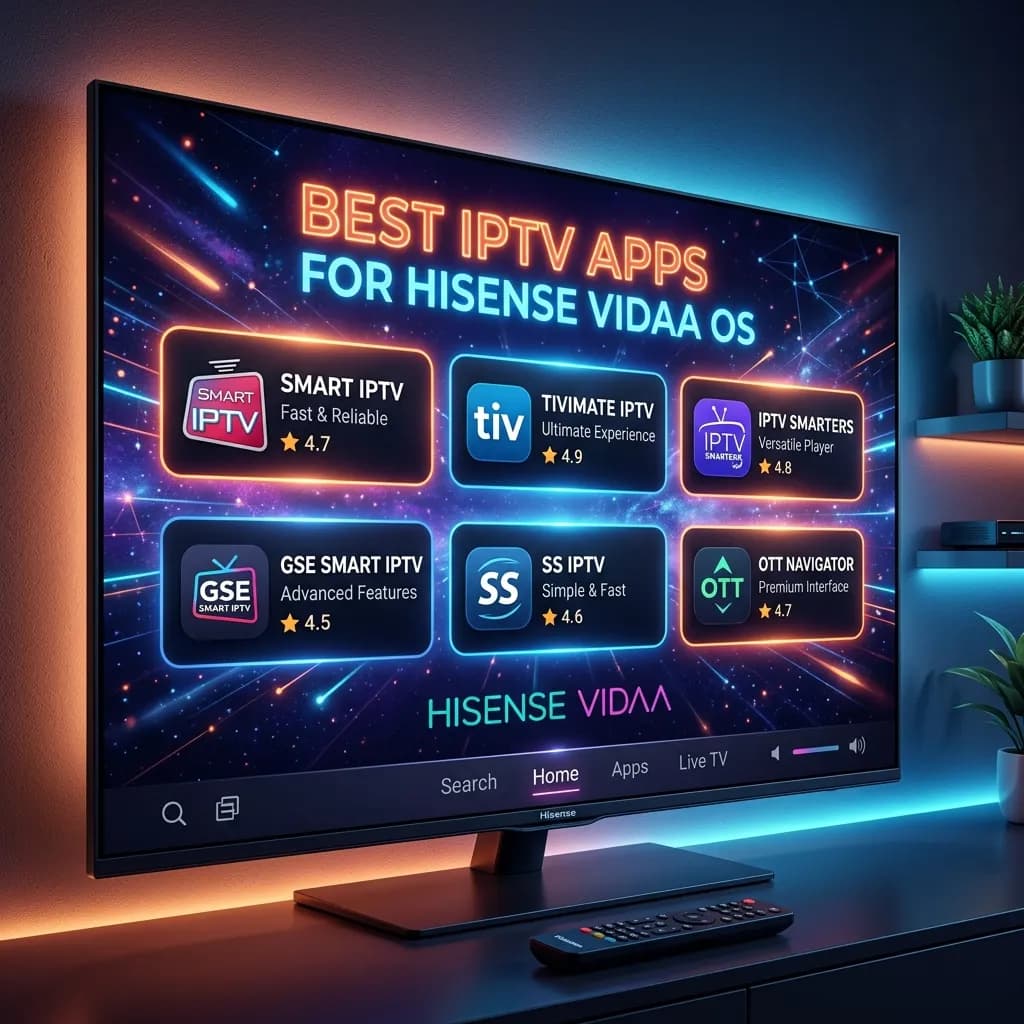
Welcome to the ultimate guide on the best IPTV apps for Hisense Vidaa OS. If you have recently purchased a Hisense Smart TV or have been using one for a while, you might have noticed that its operating system, Vidaa OS, is quite different from Android TV, webOS, or Tizen. While Vidaa is incredibly fast, lightweight, and responsive, its app store can sometimes feel a bit restricted, especially when it comes to finding high-quality Internet Protocol Television (IPTV) applications.
However, don't let the proprietary nature of Vidaa OS discourage you. There are actually several exceptional IPTV players available directly on the Vidaa app store that can transform your Hisense TV into a powerhouse of endless entertainment. Whether you are looking to stream live sports, catch up on the latest movies, binge-watch TV series, or access thousands of international channels, pairing your Hisense TV with the right IPTV app and a premium service like our IPTV Subscription is the perfect solution.
In this comprehensive, 3000+ word guide, we will dive deep into everything you need to know about IPTV on Hisense Vidaa OS. We will explore the top apps available, compare their features, provide step-by-step installation instructions, and even discuss alternative solutions if your favorite app isn't natively supported. Let’s unlock the true potential of your Hisense Smart TV and elevate your streaming experience with the Smartiflix Homepage ecosystem!
Understanding Hisense Vidaa OS and Its Ecosystem
Before we delve into the specific apps, it is crucial to understand what Vidaa OS is and why it operates differently from other smart TV platforms.
What is Vidaa OS?
Vidaa OS is a Linux-based smart TV operating system developed specifically for Hisense televisions, though it has also been licensed to other brands like Toshiba and Loewe. First introduced in 2014, Vidaa has undergone numerous iterations, with the latest versions (Vidaa U4, U5, U6, and U7) offering a highly optimized, user-centric interface.
The primary philosophy behind Vidaa OS is speed and simplicity. Unlike Android TV, which can sometimes feel bloated or sluggish on lower-end hardware, Vidaa is designed to boot up rapidly, launch apps instantly, and provide a seamless navigation experience.
The Vidaa App Store vs. Google Play Store
One of the biggest adjustments for new Hisense owners is the app ecosystem. Because Vidaa is a closed, proprietary system, it does not have access to the Google Play Store. This means you cannot simply search for any Android app (APK) and install it on your TV. Every application available on a Hisense TV has been specifically developed or ported for the Vidaa platform and approved by Hisense.
While this closed ecosystem ensures that all apps run smoothly and securely, it also means that the selection of IPTV apps is somewhat curated. You won't find the hundreds of generic, ad-filled IPTV players that litter the Android ecosystem. Instead, you get a refined selection of premium and freemium IPTV players that have been optimized for the TV's hardware.
Why Use IPTV on a Hisense TV?
Traditional cable and satellite TV subscriptions are becoming increasingly expensive, often locking consumers into long-term contracts with channels they never watch. IPTV offers a modern, flexible, and cost-effective alternative. By streaming television content over the internet, IPTV allows you to:
- Access Global Content: Watch channels from the UK, USA, Canada, Europe, Asia, and beyond.
- On-Demand Libraries: Enjoy massive libraries of Video on Demand (VOD) including movies and series.
- High Definition Streaming: Experience 4K, FHD, and HD streaming quality.
- Cost Savings: Slash your monthly entertainment bills. (Check out our Pricing to see how much you can save).
[!NOTE] An IPTV app (or player) does not provide any content on its own. It is merely a media player designed to read and display IPTV playlists (usually M3U URLs or Xtream Codes) provided by an IPTV service provider like Smartiflix.
How to Choose the Best IPTV App for Hisense Vidaa OS
With several options available in the Vidaa App Store, choosing the right IPTV player can be overwhelming. To make the best choice, you should evaluate apps based on the following critical criteria:
1. User Interface (UI) and Navigation
A good IPTV app should have a clean, intuitive, and visually appealing interface. Since you will be navigating with a standard TV remote, the menus should be large, responsive, and logically organized. The ability to easily switch between Live TV, Movies, and Series categories is essential.
2. Format Support (M3U, Xtream Codes, Stalker Portal)
Different IPTV providers use different methods to deliver content. The two most common are M3U playlists (a long URL containing all channel data) and Xtream Codes API (which uses a username, password, and server URL). The best IPTV apps support multiple formats, with Xtream Codes being the preferred method as it allows for faster loading times and better organization of VOD content.
3. Electronic Program Guide (EPG) Integration
An EPG is essentially an interactive TV guide that shows you what is currently playing and what is coming up next. A premium IPTV experience relies heavily on a functional EPG. Ensure the app you choose seamlessly integrates EPG data provided by your IPTV service.
4. Playback Stability and Codec Support
The core function of the app is to play video. It must support modern video and audio codecs (like H.264, H.265/HEVC, AAC, AC3) to ensure smooth playback without audio sync issues. Anti-buffering technology and the ability to switch video player engines (e.g., VLC, ExoPlayer equivalents) are huge pluses.
5. Catch-up TV and Recording
If your IPTV subscription includes Catch-up TV (the ability to watch programs that aired a few days ago), your app must support this feature. Some advanced apps also allow local recording to a connected USB drive.
6. Pricing Model
Most high-quality IPTV apps on Vidaa OS are paid applications. They typically offer a 7-day free trial, after which you must pay a one-time activation fee (usually ranging from €5 to €10) or an annual subscription. Be wary of completely free apps, as they may lack features, receive no updates, or display intrusive advertisements.
Top 10 Best IPTV Apps for Hisense Vidaa OS
After extensive testing of the Vidaa app ecosystem, our team has compiled a definitive list of the best IPTV players available for your Hisense TV. We have evaluated them based on performance, usability, and feature sets to help you make an informed decision.
1. IBO Player (Top Recommendation)
IBO Player has rapidly become one of the most popular IPTV applications across all smart TV platforms, and its performance on Hisense Vidaa OS is nothing short of spectacular.
Key Features:
- Sleek Interface: IBO Player boasts one of the most modern and user-friendly interfaces on the market. It organizes content beautifully, separating Live TV, Movies, and Series with rich poster art and metadata (IMDb ratings, descriptions).
- Multiple Playlists: You can easily add and manage multiple IPTV subscriptions within the same app.
- Xtream Codes Support: It flawlessly handles Xtream Codes API, which means your content loads instantly and remains perfectly categorized.
- Advanced Controls: Offers parental controls, subtitle support, and multiple audio track selections.
Pros & Cons:
| Pros | Cons |
|---|---|
| Lightning-fast loading times | Premium app (requires activation fee) |
| Beautiful, Netflix-style UI | No built-in recording feature |
| Excellent EPG implementation | |
| Highly stable video playback |
Pricing: Offers a 7-day free trial. After the trial, the activation costs approximately €8 per device for a lifetime license.
Why we love it: IBO Player is our top pick for Hisense users because it provides a premium, frictionless experience that perfectly complements our IPTV Subscription service.
2. SET IPTV
SET IPTV is a powerhouse when it comes to IPTV players. It has been a staple in the Samsung and LG app stores for years and has made a highly successful transition to Hisense Vidaa OS.
Key Features:
- Robust Performance: SET IPTV is known for its stability. It rarely crashes and handles massive playlists (containing tens of thousands of channels and VODs) without breaking a sweat.
- Customizable Interface: While slightly more traditional than IBO Player, the UI is highly functional and customizable.
- Powerful Player Engine: Built-in hardware acceleration ensures that even 4K streams play back smoothly.
Pros & Cons:
| Pros | Cons |
|---|---|
| Handles large playlists efficiently | Interface feels a bit dated |
| Very stable and reliable | Activation is tied to the TV's MAC address |
| Good Catch-up TV support |
Pricing: 7-day free trial, followed by a one-time fee of around €15.
3. Smart IPTV (SIPTV)
Smart IPTV, often referred to simply as SIPTV, is one of the oldest and most recognized names in the IPTV world. It was one of the first apps to bring IPTV to smart TVs.
Key Features:
- Simplicity: SIPTV is incredibly straightforward. It doesn't have the flashy VOD interfaces of newer apps, but for live TV viewing, it is exceptionally efficient.
- Lightweight: It uses very few system resources, making it ideal for older or lower-end Hisense models.
- Easy Upload: Adding playlists via their website using your TV's MAC address is a breeze.
Pros & Cons:
| Pros | Cons |
|---|---|
| Extremely simple to use | Poor interface for VOD (Movies/Series) |
| Very lightweight | EPG can sometimes be unreliable |
| One-time cheap activation |
Pricing: 7-day free trial, then a one-time activation fee of €5.49.
4. SS IPTV
SS IPTV is a fantastic option for users who are looking for a completely free application. While it may not have the polish of paid alternatives, it remains a highly capable player.
Key Features:
- 100% Free: No trials, no activation fees. The app is completely free to use indefinitely.
- Cloud Playlists: You can manage your playlists through their website and push them to your TV.
- Customization: Allows for significant customization of the channel grid and appearance.
Pros & Cons:
| Pros | Cons |
|---|---|
| Completely free of charge | User interface is quite basic and clunky |
| Supports multiple playlist formats | Setup process can be confusing for beginners |
| Active community support | Occasional buffering issues on large playlists |
Pricing: Free.
5. Flix IPTV
Flix IPTV is a modern, feature-rich application that has gained a massive following due to its intuitive design and cross-platform compatibility.
Key Features:
- Stunning Design: Offers a UI that closely mirrors top-tier streaming services, making it very comfortable for the average user.
- Multi-language Support: The interface can be set to numerous languages.
- Theming: Allows you to change the visual theme of the app.
- Subtitle Integration: Excellent support for external subtitles, tracking down subs from OpenSubtitles directly within the app.
Pros & Cons:
| Pros | Cons |
|---|---|
| Visually appealing interface | Premium activation required |
| Great subtitle management | Can be slightly slow to boot on older TVs |
| Easy playlist management |
Pricing: 7-day free trial, one-time activation of €7.99.
6. Bay TV
Bay TV is a highly capable player that focuses heavily on organizing and presenting content in the most user-friendly way possible.
Key Features:
- Smart Categorization: Automatically sorts your live TV, movies, and series into easy-to-navigate folders.
- Favorites Management: Allows you to easily add channels and movies to a customized favorites list for quick access.
- Fast Zapping: Channel changing (zapping) is notably faster on Bay TV compared to some competitors.
Pros & Cons:
| Pros | Cons |
|---|---|
| Very fast channel switching | VOD metadata doesn't always load correctly |
| Clean UI | Customer support for the app is limited |
| Good favorites system |
Pricing: 7-day free trial, one-time activation fee around €7.
7. Net IPTV
Net IPTV is designed to be lightweight and fast. It is a no-nonsense player that prioritizes speed and efficiency over flashy graphics.
Key Features:
- Speed: One of the fastest loading times among all IPTV apps on Vidaa.
- M3U Focus: While it supports various formats, it is particularly optimized for parsing large M3U URLs quickly.
- Simple Setup: Uploading your playlist via their web portal is straightforward and secure.
Pros & Cons:
| Pros | Cons |
|---|---|
| Extremely fast performance | UI is very basic |
| Easy to upload playlists | Limited features compared to IBO Player |
| Low resource consumption |
Pricing: 7-day free trial, activation fee of €5.79.
8. Nanomid Player
Nanomid Player is a premium IPTV application that boasts high security and a very stable streaming engine.
Key Features:
- Security: Nanomid uses advanced encryption to protect your playlist data.
- QR Code Upload: Offers a unique and convenient way to upload playlists using a QR code scanner on your smartphone.
- VPN Friendly: Optimized to work seamlessly alongside VPN connections.
Pros & Cons:
| Pros | Cons |
|---|---|
| High security and privacy | More expensive than competitors |
| Innovative QR setup | Interface is somewhat rigid |
| Excellent stability |
Pricing: 14-day free trial, lifetime license for €9.99.
9. OttPlayer
OttPlayer is a versatile service that allows you to manage all your IPTV playlists centrally from their website and sync them across multiple devices, including your Hisense TV.
Key Features:
- Centralized Management: Add your playlist once to your OttPlayer account online, and it syncs to all devices where you log in.
- Free to Use: The application is entirely free.
- Customization: You can edit channel names, assign custom icons, and create custom groups via the web interface.
Pros & Cons:
| Pros | Cons |
|---|---|
| Completely free | Requires creating an account on their website |
| Syncs across multiple devices | The TV app UI is outdated |
| Powerful web-based management | Setup is tedious for first-time users |
Pricing: Free.
10. Room IPTV
Rounding out our list is Room IPTV, an emerging player in the Vidaa ecosystem that is making waves with its clean design and responsive performance.
Key Features:
- Modern Aesthetics: A very pleasing, dark-themed interface.
- Multi-Screen Support: Allows you to watch multiple channels simultaneously (if your IPTV subscription supports multiple connections).
- Comprehensive EPG: Excellent presentation of the TV guide.
Pros & Cons:
| Pros | Cons |
|---|---|
| Beautiful dark theme | Relatively new, may have minor bugs |
| Multi-screen feature is great for sports | Activation process can be slightly slow |
Pricing: 7-day free trial, followed by a small annual or lifetime fee.
Step-by-Step Guide: How to Install and Set Up IPTV Apps on Hisense Vidaa OS
Now that you have selected the best IPTV app for your needs, the next step is installing it and loading your Smartiflix playlist. Because Vidaa OS is a closed system, the installation process is primarily done through the official App Store.
Step 1: Connecting to the Internet
Ensure your Hisense TV is connected to the internet. For the best IPTV experience, we highly recommend using a wired Ethernet connection rather than Wi-Fi to ensure maximum stability and reduce buffering.
Step 2: Accessing the Vidaa App Store
- Turn on your Hisense TV.
- Press the Home button on your remote control.
- Navigate to the App Store icon (often labeled as "Apps" or "Vidaa Store").
- Press OK to enter the store.
Step 3: Searching for the IPTV App
- Navigate to the Search icon (usually a magnifying glass) located at the top of the screen.
- Using the on-screen keyboard, type the name of the app you chose (e.g., "IBO Player" or "SET IPTV").
- Select the app from the search results.
Step 4: Installing the App
- On the app's details page, select the Install or Download button.
- Wait for the installation to complete. The app will now appear on your Home screen or in your Apps list.
Step 5: Finding Your MAC Address and Device Key
To load a playlist onto most of these apps, you need to link your TV to the app's web portal.
- Open the newly installed IPTV app on your TV.
- Upon opening, the app will display a screen showing your MAC Address (e.g., 00:1A:2B:3C:4D:5E) and sometimes a Device Key or OTP (One Time Password).
- Write these numbers down. Do not close the app on your TV.
Step 6: Loading Your Smartiflix Playlist
This step is performed on a computer, smartphone, or tablet.
- Open a web browser on your secondary device.
- Navigate to the official website of the app you installed (e.g.,
iboplayer.comorcms.smart-tv-app.netfor SET IPTV). - Look for a section labeled Upload Playlist, Manage Device, or My List.
- Enter the MAC Address and Device Key you wrote down earlier.
- You will now be asked to enter your IPTV credentials. If you are using Smartiflix, we provide you with either an M3U URL or Xtream Codes credentials.
- For M3U: Paste the long M3U URL we sent you into the designated field. Give the playlist a name (e.g., "Smartiflix").
- For Xtream Codes (Recommended if supported): Enter the Server URL, Username, and Password provided in your subscription email.
- Click Save, Submit, or Send.
Step 7: Refreshing the App
- Return to your Hisense TV.
- Press the Reload, Refresh, or Restart button within the app. Alternatively, simply close the app and open it again.
- Your app will now download the channels, movies, and series from Smartiflix. Depending on the size of the playlist, this may take a minute or two.
- Congratulations! You are now ready to stream.
[!TIP] If you encounter any difficulties during setup, be sure to check our comprehensive Installation Guide for more detailed, device-specific tutorials and troubleshooting tips.
What if Your Favorite App Isn't on Vidaa OS? The Firestick Workaround
While the Vidaa app store has improved significantly over the years, it still lacks the immense variety found on the Android platform. You might find that apps like TiviMate, IPTV Smarters Pro, or XCIPTV are not natively available on your Hisense TV.
If you absolutely must have an Android-exclusive IPTV app, or if you find the Vidaa interface too restrictive, there is a simple, cost-effective workaround: Using an Amazon Fire TV Stick or an Android TV Box.
Why Use a Firestick on a Hisense TV?
By plugging an Amazon Firestick into one of the HDMI ports on your Hisense TV, you essentially bypass Vidaa OS and transform that specific HDMI input into a full-fledged Android/Fire OS ecosystem.
Benefits of the Firestick Workaround:
- Access to TiviMate: TiviMate is widely considered the greatest IPTV player ever created. It is an Android exclusive. Using a Firestick allows you to install TiviMate on your Hisense TV.
- Sideloading Capabilities: Fire OS allows you to easily sideload any third-party APK using the Downloader app.
- Better Performance: If you have an older Hisense model that runs slowly, a modern 4K Firestick can drastically improve UI speed and streaming performance.
- Portability: You can unplug your Firestick and take your entire IPTV setup with you when traveling.
If this sounds like the right path for you, we have prepared a dedicated, step-by-step tutorial on this exact subject. Read our comprehensive guide on Firestick Setup to learn how to optimize your streaming device perfectly.
Is IPTV Safe and Legal on Hisense Vidaa OS?
A common question among new users is regarding the safety and legality of using IPTV services on their smart TVs. Let's break this down into two distinct categories: Security and Legality.
Security Concerns
Using IPTV apps on a Hisense TV is generally very safe from a malware perspective. Because Vidaa OS is a closed ecosystem, all apps in the store are vetted by Hisense. You cannot accidentally download a virus or malicious software like you might on an unlocked Android device or a PC.
However, your privacy and data security while streaming depend entirely on the network you use and the IPTV provider you choose.
Best Practices for IPTV Security:
- Use a VPN: A Virtual Private Network (VPN) encrypts your internet traffic, hiding your streaming activity from your Internet Service Provider (ISP) and preventing them from throttling your connection. While Vidaa OS does not have native VPN apps in its store, you can configure a VPN on your home router or use a smart DNS service.
- Choose a Reputable Provider: Trust is paramount. Always subscribe to reputable services that prioritize customer security and offer secure payment gateways. Avoid shady, "too good to be true" providers on social media.
For an in-depth analysis of our security protocols and why thousands trust our service, please read our detailed article: Is Smartiflix Safe?.
The Legal Landscape of IPTV
The legality of IPTV is a nuanced topic that varies significantly by country.
- IPTV Technology is Legal: The underlying technology of streaming television over the internet (IPTV) is 100% legal. Services like Netflix, Hulu, and AT&T TV all use IPTV technology.
- The Apps are Legal: The IPTV players listed in this article (IBO Player, SET IPTV, etc.) are perfectly legal. They are just empty media players, similar to VLC on a computer. They do not host or provide any content.
- The Content Defines Legality: The legality comes into question based on the content being streamed. If an IPTV provider broadcasts copyrighted material (like premium sports, movies, or network channels) without holding the proper licensing agreements in your specific jurisdiction, accessing that content may violate local copyright laws.
As a user, it is your responsibility to understand the copyright laws in your country and ensure you are using IPTV services in a compliant manner.
Troubleshooting Common IPTV Issues on Vidaa OS
Even with the best apps and a premium subscription, you might occasionally run into technical hiccups. Here are the most common issues Hisense users face and how to fix them:
1. Constant Buffering or Freezing
Buffering is the enemy of streaming. If your stream constantly pauses:
- Check Your Internet Speed: You need a minimum of 15 Mbps for HD streaming and 30+ Mbps for 4K.
- Use Ethernet: Switch from Wi-Fi to a hardwired Ethernet cable connected directly to your router.
- Restart Your Router: Unplug your internet router for 60 seconds and plug it back in to clear the cache and establish a fresh connection.
- Change the Stream Format: If your app allows it, switch the stream format from TS to HLS, as HLS handles fluctuating internet speeds better.
2. Missing EPG (TV Guide)
If your TV guide says "No Information" for all channels:
- Force Refresh: Go into your app's settings and look for an option to "Update EPG" or "Refresh Data."
- Check Xtream Codes: If you used an M3U URL, try switching to the Xtream Codes login method instead, as EPG data loads much more reliably via the API.
- Check Time Settings: Ensure your Hisense TV's time and time zone settings are correct, as the EPG relies on accurate system time to display programming.
3. The App Crashes or Won't Open
If an app suddenly stops working:
- Clear App Cache: Go to your TV's settings > System > Application Settings, find the IPTV app, and select "Clear Cache."
- Reinstall the App: Delete the app from your TV and reinstall it from the App Store. Note: You will likely need to re-enter your MAC address on the app's website to reload your playlist.
- Update Vidaa OS: Ensure your TV's firmware is up to date. Go to Settings > Support > System Update to check for new software versions.
4. Audio and Video Out of Sync
If the lips are moving but the audio is delayed:
- Change the Media Engine: Many premium apps like IBO Player allow you to change the underlying media player engine in the settings (e.g., from Native to Exo or VLC). Switching engines usually resolves codec sync issues.
Expanding Your Entertainment Arsenal: Why Choose Smartiflix?
Finding the right app is only half the battle. The quality of your streaming experience is ultimately determined by the IPTV provider you choose. An excellent app paired with a poor, buffering server will result in frustration.
That is where we come in. At Smartiflix, we pride ourselves on delivering a top-tier, buffer-free streaming experience tailored for smart TVs.
When you choose a Smartiflix IPTV Subscription, you are guaranteed:
- Massive Content Library: Access to over 20,000 live premium channels from around the world, plus an ever-updating VOD library of the latest movies and complete TV series box sets.
- Anti-Freeze Technology: Our servers are load-balanced and optimized to eliminate buffering, ensuring smooth playback even during high-traffic sporting events.
- 4K and FHD Quality: Experience your favorite content in crystal-clear, stunning resolution.
- 24/7 Support: Our dedicated customer service team is always available to assist you with setup, troubleshooting, or app recommendations.
Don't settle for mediocre television. Take control of your entertainment and check out our unbeatable Pricing plans today.
Conclusion
Setting up IPTV on your Hisense Vidaa OS TV doesn't have to be a complicated or frustrating process. While the app ecosystem is different from Android, the Vidaa store still offers incredibly powerful, beautifully designed applications like IBO Player, SET IPTV, and Flix IPTV that provide a top-tier viewing experience.
By understanding how to choose the right app, following our step-by-step installation guide, and utilizing a premium, reliable service provider, you can transform your Hisense TV into the ultimate entertainment hub. Remember, if you ever feel limited by the native apps, the simple addition of an Amazon Firestick can open up a whole new world of possibilities.
Are you ready to cut the cord and revolutionize the way you watch TV? Head over to the Smartiflix Homepage right now, explore our features, and start your journey toward limitless, high-quality streaming today. Happy viewing!